---
title: Add filter controls
description: Add interactive filter controls to your Kibana dashboards to help users explore data with options lists, range sliders, and time sliders.
url: https://www.elastic.co/elastic/docs-builder/docs/3028/explore-analyze/dashboards/add-controls
products:
- Kibana
applies_to:
- Elastic Cloud Serverless: Generally available
- Elastic Stack: Generally available
---
# Add filter controls
**Controls** are interactive panels that you add to your dashboards to help future viewers filter and display only the data they want to explore more efficiently. Controls apply filters to relevant panels to focus on specific data segments without writing filtering queries.
- Elastic Stack: Planned **Pinned** control: Appears in the dashboard's sticky header and apply to the whole dashboard.
- Elastic Stack: Planned **Unpinned** control: Lives in the dashboard body; when a control is inside a [collapsible section](/elastic/docs-builder/docs/3028/explore-analyze/dashboards/arrange-panels#collapsible-sections), its filters apply only to panels within that section. Controls outside sections (or pinned) have global scope. Refer to [Organize dashboard panels](/elastic/docs-builder/docs/3028/explore-analyze/dashboards/arrange-panels#collapsible-sections) for how section placement affects filter scope.
## Requirements
To add controls to a dashboard, you need:
- **All** privilege for the **Dashboard** feature in Kibana
- An existing dashboard open in **Edit** mode
- A [data view](https://www.elastic.co/elastic/docs-builder/docs/3028/explore-analyze/find-and-organize/data-views) configured with fields available for filtering
## Control types
There are three types of controls:
- [**Options list**](#create-and-add-options-list-and-range-slider-controls) — Adds a dropdown that allows to filter data by selecting one or more values.
For example, if you are using the **[Logs] Web Traffic** dashboard from the sample web logs data, you can add an options list for the `machine.os.keyword` field that allows you to display only the logs generated from `osx` and `ios` operating systems.

- [**Range slider**](#create-and-add-options-list-and-range-slider-controls) — Adds a slider that allows to filter the data within a specified range of values. This type of control only works with numeric fields.
For example, if you are using the **[Logs] Web Traffic** dashboard from the sample web logs data, you can add a range slider for the `hour_of_day` field that allows you to display only the log data from 9:00AM to 5:00PM.

- [**Time slider**](#add-time-slider-controls) — Adds a time range slider that allows to filter the data within a specified range of time, advance the time range backward and forward by a unit that you can define, and animate your change in data over the specified time range.
For example, you are using the **[Logs] Web Traffic** dashboard from the sample web logs data, and the global time filter is **Last 7 days**. When you add the time slider, you can select the previous and next buttons to advance the time range backward or forward, and select the play button to watch how the data changes over the last 7 days.

## Create and add Options list and Range slider controls
To add interactive Options list and Range slider controls, create the controls, then add them to your dashboard.
1. Open or create a new dashboard.
2. Add a control.
Elastic Stack: Planned
- Add as pinned control: In **Edit** mode, select **Add** > **Controls** > **Control**. The control is pinned and applies to the whole dashboard.
- Add as free panel: Select **Add new panel** > **Controls**, then place the control on the dashboard. If you place a control inside a [collapsible section](/elastic/docs-builder/docs/3028/explore-analyze/dashboards/arrange-panels#collapsible-sections), its filters apply only to panels in that section. To move a control between the header and the dashboard body, open the control's panel menu and select **Pin to top** or **Unpin**.
Elastic Stack: Generally available from 9.2 to 9.3 In **Edit** mode, select **Add** > **Controls** > **Control** in the toolbar.
Elastic Stack: Generally available from 9.0 to 9.1 In **Edit** mode, select **Controls** > **Add control** in the dashboard toolbar.
3. On the **Create control** flyout, from the **Data view** dropdown, select the data view that contains the field you want to use for the Control.
4. In the **Field** list, select the field you want to filter on.
5. Under **Control type**, select whether the control should be an **Options list** or a **Range slider**.
Range sliders are for Number type fields only.
6. Define how you want the control to appear.
For **Options lists**:
- **Label**: Overwrite the default field name with a clearer and self-explanatory label.
- **Selections**:
Select multiple values to filter with the control, or only one.
- **Additional settings**:
- **Use global filters**: A panel-level setting that applies to each individual control. It is enabled by default.
- **Validate user selections**: Highlight control selections that result in no data.
- **Ignore timeout for results**: Wait to display results until the list is complete.
- **Label**: Overwrite the default field name with a clearer and self-explanatory label.
- **Minimum width**: Specify how much horizontal space does the control should occupy. The final width can vary depending on the other controls and their own width setting.
- **Expand width to fit available space**: Expand the width of the control to fit the available horizontal space on the dashboard.
- **Selections**:
Select multiple values to filter with the control, or only one.
- **Additional settings**:
- **Ignore timeout for results**: Delays the display of the list of values until it is fully loaded. This option is useful for large data sets, to avoid missing some available options in case they take longer to load and appear when using the control.
For Options list controls on *string* and *IP address* type fields, you can define how the control’s embedded search should behave:
- **Prefix**: Show options that *start with* the entered value.
- **Contains**: Show options that *contain* the entered value. This setting option is only available for *string* type fields. Results can take longer to show with this option.
- **Exact**: Show options that are an *exact* match with the entered value.
The search is not case sensitive. For example, searching for `ios` would still retrieve `iOS` if that value exists.
For **Range sliders**:
- **Label**: Overwrite the default field name with a clearer and self-explanatory label.
- **Step size**: Determine the slider's number of steps. The smaller a slider's step size, the more steps it has.
- **Additional settings**:
- **Use global filters**: A panel-level setting that applies to each individual control. It is enabled by default.
- **Validate user selections**: Highlight control selections that result in no data.
- **Label**: Overwrite the default field name with a clearer and self-explanatory label.
- **Minimum width**: Specify how much horizontal space does the control should occupy. The final width can vary depending on the other controls and their own width setting.
- **Expand width to fit available space**: Expand the width of the control to fit the available horizontal space on the dashboard.
- **Step size**: Determine the slider's number of steps. The smaller a slider's step size, the more steps it has.
7. Select **Save**. The control can now be used.
8. Consider control order when you have several controls.
Elastic Stack: Planned A change in one control will impact all other controls on the dashboard, regardless of their positioning in the grid, including pinned controls. The only exception to this is controls within a collapsible section. These controls will only chain with other controls in their section. To change this default behaviour, turn off the **Use global filters** setting.
Elastic Stack: Generally available from 9.0 to 9.3 Controls are applied from left to right; when the [Chain controls](#configure-controls-settings) setting is enabled, their position changes the options available in the next control.
9. Save the dashboard.
## Add variable controls
- Elastic Cloud Serverless: Preview
- Elastic Stack: Preview since 9.0
In versions `9.0` and `9.1`, variable controls are called ES|QL controls.
You can bind controls to your ES|QL visualizations in dashboards. When creating an ES|QL visualization, the autocomplete suggestions prompt control insertion for field values, field names, function configuration, and function names. ES|QL controls act as variables in your ES|QL visualization queries.
Elastic Cloud Serverless: Generally available Elastic Stack: Planned
When you add a variable control from an ES|QL panel, for example, by choosing **Create control** from the autocomplete menu, you can place it **beside** the panel so the control appears directly next to the visualization that uses it. This enables controls that only apply to specific panels in your dashboards, and exposes visualization configuration such as date histogram interval controls to dashboard users.
A control's filter scope depends on where you place it: controls inside a [collapsible section](/elastic/docs-builder/docs/3028/explore-analyze/dashboards/arrange-panels#collapsible-sections) apply only to panels in that section, while controls outside sections or pinned to the dashboard apply to all panels.
Only **Options lists** are supported for ES|QL-based controls. Options can be:
- values or fields that can be static or defined by a query
- Elastic Stack: Generally available since 9.1 functions
1. While you edit your ES|QL query, the autocomplete menu suggests adding a control when relevant or when you type `?` in the query. Select **Create control**.

2. A menu opens to let you configure the control. This is where you can specify:
- The type of the control.
- For controls with **Static values**, enter available controls manually or select them from the dropdown list.
- For controls with **Values from a query**, write an ES|QL query to populate the list of options. This option is useful for dynamically retrieving control values or perform advanced actions such as [defining chaining controls](#chain-variable-controls).
By linking the control to the global time range, the control only shows values that exist within the time range selected in the dashboard or Discover session. You can do that by specifying `WHERE @timestamp <= ?_tend AND @timestamp > ?_tstart` in the control's query, or [custom time parameters](/elastic/docs-builder/docs/3028/explore-analyze/query-filter/languages/esql-kibana#_custom_time_parameters) if your indices don't have a `@timestamp` field.
- The name of the control. You use this name to reference the control in ES|QL queries.
- Start the name with `?` if you want the options to be simple static values.
- Elastic Stack: Generally available since 9.1 Start the name with `??` if you want the options to be fields or functions.
- The values users can select for this control. You can add multiple values from suggested fields, or type in custom values. If you selected **Values from a query**, you must instead write an ES|QL query at this step.
- The label of the control. This is the label displayed in **Discover** or in the dashboard.
- Elastic Stack: Planned Elastic Cloud Serverless: Generally available Whether the control should allow selecting a single value or multiple values. This [requires using the `MV_CONTAINS` function in your query](#esql-multi-values-controls).
3. Save the control.
The variable is inserted into your query, and the control appears.
If you added it by starting from a query, the control is directly inserted in that query and you can continue editing it.
You can then insert it in any other ES|QL visualization queries by typing the control's name.
You can also create variable controls to add later to any query by selecting **Add** > **Controls** > **Variable control** in the dashboard's toolbar.
**Examples**
- Integrate filtering into your ES|QL experience
```esql
| WHERE field == ?value
```
- Fields in controls for dynamic group by
```esql
| STATS count=COUNT(*) BY ??field
```
- Variable time ranges? Bind function configuration settings to a control
```esql
| BUCKET(@timestamp, ?interval),
```
- Make the function itself dynamic
```esql
| STATS metric = ??function
```
### Allow multi-value selections for ES|QL-based variable controls
- Elastic Cloud Serverless: Preview
- Elastic Stack: Preview since 9.3
You can create controls that let users select multiple values. To do that:
1. Add the [`MV_CONTAINS`](https://docs-v3-preview.elastic.dev/elastic/docs-builder/docs/3028/reference/query-languages/esql/functions-operators/mv-functions/mv_contains) function to your query, with the field as the first parameter (superset) and a [variable](#add-variable-control) as the second parameter (subset). For example:
```esql
FROM logs-* | WHERE MV_CONTAINS(field, ?values)
```
Multi-selection is only available for `?values` variables. It is not available for `??fields` and `??functions` variables.
2. When defining the control, select the **Allow multiple selections** option.
3. Save the control.
The newly configured control becomes available and allows users to select multiple values.
### Make variable control values depend on another variable control
- Elastic Cloud Serverless: Generally available
- Elastic Stack: Generally available since 9.3
You can set up variable controls in such a way that the selection of one control determines the options available for another control.
This allows you to narrow down control selections dynamically without affecting the entire dashboard, which is especially useful when working with data from multiple indices or when you need hierarchical filtering.
To chain variable controls, you reference one control's variable in another control's ES|QL query using the `?variable_name` syntax.
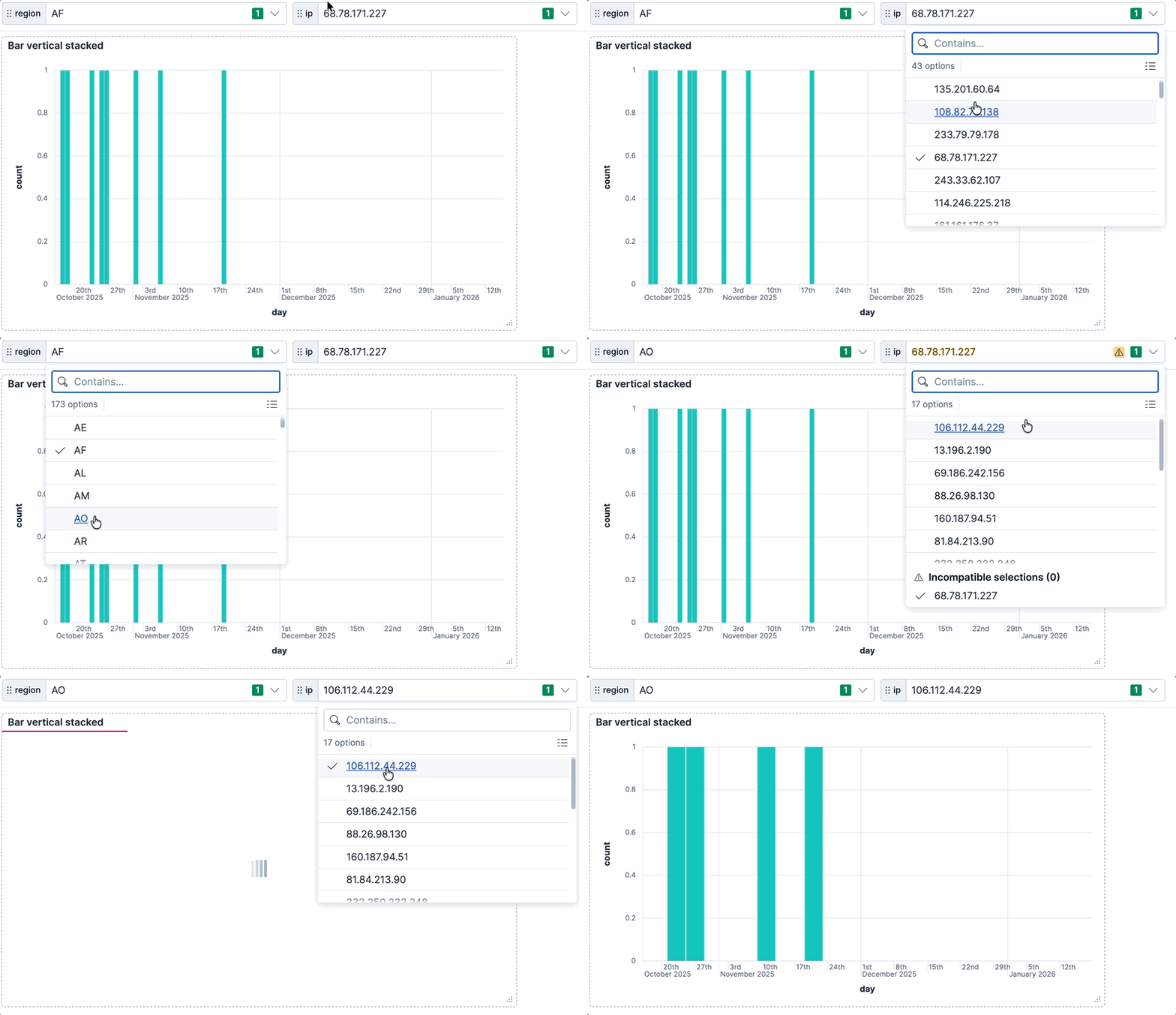
**Example**: You create a dashboard that analyzes web traffic by region and IP address. Next, you want to see only the IP addresses that are active in a selected region, and then analyze traffic patterns for a specific IP, all without filtering the entire dashboard by region.
1. Create the first control that will be referenced in other controls.
Create the controls that will be referenced in other controls first. This allows the ES|QL editor to provide proper autocomplete suggestions.
In **Edit** mode, select **Add** > **Controls** > **Variable control** in the toolbar, then define the control:
- **Type**: Values from a query
- **Query**:
```esql
FROM kibana_sample_data_logs | WHERE @timestamp <= ?_tend AND @timestamp > ?_tstart | STATS BY geo.dest
```
- **Variable name**: `?region`
- **Label**: Region
This control extracts all unique destination regions from your logs.
2. Create the second control that depends on the first control.
Add another variable control:
- **Type**: Values from a query
- **Query**:
```esql
FROM kibana_sample_data_logs
| WHERE @timestamp <= ?_tend AND @timestamp > ?_tstart AND geo.dest == ?region
| STATS BY ip
```
- **Variable name**: `?ip`
- **Label**: IP address
This control references the `?region` variable and the built-in time range variables (`?_tstart` and `?_tend`). The available IP addresses will be only those associated with the selected region.
3. Test the chained controls. Both controls are now visible on your dashboard. Select different values in the **Region** control and observe how the available IP addresses in the **IP address** control change to show only IPs from that region.
4. Create an ES|QL visualization that uses the `?ip` control to filter data. For example:
```esql
FROM kibana_sample_data_logs
| WHERE ip == ?ip
| STATS count = COUNT(*) BY day = DATE_TRUNC(1 day, @timestamp)
| SORT day
```
This visualization filters data based on the selected IP address, while the IP address options themselves are filtered by the selected region.
When you select a value in a parent control, the child control's query reruns automatically. If the currently selected value in the child control is no longer available in the new result set, it is marked as invalid or incompatible.
### Import a Discover query along with its controls into a dashboard
- Elastic Cloud Serverless: Preview
- Elastic Stack: Preview since 9.2
To add the results of your Discover explorations to a dashboard in a way that preserves the [controls created from Discover](/elastic/docs-builder/docs/3028/explore-analyze/discover/try-esql#add-variable-control) and also adds them to the dashboard, you have two methods:
**Method 1: Adding the Discover session's results**
This method allows you to add the result table of your Discover ES|QL query to any dashboard.
1. Save the ES|QL query containing the variable control into a Discover session. If your Discover session contains several tabs, only the first tab will be imported to the dashboard.
2. Go to **Dashboards** and open or create one.
3. Select **Add**, then **From library**.
4. Find and select the Discover session you saved earlier.
A new panel appears on the dashboard with the results of the query along with any attached controls.

**Method 2: Adding the Discover visualization** Elastic Cloud Serverless: Generally available Elastic Stack: Generally available since 9.3
This method allows you to add the visualization of your Discover ES|QL query to any dashboard.
1. Next to the Discover visualization, select `save` **Save visualization**.

2. Select the dashboard to add the visualization to. You can choose an existing dashboard or create one.
The selected dashboard opens. It now includes a new panel that shows the visualization imported from Discover. Existing controls from the initial query in Discover are also added. You can find them at the top of the dashboard.
## Add time slider controls
You can add one interactive time slider control to a dashboard.
1. Open or create a new dashboard.
2. Add a time slider control.
- Elastic Cloud Serverless: Generally available Elastic Stack: Generally available since 9.2 In **Edit** mode, select **Add** > **Controls** > **Time slider control** in the toolbar.
- Elastic Stack: Generally available from 9.0 to 9.1 In **Edit** mode, select **Controls** > **Add time slider control**.
3. The time slider control uses the time range from the global time filter. To change the time range in the time slider control, [change the global time filter](https://www.elastic.co/elastic/docs-builder/docs/3028/explore-analyze/query-filter/filtering).
4. Save the dashboard. The control can now be used.
Elastic Stack: Planned Elastic Cloud Serverless: Generally available
The time slider can only be added as a pinned control to the header. It is not available as a free panel.
## Configure the controls settings
Controls are always chained. Each control narrows the options available in other controls.For pinned controls, you can click the Settings `gear` icon on control to customize the display settings:
- **Minimum width**: Specify how much horizontal space does the control should occupy. The final width can vary depending on the other controls and their own width setting.
- **Expand width to fit available space**: Expand the width of the control to fit the available horizontal space on the dashboard.
**Auto apply filters**. When enabled (default), the dashboard updates as soon as options are selected in controls. When disabled, you must click the unified search **Apply** button to apply pending control selections. The **Auto apply filters** option is available from the **Dashboard settings** panel.
1. Configure the control settings.
- Elastic Cloud Serverless: Generally available Elastic Stack: Generally available since 9.2 In **Edit** mode, select **Add** > **Controls** > **Settings** in the toolbar.
- Elastic Stack: Generally available from 9.0 to 9.1 In **Edit** mode, select **Controls** > **Settings**.
2. On the **Control settings** flyout, configure the following settings:
- **Label position** — Specify where the control label appears.
- **Filtering** settings:
- **Apply global filters to controls** — Define whether controls should ignore or apply any filter specified in the main filter bar of the dashboard.
- **Apply global time range to controls** — Define whether controls should ignore or apply the main time range specified for the dashboard. Note that [time slider controls](#add-time-slider-controls) rely on the global time range and don’t work properly when this option is disabled.
- **Selections** settings:
- **Validate user selections** — When selected, any selected option that results in no data is ignored.
- **Chain controls** — When selected, controls are applied sequentially from left to right, and line by line. Any selected options in one control narrows the available options in the next control.
- **Apply selections automatically** — The dashboard is updated dynamically when options are selected in controls. When this option is disabled, users first need to **Apply** their control selection before they are applied to the dashboard.
- To remove all controls from the dashboard, select **Delete all**.
3. Select **Save** to apply the changes.
## Edit Options list and Range slider control settings
Change the settings for Options list and Range slider controls.
1. Hover over the control you want to edit, then select .
2. In the **Edit control** flyout, change the options, then select **Save and close**.
## Delete controls from your dashboard
To remove a control from view without deleting it, use **Unpin** from the control's panel menu; the control moves into the dashboard body. To remove it from the dashboard entirely, click **Remove** from the control's menu.
1. Hover over the control you want to delete, then select .
2. In the **Delete control?** window, select **Delete**.
If you delete a variable control that's used in an ES|QL visualization, the visualization will break. You must edit the visualization query and remove or update the control reference.