---
title: Add drilldowns
description: Add drilldowns to Kibana dashboard panels to navigate to other dashboards, external URLs, or Discover while preserving context and filters.
url: https://www.elastic.co/elastic/docs-builder/docs/3028/explore-analyze/dashboards/drilldowns
products:
- Kibana
applies_to:
- Elastic Cloud Serverless: Generally available
- Elastic Stack: Generally available
---
# Add drilldowns
Panels have built-in interactive capabilities that apply filters to the dashboard data. For example, when you drag a time range slider or click a pie chart slice, this applies a filter for the time range or pie slice. **Drilldowns** let you customize and extend this interactive behavior by defining what happens when you click on data points, while keeping interaction context such as filters, time ranges, and selected values.
## Requirements
To add drilldowns to dashboard panels, you need:
- **All** privilege for the **Dashboard** feature in Kibana
- An existing dashboard with at least one panel that supports drilldowns
- For dashboard drilldowns: A target dashboard to navigate to
- For URL drilldowns: A URL template that can include dynamic variables from the clicked data
## Drilldown types
There are three types of drilldowns you can add to dashboards:
- **Dashboard** — Navigates you from one dashboard to another dashboard. For example, create a drilldown for a **Lens** panel that navigates you from a summary dashboard to a dashboard with a filter for a specific host name.
- **URL** — Navigates you from a dashboard to an external website. For example, a website with the specific host name as a parameter.
- **Discover** — Navigates you from a **Lens** dashboard panel to **Discover**. For example, create a drilldown for a **Lens** visualization that opens the visualization data in **Discover** for further exploration.
Third-party developers can create drilldowns. To learn how to code drilldowns, refer to [this example plugin](https://github.com/elastic/kibana/blob/master/x-pack/examples/ui_actions_enhanced_examples).
[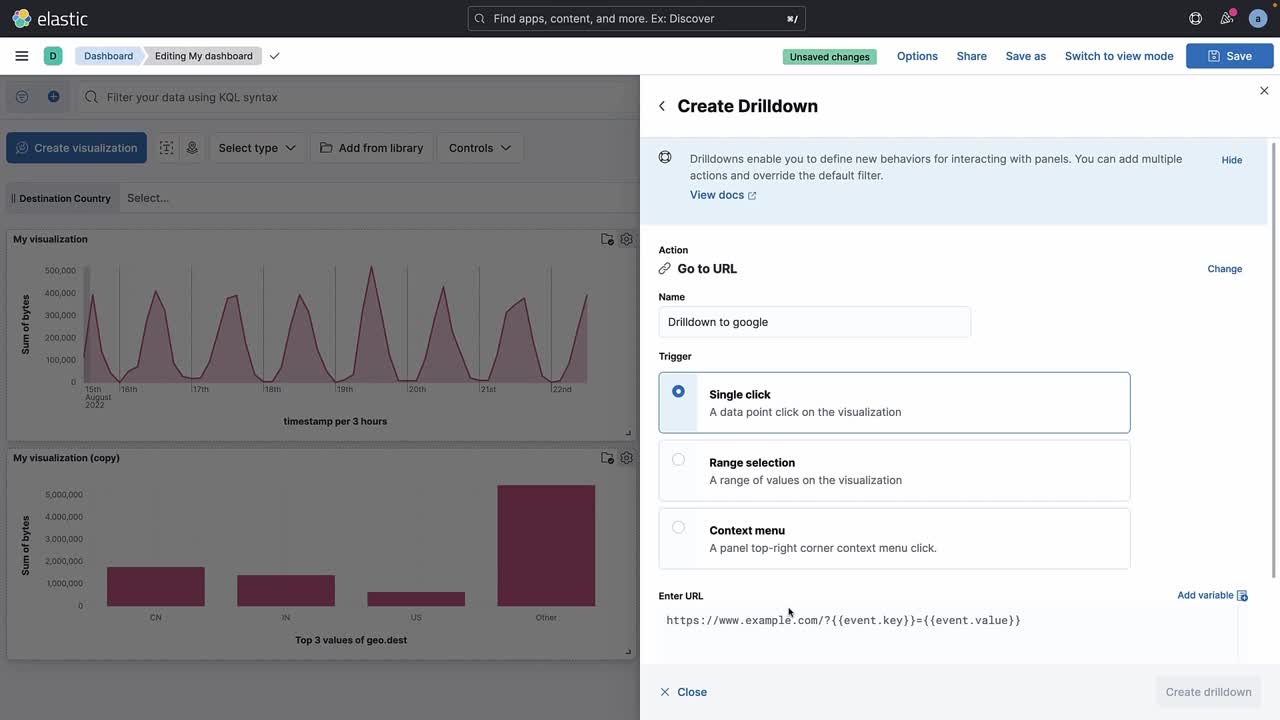](https://videos.elastic.co/watch/UhGkdJGC32HRn3oS5ZYJL1?)
## Create dashboard drilldowns
Dashboard drilldowns enable you to open a dashboard from another dashboard, taking the time range, filters, and other parameters with you so the context remains the same. Dashboard drilldowns help you to continue your analysis from a new perspective.
For example, if you have a dashboard that shows the logs and metrics for multiple data centers, you can create a drilldown that navigates from the dashboard that shows multiple data centers, to a dashboard that shows a single data center or server.

The panels you create using the following editors support dashboard drilldowns:
- **Lens**
- **Maps**
- **TSVB**
- **Vega**
- **Aggregation-based** area chart, data table, heat map, horitizontal bar chart, line chart, pie chart, tag cloud, and vertical bar chart
- **Timelion**
### Create and set up the dashboards you want to connect
Use the [**Sample web logs**](/elastic/docs-builder/docs/3028/explore-analyze#gs-get-data-into-kibana) data to create a dashboard and add panels, then set a search and filter on the **[Logs] Web Traffic** dashboard.
1. Add the **Sample web logs** data.
2. Create a new dashboard.
- Elastic Cloud Serverless: Generally available Elastic Stack: Generally available since 9.2 Select **Add** > **From library** in the toolbar.
- Elastic Stack: Generally available from 9.0 to 9.1 Click **Add from library** in the dashboard toolbar.
3. Add the following panel:
- **[Logs] Visits**
4. Set the [time filter](https://www.elastic.co/elastic/docs-builder/docs/3028/explore-analyze/query-filter/filtering) to **Last 30 days**.
5. Save the dashboard. In the **Title** field, enter `Detailed logs`.
6. Open the **[Logs] Web Traffic** dashboard, then set a search and filter.
Search: `extension.keyword: ("gz" or "css" or "deb")` Filter: `geo.src: US`
### Create the dashboard drilldown
Create a drilldown that opens the **Detailed logs** dashboard from the **[Logs] Web Traffic** dashboard.
1. Open the panel menu for the **[Logs] Errors by host** data table, then select **Create drilldown**.
2. Click **Go to dashboard**.
1. Give the drilldown a name. For example, `View details`.
2. From the **Choose a destination dashboard** dropdown, select **Detailed logs**.
3. To use the geo.src filter, KQL query, and time filter, select **Use filters and query from origin dashboard** and **Use date range from origin dashboard**.
4. Click **Create drilldown**.
3. Save the dashboard.
4. In the data table panel, hover over a value, click **+**, then select `View details`.

## Create URL drilldowns
URL drilldowns enable you to navigate from a dashboard to external websites. Destination URLs can be dynamic, depending on the dashboard context or user interaction with a panel. To create URL drilldowns, you add [variables](https://www.elastic.co/elastic/docs-builder/docs/3028/explore-analyze/dashboards/drilldowns) to a URL template, which configures the behavior of the drilldown. All panels that you create with the visualization editors support dashboard drilldowns.

Some panels support multiple interactions, also known as triggers. The [variables](#url-template-variable) you use to create a [URL template](#url-templating-language) depends on the trigger you choose. URL drilldowns support these types of triggers:
- **Single click** — A single data point in the panel.
- **Range selection** — A range of values in a panel.
For example, **Single click** has `{{event.value}}` and **Range selection** has `{{event.from}}` and `{{event.to}}`.
### Create a URL drilldown
For example, if you have a dashboard that shows data from a Github repository, you can create a URL drilldown that opens Github from the dashboard panel.
1. Add the [**Sample web logs**](/elastic/docs-builder/docs/3028/explore-analyze#gs-get-data-into-kibana) data.
2. Open the **[Logs] Web Traffic** dashboard.
3. In the toolbar, click **Edit**.
4. Create a pie chart.
- Elastic Cloud Serverless: Generally available Elastic Stack: Generally available since 9.2 Select **Add** > **Visualization** in the toolbar.
- Elastic Stack: Generally available from 9.0 to 9.1 Click **Create visualization** in the dashboard toolbar.
5. From the **Chart type** dropdown, select **Pie**.
6. From the **Available fields** list, drag **machine.os.keyword** to the workspace.
7. Click **Save and return**.
8. Open the pie chart panel menu, then select **Create drilldown**.
9. Click **Go to URL**.
1. Give the drilldown a name. For example, `Show on Github`.
2. For the **Trigger**, select **Single click**.
3. To navigate to the Kibana repository Github issues, enter the following in the **Enter URL** field:
```bash
https://github.com/elastic/kibana/issues?q=is:issue+is:open+{{event.value}}
```
Kibana substitutes `{{event.value}}` with a value associated with the selected pie slice.
4. Click **Create drilldown**.
10. Save the dashboard.
11. On the pie chart panel, click any chart slice, then select **Show on Github**.

12. In the list of Kibana repository issues, verify that the slice value appears.

## Create Discover drilldowns
Discover drilldowns enable you to open **Discover** from a **Lens** dashboard panel, taking the time range, filters, and other parameters with you so the context remains the same.
For example, when you create a Discover drilldown for a pie chart, you can click a slice in the pie chart, and only the documents for the slice appear in **Discover**.

Discover drilldowns are supported only by **Lens** panels. To open all of the **Lens** dashboard panel data in **Discover**, check [Open panel data in Discover](/elastic/docs-builder/docs/3028/explore-analyze/visualize/manage-panels#explore-the-underlying-documents).
### Create the Discover drilldown
Create a drilldown that opens **Discover** from the [**Sample web logs**](/elastic/docs-builder/docs/3028/explore-analyze#gs-get-data-into-kibana) data **[Logs] Web Traffic** dashboard.
1. Click **Edit**, open the panel menu for the **[Logs] Bytes distribution** bar vertical stacked chart, then select **Create drilldown**.
2. Click **Open in Discover**.
3. Give the drilldown a name. For example, `View bytes distribution in Discover`.
4. To open the Discover drilldown in a new tab, select **Open in new tab**.
5. Click **Create drilldown**.
6. Save the dashboard.
7. On the **[Logs] Bytes distribution** bar vertical stacked chart, click a bar, then select **View bytes distribution in Discover**.

## Manage drilldowns
Make changes to your drilldowns, make a copy of your drilldowns for another panel, and delete drilldowns.
1. Open the panel menu that includes the drilldown, then click **Manage drilldowns**.
2. On the **Manage** tab, use the following options:
- To change drilldowns, click **Edit** next to the drilldown you want to change, make your changes, then click **Save**.
- To make a copy, click **Copy** next to the drilldown you want to change, enter the drilldown name, then click **Create drilldown**.
- To delete a drilldown, select the drilldown you want to delete, then click **Delete**.
## URL templating
This functionality is in beta and is subject to change. The design and code is less mature than official GA features and is being provided as-is with no warranties. Beta features are not subject to the support SLA of official GA features.
The URL template input uses [Handlebars](https://ela.st/handlebars-docs#expressions) — a simple templating language. Handlebars templates look like regular text with embedded Handlebars expressions.
```bash
https://github.com/elastic/kibana/issues?q={{event.value}}
```
A Handlebars expression is a `{{`, some contents, followed by a `}}`. When the drilldown is executed, these expressions are replaced by values from the dashboard and interaction context.
In addition to [built-in](https://ela.st/handlebars-helpers) Handlebars helpers, you can use custom helpers.
Refer to Handlebars [documentation](https://ela.st/handlebars-docs#expressions) to learn about advanced use cases.
## Custom helpers
**json**
Serialize variables in JSON format.
Example:
`{{json event}}` `{{json event.key event.value}}` `{{json filters=context.panel.filters}}`
**rison**
Serialize variables in [rison](https://github.com/w33ble/rison-node) format. Rison is a common format for Kibana apps for storing state in the URL.
Example:
`{{rison event}}` `{{rison event.key event.value}}` `{{rison filters=context.panel.filters}}`
**date**
Format dates. Supports relative dates expressions (for example, "now-15d"). Refer to the [moment](https://momentjs.com/docs/#/displaying/format/) docs for different formatting options.
Example:
`{{date event.from “YYYY MM DD”}}` `{{date “now-15”}}`
**formatNumber**
Format numbers. Numbers can be formatted to look like currency, percentages, times or numbers with decimal places, thousands, and abbreviations. Refer to the [numeral.js](http://numeraljs.com/#format) for different formatting options.
Example:
`{{formatNumber event.value "0.0"}}`
**lowercase**
Converts a string to lower case.
Example:
`{{lowercase event.value}}`
**uppercase**
Converts a string to upper case.
Example:
`{{uppercase event.value}}`
**trim**
Removes leading and trailing spaces from a string.
Example:
`{{trim event.value}}`
**trimLeft**
Removes leading spaces from a string.
Example:
`{{trimLeft event.value}}`
**trimRight**
Removes trailing spaces from a string.
Example:
`{{trimRight event.value}}`
**mid**
Extracts a substring from a string by start position and number of characters to extract.
Example:
`{{mid event.value 3 5}}` - extracts five characters starting from a third character.
**left**
Extracts a number of characters from a string (starting from left).
Example:
`{{left event.value 3}}`
**right**
Extracts a number of characters from a string (starting from right).
Example:
`{{right event.value 3}}`
**concat**
Concatenates two or more strings.
Example:
`{{concat event.value "," event.key}}`
**replace**
Replaces all substrings within a string.
Example:
`{{replace event.value "stringToReplace" "stringToReplaceWith"}}`
**split**
Splits a string using a provided splitter.
Example:
`{{split event.value ","}}`
**encodeURIComponent**
Escapes string using built in `encodeURIComponent` function.
**encodeURIQuery**
Escapes string using built in `encodeURIComponent` function, while keeping "@", ":", "$", ",", and ";" characters as is.
### URL template variables
The URL drilldown template has three sources for variables:
- **Global** static variables that don’t change depending on the place where the URL drilldown is used or which user interaction executed the drilldown. For example: `{{kibanaUrl}}`.
- **Context** variables that change depending on where the drilldown is created and used. These variables are extracted from a context of a panel on a dashboard. For example, `{{context.panel.filters}}` gives access to filters that applied to the current panel.
- **Event** variables that depend on the trigger context. These variables are dynamically extracted from the interaction context when the drilldown is executed.
To ensure that the configured URL drilldown works as expected with your data, you have to save the dashboard and test in the panel. You can access the full list of variables available for the current panel and selected trigger by clicking **Add variable** in the top-right corner of a URL template input.
### Variables reference
| Source | Variable | Description |
|---------------------|-----------------------------------------------------------|------------------------------------------------------------------------------------------------------------------------------------------------------------------------------------------------------------------------------------------------------------------------------------------------------------------------------------------------------------------------------------------------------------------|
| **Global** | kibanaUrl | Kibana base URL. Useful for creating URL drilldowns that navigate within Kibana. |
| **Context** | context.panel | Context provided by current dashboard panel. |
| | context.panel.id | ID of a panel. |
| | context.panel.title | Title of a panel. |
| | context.panel.filters | List of Kibana filters applied to a panel.Tip: Use in combination with [rison](#helpers) helper forinternal Kibana navigations with carrying over current filters. |
| | context.panel.query.query | Current query string. |
| | context.panel.query.language | Current query language. |
| | context.panel.timeRange.fromcontext.panel.timeRange.to | Current time picker values.Tip: Use in combination with [date](#helpers) helper to format date. |
| | context.panel.indexPatternIdcontext.panel.indexPatternIds | The data view IDs used by a panel. |
| | context.panel.savedObjectId | ID of saved object behind a panel. |
| **Single click** | event.value | Value behind clicked data point. |
| | event.key | Field name behind clicked data point |
| | event.negate | Boolean, indicating whether clicked data point resulted in negative filter. |
| | event.points | Some visualizations have clickable points that emit more than one data point. Use list of data points in case a single value is insufficient.Example:`{{json event.points}}``{{event.points.[0].key}}``{{event.points.[0].value}}``{{#each event.points}}key=value&{{/each}}`Note:`{{event.value}}` is a shorthand for `{{event.points.[0].value}}``{{event.key}}` is a shorthand for `{{event.points.[0].key}}` |
| **Row click** | event.rowIndex | Number, representing the row that was clicked, starting from 0. |
| | event.values | An array of all cell values for the row on which the action will execute. To access a column value, use `{{event.values.[x]}}`, where `x` represents the column number. |
| | event.keys | An array of field names for each column. |
| | event.columnNames | An array of column names. |
| **Range selection** | event.fromevent.to | `from` and `to` values of the selected range as numbers.Tip: Consider using [date](#helpers) helper for date formatting. |
| | event.key | Aggregation field behind the selected range, if available. |