---
title: Lists
description: You can organize items into ordered and unordered lists. Unordered lists are created by starting each line with a hyphen -, asterisk *, or plus sign +...
url: https://docs-v3-preview.elastic.dev/elastic/docs-builder/pull/3804/syntax/lists
products:
- Elastic Docs Builder
---
# Lists
You can organize items into ordered and unordered lists.
## Basic Lists
### Unordered List
Unordered lists are created by starting each line with a hyphen `-`, asterisk `*`, or plus sign `+`.
- Item 1
- Item 2
- Item 3
```markdown
- Item 1
- Item 2
- Item 3
```
### Ordered List
Ordered lists are created by starting each line with a number followed by a period.
1. Item 1
2. Item 2
3. Item 3
```markdown
1. Item 1
2. Item 2
3. Item 3
```
## Nested Lists
When you want to create a nested list within a list item, indent the nested list by four spaces.
### Nested Unordered List
- Item 1
- Item 2
- Subitem 1
- Subitem 2
- Subsubitem 1
- Subsubitem 2
- Item 3
```markdown
- Item 1
- Item 2
- Subitem 1
- Subitem 2
- Subsubitem 1
- Subsubitem 2
- Item 3
```
### Nested Ordered Lists
1. Item 1
2. Item 2
1. Subitem 1
2. Subitem 2
1. Subsubitem 1
2. Subsubitem 2
3. Item 3
```markdown
1. Item 1
2. Item 2
1. Subitem 1
2. Subitem 2
1. Subsubitem 1
2. Subsubitem 2
3. Item 3
```
### Nested Mixed Lists
1. Item 1
2. Item 2
- Subitem 1
- Subitem 2
1. Subsubitem 1
2. Subsubitem 2
1. Subsubsubitem 1
2. Subsubsubitem 2
3. Item 3
- Subitem 1
- Subitem 2
- Subsubitem 1
- Subsubitem 2
- Subsubsubitem 1
- Subsubsubitem 2
```markdown
1. Item 1
2. Item 2
- Subitem 1
- Subitem 2
1. Subsubitem 1
2. Subsubitem 2
1. Subsubsubitem 1
2. Subsubsubitem 2
3. Item 3
- Subitem 1
- Subitem 2
- Subsubitem 1
- Subsubitem 2
- Subsubsubitem 1
- Subsubsubitem 2
```
## Content within a List Item
You can include any type of content within a list item, such as paragraphs, code blocks, or images.
To include a paragraph of text within a list item, indent the content by four spaces.
1. This is a list item with a paragraph of text.
This is a `paragraph` of text within a list item.
2. This is a list item with a code block:
```bash
echo "Hello, World!"
```
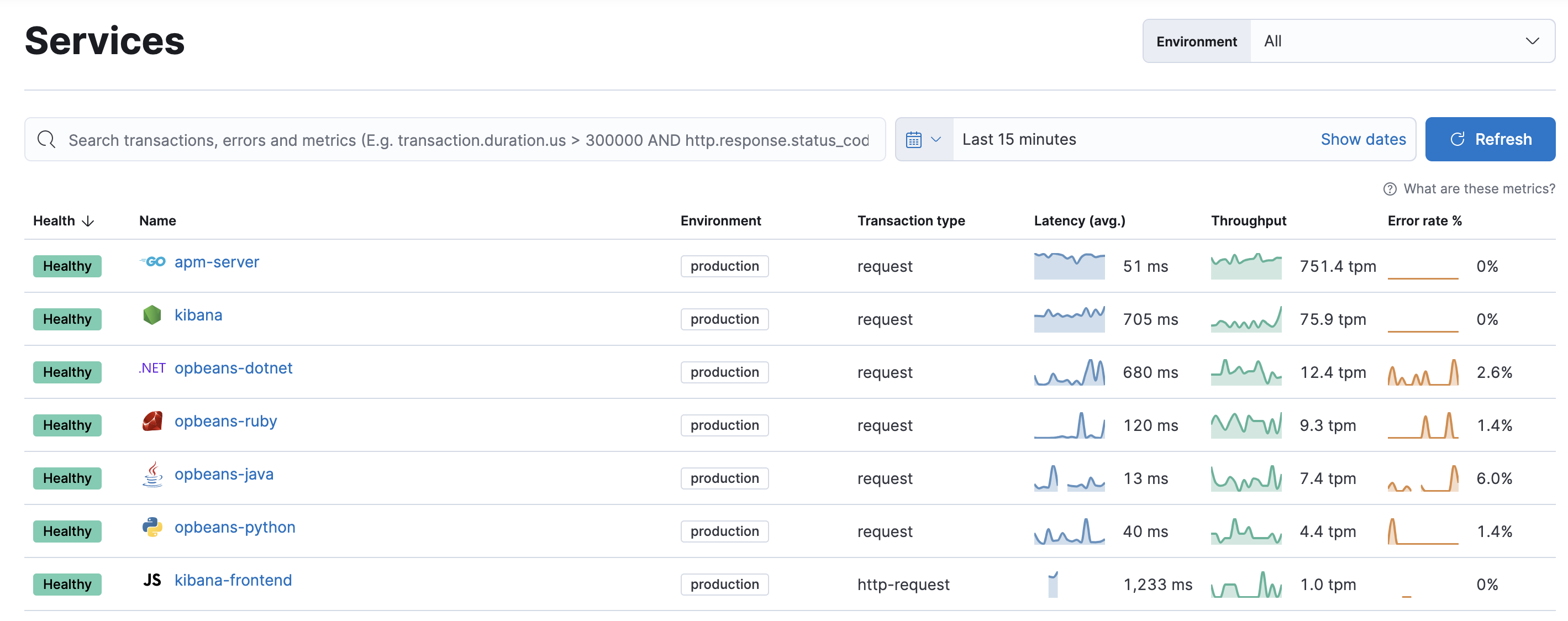
3. This is a list item with an image:
4. This is a list item with an admonition:
This is a note within a list item.
```markdown
1. This is a list item with a paragraph of text.
This is a `paragraph` of text within a list item.
2. This is a list item with a code block:
```bash
echo "Hello, World!"
```
3. This is a list item with an image:

4. This is a list item with an admonition:
:::{note}
This is a note within a list item.
:::
```