---
title: Index basics
description: An index is a fundamental unit of storage in Elasticsearch. It is a collection of documents uniquely identified by a name or an alias. This unique name...
url: https://docs-v3-preview.elastic.dev/elastic/docs-content/pull/5668/manage-data/data-store/index-basics
products:
- Elastic Cloud Serverless
- Elasticsearch
applies_to:
- Elastic Cloud Serverless: Generally available
- Elastic Stack: Generally available
---
# Index basics
An index is a fundamental unit of storage in Elasticsearch. It is a collection of documents uniquely identified by a name or an [alias](https://docs-v3-preview.elastic.dev/elastic/docs-content/pull/5668/manage-data/data-store/aliases). This unique name is important because it’s used to target the index in search queries and other operations.
A closely related concept is a [data stream](https://docs-v3-preview.elastic.dev/elastic/docs-content/pull/5668/manage-data/data-store/data-streams). This index abstraction is optimized for append-only timestamped data, and is made up of hidden, auto-generated backing indices. If you’re working with timestamped data, we recommend the [Elastic Observability](https://docs-v3-preview.elastic.dev/elastic/docs-content/pull/5668/solutions/observability/get-started) solution for additional tools and optimized content.
In Elastic Cloud Serverless, each project supports up to 15,000 indices. This limit helps ensure reliable performance and stability. If you need a higher limit, you can [request an increase](/elastic/docs-content/pull/5668/deploy-manage/deploy/elastic-cloud/differences-from-other-elasticsearch-offerings#index-and-resource-limits). For index sizing recommendations, refer to [index sizing guidelines](/elastic/docs-content/pull/5668/deploy-manage/deploy/elastic-cloud/differences-from-other-elasticsearch-offerings#elasticsearch-differences-serverless-index-size).
## Index components
An index is made up of the following components.
### Documents
Elasticsearch serializes and stores data in the form of JSON documents. A document is a set of fields, which are key-value pairs that contain your data. Each document has a unique ID, which you can create or have Elasticsearch auto-generate.
A simple Elasticsearch document might look like this:
```js
{
"_index": "my-first-elasticsearch-index",
"_id": "DyFpo5EBxE8fzbb95DOa",
"_version": 1,
"_seq_no": 0,
"_primary_term": 1,
"found": true,
"_source": {
"email": "john@smith.com",
"first_name": "John",
"last_name": "Smith",
"info": {
"bio": "Eco-warrior and defender of the weak",
"age": 25,
"interests": [
"dolphins",
"whales"
]
},
"join_date": "2024/05/01"
}
}
```
### Metadata fields
An indexed document contains data and metadata. [Metadata fields](https://docs-v3-preview.elastic.dev/elastic/elasticsearch/tree/main/reference/elasticsearch/mapping-reference/document-metadata-fields) are system fields that store information about the documents. In Elasticsearch, metadata fields are prefixed with an underscore. For example, the following fields are metadata fields:
- `_index`: The name of the index where the document is stored.
- `_id`: The document’s ID. IDs must be unique per index.
### Mappings and data types
Each index has a [mapping](https://docs-v3-preview.elastic.dev/elastic/docs-content/pull/5668/manage-data/data-store/mapping) or schema for how the fields in your documents are indexed. A mapping defines the [data type](https://docs-v3-preview.elastic.dev/elastic/elasticsearch/tree/main/reference/elasticsearch/mapping-reference/field-data-types) for each field, how the field should be indexed, and how it should be stored.
## Index management
Elastic's **Index Management** features are an easy, convenient way to manage your cluster’s indices, [data streams](https://docs-v3-preview.elastic.dev/elastic/docs-content/pull/5668/manage-data/lifecycle/data-stream), [templates](https://docs-v3-preview.elastic.dev/elastic/docs-content/pull/5668/manage-data/data-store/templates), and [enrich policies](https://docs-v3-preview.elastic.dev/elastic/docs-content/pull/5668/manage-data/ingest/transform-enrich/data-enrichment). Practicing good index management ensures your data is stored correctly and in the most cost-effective way possible.
To use these features, go to the **Index management** page using the navigation menu or the [global search field](https://docs-v3-preview.elastic.dev/elastic/docs-content/pull/5668/explore-analyze/find-and-organize/find-apps-and-objects).
### Required permissions
- Elastic Stack: Generally available
If you use Elasticsearch security features, the following [security privileges](https://docs-v3-preview.elastic.dev/elastic/elasticsearch/tree/main/reference/elasticsearch/security-privileges) are required:
- The `monitor` cluster privilege to access Kibana's **Index Management** features.
- The `view_index_metadata` and `manage` index privileges to view a data stream or index’s data.
- The `manage_index_templates` cluster privilege to manage index templates.
To add these privileges, go to **Stack Management > Security > Roles** or use the [Create or update roles API](https://www.elastic.co/docs/api/doc/elasticsearch/operation/operation-security-put-role).
### Manage indices
Investigate your indices and perform operations from the **Indices** view.
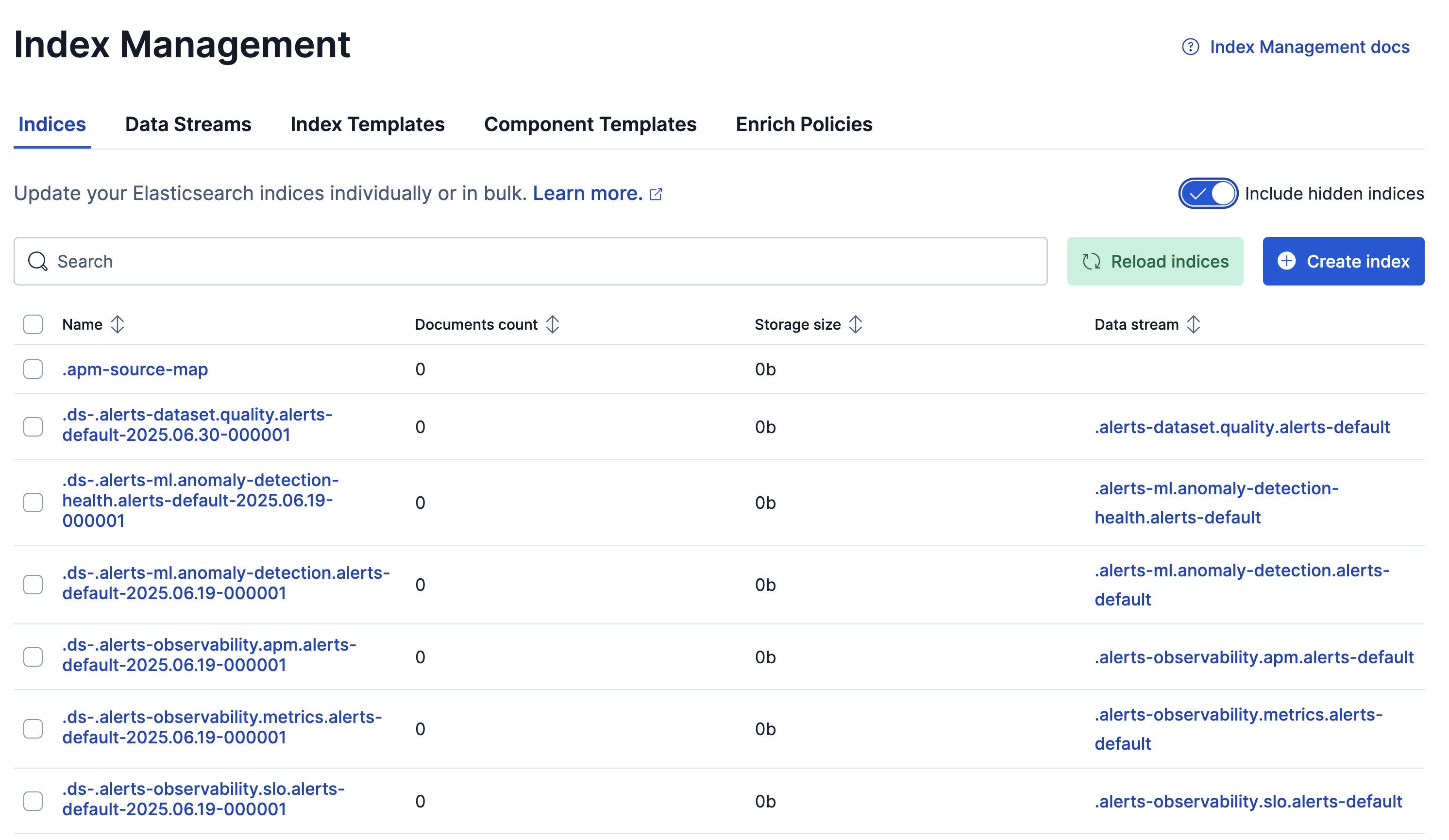
- To access details and perform operations on indices:
- For a single index, click the index name to drill down into the index overview, [mappings](https://docs-v3-preview.elastic.dev/elastic/docs-content/pull/5668/manage-data/data-store/mapping), and [settings](https://docs-v3-preview.elastic.dev/elastic/elasticsearch/tree/main/reference/elasticsearch/index-settings). From this view, you can navigate to **Discover** to further explore the documents in the index.
- For multiple indices, select their checkboxes and then open the **Manage indices** menu.
Refer to [Perform operations on indices](https://docs-v3-preview.elastic.dev/elastic/docs-content/pull/5668/manage-data/data-store/perform-index-operations) for details about the actions that you can run.
- Enable **Include hidden indices** to view the full set of indices, including backing indices for [data streams](https://docs-v3-preview.elastic.dev/elastic/docs-content/pull/5668/manage-data/data-store/data-streams).
- To filter the list of indices, use the search bar or click a badge. Badges indicate if an index is a [follower index](https://www.elastic.co/docs/api/doc/elasticsearch/operation/operation-ccr-follow) or a [rollup index](https://www.elastic.co/docs/api/doc/elasticsearch/operation/operation-rollup-get-rollup-index-caps).
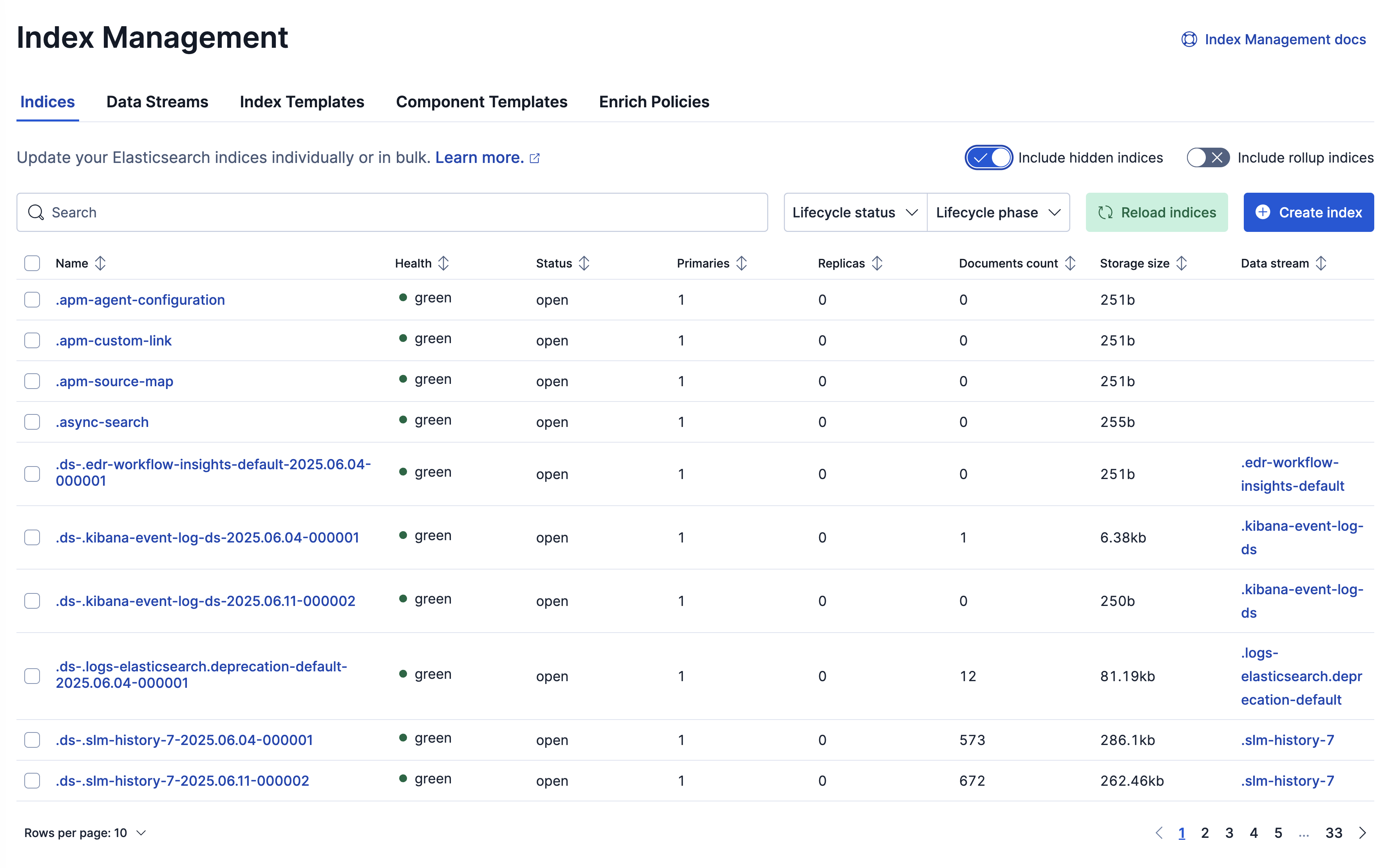
- To access details and perform operations on indices:
- For a single index, click the index name to drill down into the index overview, [mappings](https://docs-v3-preview.elastic.dev/elastic/docs-content/pull/5668/manage-data/data-store/mapping), [settings](https://docs-v3-preview.elastic.dev/elastic/elasticsearch/tree/main/reference/elasticsearch/index-settings), and statistics. From this view, you can navigate to **Discover** to further explore the documents in the index, and you can perform operations using the **Manage index** menu.
- For multiple indices, select their checkboxes and then open the **Manage indices** menu.
Refer to [Perform operations on indices](https://docs-v3-preview.elastic.dev/elastic/docs-content/pull/5668/manage-data/data-store/perform-index-operations) for details about the actions that you can run.
- Enable **Include hidden indices** to view the full set of indices, including backing indices for [data streams](https://docs-v3-preview.elastic.dev/elastic/docs-content/pull/5668/manage-data/data-store/data-streams).
- To filter the list of indices, use the search bar or click a badge. Badges indicate if an index is a [follower index](https://www.elastic.co/docs/api/doc/elasticsearch/operation/operation-ccr-follow) or a [rollup index](https://www.elastic.co/docs/api/doc/elasticsearch/operation/operation-rollup-get-rollup-index-caps).
### Manage data streams
A [data stream](https://docs-v3-preview.elastic.dev/elastic/docs-content/pull/5668/manage-data/data-store/data-streams) lets you store append-only time series data across multiple indices while giving you a single named resource for requests.
Investigate your data streams and address lifecycle management needs in the **Data Streams** view.
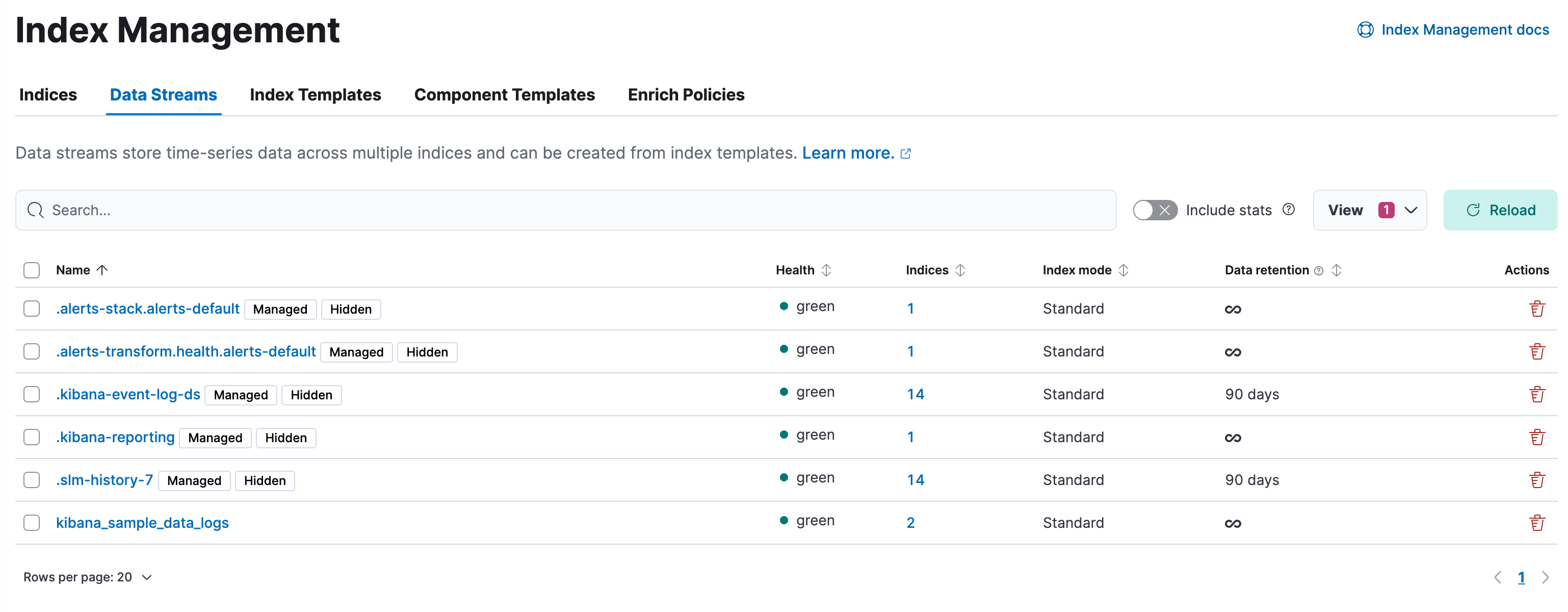
In Elasticsearch Serverless, indices matching the `logs-*-*` pattern use the logsDB index mode by default. The logsDB index mode creates a [logs data stream](https://docs-v3-preview.elastic.dev/elastic/docs-content/pull/5668/manage-data/data-store/data-streams/logs-data-stream).
- To view information about the stream's backing indices, click the number in the **Indices** column.
- A value in the **Data retention** column indicates that the data stream is managed by a data stream lifecycle policy. This value is the time period for which your data is guaranteed to be stored. Data older than this period can be deleted by Elasticsearch at a later time.
- To modify the data retention value, select a data stream, open the **Manage** menu, and click **Edit data retention**. On Elastic Stack, this action is only available if your data stream is not managed by an ILM policy.
- To view more information about a data stream including it's lifecycle settings, click the stream's name.
Starting with Elastic Stack version 9.2, the [**Streams**](https://docs-v3-preview.elastic.dev/elastic/docs-content/pull/5668/solutions/observability/streams/streams) page provides a centralized interface for common data management tasks in Kibana, including tasks such as [modifying data retention](/elastic/docs-content/pull/5668/manage-data/lifecycle/data-stream/tutorial-update-existing-data-stream#data-retention-streams) values.
### Manage index templates
An index template is a type of [template](https://docs-v3-preview.elastic.dev/elastic/docs-content/pull/5668/manage-data/data-store/templates) that tells Elasticsearch how to configure an index when it is created.
Create, edit, clone, and delete your index templates in the **Index Templates** view. Changes made to an index template do not affect existing indices.
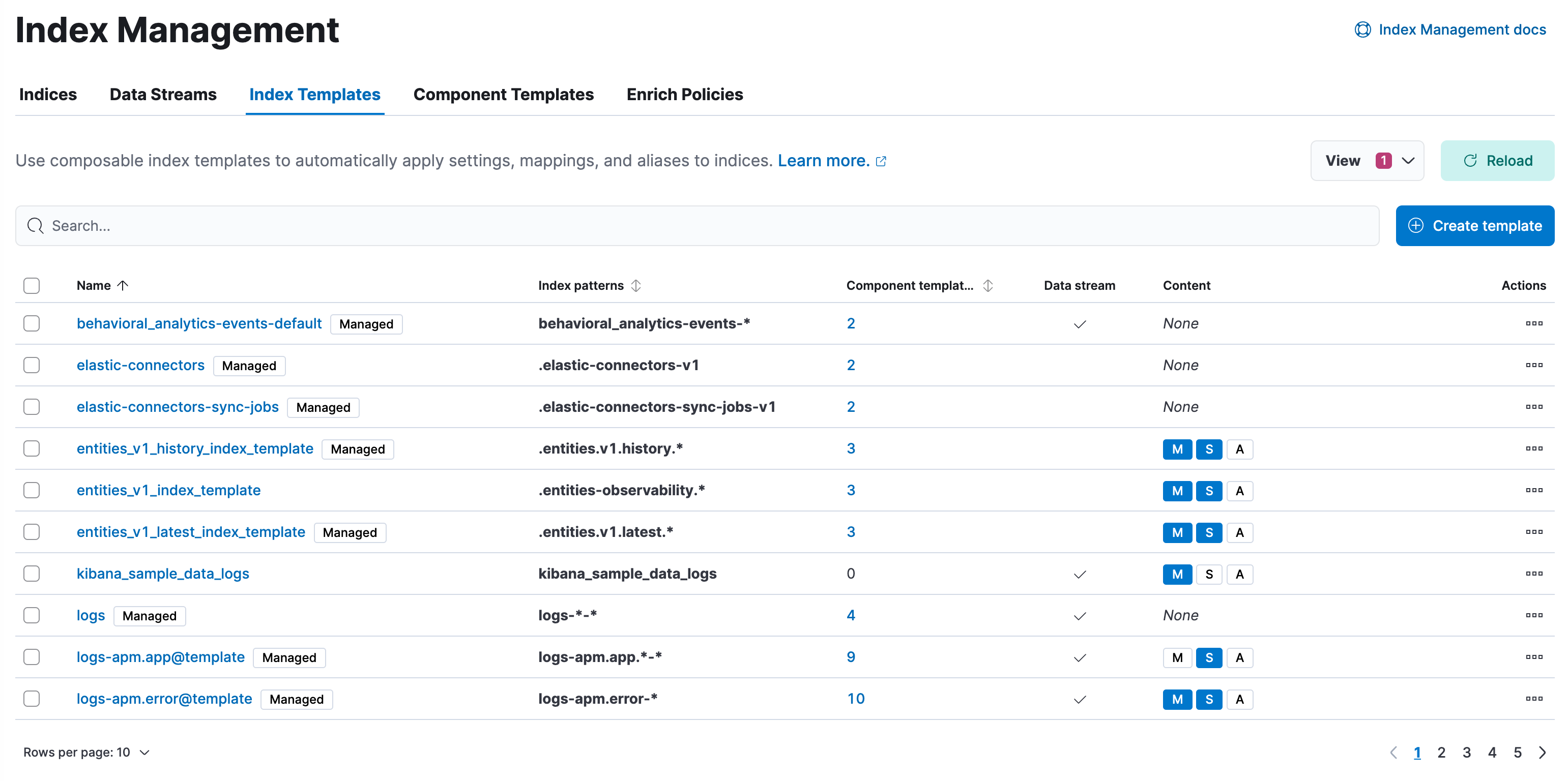
- To show details and perform operations, click the template name.
- To view more information about the component templates within an index template, click the value in the **Component templates** column.
- Values in the **Content** column indicate whether a template contains index mappings, settings, and aliases.
- To create new index templates, use the **Create template** wizard.
#### Try it: Create an index template
In this tutorial, you’ll create an index template and use it to configure two new indices.
##### Step 1. Add a name and index pattern
1. In the **Index Templates** view, open the **Create template** wizard.
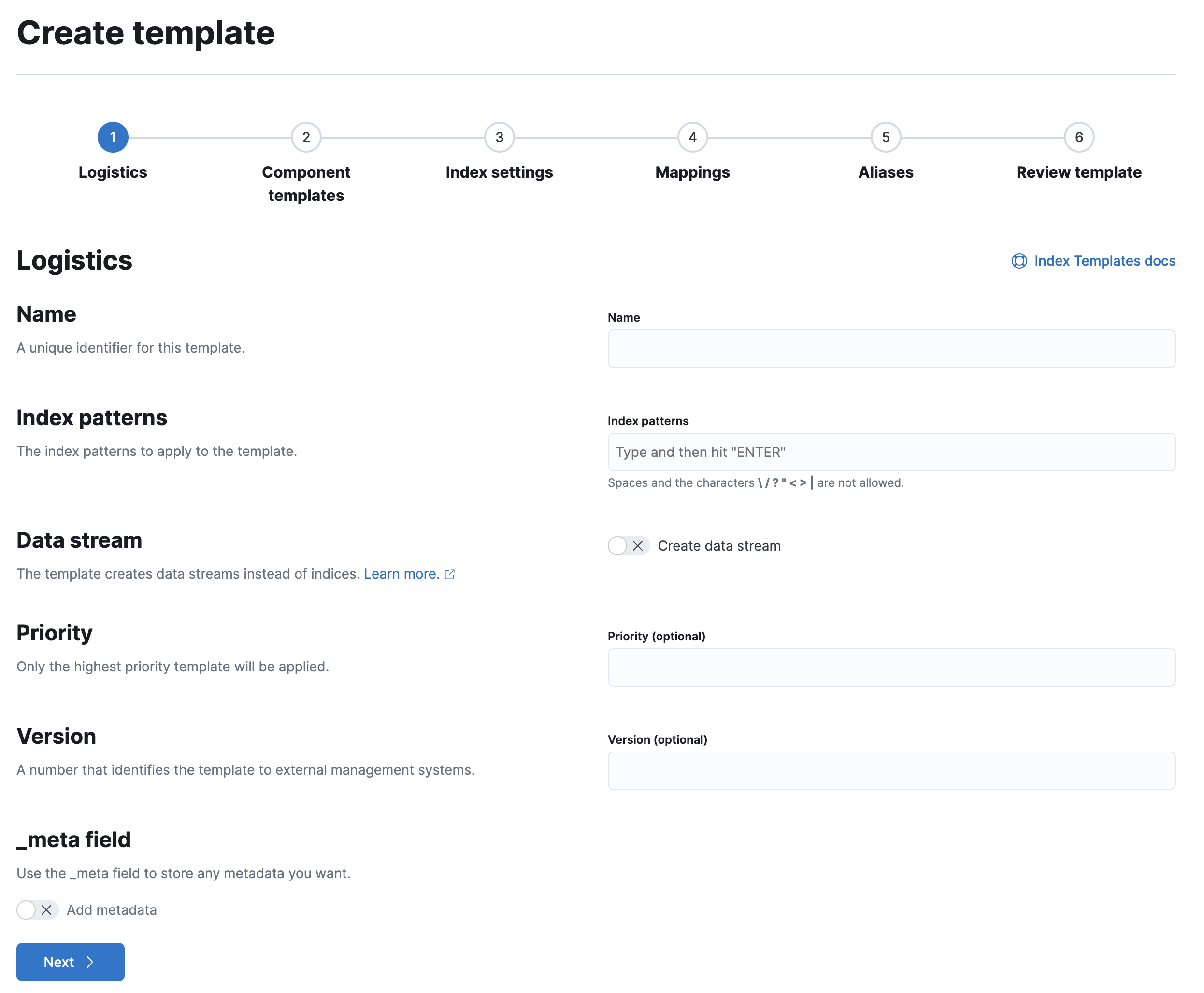
2. In the **Name** field, enter `my-index-template`.
3. Set **Index pattern** to `my-index-*` so the template matches any index with that index pattern.
4. Leave **Data Stream**, **Priority**, **Version**, and **_meta field** blank or as-is.
##### Step 2. Add settings, mappings, and aliases
When creating an index template, you can define settings, mappings, and aliases directly in the template or include them through one or more component templates.
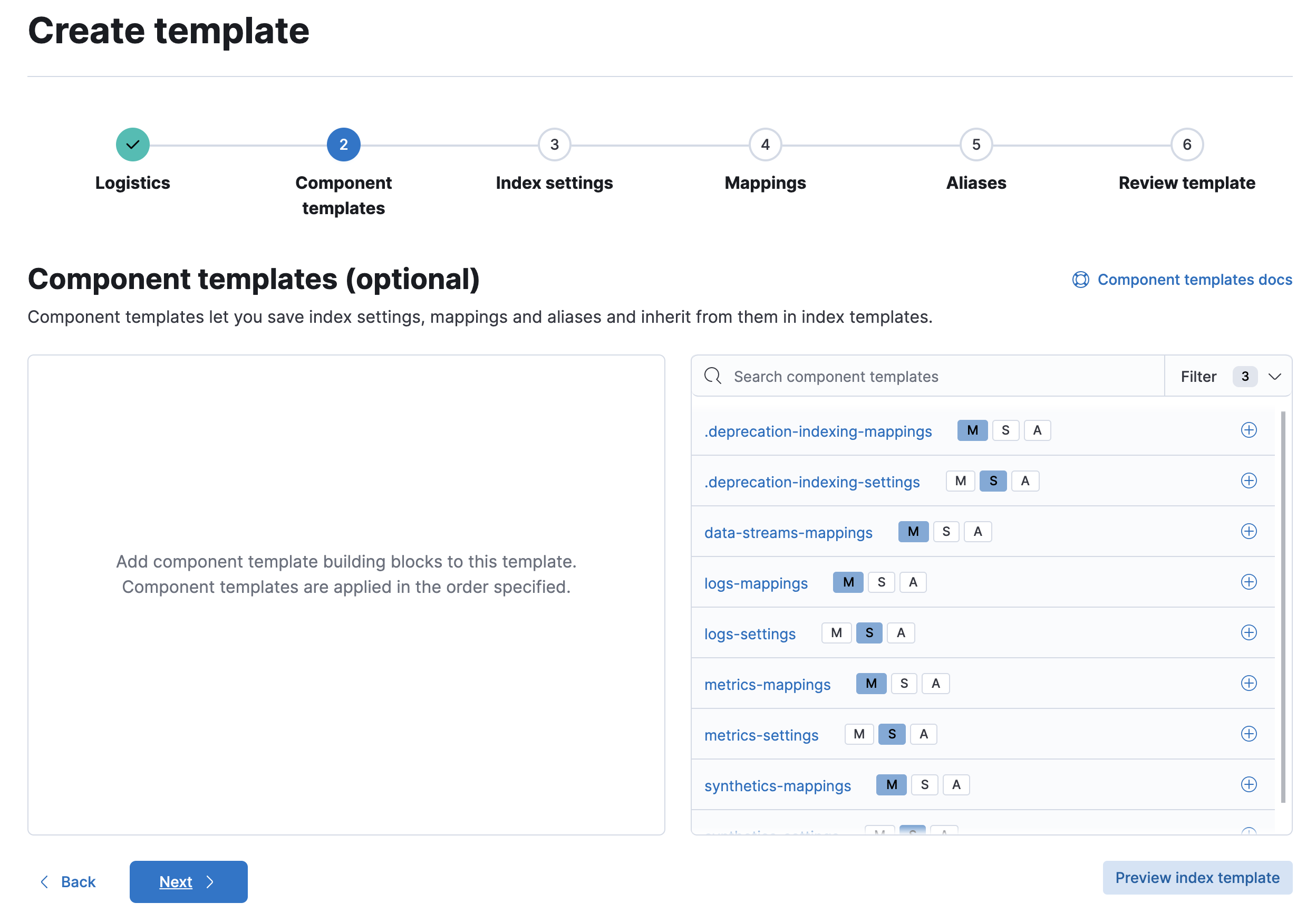
A [component template](https://www.elastic.co/docs/api/doc/elasticsearch/operation/operation-cluster-put-component-template) is a type of [template](https://docs-v3-preview.elastic.dev/elastic/docs-content/pull/5668/manage-data/data-store/templates) used as a building block for constructing index templates. Kibana displays badges indicating whether a component template contains mappings (**M**), index settings (**S**), aliases (**A**), or a combination of the three.
1. Add component templates to your index template.
Component templates are optional. For this tutorial, do not add any component templates.
2. Define index settings directly in the index template. When used in conjunction with component templates, settings defined directly in the index template override any conflicting settings from the associated component templates.
This step is optional. For this tutorial, leave this section blank.
3. Define mappings directly in the index template. When used in conjunction with component templates, these mappings override any conflicting definitions from the associated component templates.
Define a mapping that contains an [object](https://docs-v3-preview.elastic.dev/elastic/elasticsearch/tree/main/reference/elasticsearch/mapping-reference/object) field named `geo` with a child [`geo_point`](https://docs-v3-preview.elastic.dev/elastic/elasticsearch/tree/main/reference/elasticsearch/mapping-reference/geo-point) field named `coordinates`:
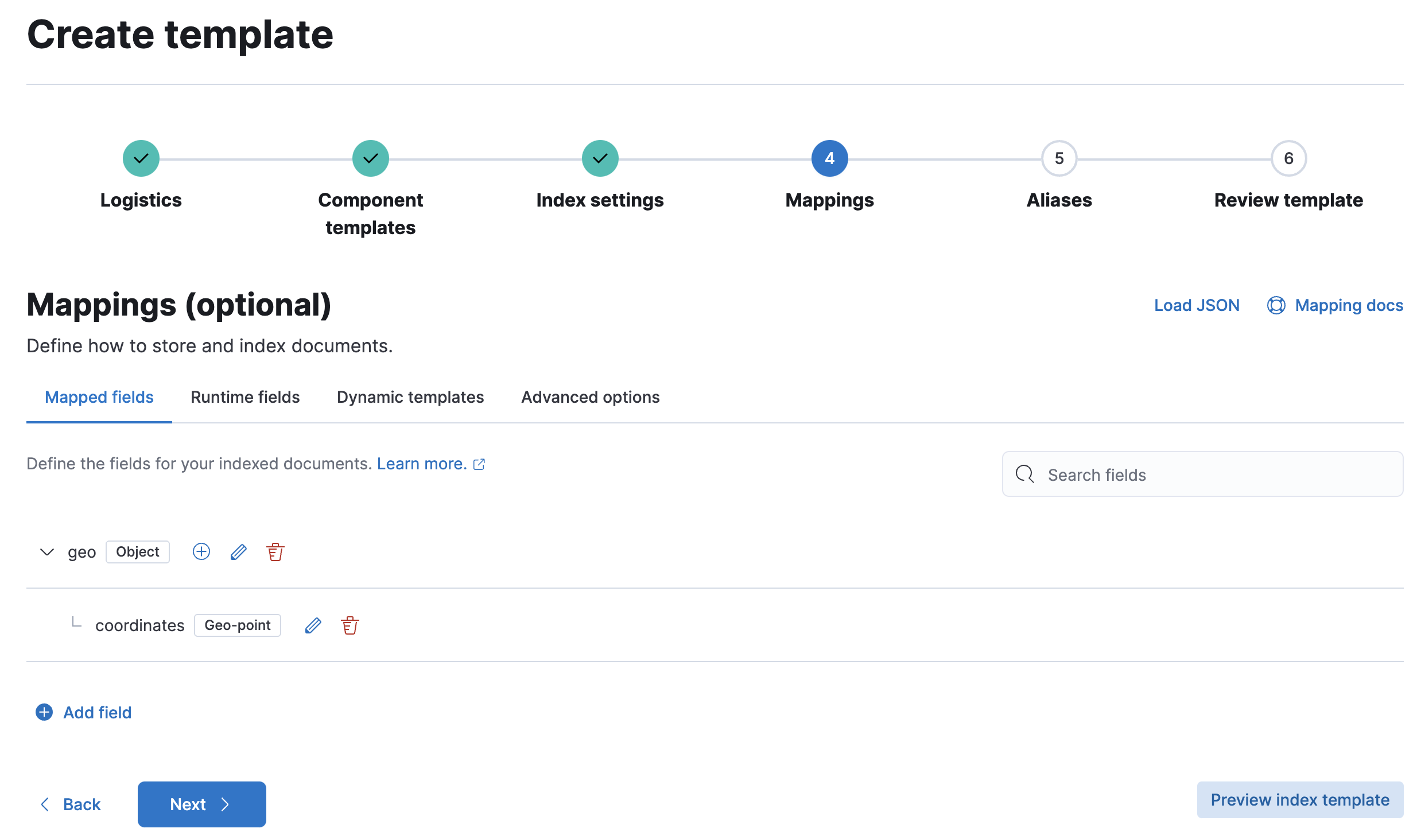
Alternatively, you can click the **Load JSON** link and define the mapping as JSON:
```js
{
"properties": {
"geo": {
"properties": {
"coordinates": {
"type": "geo_point"
}
}
}
}
}
```
You can create additional mapping configurations in the **Dynamic templates** and **Advanced options** tabs. For this tutorial, do not create any additional mappings.
4. Define an alias named `my-index`:
```js
{
"my-index": {}
}
```
5. On the review page, check the summary. If everything looks right, click **Create template**.
##### Step 3. Create new indices
You’re now ready to create new indices using your index template.
1. Index the following documents to create two indices: `my-index-000001` and `my-index-000002`.
```json
{
"@timestamp": "2019-05-18T15:57:27.541Z",
"ip": "225.44.217.191",
"extension": "jpg",
"response": "200",
"geo": {
"coordinates": {
"lat": 38.53146222,
"lon": -121.7864906
}
},
"url": "https://media-for-the-masses.theacademyofperformingartsandscience.org/uploads/charles-fullerton.jpg"
}
{
"@timestamp": "2019-05-20T03:44:20.844Z",
"ip": "198.247.165.49",
"extension": "php",
"response": "200",
"geo": {
"coordinates": {
"lat": 37.13189556,
"lon": -76.4929875
}
},
"memory": 241720,
"url": "https://theacademyofperformingartsandscience.org/people/type:astronauts/name:laurel-b-clark/profile"
}
```
2. Use the [get index API](https://www.elastic.co/docs/api/doc/elasticsearch/operation/operation-indices-get) to view the configurations for the new indices. The indices were configured using the index template you created earlier.
```json
```
### Manage component templates
Component templates are a type of [template](https://docs-v3-preview.elastic.dev/elastic/docs-content/pull/5668/manage-data/data-store/templates) used as reusable building blocks within index templates to configure index settings, mappings, and aliases.
Create, edit, clone, and delete your component templates in the **Component Templates** view.
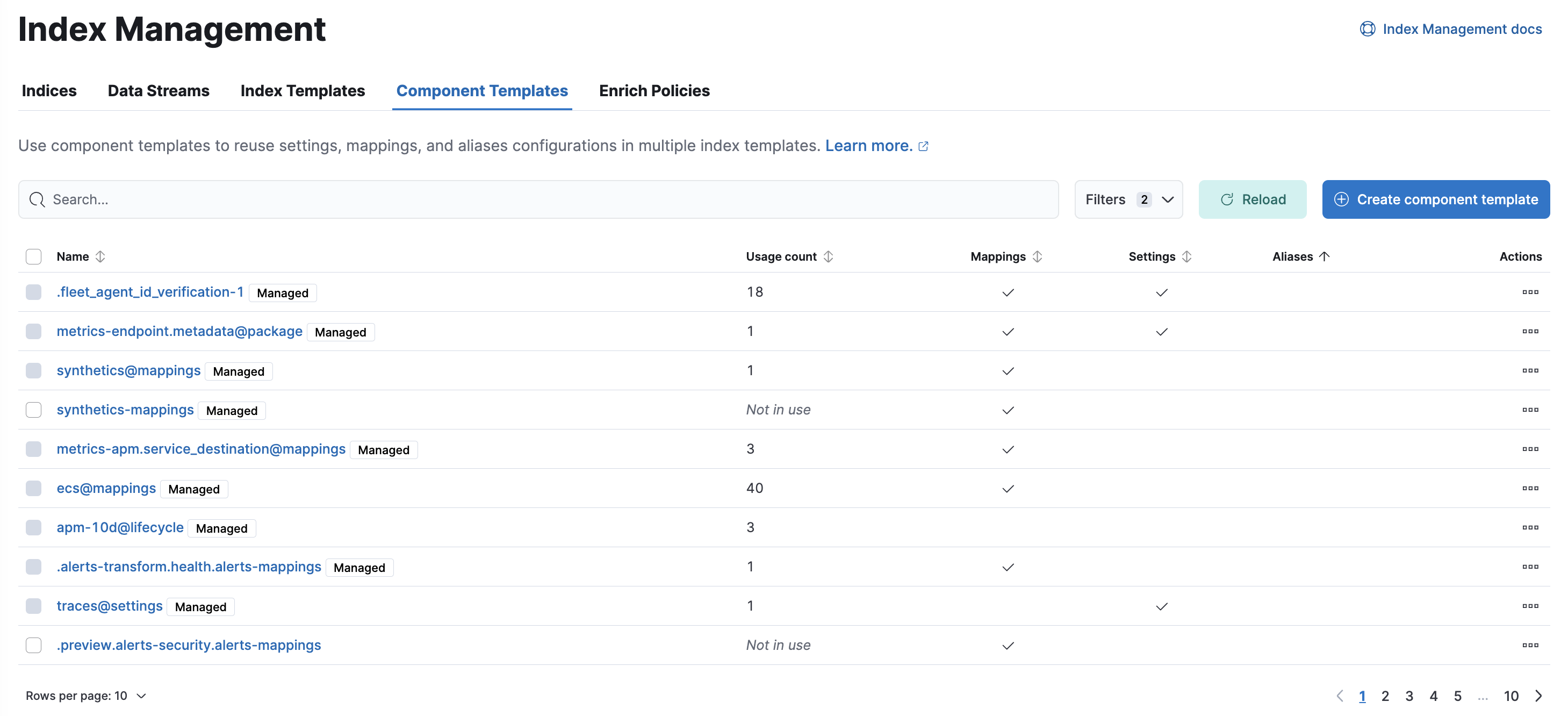
- To show details and perform operations, click the template name.
- To create new component templates, use the **Create component template** wizard.
### Manage enrich policies
An [enrich policy](/elastic/docs-content/pull/5668/manage-data/ingest/transform-enrich/data-enrichment#enrich-policy) is a set of configuration options used to add data from your existing indices to incoming documents during ingest. An enrich policy contains:
- The policy type that determines how the policy matches the enrich data to incoming documents
- The source indices that store enrich data as documents
- The fields from the source indices used to match incoming documents
- The enrich fields containing enrich data from the source indices that you want to add to incoming documents
- An optional [query](https://docs-v3-preview.elastic.dev/elastic/elasticsearch/tree/main/reference/query-languages/query-dsl/query-dsl-match-all-query).
Use the **Enrich Policies** view to add data from your existing indices to incoming documents during ingest.
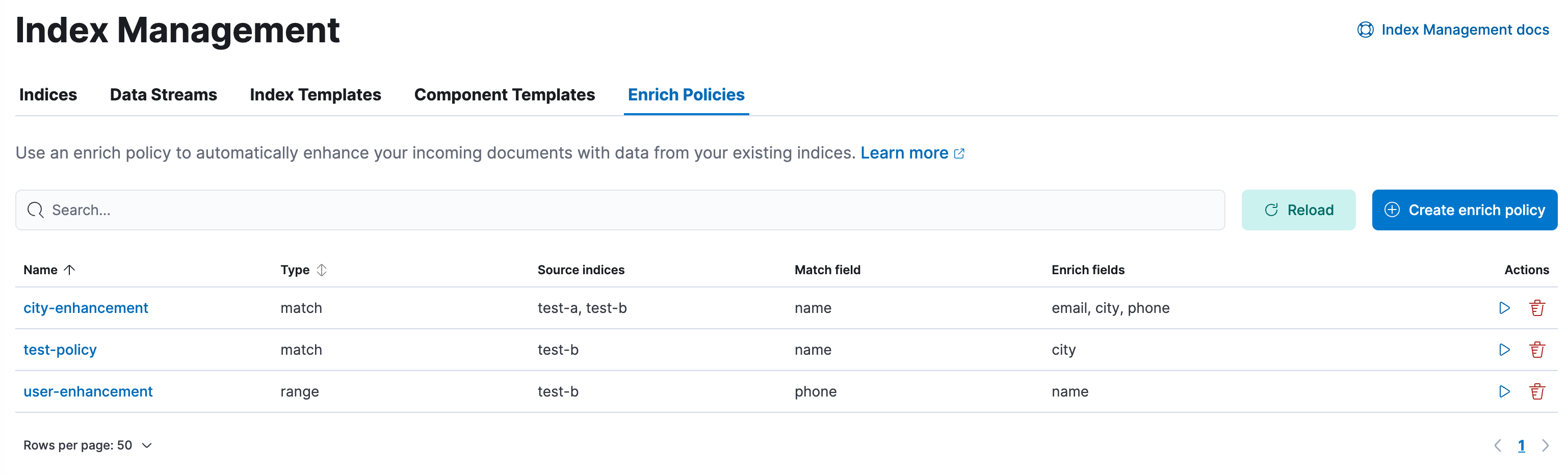
- To show details click the policy name.
- To perform operations, click the policy name or use the buttons in the **Actions** column.
- To create new policies, use the **Create enrich policy** wizard.
You must execute a new enrich policy before you can use it with an enrich processor or ES|QL query. When executed, an enrich policy uses enrich data from the policy's source indices to create a streamlined system index called the enrich index. The policy uses this index to match and enrich incoming documents.
Check out these examples:
- [Example: Enrich your data based on geolocation](https://docs-v3-preview.elastic.dev/elastic/docs-content/pull/5668/manage-data/ingest/transform-enrich/example-enrich-data-based-on-geolocation)
- [Example: Enrich your data based on exact values](https://docs-v3-preview.elastic.dev/elastic/docs-content/pull/5668/manage-data/ingest/transform-enrich/example-enrich-data-based-on-exact-values)
- [Example: Enrich your data by matching a value to a range](https://docs-v3-preview.elastic.dev/elastic/docs-content/pull/5668/manage-data/ingest/transform-enrich/example-enrich-data-by-matching-value-to-range)