---
title: Sharing dashboards
description: Share Kibana dashboards with your team using links, embeds, JSON exports for the dashboards API, or NDJSON files for migration.
url: https://docs-v3-preview.elastic.dev/elastic/docs-content/pull/6034/explore-analyze/dashboards/sharing
products:
- Kibana
applies_to:
- Elastic Cloud Serverless: Generally available
- Elastic Stack: Generally available
---
# Sharing dashboards
Share your dashboards with team members and stakeholders using shareable links, embeds, or file exports. You can also manage permissions to control who can view or edit a dashboard. Kibana provides multiple sharing options to fit different collaboration needs, from quick URL sharing to exporting complete dashboard configurations for migration between environments.
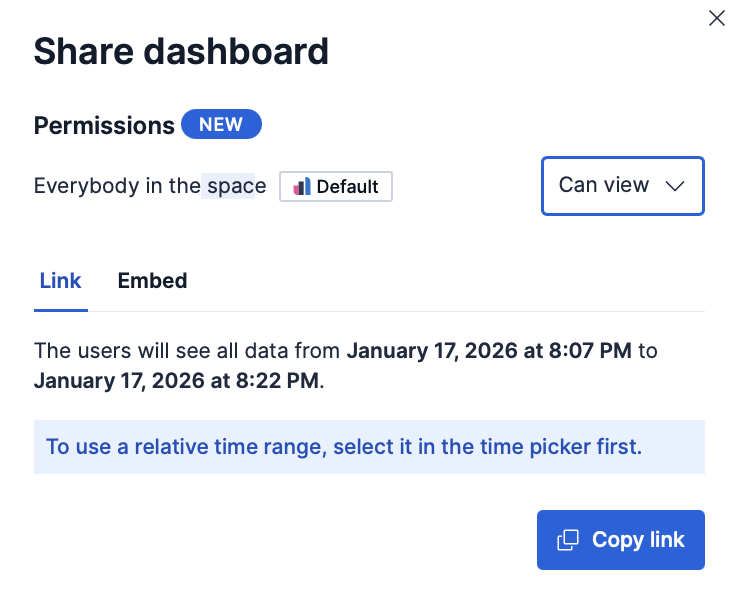
To share a dashboard with a larger audience, click `share` **Share** in the application menu.
## Manage access of other users on your dashboard
- Elastic Cloud Serverless: Generally available
- Elastic Stack: Generally available since 9.3
From the icon `share`, you can set whether other users in the space can edit or view a dashboard you own:
- **Can edit**: Everybody in the space can edit, delete, and fully manage the dashboard.
- **Can view**: Everybody in the space can view the dashboard, but cannot edit or delete it. They can duplicate it. This read-only setting can be changed at any time by the dashboard owner or a Kibana administrator.
The dashboard owner cannot be changed and is not visible from the UI. Note that if user A creates a dashboard, exports it, and user B re-imports it in the same space (overwriting the existing dashboard), user A remains the owner but user B becomes the creator.
Kibana administrators always have write access to all dashboards.
## Share a dashboard
You can share your dashboards in several ways:
- [Share with a direct link](/elastic/docs-content/pull/6034/explore-analyze/report-and-share#share-a-direct-link)
- Elastic Cloud Serverless: Unavailable [Embed a dashboard outside of Kibana](/elastic/docs-content/pull/6034/explore-analyze/report-and-share#embed-code)
For detailed information about the sharing options and time ranges, refer to [Reporting and sharing](https://docs-v3-preview.elastic.dev/elastic/docs-content/pull/6034/explore-analyze/report-and-share).
When sharing a dashboard with a link while a panel is in maximized view, the generated link will also open the dashboard on the same maximized panel view.
## Export dashboards
You can export a dashboard from Kibana in two formats. Use the table to choose the one that fits your goal.
| Format | Use it to | What it includes |
|-------------------------------------------------------------------------------------------------------------------------------------------|-----------------------------------------------------------------------------------------------------------------------------|-----------------------------------------------------------------------------------------------------------------------------------------------------------------------------------------------------------|
| [NDJSON](#export-ndjson) | Move dashboards between spaces or clusters, back them up, or share them in bulk. | The selected dashboards along with their related objects, such as data views and visualizations. Supports exporting multiple dashboards at once. |
| [JSON](#export-dashboard-json) Elastic Stack: Planned Elastic Cloud Serverless: Preview | Manage a single dashboard as code, version-control it, recreate it through the dashboards API, or inspect its stored state. | One dashboard, with the panel types and properties that the dashboards API supports. Any panel types and properties not supported by the API are listed in the export flyout and removed from the export. |
### Export as NDJSON saved objects
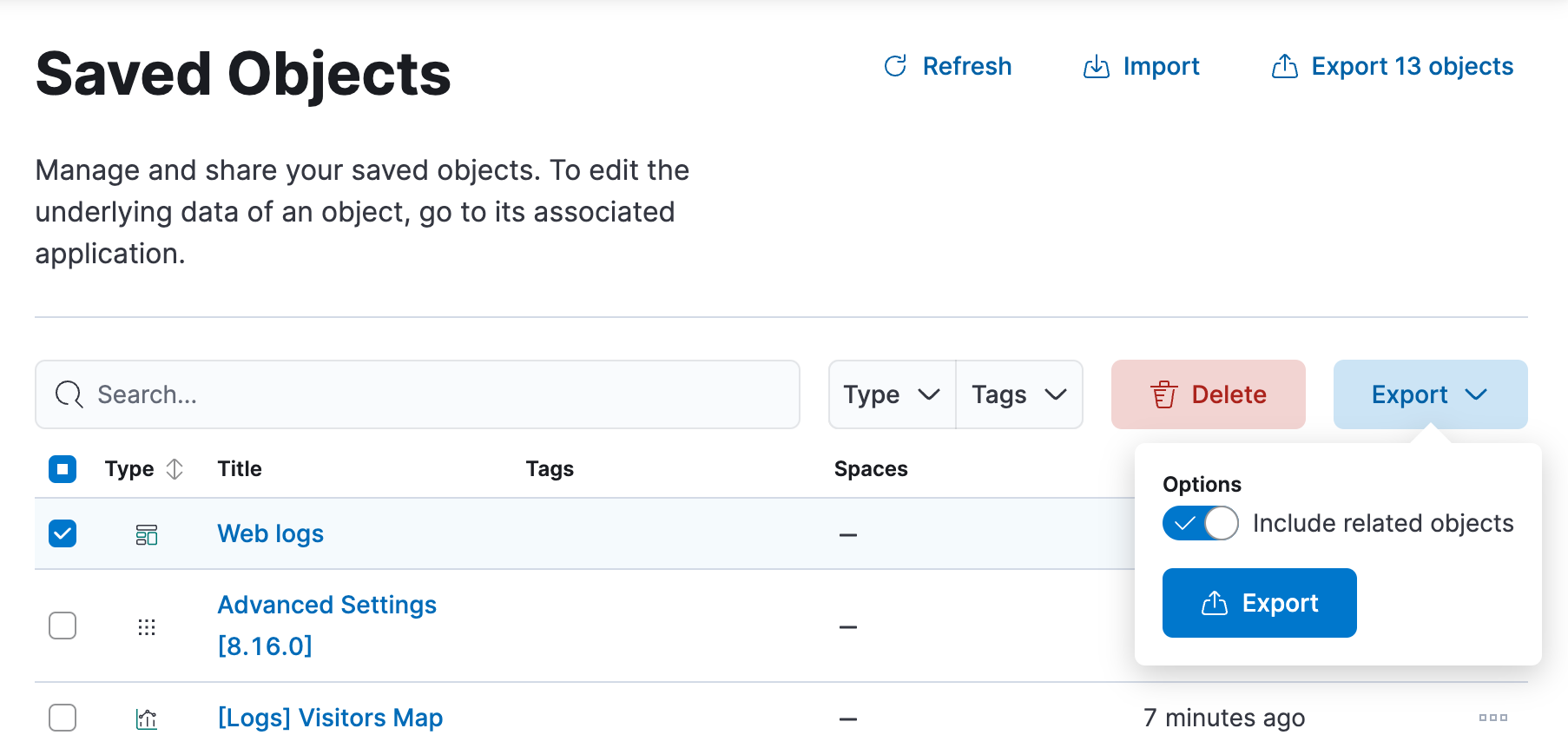
Export dashboards as NDJSON files to migrate them to other Kibana instances, back them up, or share them with other teams. You can export dashboards from **Stack Management** > **Saved Objects**. To configure and start the export:
1. Select the dashboard that you want, then click **Export**.
2. Enable **Include related objects** if you want that objects associated to the selected dashboard, such as data views and visualizations, also get exported. This option is enabled by default and recommended if you plan to import that dashboard again in a different space or cluster.
3. Select **Export**.
To automate Kibana, you can export dashboards as NDJSON using the [Export saved objects API](https://www.elastic.co/docs/api/doc/kibana/group/endpoint-saved-objects). It is important to export dashboards with all necessary references.
### Export as dashboards API-compatible JSON
- Elastic Cloud Serverless: Preview
- Elastic Stack: Planned
Export the JSON source of a dashboard in a format that the Kibana dashboards API can consume. Use this option when you want to inspect the stored state of a dashboard, save it to a file, or send it to the API to recreate the dashboard in another space or instance.
To export a dashboard as JSON:
1. Open the dashboard you want to export.
2. From the toolbar, select `download` **Export** > **Export JSON**.
3. In the flyout, review the JSON source. If a panel type or property is not yet supported by the dashboards API, it is removed from the export and listed under **Unsupported properties were removed**. Expand **Show details** to see what was removed.
4. Choose how to use the JSON source:
- Select **Copy to clipboard** to copy the JSON.
- Select **Open in Console** to open Kibana Dev Tools Console with a Create dashboard API request pre-populated with the JSON source. This option is available if you have access to **Dev Tools**.
- Select **Download JSON** to save the JSON source to a file.