---
title: Manage access to AI features
description: The GenAI Settings and Feature Settings pages let you control the list of models available for each AI feature, turn on token usage tracking, install...
url: https://docs-v3-preview.elastic.dev/elastic/docs-content/pull/6243/explore-analyze/ai-features/manage-access-to-ai-assistant
products:
- Elastic Cloud Serverless
- Elastic Observability
- Elastic Security
- Kibana
applies_to:
- Elastic Cloud Serverless: Generally available
- Elastic Stack: Generally available since 9.2
---
# Manage access to AI features
The **GenAI Settings** and **Feature Settings** pages let you control the list of models available for each AI feature, turn on token usage tracking, install documentation, and more.
## Requirements
- To access **GenAI Settings**, you need the `Actions and connectors: all` or `Actions and connectors: read` [Kibana privilege](https://docs-v3-preview.elastic.dev/elastic/docs-content/pull/6243/deploy-manage/users-roles/cluster-or-deployment-auth/kibana-privileges).
- To access **Feature Settings**, you need the `Inference Endpoints: all` and `Advanced Settings: read` Kibana privileges.
To modify the settings, you also need the `Advanced Settings: all` Kibana privilege.
## GenAI settings
Go to the **GenAI Settings** page by using the navigation menu or the [global search field](https://docs-v3-preview.elastic.dev/elastic/docs-content/pull/6243/explore-analyze/find-and-organize/find-apps-and-objects).
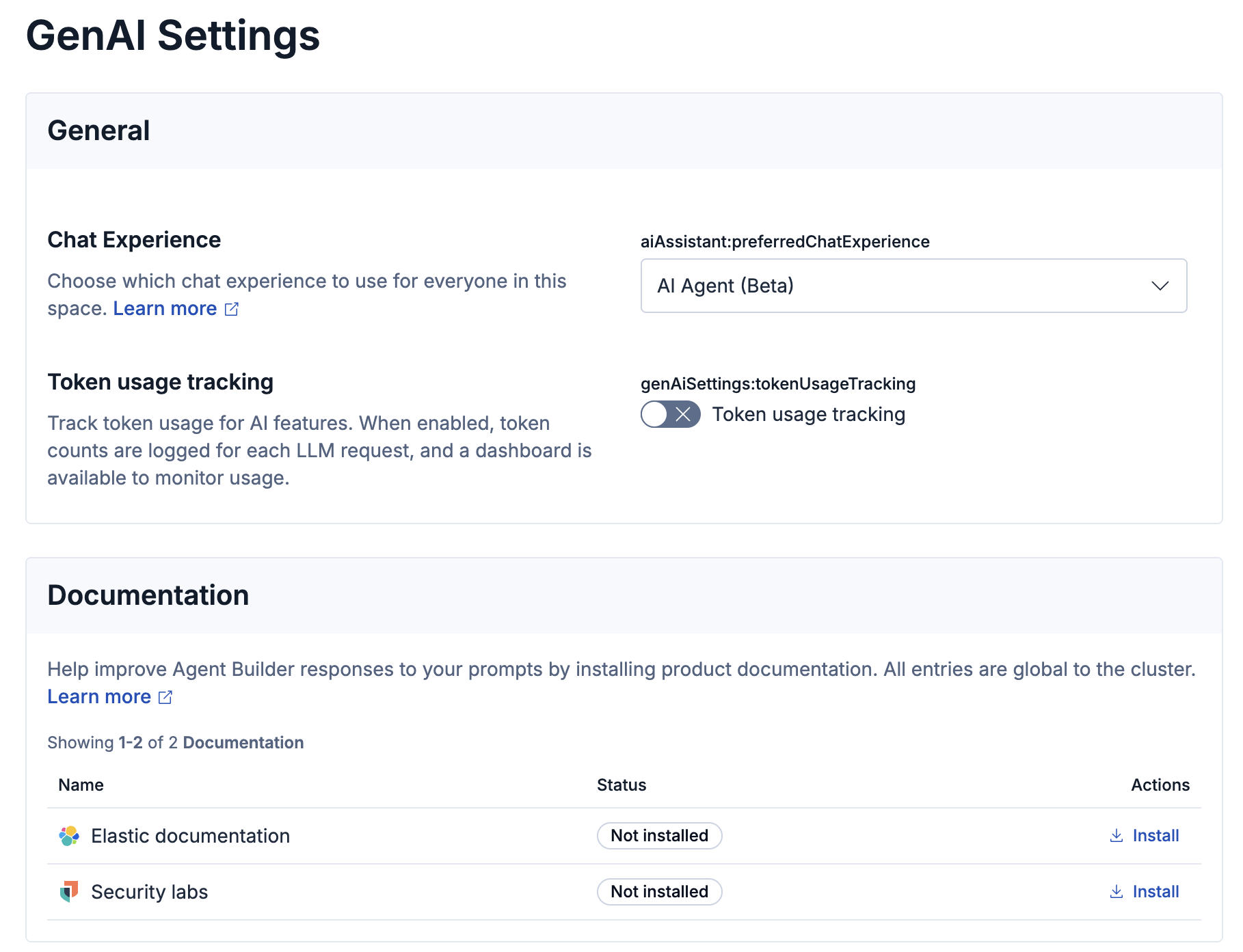
The **GenAI Settings** page has the following settings:
- **Chat experience**: Select whether to use AI Assistant or AI Agent. To learn about the differences, go to [Compare AI Agent and AI Assistant](https://docs-v3-preview.elastic.dev/elastic/docs-content/pull/6243/explore-analyze/ai-features/ai-chat-experiences/ai-agent-or-ai-assistant).
- **Token usage tracking**: Turn on tracking of token usage by AI features.
- **Documentation**: Install Elastic documentation or content from Security labs to improve Agent Builder responses.
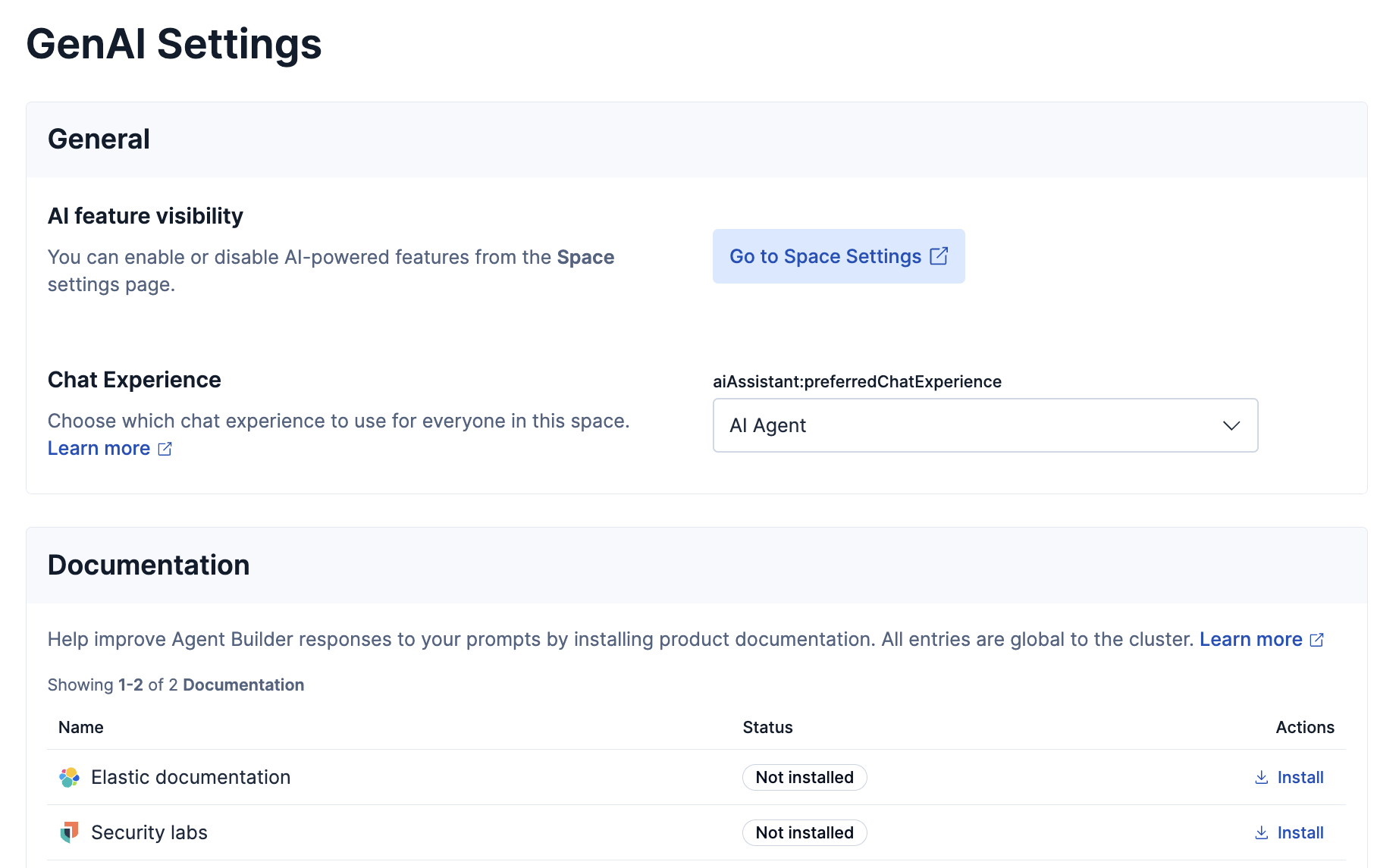
The **GenAI Settings** page has the following settings:
- **AI feature visibility**: This button opens the current Space's settings page, where you can specify which features are enabled in your environment, including AI-powered features.
- **Chat experience**: Select whether to use AI Assistant or AI Agent. To learn about the differences, go to [Compare AI Agent and AI Assistant](https://docs-v3-preview.elastic.dev/elastic/docs-content/pull/6243/explore-analyze/ai-features/ai-chat-experiences/ai-agent-or-ai-assistant).
- **Documentation**: Install Elastic documentation or content from Security labs to improve Agent Builder responses.
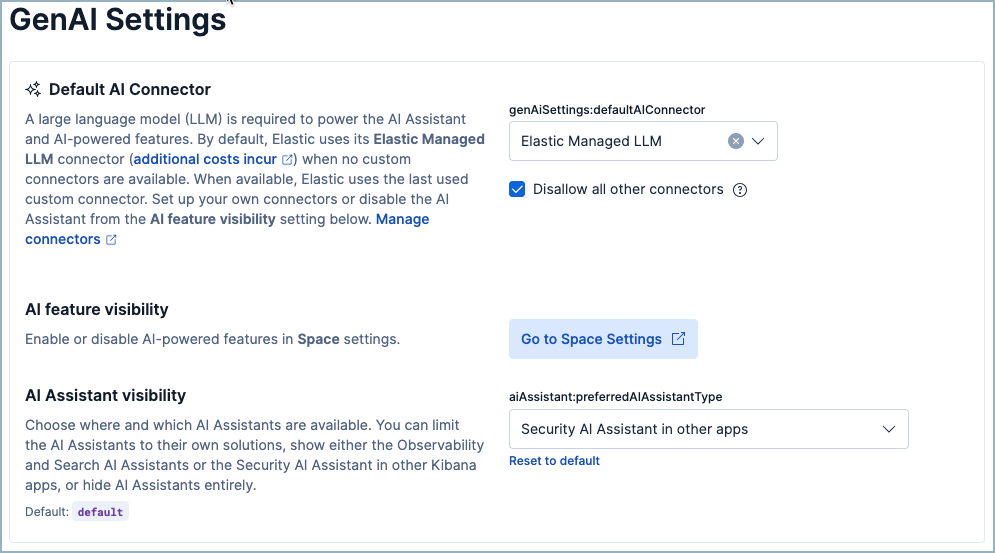
The **GenAI Settings** page has the following settings:
- **Default AI Connector**: Use this setting to specify which connector is selected by default when you access AI-powered features. For available connectors and tested models, refer to [Configure access to LLMs](https://docs-v3-preview.elastic.dev/elastic/docs-content/pull/6243/explore-analyze/ai-features/llm-guides/llm-connectors). Default setting: **No default connector**.
- If **No default connector** is selected, AI-powered features will default to the connector that was most recently used in your environment.
- If an **Elastic Managed LLM** or a custom LLM connector is selected, AI-powered features will default to that connector regardless of which connector was used most recently in your environment.
- **Disallow all other connectors**: When this setting is disabled, whenever you use an AI-powered feature you can select which connector should power it. Enable it to prevent connectors other than the default connector from being used in your space. Default setting: disabled.
- **AI feature visibility**: This button opens the current Space's settings page, where you can specify which features are enabled in your environment, including AI-powered features.
- **Chat experience**: Elastic Stack: Preview since 9.3 Select whether to use AI Assistant or AI Agent. For information about choosing one, refer to [Compare AI Agent and AI Assistant](https://docs-v3-preview.elastic.dev/elastic/docs-content/pull/6243/explore-analyze/ai-features/ai-chat-experiences/ai-agent-or-ai-assistant).
- **AI Assistant visibility**: This setting allows you to choose which AI Assistants are available to use and where. There are several options:
- **Only in their solutions** (default): The Security AI Assistant appears in Elastic Security, and the Elastic AI Assistant for Observability and Search appears in Elasticsearch and Observability.
- **Elastic AI Assistant for Observability and Search in other apps**: The Elastic AI Assistant for Observability and Search appears throughout Kibana regardless of solution. The Security AI Assistant does not appear anywhere.
- **Security AI Assistant in other apps**: The Security AI Assistant appears throughout Kibana regardless of solution. The Elastic AI Assistant for Observability and Search does not appear anywhere.
- **Hide all assistants**: Turns off AI Assistant throughout Kibana.
## Feature settings
- Elastic Cloud Serverless: Generally available
- Elastic Stack: Planned
Elastic's AI-powered features can use [EIS](https://docs-v3-preview.elastic.dev/elastic/docs-content/pull/6243/explore-analyze/elastic-inference/eis) and [External Inference](https://docs-v3-preview.elastic.dev/elastic/docs-content/pull/6243/explore-analyze/elastic-inference/external) models, as well as your custom [Generative AI connectors](https://docs-v3-preview.elastic.dev/elastic/kibana/tree/main/reference/connectors-kibana/gen-ai-connectors).
To control the models used by each feature, go to **Feature Settings** in the main menu or use the [global search field](https://docs-v3-preview.elastic.dev/elastic/docs-content/pull/6243/explore-analyze/find-and-organize/find-apps-and-objects).
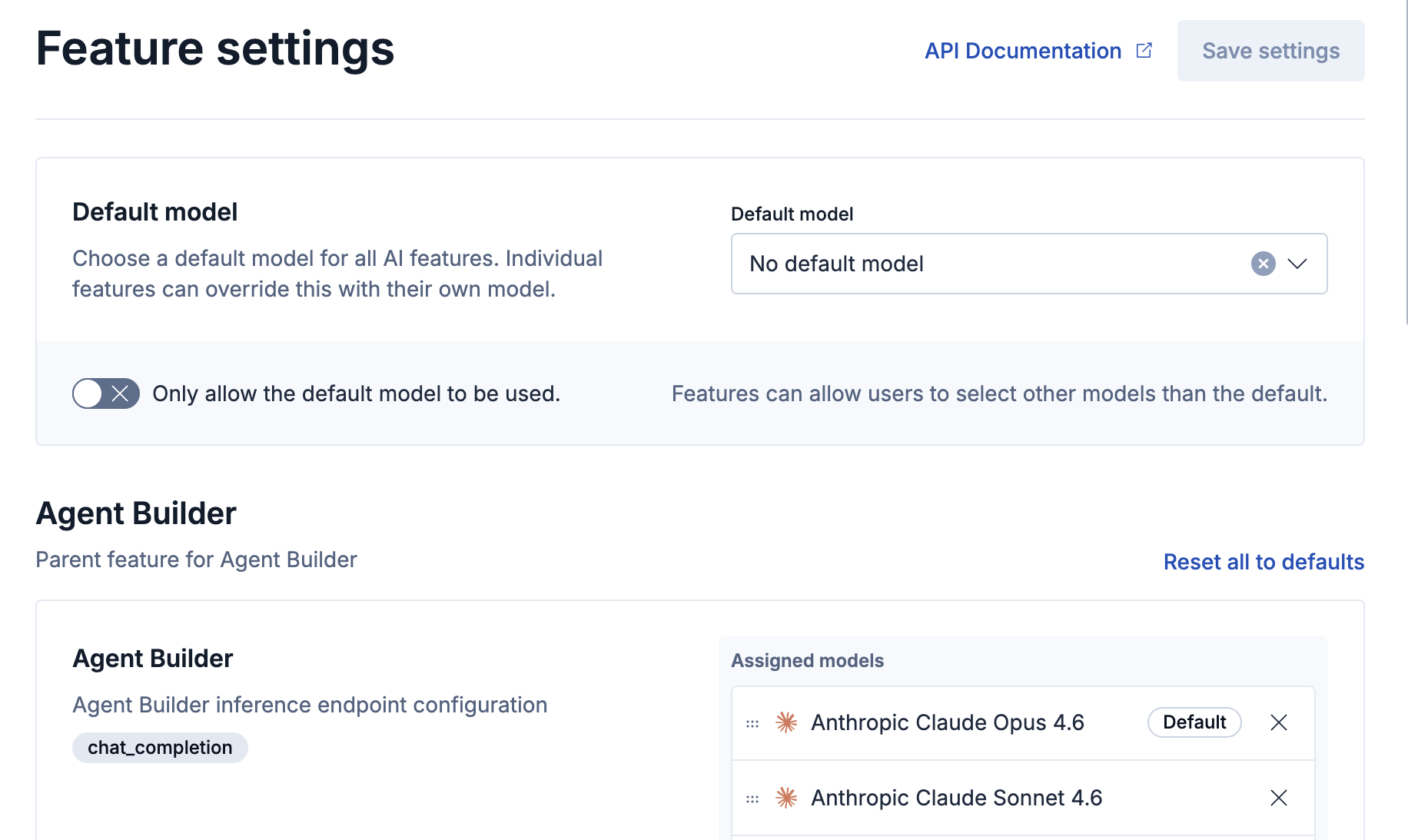
Available actions include:
- Choose a default model.
- Add a model to a feature's list of assigned models.
- Copy the list of assigned models across multiple features.
- Reset all settings to their defaults.
- Turn off feature-specific assigned models, which means all features can use only the default model.
To change the order of precedence of models for each feature, select and drag items in the list.