---
title: Triage and manage attacks
description: Triage and manage correlated attack chains alongside individual alerts on the Attacks page, a unified interface for investigating and responding to threats.
url: https://docs-v3-preview.elastic.dev/elastic/docs-content/pull/6378/solutions/security/ai/attacks-page
products:
- Elastic Cloud Serverless
- Elastic Security
applies_to:
- Serverless Security projects: Preview
- Elastic Stack: Preview since 9.4
---
# Triage and manage attacks
The **Attacks** page is the triage hub where you view, filter, assign, tag, and act on all attacks in your environment, alongside their correlated alerts. It pairs with the [**Attack Discovery**](https://docs-v3-preview.elastic.dev/elastic/docs-content/pull/6378/solutions/security/ai/attack-discovery) page, which is where you manually generate new discoveries using large language models (LLMs):
- Go to **Attack Discovery** to run LLM analysis on demand and create new attack discoveries.
- Go to **Attacks** for day-to-day triage of all attacks (manual and scheduled), and to manage their investigation lifecycle.
You can also schedule recurring Attack Discovery runs from either page; schedules created on one page appear on the other.
## Prerequisites
The **Attacks** page requires the same privileges as Attack Discovery. Refer to [Role-based access control (RBAC) for Attack Discovery](/elastic/docs-content/pull/6378/solutions/security/ai/attack-discovery#attack-discovery-rbac) for details.
To access the Attacks page, you must turn on the [**Enable alerts and attacks alignment**](/elastic/docs-content/pull/6378/solutions/security/get-started/configure-advanced-settings#enable-alerts-and-attacks-alignment) setting under **Security Solution** in **Advanced Settings**.
## How it works
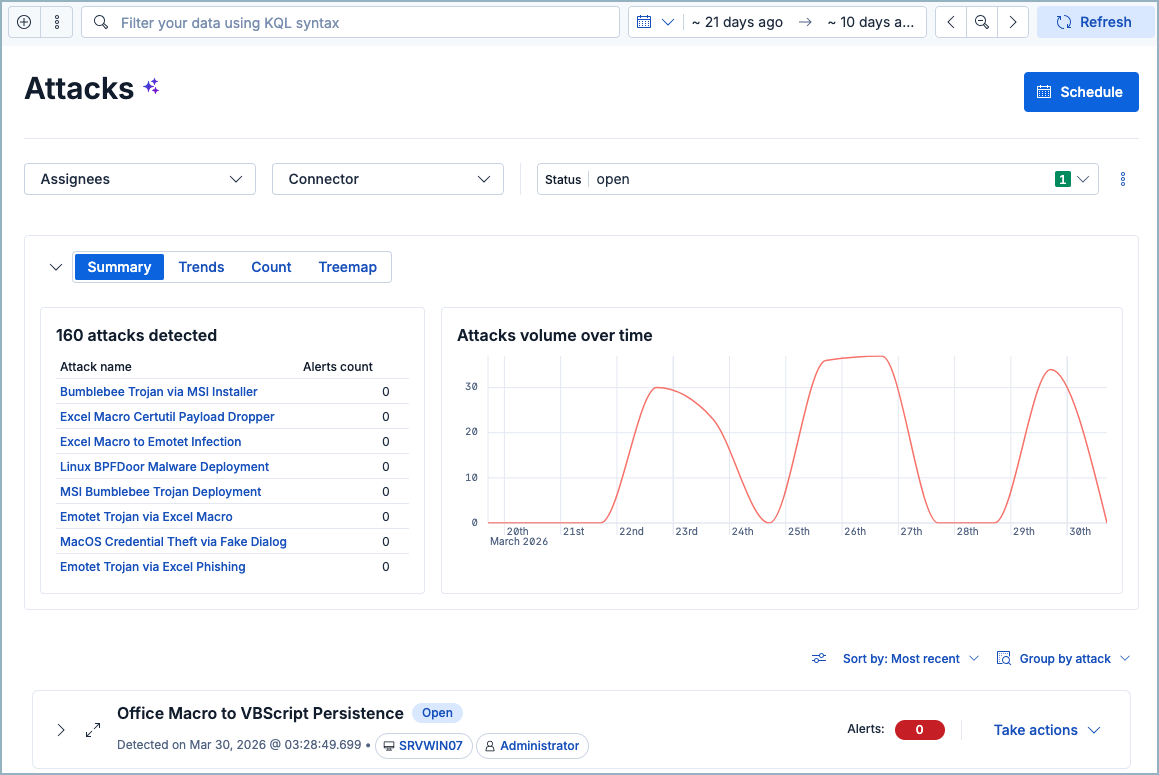
At the top of the **Attacks** page, you can find overview visualizations and tables. The **Summary** tab shows the total number of attacks detected and attack volume over time, while the **Trends**, **Count**, and **Treemap** tabs all describe alerts associated with these attacks.
## Schedule attack discoveries
You can schedule Attack Discovery runs directly from the Attacks page. The scheduling flow is the same as on the Attack Discovery page, and schedules you create on either page appear on both. For step-by-step instructions, refer to [Schedule discoveries](/elastic/docs-content/pull/6378/solutions/security/ai/attack-discovery#schedule-discoveries).
## Triage attacks
The Attacks table appears under the summary section and lists individual attacks. You can expand an attack to view details including which entities were involved and which steps of the attack chain were performed.
## Filter and search attacks
Use the controls at the top of the Attacks table to narrow results:
| Filter method | Description |
|------------------|--------------------------------------------------------------------------------------------------------------|
| KQL search | Enter queries in the search bar. Autocomplete includes fields from both attacks and alerts. |
| Date/time picker | Set a specific time range. |
| Status filter | Filter by **Open**, **Acknowledged**, or **Closed**. |
| Assignees filter | Click **Filter by assignees** to show only attacks or alerts assigned to specific users. |
| Sort | Use the **Sort by** menu to sort by **Most recent**, **Least recent**, **Most alerts**, or **Least alerts**. |
### View options
Click the **View options** (`controls`) menu to access the following toggles:
**Show attacks only**: This toggle is enabled by default. It hides standalone alerts (alerts that don't belong to any attack) so you can focus on correlated attack groups. Disable it to see all alerts, including those not linked to any attack.
When **Show attacks only** is disabled, standalone alerts appear in a group labeled `-` (dash). This group acts as a bucket for all alerts that aren't linked to an attack.
**Show anonymized values**: When enabled, replaces attack titles and summaries with anonymized placeholder values. If you're searching the page for specific entities like hostnames or IP addresses, make sure to turn this off.
### How filtering works on the Attacks page
The **Attacks** page uses a single data view that combines both the attacks index and the alerts index. This enables powerful cross-document filtering, but it also means that filters apply to both document types simultaneously.
**Timeframe filtering**: An attack group appears if either the attack itself or any of its related alerts fall within the selected time range. If the attack is within the time range but all its alerts are outside of it, the attack renders but shows 0 alerts when expanded. Conversely, if the attack is outside the time range but some of its alerts are inside, the attack still appears.**Alert-specific field filters**: Filtering on a field that only exists on alert documents (not attack documents) excludes attack documents from the underlying dataset. Attack groups still appear, but group statistics and sorting may be affected.**Attack-specific field filters**: Filtering on a field that only exists on attack documents (for example, the connector that generated an attack) hides all related alerts from the dataset. The attack group appears, but expanding it shows 0 alerts because the alert documents don't contain the attack-specific field.**Status filter**: The status filter evaluates both attacks and their related alerts. A closed attack can still appear when you filter by **Open** status if it has underlying open alerts that match the filter.**Assignees filter**: The assignees filter applies across both attacks and alerts. Filtering by assigned user may hide an attack's alerts if those alerts have a different assignee.**Sorting by timestamp**: Sorting evaluates all visible documents in a group. If an alert-specific query filters out an attack document, the group's position in the sort order is based solely on the timestamps of its remaining alerts.**KQL autocomplete**: The KQL autocomplete shows fields from both attacks and alerts. Be cautious when filtering, because using a field exclusive to one document type filters out the other type from the underlying data.**Alerts count badge**: The **Alerts: N** badge on each attack group counts only detection alerts that match the current filters — it doesn't include the attack document itself. When you expand a group, the badge may show a format like `2/10`, where the first number is the count of alerts matching your current filters and time range, and the second is the total number of alerts historically linked to the attack.
## Take actions on an attack
Access actions from the **Take actions** menu on an attack's row in the Attacks table.
When you change an attack's status, assign or unassign it, or apply attack tags, a modal appears that lets you apply the action to the attack only, or to both the attack and its linked alerts.
| Action | Description |
|----------------------------------------------------------|-----------------------------------------------------------------|
| [Change status](#change-attack-status) | Mark as acknowledged or closed |
| [Run workflow](#run-workflow-from-attack) | Run an Elastic workflow for on-demand response or investigation |
| [Assign or unassign attack](#assign-attacks) | Assign analysts to investigate |
| [Apply attack tags](#apply-attack-tags) | Categorize attacks for filtering |
| [Investigate in timeline](#attacks-investigate-timeline) | Open the attack in Timeline for analysis |
| [Add to case](#attacks-add-to-case) | Attach the attack to a new or existing case |
| [View in AI Chat](#attacks-view-in-ai-chat) | Continue investigating with an AI agent |
### Change attack status
Attack statuses track investigation progress:
| Status | Meaning |
|--------------|-------------------------------|
| Open | Needs investigation (default) |
| Acknowledged | Under active investigation |
| Closed | Resolved |
To change an attack's status, click **Take actions** on the attack row, then select **Mark as acknowledged** or **Mark as closed**.
### Run a workflow from an attack
You can run an [Elastic workflow](https://docs-v3-preview.elastic.dev/elastic/docs-content/pull/6378/explore-analyze/workflows) directly from an attack to trigger an on-demand response or investigation. To use this feature, make sure you meet the [workflows prerequisites](https://docs-v3-preview.elastic.dev/elastic/docs-content/pull/6378/explore-analyze/workflows/get-started).
To run a workflow, click **Take actions** on the attack row, then click **Run workflow**. Use the search bar to select a workflow, then click **Run workflow**.
You can select only enabled workflows.
### Assign or unassign attacks
Assign analysts to attacks they should investigate.
| Task | How to do it |
|--------------------|-----------------------------------------------------|
| Assign an attack | **Take actions** > **Assign attack** > select users |
| Unassign an attack | **Take actions** > **Unassign attack** |
Users are not notified when assigned or unassigned.
### Apply attack tags
Tags help organize attacks into filterable categories.
To tag an attack, click **Take actions**, then select **Apply attack tags**.
### Investigate in timeline
To open an attack in [Timeline](https://docs-v3-preview.elastic.dev/elastic/docs-content/pull/6378/solutions/security/investigate/timeline), click **Take actions** on the attack row, then select **Investigate in timeline**.
Investigating an attack in Timeline includes all alerts that were originally correlated when the attack was created. It doesn't reflect your current page filters or selected time range.
### Add to case
To add an attack to a [case](https://docs-v3-preview.elastic.dev/elastic/docs-content/pull/6378/solutions/security/investigate/security-cases), click **Take actions**, then select **Add to new case** or **Add to existing case**.
### View in AI Chat
To continue investigating an attack with an [AI agent](https://docs-v3-preview.elastic.dev/elastic/docs-content/pull/6378/explore-analyze/ai-features/ai-chat-experiences), click **Take actions**, then select **View in AI Chat**. You can ask follow-up questions about the attack or its associated alerts.
## Next steps
- [Learn about Attack Discovery](https://docs-v3-preview.elastic.dev/elastic/docs-content/pull/6378/solutions/security/ai/attack-discovery)
- [Investigate threats with Timeline](https://docs-v3-preview.elastic.dev/elastic/docs-content/pull/6378/solutions/security/investigate/timeline)
- [Manage security cases](https://docs-v3-preview.elastic.dev/elastic/docs-content/pull/6378/solutions/security/investigate/security-cases)