---
title: Alert triggers
description: Understand alert triggers and how to create and configure them.
url: https://docs-v3-preview.elastic.dev/elastic/docs-content/pull/6397/explore-analyze/workflows/triggers/alert-triggers
products:
- Elastic Cloud Enterprise
- Elastic Cloud Hosted
- Elastic Cloud Serverless
- Elastic Cloud on Kubernetes
- Elastic Stack
- Kibana
applies_to:
- Elastic Cloud Serverless: Generally available
- Elastic Stack: Generally available since 9.4, Preview in 9.3
---
# Alert triggers
Alert triggers run workflows automatically when detection or alerting rules generate an alert. Use alert triggers for alert enrichment, automated incident response, case creation, or notification routing.
When a rule generates an alert that triggers your workflow, the trigger provides rich context data to the workflow through the `event` field.
Declaring `type: alert` on a workflow isn't enough to run the workflow when alerts fire. You also have to attach the workflow to the rule's **Actions** using a **Run Workflow** action. Without the attachment, the rule fires alerts but the workflow is never invoked. This is the single most common setup mistake.
## Schema
| Parameter | Type | Required | Description |
|-----------|--------|----------|------------------|
| `type` | string | Yes | Must be `alert`. |
That's the entire trigger schema. There's no `with` block on an alert trigger: rule targeting happens in the alerting rule's **Actions** configuration, not in the workflow.
```yaml
triggers:
- type: alert
```
## Setup
To set up an alert trigger, follow these steps:
Create a workflow with an alert trigger:
```yaml
name: Security Alert Response
description: Enriches and triages security alerts
enabled: true
triggers:
- type: alert
steps:
....
```
After creating your workflow, configure your alert rule to trigger it.
1. Go to **Rules** in **Stack Management** or use the [global search field](https://docs-v3-preview.elastic.dev/elastic/docs-content/pull/6397/explore-analyze/find-and-organize/find-apps-and-objects).
2. Find or create the alerting rule you want to trigger the workflow.
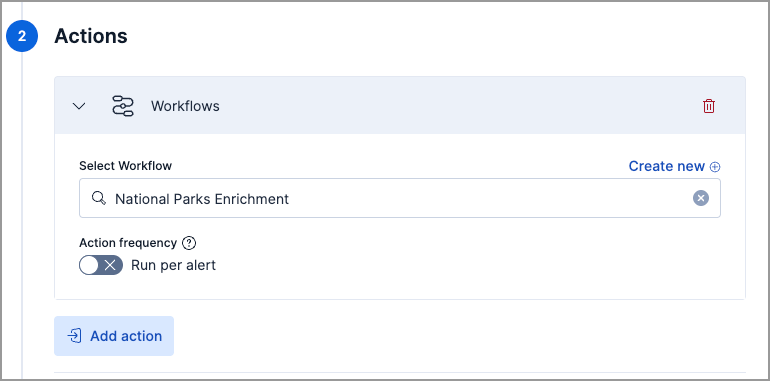
3. In the rule settings, under **Actions**, select **Add action**.
4. Select **Workflows**.
5. Select your workflow from the dropdown or create a new one. You can only select enabled workflows.
6. Under **Action frequency**, choose whether to run separate workflows for each generated alert.
7. (Optional) Add multiple workflows by selecting **Add action** again.
8. Create or save the rule.
1. Go to **Detection rules (SIEM)** in the navigation menu or use the [global search field](https://docs-v3-preview.elastic.dev/elastic/docs-content/pull/6397/explore-analyze/find-and-organize/find-apps-and-objects).
2. Find or create the detection rule you want to trigger the workflow.
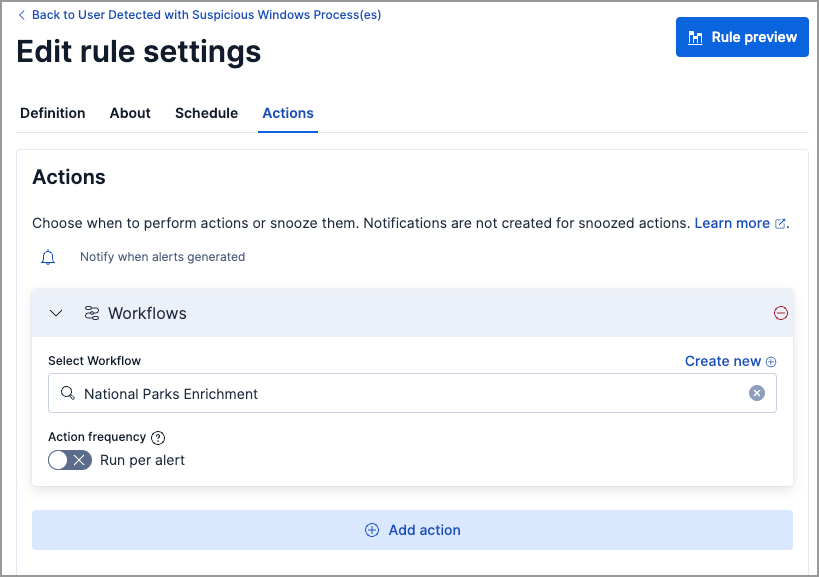
3. In the rule settings, under **Actions**, select **Workflows**.
4. Select your workflow from the dropdown or create a new one. You can only select enabled workflows.
5. Under **Action frequency**, choose whether to run separate workflows for each generated alert.
6. (Optional) Add multiple workflows by selecting **Add action**.
7. Create or save the rule.
When the configured rule generates an alert, your workflow automatically executes with the alert context.
## Alert event payload
When an attached rule fires, the workflow runs and receives the alert payload through the `event` context variable:
| `event.*` field | Contains |
|------------------|---------------------------------------------------------------------------------|
| `event.alerts` | Array of alert documents produced by the rule. |
| `event.rule` | Metadata about the rule that fired, including `id`, `name`, `tags`, and `type`. |
| `event.spaceId` | The Kibana space the rule belongs to. |
| `event.params.*` | Any params configured on the rule's **Run Workflow** action. |
Reference these fields with Liquid templating in workflow steps:
```yaml
- name: log
type: console
with:
message: |
Got {{ event.alerts | size }} alerts from rule "{{ event.rule.name }}".
First host: {{ event.alerts[0].host.name }}
```
The shape of an individual alert document inside `event.alerts` depends on the rule type (detection rule, alerting rule, or ES|QL rule) and the source data the rule runs against. Common fields include `_id`, `_index`, `host.name`, `user.name`, `kibana.alert.severity`, `kibana.alert.risk_score`, and `kibana.alert.start`.
## Alert states
When you attach a workflow to an alerting rule, you can choose which alert states trigger it:
| State | Meaning | Default |
|-------------|--------------------------------------------|---------|
| `new` | First time this alert has fired. | On |
| `ongoing` | Alert is continuing from a previous check. | Off |
| `recovered` | Alert has cleared and returned to normal. | Off |
Security detection rules produce only `new` alerts, so the state checkboxes are hidden for them. Observability rules that track ongoing conditions benefit from separate workflows per state. For example, a first-response workflow on `new` and a recovery-notification workflow on `recovered`.