---
title: Process your documents
description: Process and extract fields from incoming Streams documents using configurable processors, conditions, and live simulation previews.
url: https://docs-v3-preview.elastic.dev/elastic/docs-content/pull/6772/solutions/observability/streams/management/extract
products:
- Elastic Cloud Enterprise
- Elastic Cloud Hosted
- Elastic Cloud Serverless
- Elastic Cloud on Kubernetes
- Elastic Observability
- Elastic Stack
- Elasticsearch
- Kibana
applies_to:
- Elastic Cloud Serverless: Generally available
- Elastic Stack: Generally available since 9.2, Preview in 9.1
---
# Process your documents
After selecting a stream, use the **Processing** tab to add [processors](#streams-add-processors) and [conditions](#streams-add-processor-conditions) that modify your unstructured documents and extract meaningful fields, so you can filter and analyze your data more effectively.
For example, in [Discover](https://docs-v3-preview.elastic.dev/elastic/docs-content/pull/6772/explore-analyze/discover), extracted fields might let you filter for log messages with an `ERROR` log level that occurred during a specific time period to help diagnose an issue. Without extracting the log level and timestamp fields from your messages, those filters wouldn't return meaningful results.
## Why process your documents with Streams?
- **[Add processors](#streams-add-processors)**: Use the Streams UI without needing to manually configuring configuring pipeline JSON or Grok syntax.
- Elastic Cloud Serverless: Preview Elastic Stack: Preview since 9.3 **[Generate pipeline suggestions using AI](#streams-generate-pipeline-suggestions)**: Let Streams analyze sample documents and suggests pipeline patterns, so you're refining instead of writing from scratch.
- **[Preview changes](#streams-preview-changes)**: Use the data preview to view which fields your pattern extracts per document, removing the guesswork.
- **[Detect and resolve processing issues](#streams-detect-failures)**: Identify which processor or condition is causing documents to fail during processing.
- **[Catch mapping conflicts](#streams-processing-mapping-conflicts)**: Identify potential mapping conflicts before they cause cluster-wide failures. Streams simulates the indexing process end-to-end before deploying.
## Add and configure processors
Streams uses [Elasticsearch ingest pipelines](https://docs-v3-preview.elastic.dev/elastic/docs-content/pull/6772/manage-data/ingest/transform-enrich/ingest-pipelines) made up of processors to transform your data, without requiring you to switch interfaces and manually update pipelines.
To add a processor from the **Processing** tab:
- Elastic Cloud Serverless: Preview
- Elastic Stack: Preview since 9.3
This feature requires a [Generative AI connector](https://docs-v3-preview.elastic.dev/elastic/kibana/tree/main/reference/connectors-kibana/gen-ai-connectors).
Setting up processors is generally a multi-step process. For example, you might need a grok processor to extract fields, a date processor to convert timestamps, and a remove processor to get rid of temporary fields. Instead of creating individual processors manually, you can have AI suggest an entire pipeline for you:
1. From the **Processing** tab, select **Suggest a pipeline**.
2. Review the suggested processors, and either **Accept** or **Reject** the suggestions.
3. Select **Regenerate** to have Streams regenerate the suggested pipeline. Change the LLM that Streams uses to generate suggestions from the `controls` menu.
**How does **Suggest a pipeline** work?**
Streams groups the samples from the **Data preview** table into categories of similar messages. For each category, Streams generates suggestions by sending samples to the LLM. Suggestions are then shown in the UI.
This can incur additional costs, depending on the LLM connector you are using. Typically a single iteration uses between 1000 and 5000 tokens depending on the number of identified categories and the length of the messages.
If you know which processors you want to use, you can add them manually. Refer to the [Streamlang reference](https://docs-v3-preview.elastic.dev/elastic/docs-content/pull/6772/solutions/observability/streams/management/streamlang) for supported processor and configuration details.
1. Select **Create processor**. You can also let Streams suggest processors by selecting [Suggest a pipeline](#streams-generate-pipeline-suggestions).
2. Select a processor from the **Processor** menu.
Let Streams suggest patterns for [Grok](/elastic/docs-content/pull/6772/solutions/observability/streams/management/extract/grok#streams-grok-patterns) and [dissect](/elastic/docs-content/pull/6772/solutions/observability/streams/management/extract/dissect#streams-dissect-patterns) processors by selecting **Generate pattern**. This feature requires a [Generative AI connector](https://docs-v3-preview.elastic.dev/elastic/kibana/tree/main/reference/connectors-kibana/gen-ai-connectors).
1. Configure the processor and select **Create** to save the processor.
2. Optional: Enable **Ignore failures** if you want document processing to continue even when this processor fails.
3. Optional: For dissect, Grok, and rename processors, enable **Ignore missing fields** if you want processing to continue when a source field is missing.
You can add conditions, Boolean expressions that are evaluated for each document, and attach processors that only run when those conditions are met.To add a condition:
1. Select **Create** → **Create condition**.
2. Provide a **Field**, a **Value**, and a comparator.
3. Select **Create condition**.
Streams processors support the following comparators:
- equals
- not equals
- less than
- less than or equals
- greater than
- greater than or equals
- contains
- starts with
- ends with
- exists
- not exists
After creating a condition, add a processor or another condition to it by selecting the `plus_in_circle`.
After you create processors, the **Data preview** tab simulates processor results with additional filtering options depending on the outcome of the simulation.When you add or edit processors, the **Data preview** tab updates automatically.
To avoid unexpected results, it's best to add processors rather than remove or reorder existing ones.
The **Data preview** tab loads 100 documents from your existing data and runs your changes against them.
For any newly created processors and conditions, the preview results are reliable, and you can freely create and reorder during the preview.If you edit the stream after previewing your changes, keep the following in mind:
- Adding processors to the end of the list works as expected.
- Editing or reordering existing processors can cause inaccurate results. Because the pipeline might have already processed the documents used for sampling, **Data preview** cannot accurately simulate changes to existing data.
- Adding a new processor and moving it before an existing processor can cause inaccurate results. **Data preview** only simulates the new processor, not the existing ones, so the simulation may not accurately reflect changes to existing data.
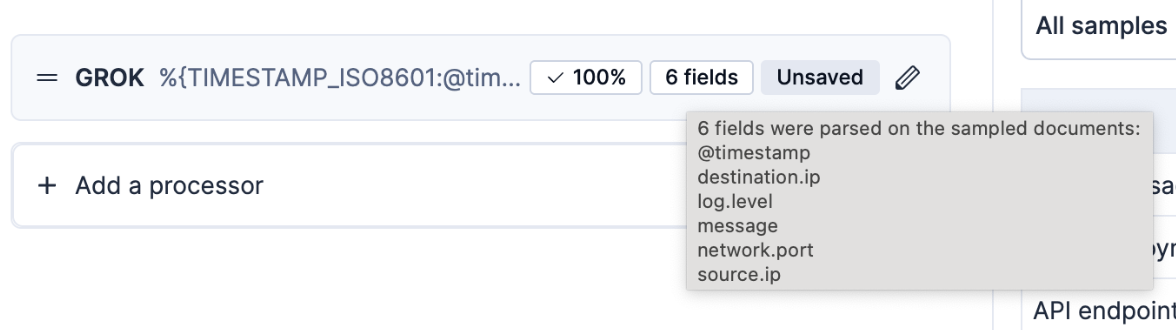
Once saved, the processor displays its success rate and the fields it added.
Documents can fail processing for various reasons. Streams helps you identify and resolve these issues before deploying changes.In the following screenshot, the **Failed** percentage indicates that some messages didn't match the provided grok pattern:
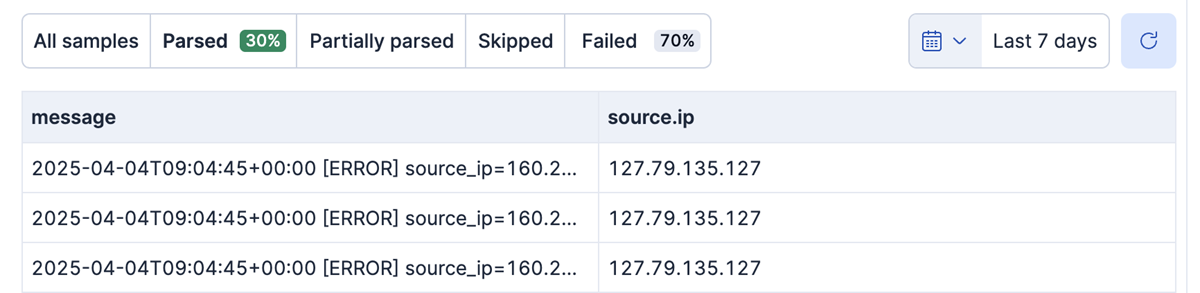
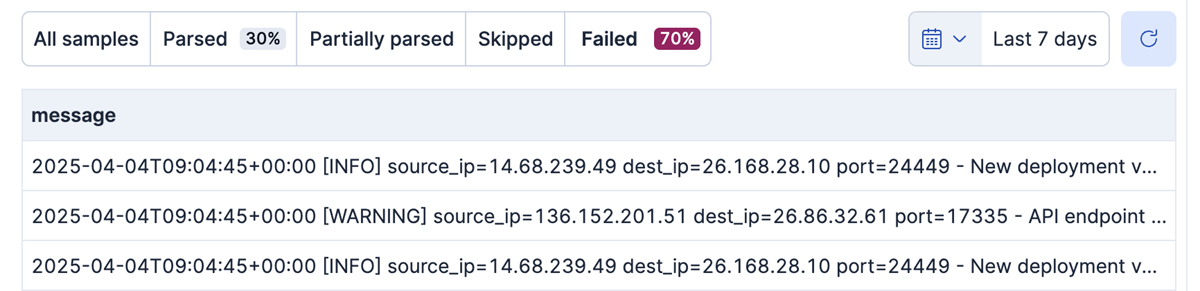
You can filter your documents by selecting **Parsed** or **Failed** on the **Data preview** tab.
Selecting **Failed** shows the documents that weren't parsed correctly:
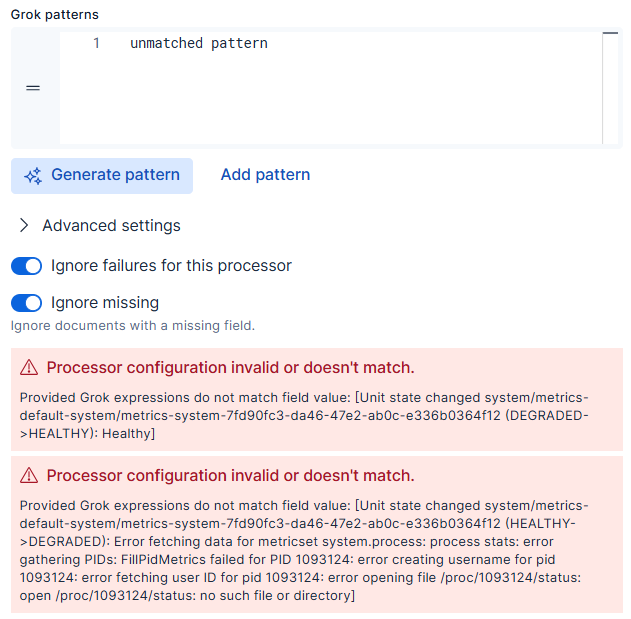
Streams displays failures at the bottom of the process editor. Some failures might require fixes, while others serve as a warning:
As part of processing, Streams simulates your changes end-to-end to check for mapping conflicts. If it detects a conflict, Streams marks the processor as failed and displays a message like the following:
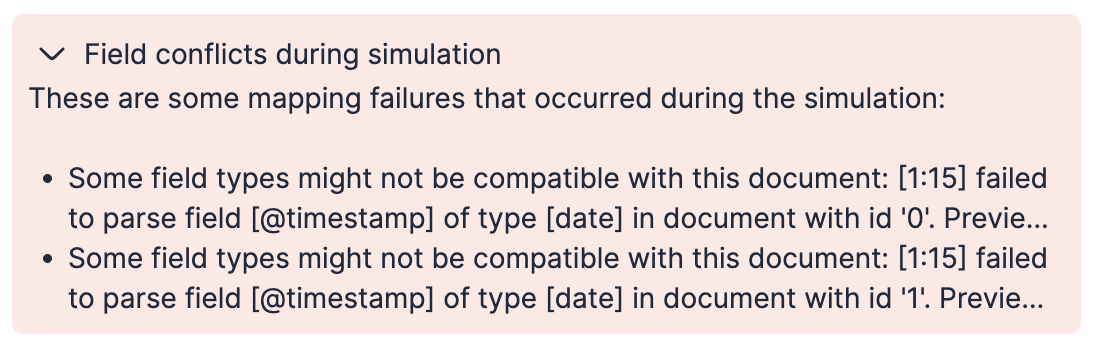
Use the information in the failure message to find and troubleshoot the mapping issues.
After adding all desired processors and conditions, select **Save changes**. After creating your processor, Streams parses all future data ingested into the stream into structured fields accordingly.
Applied changes aren't retroactive and only affect *future ingested data*.
## Modify an existing processor
To modify an existing processor, open the actions menu `boxes_vertical` next to it to see the available options:
- **Move up** or **Move down**: Change the order of the processor.
- **Add description**: Change the processor description from its metadata to a description of your choice.
- **Remove description**: For processors with an added description, use this option to return the description to the metadata.
- **Edit**: Modify the processor configuration.
- **Duplicate**: Create another processor with the same configuration to use as a template.
- **Delete**: Remove the processor permanently.
## Switch between interactive and YAML editing modes
The Streams processing UI provides an [interactive mode](#streams-editing-interactive-mode) and a [YAML mode](#streams-editing-yaml-mode) for editing processors and conditions.
To switch modes, select the appropriate tab from the top of the processing page.
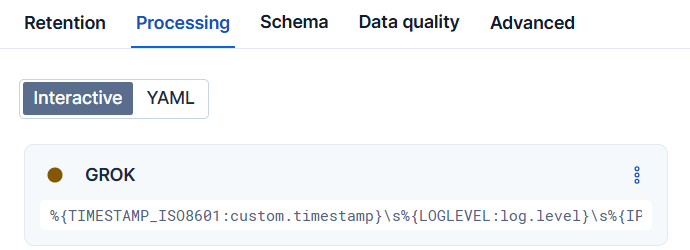
Streams defaults to interactive mode unless the configuration can't be represented in interactive mode (for example, when nesting levels are too deep).
### Interactive mode
**Interactive** mode provides a form-based interface for creating and editing processors. This mode works best for:
- Users who prefer a guided, visual approach
- Configurations that don't require deeply nested conditions
### YAML mode
- Elastic Stack: Generally available since 9.3
**YAML** mode provides a code editor for writing Streamlang directly. This mode works best for:
- Users who prefer working with code
- Advanced configurations with complex or deeply nested conditions
Refer to the [Streamlang reference](https://docs-v3-preview.elastic.dev/elastic/docs-content/pull/6772/solutions/observability/streams/management/streamlang) for the complete syntax, condition operators, and examples.
## Advanced: How and where do these changes get applied to the underlying data stream?
When you save processors, Streams appends processing to the best-matching ingest pipeline for the data stream. It either chooses the best-matching pipeline ending in `@custom` in your data stream, or it adds one for you.
Streams identifies the appropriate `@custom` pipeline (for example, `logs-myintegration@custom` or `logs@custom`) by checking the `default_pipeline` that is set on the data stream. You can view the default pipeline on the **Advanced** tab under **Ingest pipeline**.
In this default pipeline, Streams locates the last processor that calls a pipeline ending in `@custom`.
- For integrations, this would result in a pipeline name like `logs-myintegration@custom`.
- Without an integration, the only `@custom` pipeline available may be `logs@custom`.
If no default pipeline is detected, Streams adds a default pipeline to the data stream by updating the index templates.
If a default pipeline is detected, but it does not contain a custom pipeline, Streams adds the pipeline processor directly to the pipeline.
Streams then adds a pipeline processor to the end of that `@custom` pipeline. This processor definition directs matching documents to a dedicated pipeline managed by Streams called `@stream.processing`:
```json
// Example processor added to the relevant @custom pipeline
{
"pipeline": {
"name": "@stream.processing",
"if": "ctx._index == ''",
"ignore_missing_pipeline": true,
"description": "Call the stream's managed pipeline - do not change this manually but instead use the Streams UI or API"
}
}
```
Streams then creates and manages the `@stream.processing` pipeline, adding the [processors](#streams-add-processors) you configured in the UI.
### User interaction with pipelines
Do not manually modify the `@stream.processing` pipeline created by Streams.
You can still add your own processors manually to the `@custom` pipeline if needed. Adding processors before the pipeline processor created by Streams might cause unexpected behavior.
## Known limitations
- Streams does not support all processors. Refer to the [Streamlang reference](https://docs-v3-preview.elastic.dev/elastic/docs-content/pull/6772/solutions/observability/streams/management/streamlang) for supported processors.
- The data preview simulation might not accurately reflect the changes to the existing data when editing existing processors or re-ordering them.
- Streams can't properly handle arrays. While it supports basic actions like appending or renaming, it can't access individual array elements. For classic streams, the workaround is to use the [manual pipeline configuration](https://docs-v3-preview.elastic.dev/elastic/docs-content/pull/6772/solutions/observability/streams/management/extract/manual-pipeline-configuration) that supports Painless scripting and all ingest processors.