---
title: Cross-cluster search and detection rules
description: Configure detection rules to query data across remote clusters using cross-cluster search.
url: https://docs-v3-preview.elastic.dev/elastic/docs-content/pull/7385/solutions/security/detect-and-alert/cross-cluster-search-detection-rules
products:
- Elastic Security
applies_to:
- Elastic Stack: Generally available
---
# Cross-cluster search and detection rules
[Cross-cluster search](https://docs-v3-preview.elastic.dev/elastic/docs-content/pull/7385/explore-analyze/cross-cluster-search) is an Elasticsearch feature that allows one cluster (the *local* cluster) to query data in a separate cluster (the *remote* cluster). Elastic Security's detection rules can perform a cross-cluster search to query data in remote clusters.
- To learn about the requirements for using cross-cluster search in the Elastic Stack, refer to [Cross-cluster search](https://docs-v3-preview.elastic.dev/elastic/docs-content/pull/7385/explore-analyze/cross-cluster-search).
- Using cross-cluster search for ES|QL rules in the Elastic Stack requires an [Enterprise subscription](https://www.elastic.co/pricing).
## Set up cross-cluster search in detection rules
This section explains the general process for setting up cross-cluster search in detection rules. For specific instructions on each part of the process, refer to the linked documentation.
1. On the local cluster, establish trust and set up a connection to the remote cluster, using one of the following methods. With either method, note the unique name that you give to the remote cluster, because you’ll need to use it throughout this process.
- [Add remote clusters using API key authentication](https://docs-v3-preview.elastic.dev/elastic/docs-content/pull/7385/deploy-manage/remote-clusters/remote-clusters-api-key)
- [Add remote clusters using TLS certificate authentication](https://docs-v3-preview.elastic.dev/elastic/docs-content/pull/7385/deploy-manage/remote-clusters/remote-clusters-cert)
2. Configure the privileges that allow searching the remote indices. The required setup depends on the authentication method you used to connect the clusters. For full details, refer to [Configure privileges for cross-cluster search](/elastic/docs-content/pull/7385/explore-analyze/cross-cluster-search#configure-privileges-for-ccs).
With API key authentication (recommended), the remote cluster's access is governed by the cross-cluster API key, so you only need to create a role on the **local** cluster. You don't need to create a role on the remote cluster.Create a role on the local cluster with [remote indices privileges](/elastic/docs-content/pull/7385/deploy-manage/users-roles/cluster-or-deployment-auth/role-structure#roles-remote-indices-priv) for the remote cluster alias and the indices you want to search. Assign the `read`, `read_cross_cluster`, and `view_index_metadata` privileges.For example, if the remote cluster is connected as `remote-security-data` and you want to query the `logs-*` indices:
```json
{
"remote_indices": [
{
"clusters": [ "remote-security-data" ],
"names": [ "logs-*" ],
"privileges": [ "read", "read_cross_cluster", "view_index_metadata" ]
}
]
}
```
If the user also needs to query local indices or use Kibana, add the required local privileges to the same role or assign the user additional roles.
Elastic Stack: Deprecated since 9.0With TLS certificate authentication, the local user's role names are forwarded to the remote cluster, which authorizes the request by evaluating roles with the *same names* defined locally. Create a role with *identical* names on both the local and remote clusters, and assign each the following privileges:
- **Local cluster role**: Assign the `read` privilege to the indices you want to search, using *both* the local and remote index patterns for each index. To specify a remote index, use the pattern `:`.
For example, if the remote cluster's name is `remote-security-data` and you want to query the `logs-*` indices, include both the `logs-*` and `remote-security-data:logs-*` index patterns and assign them the `read` privilege.
- **Remote cluster role**: Assign the `read` and `read_cross_cluster` privileges to the indices you want to search. You don't need to include the remote cluster's name here.
3. On the local cluster:
1. Assign the role you just created to a user who you want to configure your cross-cluster detection rules.
- This step ensures that the privileges to read remote indices are applied from the user to the rule itself. When a user creates a new rule or saves edits to an existing rule, their current privileges are saved to the rule’s API key. If that user’s privileges change in the future, the rule’s API key will not update until you manually update it. Refer to [Update a rule’s API key](#update-api-key) for details.
- This user must also have the [appropriate privileges](https://docs-v3-preview.elastic.dev/elastic/docs-content/pull/7385/solutions/security/detect-and-alert/turn-on-detections) to manage and preview rules.
2. As this user, [configure a rule](https://docs-v3-preview.elastic.dev/elastic/docs-content/pull/7385/solutions/security/detect-and-alert/using-the-rule-ui) that searches the remote indices: create or edit a rule, then enter the `:` pattern in the **Source** section.
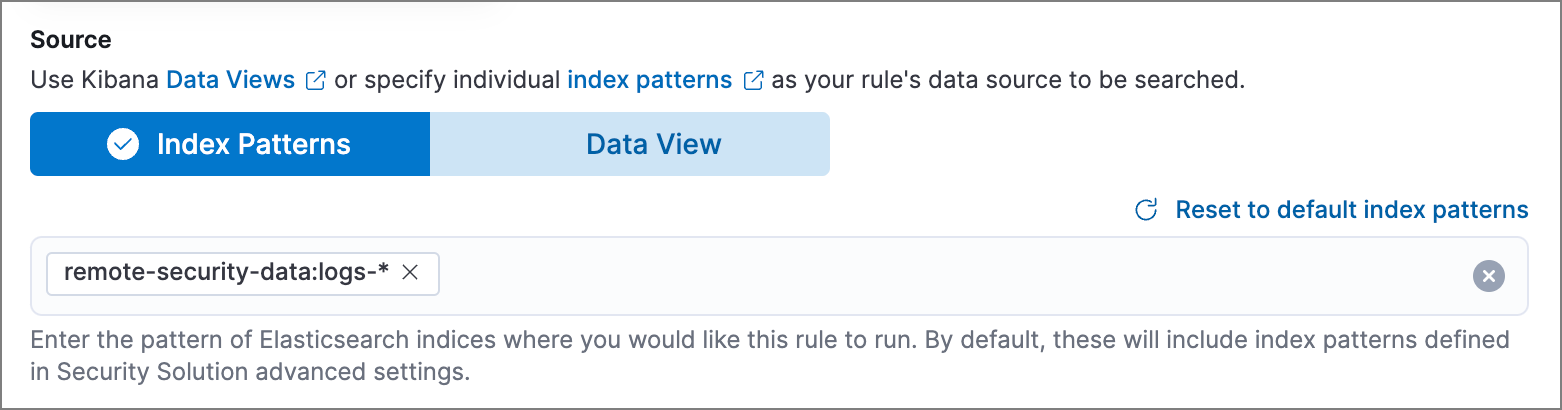
If the rule’s **Source** uses a data view instead of index patterns, you must define the data view for cross-cluster search separately, using the `:` pattern. Refer to [Use data views with cross-cluster search](/elastic/docs-content/pull/7385/explore-analyze/find-and-organize/data-views#management-cross-cluster-search) for more on defining a data view.
3. (Optional) [Preview the rule](https://docs-v3-preview.elastic.dev/elastic/docs-content/pull/7385/solutions/security/detect-and-alert/using-the-rule-ui) to test its expected results.
The rule preview uses the current user’s cross-cluster search privileges, while the rule itself runs using the privileges snapshot saved in its API key the moment the key is created. The preview results could be different from the rule’s actual behavior if the user performing the preview has different privileges than what’s saved in the rule’s API key.
4. Save and enable the rule.
## Update a rule’s API key
Each detection rule has its own [API key](/elastic/docs-content/pull/7385/explore-analyze/alerting/alerts/alerting-setup#alerting-authorization), which determines the data and actions the rule is allowed to access. When a user creates a new rule or changes an existing rule, their current privileges are saved to the rule’s API key. If that user’s privileges change in the future, the rule **does not** automatically update with the user’s latest privileges — you must update the rule’s API key if you want to update its privileges.
A rule’s API key is different from the API key you might have created for [authentication between local and remote clusters](#set-up-ccs-rules).
To update a rule’s API key, log into the local cluster as a user with the privileges you want to apply to the rule, then do either of the following:
- Edit and save the rule.
- Update the rule’s API key manually:
1. Find **Stack Management** in the navigation menu or by using the [global search field](https://docs-v3-preview.elastic.dev/elastic/docs-content/pull/7385/explore-analyze/find-and-organize/find-apps-and-objects), then go to **Rules**.
2. Use the search box and filters to find the rules you want to update. For example, use the **Type** filter to find rules under the **Security** category.
3. Select the rule’s actions menu `boxes_horizontal`, then **Update API key**.
To update multiple rules, select their checkboxes, then click **Selected *x* rules** > **Update API keys**.