---
title: Private connectivity with Azure Private Link
description: You can use Azure Private Link to establish a secure connection for your Elastic Cloud Hosted deployments and Elastic Cloud Serverless projects to communicate...
url: https://docs-v3-preview.elastic.dev/elastic/docs-content/pull/7595/deploy-manage/security/private-connectivity-azure
products:
- Elastic Cloud Hosted
- Elastic Cloud Serverless
applies_to:
- Elastic Cloud Serverless: Generally available
- Elastic Cloud Hosted: Generally available
---
# Private connectivity with Azure Private Link
You can use Azure Private Link to establish a secure connection for your Elastic Cloud Hosted deployments and Elastic Cloud Serverless projects to communicate with other Azure services. Azure routes the Private Link traffic within the Azure data center and never exposes it to the public internet.
Azure Private Link establishes a secure connection between two Azure VNets. The VNets can belong to separate accounts, for example a service provider and their service consumers. Azure routes the Private Link traffic within the Azure data centers and never exposes it to the public internet. In such a configuration, Elastic Cloud is the third-party service provider and the customers are service consumers.
Private Link is a connection between an Azure Private Endpoint and a Azure Private Link Service.
Azure Private Link requires that you also filter traffic to your deployments or projects by creating a private connection policy in Elastic Cloud. This limits traffic to your deployment or project to the private endpoint specified in the policy, along with any other filters defined in policies applied to the deployment or project.
To learn how private connection policies impact your deployment or project, refer to [Network security policies in Elastic Cloud](https://docs-v3-preview.elastic.dev/elastic/docs-content/pull/7595/deploy-manage/security/network-security-policies).
Elastic Cloud Hosted and Elastic Cloud Serverless also support [IP filters](https://docs-v3-preview.elastic.dev/elastic/docs-content/pull/7595/deploy-manage/security/ip-filtering-cloud). You can apply both IP filters and private connections to a single Elastic Cloud resource.
## Requirements
- Elastic Cloud Serverless: Generally available
The following requirements apply to the project where you want to apply a private connection policy:
- For Observability projects, requires the [Observability Complete](https://docs-v3-preview.elastic.dev/elastic/docs-content/pull/7595/solutions/observability/observability-serverless-feature-tiers) feature tier.
- For Security projects, requires the [Security Analytics Complete](https://docs-v3-preview.elastic.dev/elastic/docs-content/pull/7595/solutions/security/security-serverless-feature-tiers) feature tier.
There are no specific requirements for other Serverless project types or Elastic Cloud Hosted deployments.
## Considerations
Before you decide to set up private connectivity with Azure Private Link, review the following considerations:
### Private connections and regions
Private connectivity with Azure Private Link is supported only in Azure regions. You can set up private connections in [Azure regions where Elastic Cloud is available](#ec-private-link-azure-service-aliases). You can also set up [inter-region Private Link connections](#ec-azure-inter-region-private-link) to reach your deployment or project from additional Azure regions.
For Elastic Cloud Serverless, Private Link is not available in the Azure `northeurope` region because of Azure capacity limitations. For the full list of supported regions, refer to [Azure Private Link Service aliases](#ec-private-link-azure-service-aliases).
## Limitations
When using Azure Private Link, the following limitations apply:
- **Transport client:** The Elasticsearch transport client is not supported over private connections.
- **Managed OTLP endpoint:** In Elastic Cloud Hosted deployments, the [managed OTLP endpoint](https://docs-v3-preview.elastic.dev/elastic/opentelemetry/tree/main/reference/managed-inputs/managed-otlp-endpoint) is not accessible over private connections. The public endpoint is still available.
- **SSO to Kibana from the Elastic Cloud console:** In Elastic Cloud Hosted deployments, you can't use SSO to log in to Kibana endpoints that are protected by private connections. The connection to the Kibana public URL is still available. In Elastic Cloud Serverless, this limitation does not apply.
As a workaround, you can [add an IP filter](https://docs-v3-preview.elastic.dev/elastic/docs-content/pull/7595/deploy-manage/security/ip-filtering-cloud) for the hosts that will use SSO through the Elastic Cloud console.
In Elastic Cloud Hosted, you can still SSO into private Kibana endpoints individually using the [SAML](https://docs-v3-preview.elastic.dev/elastic/docs-content/pull/7595/deploy-manage/users-roles/cluster-or-deployment-auth/saml) or [OIDC](https://docs-v3-preview.elastic.dev/elastic/docs-content/pull/7595/deploy-manage/users-roles/cluster-or-deployment-auth/openid-connect) protocol from your own identity provider, just not through the Elastic Cloud console. Stack-level authentication using the Elasticsearch username and password also works with the private hosted zone URL for your deployment, for example, my-deployment-d53192.kb.privatelink.eastus2.azure.elastic-cloud.com.
- **North Europe region:** Elastic Cloud Serverless: Generally available Private Link is not available for Elastic Cloud Serverless projects in the Azure `northeurope` region because of Azure capacity limitations. Elastic Cloud Hosted deployments in `northeurope` are not affected.
## Azure Private Link Service aliases
Private Link Services are set up by Elastic in all supported Azure regions under the following aliases. Some metadata might differ between Elastic Cloud Hosted and Elastic Cloud Serverless, even if the region is the same.
| Region | Azure Private Link Service alias | Private hosted zone domain name |
|------------------|------------------------------------------------------------------------------------------------------------------------------|------------------------------------------------------|
| australiaeast | australiaeast-prod-012-privatelink-service.a0cf0c1a-33ab-4528-81e7-9cb23608f94e.australiaeast.azure.privatelinkservice | privatelink.australiaeast.azure.elastic-cloud.com |
| centralus | centralus-prod-009-privatelink-service.49a041f7-2ad1-4bd2-9898-fba7f7a1ff77.centralus.azure.privatelinkservice | privatelink.centralus.azure.elastic-cloud.com |
| eastus2 | eastus2-prod-002-privatelink-service.64359fdd-7893-4215-9929-ece3287e1371.eastus2.azure.privatelinkservice | privatelink.eastus2.azure.elastic-cloud.com |
| francecentral | francecentral-prod-008-privatelink-service.8ab667fd-e8af-44b2-a347-bd48d109afec.francecentral.azure.privatelinkservice | privatelink.francecentral.azure.elastic-cloud.com |
| japaneast | japaneast-prod-006-privatelink-service.cfcf2172-917a-4260-b002-3e7183e56fd0.japaneast.azure.privatelinkservice | privatelink.japaneast.azure.elastic-cloud.com |
| northeurope | northeurope-prod-005-privatelink-service.163e4238-bdde-4a0b-a812-04650bfa41c4.northeurope.azure.privatelinkservice | privatelink.northeurope.azure.elastic-cloud.com |
| southeastasia | southeastasia-prod-004-privatelink-service.20d67dc0-2a36-40a0-af8d-0e1f997a419d.southeastasia.azure.privatelinkservice | privatelink.southeastasia.azure.elastic-cloud.com |
| uksouth | uksouth-prod-007-privatelink-service.98758729-06f7-438d-baaa-0cb63e737cdf.uksouth.azure.privatelinkservice | privatelink.uksouth.azure.elastic-cloud.com |
| westeurope | westeurope-prod-001-privatelink-service.190cd496-6d79-4ee2-8f23-0667fd5a8ec1.westeurope.azure.privatelinkservice | privatelink.westeurope.azure.elastic-cloud.com |
| westus2 | westus2-prod-003-privatelink-service.b9c176b8-4fe9-41f9-916c-67cacd753ca1.westus2.azure.privatelinkservice | privatelink.westus2.azure.elastic-cloud.com |
| eastus | eastus-prod-010-privatelink-service.b5765cd8-1fc8-45e9-91fc-a9b208369f9a.eastus.azure.privatelinkservice | privatelink.eastus.azure.elastic-cloud.com |
| southcentralus | southcentralus-prod-013-privatelink-service.f8030986-5fb9-4b0e-8463-69604233b07e.southcentralus.azure.privatelinkservice | privatelink.southcentralus.azure.elastic-cloud.com |
| canadacentral | canadacentral-prod-011-privatelink-service.203896f1-da53-4c40-b7db-0ba4e17a1019.canadacentral.azure.privatelinkservice | privatelink.canadacentral.azure.elastic-cloud.com |
| brazilsouth | brazilsouth-prod-014-privatelink-service.05813ca4-cd0f-4692-ad69-a339d023f666.brazilsouth.azure.privatelinkservice | privatelink.brazilsouth.azure.elastic-cloud.com |
| centralindia | centralindia-prod-016-privatelink-service.071806ca-8101-425b-ae86-737935a719d3.centralindia.azure.privatelinkservice | privatelink.centralindia.azure.elastic-cloud.com |
| southafricanorth | southafricanorth-prod-015-privatelink-service.b443098d-6382-42aa-9025-e0cd3ec9c103.southafricanorth.azure.privatelinkservice | privatelink.southafricanorth.azure.elastic-cloud.com |
Private Link is not available for Elastic Cloud Serverless in the Azure `northeurope` region because of Azure capacity limitations.
| Region | Azure Private Link Service alias | Private hosted zone domain name |
|--------------------|---------------------------------------------------------------------------------------------------------------------------------|------------------------------------------------|
| australiaeast | australiaeast-prod-privatelink-serverless.274cbc58-219f-481d-bc66-9a7b46d63be8.australiaeast.azure.privatelinkservice | private.australiaeast.azure.elastic.cloud |
| brazilsouth | brazilsouth-prod-privatelink-serverless.f00d5555-2af2-40ff-81cd-033539a2e2fb.brazilsouth.azure.privatelinkservice | private.brazilsouth.azure.elastic.cloud |
| eastus | eastus-prod-privatelink-serverless.00ee2891-1e3c-491b-b7cd-a5be7a2a42fc.eastus.azure.privatelinkservice | private.eastus.azure.elastic.cloud |
| eastus2 | eastus2-prod-privatelink-serverless.46552e7f-8404-48e2-8c79-66801ef74a76.eastus2.azure.privatelinkservice | private.eastus2.azure.elastic.cloud |
| germanywestcentral | germanywestcentral-prod-privatelink-serverless.bece7bbd-ce63-4728-aeda-ad42238d9d66.germanywestcentral.azure.privatelinkservice | private.germanywestcentral.azure.elastic.cloud |
| southeastasia | southeastasia-prod-privatelink-serverless.ca3fc3e6-1b18-41a9-adcd-2c4ea7ca342e.southeastasia.azure.privatelinkservice | private.southeastasia.azure.elastic.cloud |
| spaincentral | spaincentral-prod-privatelink-serverless.66548bb8-1b56-40b6-b679-062db94282a6.spaincentral.azure.privatelinkservice | private.spaincentral.azure.elastic.cloud |
| swedencentral | swedencentral-prod-privatelink-serverless.06ba5ac0-d96e-42b2-891b-8bb53fb59acb.swedencentral.azure.privatelinkservice | private.swedencentral.azure.elastic.cloud |
| uaenorth | uaenorth-prod-privatelink-serverless.235f486d-71e1-490d-9bab-49edc5d6a875.uaenorth.azure.privatelinkservice | private.uaenorth.azure.elastic.cloud |
| westus2 | westus2-prod-privatelink-serverless.f03c3599-2fbc-4cb5-8a79-7cff7a0e2f2c.westus2.azure.privatelinkservice | private.westus2.azure.elastic.cloud |
You can also view the service metadata for your selected region by starting to [create a new private connection policy](#ec-azure-allow-traffic-from-link-id) for the region and expanding the **Service metadata** dropdown.
## Set up a private connection
The process of setting up a private connection with Azure Private Link is split between Azure (for example, by using Azure portal), and the Elastic Cloud UI. These are the high-level steps:
| Azure portal | Elastic Cloud |
|-----------------------------------------------------------------------------------------------|-----------------------------------------------------------------------------------------------------------------------------|
| 1. [Create a private endpoint using Elastic Cloud service alias](#ec-private-link-azure-dns). | |
| 2. [Create a DNS record pointing to the private endpoint](#ec-private-link-azure-dns). | |
| | 3. [Create a private connection policy](#ec-azure-allow-traffic-from-link-id). |
| | 4. [Associate the Azure private connection policy with your deployments or projects](#associate-private-connection-policy). |
| | 5. **Optional**: [Add an IP filter to allow SSO to Kibana from the Elastic Cloud console.](#sso-kib-ip-filter) |
| | 6. [Interact with your deployments or projects over Private Link](#ec-azure-access-the-deployment-over-private-link). |
After you create your private connection policy, you can [edit](#edit-private-connection-policy), [disassociate](#remove-private-connection-policy), or [delete](#delete-private-connection-policy) it.
### Create your private endpoint and DNS entries in Azure
1. Create a private endpoint in your VNet using the alias for your region.
Follow the [Azure instructions](https://docs.microsoft.com/en-us/azure/private-link/create-private-endpoint-portal#create-a-private-endpoint) for details on creating a private endpoint to an endpoint service.
Use [the service aliases for your region](#ec-private-link-azure-service-aliases). Select the **Connect to an Azure resource by resource ID or alias** option. For example, for resources in `eastus2`:
- For Elastic Cloud Hosted deployments: The service alias is `eastus2-prod-002-privatelink-service.64359fdd-7893-4215-9929-ece3287e1371.eastus2.azure.privatelinkservice`.
- For Serverless projects: The service alias is `eastus2-prod-privatelink-serverless.46552e7f-8404-48e2-8c79-66801ef74a76.eastus2.azure.privatelinkservice`.
The Private Link endpoint is created in the `Awaiting Approval` state. We validate and approve the endpoints when you create the private connection policy using the Private Link `resource ID`, as described in [Create a private connection policy](#ec-azure-allow-traffic-from-link-id).
2. Create a DNS record.
1. Create a private DNS zone.
Refer to the **Private hosted zone domain name** column in the [Azure Private Link Service aliases](#ec-private-link-azure-service-aliases) table for the name of the zone.
For example, in `eastus2`:
- For Elastic Cloud Hosted deployments: Use `privatelink.eastus2.azure.elastic-cloud.com`.
- For Serverless projects: Use `private.eastus2.azure.elastic.cloud`.
Using this zone domain name is required to ensure certificate names match.
Private hosted zone domain names differ between Elastic Cloud Hosted and Elastic Cloud Serverless, even if the region is the same.
2. After creating the private DNS zone, associate the zone with your VNet by creating a [virtual network link](https://learn.microsoft.com/en-us/azure/dns/private-dns-getstarted-portal).
3. Create a DNS A record pointing to the private endpoint. Use `*` as the record name, `A` as the type, and put the private endpoint IP address as the record value.
Follow the [Azure instructions](https://docs.microsoft.com/en-us/azure/dns/private-dns-getstarted-portal#create-an-additional-dns-record) for details on creating an A record which points to your private endpoint IP address.
The private endpoint IP address is available through the network interface for the private endpoint.
## Create a private connection policy
After you create your private endpoint and DNS entries, you can create a private connection policy in Elastic Cloud.
Follow these high-level steps to add a private connection policy that can be associated with your deployments or projects.
1. [Find your private endpoint resource name](#ec-find-your-resource-name).
2. [Find your private endpoint resource ID](#ec-find-your-resource-id).
3. [Create policies using the Private Link Endpoint resource ID](#create-private-connection-policy).
4. [Test the connection](#test-the-connection).
5. [Associate the private endpoint with your deployment or project](#associate-private-connection-policy).
### Find your private endpoint resource name
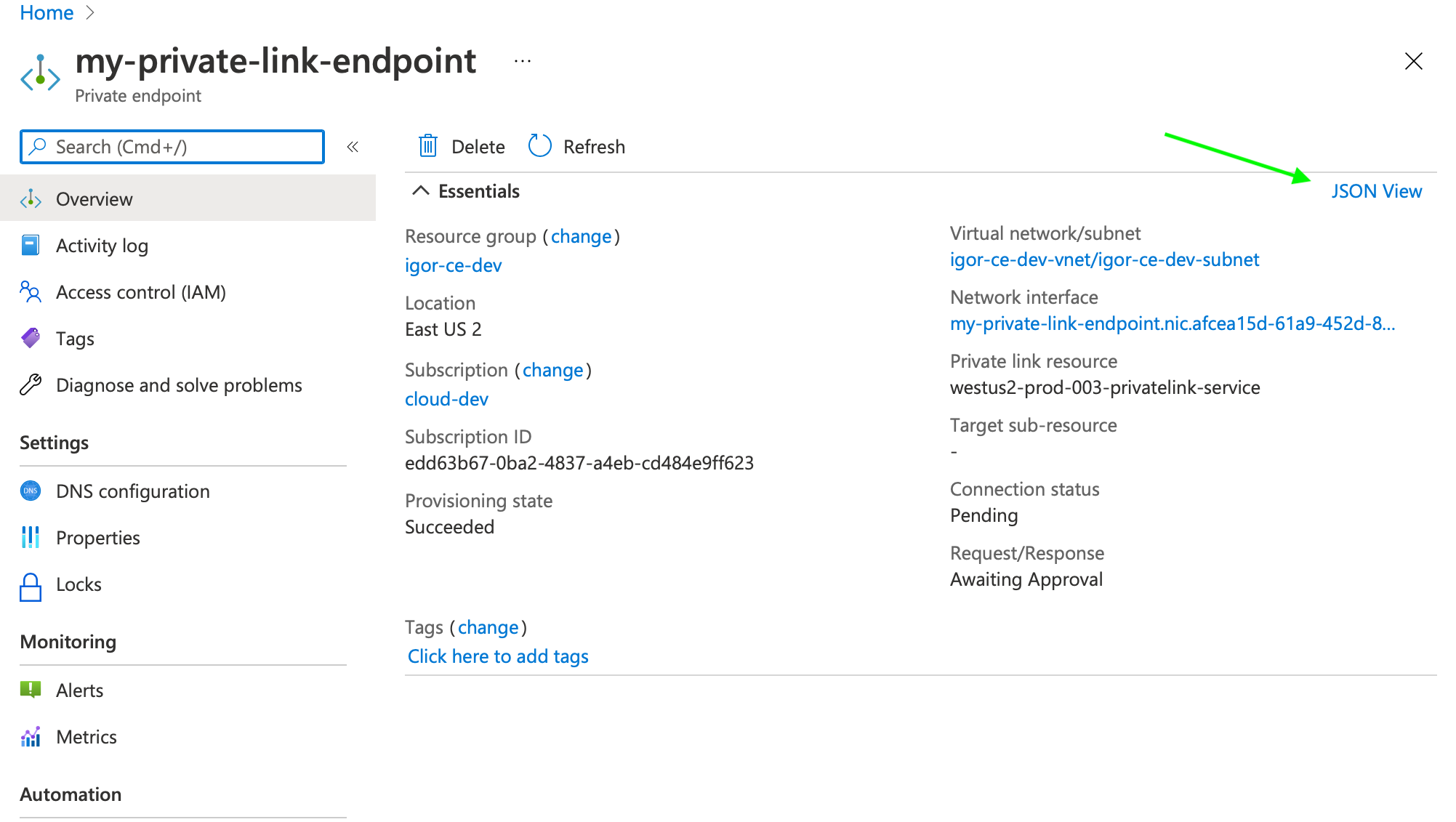
1. Go to your Private Link Endpoint in the Azure Portal.
2. Select **JSON View**.
3. Copy the value of the top level **name** property.
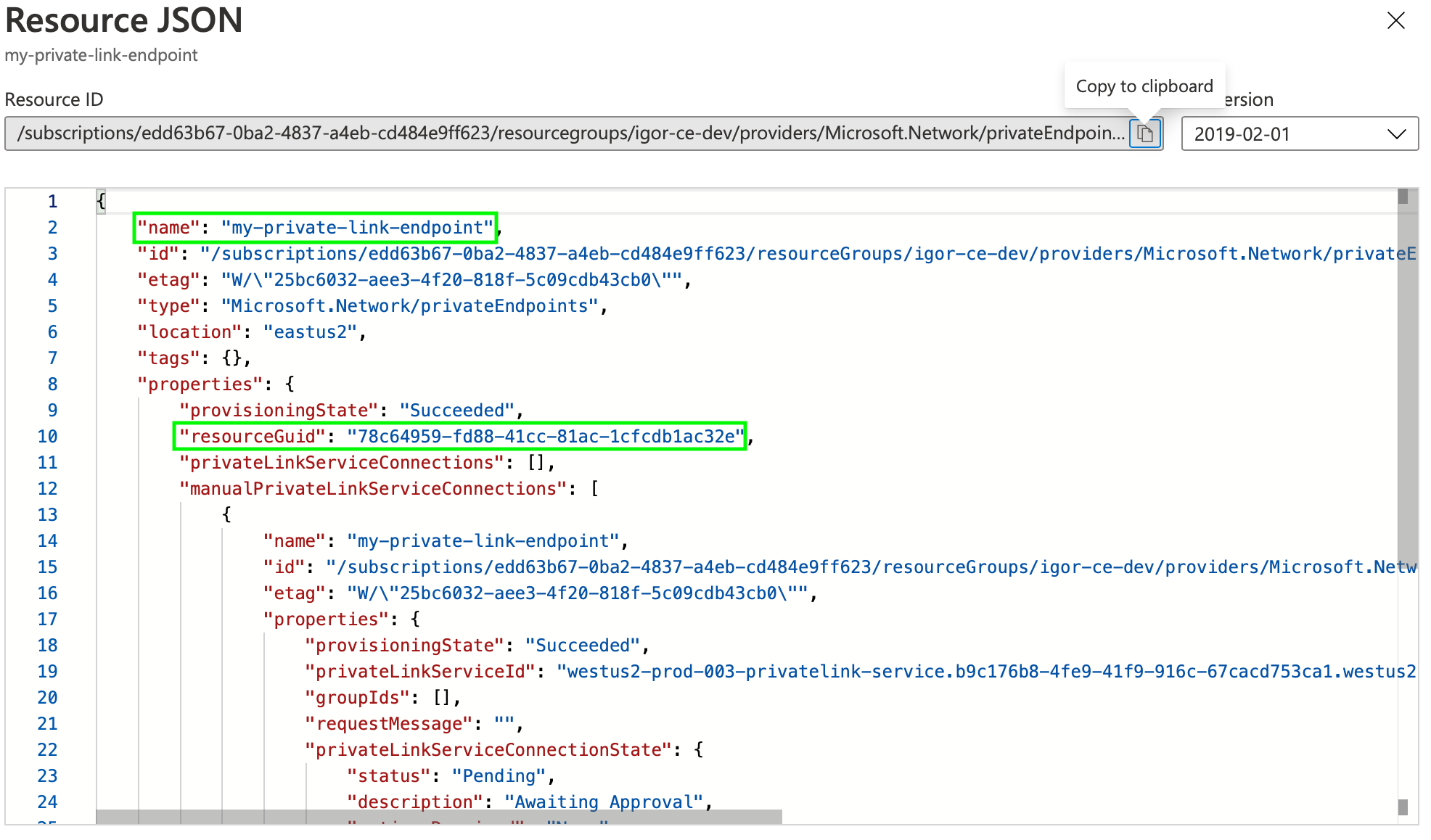
### Find your private endpoint resource ID
1. Go to your Private Link Endpoint in the Azure Portal.
2. Select **JSON View**.
3. Copy the value of the **properties.resourceGUID** property.
### Create a policy using the Private Link Endpoint resource
When you have your private endpoint name and ID, you can create a private connection policy.
The Private Link connection will be approved automatically after the private connection policy is created.
1. Log in to [Elastic Cloud](https://cloud.elastic.co?page=docs&placement=docs-body).
2. From the navigation menu, select **Security** > **Network security**.
1. Select **Private connection**.
2. Select the resource type that the private connection will be applied to.
3. Select the cloud provider and region for the private connection.
Private connection policies are bound to a single resource type and region, and can be assigned only to resources with the same resource type and in the same region. If you want to associate a policy with multiple resource types or resources in multiple regions, then you have to recreate the policy for all applicable resource types and regions.
4. Under **Connectivity**, select **PrivateLink**.
5. Enter your private endpoint **Resource name** and **Resource ID**. When applied to a deployment or project, this information will be used to filter traffic.
You can apply multiple policies to a single deployment or project. The policies can be of different types. In case of multiple policies, traffic can match any associated policy to be forwarded to the resource. If none of the policies match, the request is rejected with `403 Forbidden`.[Learn more about how network security policies affect your deployment or project](https://docs-v3-preview.elastic.dev/elastic/docs-content/pull/7595/deploy-manage/security/network-security-policies).
6. Optional: Under **Apply to resources**, associate the new private connection policy with one or more deployments or projects. After you associate the filter with a resource, it starts filtering traffic.
Associating the private connection policy with deployments or projects is optional. After the private connection policy is created, private connectivity is established.Associating the policy with your deployments or projects allows you to do the following:
- [View a list of the resources](/elastic/docs-content/pull/7595/deploy-manage/security/network-security-policies#protected-resources-overview) that have private connections applied.
- Filter traffic to your deployment or project.
7. To automatically attach this private connection policy to new resources of this type, select **Apply by default**.
8. Click **Create**.
9. (Optional) If you created a private connection policy for Elastic Cloud Hosted deployments, you can [claim your Private Endpoint resource name and ID](https://docs-v3-preview.elastic.dev/elastic/docs-content/pull/7595/deploy-manage/security/claim-private-connection-api), so that no other organization is able to use it in a private connection policy.
Creating the policy approves the Private Link connection.
After the private link connection is approved, you can optionally [test the connection](#test-the-connection), and then [associate the policy](#associate-private-connection-policy) with your deployment or project.
### Test the connection
After you create your private connection, you can check that you're able to reach your deployment or project over Private Link.
Use the following URL structure. This URL is built from endpoint information retrieved from your Elastic deployment or project and the private hosted zone domain name that you registered.
```
https://{{alias}}.{{product}}.{{private_hosted_zone_domain_name}}
```
For example:
```text
https://my-deployment-d53192.es.privatelink.eastus2.azure.elastic-cloud.com
```
Elastic Cloud Hosted supports ports 443 and 9243. Elastic Cloud Serverless supports port 443.You can also connect to the cluster using the Elasticsearch cluster or project ID, for example, https://6b111580caaa4a9e84b18ec7c600155e.privatelink.eastus2.azure.elastic-cloud.com.
Private hosted zone domain names differ between Elastic Cloud Hosted and Elastic Cloud Serverless, even if the region is the same.
To test the connection:
1. If needed, find the endpoint of an application in your deployment or project:
1. Log in to the [Elastic Cloud Console](https://cloud.elastic.co?page=docs&placement=docs-body).
2. Under **Hosted deployments**, find your deployment.
If you have many deployments, you can instead go to the **Hosted deployments** (Elastic Cloud Hosted) page. On that page, you can narrow your deployments by name, ID, or choose from several other filters.
1. Select **Manage**.
2. In the deployment overview, under **Applications**, find the application that you want to test.
3. Click **Copy endpoint**. The value looks something like the following:
```text
https://my-deployment-d53192.es.eastus2.azure.elastic-cloud.com
```
In this endpoint, `my-deployment-d53192` is an alias, and `es` is the product you want to access within your deployment.
1. Log in to the [Elastic Cloud Console](https://cloud.elastic.co?page=docs&placement=docs-body).
2. Under **Serverless projects**, find your projects.
If you have many projects, you can instead go to the **Serverless projects** page. On that page, you can narrow your projects by name, ID, or choose from several other filters.
3. Select **Manage**.
4. In the project overview, under **Application endpoints, cluster and component IDs**, find the application that you want to test.
5. Under **Public endpoint**, you can view your endpoint URL. It looks something like the following:
```text
https://my-project-d53192.es.eastus2.azure.elastic-cloud.com
```
In this endpoint, `my-project-d53192` is an alias, and `es` is the product you want to access within your project.
2. Test the setup using the following cURL command. Pass the username and password for a user that has access to the cluster. Make sure to replace the URL with your deployment or project's endpoint information and the private hosted zone domain name that you registered.
**Request**
```sh
$ curl -v https://my-deployment-d53192.es.privatelink.eastus2.azure.elastic-cloud.com:9243 -u {username}:{password}
```
**Response**
```sh
* Rebuilt URL to: https://my-deployment-d53192.es.privatelink.eastus2.azure.elastic-cloud.com:9243/
* Trying 192.168.46.5...
..
* SSL connection using TLS1.2 / ECDHE_RSA_AES_256_GCM_SHA384
* server certificate verification OK
* common name: *.privatelink.elastic-cloud.com (matched)
..
< HTTP/1.1 200 OK
..
{
"name" : "instance-0000000009",
"cluster_name" : "fb7e805e5cfb4931bdccc4f3cb591f5f",
"cluster_uuid" : "2cTHeCQYS2a0iH7YnQHrIQ",
"version" : { ... },
"tagline" : "You Know, for Search"
}
```
Check the IP address `192.168.46.5`. It should be the same as the IP address of your private endpoint.The connection is established, and a valid certificate is presented to the client. Elastic responds, in the case of the Elasticsearch endpoint, with basic information about the cluster.
**Request**
```sh
$ curl -v https://my-project-d53192.es.private.eastus2.azure.elastic.cloud -u {username}:{password}
```
**Response**
```sh
* Server certificate:
* subject: CN=*.es.private.eastus2.azure.elastic.cloud
* SSL certificate verify ok.
..
< HTTP/1.1 200 OK
..
{
"name" : "instance-0000000009",
"cluster_name" : "fb7e805e5cfb4931bdccc4f3cb591f5f",
"cluster_uuid" : "2cTHeCQYS2a0iH7YnQHrIQ",
"version" : { ... },
"tagline" : "You Know, for Search"
}
```
The connection is established, and a valid certificate is presented to the client. Elastic responds, in the case of the Elasticsearch endpoint, with basic information about the cluster.
### Troubleshoot connection failures
If your test connection fails, the following are some common errors and what they can indicate.
#### No route to host
If the test connection fails with a `No route to host` error, the Private Link connection is not approved by Elastic Cloud. Double check that the filter you've created in the previous step uses the right resource ID.
```sh
* connect to 192.168.46.5 port 9243 failed: No route to host
* Failed to connect to my-deployment-d53192.es.privatelink.eastus2.azure.elastic-cloud.com port 9243: No route to host
* Closing connection 0
curl: (7) Failed to connect to my-deployment-d53192.es.privatelink.eastus2.azure.elastic-cloud.com port 9243: No route to host
```
#### 403 Forbidden
If the TLS connection succeeds but the request returns a `403 Forbidden` response with `Forbidden due to traffic filtering`, the network path is valid but your private connection policy is missing or misconfigured. Verify that the resource name and resource ID in the policy exactly match the `name` and `properties.resourceGUID` values of the Azure private endpoint, and that the policy is associated with the target deployment or project.
```sh
HTTP/1.1 403 Forbidden
...
Forbidden due to traffic filtering
```
### Associate a private connection policy with a deployment or project
You can associate a private connection policy with your deployment or project from the policy's settings, or from your deployment's or project's settings.
After you associate the policy with a deployment or project, it starts filtering traffic.
Associating the private connection policy with deployments or projects is optional. After the private connection policy is created, private connectivity is established.Associating the policy with your deployments or projects allows you to do the following:
- [View a list of the resources](/elastic/docs-content/pull/7595/deploy-manage/security/network-security-policies#protected-resources-overview) that have private connections applied.
- Filter traffic to your deployment or project.
#### From a deployment or project
1. Find your deployment on the home page or on the **Hosted deployments** page, then select **Manage** to access its settings menus.
On the **Hosted deployments** page, you can narrow your deployments by name, ID, or choose from several other filters. To customize your view, use a combination of filters, or change the format from a grid to a list.
2. On the **Security** page, under **Network security**, select **Apply policies** > **Private connection**.
3. Choose the policy you want to apply and select **Apply**.
1. Find your project on the home page or on the **Serverless projects** page, then select **Manage** to access its settings menus.
On the **Serverless projects** page, you can narrow your projects by name, ID, or choose from several other filters. To customize your view, use a combination of filters, or change the format from a grid to a list.
2. On the **Security** page, under **Network security**, select **Apply policies** > **Private connection**.
3. Choose the policy you want to apply and select **Apply**.
#### From the policy settings
1. Log in to [Elastic Cloud](https://cloud.elastic.co?page=docs&placement=docs-body).
2. From the navigation menu, select **Security** > **Network security**.
1. Find the policy you want to edit.
2. Under **Apply to resources**, associate the policy with one or more deployments or projects.
3. Click **Update** to save your changes.
## Optional: Add an IP filter to allow SSO to Kibana from the Elastic Cloud console
When a private connection is applied to a deployment or project, you can't use SSO to log in to Kibana endpoints that are protected by private connections from the Elastic Cloud console. The connection to the Kibana public URL is still available.
As a workaround, you can add an IP filter for ingress traffic with the public IP address or addresses of the hosts that will use SSO through the Elastic Cloud console. You should scope your IP filter to the narrowest possible range: the egress IPs of your corporate VPN gateway, NAT gateway, or specific client machines.
If you don't create an IP filter, you might see an error like `Invalid SAML request` or `Forbidden due to traffic filtering`.
To add an IP filter:
1. Log in to [Elastic Cloud](https://cloud.elastic.co?page=docs&placement=docs-body).
2. From the navigation menu, select **Security** > **Network security**.
1. Select **Create policy** > **IP filter**.
2. Select the resource type that the IP filter will be applied to: either hosted deployments or serverless projects.
3. Select the cloud provider and region for the IP filter.
4. Add a meaningful name and description for the IP filter.
5. Under **Access control**, select **Ingress**.
6. Add the public IP address or addresses of the hosts that will use SSO through the Elastic Cloud console.
7. Under **Apply to resources**, associate the IP filter with one or more deployments or projects.
8. Click **Create**.
## Access the resource over a Private Link
For traffic to connect with the deployment or project over Azure Private Link, the client making the request needs to be located within the VNet where you’ve created the private endpoint. You can also set up network traffic to flow through the originating VNet from somewhere else, such as another VNet or a VPN from your corporate network. This assumes that the private endpoint and the DNS record are also available within that context. Check your service provider documentation for setup instructions.
Use the alias you've set up as an A record to access your resource.
Use the following URL structure. This URL is built from endpoint information retrieved from your Elastic deployment or project and the private hosted zone domain name that you registered.
```
https://{{alias}}.{{product}}.{{private_hosted_zone_domain_name}}
```
For example:
```text
https://my-deployment-d53192.es.privatelink.eastus2.azure.elastic-cloud.com
```
Elastic Cloud Hosted supports ports 443 and 9243. Elastic Cloud Serverless supports port 443.You can also connect to the cluster using the Elasticsearch cluster or project ID, for example, https://6b111580caaa4a9e84b18ec7c600155e.privatelink.eastus2.azure.elastic-cloud.com.
Private hosted zone domain names differ between Elastic Cloud Hosted and Elastic Cloud Serverless, even if the region is the same.
To access the deployment or project:
1. If needed, find the endpoint of an application in your deployment or project:
1. Log in to the [Elastic Cloud Console](https://cloud.elastic.co?page=docs&placement=docs-body).
2. Under **Hosted deployments**, find your deployment.
If you have many deployments, you can instead go to the **Hosted deployments** (Elastic Cloud Hosted) page. On that page, you can narrow your deployments by name, ID, or choose from several other filters.
1. Select **Manage**.
2. In the deployment overview, under **Applications**, find the application that you want to test.
3. Click **Copy endpoint**. The value looks something like the following:
```text
https://my-deployment-d53192.es.eastus2.azure.elastic-cloud.com
```
In this endpoint, `my-deployment-d53192` is an alias, and `es` is the product you want to access within your deployment.
1. Log in to the [Elastic Cloud Console](https://cloud.elastic.co?page=docs&placement=docs-body).
2. Under **Serverless projects**, find your projects.
If you have many projects, you can instead go to the **Serverless projects** page. On that page, you can narrow your projects by name, ID, or choose from several other filters.
3. Select **Manage**.
4. In the project overview, under **Application endpoints, cluster and component IDs**, find the application that you want to test.
5. Under **Public endpoint**, you can view your endpoint URL. It looks something like the following:
```text
https://my-project-d53192.es.eastus2.azure.elastic-cloud.com
```
In this endpoint, `my-project-d53192` is an alias, and `es` is the product you want to access within your project.
2. Send a request:
**Request**
```sh
$ curl -v https://my-deployment-d53192.es.privatelink.eastus2.azure.elastic-cloud.com:9243 -u {username}:{password}
```
**Response**
```sh
* Rebuilt URL to: https://my-deployment-d53192.es.privatelink.eastus2.azure.elastic-cloud.com:9243/
* Trying 192.168.46.5...
..
* SSL connection using TLS1.2 / ECDHE_RSA_AES_256_GCM_SHA384
* server certificate verification OK
* common name: *.privatelink.elastic-cloud.com (matched)
..
< HTTP/1.1 200 OK
..
{
"name" : "instance-0000000009",
"cluster_name" : "fb7e805e5cfb4931bdccc4f3cb591f5f",
"cluster_uuid" : "2cTHeCQYS2a0iH7YnQHrIQ",
"version" : { ... },
"tagline" : "You Know, for Search"
}
```
**Request**
```sh
$ curl -v https://my-project-d53192.es.private.eastus2.azure.elastic.cloud -u {username}:{password}
```
**Response**
```sh
* Server certificate:
* subject: CN=*.es.private.eastus2.azure.elastic.cloud
* SSL certificate verify ok.
..
< HTTP/1.1 200 OK
..
{
"name" : "instance-0000000009",
"cluster_name" : "fb7e805e5cfb4931bdccc4f3cb591f5f",
"cluster_uuid" : "2cTHeCQYS2a0iH7YnQHrIQ",
"version" : { ... },
"tagline" : "You Know, for Search"
}
```
### Azure Private Link and Fleet
If you are using Azure Private Link together with Fleet, and enrolling the Elastic Agent with a private connection URL, you need to configure Fleet Server to use and propagate the Azure Private Link URL by updating the **Fleet Server hosts** field in the **Fleet settings** section of Kibana. Otherwise, Elastic Agent will reset to use a default address instead of the Azure Private Link URL.
The URL needs to follow this pattern:
```text
https://{{fleet_component_ID_or_deployment_alias}}.fleet.{{private_hosted_zone_domain_name}}:443`
```
Similarly, the Elasticsearch host needs to be updated to propagate the private connection URL. The Elasticsearch URL needs to follow this pattern:
```text
https://{{elasticsearch_cluster_ID_or_deployment_alias}}.es.{{private_hosted_zone_domain_name}}:443
```
The settings `xpack.fleet.agents.fleet_server.hosts` and `xpack.fleet.outputs` that are needed to enable this configuration in Kibana are not available in the Kibana settings in Elastic Cloud.
## Setting up an inter-region Private Link connection
Azure supports inter-region Private Link as described in the [Azure documentation](https://docs.microsoft.com/en-us/azure/private-link/private-endpoint-overview).
This means your deployment or project on Elastic Cloud can be in a different region than the Private Link endpoints or the clients that consume the deployment or project endpoints.
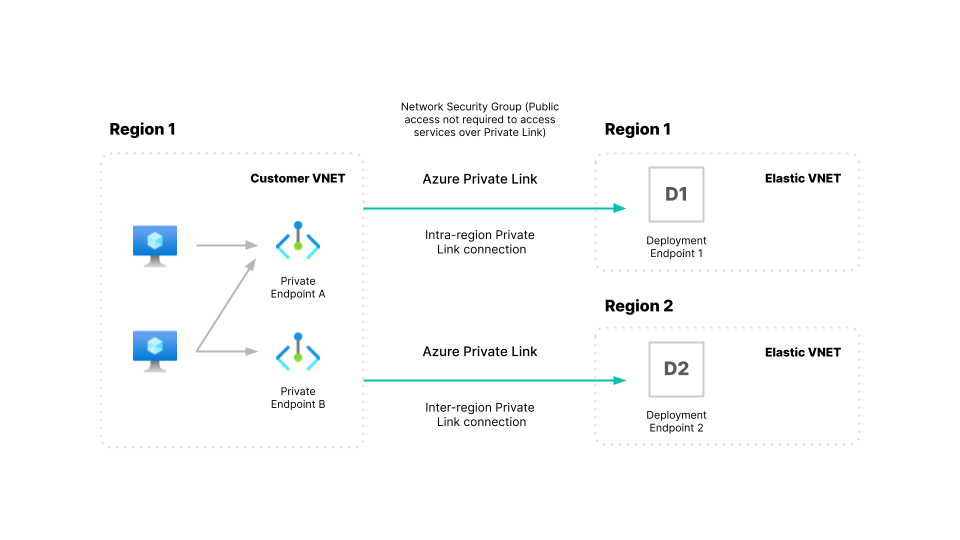
1. Set up Private Link Endpoint in region 1 for a deployment or project hosted in region 2.
1. Create your Private Link Endpoint using the service alias for region 2 in the region 1 VNet (let’s call this VNet1).
2. Create a Private Hosted Zone for region 2, and associate it with VNet1 similar to the step [Create a Private Link endpoint and DNS](#ec-private-link-azure-dns). Note that you are creating these resources in region 1, VNet1.
2. [Create a private connection policy](#create-private-connection-policy) in the region where your deployment or project is hosted, and [associate it](#associate-private-connection-policy) with your deployment or project.
3. [Test the connection](#ec-azure-access-the-deployment-over-private-link) from a VM or client in region 1 to your Private Link endpoint, and it should be able to connect to your Elasticsearch deployment or project hosted in region 2.
## Manage private connection policies
After you create your private connection policy, you can edit it, remove it from your deployment or project, or delete it.
### Edit a private connection policy
You can edit a policy's name, description, resource name, Private Endpoint filter, and more.
1. Log in to [Elastic Cloud](https://cloud.elastic.co?page=docs&placement=docs-body).
2. From the navigation menu, select **Security** > **Network security**.
1. Find the policy you want to edit, then click the **Edit** `pencil` button.
2. Click **Update** to save your changes.
You can also edit private connection policies from your deployment or project's **Security** page or your project's **Network security** page.
### Remove a private connection policy from your deployment or project
If you want to remove a specific policy from a deployment or project, or delete the policy, then you need to disconnect it from any associated deployments or projects first. You can do this from the policy's settings, or from your deployment or project's settings. To remove an association through the UI:
#### From your deployment or project
1. Find your deployment on the home page or on the **Hosted deployments** page, then select **Manage** to access its settings menus.
On the **Hosted deployments** page you can narrow your deployments by name, ID, or choose from several other filters. To customize your view, use a combination of filters, or change the format from a grid to a list.
2. On the **Security** page, under **Network security**, find the policy that you want to disconnect.
3. Under **Actions**, click the **Delete** icon.
1. Find your project on the home page or on the **Serverless projects** page, then select **Manage** to access its settings menus.
On the **Serverless projects** page, you can narrow your projects by name, ID, or choose from several other filters. To customize your view, use a combination of filters, or change the format from a grid to a list.
2. On the **Security** page, under **Network security**, find the policy that you want to disconnect.
3. Under **Actions**, click the **Delete** icon.
#### From the private connection policy settings
1. Log in to [Elastic Cloud](https://cloud.elastic.co?page=docs&placement=docs-body).
2. From the navigation menu, select **Security** > **Network security**.
1. Find the policy you want to edit, then click the **Edit** `pencil` button.
2. Under **Apply to resources**, click the `x` beside the resource that you want to disconnect.
3. Click **Update** to save your changes.
### Delete a private connection policy
If you need to remove a policy, you must first remove any associations with deployments or projects.
To delete a policy:
1. Log in to [Elastic Cloud](https://cloud.elastic.co?page=docs&placement=docs-body).
2. From the navigation menu, select **Security** > **Network security**.
1. Find the policy you want to edit, then click the **Delete** icon. The icon is inactive if there are deployments or projects associated with the policy.