---
title: Manage and organize workflows
description: Find, edit, duplicate, enable, disable, run, and review version history for workflows from the Workflows page in Kibana.
url: https://docs-v3-preview.elastic.dev/elastic/docs-content/pull/7706/explore-analyze/workflows/authoring-techniques/manage-workflows
products:
- Elastic Cloud Enterprise
- Elastic Cloud Hosted
- Elastic Cloud Serverless
- Elastic Cloud on Kubernetes
- Elastic Stack
- Kibana
applies_to:
- Elastic Cloud Serverless: Generally available
- Elastic Stack: Generally available since 9.4, Preview in 9.3
---
# Manage and organize workflows
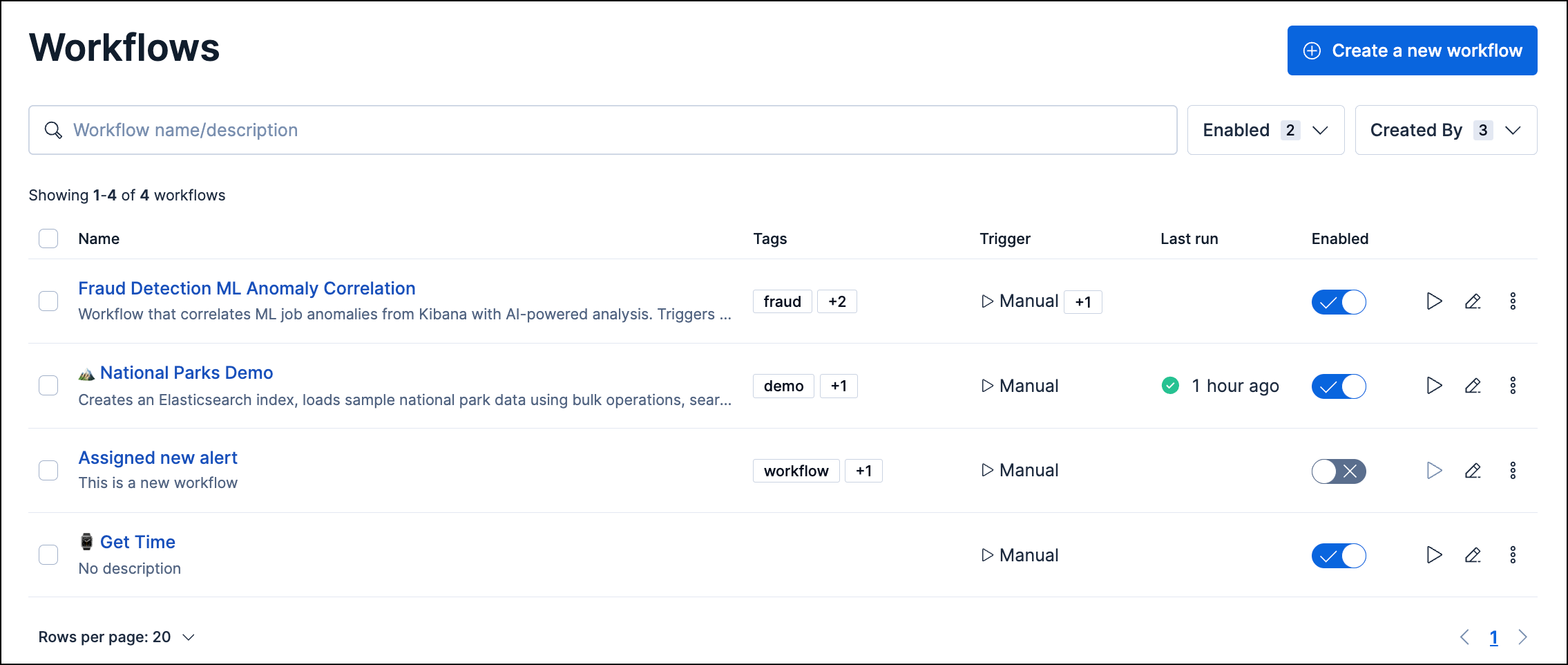
The **Workflows** page allows you to view and manage all your workflows. From the page, you can create, edit, duplicate, delete, and more with your workflows. To find the **Workflows** page, use the navigation menu or the [global search field](https://docs-v3-preview.elastic.dev/elastic/docs-content/pull/7706/explore-analyze/find-and-organize/find-apps-and-objects).
To use workflows, you must turn on the feature and ensure your role has the appropriate privileges. Refer to [Set up Workflows](https://docs-v3-preview.elastic.dev/elastic/docs-content/pull/7706/explore-analyze/workflows/get-started/setup) for more information.You must also have the appropriate subscription. Refer to the subscription page for [Elastic Cloud](https://www.elastic.co/subscriptions/cloud) and [Elastic Stack/self-managed](https://www.elastic.co/subscriptions) for the breakdown of available features and their associated subscription tiers.
## Available actions
From the Workflows page, you can create new workflows, search and filter existing ones, manually trigger workflows, and more.
### Create a workflow
Click **Create a new workflow** to open the YAML editor. Refer to [Use the YAML editor](https://docs-v3-preview.elastic.dev/elastic/docs-content/pull/7706/explore-analyze/workflows/authoring-techniques/use-yaml-editor) to learn how to use the editor.
### Search and filter
Use the search bar to filter workflows by name, description, or tag. You can also use the **Enabled** filter to only show workflows that are turned on (enabled) or off (disabled), and the **Created By** filter to only show workflows created by the specified user.
### Run a workflow
To instantly run a workflow, click the **Run** icon `play` for a workflow, or open the **All actions** menu (`boxes_vertical`) and click **Run**. The workflow manually runs regardless of its specified triggers. To learn about monitoring workflow runs, refer to [Monitor workflow execution](https://docs-v3-preview.elastic.dev/elastic/docs-content/pull/7706/explore-analyze/workflows/authoring-techniques/monitor-workflows).
### Edit a workflow
Click the **Edit** icon to open the workflow in the YAML editor. Alternatively, open the **All actions** menu (`boxes_vertical`), and click **Edit**.
### Turn a workflow on or off
Use the **Enabled** toggle to control whether a workflow can run:
- **Enabled**: The workflow responds to its configured triggers.
- **Disabled**: The workflow won't run, even if it's triggered.
## Version history
- Elastic Cloud Serverless: Generally available
- Elastic Stack: Planned
Every time you save a workflow, Elastic records a new **workflow version**: a numbered snapshot of the full definition, who saved it, and when. Use version history to review teammate edits, inspect what changed after a refactor, or roll back to a known-good definition.
Versions are kept indefinitely by default.
### Open the history timeline
1. Open a workflow in the editor.
2. In the workflow header, open the **More** menu `boxes_vertical` and select **History**.
The timeline lists committed versions newest first. Each entry shows:
- A version badge (`v1`, `v2`, `v3`, and so on)
- **Current version** on the latest committed version (when you have no unsaved edits)
- Who saved the version and when
- A change summary grouped by **Steps**, **Triggers**, and **Settings** (for example, steps added or removed), so you can scan changes without reading the full YAML
### Compare versions
Select a version in the timeline to preview its YAML in the editor:
- **Single-version view**: The full YAML for that version
- **Compare view**: A line-by-line diff against the previous version, or against another version you choose with **Compare to this version**. Added and removed lines are highlighted in the YAML, and a counter at the bottom of the editor shows how many changes the version contains. Use the arrows beside it to step through the changes one at a time.
To flag validation errors, select the settings icon `controls` at the bottom right of the YAML preview, then turn on validation error highlighting.
If you have unsaved edits, they appear at the top of the timeline as **Unsaved changes**. Select that row to compare your draft against the last committed version before you save.
### Restore a previous version
1. Select a version in the timeline or use **Restore this version** on a timeline row.
2. Review the preview or diff.
3. Select **Restore**, then confirm.
Restoring creates a **new** version at the top of the timeline with a comment such as **Restored from v3**. History is preserved; restore is not a destructive revert.
You cannot restore **Managed** workflows. Restore requires the Workflows **Update** privilege; viewing history requires **Read**. Refer to [Set up Workflows > Manage access to workflows](/elastic/docs-content/pull/7706/explore-analyze/workflows/get-started/setup#workflows-role-access).
### Execution and version linkage
Each workflow execution is linked to the workflow version that was active when it ran. Open an execution from the **Executions** tab to see which version was used for that run. Refer to [Monitor workflow execution](https://docs-v3-preview.elastic.dev/elastic/docs-content/pull/7706/explore-analyze/workflows/authoring-techniques/monitor-workflows).