---
title: Duplicate a data view
description: Duplicate a Kibana data view to get a starting point for a similar one, or to work around a managed data view's read-only restrictions.
url: https://docs-v3-preview.elastic.dev/elastic/docs-content/pull/7723/explore-analyze/find-and-organize/data-views/duplicate-data-view
products:
- Kibana
applies_to:
- Elastic Cloud Serverless: Generally available
- Elastic Stack: Generally available
---
# Duplicate a data view
Duplicating a data view gives you an editable copy to work from. This is useful whenever you want to reuse an existing data view as a starting point, for example to try out different field formatting or a different index pattern without affecting the original, or to make a similar data view for another use case.
Elastic Stack: Generally available since 9.2 It's also the way to customize a **managed** data view: managed data views can't be edited directly (refer to [Data views](/elastic/docs-content/pull/7723/explore-analyze/find-and-organize/data-views#data-views-how-you-get-one)), so duplicating one is how you get an editable version.
## Before you begin
You need the same privileges required to [create a data view](/elastic/docs-content/pull/7723/explore-analyze/find-and-organize/data-views/create-data-view#create-data-view-prereqs), and an existing data view to duplicate.
## Duplicate a data view
1. Open the Kibana application where you want to use the data view, for example **Discover** or **Lens**.
Duplication isn't available from the **Data Views** management page.
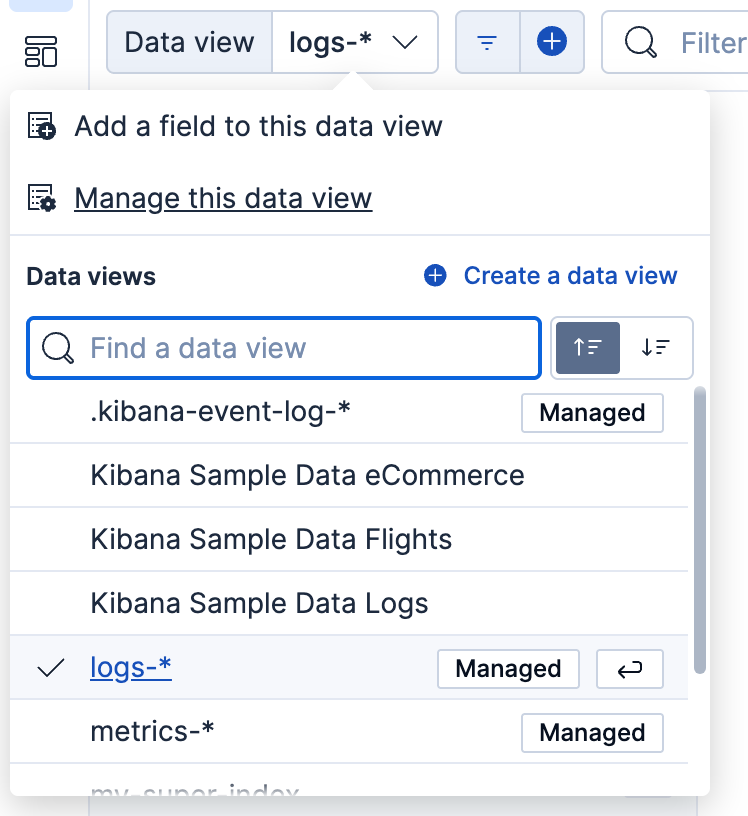
2. In the data view selection menu, select the data view that you want to duplicate.
3. Still in the data view selection menu, select **Manage this data view**. A flyout with more details about the data view opens. For a managed data view, it indicates that you can't edit it directly.
4. Select **Duplicate**. A similar flyout opens where you can adjust the settings of the new copy.
5. Finalize your edits, then select **Save data view to Kibana** or **Use without saving**, depending on your needs.
If you save it to Kibana, the new, editable data view appears in the data view selection menu and on the **Data Views** management page, separate from the one you duplicated.
## Related pages
- [Data views](https://docs-v3-preview.elastic.dev/elastic/docs-content/pull/7723/explore-analyze/find-and-organize/data-views)
- [Create a data view](https://docs-v3-preview.elastic.dev/elastic/docs-content/pull/7723/explore-analyze/find-and-organize/data-views/create-data-view)