---
title: Format data view fields
description: Reference for the field formatters available for string, date, geographic point, and numeric fields in a Kibana data view.
url: https://docs-v3-preview.elastic.dev/elastic/docs-content/pull/7723/explore-analyze/find-and-organize/data-views/field-formatters
products:
- Kibana
applies_to:
- Elastic Cloud Serverless: Generally available
- Elastic Stack: Generally available
---
# Format data view fields
Kibana uses the same field types as Elasticsearch, however, some Elasticsearch field types are unsupported in Kibana. To customize how Kibana displays data view fields, use the formatting options.
1. Go to the **Data Views** management page using the navigation menu or the [global search field](https://docs-v3-preview.elastic.dev/elastic/docs-content/pull/7723/explore-analyze/find-and-organize/find-apps-and-objects).
2. Select the data view that contains the field you want to change.
3. Find the field, then open the edit options ().
4. Select **Set custom label**, then enter a **Custom label** for the field.
5. Select **Set format**, then enter the **Format** for the field.
For numeric fields, the default field formatters are based on the `meta.unit` field. The unit is associated with a [time unit](https://docs-v3-preview.elastic.dev/elastic/elasticsearch/tree/main/reference/elasticsearch/rest-apis/api-conventions#time-units), percent, or byte. The convention for percents is to use value 1 to mean 100%.
## String field formatters
String fields support the [**String**](#string-transformations) and [**Url**](#url-field-formatter) formatters.
## Date field formatters
Date fields support the **Date**, [**String**](#string-transformations), and [**Url**](#url-field-formatter) formatters.
The **Date** formatter enables you to choose the display format of date stamps using the [moment.js](https://momentjs.com/) standard format definitions.
## Geographic point field formatters
Geographic point fields support the [**String**](#string-transformations) formatter.
## Number field formatters
Numeric fields support the **Bytes and Bits**, **Color**, **Duration**, **Histogram**, **Number**, **Percentage**, [**String**](#string-transformations), and [**Url**](#url-field-formatter) formatters.
The **Bytes and Bits**, **Number**, and **Percentage** formatters enable you to choose the display formats of numbers in the field using the [Elastic numeral pattern](https://docs-v3-preview.elastic.dev/elastic/docs-content/pull/7723/explore-analyze/numeral-formatting) syntax that Kibana maintains.
The **Histogram** formatter is used only for the [histogram field type](https://docs-v3-preview.elastic.dev/elastic/elasticsearch/tree/main/reference/elasticsearch/mapping-reference/histogram). When you use the **Histogram** formatter, you can apply the **Bytes and Bits**, **Number**, or **Percentage** format to aggregated data.
The **Duration** field formatter displays the numeric value of a field in the following increments:
- Picoseconds
- Nanoseconds
- Microseconds
- Milliseconds
- Seconds
- Minutes
- Hours
- Days
- Weeks
- Months
- Years
You can specify these increments with up to 20 decimal places for input and output formats.
The **Color** field formatter enables you to specify colors with ranges of values for a number field.
When you select the **Color** formatter, select **Add Color**, then specify the **Range**, **Text color**, and **Background color**.
## String transformations
The **String** field formatter enables you to apply transforms to any field that supports it.
Supported transformations include:
- Convert to lowercase
- Convert to uppercase
- Convert to title case
- Apply the short dots transformation, which replaces the content before the `.` character with the first character of the content. For example:
**Becomes**
`c.o.p.ClassName`
- Base64 decode
- URL param decode
## `Url` field formatter
The `Url` field formatter enables you to convert the contents of any field that supports it into a link, image, or audio reference.
You can specify the following types to the `Url` field formatter:
- **Link** — Converts the contents of the field into an URL. You can specify the width and height of the image, while keeping the aspect ratio. When the image is smaller than the specified parameters, the image is unable to upscale.
- **Image** — Specifies the image directory.
- **Audio** — Specify the audio directory.
To customize URL field formats, use templates. An **URL template** enables you to add values to a partial URL. To add the contents of the field to a fixed URL, use the `{{value}}` string.
For example, when:
- A field contains a user ID
- A field uses the `Url` field formatter
- The URI template is `http://company.net/profiles?user_id={{{value}}}`
The resulting URL replaces `{{value}}` with the user ID from the field.
The `{{value}}` template string URL-encodes the contents of the field. When a field encoded into a URL contains non-ASCII characters, the characters are replaced with a `%` character and the appropriate hexadecimal code. For example, field contents `users/admin` result in the URL template adding `users%2Fadmin`.
When the formatter type is **Image**, the `{{value}}` template string specifies the name of an image at the specified URI.
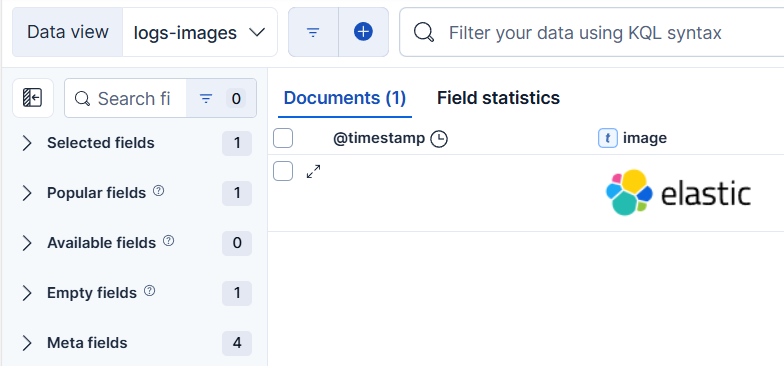
You can render base64 images from data within a document by using the following **URL template**:
```text
data:image/png;base64,{{value}}
```
For example:
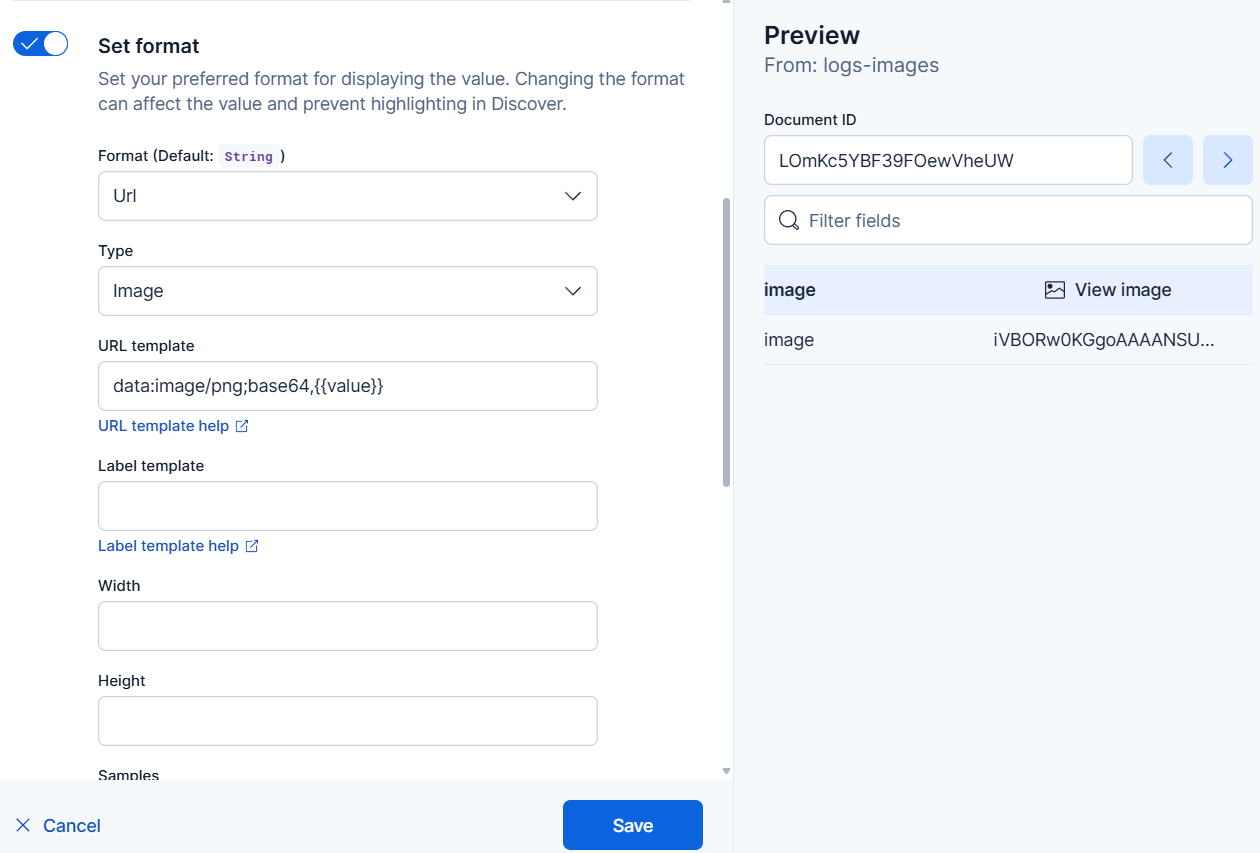
This configuration renders a PNG file in Discover as follows:
When the formatter type is **Audio**, the `{{value}}` template string specifies the name of an audio file at the specified URI.
To pass values directly to the URL without encoding them, use the `{{rawValue}}` string.
A **Label template** enables you to specify a text string that appears instead of the raw URL. You can use the `{{value}}` template string normally in label templates. You can also use the `{{url}}` template string to display the formatted URL.
## Related pages
- [Data views](https://docs-v3-preview.elastic.dev/elastic/docs-content/pull/7723/explore-analyze/find-and-organize/data-views)
- [Customize data view fields](https://docs-v3-preview.elastic.dev/elastic/docs-content/pull/7723/explore-analyze/find-and-organize/data-views/customize-data-view-fields)