---
title: Create a latency threshold rule
description: You can create a latency threshold rule to alert you when the latency of a specific transaction type in a service exceeds a defined threshold. Threshold...
url: https://docs-v3-preview.elastic.dev/elastic/docs-content/pull/7815/solutions/observability/incident-management/create-latency-threshold-rule
products:
- Elastic Cloud Serverless
- Elastic Observability
applies_to:
- Elastic Cloud Serverless: Generally available
- Elastic Stack: Generally available
---
# Create a latency threshold rule
You can create a latency threshold rule to alert you when the latency of a specific transaction type in a service exceeds a defined threshold. Threshold rules can be set at different levels: environment, service, transaction type, and/or transaction name. Add actions to raise alerts via services or third-party integrations e.g. mail, Slack, Jira.
Rules use an API key to authorize all background tasks, including condition checks and triggered actions. The key type depends on your deployment. For details on how API keys authorize rules, refer to [API keys](/elastic/docs-content/pull/7815/explore-analyze/alerting/alerts/alerting-setup#alerting-authorization).
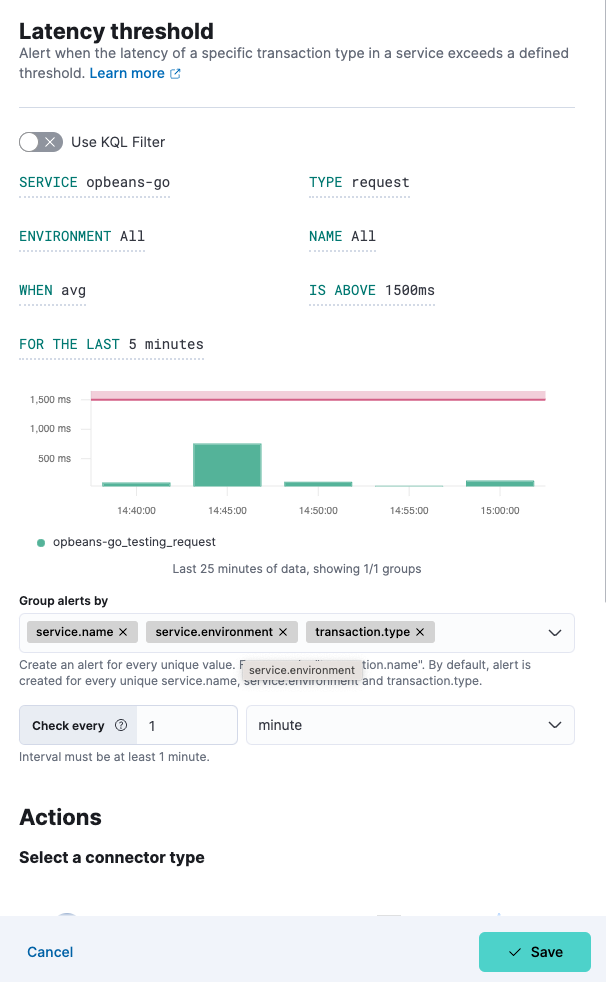
The following steps show how to use the **Alerts** UI. You can also create a latency threshold rule directly from any page within **Applications**. Click the **Alerts and rules** button, and select **Create threshold rule** and then **Latency**. When you create a rule this way, the **Name** and **Tags** fields will be prepopulated but you can still change these.
To create your latency threshold rule:
1. In Observability UI, go to **Alerts**.
2. Select **Manage Rules** from the **Alerts** page, and select **Create rule**.
3. Enter a **Name** for your rule, and any optional **Tags** for more granular reporting (leave blank if unsure).
4. Select the **Latency threshold** rule type from the APM use case.
5. Select the appropriate **Service**, **Type**, **Environment** and **Name** (or leave **ALL** to include all options). Alternatively, you can select **Use KQL Filter** and enter a KQL expression to limit the scope of your rule.
6. Define the threshold and period:
- **When**: Choose between `Average`, `95th percentile`, or `99th percentile`.
- **Is Above**: Enter a time in milliseconds (defaults to 1500ms).
- **For the last**: Define the period to be assessed in (defaults to last 5 minutes).
7. Choose how to **Group alerts by**. Every unique value will create an alert.
8. Define the interval to check the rule (for example, check every 1 minute).
9. (Optional) Set up **Actions**.
10. **Save** your rule.
## Add actions
You can extend your rules with actions that interact with third-party systems, write to logs or indices, or send user notifications. You can add an action to a rule at any time. You can create rules without adding actions, and you can also define multiple actions for a single rule.
To add actions to rules, you must first create a connector for that service (for example, an email or external incident management system), which you can then use for different rules, each with their own action frequency.
Connectors provide a central place to store connection information for services and integrations with third party systems. The following connectors are available when defining actions for alerting rules:
- [Cases](https://docs-v3-preview.elastic.dev/elastic/kibana/tree/main/reference/connectors-kibana/cases-action-type)
- [D3 Security](https://docs-v3-preview.elastic.dev/elastic/kibana/tree/main/reference/connectors-kibana/d3security-action-type)
- [Email](https://docs-v3-preview.elastic.dev/elastic/kibana/tree/main/reference/connectors-kibana/email-action-type)
- [IBM Resilient](https://docs-v3-preview.elastic.dev/elastic/kibana/tree/main/reference/connectors-kibana/resilient-action-type)
- [Index](https://docs-v3-preview.elastic.dev/elastic/kibana/tree/main/reference/connectors-kibana/index-action-type)
- [Jira](https://docs-v3-preview.elastic.dev/elastic/kibana/tree/main/reference/connectors-kibana/jira-action-type)
- [Microsoft Teams](https://docs-v3-preview.elastic.dev/elastic/kibana/tree/main/reference/connectors-kibana/teams-action-type)
- [Observability AI Assistant](https://docs-v3-preview.elastic.dev/elastic/kibana/tree/main/reference/connectors-kibana/obs-ai-assistant-action-type)
- [Opsgenie](https://docs-v3-preview.elastic.dev/elastic/kibana/tree/main/reference/connectors-kibana/opsgenie-action-type)
- [PagerDuty](https://docs-v3-preview.elastic.dev/elastic/kibana/tree/main/reference/connectors-kibana/pagerduty-action-type)
- [Server log](https://docs-v3-preview.elastic.dev/elastic/kibana/tree/main/reference/connectors-kibana/server-log-action-type)
- [ServiceNow ITOM](https://docs-v3-preview.elastic.dev/elastic/kibana/tree/main/reference/connectors-kibana/servicenow-itom-action-type)
- [ServiceNow ITSM](https://docs-v3-preview.elastic.dev/elastic/kibana/tree/main/reference/connectors-kibana/servicenow-action-type)
- [ServiceNow SecOps](https://docs-v3-preview.elastic.dev/elastic/kibana/tree/main/reference/connectors-kibana/servicenow-sir-action-type)
- [Slack](https://docs-v3-preview.elastic.dev/elastic/kibana/tree/main/reference/connectors-kibana/slack-action-type)
- [Swimlane](https://docs-v3-preview.elastic.dev/elastic/kibana/tree/main/reference/connectors-kibana/swimlane-action-type)
- [Torq](https://docs-v3-preview.elastic.dev/elastic/kibana/tree/main/reference/connectors-kibana/torq-action-type)
- [Webhook](https://docs-v3-preview.elastic.dev/elastic/kibana/tree/main/reference/connectors-kibana/webhook-action-type)
- [xMatters](https://docs-v3-preview.elastic.dev/elastic/kibana/tree/main/reference/connectors-kibana/xmatters-action-type)
Some connector types are paid commercial features, while others are free. For a comparison of the Elastic subscription levels, go to [the subscription page](https://www.elastic.co/subscriptions).
For more information on creating connectors, refer to [Connectors](https://docs-v3-preview.elastic.dev/elastic/docs-content/pull/7815/deploy-manage/manage-connectors).
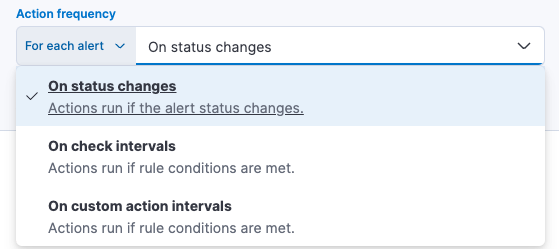
After you select a connector, you must set the action frequency. You can choose to create a **Summary of alerts** on each check interval or on a custom interval. For example, you can send email notifications that summarize the new, ongoing, and recovered alerts every twelve hours.Alternatively, you can set the action frequency to **For each alert** and specify the conditions each alert must meet for the action to run. For example, you can send an email only when the alert status changes to critical.
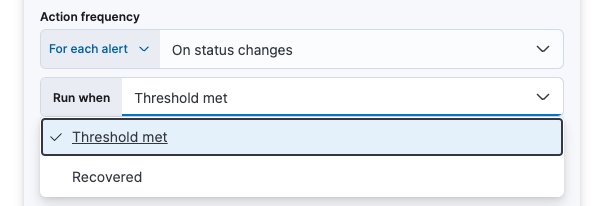
With the **Run when** menu you can choose if an action runs when the threshold for an alert is reached, or when the alert is recovered. For example, you can add a corresponding action for each state to ensure you are alerted when the rule is triggered and also when it recovers.
Use the default notification message or customize it. You can add more context to the message by clicking the Add variable icon  and selecting from a list of available variables.
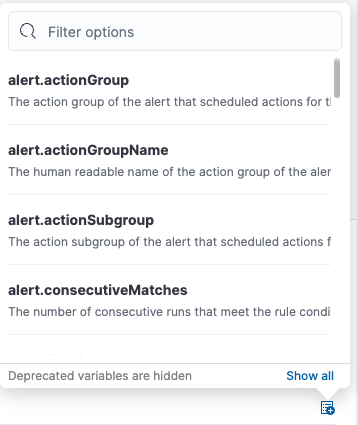
The following variables are specific to this rule type. You can also specify [variables common to all rules](https://docs-v3-preview.elastic.dev/elastic/docs-content/pull/7815/explore-analyze/alerting/alerts/rule-action-variables).
Link to the alert troubleshooting view for further context and details. This will be an empty string if the `server.publicBaseUrl` is not configured.
The transaction type the alert is created for.
The object containing groups that are reporting data.
The length and unit of time period where the alert conditions were met.
A concise description of the reason for the alert.
The service the alert is created for.
Any trigger value above this value will cause the alert to fire.
The transaction name the alert is created for.
The transaction type the alert is created for.
The value that breached the threshold and triggered the alert.
Link to the alert source.
## Example
The latency threshold alert triggers when the latency of a specific transaction type in a service exceeds a defined threshold.
Before continuing, identify the service name, environment name, and transaction type that you’d like to create a latency threshold rule for.
This guide will create an alert for an error group ID based on the following criteria:
- Service: `{your_service.name}`
- Transaction: `{your_transaction.name}`
- Environment: `{your_service.environment}`
- Average latency is above 1500ms for last 5 minutes
- Group alerts by `service.name` and `service.environment`
- Check every 1 minute
- Send the alert via email to the site reliability team
From any page in **Applications**, select **Alerts and rules** → **Create threshold rule** → **Latency threshold**. Change the name of the alert (if you wish), but do not edit the tags.
Based on the criteria above, define the following rule details:
- **Service**: `{your_service.name}`
- **Type**: `{your_transaction.name}`
- **Environment**: `{your_service.environment}`
- **When:** `Average`
- **Is above:** `1500ms`
- **For the last:** `5 minutes`
- **Group alerts by:** `service.name` `service.environment`
- **Check every:** `1 minute`
Next, select the **Email** connector and click **Create a connector**. Fill out the required details: sender, host, port, etc., and select **Save**.
A default message is provided as a starting point for your alert. You can use the Mustache template syntax (`{{variable}}`) to pass additional alert values at the time a condition is detected to an action. A list of available variables can be accessed by selecting the add variable button.
Select **Save**. The alert has been created and is now active!