---
title: Configure service-level objective (SLO) access
description: You can enable access to SLOs in two different ways: Creating the following roles, depending on the type of access needed:, Using the editor built-in...
url: https://docs-v3-preview.elastic.dev/elastic/docs-content/pull/7872/solutions/observability/incident-management/configure-service-level-objective-slo-access
products:
- Elastic Observability
applies_to:
- Elastic Cloud Serverless: Generally available
- Elastic Stack: Generally available
---
# Configure service-level objective (SLO) access
To create and manage SLOs, you need an [appropriate license](https://www.elastic.co/subscriptions) and an Elasticsearch cluster with both `transform` and `ingest` [node roles](https://docs-v3-preview.elastic.dev/elastic/elasticsearch/tree/main/reference/elasticsearch/configuration-reference/node-settings#node-roles) present.
You can enable access to SLOs in two different ways:
- Creating the following roles, depending on the type of access needed:
- [**SLO Editor**](#slo-all-access) — Create, edit, and manage SLOs and their historical summaries.
- [**SLO Viewer**](#slo-read-access) — Check SLOs and their historical summaries.
- Using the `editor` [built-in role](https://docs-v3-preview.elastic.dev/elastic/elasticsearch/tree/main/reference/elasticsearch/roles#built-in-roles-editor). This role grants full access to all features in Kibana (including the Observability solution) and read-only access to data indices. Users assigned to this role can create, edit, and manage SLOs.
The `editor` [built-in role](https://docs-v3-preview.elastic.dev/elastic/elasticsearch/tree/main/reference/elasticsearch/roles#built-in-roles-editor) grants write access to *all* Kibana apps. If you want to limit access to the SLOs only, you have to manually create and assign the mentioned roles.
To create a role:
1. Open the **Roles** management page by finding it in the navigation menu or by using the [global search field](https://docs-v3-preview.elastic.dev/elastic/docs-content/pull/7872/explore-analyze/find-and-organize/find-apps-and-objects).
2. On the **Roles** page, click **Create role**.
Kibana [spaces](https://docs-v3-preview.elastic.dev/elastic/docs-content/pull/7872/deploy-manage/manage-spaces) control which SLOs users can see. The **SLO** app only shows SLOs that belong to the active space. Spaces do not, however, restrict access to underlying Elasticsearch indices.The following roles grant index privileges to `.slo-observability.*`. This allows users with these roles to read SLO data across all spaces using Discover or the Elasticsearch API. Only grant these index privileges to users who are authorized to read SLO data across all spaces.
## Create an SLO Editor role
Set the following privileges for the SLO Editor role:
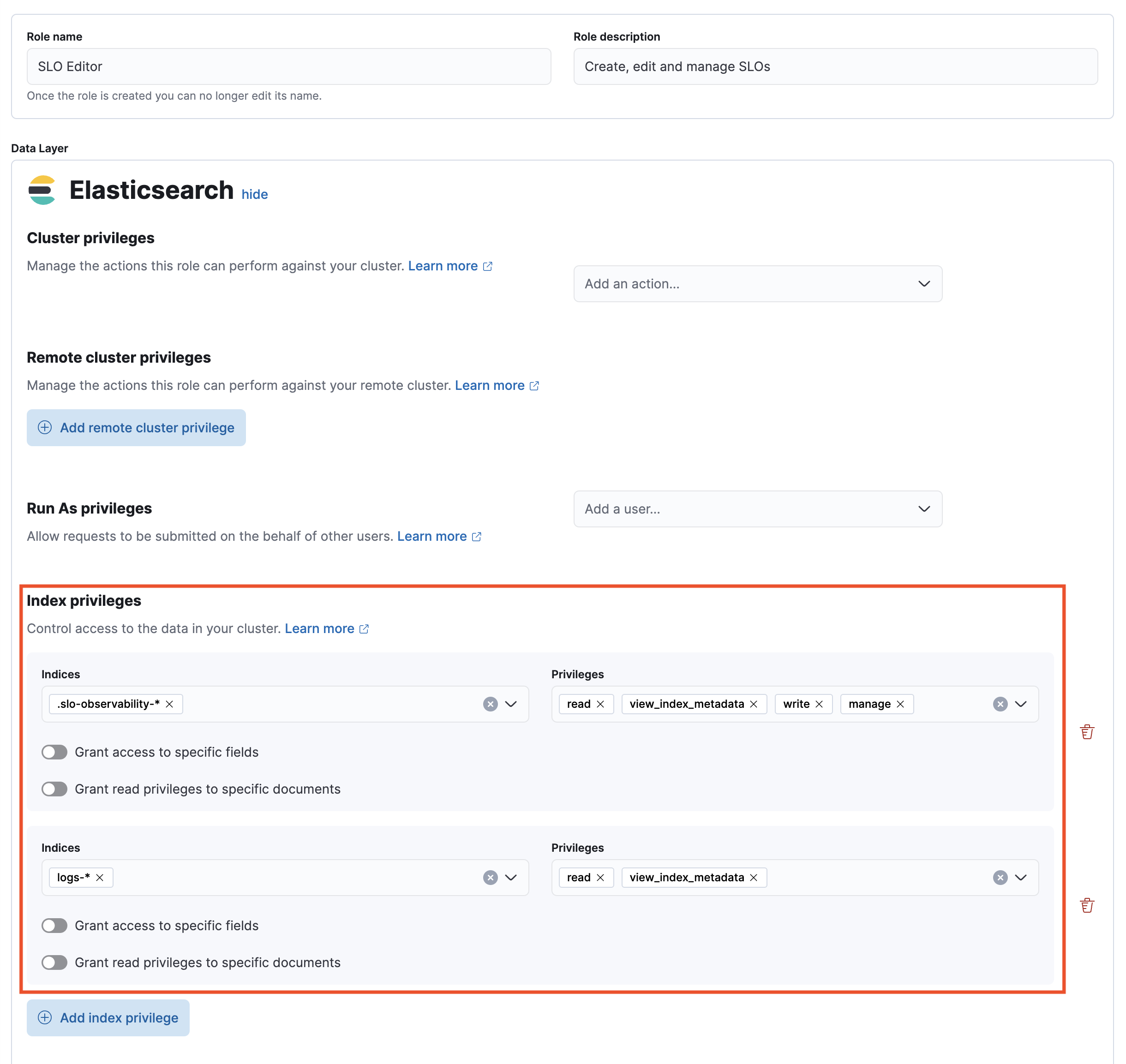
1. Under **Index privileges** in the **Elasticsearch** section, add `.slo-observability.*` to the **Indices** field and `read`, `view_index_metadata`, `write`, and `manage` to the **Privileges** field.
2. Click **Add index privilege**.
3. In the **Indices** field, add the indices for which you plan to create SLOs. Then, add `read` and `view_index_metadata` to the **Privileges** field. The following example shows `logs-*`, but you can specify any indices.
4. In the **Kibana** section, click **Add Kibana privilege**.
5. From the **Spaces** dropdown, either select any specific spaces you want the role to apply to, or select **All Spaces**.
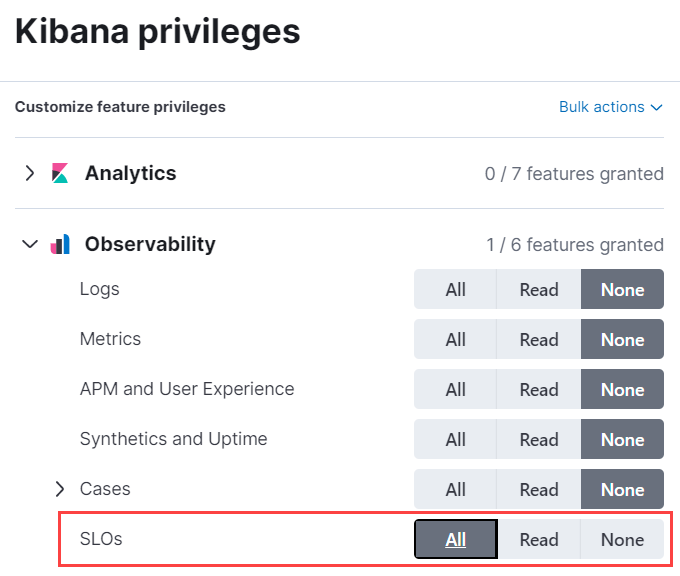
6. Set **Observability → SLOs** to `All`.
7. Click **Create Role** at the bottom of the page and assign the role to the relevant users.
## Create an SLO Viewer role
Set the following privileges for the SLO Read role:
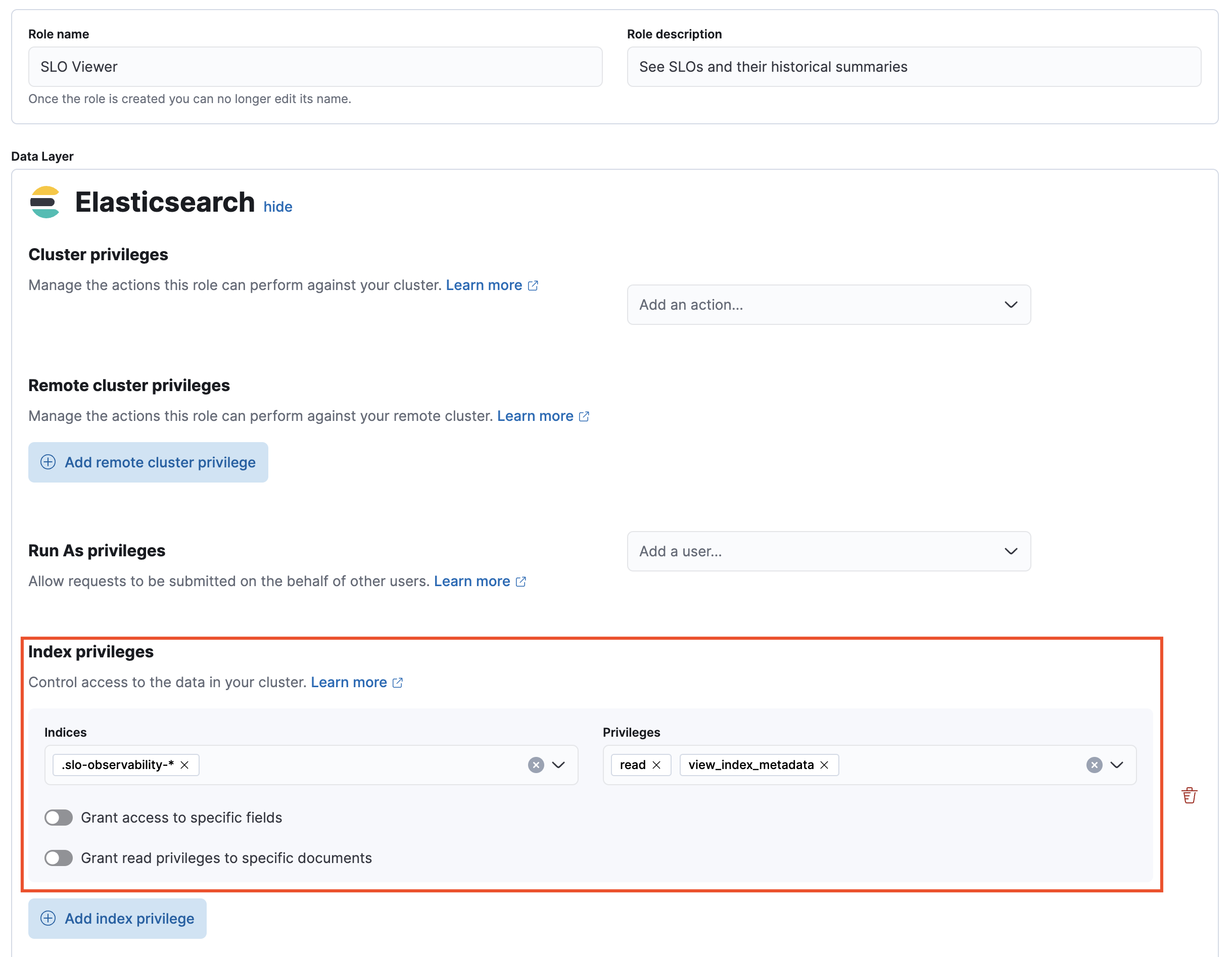
1. Under **Index privileges** in the **Elasticsearch** section, add `.slo-observability.*` to the **Indices** field and `read` and `view_index_metadata` to the **Privileges** field.
2. In the **Kibana** section, click **Add Kibana privilege**.
3. From the **Spaces** dropdown, either select any specific spaces you want the role to apply to, or select **All Spaces**.
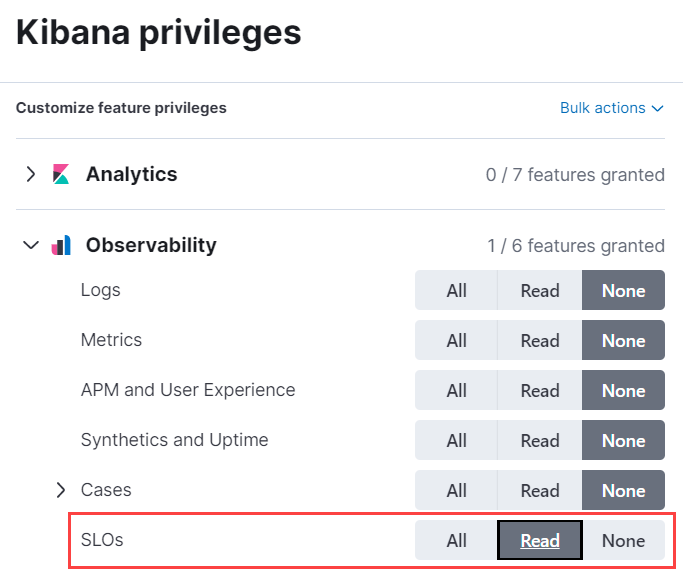
4. Set **Observability → SLOs** to `Read`.
5. Click **Create Role** at the bottom of the page and assign the role to the relevant users.