---
title: Find connection details
description: Find your Elasticsearch endpoint and create an API key so that client applications and tools can connect to your cluster or project.
url: https://docs-v3-preview.elastic.dev/elastic/docs-content/pull/7954/solutions/elasticsearch-solution-project/search-connection-details
products:
- Elasticsearch
- Kibana
applies_to:
- Elastic Cloud Serverless: Generally available
- Elastic Cloud Hosted: Generally available
- Elastic Cloud on Kubernetes: Generally available
- Elastic Cloud Enterprise: Generally available
- Self-managed Elastic deployments: Generally available
---
# Find connection details
To connect a client application or a third-party tool to Elasticsearch, you need two things: the Elasticsearch endpoint URL, and credentials that authenticate the request. For secure connections, use an API key.
## Before you begin
To create an API key, you need the `manage_api_key` or the `manage_own_api_key` cluster privilege.
## Find your Elasticsearch endpoint
Your endpoint is in the **Connection details** panel in Kibana.
1. Open Kibana for your deployment or project.
2. From the **Help menu** `question`, select **Connection details**.
3. Copy the **Elasticsearch endpoint** from the **Endpoints** tab.
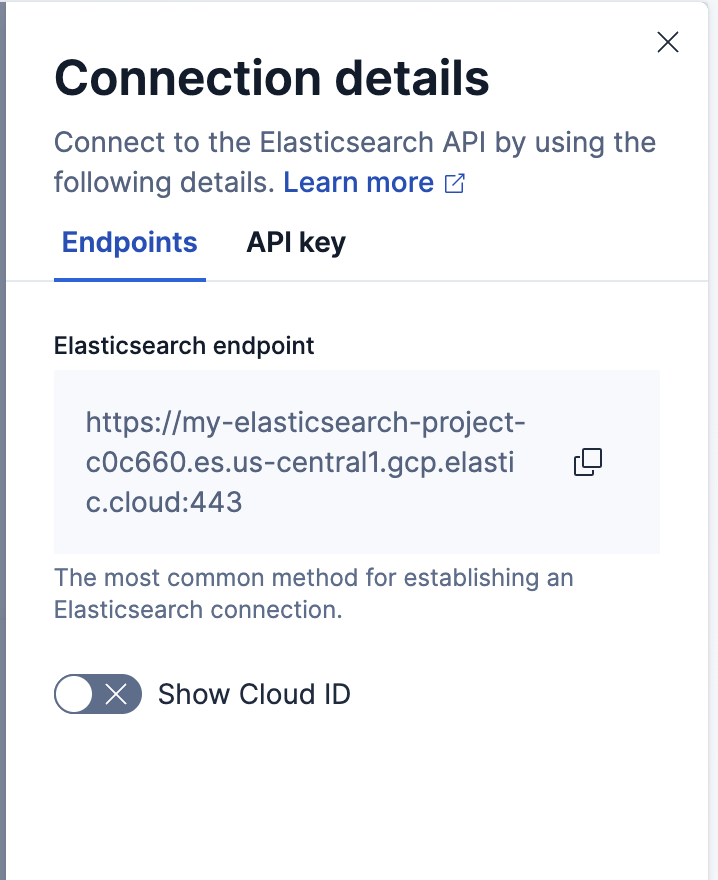
- When the space uses the **Elasticsearch** solution view, the **Getting started** page shows the endpoint directly.
- Elastic Cloud Serverless: Generally available You can also open **Connection details** from the project selector in the header.
Your endpoint takes the form `://:`. Each part comes from your cluster's HTTP settings:
- **Scheme**: `https` when TLS is enabled on the HTTP layer, and `http` when it isn't. [Automatic security setup](https://docs-v3-preview.elastic.dev/elastic/docs-content/pull/7954/deploy-manage/security/self-auto-setup) enables TLS on a new archive or package installation.
- **Host**: The address clients use to reach the node, set by [`http.host` or `network.host`](https://docs-v3-preview.elastic.dev/elastic/elasticsearch/tree/main/reference/elasticsearch/configuration-reference/networking-settings).
- **Port**: The HTTP port, set by [`http.port`](https://docs-v3-preview.elastic.dev/elastic/elasticsearch/tree/main/reference/elasticsearch/configuration-reference/networking-settings). It defaults to the range `9200-9300`, and a node binds to the first free port in that range.
For example, a single-node cluster from the [local development quickstart](https://docs-v3-preview.elastic.dev/elastic/docs-content/pull/7954/deploy-manage/deploy/self-managed/local-development-installation-quickstart) runs without TLS on the default port, so its endpoint is `http://localhost:9200`.If clients reach your cluster through a load balancer, reverse proxy, or ingress, use that address rather than the node address.
The Elastic Cloud on Kubernetes operator creates a `ClusterIP` service named `-es-http` on port `9200`, with TLS enabled by default.From inside the Kubernetes cluster, your endpoint is `https://-es-http:9200` in the same namespace, or `https://-es-http..svc:9200` from another namespace. List your services to confirm the name:
```sh
kubectl get svc
```
To reach the cluster from outside, expose the service and use its external address. Refer to [Access the endpoint](/elastic/docs-content/pull/7954/deploy-manage/deploy/cloud-on-k8s/accessing-services#k8s-request-elasticsearch-endpoint) for both cases, including how to retrieve the certificate authority (CA) certificate.
### Find your Cloud ID
- Elastic Cloud Serverless: Generally available
- Elastic Cloud Hosted: Generally available
- Elastic Cloud Enterprise: Generally available
Beats and Logstash can use a Cloud ID instead of the endpoint URL. All other clients and tools use the endpoint.
1. Open Kibana for your deployment or project.
2. From the **Help menu** `question`, select **Connection details**.
3. Turn on **Show Cloud ID**, then copy the value.
To skip Kibana, select **Manage** in the Elastic Cloud console and copy the **Cloud ID** from the deployment page.
## Create an API key
1. Open Kibana for your deployment or project.
2. From the **Help menu** `question`, select **Connection details**.
3. Select the **API key** tab.
4. In the **API key name** field, enter a name, then select **Create API key**.
5. Select an **API key format**: **Encoded** for Elasticsearch REST API requests, or **Beats** or **Logstash** to configure those products.
6. Copy the key. It isn't available after you close the panel.
Keys created here expire in 90 days and carry your own privileges. To set an expiration or restrict privileges, select **Manage API keys** and create the key there instead.
1. Go to the **API keys** management page, using the [global search field](https://docs-v3-preview.elastic.dev/elastic/docs-content/pull/7954/explore-analyze/find-and-organize/find-apps-and-objects) to find it.
2. Select **Create API key**.
3. Enter a name, then select **Create API key**.
4. Copy the key. It isn't available after you leave the page.
Keys created here don't expire unless you add an expiration date.
For key types, privileges, and expiration options, refer to [Elastic API keys](https://docs-v3-preview.elastic.dev/elastic/docs-content/pull/7954/deploy-manage/api-keys).
## Test your connection
Verify your endpoint and API key with a request to the Elasticsearch root endpoint.
1. In a terminal, assign your endpoint and encoded API key to environment variables:
```bash
export ES_URL="https://a1b2c3d4e5f6.us-central1.gcp.cloud.es.io:443"
export API_KEY="ZFZRbF9Jb0JDMEoxaVhoR2pSa3Q6dExwdmJSaldRTHFXWEp4TFFlR19Hdw=="
```
2. Send the request:
```bash
curl "${ES_URL}" -H "Authorization: ApiKey ${API_KEY}"
```
A successful response returns your cluster details:
```json
{
"name" : "instance-0000000000",
"cluster_name" : "my-deployment",
"cluster_uuid" : "ws0IbTBUQfigmYAVMztkZQ",
"version" : { ... },
"tagline" : "You Know, for Search"
}
```
If your cluster uses a self-signed certificate, pass your CA certificate with `curl --cacert`. Refer to [Automatic security setup](https://docs-v3-preview.elastic.dev/elastic/docs-content/pull/7954/deploy-manage/security/self-auto-setup) for the certificate location.
## Next steps
- [Connect a client library](https://docs-v3-preview.elastic.dev/elastic/docs-content/pull/7954/reference/elasticsearch-clients) in your language of choice.
- [Ingest data](https://docs-v3-preview.elastic.dev/elastic/docs-content/pull/7954/solutions/search/ingest-for-search) into your cluster or project.
- [Build search queries](https://docs-v3-preview.elastic.dev/elastic/docs-content/pull/7954/solutions/search/querying-for-search) against your data.
## Related pages
- [Configure Beats and Logstash with a Cloud ID](https://docs-v3-preview.elastic.dev/elastic/docs-content/pull/7954/deploy-manage/deploy/elastic-cloud/find-cloud-id)
- [Connect to Elasticsearch on Elastic Cloud Enterprise](https://docs-v3-preview.elastic.dev/elastic/docs-content/pull/7954/deploy-manage/deploy/cloud-enterprise/connect-elasticsearch)
- [Securing HTTP client applications](https://docs-v3-preview.elastic.dev/elastic/docs-content/pull/7954/deploy-manage/security/httprest-clients-security)