---
title: Connect your ECE, ECK, or self-managed cluster to AutoOps
description: Connect ECE, ECK, or self-managed Elasticsearch clusters to AutoOps through Cloud Connect and learn how to manage them.
url: https://docs-v3-preview.elastic.dev/elastic/docs-content/pull/8402/deploy-manage/monitor/autoops/cc-connect-self-managed-to-autoops
products:
- Elastic Cloud Enterprise
- Elastic Cloud on Kubernetes
- Elastic Documentation
applies_to:
- Elastic Cloud on Kubernetes: Generally available
- Elastic Cloud Enterprise: Generally available
- Self-managed Elastic deployments: Generally available
---
# Connect your ECE, ECK, or self-managed cluster to AutoOps
This page explains how to connect your ECE, ECK, or self-managed cluster to AutoOps through [Cloud Connect](https://docs-v3-preview.elastic.dev/elastic/docs-content/pull/8402/deploy-manage/cloud-connect). Sign in with an Elastic Cloud account or start from Kibana, then use the installation wizard to install Elastic Agent and ship cluster metrics. The connection process takes about 10 minutes.
Cloud Connect is not available in [FedRAMP authorized Cloud offerings](https://docs-v3-preview.elastic.dev/elastic/docs-content/pull/8402/deploy-manage/deploy/elastic-cloud/fedramp).
If you have an Elasticsearch cluster set up for local development or testing, you can connect it to AutoOps using Docker. Refer to [Connect your local development cluster to AutoOps](https://docs-v3-preview.elastic.dev/elastic/docs-content/pull/8402/deploy-manage/monitor/autoops/cc-connect-local-dev-to-autoops).
AutoOps for ECE, ECK, and self-managed clusters is now available for free across all [self-managed license types](https://www.elastic.co/subscriptions).
## Before you begin
Ensure your system meets the following requirements before proceeding:
- Your cluster is on a [supported Elasticsearch version](https://www.elastic.co/support/eol) (7.17.x or later).
- The agent you install for the connection is allowed to send metrics to Elastic Cloud.
- Elastic Cloud on Kubernetes: Generally available since 3.3 To install Elastic Agent using ECK, your ECK operator is on version 3.3.0 or later.
- Elastic Cloud on Kubernetes: Generally available since 3.3 The instance of Elastic Agent you install meets the version requirements for your license type:
- **Basic license**: 9.2.4 or later.
- **Enterprise license**: 9.2.1 or later.
If your ECK-managed cluster's license is downgraded, you must upgrade Elastic Agent accordingly to avoid your `AutoOpsAgentPolicy` resource becoming invalid.
## Set up AutoOps with Cloud Connect
1. Sign up or log in to Elastic Cloud with the following links:
- [For new users](https://cloud.elastic.co/registration?onboarding_service_type=ccm) who don't have an Elastic Cloud account
- [For existing users](https://cloud.elastic.co/login?redirectTo=%2Fconnect-cluster-services) who already have an Elastic Cloud account
Alternatively, go to your Elastic Cloud home page and select **Connect self-managed cluster**.
If it's your first time connecting a cluster, you will be prompted to accept the terms and conditions.
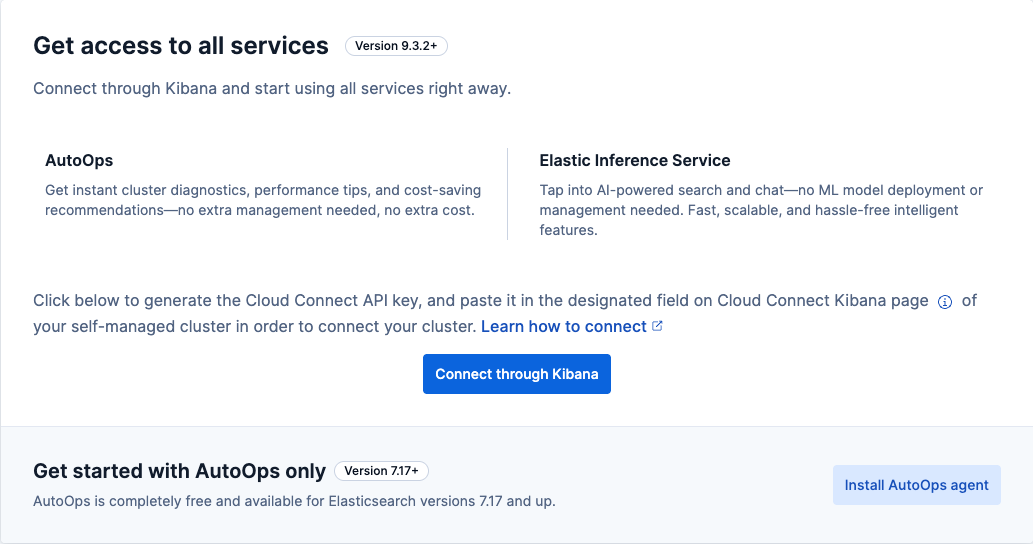
2. On the **Get access to all services** page, you have two options:
- Select **Install AutoOps agent** and move on to [Select installation method](#select-installation-method).
- Elastic Stack: Generally available since 9.3 Or, select **Connect through Kibana** and complete the following steps:
1. Copy the Cloud Connect API key that shows up on your screen.
2. In your Kibana instance, find **Cloud Connect** using the [global search bar](https://docs-v3-preview.elastic.dev/elastic/docs-content/pull/8402/explore-analyze/find-and-organize/find-apps-and-objects).
3. On the **Get started with Cloud Connect** page, paste your Cloud Connect API key in the provided field and click **Connect**.
4. On the **Cloud connected services** page, choose the services you want to enable. For AutoOps, click **Connect** next to AutoOps and move on to [Select installation method](#select-installation-method).
For other services, refer to [Cloud Connect](https://docs-v3-preview.elastic.dev/elastic/docs-content/pull/8402/deploy-manage/cloud-connect) for instructions.
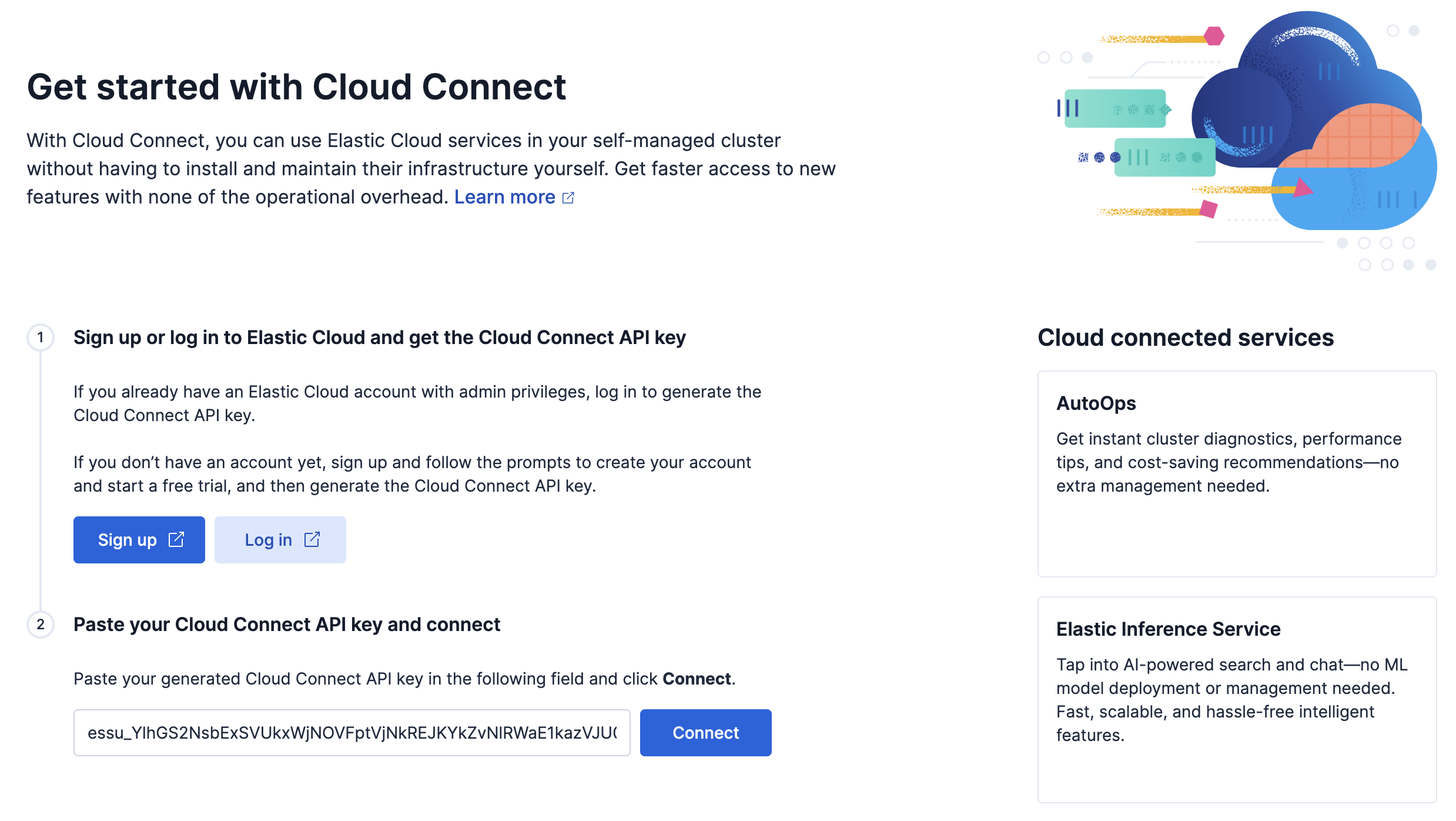
Elastic Stack: Generally available since 9.3 This pathway requires Elastic Stack version 9.3 or later.
1. In your Kibana instance, find **Cloud Connect** using the [global search bar](https://docs-v3-preview.elastic.dev/elastic/docs-content/pull/8402/explore-analyze/find-and-organize/find-apps-and-objects).
2. On the **Get started with Cloud Connect** page, sign up or log in to Elastic Cloud. If it's your first time connecting a cluster, you will be prompted to accept the terms and conditions.
3. Copy the Cloud Connect API key that shows up on your screen.
4. Return to the **Get started with Cloud Connect** page in your Kibana instance.
5. Paste your Cloud Connect API key in the provided field and click **Connect**.
6. On the **Cloud connected services** page, choose the services you want to enable. For AutoOps, click **Connect** next to AutoOps and move on to [Select installation method](#select-installation-method).
For other services, refer to [Cloud Connect](https://docs-v3-preview.elastic.dev/elastic/docs-content/pull/8402/deploy-manage/cloud-connect) for instructions.
Your cluster ships metrics to AutoOps with the help of Elastic Agent.Select one of the following methods to install Elastic Agent:
- **Kubernetes**
- **Docker**
- **Linux**
- Elastic Cloud on Kubernetes: Generally available since 3.3 **Elastic Cloud on Kubernetes (ECK)**
You can choose any installation method when connecting your ECK-managed cluster to AutoOps. However, for ECK version 3.3.0+, we recommend choosing **ECK** as your installation method for a more integrated experience.
Each cluster that you want to connect requires a new, dedicated Elastic Agent. You must install the agent even if you already have an existing one for other purposes.You only need to install the agent once per cluster.
To learn more about how AutoOps securely gathers data from your cluster, refer to our [FAQ](/elastic/docs-content/pull/8402/deploy-manage/monitor/autoops/ec-autoops-faq#data-gathering).
Depending on your selected installation method, you have to provide information such as your cluster's endpoint URL, your desired [storage location](https://docs-v3-preview.elastic.dev/elastic/docs-content/pull/8402/deploy-manage/monitor/autoops/cc-autoops-metrics-storage-locations), and your preferred authentication method.For your authentication method, select one of the following:
With this authentication method, you need to create an API key to grant access to your cluster. Complete the following steps:
1. Go to Kibana in your Elasticsearch cluster.
2. Go to the **API keys** management page in the navigation menu or use the [global search bar](https://docs-v3-preview.elastic.dev/elastic/docs-content/pull/8402/explore-analyze/find-and-organize/find-apps-and-objects).
3. Select **Create API key**.
4. In the flyout, enter a name for your key and select **User API key**.
5. Enable **Control security privileges** and enter the following script:
```json
{
"autoops": {
"cluster": [
"monitor",
"read_ilm",
"read_slm"
],
"indices": [
{
"names": [
"*"
],
"privileges": [
"monitor",
"view_index_metadata"
],
"allow_restricted_indices": true
}
],
"applications": [],
"run_as": [],
"metadata": {},
"transient_metadata": {
"enabled": true
}
}
}
```
1. Select **Create API key**.
2. Copy the key and save it for later. You will need it when you [install the agent](#install-agent).
With this authentication method, you need the username and password of a user with the necessary privileges to grant access to your cluster. There are two ways to set up a user with these privileges:
- (Recommended) Go to Kibana in your cluster and then go to **Developer tools**. In **Console**, run the following command:
```js
POST /_security/role/autoops
{
"cluster": [
"monitor",
"read_ilm",
"read_slm"
],
"indices": [
{
"names": [
"*"
],
"privileges": [
"monitor",
"view_index_metadata"
],
"allow_restricted_indices": true
}
],
"applications": [],
"run_as": [],
"metadata": {
"description": "Allows Elastic agent to pull cluster metrics for AutoOps."
},
"transient_metadata": {
"enabled": true
}
}
```
- Alternatively, manually assign the following privileges in your account:
| Setting | Privileges |
|--------------------|------------------------------------------------|
| Cluster privileges | `monitor`, `read_ilm`, and `read_slm` |
| Index privileges | Indices: `*` `monitor`, `view_index_metadata` |
If you manually assign privileges, you won't be able to allow Elastic Agent to access restricted indices.
If your organization uses firewalls, you need to provide access to port 443 and allow the agent to send data to the following URLs:
- `https://api.elastic-cloud.com`
- `https://otel-auto-ops.${region}.${csp}.svc.elastic.cloud/`
Replace `${region}` and `${csp}` with the region and cloud service provider you have selected as your [storage location](#configure-agent). For example:
`https://otel-auto-ops.us-east-1.aws.svc.elastic.cloud/`
Learn more about [defining an Elastic IP address](/elastic/docs-content/pull/8402/deploy-manage/monitor/autoops/ec-autoops-faq#elastic-ip-address) for AutoOps for ECE, ECK, or self-managed clusters.
The wizard generates an installation command or a YAML manifest based on your configuration. Depending on your installation method, complete the following steps to install the agent:
For Docker or Linux-based installation, we recommend installing the agent on a different machine from the one where your cluster is running. This ensures optimum resource usage.
1. Copy the command.
2. Paste it into a text editor and update the placeholder values for the following environment variables:
| Environment variable | Description |
|----------------------------------------|-------------------------------------------------------------------------------------------------------------------------------------------------------------------------------------------------|
| `AUTOOPS_OTEL_URL` | The Elastic Cloud URL to which Elastic Agent ships data. The URL is generated based on the CSP and region you pick. This URL shouldn't be edited. |
| `AUTOOPS_ES_URL` | The URL Elastic Agent uses to communicate with Elasticsearch. |
| `AUTOOPS_ES_API_KEY` | The API key for API key authentication to access the cluster. It combines the `${id}:${api_key}` values. This variable shouldn't be used with `AUTOOPS_ES_USERNAME` and `AUTOOPS_ES_PASSWORD`. |
| `AUTOOPS_ES_USERNAME` | The username for basic authentication to access the cluster. This variable should be used with `AUTOOPS_ES_PASSWORD`. |
| `AUTOOPS_ES_PASSWORD` | The password for basic authentication to access the cluster. This variable should be used with `AUTOOPS_ES_USERNAME`. |
| `ELASTIC_CLOUD_CONNECTED_MODE_API_KEY` | The Elastic Cloud API Key used to register the cluster. This key shouldn't be edited. |
| `AUTOOPS_TEMP_RESOURCE_ID` | The temporary ID for the current installation wizard. |
3. Run the command from the machine where you want to install the agent.
4. Return to the wizard and select **I have run the command**.
It might take a few minutes for your cluster details to be validated and the first metrics to be shipped to AutoOps.
- Elastic Cloud on Kubernetes: Generally available since 3.3
1. Copy the YAML manifest.
2. (Optional) Paste it into a text editor and change the values of the following variables:
- Secret name
- Policy name
- `resourceSelector` label
3. Apply the manifest to your ECK environment.
4. Return to the wizard and select **Next**.
When you apply this manifest, the following things happen:
- An `AutoOpsAgentPolicy` resource is created.
- The ECK operator is configured to create an API key in each Elasticsearch cluster that matches your `resourceSelector` label.
- Elastic Agent is deployed so that it's ready to send data from these clusters to AutoOps.
After the `AutoOpsAgentPolicy` resource is created, you can check its status by running the following command:
```sh
kubectl describe autoopsagentpolicy
```
The status shows:
- Number of errors encountered when configuring Elastic Agent.
- Number of clusters matched by the `resourceSelector`.
- Number of clusters that are connected and shipping data to AutoOps.
If the connection is unsuccessful, an error message is displayed with a possible reason for the failure and recommended next steps. For a list of these errors, refer to [Potential errors](/elastic/docs-content/pull/8402/deploy-manage/monitor/autoops/cc-cloud-connect-autoops-troubleshooting#potential-errors). Sometimes, an exact reason for the failure cannot be determined. In this case, explore [additional resources](/elastic/docs-content/pull/8402/troubleshoot#troubleshoot-additional-resources) or [contact us](/elastic/docs-content/pull/8402/troubleshoot#contact-us).
If you're having issues connecting your cluster to AutoOps and sending metrics to Elastic Cloud, run the [AutoOps Connectivity Check](https://docs-v3-preview.elastic.dev/elastic/docs-content/pull/8402/deploy-manage/monitor/autoops/autoops-connectivity-check) to test your configuration.
To uninstall the agent, refer to [Uninstall Elastic Agent](https://docs-v3-preview.elastic.dev/elastic/docs-content/pull/8402/solutions/security/configure-elastic-defend/uninstall-elastic-agent).
If the connection is successful, AutoOps starts analyzing your metrics and reporting on any issues found. Depending on the size of your cluster, this process can take up to 30 minutes.
After your setup is complete, the **Open AutoOps** button is displayed in the wizard. Select it to launch [AutoOps](https://docs-v3-preview.elastic.dev/elastic/docs-content/pull/8402/deploy-manage/monitor/autoops).
- Elastic Cloud on Kubernetes: Generally available since 3.3
The agent detects which Elasticsearch clusters to monitor based on the correct `resourceSelector` label. The `resourceSelector` uses standard Kubernetes [label selectors](https://kubernetes.io/docs/concepts/overview/working-with-objects/labels/#label-selectors) to match the clusters.Use the following command to apply the `resourceSelector` label to every cluster you want to connect. This code assumes your label is `autoops=enabled`.
```js
kubectl -n {{namespace}} label elasticsearch autoops=enabled
```
The agent runs in the namespace chosen for the policy. However, the agent can detect Elasticsearch clusters throughout the Kubernetes environment regardless of where they are installed.
After your setup is complete, the **View connected clusters** button is displayed in the wizard. Select it to view the clusters you have connected to [AutoOps](https://docs-v3-preview.elastic.dev/elastic/docs-content/pull/8402/deploy-manage/monitor/autoops).
## Access AutoOps
After completing the setup, you can access AutoOps for your cluster at any time.
1. Log in to [Elastic Cloud](https://cloud.elastic.co/home).
2. In the **Connected clusters** section, locate the cluster you want to work on.
3. In the **Services** column, select **AutoOps**.
## Manage connected clusters
Perform the actions described in the following sections to manage your connected cluster(s).
### Add an alias to a cluster
By default, each cluster has a name made up of a string of characters, but you can add a human-readable alias by completing the following steps. You need admin privileges to perform this action.
1. From the [Elastic Cloud home page](https://cloud.elastic.co/home), go to the **Connected clusters** section and select the cluster you want to work on.
2. On the cluster details page, select **Edit** in the **Cluster display name** field.
3. Enter the alias in the field that is displayed and then select the checkmark icon.
### Connect additional clusters
To connect more clusters, repeat the steps to [connect to AutoOps](#connect-to-autoops).
If you don't need to change any of your [configuration settings](#configure-agent) for the additional clusters, you can skip ahead and reuse the same installation command if you used the Kubernetes, Docker, or Linux methods, or apply the same `resourceSelector` label if you used the ECK method.
Remember that you must install a separate, dedicated Elastic Agent for each cluster. You only need to install the agent once per cluster.
### Disconnect a cluster
Complete the following steps to disconnect your cluster from your Cloud organization. You need the **Organization owner** [role](/elastic/docs-content/pull/8402/deploy-manage/monitor/autoops/cc-manage-users#assign-roles) to perform this action.
1. Based on your [installation method](#select-installation-method), complete the steps to stop Elastic Agent from shipping metrics to Elastic Cloud.
2. Log in to [Elastic Cloud](https://cloud.elastic.co/home).
3. On the **Connected clusters** page or the **Connected clusters** section of the home page, locate the cluster you want to disconnect.
4. From that cluster’s actions menu, select **Disconnect cluster**.
5. Enter the cluster’s name in the field that is displayed and then select **Disconnect cluster**.
If your chosen installation method is ECK, you can also disconnect a cluster by removing your `resourceSelector` label from it. Run the following command:
```js
kubectl -n {{namespace}} label elasticsearch autoops-
```
If you disconnect a cluster, its connection to your Elastic Cloud account will end and all metrics and AutoOps data will be permanently deleted.