---
title: Monitor Elastic Agents
description: Monitor Elastic Agent health with Fleet using status overviews, agent details, logs, and metrics. Query agent status data streams, filter status changes by policy namespace, and set up alerts.
url: https://docs-v3-preview.elastic.dev/elastic/docs-content/pull/8402/reference/fleet/monitor-elastic-agent
products:
- Elastic Agent
- Elastic Documentation
- Fleet
applies_to:
- Elastic Cloud Serverless: Generally available
- Elastic Stack: Generally available
---
# Monitor Elastic Agents
Fleet provides built-in capabilities for monitoring your fleet of Elastic Agents. You can:
- [View agent status overview](#view-agent-status)
- [View details for an agent](#view-agent-details)
- [View agent activity](#view-agent-activity)
- [View the configuration delivered to an agent](#view-agent-configuration)
- [View agent logs](#view-agent-logs)
- [Change the logging level](#change-logging-level)
- [Collect Elastic Agent diagnostics](#collect-agent-diagnostics)
- [View the Elastic Agent metrics dashboard](#view-agent-metrics)
- [Change Elastic Agent monitoring settings](#change-agent-monitoring)
- [Send Elastic Agent monitoring data to a remote Elasticsearch cluster](#external-elasticsearch-monitoring)
- Elastic Cloud Serverless: Generally available Elastic Stack: Planned [Filter agent status changes by policy namespace](#filter-status-changes-by-namespace)
- [Use Elastic Agent out-of-the-box alert rules](#agent-out-of-the-box-alert-rules)
- [Enable alerts and ML jobs based on Fleet and Elastic Agent status](#fleet-alerting)
Agent monitoring is turned on by default when you create an agent policy in Fleet. To stop collecting agent logs and metrics, refer to [Change Elastic Agent monitoring settings](#change-agent-monitoring).
To get alerts when the health status of your Elastic Agents changes, use the [Elastic Agent out-of-the-box alert rules](#agent-out-of-the-box-alert-rules). To create your own alerts, refer to [Enable alerts and ML jobs based on Fleet and Elastic Agent status](#fleet-alerting) and the [alerting example](#fleet-alerting-example).
To learn which agent status data Fleet records and which fields you can query, refer to [Fleet and Elastic Agent status data streams](#fleet-status-data-streams).
To learn how Elastic Agents report their status to Fleet, including how often they check in and how long a status change takes to appear, refer to [Elastic Agent health status](https://docs-v3-preview.elastic.dev/elastic/docs-content/pull/8402/reference/fleet/agent-health-status).
## View agent status overview
To view the overall status of your Fleet-managed agents, find **Fleet** in the navigation menu or use the [global search field](https://docs-v3-preview.elastic.dev/elastic/docs-content/pull/8402/explore-analyze/find-and-organize/find-apps-and-objects), then select the **Agents** tab.
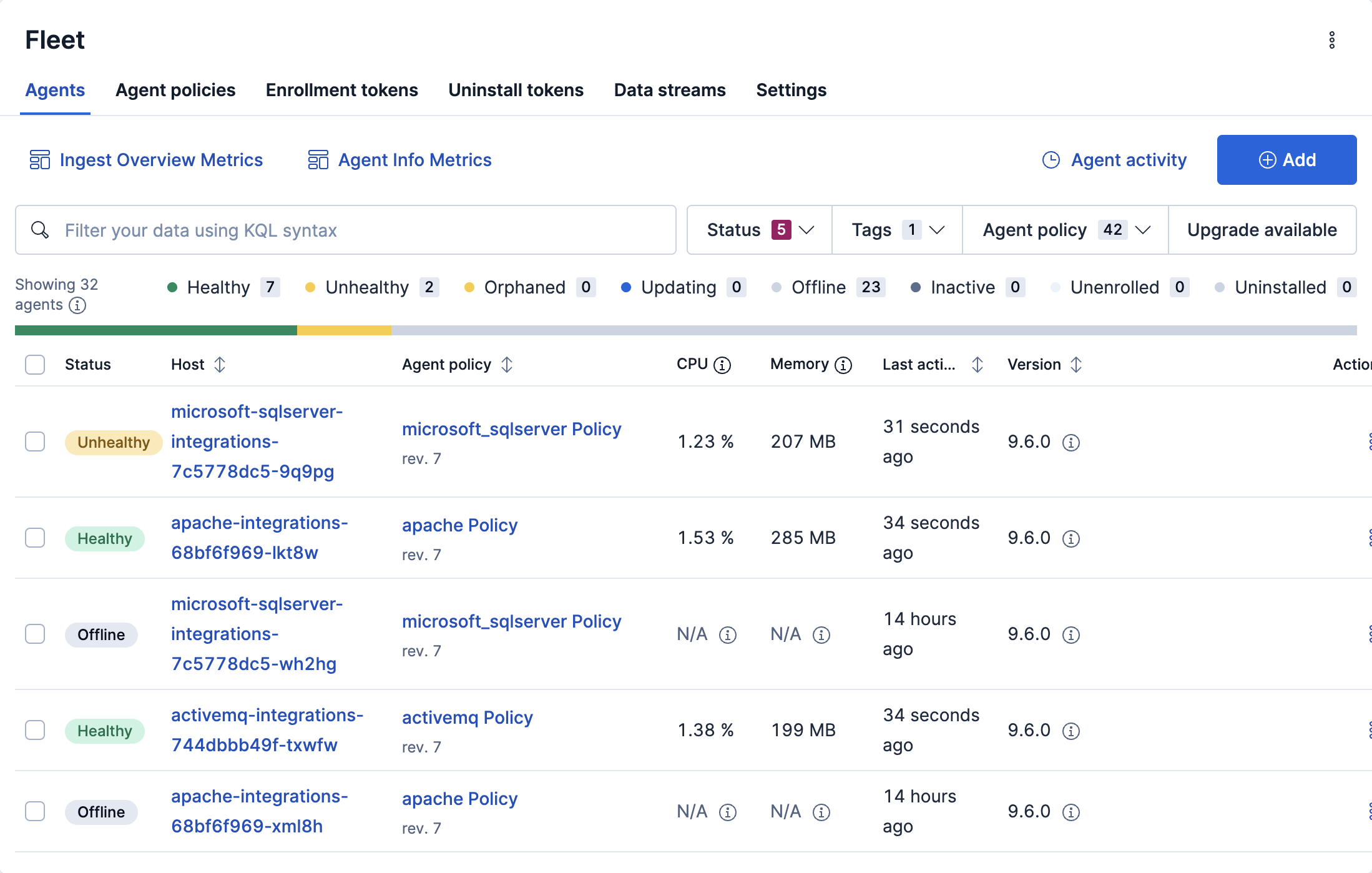
The **Agents** tab in **Fleet** displays a maximum of 10,000 agents, shown on 500 pages with 20 rows per page. If you have more than 10,000 agents, we recommend using the filtering and sorting options described in this section to narrow the table to fewer than 10,000 rows.
Elastic Agents can have these statuses:
| | |
|-----------------|----------------------------------------------------------------------------------------------------------------------------------------------------------------------------------------------------------------------------------------------------------------------------------------------------------------------------------------------------------------------------------------------------------|
| **Healthy** | Elastic Agents are enrolled and checked in. There are no agent policy updates or automatic agent binary updates in progress, but the agent binary may still be out of date. Elastic Agents continuously check in to the Fleet Server for required updates. |
| **Unhealthy** | Elastic Agents have errors or are running in a degraded state. An agent will be reported as `unhealthy` as a result of a configuration problem on the host system. For example, an Elastic Agent may not have the correct permissions required to run an integration that has been added to the Elastic Agent policy. In this case, you may need to investigate and address the situation. |
| **Orphaned** | For Elastic Agents enrolled in Elastic Defend, the `orphaned` status indicates an error in the communication between the Elastic Agent service on the host system and the endpoint security service provided by Elastic Defend. On agents reported as `orphaned`, the Elastic Defend integration is still running and protecting the host. |
| **Updating** | Elastic Agents are updating the agent policy, updating the binary, or enrolling or unenrolling from Fleet. |
| **Offline** | Elastic Agents have stopped checking in with Fleet Server for at least 5 minutes. This offline detection threshold is fixed at 5 minutes and can't be configured. The offline agents' API keys remain valid. You can still see these Elastic Agents in the Fleet UI and investigate them for further diagnosis if required. |
| **Inactive** | Elastic Agents have been offline for longer than the time set in your [inactivity timeout](https://docs-v3-preview.elastic.dev/elastic/docs-content/pull/8402/reference/fleet/set-inactivity-timeout). These Elastic Agents are valid, but have been removed from the main Fleet UI. |
| **Unenrolled** | Elastic Agents have been manually unenrolled and their API keys have been removed from the system. You can [unenroll](https://docs-v3-preview.elastic.dev/elastic/docs-content/pull/8402/reference/fleet/unenroll-elastic-agent) an offline Elastic Agent using Elastic Agent actions if you determine it’s offline and no longer valid.These agents need to re-enroll in Fleet to be operational again. |
| **Uninstalled** | Elastic Agents have been successfully uninstalled and removed from the host system. |
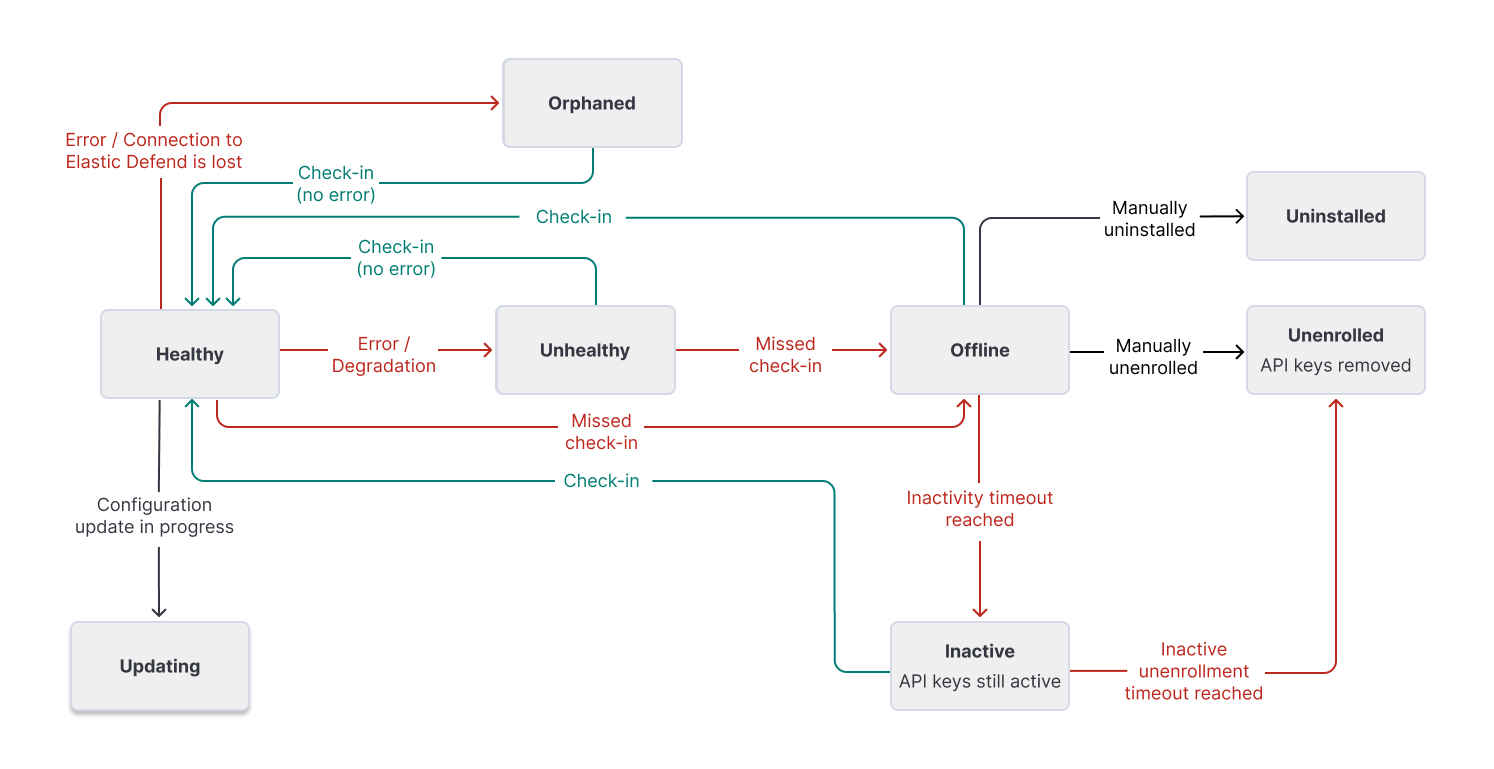
This diagram shows the flow of Elastic Agent statuses:
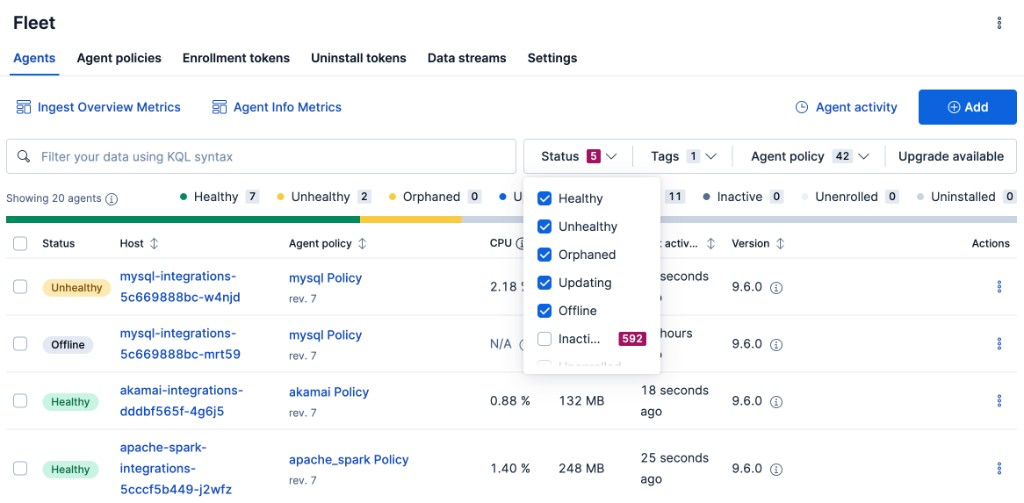
To filter the list of agents by status, click **Status**, then select one or more statuses.
For advanced filtering, use the search bar to create structured queries using [Kibana Query Language](https://docs-v3-preview.elastic.dev/elastic/elasticsearch/tree/main/reference/query-languages/kql). For example, enter `local_metadata.os.family : "darwin"` to see only agents running on macOS.
You can also sort the list of agents by host, last activity time, or version, by clicking on the table headings for those fields.
To perform a bulk action on more than 10,000 agents, you can select the **Select everything on all pages** button.
## View details for an agent
In Fleet, you can access the detailed status of an individual agent and the integrations that are associated with it through the agent policy.
1. In Fleet, open the **Agents** tab.
2. In the **Host** column, click the agent’s name.
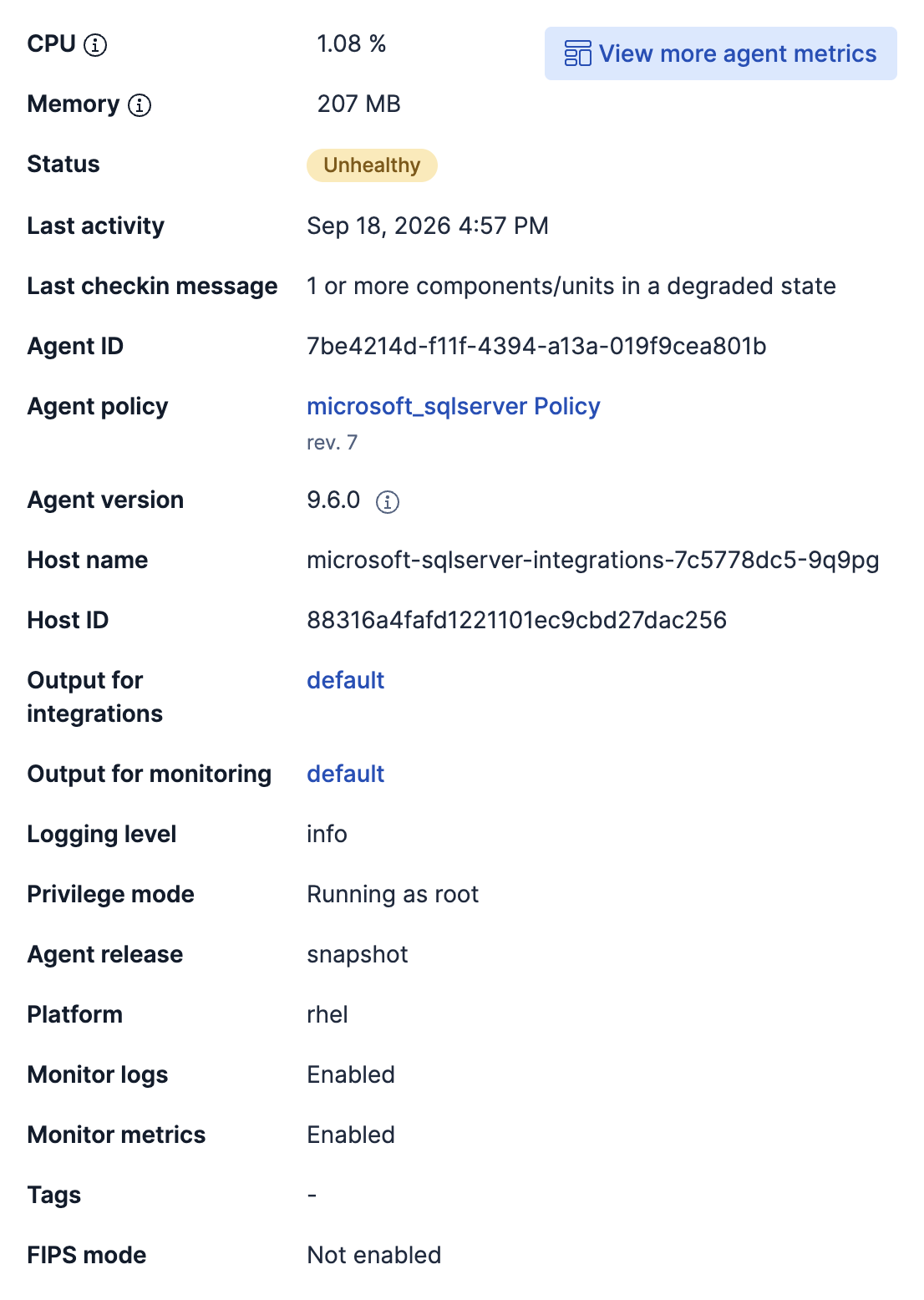
On the **Agent details** tab, the **Overview** section shows the agent's CPU and memory usage, status, last activity and check-in message, policy, version, host, outputs, logging level, privilege mode, platform, monitoring settings, tags, and FIPS mode. To access metrics visualizations, you can also [view the Elastic Agent metrics dashboard](#view-agent-metrics).
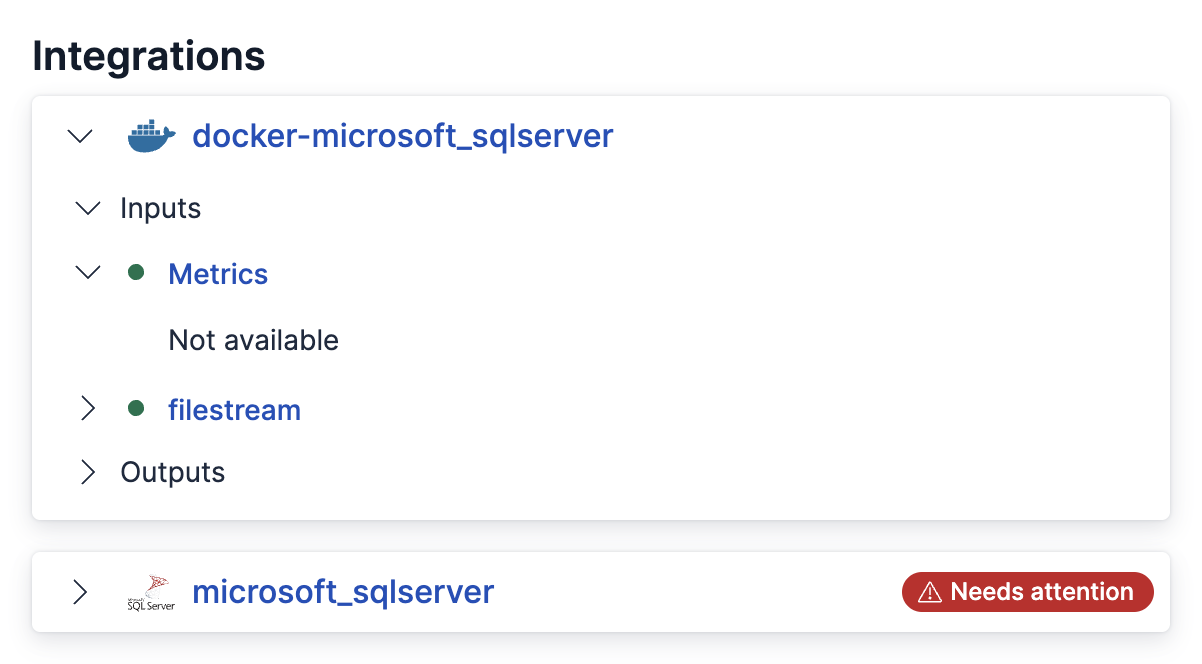
The **Integrations** section lists the integrations in the agent policy. Expand an integration, then expand **Inputs** or **Outputs** to view component health.
To gather more detail about a particular error or warning, select **Actions → Maintenance and diagnostics → View agent JSON**. The JSON contains all of the raw agent data tracked by Fleet.
## View agent activity
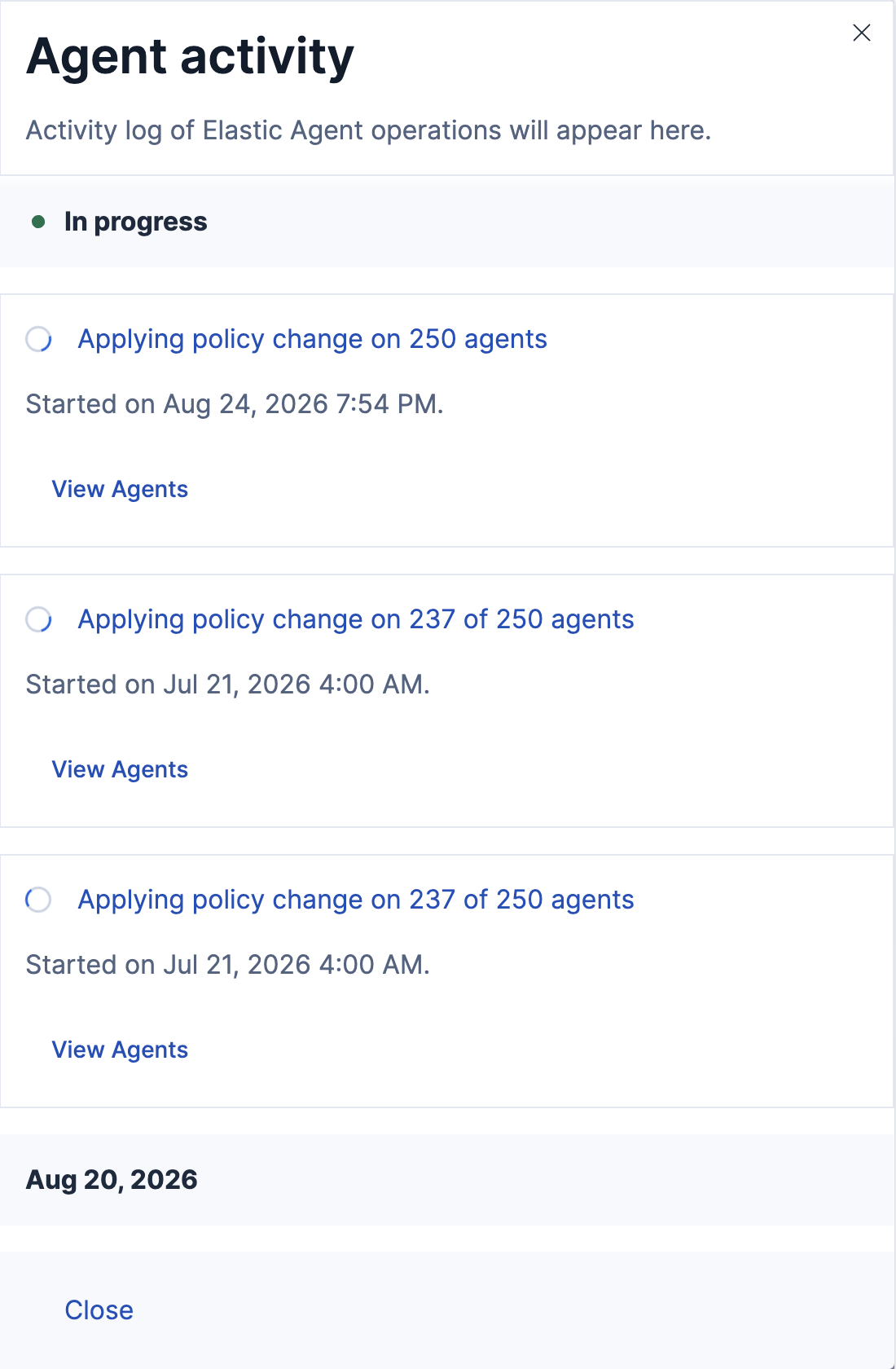
You can view a chronological list of all operations performed by your Elastic Agents.
On the **Agents** tab, click **Agent activity**. All agent operations are shown, beginning from the most recent, including any in progress operations.
## View the configuration delivered to an agent
- Elastic Cloud Serverless: Generally available
- Elastic Stack: Generally available since 9.4
Because the configuration sent to an Elastic Agent on a [version-specific agent policy](https://docs-v3-preview.elastic.dev/elastic/docs-content/pull/8402/reference/fleet/version-specific-agent-policies) can differ from the primary policy template, Fleet provides an action to view the rendered YAML delivered to a specific agent.
On the **Agents** tab, from the **Actions** menu for a specific Elastic Agent (or from the **Actions** menu on the agent's details page), select **Maintenance and diagnostics → View agent policy**.
The flyout shows the rendered YAML configuration and the revision of the primary policy the agent uses.
This action is different from the **Actions → View policy** action on the agent policy itself, which shows the primary policy template before Fleet renders it for each agent.
## View agent logs
When Fleet reports an agent status like `Offline` or `Unhealthy`, you might want to view the agent logs to diagnose potential causes. If agent monitoring is configured to collect logs (the default), you can view agent logs in Fleet.
1. In Fleet, open the **Agents** tab.
2. In the **Host** column, click the agent’s name.
3. On the **Agent details** tab, verify that **Monitor logs** is enabled. If it’s not, refer to [Change Elastic Agent monitoring settings](#change-agent-monitoring).
4. Click the **Logs** tab.
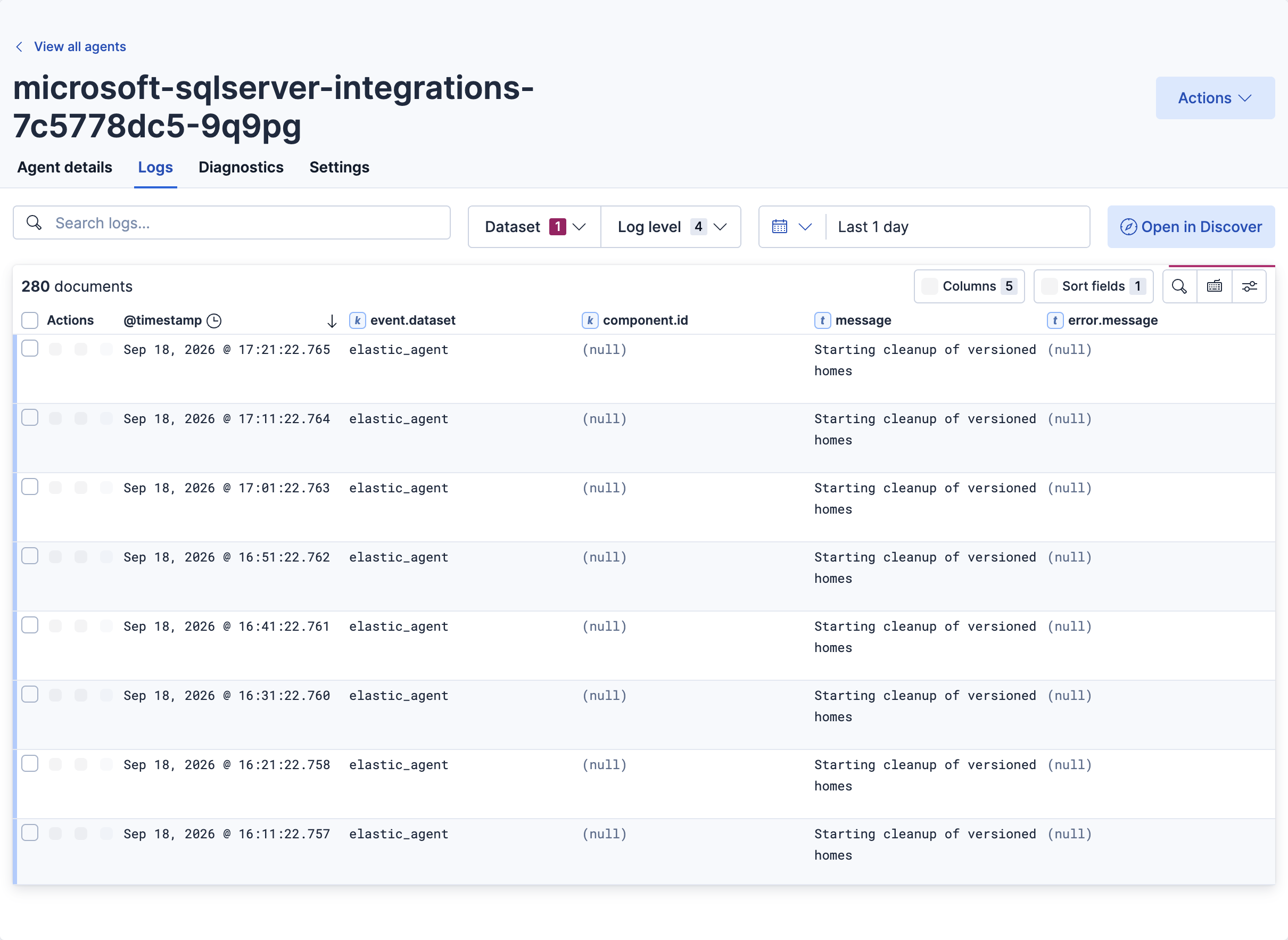
On the **Logs** tab you can filter, search, and explore the agent logs:
- Use the search bar to create structured queries using [Kibana Query Language](https://docs-v3-preview.elastic.dev/elastic/elasticsearch/tree/main/reference/query-languages/kql).
- Choose one or more datasets to show logs for specific programs, such as Filebeat or Fleet Server.
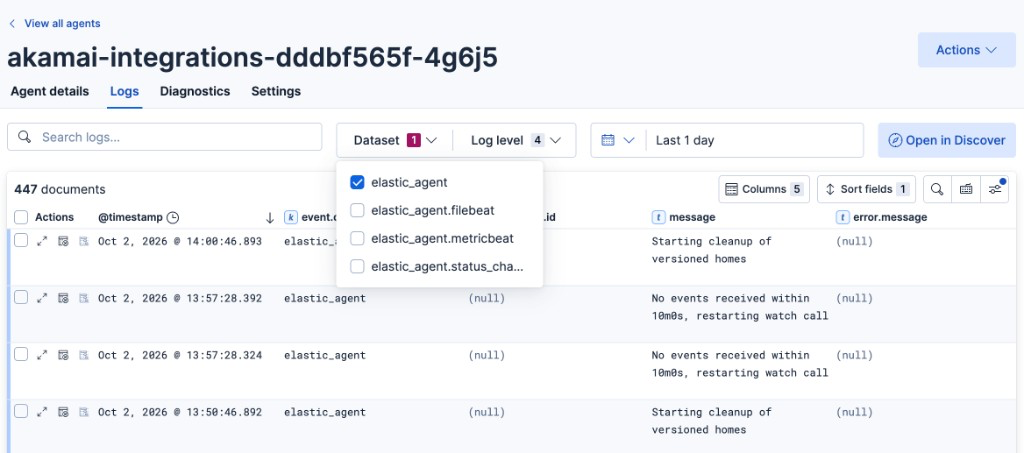
- Change the log level to filter the view by log levels. Want to see debugging logs? Refer to [Change the logging level](#change-logging-level).
- Change the time range to view historical logs.
## Change the logging level
The logging level for monitored agents is set to `info` by default. You can change the agent logging level, for example, to turn on debug logging remotely:
1. In Fleet, open the **Agents** tab.
2. In the **Host** column, click the agent’s name.
3. On the **Settings** tab, select an **Agent logging level**:
| | |
|-----------|---------------------------------------------------------------------------------------------------------------------------------------------------|
| `error` | Logs errors and critical errors. |
| `warning` | Logs warnings, errors, and critical errors. |
| `info` | Logs informational messages, including the number of events that are published.Also logs any warnings, errors, or critical errors. |
| `debug` | Logs debug messages, including a detailed printout of all events flushed. Alsologs informational messages, warnings, errors, and critical errors. |
Prior to version 9.1 the **Agent logging level** setting is located on the **Logs** tab.
When you select a new setting the change is saved automatically.
## Collect Elastic Agent diagnostics
Fleet provides the ability to remotely generate and gather an Elastic Agent's diagnostics bundle. An agent can gather and upload diagnostics if it is online in a `Healthy` or `Unhealthy` state. To download the diagnostics bundle for local viewing:
1. In Fleet, open the **Agents** tab.
2. In the **Host** column, click the agent’s name.
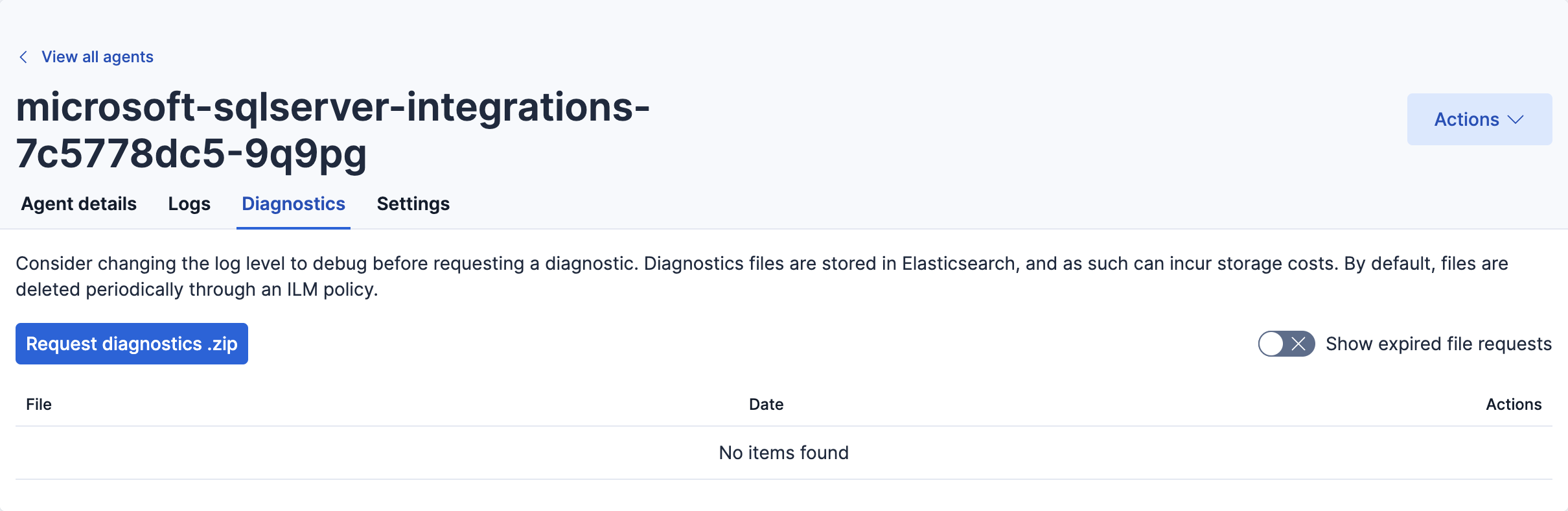
3. Select the **Diagnostics** tab and click the **Request diagnostics .zip** button.
4. In the **Request Diagnostics** pop-up, select **Collect additional CPU metrics** if you’d like detailed CPU data.
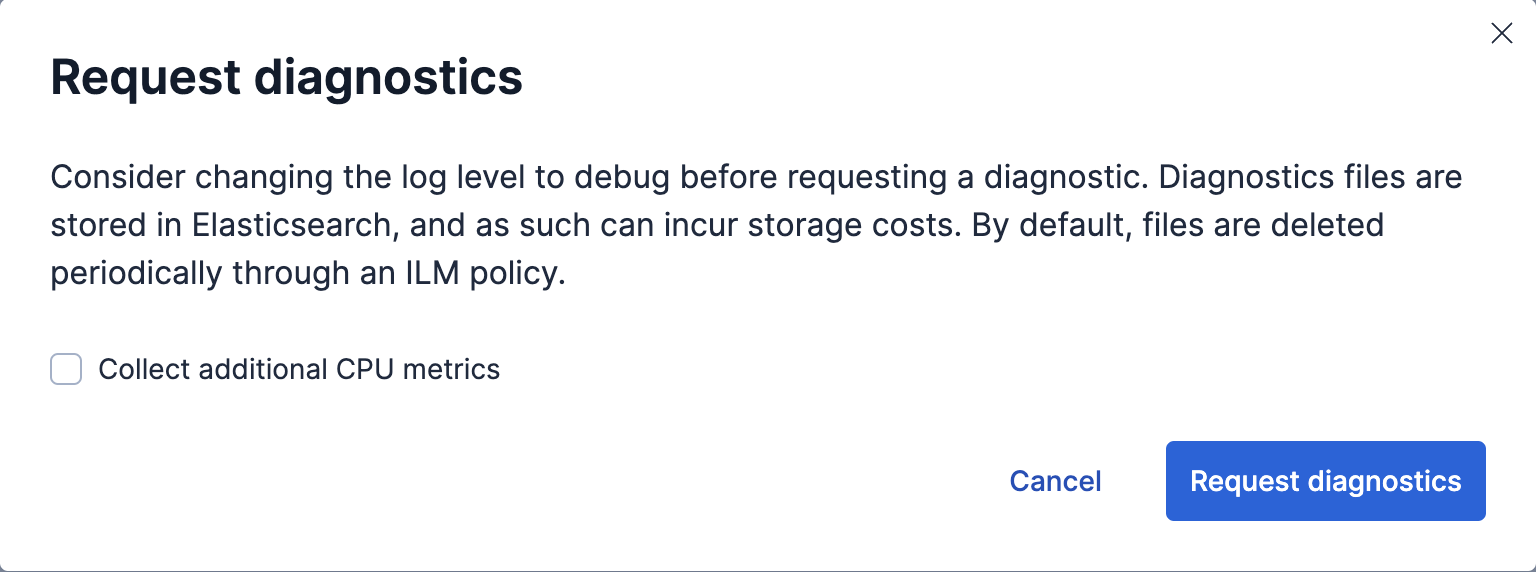
5. Click the **Request diagnostics** button.
When available, the new diagnostic bundle will be listed on this page, as well as any in-progress or previously collected bundles for the Elastic Agent.
The bundles are stored in Elasticsearch and are removed automatically after 7 days. You can also delete any previously created bundle by clicking the `trash can` icon.
## View the Elastic Agent metrics dashboard
When agent monitoring is configured to collect metrics (the default), you can use the **[Elastic Agent] Agent metrics** dashboard in Kibana to view details about Elastic Agent resource usage, event throughput, and errors. This information can help you identify problems and make decisions about scaling your deployment.
To view agent metrics:
1. In Fleet, open the **Agents** tab.
2. In the **Host** column, click the agent’s name.
3. On the **Agent details** tab, verify that **Monitor metrics** is enabled. If it’s not, refer to [Change Elastic Agent monitoring settings](#change-agent-monitoring).
4. Click **View more agent metrics** to navigate to the **[Elastic Agent] Agent metrics** dashboard.
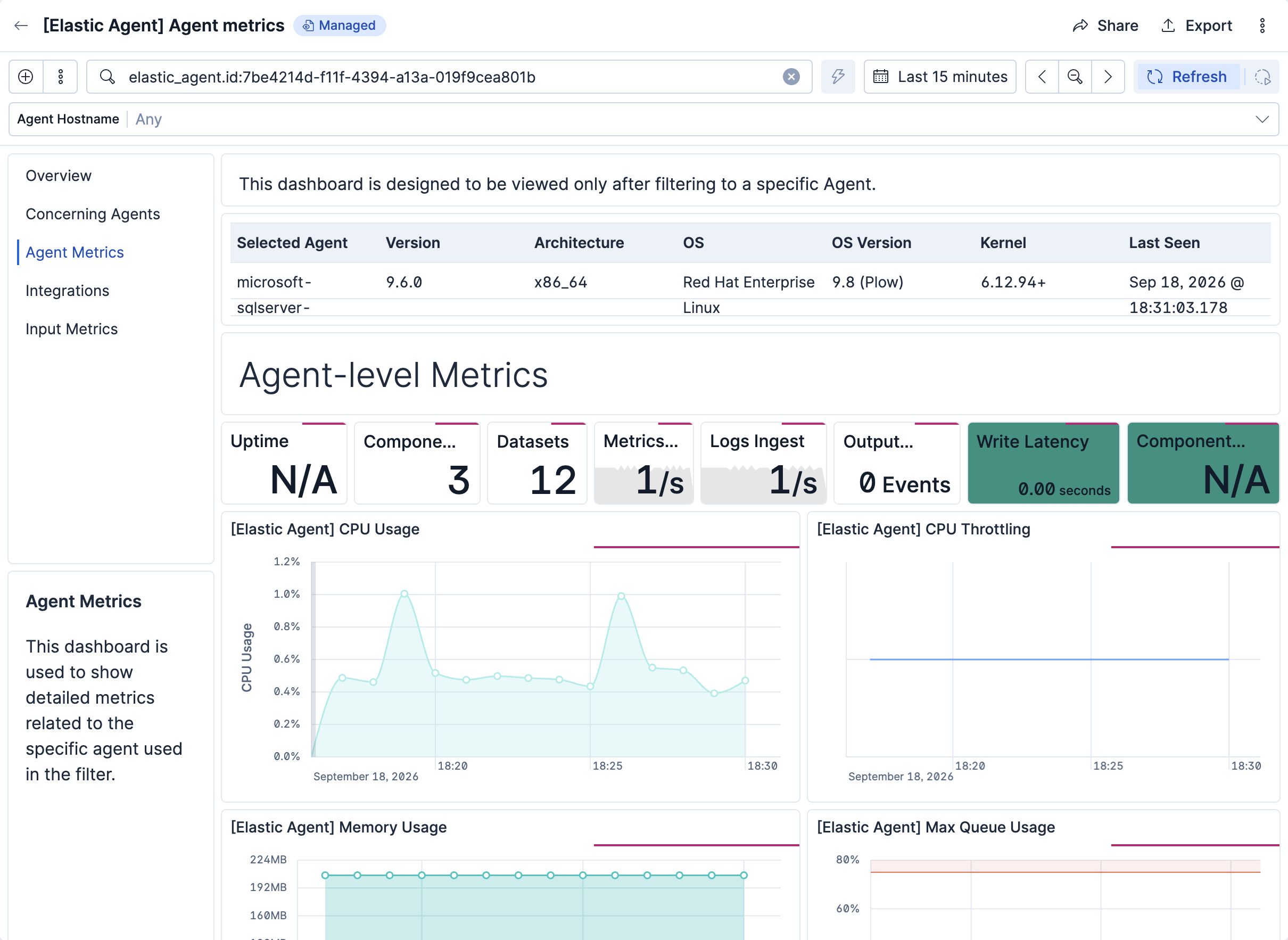
The dashboard uses standard Kibana visualizations that you can extend to meet your needs.
## Change Elastic Agent monitoring settings
Agent monitoring is turned on by default in the agent policy. To change agent monitoring settings for all agents enrolled in a specific agent policy:
1. In Fleet, open the **Agent policies** tab.
2. Click the agent policy to edit it, then click **Settings**.
3. Under **Agent monitoring**, deselect (or select) one or both of these settings: **Collect agent logs** and **Collect agent metrics**.
4. Under **Advanced monitoring options** you can configure additional settings including an HTTP monitoring endpoint, diagnostics rate limiting, and diagnostics file upload limits. Refer to [configure agent monitoring](/elastic/docs-content/pull/8402/reference/fleet/agent-policy#change-policy-enable-agent-monitoring) for details.
5. Save your changes.
To turn off agent monitoring when creating a new agent policy:
1. In the **Create agent policy** flyout, expand **Advanced options**.
2. Under **Agent monitoring**, deselect **Collect agent logs** and **Collect agent metrics**.
3. When you’re done configuring the agent policy, click **Create agent policy**.
## Send Elastic Agent monitoring data to a remote Elasticsearch cluster
You may want to store all of the health and status data about your Elastic Agents in a remote Elasticsearch cluster, so that it’s separate and independent from the deployment where you use Fleet to manage the agents.
To do so, follow the steps in [Remote Elasticsearch output](https://docs-v3-preview.elastic.dev/elastic/docs-content/pull/8402/reference/fleet/remote-elasticsearch-output). After the new output is configured, follow the steps to update the Elastic Agent policy and make sure that the **Output for agent monitoring** setting is enabled. Elastic Agent monitoring data will use the remote Elasticsearch output that you configured.
## Fleet and Elastic Agent status data streams
Fleet records the health status of Fleet-managed Elastic Agents in internal data streams. You can query these data streams to track agent status and identify agents that have gone offline, are experiencing health issues, or are facing challenges related to input or output. For example, you can build dashboards on them, [filter status changes by policy namespace](#filter-status-changes-by-namespace), or [create alerts and machine learning (ML) jobs](#fleet-alerting).
The following data streams and fields are available:
This data stream publishes the number of Elastic Agents in various states. It contains the following fields:
The time the counts were recorded.
A count of all agents.
A count of all agents currently enrolled.
A count of agents currently unenrolled.
A count of agents currently healthy.
A count of agents currently offline.
A count of agents currently in the process of updating.
A count of agents currently unhealthy.
A count of agents currently inactive.
Counts of agents currently unhealthy, by cause: `input`, `output`, or `other`. For example, `fleet.agents.unhealthy_reason.output` is the number of agents that are unhealthy because of an output issue.
Counts of agents by upgrade state: `requested`, `scheduled`, `downloading`, `extracting`, `replacing`, `restarting`, `watching`, `rollback`, and `failed`. For example, `fleet.agents.upgrading_step.failed` is the number of agents whose upgrade failed.
This data stream publishes one document for each Elastic Agent version, with the number of enrolled agents on that version. It contains the following fields:
The time the count was recorded.
A keyword field containing the version number.
A count of agents on the specified version.
This data stream contains agent status changes (for example, `online`, `offline`, `updating`, `unenrolled`) and can be used to produce custom alerts. Some Elastic Agent integrations also ship with [alerting rule templates](https://docs-v3-preview.elastic.dev/elastic/docs-content/pull/8402/reference/fleet/alerting-rule-templates) that use this data stream. It contains the following fields:
The time the status change was recorded.
The unique identifier of the agent.
The agent's current status (`online`, `offline`, `error`, `degraded`, `inactive`, `enrolling`, `unenrolling`, `unenrolled`, `updating`, `uninstalled`, `orphaned`).
A simplified status derived from `status`: `healthy` for `online`, `unhealthy` for `error` and `degraded`, `updating` for `updating`, `enrolling`, and `unenrolling`, and the same value as `status` otherwise.
The policy the agent is enrolled in.
The namespace of the agent policy when the status change was recorded, or `default` if the agent has no policy or the policy can't be found. Refer to [Filter agent status changes by policy namespace](#filter-status-changes-by-namespace).
The hostname of the agent's host.
The Kibana space or spaces the agent belongs to.
Is `true` if the agent runs in an agentless policy.
## Filter agent status changes by policy namespace
- Elastic Cloud Serverless: Generally available
- Elastic Stack: Planned
Fleet writes all agent status changes to the `logs-elastic_agent.status_change-default` data stream, regardless of the namespace set in the agent policy. As a result, the `data_stream.namespace` field of these events is always `default`, and rules, dashboards, and saved searches that query this data stream include status changes from all your agents.
To separate status changes by agent policy, filter on the `policy_namespace` field instead. This field records the namespace of the agent's policy at the time of the status change. For example, this ES|QL query returns status changes for agents whose policy uses the `production` namespace:
```esql
FROM logs-elastic_agent.status_change-default
| WHERE policy_namespace == "production"
```
You can add the same condition to rules that you create from the Elastic Agent [alerting rule templates](https://docs-v3-preview.elastic.dev/elastic/docs-content/pull/8402/reference/fleet/alerting-rule-templates). For example, to alert only on offline agents in the `production` namespace, extend the query of a rule created from the offline status template:
```esql
FROM logs-elastic_agent.status_change-default
| WHERE data_stream.dataset == "elastic_agent.status_change" and agentless == false and health_status == "offline" and policy_namespace == "production"
```
Filtering on `policy_namespace` separates query results only. All status changes stay in the same data stream, so you can't apply different retention or access settings to each namespace.
To filter on `policy_namespace`, you need version 2.9.6 or later of the **Elastic Agent** integration, which Fleet installs automatically for agent monitoring. If an ES|QL query returns an unknown column error for `policy_namespace`, [upgrade the integration](https://docs-v3-preview.elastic.dev/elastic/docs-content/pull/8402/reference/fleet/upgrade-integration). Status changes recorded before the upgrade don't have a searchable `policy_namespace` value.
## Elastic Agent out-of-the-box alert rules
- Elastic Cloud Serverless: Generally available
- Elastic Stack: Generally available since 9.2
Elastic Agent provides [out-of-the-box alert rules](https://docs-v3-preview.elastic.dev/elastic/docs-content/pull/8402/reference/fleet/alert-templates) for common agent health issues, such as offline agents, excessive restarts, and output errors. The rules come with preconfigured conditions, so you can start monitoring agent health without building rules manually. To monitor conditions that the out-of-the-box rules don't cover, [create your own alerts and ML jobs](#fleet-alerting).
## Enable alerts and ML jobs based on Fleet and Elastic Agent status
You can create alerts and machine learning (ML) jobs based on the fields in the [Fleet and Elastic Agent status data streams](#fleet-status-data-streams). Refer to the [Alerting documentation](https://docs-v3-preview.elastic.dev/elastic/docs-content/pull/8402/explore-analyze/alerting) or the [example](#fleet-alerting-example) on this page to learn how to define rules that can trigger actions when certain conditions are met.
### Example: Enable an alert for offline Elastic Agents
You can set up an alert to notify you when one or more Elastic Agents goes offline:
1. In Kibana, find the **Rules** management page in the navigation menu or use the [global search field](https://docs-v3-preview.elastic.dev/elastic/docs-content/pull/8402/explore-analyze/find-and-organize/find-apps-and-objects).
2. Click **Create rule**.
3. Select **Elasticsearch query** as the rule type.
4. Choose a name for the rule, for example `Elastic Agent status`.
5. Select **KQL or Lucene** as the query type.
6. Select `DATA VIEW metrics-*` as the data view.
7. Define your query, for example: `fleet.agents.offline >= 1`.
8. Set the alert group, threshold, and time window. For example:
- WHEN: `count()`
- OVER: `all documents`
- IS ABOVE: `0`
- FOR THE LAST `5 minutes`
This will generate an alert when one or more agents are reported by the `fleet.agents.offline` field over the last five minutes to be offline.
9. Set the number of documents to send, for example:
- SIZE: 100
10. Set **Check every** to the frequency at which the rule condition should be evaluated. The default setting is one minute.
11. Select an action to occur when the rule conditions are met. For example, to set the alert to send an email when an alert occurs, select the Email connector type and specify:
- Email connector: `Elastic-Cloud-SMTP`
- Action frequency: `For each alert` and `On check intervals`
- Run when: `Query matched`
- To:
- Subject:
12. Click **Save**.
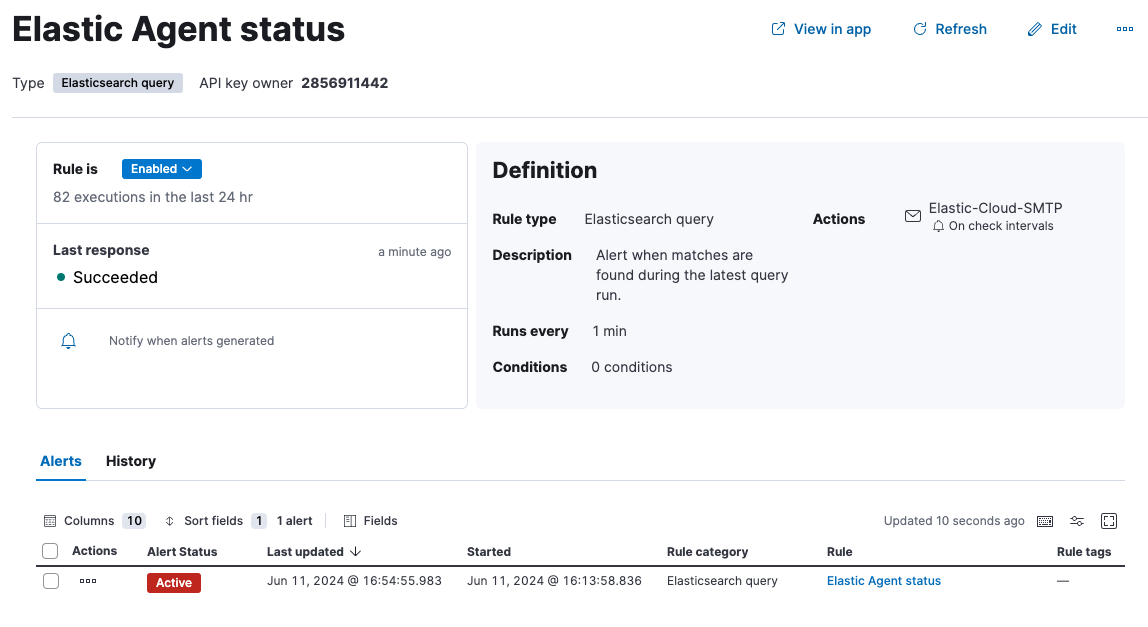
The new rule will be enabled and an email will be sent to the specified recipient when the alert conditions are met.
From the **Rules** page you can select the rule you created to enable or disable it, and to view the rule details including a list of active alerts and an alert history.