---
title: Explore traces in Discover
description: Explore trace data in Discover.
url: https://docs-v3-preview.elastic.dev/elastic/docs-content/pull/8402/solutions/observability/apm/discover-traces
products:
- Elastic Documentation
- Elastic Observability
applies_to:
- Elastic Cloud Serverless: Preview
- Elastic Stack: Preview since 9.1
---
# Explore traces in Discover
Except for the [investigation flyouts](#investigate-with-flyouts), the functionality described on this page is in technical preview. It might change or be removed at any time.
**Discover** offers a dedicated experience for exploring trace data. When **Discover** detects data in `traces-*` indices, it automatically enables features that help you investigate distributed traces more effectively. The traces experience includes a preselected set of trace fields in the data grid, a structured overview of each document's key attributes, latency comparisons for similar spans, and a waterfall visualization of the full trace timeline.
If you're getting started with **Discover** and want to learn its main principles, get familiar with the [default experience](https://docs-v3-preview.elastic.dev/elastic/docs-content/pull/8402/explore-analyze/discover).
## Requirements
### Data recognition
Data stored in `traces-*` indices is automatically recognized as trace data and triggers the **Discover** experience described on this page.
### Required Kibana privileges
Viewing trace data in **Discover** requires at least `read` privileges for **Discover**.
For more information, refer to [Kibana privileges](https://docs-v3-preview.elastic.dev/elastic/docs-content/pull/8402/deploy-manage/users-roles/cluster-or-deployment-auth/kibana-privileges).
## Load trace data
The traces experience is available in:
- **Data view mode**: Select a data view that matches a `traces-*` index pattern from the **Discover** main page.
- **ES|QL mode**: Switch to **ES|QL** mode and use the `FROM` command to query your trace data:
```esql
FROM traces-*
```
You can also query a specific index:
```esql
FROM traces-apm-default
```
## Traces-specific features
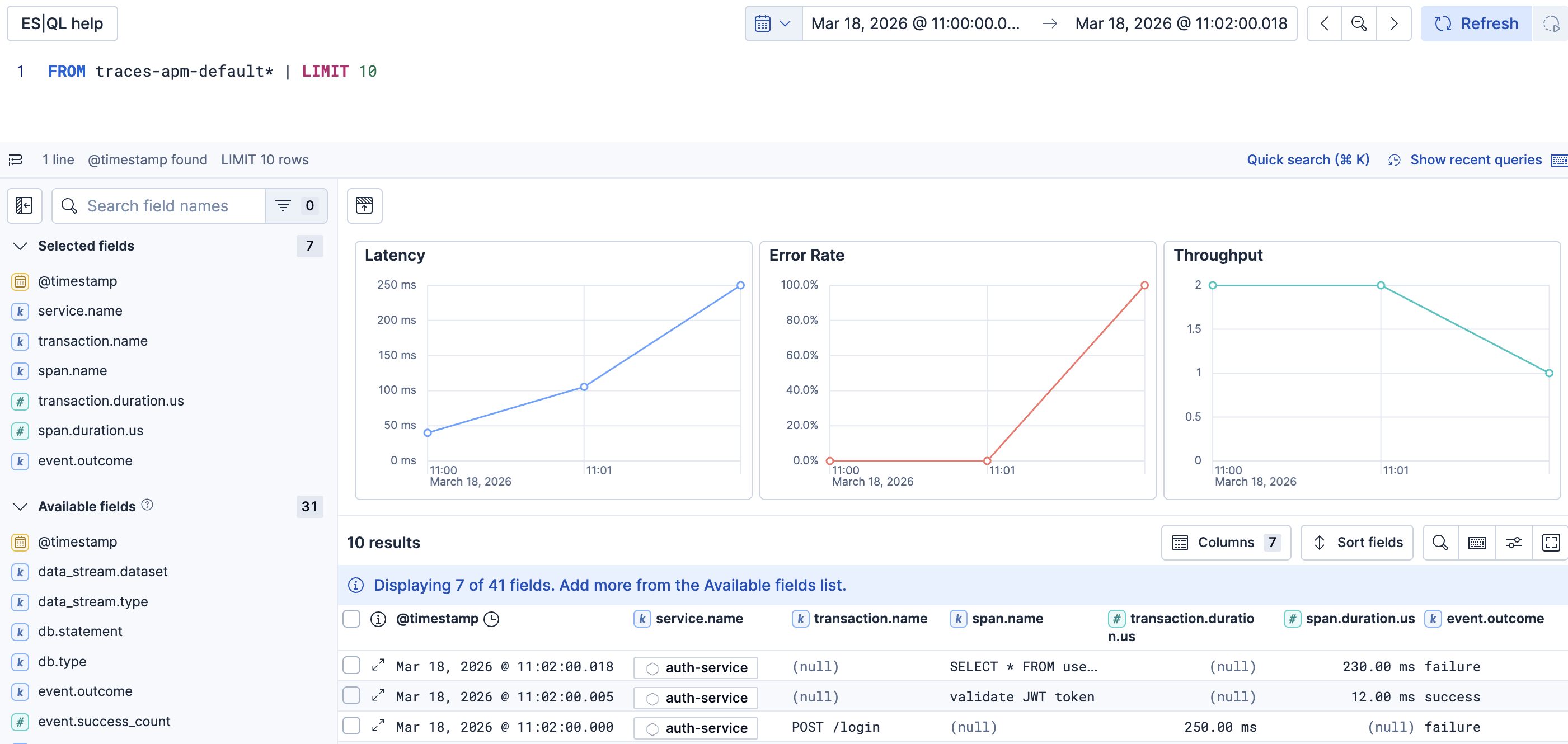
When **Discover** recognizes trace data, it preselects a set of relevant fields as columns in the data grid: `service.name`, `transaction.name`, `span.name`, `transaction.duration.us`, `span.duration.us`, and `event.outcome`. You can [reorder, resize, or add new columns](/elastic/docs-content/pull/8402/explore-analyze/discover/document-explorer#document-explorer-columns) using the standard **Discover** column controls.
### Overview charts (ES|QL)
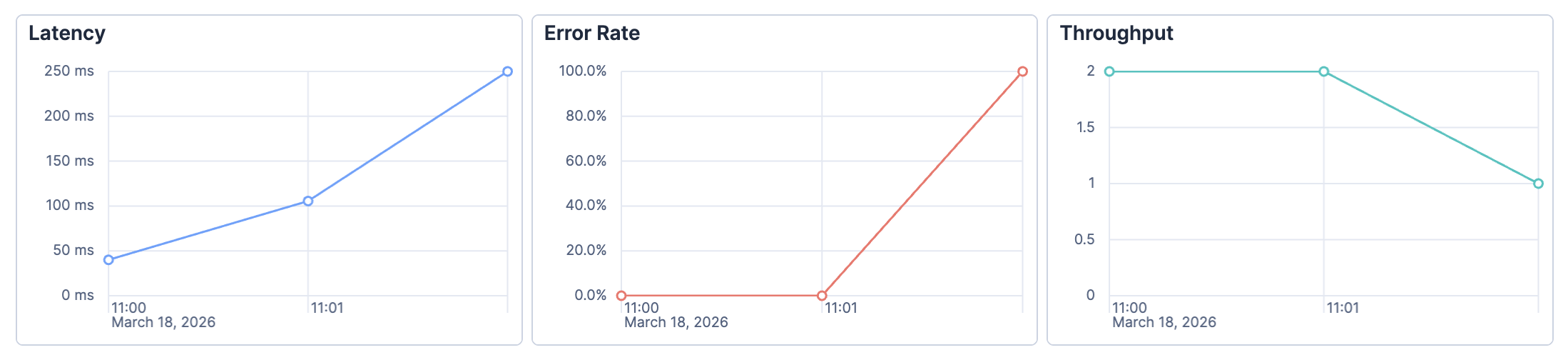
In ES|QL mode, **Discover** displays three summary charts above the results:
- **Latency**: Average response time over the selected time range
- **Error Rate**: Percentage of failed trace events over time
- **Throughput**: Number of trace events per unit of time
### Trace document overview
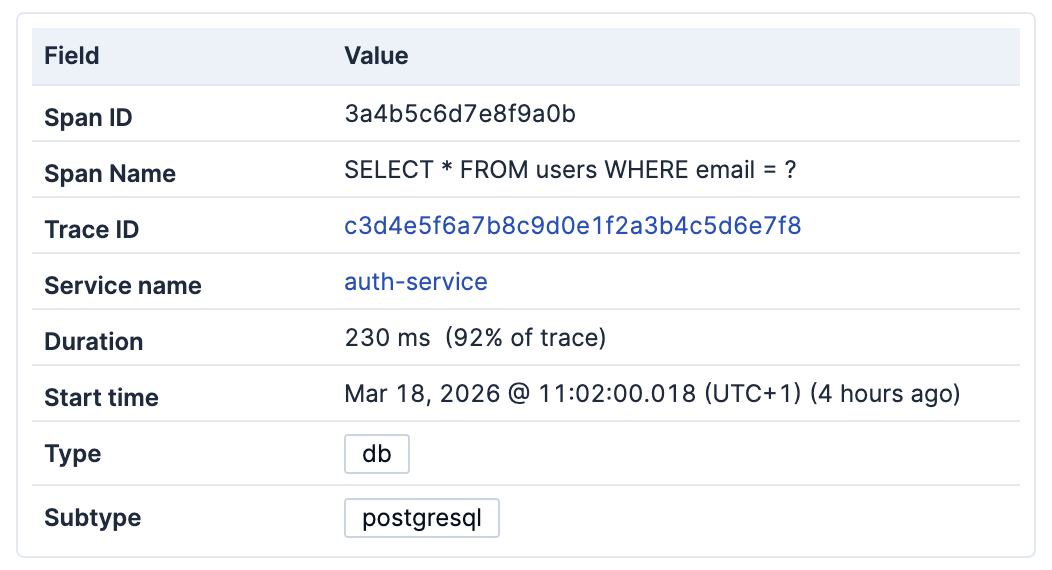
Select `expand` in any row to open the document detail panel. The **Overview** tab shows the key attributes of the selected trace document:
- **Span ID** and **Span name**: Identifies the specific operation
- **Trace ID**: Links all documents that belong to the same trace
- **Service name**: The service that generated this span
- **Duration**: How long the operation took, and what percentage of the total trace duration it represents
- **Start time**: When the operation started
- **Type** and **Subtype**: The category of the operation, for example `db` / `postgresql` or `external` / `http`
### Investigate a service with flyouts
- Elastic Cloud Serverless: Generally available
- Elastic Stack: Planned
Investigate a service, transaction, trace, and individual span or error in a series of flyouts without leaving **Discover**.
Before you begin:
- Take into consideration that opening a service flyout requires access to APM.
- You need to [Load trace data](#load-trace-data) in **Discover**.
1. Click **View details** `expand` in a transaction or span's row to open the document detail panel.
2. On the document's **Overview** tab, click the **Service name** value (`service.name`). The service flyout opens with the service's key metrics.
3. On the service flyout's **Overview** tab, scroll to **Transactions** and click a transaction name. The transaction flyout shows its metrics, latency distribution, and trace samples.
4. In the transaction flyout, under **Trace sample**, click a span or transaction in the timeline to open the full trace waterfall. You can also use **View full trace** when the button is available.
5. Click a span or transaction in the full trace waterfall to inspect its document. If it has associated errors, click **View error** or **View *n* errors** in its waterfall row.
Use **Back** to return to the previous flyout.
Services with unprocessed OpenTelemetry data show key metrics but don't have a **Transactions** table, so the transaction drill-down is unavailable. You can still inspect their spans through the document's [expanded trace timeline](#expanded-trace-timeline).
#### Filters in investigation flyouts
The service flyout opens with the document's environment and the time range selected in **Discover**. It doesn't inherit the Discover query or filter pills.
The transaction flyout follows changes to the service flyout's **Environment**, **Transaction type**, and time range.
If a change excludes the selected transaction, the transaction flyout keeps showing the previous data and displays a warning. Check **Environment**, **Transaction type**, and **Date range** in the transaction summary to see which filters apply. When the transaction matches again, the flyout resumes using the service flyout's filters.
### Similar spans
The **Similar spans** section shows a latency chart for spans with the same type and name across your data. Use this view to compare the selected span's performance against historical samples and identify outliers.
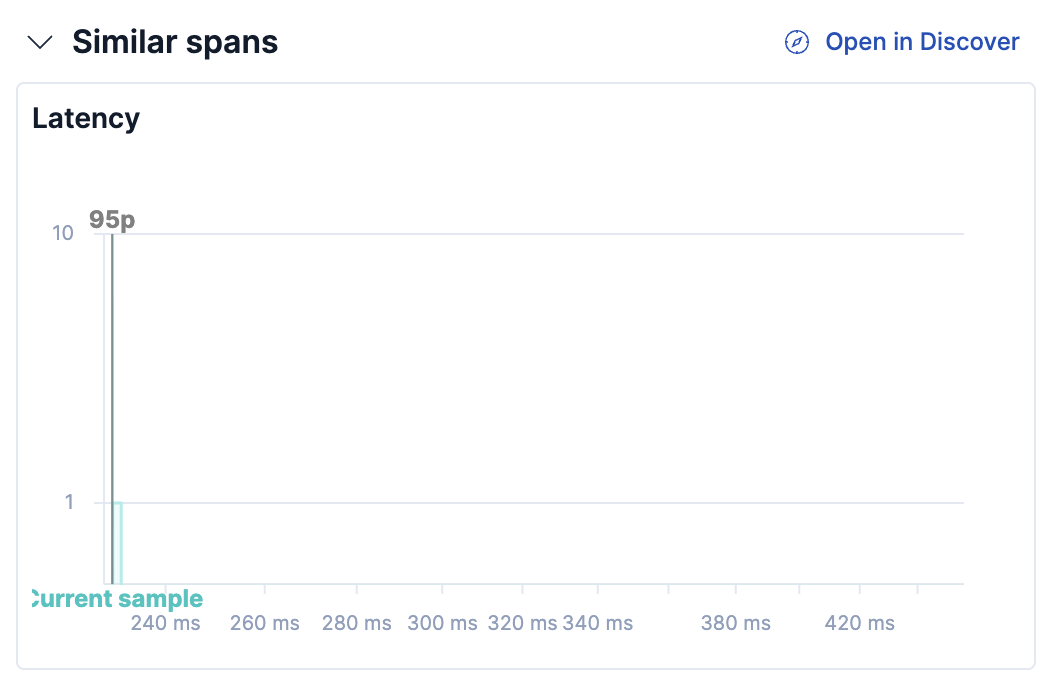
Select **Open in Discover** to open a filtered view of all similar spans.
### Trace summary
The **Trace summary** section shows a condensed waterfall of the trace the selected document belongs to. Each row represents a span or transaction, positioned on a timeline to show when it started and how long it took.
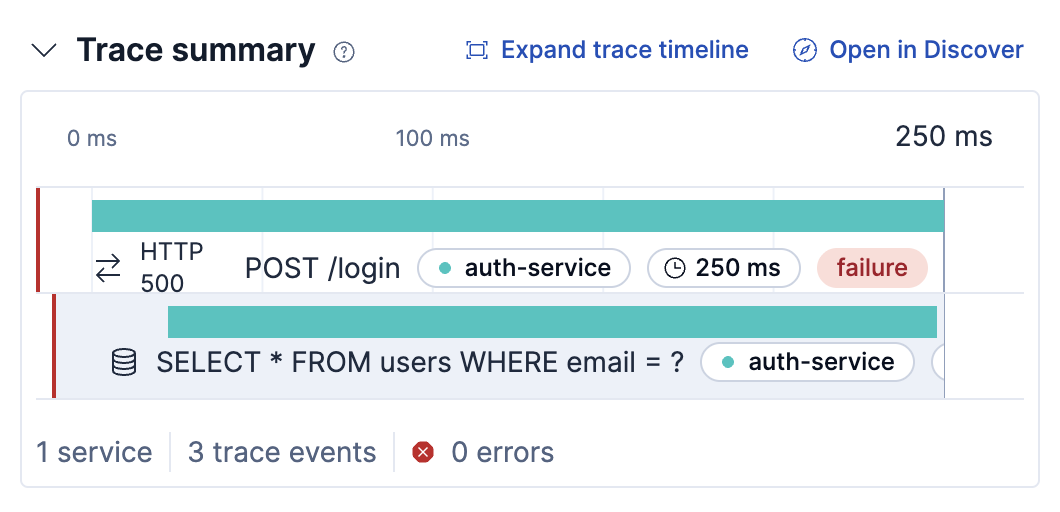
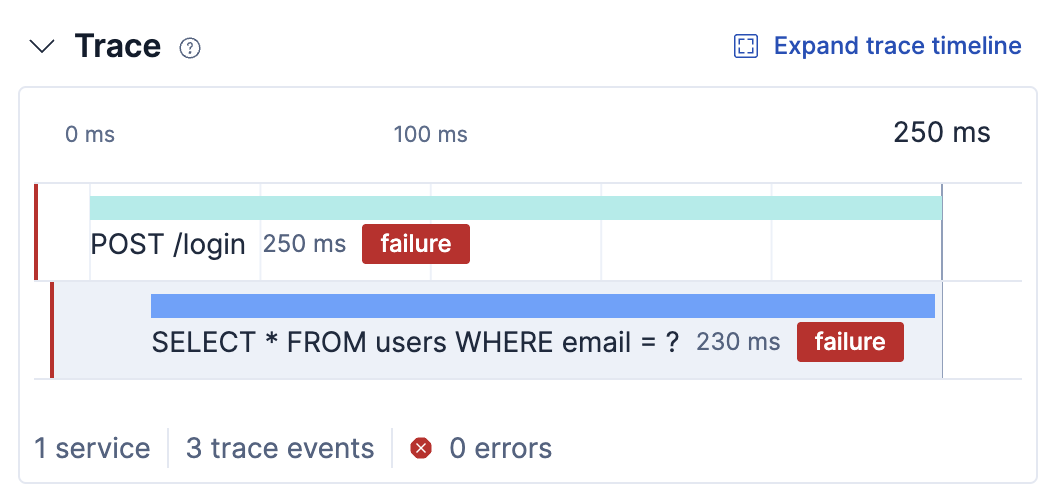
Select **Expand trace timeline** to open the expanded waterfall view.
#### Expanded trace timeline
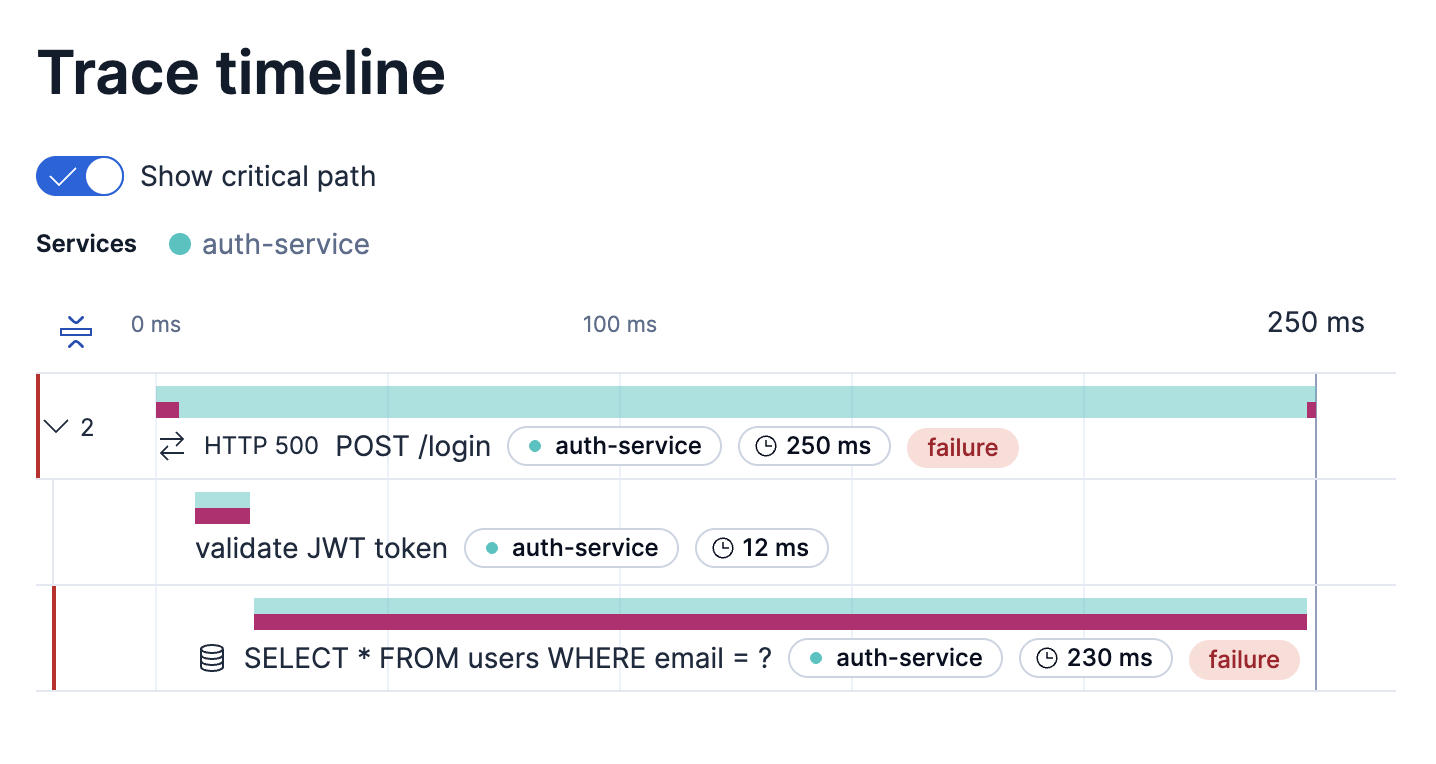
The expanded trace timeline shows all spans and transactions in a trace in a dedicated flyout waterfall view. A color-coded legend identifies which service each span belongs to. Failed spans are highlighted to help you quickly locate errors.
- Elastic Cloud Serverless: Preview
- Elastic Stack: Preview since 9.4
Turn on **Show critical path** to highlight the sequence of spans that determined the trace's total duration.

### Logs
The **Logs** section shows log entries correlated with the selected trace. Select **Open in Discover** to explore those logs in context.
## Inspect GenAI spans
- Elastic Cloud Serverless: Preview
- Elastic Stack: Planned
Use the **GenAI** tab to inspect model calls, token usage, and recorded prompts and responses. These views use the `gen_ai.*` attributes defined by the [OpenTelemetry GenAI semantic conventions](https://github.com/open-telemetry/semantic-conventions-genai). They work with Elastic OpenTelemetry and other OpenTelemetry instrumentations that record these attributes. For setup instructions, refer to [LLM observability with Elastic OpenTelemetry](https://docs-v3-preview.elastic.dev/elastic/docs-content/pull/8402/solutions/observability/get-started/opentelemetry/use-cases/llms).
To open the tab:
1. [Load trace data](#load-trace-data) in **Discover** and select a time range that includes your application's model calls.
2. In the results table, click **View details** `maximize` for a span or transaction that contains GenAI attributes.
3. Select **GenAI**, next to **Overview**, in the document detail panel. The tab appears only when the selected document contains GenAI attributes with values.
### Details
The **Details** section shows the attributes recorded for the selected operation. Each row appears only when the span carries a value for its attribute, so the fields you see vary by instrumentation and provider:
| Field | Description |
|-----------------------------------------------------------------|---------------------------------------------------------------------------------------------------------------------------------------------|
| **Operation** | The operation performed, such as `chat`, from `gen_ai.operation.name`. |
| **Request model** | The model requested by the application, from `gen_ai.request.model`. |
| **Provider** | The provider from `gen_ai.provider.name`, or `gen_ai.system` for instrumentation that uses the older attribute. |
| **Input tokens** | The input token count recorded in `gen_ai.usage.input_tokens`. |
| **Output tokens** | The output token count recorded in `gen_ai.usage.output_tokens`. |
| **Response model** | The model that produced the response, from `gen_ai.response.model`. |
| **Conversation ID** | The identifier that groups related model calls, from `gen_ai.conversation.id`. |
| **Response ID** | The identifier the provider assigned to the response, from `gen_ai.response.id`. |
| **Finish reasons** | Why the model stopped generating, such as `stop` or `length`, from `gen_ai.response.finish_reasons`. |
| **temperature**, **top_p**, **top_k**, **max_tokens**, **seed** | The request parameters sent to the model, from the matching `gen_ai.request.*` attributes. These rows keep their semantic convention names. |
In **Discover**, hover over a field value to use **Filter for value** `plus_circle` or **Filter out value** `minus_circle`. Hover over a field name to use **Filter for field present** `filter` or **Toggle column in table**. These actions help you find related model calls or compare their attributes in the results table. Available actions depend on the field and query mode.
### Prompts and responses
When the instrumentation records message content, the **Conversation** section shows prompts and responses with their roles, such as user or assistant. Click **Copy message** `copy` next to a message to copy its full contents.
The conversation is built from the [`gen_ai.input.messages`](https://github.com/open-telemetry/semantic-conventions-genai/blob/main/docs/registry/attributes/gen-ai.md#gen-ai-input-messages) and [`gen_ai.output.messages`](https://github.com/open-telemetry/semantic-conventions-genai/blob/main/docs/registry/attributes/gen-ai.md#gen-ai-output-messages) attributes, added in version 1.37.0 of the OpenTelemetry semantic conventions. For instrumentation that records `gen_ai.prompt` and `gen_ai.completion` instead, Kibana falls back to those attributes. Instrumentation that predates version 1.37.0 records messages as separate events, which the **GenAI** tab doesn't show.
Messages and token counts are recorded separately. A span can include token usage without message content. For message capture settings, refer to the documentation for your instrumentation.
Message values longer than 1,024 characters aren't indexed, so Kibana reads them from the document source, matching the span by `_id` or, when that isn't available, by `span.id`. A **Content may be incomplete** message appears only when a query returns neither field, such as an ES|QL query that uses `KEEP` without `span.id`. To resolve it, add `span.id` to the query, or add `METADATA _id, _index` to the `FROM` command.
You can also [inspect GenAI spans in a trace waterfall](/elastic/docs-content/pull/8402/solutions/observability/apm/trace-sample-timeline#genai-trace-waterfall) to see model calls alongside the other operations in a request.