---
title: Integrate Elastic APM with machine learning
description: The machine learning integration creates predefined jobs to detect anomalies in APM transaction metrics. With this integration, you can quickly pinpoint...
url: https://docs-v3-preview.elastic.dev/elastic/docs-content/pull/8402/solutions/observability/apm/machine-learning
products:
- APM
- Elastic Cloud Serverless
- Elastic Documentation
- Elastic Observability
applies_to:
- Elastic Cloud Serverless: Generally available
- Elastic Stack: Generally available
---
# Integrate Elastic APM with machine learning
Using machine learning requires an [appropriate license](https://www.elastic.co/subscriptions).
The machine learning integration creates predefined jobs to detect anomalies in APM transaction metrics. With this integration, you can quickly pinpoint anomalous transactions and identify services with active anomalies across your architecture.
machine learning jobs are created per environment, so you can add services to an existing environment without creating additional jobs.
Results from machine learning jobs are shown in multiple places throughout the Applications UI:
- The **Services** inventory provides a quick-glance view of the general health of all of your services. Elastic Stack: Generally available since 9.5 Elastic Cloud Serverless: Generally available Services are color coded to show services with active anomalies so you can quickly identify problem areas.
- The transaction duration chart shows the expected bounds and adds an annotation when the anomaly score is 75 or above.
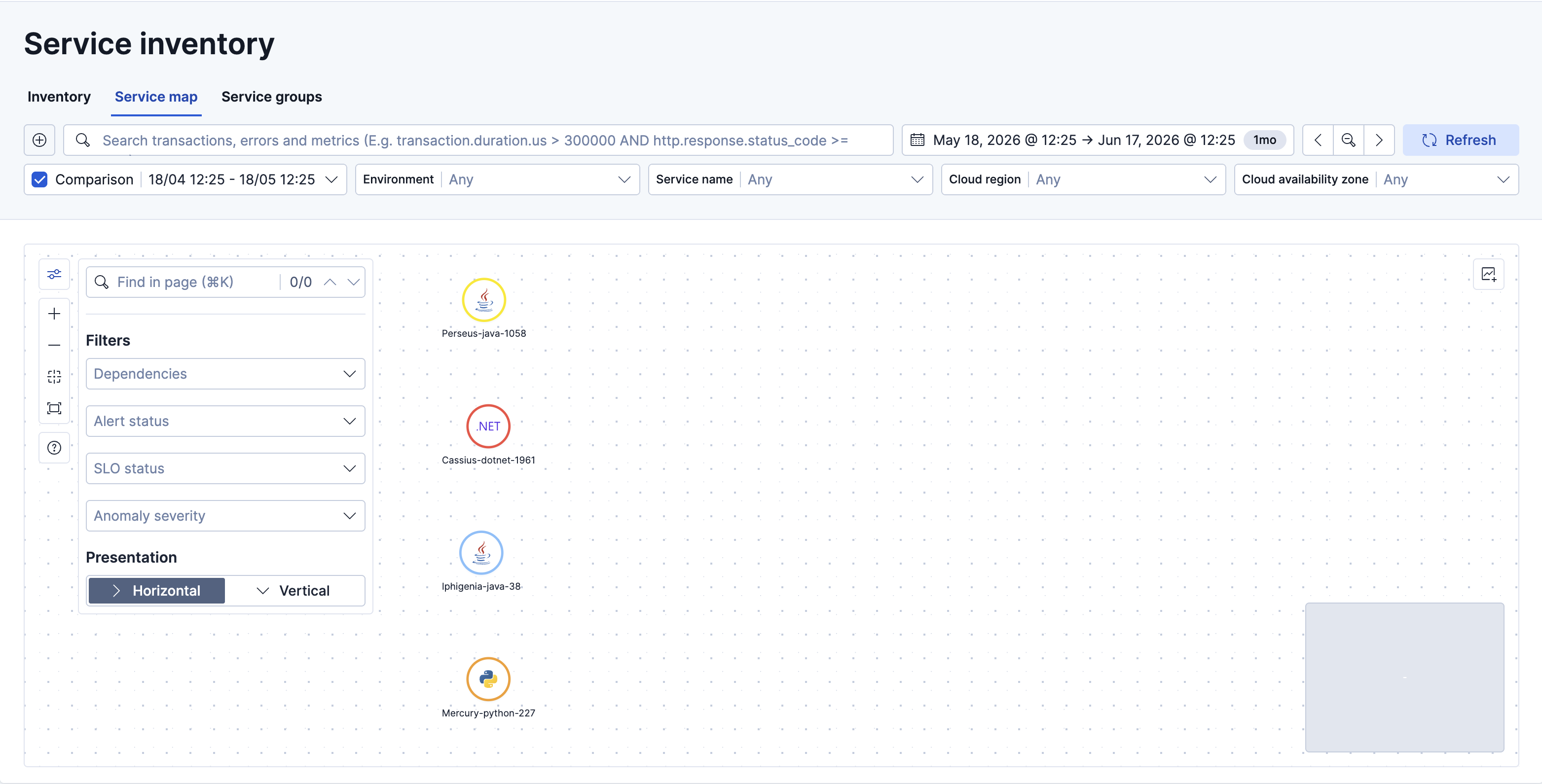
- Service Maps display a color-coded anomaly indicator on each service node based on the detected anomaly score.
- Elastic Stack: Generally available since 9.5 Elastic Cloud Serverless: Generally available Alert detail pages for APM anomaly alerts show RED metric charts and the service map, along with [a severity-colored callout](/elastic/docs-content/pull/8402/solutions/observability/apm/service-map#service-maps-legend-anomaly-colors) identifying the anomaly type. For more information, refer to [View alerts](https://docs-v3-preview.elastic.dev/elastic/docs-content/pull/8402/solutions/observability/incident-management/view-alerts).
## Enable anomaly detection
To enable machine learning anomaly detection:
1. In your Elastic Observability Serverless project or Kibana, go to any **Applications** page.
2. Click **Anomaly detection**.
3. Click **Create Job**.
4. Machine learning jobs are created at the environment level. Select all of the service environments that you want to enable anomaly detection in. Anomalies will surface for all services and transaction types within the selected environments.
5. Click **Create Jobs**.
After a few minutes, the job will begin calculating results; it might take additional time for results to appear on your service maps. To manage existing jobs, click **Manage jobs** (or go to **Machine learning** → **Jobs**).
## Detect low transaction counts
- Elastic Cloud Serverless: Generally available
- Elastic Stack: Planned
New APM transaction machine learning jobs include four detectors: latency, throughput, failed transaction rate, and low transaction count. The `low_count` detector identifies unusually low transaction counts, including drops to zero. This helps detect when traffic stops reaching a service, even when there are no transactions from which to calculate latency or failed transaction rate.
Existing jobs retain the detectors they were created with, which means that upgrading Kibana doesn't add the low-count detector to them. To use it, [recreate jobs that lack the detector](#apm-ml-recreate-existing-jobs).
## Add low-count detection to existing jobs
- Elastic Cloud Serverless: Generally available
- Elastic Stack: Planned
Because a job's detectors are fixed at creation, the only way to add low-count detection is to delete the environment's APM transaction job and create a new one, which includes all four detectors. Your APM anomaly rules survive the deletion, but the environment's anomaly history and model are lost.
Use this procedure for each environment whose APM transaction job lacks the `low_count` detector.
To check a job, open its configuration in **Machine Learning** → **Anomaly Detection** → **Jobs**, or use the [get job configuration API](https://www.elastic.co/docs/api/doc/elasticsearch/operation/operation-ml-get-jobs) and inspect `analysis_config.detectors`. If the `low_count` detector is already present, you do not need to recreate the job.
### Before you delete a job
Deleting a job permanently deletes its anomaly results and model snapshots. The replacement job analyzes the last four weeks of available data with a new model. Older anomaly history is lost, and scores in the reanalyzed period can differ. Other environments' jobs are not affected.
Anomaly charts and badges for the environment have no results until the replacement job produces them. APM anomaly rules cannot detect new anomalies for that environment during this gap. Existing active alerts recover, and anomalies from the replacement job create new alerts. Alert history remains available.
Deleting a job also removes its automatically generated annotations. User-created annotations are deleted only if you enable **Delete annotations** in the deletion dialog.
### Recreate the job and update rules
1. In **Machine Learning** → **Anomaly Detection** → **Jobs**, find the environment's APM transaction job. Its ID has the form `apm---apm_tx_metrics`.
2. Delete the job. Because these jobs are managed by APM, deleting one also deletes its datafeed. Leave **Delete alerting rules** off if the option appears. Wait for the job to disappear from the list.
3. In **Applications**, open **Settings** → **Anomaly detection**. Click **Create job**, select the same environment, and click **Create Jobs**. The datafeed starts automatically with a four-week lookback.
4. Wait until the job is open and has finished analyzing the lookback period.
5. Edit each existing [APM anomaly rule](/elastic/docs-content/pull/8402/solutions/observability/incident-management/create-an-apm-anomaly-rule#apm-anomaly-low-transaction-count) that should detect traffic drops. Under **Detector types**, select **low transaction count** and save the rule.
Closing the old job is not enough: APM skips creation while the existing APM transaction job for the environment remains, including a closed job.
You do not need to recreate APM anomaly rules. They look up the job for the environment on each run, and the ML job deletion dialog does not delete them. Rules retain their saved detector selections, so check that **low transaction count** is selected. The other selected detectors resume alerting once the new job has finalized results.
## Anomaly detection warning
To make machine learning as easy as possible to set up, Elastic will warn you when filtered to an environment without a machine learning job.
## No anomaly data showing
After enabling anomaly detection, anomaly indicators might not appear for a service. Here are some reasons why this can occur:
1. No machine learning job exists. Refer to [Enable anomaly detection](#observability-apm-integrate-with-machine-learning-enable-anomaly-detection) to enable anomaly detection and create an machine learning job.
2. There is no machine learning data for the job. If you just created the machine learning job you’ll need to wait a few minutes for data to be available. Alternatively, if the service or its environment are new, you’ll need to wait for more trace data.
3. No "request" or "page-load" transaction type exists for this service; anomaly detection is only available for these transaction types.