---
title: Triage alerts
description: Elastic Agent Builder helps you triage alerts faster. Attach an alert to a conversation, and the agent pulls its details, finds related alerts that share...
url: https://docs-v3-preview.elastic.dev/elastic/docs-content/pull/9289/solutions/security/ai/triage-alerts
products:
- Elastic Cloud Serverless
- Elastic Documentation
- Elastic Security
applies_to:
- Serverless Security projects: Generally available
- Elastic Stack: Generally available
---
# Triage alerts
[Elastic Agent Builder](https://docs-v3-preview.elastic.dev/elastic/docs-content/pull/9289/solutions/security/ai/agent-builder/agent-builder) helps you triage alerts faster. Attach an alert to a conversation, and the agent pulls its details, finds related alerts that share hosts, users, or IP addresses, and recommends a disposition. If you set up [entity risk scoring](https://docs-v3-preview.elastic.dev/elastic/docs-content/pull/9289/solutions/security/advanced-entity-analytics/entity-risk-scoring), it also checks entity risk. If you install [Security labs content](/elastic/docs-content/pull/9289/explore-analyze/ai-features/manage-access-to-ai-assistant#security-labs-content), it also correlates with Elastic Security Labs threat intelligence. You can then ask follow-up questions and document the result in a case.
If you use AI Assistant, refer to [Use AI Assistant (deprecated)](#triage-alerts-ai-assistant).
## Triage alerts with Elastic Agent Builder
- Serverless Security projects: Generally available
- Elastic Stack: Generally available since 9.4
This procedure uses the [Elastic AI Agent](/elastic/docs-content/pull/9289/explore-analyze/ai-features/agent-builder/builtin-agents-reference#elastic-ai-agent) and its [`alert-analysis`](/elastic/docs-content/pull/9289/explore-analyze/ai-features/agent-builder/builtin-skills-reference#agent-builder-alert-analysis-skill) skill. For the skill's prompts and activation details, refer to [Security use cases for Elastic Agent Builder](/elastic/docs-content/pull/9289/solutions/security/ai/agent-builder/skills-use-cases#alert-triage-and-investigation).
### Before you begin
- Ensure **AI Agent** is the chat experience for your space. Refer to [Switch to Agent Builder](/elastic/docs-content/pull/9289/explore-analyze/ai-features/ai-chat-experiences/ai-agent-or-ai-assistant#switch-between-chat-experiences).
- To include entity risk scores in the analysis, turn on [entity risk scoring](https://docs-v3-preview.elastic.dev/elastic/docs-content/pull/9289/solutions/security/advanced-entity-analytics/entity-risk-scoring).
- To correlate alerts with Elastic Security Labs threat intelligence, install **Security labs** content from **GenAI Settings**. Refer to [Security labs content](/elastic/docs-content/pull/9289/explore-analyze/ai-features/manage-access-to-ai-assistant#security-labs-content).
- Elastic Stack: Planned Elastic Cloud Serverless: Preview To mask values such as email addresses, IP addresses, and host names before they're sent to the LLM, turn on anonymization, which is off by default. Anonymization masks values that match patterns. You can't select individual alert fields. For setup steps and requirements, refer to [Data anonymization](/elastic/docs-content/pull/9289/explore-analyze/ai-features/ai-chat-experiences/ai-agent-or-ai-assistant#feature-differences-between-agent-builder-and-ai-assistant).
### Triage a specific alert
1. On the **Alerts** page, click **View details** for an alert.
2. In the alert details flyout, click **Add to chat**. Elastic Agent Builder opens a new conversation with the alert attached and a suggested triage prompt.
3. Send the suggested prompt, or edit it first. The agent summarizes the alert and recommends one of four dispositions: true positive, benign true positive, false positive, or needs more data.
4. If the agent flags concerns, ask follow-up questions. For example:
- "Find alerts related to this one over the last 7 days."
- "Is this user typically logging in from this IP address?"
- "What are the risk scores for the host and user involved?"
5. Act on the disposition:
- **True positive**: Escalate according to your incident response plan.
- **Benign true positive or false positive**: Add a note to the alert, then close it. If the behavior is expected, [add a rule exception](/elastic/docs-content/pull/9289/solutions/security/detect-and-alert/manage-detection-alerts#add-exception-from-alerts) to prevent similar alerts.
- **Needs more data**: Change the alert's status to **Acknowledged** and keep investigating.
6. Document the outcome. In the alert details flyout, click **Take action** → **Add to existing case** or **Add to new case**.
7. Ask the agent for a report, for example "Generate a report about this incident, including timeline, impact, and response actions." Add the report to the case as a comment.
Elastic Stack: Preview since 9.5 Elastic Cloud Serverless: Preview You can ask the agent to add the report for you, for example "Add this report as a comment on the case for this alert." The agent uses the [`cases-management`](/elastic/docs-content/pull/9289/explore-analyze/ai-features/agent-builder/builtin-skills-reference#agent-builder-cases-management-skill) skill.
### Triage multiple alerts
- Serverless Security projects: Generally available
- Elastic Stack: Generally available since 9.5
1. On the **Alerts** page, select up to 100 of the alerts loaded in the table. Don't use **Select all**, which switches to query mode and disables **Add to chat**.
2. Click **Selected *x* alerts** → **Add to chat**.
3. Ask the agent to compare the alerts, for example "Which of these alerts should I prioritize, and why?"
4. Decide a disposition for each alert you investigate, then document the outcome in a case, as described in [Triage a specific alert](#triage-alerts-agent-builder-single).
For all the ways to open alerts in chat, refer to [Add alerts to chat](/elastic/docs-content/pull/9289/solutions/security/detect-and-alert/manage-detection-alerts#add-alerts-to-chat).
### Confirm the result
You're done when each alert has a disposition, its status reflects it (**Acknowledged** or closed), and a case contains the alert and the agent's report.
### Next steps
- Track the incident in a [case](https://docs-v3-preview.elastic.dev/elastic/docs-content/pull/9289/solutions/security/investigate/security-cases).
- Run an [Elastic workflow from an alert](/elastic/docs-content/pull/9289/solutions/security/detect-and-alert/manage-detection-alerts#run-workflow-from-alert) for on-demand response.
- Automate triage so it runs without an analyst in the loop:
- [Triage a security alert into a case](https://docs-v3-preview.elastic.dev/elastic/docs-content/pull/9289/explore-analyze/workflows/use-cases/security/automate-security-operations/alert-triage-with-case): Enrich an alert, open a case, attach observables, isolate the host, and notify the on-call analyst.
- [Triage alerts with an AI agent](https://docs-v3-preview.elastic.dev/elastic/docs-content/pull/9289/explore-analyze/workflows/use-cases/security/automate-security-operations/ai-driven-alert-triage): Invoke an Elastic Agent Builder agent on each Attack Discovery alert, attach the analysis to a case, and post a Slack summary.
- Hunt further with the [`threat-hunting`](/elastic/docs-content/pull/9289/solutions/security/ai/agent-builder/skills-use-cases#threat-hunting) skill.
## Use AI Assistant (deprecated)
- Serverless Security projects: Deprecated
- Elastic Stack: Planned for deprecation
- Elastic Stack: Generally available from 9.0 to 9.5
Elastic AI Assistant can help you enhance and streamline your alert triage workflows by assessing multiple recent alerts in your environment, and helping you interpret an alert and its context.
When you view an alert in Elastic Security, details such as related documents, hosts, and users appear alongside a synopsis of the events that triggered the alert. This data provides a starting point for understanding a potential threat. AI Assistant can answer questions about this data and offer insights and actionable recommendations to remediate the issue.
To enable AI Assistant to answer questions about alerts, you need to provide alert data as context for your prompts. You can either provide multiple alerts using the [Knowledge Base](https://docs-v3-preview.elastic.dev/elastic/docs-content/pull/9289/solutions/security/ai/ai-assistant-knowledge-base) feature, or provide individual alerts directly.
### Use AI Assistant to triage multiple alerts
Enable the [Knowledge Base](https://docs-v3-preview.elastic.dev/elastic/docs-content/pull/9289/solutions/security/ai/ai-assistant-knowledge-base) **Alerts** setting to send AI Assistant data for up to 500 alerts as context for each of your prompts. Use the slider on the Security AI settings' **Knowledge Base** tab to select the number of alerts to send to AI Assistant.
For more information, refer to [Knowledge Base](https://docs-v3-preview.elastic.dev/elastic/docs-content/pull/9289/solutions/security/ai/ai-assistant-knowledge-base).
### Use AI Assistant to triage a specific alert
Once you have chosen an alert to investigate:
1. Click its **View details** button from the **Alerts** table.
2. In the alert details flyout, click **Chat** to launch the AI assistant. Data related to the selected alert is automatically added to the prompt.
3. Click **Alert (from summary)** to view which alert fields will be shared with AI Assistant.
For more information about selecting which fields to send, and to learn about anonymizing your data, refer to [AI Assistant](https://docs-v3-preview.elastic.dev/elastic/docs-content/pull/9289/solutions/security/ai/ai-assistant).
4. (Optional) Click a quick prompt to use it as a starting point for your query, for example **Alert summarization**. Improve the quality of AI Assistant’s response by customizing the prompt and adding detail.
Once you’ve submitted your query, AI Assistant will process the information and provide a detailed response. Depending on your prompt and the alert data that you included, its response can include a thorough analysis of the alert that highlights key elements such as the nature of the potential threat, potential impact, and suggested response actions.
5. (Optional) Ask AI Assistant follow-up questions, provide additional information for further analysis, and request clarification. The response is not a static report.
### Generate triage reports
Elastic AI Assistant can streamline the documentation and report generation process by providing clear records of security incidents, their scope and impact, and your remediation efforts. You can use AI Assistant to create summaries or reports for stakeholders that include key event details, findings, and diagrams. Once AI Assistant has finished analyzing one or more alerts, you can generate reports by using prompts such as:
- “Generate a detailed report about this incident including timeline, impact analysis, and response actions. Also, include a diagram of events.”
- “Generate a summary of this incident/alert and include diagrams of events.”
- “Provide more details on the mitigation strategies used.”
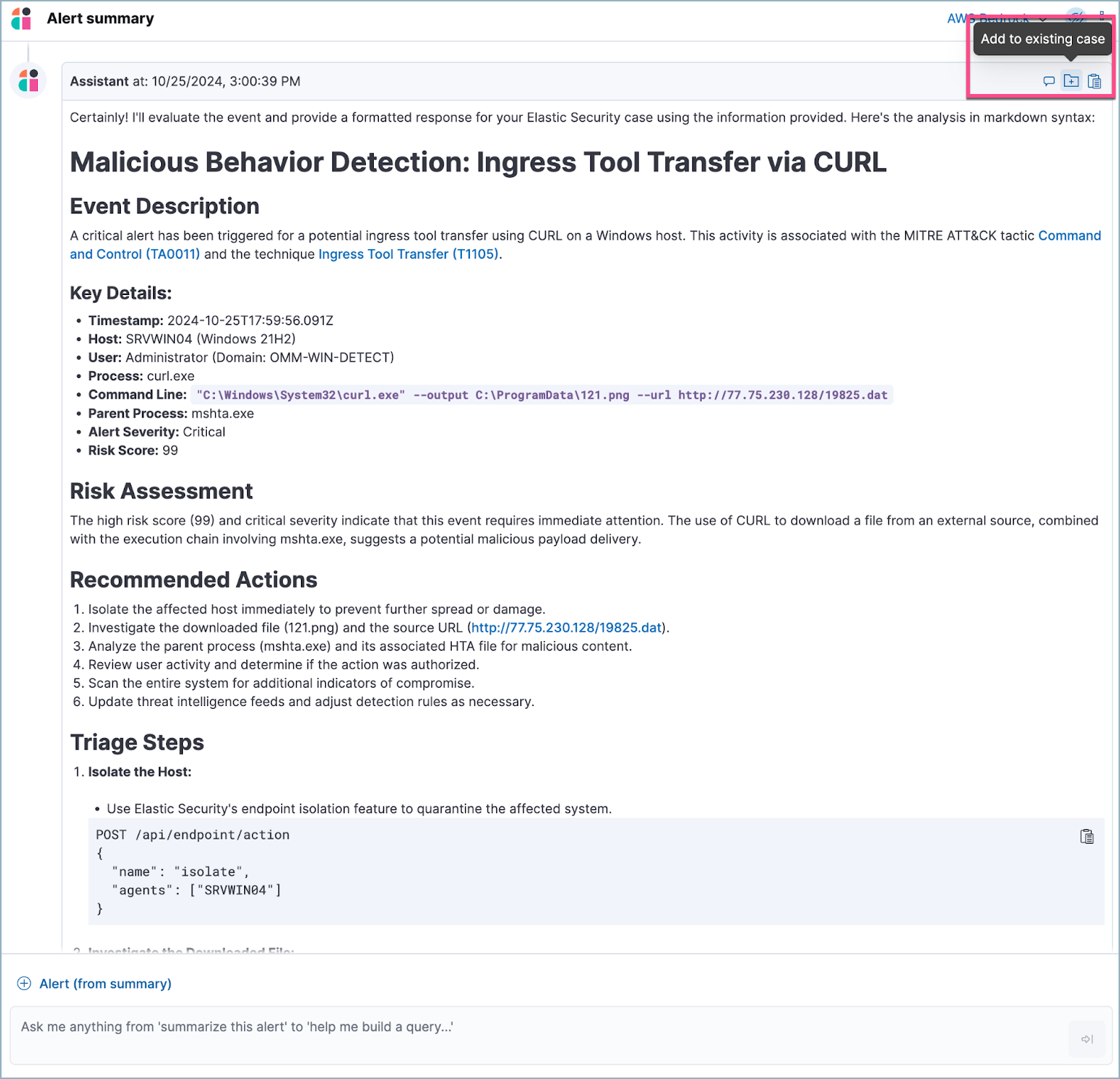
After you review the report, click **Add to existing case** at the top of AI Assistant’s response. This allows you to save a record of the report and make it available to your team.
### Example alert triage workflow
This section shows an example workflow for triaging a specific alert.
**Scenario:** You are investigating an alert: "Multiple Failed Logins Followed by Success - user: jsmith"
1. From the **Alerts** table, click **View details**.
2. Click **Chat** to open AI Assistant. The alert information is automatically attached.
3. Click the **Alert summarization** quick prompt. AI Assistant shares an initial alert assessment.
Ask AI Assistant:
- "Is user jsmith typically logging in from [this IP/location]?"
- "Are there other suspicious activities from this user in the last 24 hours?"
- "What's the risk score for the source IP?"
If AI Assistant flags concerns, investigate further. Ask AI Assistant to:
- "Generate an ES|QL query to find all recent activity from user jsmith."
- "Generate an ES|QL query to find other users logging in from this IP."
Based on your initial AI-assisted analysis, determine whether you're dealing with a potential threat:
- **False positive**: User was traveling, this is expected behavior.
- Immediate action: Add note to alert, close as false positive.
- Future action: Add a rule exception to prevent similar alerts.
- **True positive**: Behavior indicates a potential attack. In response:
- Escalate according to your organization's incident response plan.
- Create a case to track the investigation.
1. From AI Assistant, click **Add to case** on key messages.
2. Go to **Cases**, add your case notes.
3. Go back to the alert and change its status to `Acknowledged`.