---
title: Model Context Protocol (MCP) tools in Elastic Agent Builder
description: Connect to external MCP servers to enable agents to use remote tools and services.
url: https://docs-v3-preview.elastic.dev/elastic/docs-content/pull/9507/explore-analyze/ai-features/agent-builder/tools/mcp-tools
products:
- Elastic Cloud Serverless
- Elastic Documentation
- Elastic Observability
- Elastic Security
- Elasticsearch
- Kibana
applies_to:
- Serverless Elasticsearch projects: Preview
- Serverless Observability projects: Preview
- Serverless Security projects: Preview
- Elastic Stack: Preview since 9.3
---
# Model Context Protocol (MCP) tools in Elastic Agent Builder
Agent Builder MCP tools enable calling a remote [MCP server's](https://modelcontextprotocol.io/docs/learn/server-concepts) tools in your agent [chat](https://docs-v3-preview.elastic.dev/elastic/docs-content/pull/9507/explore-analyze/ai-features/agent-builder/chat). For example, you can import a documentation-lookup tool from an external service so your agent can fetch current library docs during a conversation. When your agent calls an MCP tool, it executes the associated tool on the MCP server and returns its result.
On this page, Elastic Agent Builder acts as the MCP client: your agents connect to an external MCP server to use its tools. To instead let external MCP hosts use your Elastic Agent Builder tools, refer to [Elastic Agent Builder MCP server](https://docs-v3-preview.elastic.dev/elastic/docs-content/pull/9507/explore-analyze/ai-features/agent-builder/mcp-server).
## Prerequisites
To use external MCP tools, you first need to set up an [MCP connector](https://docs-v3-preview.elastic.dev/elastic/kibana/tree/main/reference/connectors-kibana/mcp-action-type). This interface enables Agent Builder MCP tools to communicate with a remote MCP server.
## Adding MCP tools
You can import MCP tools individually or in bulk.
### Add a single tool
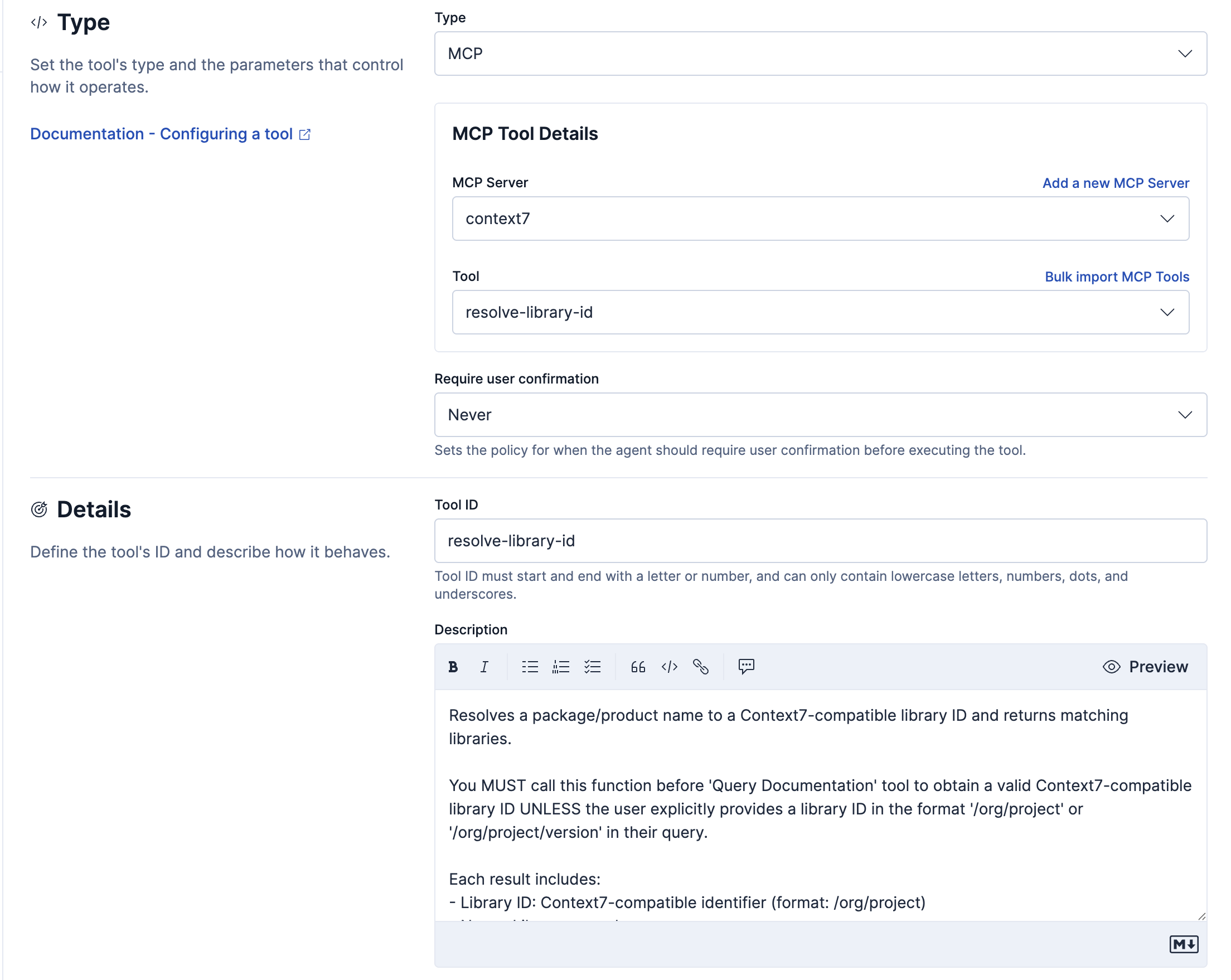
After you set up an MCP connector, click **+ New tool** on the [Tools](https://docs-v3-preview.elastic.dev/elastic/docs-content/pull/9507/explore-analyze/ai-features/agent-builder/tools) page and select the **MCP** tool type. The following screenshot shows an example configuration:
#### Configuration
Individual MCP tools have the following configuration settings:
The MCP connector to interface with.
The specific tool on MCP server to create an Agent Builder MCP tool for.
Controls whether the agent asks you to approve a call to this tool before it runs. Select **Never** (default) to run without a prompt, **Once** to prompt the first time the agent calls the tool in a conversation, or **Always** to prompt on every call. For details, refer to [Require confirmation before a tool runs](/elastic/docs-content/pull/9507/explore-analyze/ai-features/agent-builder/tools/custom-tools#require-confirmation-before-a-tool-runs).
### Bulk import MCP tools
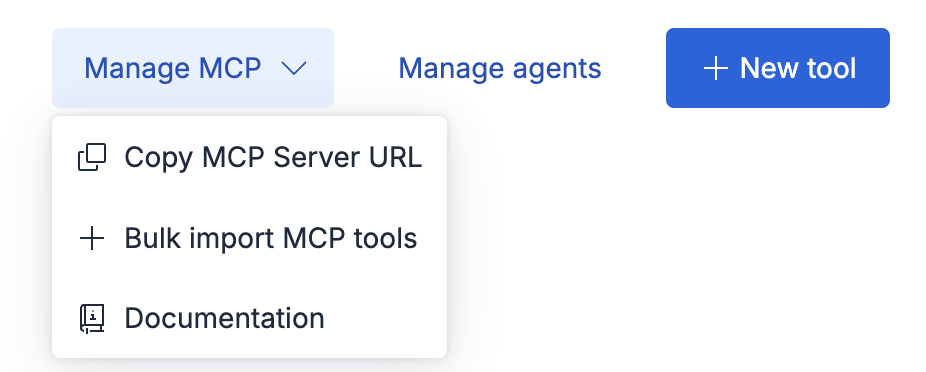
To import multiple tools at once, go to the [Tools](https://docs-v3-preview.elastic.dev/elastic/docs-content/pull/9507/explore-analyze/ai-features/agent-builder/tools) page and select **Bulk import MCP tools** from the **Manage MCP** dropdown. The following screenshot shows where to find this option:
Configure the following fields:
The MCP connector to interface with.
The specific tools from the MCP server to import.
A string to prepend to the tool name to aid in searching and organization. A namespace must start with a letter and contain only lowercase letters, numbers, and hyphens.
The following screenshot shows an example bulk import from the Context7 MCP server:
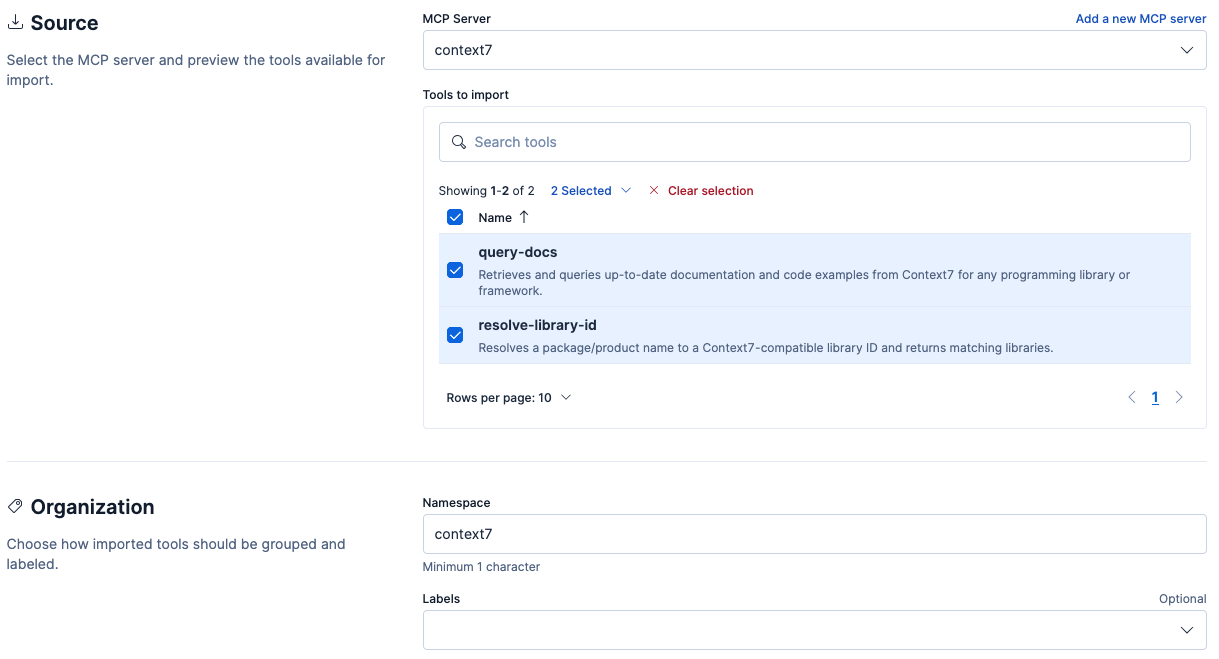
After you click **Import tools**, Agent Builder creates an MCP tool for each selection.
Each tool's ID is generated as `namespace.tool-name` (for example, `context7.resolve-library-id`), and descriptions are populated automatically from the MCP server.
Elastic Stack: Preview since 9.5 Elastic Cloud Serverless: Preview Bulk import doesn't configure confirmation, so each imported tool starts with **Require user confirmation** set to **Never**. To require confirmation for an imported tool, edit it after import.
## How MCP tool calls work
When an agent calls an MCP tool:
1. Agent Builder retrieves the tool's input schema from the MCP connector.
2. Agent Builder calls the MCP server tool with the required parameters.
3. The MCP server returns the result directly to the LLM with no post-processing.
4. The LLM interprets the result for the user.
## Monitoring tool health
MCP tools have built-in health monitoring. Tools that are unhealthy display an icon next to their IDs on the [Tools](https://docs-v3-preview.elastic.dev/elastic/docs-content/pull/9507/explore-analyze/ai-features/agent-builder/tools) page.
An MCP tool is marked "unhealthy" when:
- The MCP tool's associated MCP connector is unavailable. The tool shows this icon:

- The MCP tool's associated tool on the MCP server no longer exists. The tool shows this icon:

- The MCP tool's execution failed. The tool shows this icon:

## Related pages
- [Tools](https://docs-v3-preview.elastic.dev/elastic/docs-content/pull/9507/explore-analyze/ai-features/agent-builder/tools)
- [ES|QL tools](https://docs-v3-preview.elastic.dev/elastic/docs-content/pull/9507/explore-analyze/ai-features/agent-builder/tools/esql-tools)
- [Index search tools](https://docs-v3-preview.elastic.dev/elastic/docs-content/pull/9507/explore-analyze/ai-features/agent-builder/tools/index-search-tools)