---
title: Work with params and secrets
description: Params allow you to use dynamically defined values in your synthetic monitors. For example, you may want to test a production website with a particular...
url: https://docs-v3-preview.elastic.dev/elastic/docs-content/pull/9535/solutions/observability/synthetics/work-with-params-secrets
products:
- Elastic Cloud Serverless
- Elastic Documentation
- Elastic Observability
applies_to:
- Elastic Cloud Serverless: Generally available
- Elastic Stack: Generally available
---
# Work with params and secrets
Params allow you to use dynamically defined values in your synthetic monitors. For example, you may want to test a production website with a particular demo account whose password is only known to the team managing the synthetic monitors.
For more information about security-sensitive use cases, refer to [Working with secrets and sensitive values](#synthetics-secrets-sensitive).
## Define params
You can declare param values any of the following ways:
- In the *Global parameters* tab of the [Synthetics Settings page in an Observability project](/elastic/docs-content/pull/9535/solutions/observability/synthetics/configure-settings#synthetics-settings-global-parameters).
- Declaring a default value for the parameter in a [configuration file](#synthetics-dynamic-configs).
- Passing the `--params` [CLI argument](#synthetics-cli-params).
If you are creating and managing synthetic monitors using a [Synthetics project](https://docs-v3-preview.elastic.dev/elastic/docs-content/pull/9535/solutions/observability/synthetics/create-monitors-with-projects), you can also use regular environment variables via the standard node `process.env` global object.
The values in the configuration file are read in the following order:
1. **Global parameters in an Observability project**: The *Global parameters* set using the UI are read first.
2. **Configuration file**: Then the *Global parameters* are merged with any parameters defined in a configuration file. If a parameter is defined in both the Observability UI **and** a Synthetics project configuration file, the value in the configuration file will be used.
3. **CLI**: Then the parameters defined in the configuration are merged with any parameters passed to the CLI `--params` argument. If a parameter is defined in a Synthetics project configuration file **and** using the CLI argument, the value defined using the CLI will be used. When running a script using the CLI, *Global parameters* defined in Kibana or the Observability Serverless project have no impact on the test because it won’t have access to Kibana or the Observability project.
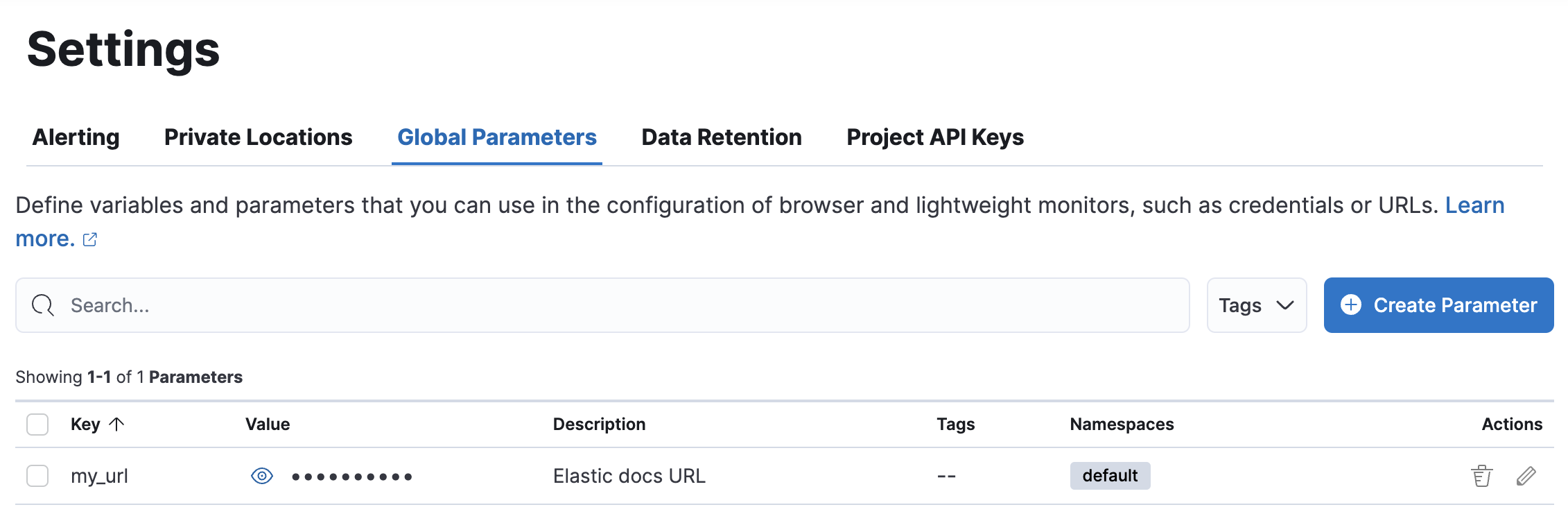
### Global parameters in your Observability project
From any page in the Synthetics UI:
1. Go to **Settings**.
2. Go to the **Global parameters** tab.
3. Define parameters.
### Allow users to view global parameter values
- Elastic Cloud Serverless: Generally available
- Elastic Stack: Generally available since 9.1
By default, custom user roles do not have access to global parameter values. Administrators can grant read access to global parameters by adding the Synthetics **Can read global parameter values** Kibana [sub-feature privilege](/elastic/docs-content/pull/9535/solutions/observability/get-started/observability-kibana-privileges#synthetics-and-uptime-sub-feature-privileges) to a role. When added, users can view a global parameter value using the [**Get parameters** API](https://www.elastic.co/docs/api/doc/kibana/operation/operation-get-parameters) or by selecting the `eye` icon.
To add the **Can read global parameter values** Kibana privilege to a role:
1. Go to the **Roles** management page in the navigation menu or use the [global search field](https://docs-v3-preview.elastic.dev/elastic/docs-content/pull/9535/explore-analyze/find-and-organize/find-apps-and-objects).
2. Edit an existing role or select **Create role**.
3. From the **Kibana** section, click **Assign to space**.
4. Expand `Synthetics and Uptime` in the list of [Observability Kibana privileges](https://docs-v3-preview.elastic.dev/elastic/docs-content/pull/9535/solutions/observability/get-started/observability-kibana-privileges).
5. Turn on **Customize sub-feature privileges**.
6. Turn on **Can read global parameter values**.
7. Click **Assign role**.
Refer to [Defining roles](https://docs-v3-preview.elastic.dev/elastic/docs-content/pull/9535/deploy-manage/users-roles/cluster-or-deployment-auth/defining-roles) for more on creating custom roles.
### Synthetics project config file
Use a `synthetics.config.js` or `synthetics.config.ts` file to define variables required by your tests. This file should be placed in the root of your Synthetics project.
```js
export default (env) => {
let my_url = "http://localhost:8080";
if (env === "production") {
my_url = "https://elastic.github.io/synthetics-demo/"
}
return {
params: {
my_url,
},
};
};
```
The example above uses the `env` variable, which corresponds to the value of the `NODE_ENV` environment variable.
### CLI argument
To set parameters when running [`npx @elastic/synthetics` on the command line](https://docs-v3-preview.elastic.dev/elastic/docs-content/pull/9535/solutions/observability/synthetics/cli), use the `--params` or `-p` flag. The provided map is merged over any existing variables defined in the `synthetics.config.{js,ts}` file.
For example, to override the `my_url` parameter, you would run:
```sh
npx @elastic/synthetics . --params '{"my_url": "http://localhost:8080"}'
```
## Use params
You can use params in both lightweight and browser monitors created in either a Synthetics project or the Synthetics UI.
### In a Synthetics project
For lightweight monitors in a Synthetics project, wrap the name of the param in `"${}"` (for example, `"${my_url}"`).
```yaml
- type: http
name: Todos Lightweight
id: todos-lightweight
urls: ["${my_url}"]
schedule: '@every 1m'
```
In browser monitors, parameters can be referenced via the `params` property available within the argument to a `journey`, `before`, `beforeAll`, `after`, or `afterAll` callback function.
Add `params.` before the name of the param (for example, `params.my_url`):
```js
beforeAll(({params}) => {
console.log(`Visiting ${params.my_url}`)
})
journey("My Journey", ({ page, params }) => {
step('launch app', async () => {
await page.goto(params.my_url)
})
})
```
### In the UI
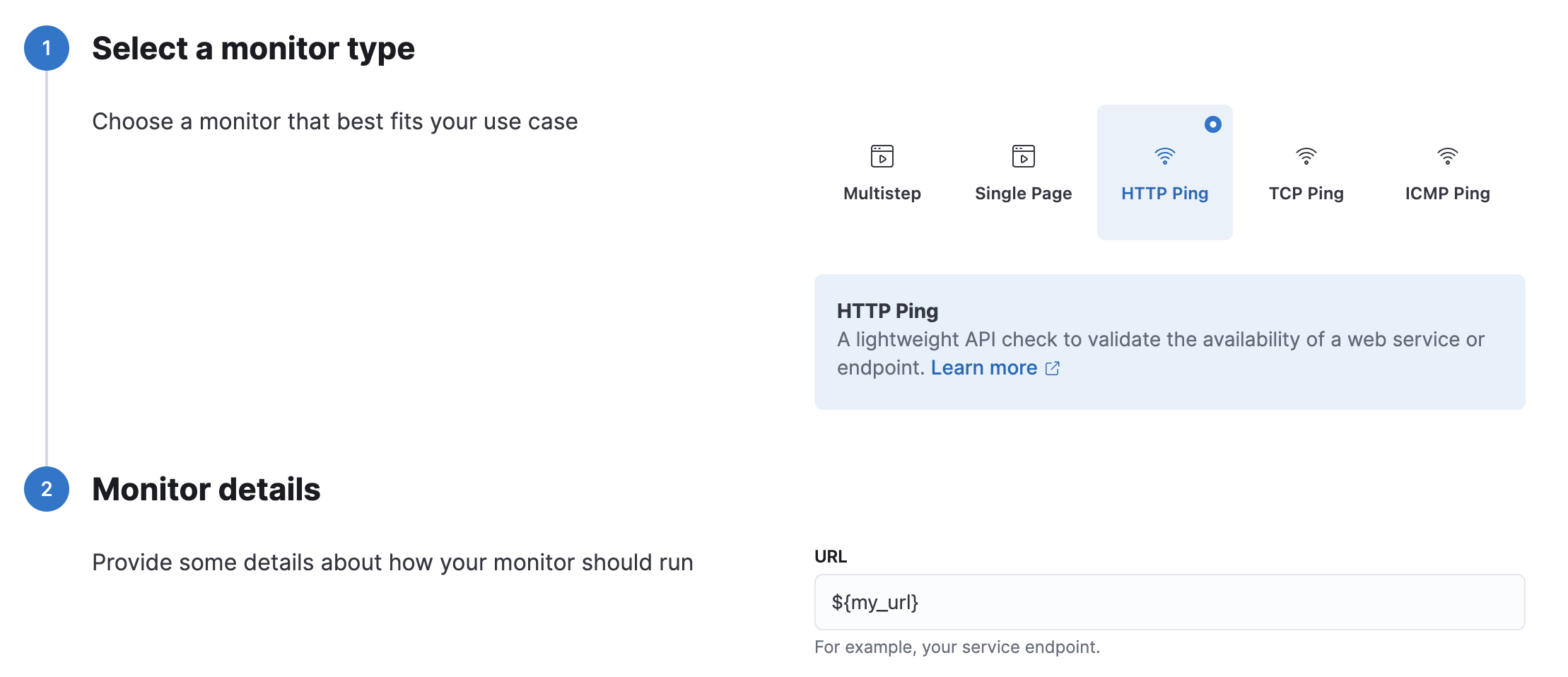
To use a param in a lightweight monitor that is created in the Synthetics UI, wrap the name of the param in `${}` (for example, `${my_url}`).
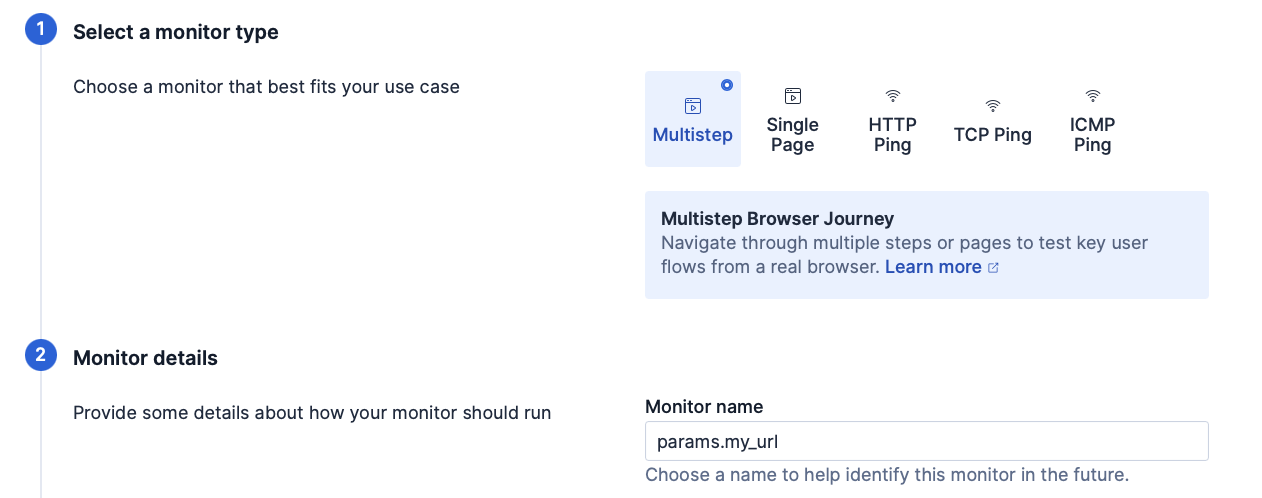
To use a param in a browser monitor that is created in the Synthetics UI, add `params.` before the name of the param (for example, `params.my_url`).
## Working with secrets and sensitive values
Your synthetics scripts might require the use of passwords or other sensitive secrets that are not known until runtime.
Elastic Cloud Serverless: Generally availableElastic Stack: Generally available since 9.1 Params are viewable by administrators and users with the **Can read global parameter values** Kibana privilege. Also, synthetics scripts have no limitations on accessing these values, and a malicious script author could write a synthetics journey that exfiltrates `params` and other data at runtime. Do **not** use truly sensitive passwords (for example, an admin password or a real credit card) in **any** synthetics tools. Instead, set up limited demo accounts, or fake credit cards with limited functionality. If you want to limit access to parameters, ensure that users who are not supposed to access those values do not have the **Can read global parameter values** Kibana privilege, and that any scripts that use those values do not leak them in network requests or screenshots.
### Reference secrets from HashiCorp Vault
- Elastic Cloud Serverless: Unavailable
- Elastic Stack: Planned
Use HashiCorp Vault to keep secret values out of the monitor configuration stored in Kibana. A param or supported monitor field holds a reference to the secret. The Elastic Agent running the monitor looks the value up in Vault when the monitor runs and caches it for five minutes, so Kibana never stores the secret value. Kibana does store each connection's credential as an encrypted saved object, and delivers it to the agent as a Fleet secret.
This feature requires:
- A [Private Location](https://docs-v3-preview.elastic.dev/elastic/docs-content/pull/9535/solutions/observability/synthetics/monitor-resources-on-private-networks) running Elastic Agent 9.6 or later.
- Synthetics integration version 1.13.0 or later. To update an earlier version, refer to [Upgrade an integration](https://docs-v3-preview.elastic.dev/elastic/docs-content/pull/9535/reference/fleet/upgrade-integration).
- [Fleet secret storage](/elastic/docs-content/pull/9535/reference/fleet/agent-policy#agent-policy-secret-values) enabled.
A monitor that references a secret directly and runs on an Elastic managed location is rejected when you save it. This check doesn't cover params. If a param holds a reference, make sure the monitors that use it run only on private locations.
#### Add a Vault connection
Each connection holds the credential that reads secrets from one Vault account. You can add several per Kibana space.
To add, edit, test, or delete connections, you need the **Can manage** privilege under **Secret provider connections**. This privilege is included in **All** for **Synthetics and Uptime**. Refer to [Defining roles](https://docs-v3-preview.elastic.dev/elastic/docs-content/pull/9535/deploy-manage/users-roles/cluster-or-deployment-auth/defining-roles) for role configuration.
Anyone who can edit monitors or global parameters in the space can reference any secret the connection's credential can read. Give each connection a dedicated, read-only credential scoped to the paths your monitors need. Monitor scripts can expose resolved values in logs, network requests, or screenshots.
1. Go to **Synthetics** → **Settings** → **Global parameters**, then find **HashiCorp Vault connections**.
2. Click **Add connection** and fill in the fields:
| Field | Description |
|--------------------------------------|------------------------------------------------------------------------------------------------------------------------------------------------------------------------------------------------------------------------------------------------------------------------------------------------------------------------------------------------------------------------------------------------------------------------------------|
| **Name** | The name you reference the connection by, such as `prod`. You can't change it after you save the connection. |
| **Vault address** | The address of your Vault server, such as `https://vault.example.com:8200`. It must use `https`, unless the host is a loopback address such as `localhost` or `127.0.0.1`. It can't include credentials, a query string, or a fragment, and it can't be a link-local address such as `169.254.169.254`. If `xpack.synthetics.secretConnections.allowedHosts` limits which hosts Kibana can contact, the host must be on that list. |
| **Auth method** | Can be a **Token**, or an **AppRole** with a **Role ID** and **Secret ID**. |
| **KV v2 mount** | Optional. It's the KV v2 secrets engine mount that holds the secrets this connection reads. Defaults to `secret`. |
| **Allowed monitor hosts** | Decides which monitor targets might receive secrets from this connection. Leave it empty to allow any host. |
| **Skip TLS verification (dev only)** | Turns off certificate validation. Use it only against a development Vault server. |
3. Click **Test connection** to check that Kibana can reach and authenticate with Vault, then click **Save connection**.
Test connection runs from Kibana. A monitor looks secrets up from the Private Location's network instead, so confirm that the agents can also reach the address. A loopback address can't be tested from Kibana at all, because it refers to whichever host is making the request.
To change a connection later, click **Edit**. You can edit a connection even if params and monitors are already using it. You can also enter a new credential to rotate it.
Leave **Token** or **Secret ID** blank to keep the stored credential unless you:
- Change **Vault address**, **Auth method**, or **Skip TLS verification (dev only)**.
- Add hosts to an existing **Allowed monitor hosts** list or remove the restriction.
These changes require you to re-enter the credential. Adding a restriction to an unrestricted connection or narrowing an existing list doesn't require re-entry.
If you add or narrow **Allowed monitor hosts**, the form lists the monitors that the restriction would stop before you save.
To remove a connection, click **Delete**. However, this fails while any param or monitor still names it, so point them at another connection first.
#### Reference a secret
Reference a secret by connection name, path, and field:
```text
vault://@#
```
The connection name is required. For example, a param or a monitor's request header can hold:
```text
Bearer vault://prod@myapp/credentials#password
```
Use only letters, digits, `.`, `_`, and `-`, plus `/` to separate segments of the path. Percent-encoded characters aren't accepted. Kibana rejects a reference that is malformed, names a connection that doesn't exist, or leaves the connection name out.
References work in params and in these monitor fields: **Username**, **Password**, **Request headers**, **Request body**, **Request payload** (TCP monitors), **Parameters** (browser monitors), and the TLS **Client certificate**, **Client key**, and **Client key passphrase**. Kibana rejects a reference in any other field, such as the URL, when you save the monitor. References don't work in browser monitor scripts. Pass a secret into a script through a param instead.
After saving the monitor, run it from its Private Location and confirm that the request using the secret succeeds. This verifies access from the agent's network, which **Test connection** doesn't check.
#### Limit which hosts receive a secret
**Allowed monitor hosts** restricts a connection so its secrets only reach the targets you list. Enter up to 100 host names or IP addresses without a scheme, port, path, or wildcard, using the punycode form for international names.
When the list isn't empty, the connection becomes much narrower:
- Only HTTP, TCP, and ICMP monitors can use it, and every target and proxy the monitor uses must be on the list.
- Browser monitors can't use it at all.
- Monitors that follow redirects or use Kerberos can't use it either.
A monitor that the restriction excludes reports down, and the secret isn't sent.
#### Configure Kibana settings
Set these in `kibana.yml`. On Elastic Cloud Hosted, set them in the Kibana user settings instead. To learn how, refer to [Edit Elastic Stack settings](https://docs-v3-preview.elastic.dev/elastic/docs-content/pull/9535/deploy-manage/deploy/elastic-cloud/edit-stack-settings).
Turns Vault connections and secret references on or off. Defaults to `true`. When it's `false`, the **HashiCorp Vault connections** panel is hidden and a monitor that contains a reference is rejected when you save it.
The Vault host names Kibana can contact when you save or test a connection. Defaults to `['*']`, which allows any host. Enter bare host names or IP addresses, without a scheme or port. Matching ignores case and the port in the Vault address. The whole host name has to match, so `example.com` doesn't cover `vault.example.com`, and the only wildcard is the literal `*`. A connection whose host isn't on the list can't be saved or tested. Kibana also stops delivering a connection saved before the list was tightened, so saving a monitor that references it is rejected until you add its host again. Accepts up to 1000 entries.
For example, to allow two Vault servers:
```yaml
xpack.synthetics.secretConnections.allowedHosts:
- vault.example.com
- 10.0.0.5
```
#### Known limitations
- The Elastic Agent resolves references before each monitor run, reusing secret values cached for five minutes. After an agent receives a saved connection update, it fetches fresh values on the next run that uses that connection.
- Kibana doesn't detect references inside base64-encoded Kerberos and NTLM fields, so a secret referenced there is never looked up.
- Deleting or changing a connection doesn't revoke its credential in Vault. The running agent process can retain connection credentials and configuration, and an offline Elastic Agent doesn't receive updates until it reconnects. This is separate from the five-minute cache for retrieved secret values. To withdraw access, revoke the credential in Vault and rotate any secrets it retrieved.
### Use environment variables in Synthetics Projects
If you are managing monitors with a Synthetics project, you can use environment variables in your `synthetics.config.ts` or `synthetics.config.js` file.
The example below uses `process.env.MY_URL` to reference a variable named `MY_URL` defined in the environment and assigns its value to a param. That param can then be used in both lightweight and browser monitors that are managed in the Synthetics project:
```js
export default {
params: {
my_url: process.env.MY_URL
}
};
```
### Use environment variables with Private Locations
If you are using Kibana-managed monitors and running them on a Private Location, you can inject environment variables directly into the agent's runtime environment.
This method allows you to keep sensitive values out of the Kibana UI. Instead, it stores those values on the infrastructure hosting the Elastic Agent.
These variables are accessible to all monitors running on this specific Private Location.
#### 1. Pass variables to the Private Location
When starting your Private Location (Elastic Agent) using Docker, use the `--env` flag to pass your variables.
```bash
docker run \
--env FLEET_ENROLL=1 \
--env FLEET_URL={fleet_server_host_url} \
--env FLEET_ENROLLMENT_TOKEN={enrollment_token} \
--env MY_URL={secret_value} \
--cap-add=NET_RAW \
--cap-add=SETUID \
-d --restart=unless-stopped \
docker.elastic.co/elastic-agent/elastic-agent-complete:X.X.X
```
Elastic Stack: Planned Elastic Cloud Serverless: Generally available On a [scalable Private Location](/elastic/docs-content/pull/9535/solutions/observability/synthetics/monitor-resources-on-private-networks#synthetics-private-location-scalable), each monitor runs on one Elastic Agent and can move to another agent that shares the location's agent policy. Start every agent with the same `--env` variables. If an agent is missing a variable, the monitor fails when it runs there.
#### 2. Reference variables in the inline script
In the Synthetics **Monitors** editor in Kibana, you can now access these variables using `process.env`.
```js
step('navigate to secure url', async () => {
// The script reads the environment variable from the private location elastic agent container
await page.goto(process.env.MY_URL);
});
```