---
title: Edit a dashboard
description: Edit an existing Kibana dashboard to change its panels, settings, and controls, and restore an earlier version from its version history.
url: https://docs-v3-preview.elastic.dev/elastic/docs-content/pull/9588/explore-analyze/dashboards/open-dashboard
products:
- Elastic Documentation
- Kibana
applies_to:
- Elastic Cloud Serverless: Generally available
- Elastic Stack: Generally available
---
# Edit a dashboard
Open an existing dashboard in Kibana to modify its visualizations, add or remove panels, adjust settings, or change filtering controls. When you have the appropriate permissions, dashboards automatically open in **Edit** mode, allowing you to make changes immediately.
## Requirements
To edit a dashboard, you need the **All** privilege for the **Dashboard** feature in Kibana.
Managed dashboards created by integrations can't be edited directly, but you can [duplicate](https://docs-v3-preview.elastic.dev/elastic/docs-content/pull/9588/explore-analyze/dashboards/duplicate-dashboards) them and edit the duplicates.
## Edit an existing dashboard
1. Open the **Dashboards** page in Kibana.
2. Locate the dashboard you want to edit.
When looking for a specific dashboard, you can filter them by tag or by creator, or search the list based on their name and description. The creator information is only available for dashboards created on or after version 8.14.
3. Click the dashboard name you want to open.
The dashboard opens automatically in **Edit** mode if you have the right permissions. You can switch between edit and view modes from the application menu.
4. Make the changes that you need to the dashboard:
- Adjust the dashboard’s settings
- [Add, remove, move, or edit panels](/elastic/docs-content/pull/9588/explore-analyze/visualize#panels-editors)
- [Change the available controls](https://docs-v3-preview.elastic.dev/elastic/docs-content/pull/9588/explore-analyze/visualize/dashboard-controls)
5. **Save** the dashboard.
## Undo and redo dashboard changes
- Elastic Cloud Serverless: Generally available
- Elastic Stack: Planned
If you move a panel or change a setting by mistake while you edit a dashboard, you can step back through your changes one at a time, and step forward again if you change your mind. Changes that you don't undo stay in place.
To go back one change, click **Undo** `undo` in the application menu, or press Cmd + z (Mac) / Ctrl + z (Windows and Linux). To bring back a change that you undid, click **Redo** `redo`, or press Cmd + y (Mac) / Ctrl + y (Windows and Linux).
Undo and redo behave as follows:
- The history covers your current editing session. It keeps about the 100 most recent changes, and it clears when you leave the dashboard.
- If you undo a change and then make a new one, you can no longer redo the changes that you undid.
- **Undo** and **Redo** are unavailable while the dashboard loads data or while a panel editor is open.
- The keyboard shortcuts don't work while the cursor is in an input field.
To discard all unsaved changes at once, use [Reset changes](#reset-the-dashboard) instead.
## Reset dashboard changes
When editing a dashboard, you can revert any changes you’ve made since the last save using the **Reset**/**Reset changes** button.
Elastic Cloud Serverless: Generally available Elastic Stack: Planned To step back through your changes one at a time instead, refer to [Undo and redo dashboard changes](#undo-redo-dashboard).
To go back to an earlier saved version, refer to [Restore an earlier version of a dashboard](#restore-dashboard-version).
## Restore an earlier version of a dashboard
- Elastic Cloud Serverless: Generally available
- Elastic Stack: Planned
You can browse a dashboard's earlier versions, compare them, and restore one. Each time you save a dashboard and its content changes, Kibana records a new version with a number (v1, v2, and so on), the name of the user who saved it, and the time. Saving without changing anything doesn't create a version, and changes saved before version history was available aren't recorded. By default, versions are kept indefinitely.
To restore an earlier version:
1. In edit mode, select `ellipsis` **More** → **History** in the application menu. **History** is unavailable until you save the dashboard for the first time.
2. In the **Version history** list, select a version to see the dashboard as it looked then. The preview isn't interactive. Your unsaved changes, if any, appear at the top of the list as **Unsaved changes**. To see exactly what changed, [compare it with another version](#compare-dashboard-versions).
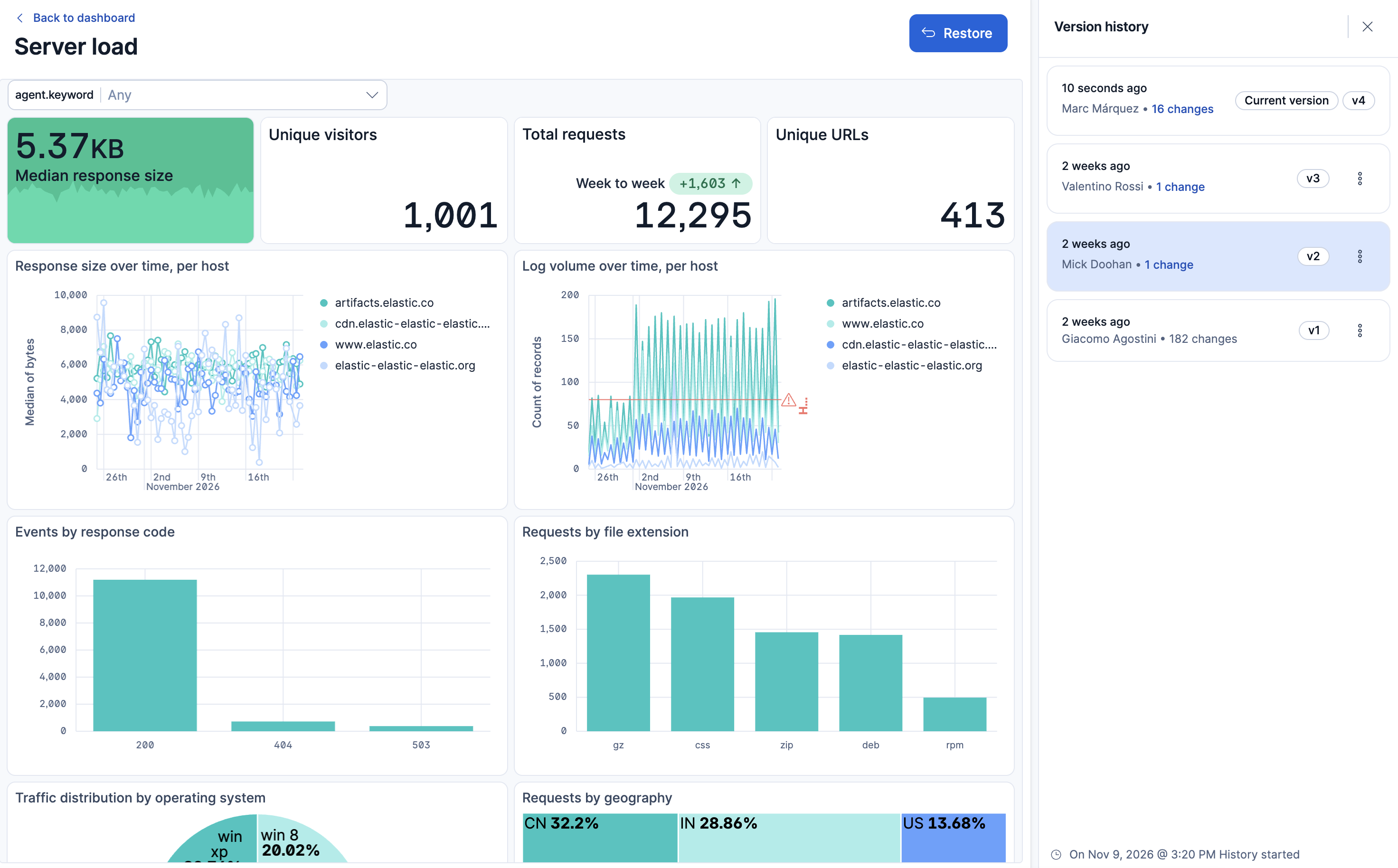
3. Select **Restore**, or open the **Version actions** menu `boxes_vertical` on the version and select **Restore this version**. The current version has no restore option. If you have unsaved changes, the restored version replaces them.
4. Confirm the restore. Kibana saves the restored version as a new version, which appears at the top of the list with a note such as **Restored from v3**. Restoring never rewinds the history. The earlier versions stay in the list.
To leave without restoring anything, select **Back to dashboard**.
For changes that you haven't saved yet, use [Undo and redo](#undo-redo-dashboard) or [Reset changes](#reset-the-dashboard) instead.
Deleting a dashboard doesn't delete its version history, but you can't open that history from the deleted dashboard. If you later create a dashboard with the same ID, for example through the [Dashboards API](https://docs-v3-preview.elastic.dev/elastic/docs-content/pull/9588/explore-analyze/dashboards/create-dashboards-programmatically), its history continues from the earlier version numbers, and the deletion appears in the list as a version marked **Deleted**.
### Compare two versions of a dashboard
To see exactly what changed between two saved versions, for example before you restore one, open **History** and compare from the **Version history** list:
- Select the changes link on a version, such as **3 changes**, to compare it with the version before it.
- To compare it with a different version, open the **Version actions** menu `boxes_vertical` on that other version and select **Compare to this version**.
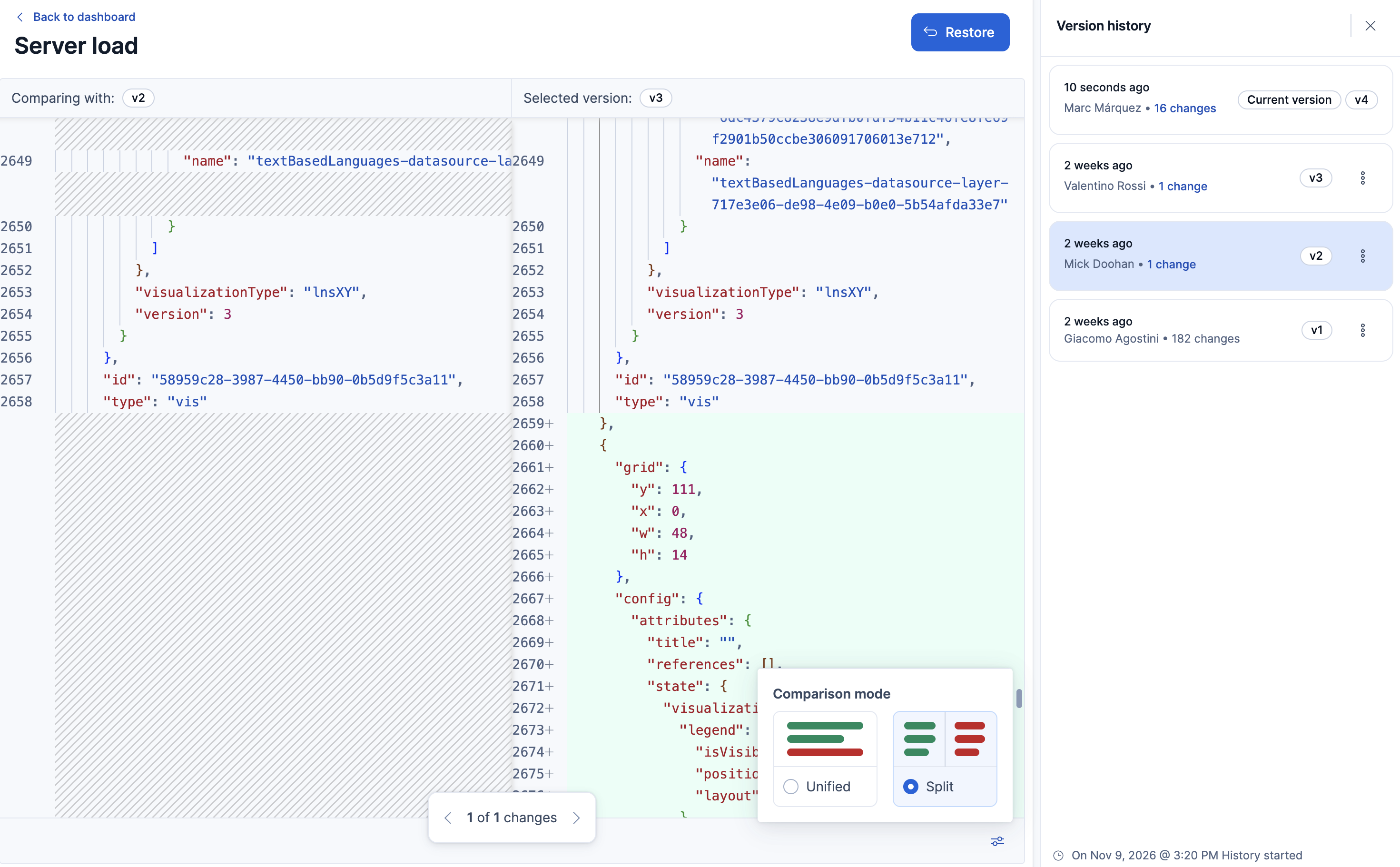
Kibana shows the differences as JSON, with a **Comparing with** label for the version it's compared against. Use **Previous change** and **Next change** to step through the changes one at a time. To switch between **Unified** and **Split** views, open **Settings** `controls` and select a **Comparison mode**.