---
title: Get started with ES|QL Data Federation
description: Step-by-step tutorial for setting up ES|QL Data Federation with a public S3 bucket, creating a dataset, and running your first federated query.
url: https://docs-v3-preview.elastic.dev/elastic/elasticsearch/tree/main/reference/query-languages/esql/esql-data-federation-quickstart
products:
- Elasticsearch
applies_to:
- Elastic Cloud Serverless: Unavailable
- Elastic Stack: Experimental in 9.5
---
# Get started with ES|QL Data Federation
This guide walks you through connecting Elasticsearch to external data and querying it with ES|QL. By the end, you have a working data source, a dataset, and a query returning results from external storage.
The example uses the [Ookla Open Speedtest dataset](https://registry.opendata.aws/speedtest-global-performance/) ([GitHub](https://github.com/teamookla/ookla-open-data)), a publicly accessible collection of internet performance metrics aggregated by geographic tile (a small area on the map). It mirrors a common observability pattern: analyzing network performance data stored in cloud storage alongside operational data indexed in Elasticsearch. Because the bucket allows anonymous access, you can follow along without AWS credentials.
This feature is experimental. It is not intended for production use and there are no guarantees around performance, scale, or stability in this release.
## Before you begin
Make sure you have the following:
- An Elasticsearch deployment running version 9.5 or later, with [ES|QL Data Federation enabled](/elastic/elasticsearch/tree/main/reference/query-languages/esql/esql-data-federation#enable-the-feature).
- An [Enterprise subscription](https://www.elastic.co/subscriptions) for Elastic Cloud Hosted, Elastic Cloud Enterprise, Elastic Cloud on Kubernetes, or self-managed deployments.
- The cluster `manage` privilege to create data sources.
- The index `manage` privilege to create datasets.
This quickstart queries a public S3 bucket. If queries return `503` errors, the bucket may be temporarily throttled due to high traffic. Wait a few minutes and try again.
## Quickstart
These steps walk you through registering a data source, creating a dataset, and querying federated data with ES|QL.
A data source defines the connection to an external storage system, including its type, region, and credentials. Once registered, any number of datasets can reference it.This example registers a data source that points at a public S3 bucket with anonymous access.
```json
{
"type": "s3",
"settings": {
"region": "us-east-1",
"auth": "anonymous" <1>
}
}
```
A successful request returns `{"acknowledged": true}`.
```bash
curl -X PUT "${ELASTICSEARCH_URL}/_query/data_source/ookla_speedtest" \
-H "Authorization: ApiKey ${API_KEY}" \
-H "Content-Type: application/json" \
-d '{
"type": "s3",
"settings": {
"region": "us-east-1",
"auth": "anonymous"
}
}'
```
A successful request returns `{"acknowledged": true}`.
1. Go to **Data management** > **ES|QL Data Federation**.
2. On the **Data sources** tab, click **Connect data source**.
3. Set **Data source type** to **Amazon S3**.
4. Enter `ookla_speedtest` as the **Name**.
5. Set **Region** to `us-east-1`.
6. Under **Authentication**, from the **Preferred method** menu, select **Anonymous**.
7. Click **Connect**.
Confirm the data source was created:
```json
```
```bash
curl -X GET "${ELASTICSEARCH_URL}/_query/data_source/ookla_speedtest" \
-H "Authorization: ApiKey ${API_KEY}"
```
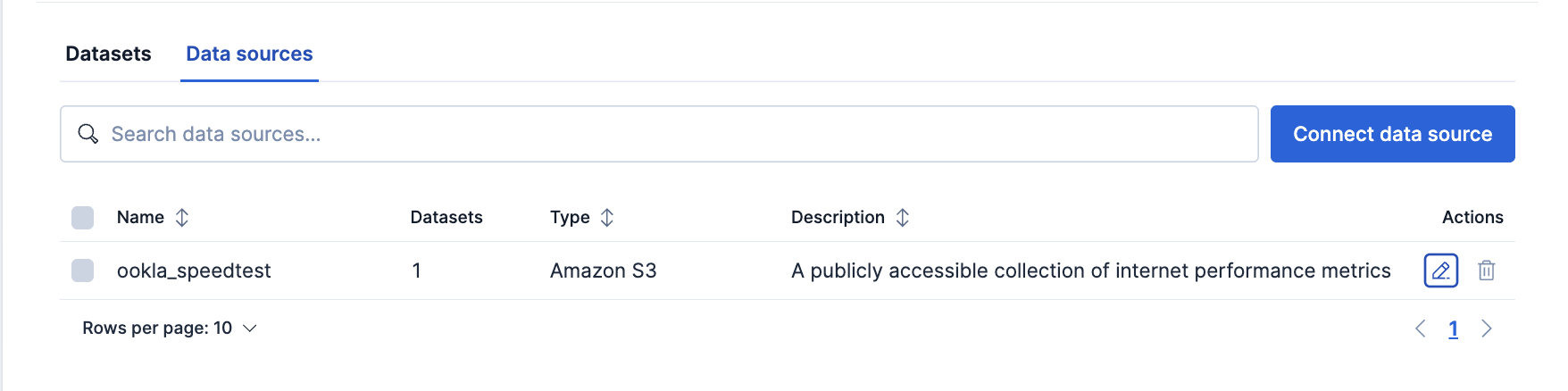
The new data source appears on the **Data sources** tab, showing its type and region:
Creating a data source does not validate connectivity to the external system. To verify that a data source is working, create a dataset that references it and run a query. If the credentials or endpoint are incorrect, the query returns an error.
A dataset points at specific files within a data source and makes them queryable as a virtual index. It references a data source by name and specifies a resource path that identifies the files to read.This example creates a dataset over one quarter of Ookla's fixed-broadband performance data. Each Parquet file contains speedtest results aggregated into geographic tiles. The key columns are:
- `avg_d_kbps`, `avg_u_kbps`: average download and upload throughput per geographic tile, in kbps
- `avg_lat_ms`: average latency per geographic tile, in milliseconds
- `tests`, `devices`: number of speedtests and unique devices per geographic tile
For the full column reference, refer to the [Ookla Open Data tile attributes](https://github.com/teamookla/ookla-open-data#tile-attributes).
```json
{
"data_source": "ookla_speedtest", <1>
"resource": "s3://ookla-open-data/parquet/performance/type=fixed/year=2024/quarter=1/*.parquet" <2>
}
```
A successful request returns `{"acknowledged": true}`.
```bash
curl -X PUT "${ELASTICSEARCH_URL}/_query/dataset/speedtest_fixed" \
-H "Authorization: ApiKey ${API_KEY}" \
-H "Content-Type: application/json" \
-d '{
"data_source": "ookla_speedtest",
"resource": "s3://ookla-open-data/parquet/performance/type=fixed/year=2024/quarter=1/*.parquet"
}'
```
A successful request returns `{"acknowledged": true}`.
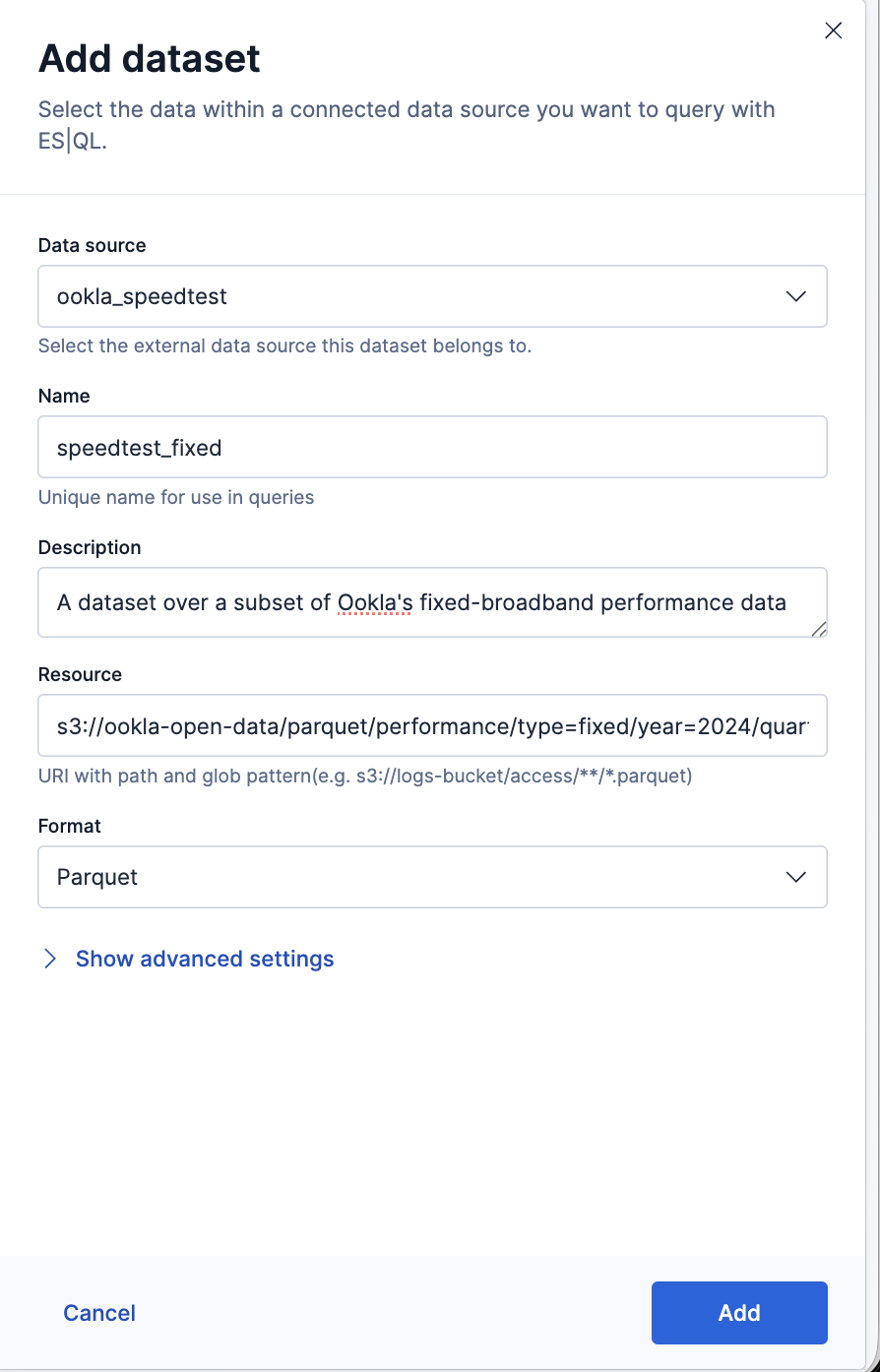
1. Select the **Datasets** tab, then click **Add dataset**.
2. Select `ookla_speedtest` as the **Data source**.
3. Enter `speedtest_fixed` as the **Name**.
4. In **Resource**, enter the resource path that selects the files to read:
```text
s3://ookla-open-data/parquet/performance/type=fixed/year=2024/quarter=1/*.parquet
```
5. Set **Format** to **Parquet**.
6. Click **Add**.
Confirm the dataset was created:
```json
```
```bash
curl -X GET "${ELASTICSEARCH_URL}/_query/dataset/speedtest_fixed" \
-H "Authorization: ApiKey ${API_KEY}"
```
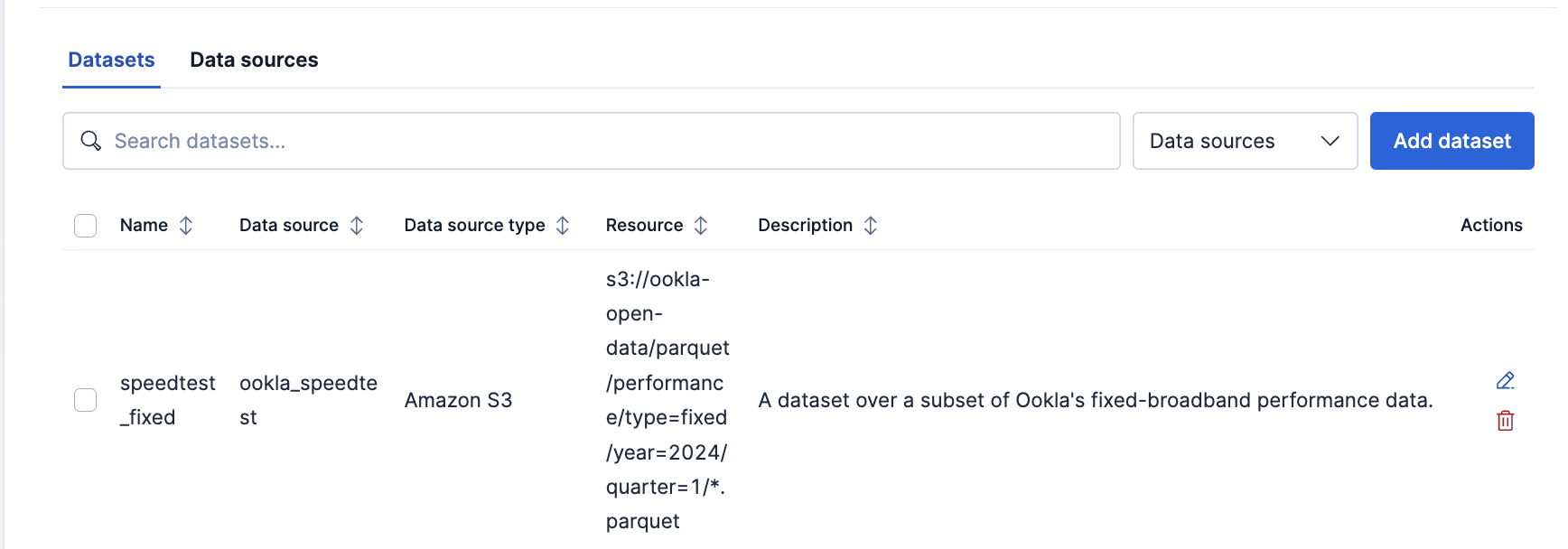
The new dataset appears on the **Datasets** tab, showing its data source and resource:
Before writing queries, check what field mappings Elasticsearch inferred from the Parquet files. Query the dataset with `LIMIT 1` to return a single row with all columns:
```json
{
"query": "FROM speedtest_fixed | LIMIT 1"
}
```
```bash
curl -X POST "${ELASTICSEARCH_URL}/_query" \
-H "Authorization: ApiKey ${API_KEY}" \
-H "Content-Type: application/json" \
-d '{
"query": "FROM speedtest_fixed | LIMIT 1"
}'
```
```esql
FROM speedtest_fixed
| LIMIT 1
```
The response lists every column name and its inferred type:
```json
{ "name": "quadkey", "type": "keyword" }
{ "name": "tile", "type": "keyword" }
{ "name": "tile_x", "type": "double" }
{ "name": "tile_y", "type": "double" }
{ "name": "avg_d_kbps", "type": "long" }
{ "name": "avg_u_kbps", "type": "long" }
{ "name": "avg_lat_ms", "type": "long" }
{ "name": "avg_lat_down_ms", "type": "integer" }
{ "name": "avg_lat_up_ms", "type": "integer" }
{ "name": "tests", "type": "long" }
{ "name": "devices", "type": "long" }
{ "name": "type", "type": "keyword" }
{ "name": "year", "type": "integer" }
{ "name": "quarter", "type": "integer" }
```
The `type`, `year`, and `quarter` columns come from Hive-style partition paths in the S3 bucket. Elasticsearch detects these automatically when `partition_detection` is set to `auto` (the default).
If a column has an unexpected type, you can override it with a [dataset mapping](/elastic/elasticsearch/tree/main/reference/query-languages/esql/esql-data-federation-datasets#declare-a-dataset-mapping).
Once a dataset exists, query it with `FROM` just like any Elasticsearch index. This query selects the key performance columns and returns five rows:
```json
{
"query": """
FROM speedtest_fixed
| KEEP avg_d_kbps, avg_u_kbps, avg_lat_ms, tests
| LIMIT 5
"""
}
```
```bash
curl -X POST "${ELASTICSEARCH_URL}/_query" \
-H "Authorization: ApiKey ${API_KEY}" \
-H "Content-Type: application/json" \
-d '{
"query": "FROM speedtest_fixed | KEEP avg_d_kbps, avg_u_kbps, avg_lat_ms, tests | LIMIT 5"
}'
```
```esql
FROM speedtest_fixed
| KEEP avg_d_kbps, avg_u_kbps, avg_lat_ms, tests
| LIMIT 5
```
If the query returns results, your data source is working. You can now use the full range of ES|QL processing commands on this dataset.
Now that the dataset is working, try some more expressive queries.**Convert units and filter for the fastest geographic tiles**[`EVAL`](https://docs-v3-preview.elastic.dev/elastic/elasticsearch/tree/main/reference/query-languages/esql/commands/eval) creates new columns from expressions. Here it converts the raw kbps values to Mbps using [`ROUND`](https://docs-v3-preview.elastic.dev/elastic/elasticsearch/tree/main/reference/query-languages/esql/functions-operators/math-functions/round), then [`WHERE`](https://docs-v3-preview.elastic.dev/elastic/elasticsearch/tree/main/reference/query-languages/esql/commands/where) filters for geographic tiles with a meaningful sample size. [`KEEP`](https://docs-v3-preview.elastic.dev/elastic/elasticsearch/tree/main/reference/query-languages/esql/commands/keep) selects only the columns you need in the output, which also reduces the data read from storage for Parquet files.
```json
{
"query": """
FROM speedtest_fixed
| EVAL download_mbps = ROUND(avg_d_kbps / 1000.0, 1),
upload_mbps = ROUND(avg_u_kbps / 1000.0, 1)
| WHERE tests > 100
| SORT download_mbps DESC
| KEEP download_mbps, upload_mbps, avg_lat_ms, tests, devices
| LIMIT 10
"""
}
```
```bash
curl -X POST "${ELASTICSEARCH_URL}/_query" \
-H "Authorization: ApiKey ${API_KEY}" \
-H "Content-Type: application/json" \
-d '{
"query": "FROM speedtest_fixed | EVAL download_mbps = ROUND(avg_d_kbps / 1000.0, 1), upload_mbps = ROUND(avg_u_kbps / 1000.0, 1) | WHERE tests > 100 | SORT download_mbps DESC | KEEP download_mbps, upload_mbps, avg_lat_ms, tests, devices | LIMIT 10"
}'
```
```esql
FROM speedtest_fixed
| EVAL download_mbps = ROUND(avg_d_kbps / 1000.0, 1),
upload_mbps = ROUND(avg_u_kbps / 1000.0, 1)
| WHERE tests > 100
| SORT download_mbps DESC
| KEEP download_mbps, upload_mbps, avg_lat_ms, tests, devices
| LIMIT 10
```
**Break down speeds by test volume**[`CASE`](https://docs-v3-preview.elastic.dev/elastic/elasticsearch/tree/main/reference/query-languages/esql/functions-operators/conditional-functions-and-expressions/case) evaluates conditions in order and returns the first match, with the last argument as the default. [`STATS ... BY`](https://docs-v3-preview.elastic.dev/elastic/elasticsearch/tree/main/reference/query-languages/esql/commands/stats-by) groups the results and computes one row per bucket. You can nest scalar functions like [`ROUND`](https://docs-v3-preview.elastic.dev/elastic/elasticsearch/tree/main/reference/query-languages/esql/functions-operators/math-functions/round) around aggregate functions like [`AVG`](https://docs-v3-preview.elastic.dev/elastic/elasticsearch/tree/main/reference/query-languages/esql/functions-operators/aggregation-functions/avg) in the same expression. This query buckets geographic tiles by how many tests they recorded and compares average speeds across buckets.
```json
{
"query": """
FROM speedtest_fixed
| EVAL download_mbps = avg_d_kbps / 1000.0
| EVAL bucket = CASE(
tests < 10, "< 10 tests",
tests < 100, "10-99 tests",
tests < 1000, "100-999 tests",
">= 1000 tests")
| STATS avg_download = ROUND(AVG(download_mbps), 1),
avg_latency = ROUND(AVG(avg_lat_ms), 1),
tile_count = COUNT(*)
BY bucket
| SORT avg_download DESC
"""
}
```
```bash
curl -X POST "${ELASTICSEARCH_URL}/_query" \
-H "Authorization: ApiKey ${API_KEY}" \
-H "Content-Type: application/json" \
-d '{
"query": "FROM speedtest_fixed | EVAL download_mbps = avg_d_kbps / 1000.0 | EVAL bucket = CASE(tests < 10, \"< 10 tests\", tests < 100, \"10-99 tests\", tests < 1000, \"100-999 tests\", \">= 1000 tests\") | STATS avg_download = ROUND(AVG(download_mbps), 1), avg_latency = ROUND(AVG(avg_lat_ms), 1), tile_count = COUNT(*) BY bucket | SORT avg_download DESC"
}'
```
```esql
FROM speedtest_fixed
| EVAL download_mbps = avg_d_kbps / 1000.0
| EVAL bucket = CASE(
tests < 10, "< 10 tests",
tests < 100, "10-99 tests",
tests < 1000, "100-999 tests",
">= 1000 tests")
| STATS avg_download = ROUND(AVG(download_mbps), 1),
avg_latency = ROUND(AVG(avg_lat_ms), 1),
tile_count = COUNT(*)
BY bucket
| SORT avg_download DESC
```
**Analyze speed distributions with percentiles**[`MEDIAN`](https://docs-v3-preview.elastic.dev/elastic/elasticsearch/tree/main/reference/query-languages/esql/functions-operators/aggregation-functions/median) returns the 50th percentile and [`PERCENTILE(field, 95)`](https://docs-v3-preview.elastic.dev/elastic/elasticsearch/tree/main/reference/query-languages/esql/functions-operators/aggregation-functions/percentile) returns the value at the 95th percentile, showing the speed that only 5% of geographic tiles exceed. Together they reveal how speeds are distributed, not just the average.
```json
{
"query": """
FROM speedtest_fixed
| WHERE tests > 50
| STATS
median_down = ROUND(MEDIAN(avg_d_kbps) / 1000.0, 1),
p95_down = ROUND(PERCENTILE(avg_d_kbps, 95) / 1000.0, 1),
median_latency = ROUND(MEDIAN(avg_lat_ms), 0),
p95_latency = ROUND(PERCENTILE(avg_lat_ms, 95), 0),
tiles = COUNT(*)
"""
}
```
```bash
curl -X POST "${ELASTICSEARCH_URL}/_query" \
-H "Authorization: ApiKey ${API_KEY}" \
-H "Content-Type: application/json" \
-d '{
"query": "FROM speedtest_fixed | WHERE tests > 50 | STATS median_down = ROUND(MEDIAN(avg_d_kbps) / 1000.0, 1), p95_down = ROUND(PERCENTILE(avg_d_kbps, 95) / 1000.0, 1), median_latency = ROUND(MEDIAN(avg_lat_ms), 0), p95_latency = ROUND(PERCENTILE(avg_lat_ms, 95), 0), tiles = COUNT(*)"
}'
```
```esql
FROM speedtest_fixed
| WHERE tests > 50
| STATS
median_down = ROUND(MEDIAN(avg_d_kbps) / 1000.0, 1),
p95_down = ROUND(PERCENTILE(avg_d_kbps, 95) / 1000.0, 1),
median_latency = ROUND(MEDIAN(avg_lat_ms), 0),
p95_latency = ROUND(PERCENTILE(avg_lat_ms, 95), 0),
tiles = COUNT(*)
```
Datasets share the same namespace as regular indices, so you can query both in a single `FROM`. This lets you combine external data with indexed data in a single query.First, create an index with a few sample documents to query alongside the dataset:
```json
{
"mappings": {
"properties": {
"category": { "type": "keyword" },
"severity": { "type": "keyword" },
"duration_min": { "type": "integer" }
}
}
}
```
```bash
curl -X PUT "${ELASTICSEARCH_URL}/network_incidents" \
-H "Authorization: ApiKey ${API_KEY}" \
-H "Content-Type: application/json" \
-d '{
"mappings": {
"properties": {
"category": { "type": "keyword" },
"severity": { "type": "keyword" },
"duration_min": { "type": "integer" }
}
}
}'
```
Then index a few documents:
```json
{"index":{"_index":"network_incidents"}}
{"category":"outage","severity":"high","duration_min":45}
{"index":{"_index":"network_incidents"}}
{"category":"degradation","severity":"medium","duration_min":12}
{"index":{"_index":"network_incidents"}}
{"category":"outage","severity":"low","duration_min":8}
```
```bash
curl -X POST "${ELASTICSEARCH_URL}/_bulk" \
-H "Authorization: ApiKey ${API_KEY}" \
-H "Content-Type: application/x-ndjson" \
-d '
{"index":{"_index":"network_incidents"}}
{"category":"outage","severity":"high","duration_min":45}
{"index":{"_index":"network_incidents"}}
{"category":"degradation","severity":"medium","duration_min":12}
{"index":{"_index":"network_incidents"}}
{"category":"outage","severity":"low","duration_min":8}
'
```
Now query both sources together. `FROM` resolves each name independently, whether it is an index, data stream, alias, [ES|QL view](https://docs-v3-preview.elastic.dev/elastic/elasticsearch/tree/main/reference/query-languages/esql/esql-views), or dataset. Use `METADATA _index` to see where each row came from:
```json
{
"query": """
FROM speedtest_fixed, network_incidents METADATA _index
| KEEP _index, category, severity, duration_min, avg_d_kbps, avg_lat_ms
| SORT _index ASC, duration_min DESC NULLS LAST
| LIMIT 5
"""
}
```
```bash
curl -X POST "${ELASTICSEARCH_URL}/_query" \
-H "Authorization: ApiKey ${API_KEY}" \
-H "Content-Type: application/json" \
-d '{
"query": "FROM speedtest_fixed, network_incidents METADATA _index | KEEP _index, category, severity, duration_min, avg_d_kbps, avg_lat_ms | SORT _index ASC, duration_min DESC NULLS LAST | LIMIT 5"
}'
```
```esql
FROM speedtest_fixed, network_incidents METADATA _index
| KEEP _index, category, severity, duration_min, avg_d_kbps, avg_lat_ms
| SORT _index ASC, duration_min DESC NULLS LAST
| LIMIT 5
```
The `_index` column shows where each row came from. Columns that do not exist in a given source return `null`. The speedtest values in your results will differ. Execution metadata is omitted here:
```json
{
"columns": [
{ "name": "_index", "type": "keyword" },
{ "name": "category", "type": "keyword" },
{ "name": "severity", "type": "keyword" },
{ "name": "duration_min", "type": "integer" },
{ "name": "avg_d_kbps", "type": "long" },
{ "name": "avg_lat_ms", "type": "long" }
],
"values": [
["network_incidents", "outage", "high", 45, null, null],
["network_incidents", "degradation", "medium", 12, null, null],
["network_incidents", "outage", "low", 8, null, null],
["speedtest_fixed", null, null, null, 158062, 223],
["speedtest_fixed", null, null, null, 64266, 165]
]
}
```
## Use your own data
The quickstart uses a public bucket with anonymous access. To connect to a private bucket, supply credentials when registering the data source. Several [authentication methods](/elastic/elasticsearch/tree/main/reference/query-languages/esql/esql-data-federation-sources#authentication) are available. For example, using static credentials:
```json
{
"type": "s3",
"description": "Production logs bucket",
"settings": {
"region": "us-east-1",
"auth": "static_credentials",
"access_key": "",
"secret_key": ""
}
}
```
When a data source includes credentials, Elasticsearch encrypts them before storing them in the cluster state, using the cluster state encryption key. This key is available automatically in most deployments. If it is not available, a request that includes credentials returns a `503` error. Refer to [credential encryption](/elastic/elasticsearch/tree/main/reference/query-languages/esql/esql-data-federation-security#credential-encryption) for details.
Credential values are never returned in API responses. When you retrieve a data source, secrets are replaced by `::es_redacted::`.
## Clean up
To remove the resources created in this guide, delete the dataset first because a data source cannot be deleted while datasets reference it. Then delete the data source and the sample index:
```json
```
```bash
curl -X DELETE "${ELASTICSEARCH_URL}/_query/dataset/speedtest_fixed" \
-H "Authorization: ApiKey ${API_KEY}"
curl -X DELETE "${ELASTICSEARCH_URL}/_query/data_source/ookla_speedtest" \
-H "Authorization: ApiKey ${API_KEY}"
curl -X DELETE "${ELASTICSEARCH_URL}/network_incidents" \
-H "Authorization: ApiKey ${API_KEY}"
```
## Next steps
Now that you have a working data source and dataset, you can:
- **Learn about querying external datasets.** To learn how the query engine reads external data, refer to [query external datasets](https://docs-v3-preview.elastic.dev/elastic/elasticsearch/tree/main/reference/query-languages/esql/esql-data-federation-querying).
- For general ES|QL query tuning, refer to [optimize ES|QL query performance](https://docs-v3-preview.elastic.dev/elastic/elasticsearch/tree/main/reference/query-languages/esql/esql-query-performance).
- **Connect your own bucket.** To connect a private bucket with credentials or federated identity, refer to [connect external data sources](https://docs-v3-preview.elastic.dev/elastic/elasticsearch/tree/main/reference/query-languages/esql/esql-data-federation-sources).
- **Tune dataset settings.** To override file formats, customize schema inference, or declare explicit column mappings, refer to [select external datasets](https://docs-v3-preview.elastic.dev/elastic/elasticsearch/tree/main/reference/query-languages/esql/esql-data-federation-datasets).