---
title: OpenAI connector and action
description: The OpenAI connector uses axios to send a POST request to an OpenAI provider: OpenAI, Azure OpenAI, stack: ga 9.1 Other (OpenAI-compatible service).You...
url: https://docs-v3-preview.elastic.dev/elastic/kibana/pull/280898/reference/connectors-kibana/openai-action-type
products:
- Kibana
applies_to:
- Elastic Cloud Serverless: Deprecated
- Elastic Stack: Planned for deprecation
---
# OpenAI connector and action
The OpenAI connector uses [axios](https://github.com/axios/axios) to send a POST request to an OpenAI provider:
- OpenAI
- Azure OpenAI
- Elastic Stack: Generally available since 9.1 Other (OpenAI-compatible service).
This connector is deprecated and is being progressively removed from the create connector UI. Existing connectors and their rule actions continue to work.For new AI integrations, use Elasticsearch inference endpoints. Migrate existing LLM connectors and related rule actions before the future removal.
## Create connectors in Kibana
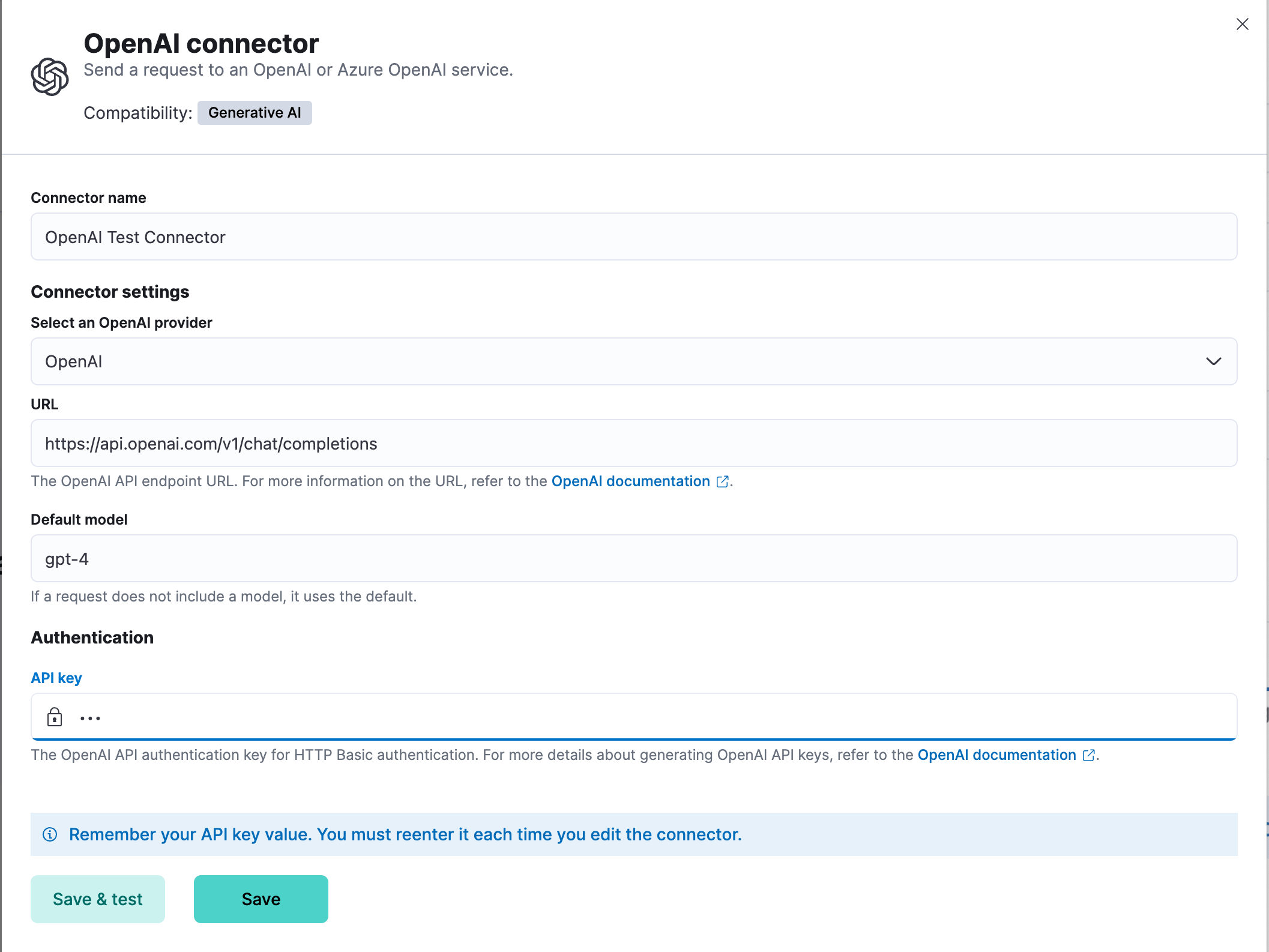
You can create connectors in **Stack Management > Connectors**. For example:
### Connector configuration
OpenAI connectors have the following configuration properties:
| Field | Required for | Description |
|-------------------|--------------------|-----------------------------------------------------------------------------------------------------------------------------------------------------------|
| Name | All | The name of the connector. |
| OpenAI provider | All | The API provider: `OpenAI`, `Azure OpenAI`, or Elastic Stack: Generally available since 9.1 `Other` (OpenAI-compatible service). |
| URL | All | The API endpoint URL for the selected provider. |
| Default model | OpenAI/Other | The default model for requests. **Required** for `Other`, optional for `OpenAI`. |
| Headers | Optional | Custom HTTP headers to include in requests. |
| Verification mode | Other (PKI only) | SSL verification mode for PKI authentication. Default: `full`. |
| API key | OpenAI/Azure/Other | The API key for authentication. **Required** for `OpenAI` and `Azure OpenAI`. For `Other`, required unless PKI authentication is used. |
| PKI fields | Other (PKI only) | See below. Only available for `Other` provider. |
#### PKI Authentication (Other provider only)
- Elastic Cloud Serverless: Generally available
- Elastic Stack: Generally available since 9.1
When using the `Other` provider (for example, to [connect a local LLM](#connect-a-local-llm)), you can use PKI (certificate-based) authentication. With PKI, you can also optionally include an API key if your OpenAI-compatible service supports or requires one. The following fields are supported for PKI:
- **Certificate data** (`certificateData`): PEM-encoded certificate content, base64-encoded. (**Required for PKI**)
- **Private key data** (`privateKeyData`): PEM-encoded private key content, base64-encoded. (**Required for PKI**)
- **CA data** (`caData`, optional): PEM-encoded CA certificate content, base64-encoded.
- **API key** (`apiKey`, optional): The API key for authentication, if required by your service.
- **Verification mode** (`verificationMode`): SSL verification mode for PKI authentication. Options:
- `full` (default): Verify server's certificate and hostname
- `certificate`: Verify only the server's certificate
- `none`: Skip verification (not recommended for production)
**Note:**
- All PKI fields must be PEM-encoded and base64-encoded when sent via API.
- If any PKI field is provided, both `certificateData` and `privateKeyData` are required and must be valid PEM.
- With PKI, you may also include an API key if your provider supports or requires it.
- If PKI is not used, `apiKey` is required for the `Other` provider.
- For `OpenAI` and `Azure OpenAI`, only `apiKey` is supported for authentication.
## Test connectors
You can test connectors as you're creating or editing the connector in Kibana. For example:
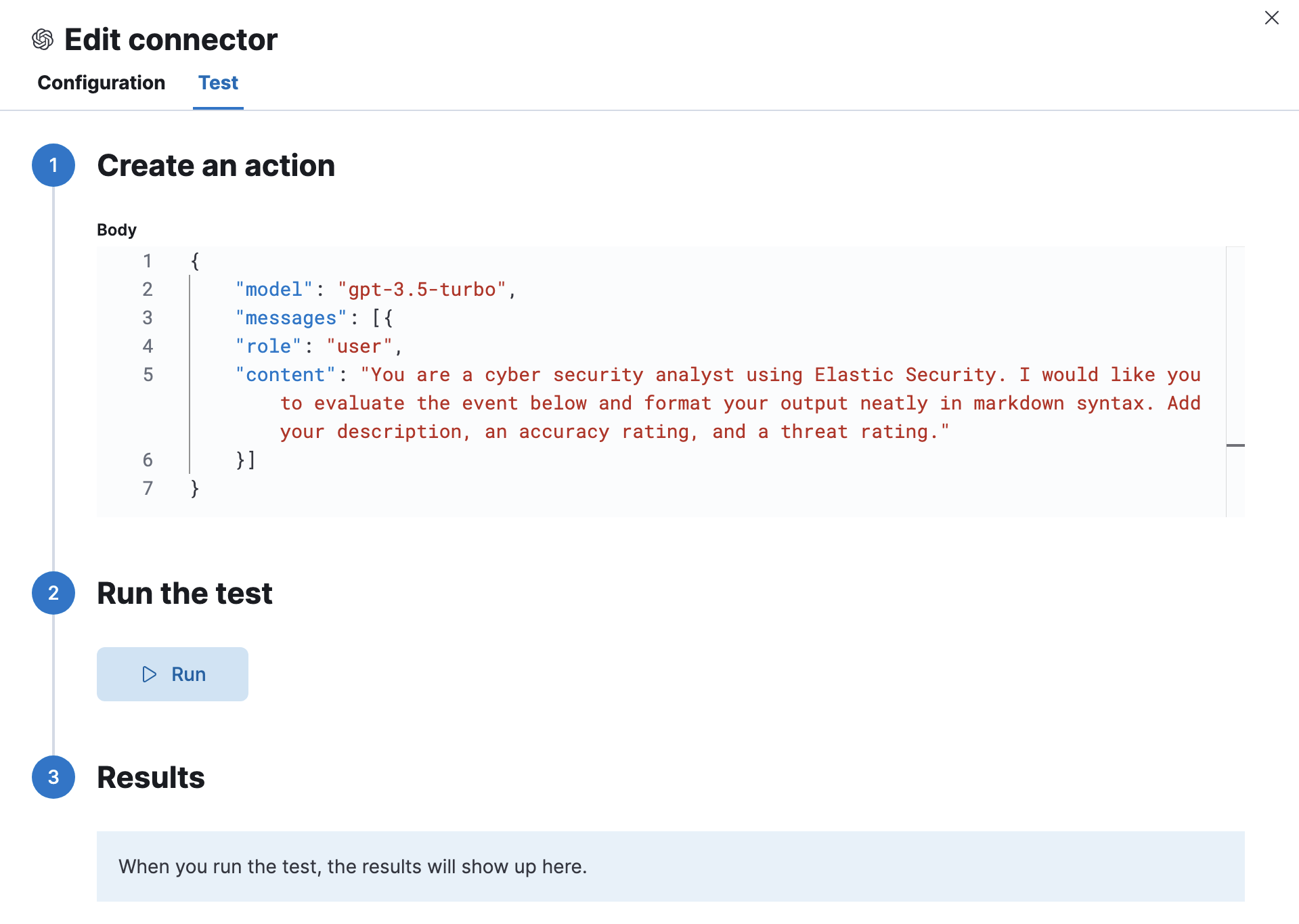
The OpenAI actions have the following configuration properties.
A JSON payload sent to the OpenAI API URL. For example:
```text
{
"model": "gpt-3.5-turbo",
"messages": [
{
"role": "user",
"content": "Hello world"
}
]
}
```
## Connector networking configuration
Use the [Action configuration settings](/elastic/kibana/pull/280898/reference/configuration-reference/alerting-settings#action-settings) to customize connector networking configurations, such as proxies, certificates, or TLS settings. You can set configurations that apply to all your connectors or use `xpack.actions.customHostSettings` to set per-host configurations.
## Token usage dashboard
Once you've created a OpenAI connector, you can monitor its token usage using the **OpenAI Token Usage** dashboard. Select the connector in **Stack Management** > **Connectors** to view its details, then click the **View OpenAI Usage Dashboard for "**" Connector** link to open the dashboard.
To view the dashboard, you need at least `read` and `view_index_metadata` privileges for the `.kibana-event-log-*` index and the `Read` feature privilege for Kibana. You can set up a role with these minimum privileges and assign it to non-admin users who need to view this dashboard.
## Connect a local LLM
You can connect a locally hosted LLM to Elastic using the OpenAI connector. Your local LLM must be compatible with the OpenAI API format.
When selecting a model:
- Download models from trusted sources only
- Consider parameter size, context window, and quantization format based on your requirements
- Prefer "instruct" variants when available, as they are typically better tuned for following instructions
### Prerequisites
- A local LLM server running with an OpenAI-compatible API endpoint
- For Elastic Cloud: A reverse proxy (such as `nginx`) to authenticate requests and forward them to your local LLM endpoint
- For self-managed deployments on the same host: Direct localhost access to your LLM server
- Authentication: Either an API key or [PKI authentication](#pki-authentication-other-provider-only) (certificate-based)
### Configure the connector
Ensure your local LLM is running and accessible via an OpenAI-compatible API endpoint.
1. Log in to your Elastic deployment
2. Find connectors under **Alerts and Insights / Connectors** in the [global search bar](https://docs-v3-preview.elastic.dev/elastic/docs-content/tree/main/explore-analyze/find-and-organize/find-apps-and-objects)
3. Select **Create Connector** and select **OpenAI**
4. Name your connector to help track the model version you're using
5. Under **Select an OpenAI provider**, select **Other (OpenAI Compatible Service)**
1. Under **URL**, enter:
- For Elastic Cloud: Your reverse proxy URL with the `/v1/chat/completions` endpoint
- For self-managed on the same host: Your local LLM's API endpoint (for example, `http://localhost:1234/v1/chat/completions`)
2. Under **Default model**, enter a model name. The connector sends this value to your LLM server in API requests. Use a value your LLM expects, or any placeholder value if your LLM doesn't validate it (for example, `local-model`).
3. Under **API key** (required unless using [PKI authentication](#pki-authentication-other-provider-only)):
- For Elastic Cloud: Enter your reverse proxy authentication token
- For self-managed on the same host: Enter your LLM server's API key, or any placeholder value if your LLM server doesn't validate authentication
4. Select **Save**
### Example
For setup guides, refer to [Self-managed custom LLMs](https://docs-v3-preview.elastic.dev/elastic/docs-content/tree/main/explore-analyze/ai-features/llm-guides/local-llms-overview) in the Elastic documentation.