---
title: Slack connector and action
description: The Slack connector uses incoming webhooks or an API method to send Slack messages. You can create connectors in Stack Management > Connectors or as needed...
url: https://docs-v3-preview.elastic.dev/elastic/kibana/pull/280898/reference/connectors-kibana/slack-action-type
products:
- Kibana
applies_to:
- Elastic Cloud Serverless: Generally available
- Elastic Stack: Generally available
---
# Slack connector and action
The Slack connector uses incoming webhooks or an API method to send Slack messages.
## Create connectors in Kibana
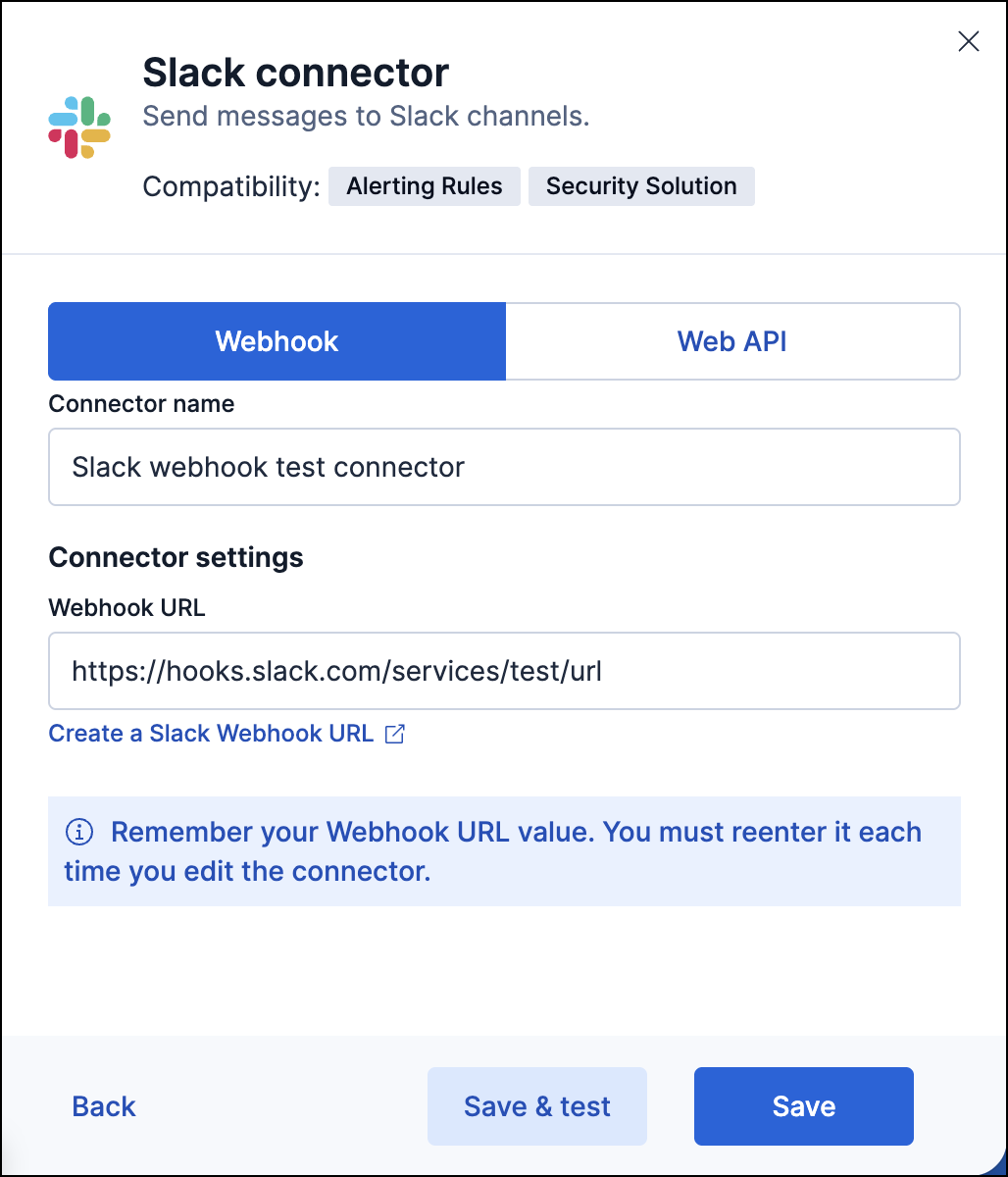
You can create connectors in **Stack Management > Connectors** or as needed when you're creating a rule. You can choose to use a webhook URL that's specific to a single channel. For example:
Alternatively, you can create a connector that supports multiple channels. For example:
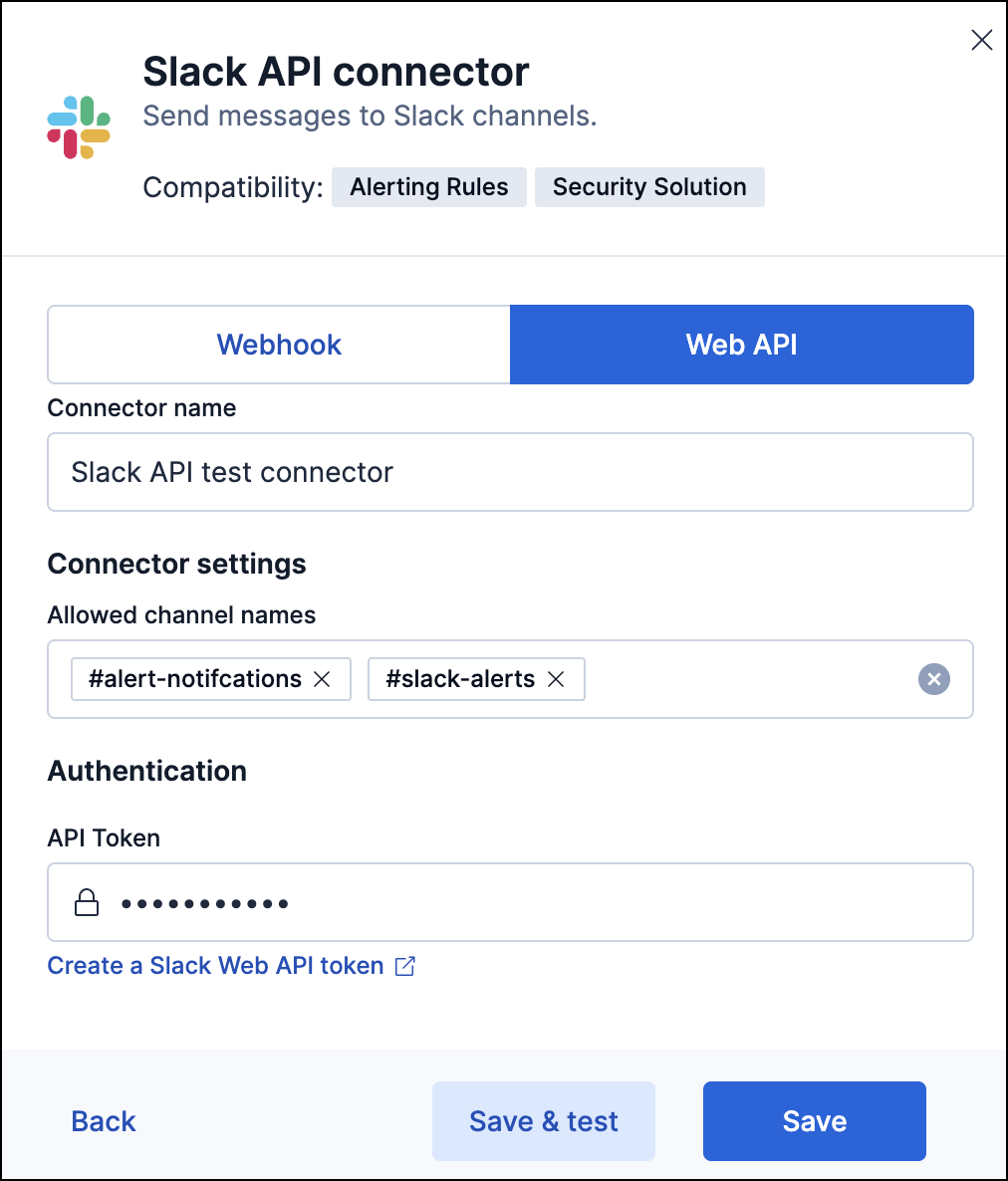
If you use the latter method, you must provide a valid list of Slack channels. Do one of the following:
- Elastic Stack: Generally available since 9.3 In the **Allowed channel names** field, you can enter up to 500 channels. Channel names must include a `#` at the front, for example: `#alert-notifications`. If you don't specify allowed channels, you can enter any channel name when configuring the Slack action for a rule.
- Elastic Stack: Generally available from 9.0 to 9.2: In the **Channel IDs** field, enter the IDs of the Slack channels you want to message.
When you create a rule, each action can communicate with one of the specified channels. For Slack setup details, go to [Configure a Slack account](#configuring-slack).
## Test connectors
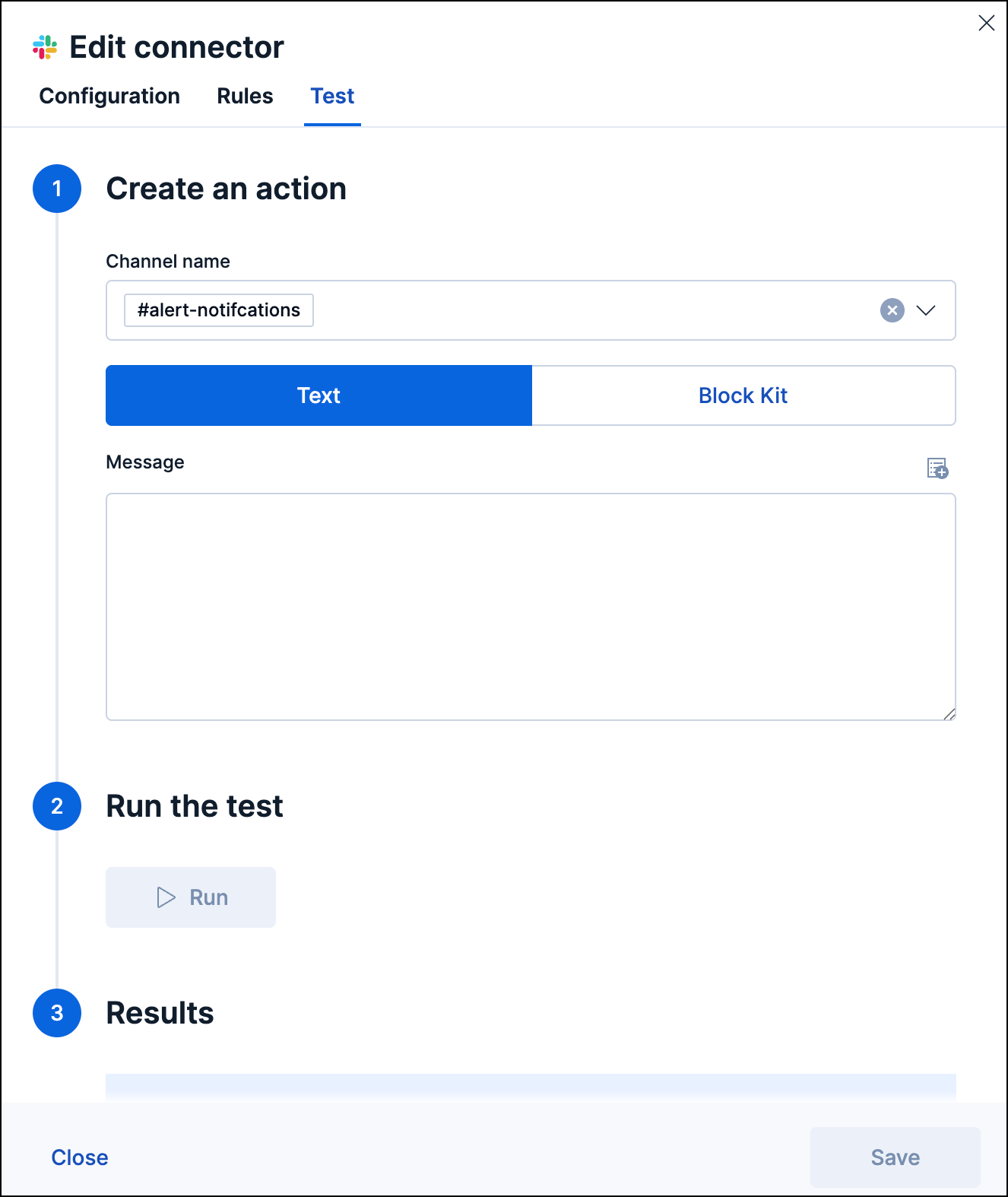
You can test connectors as you're creating or editing the connector in Kibana. For the webhook type of connector, its message text cannot contain Markdown, images, or other advanced formatting:
For the Web API type of connector, you must choose one of the channel IDs or names. You can then test either plain text or Block Kit messages:
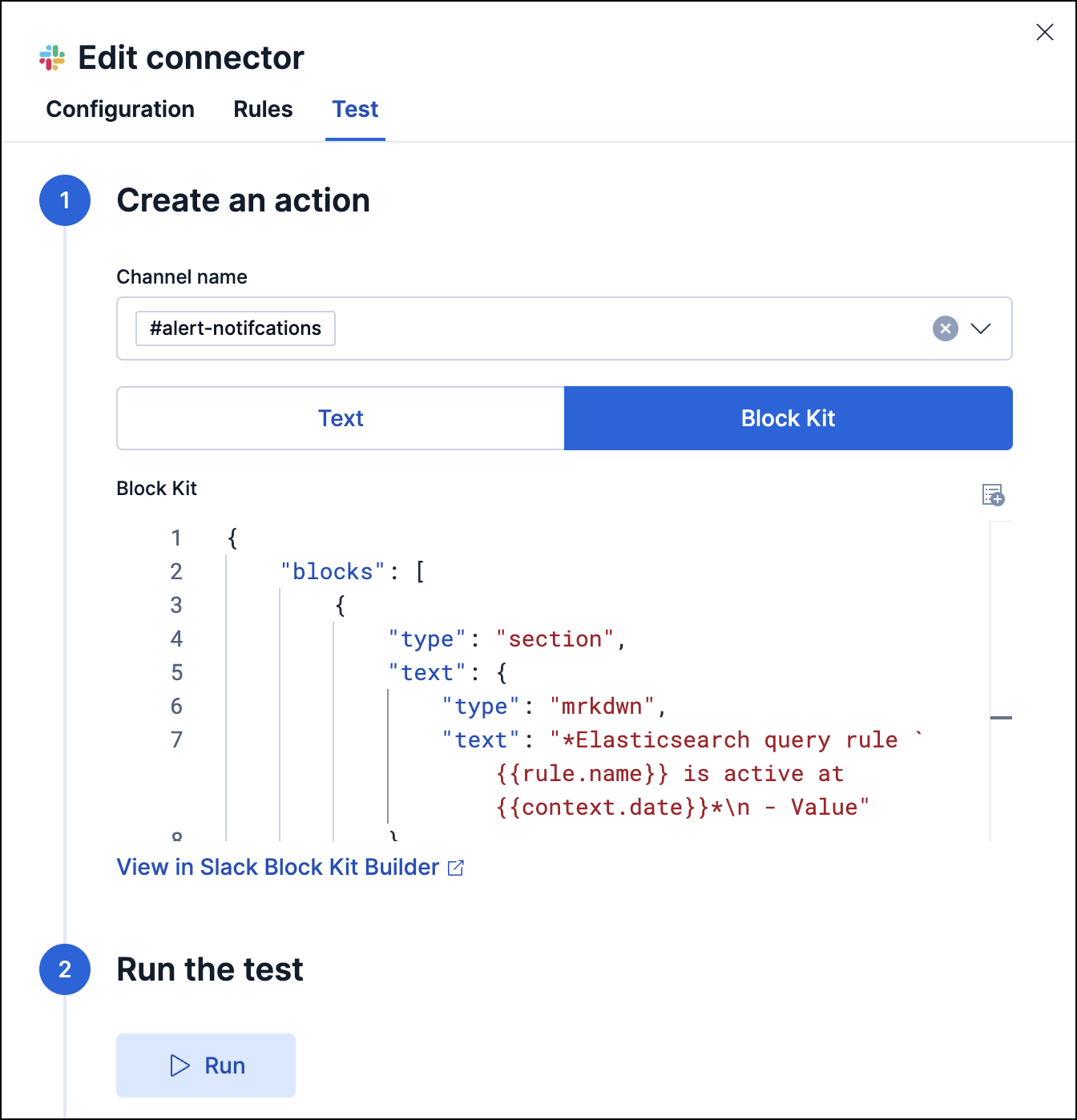
After you add Block Kit messages, you can click a link to preview them in the Slack Block Kit Builder.
## Action parameters
Webhook Slack connectors have the following action parameter:
The text to send to the connector's webhook channel.
Web API Slack connectors have the following actions:
Send a plain text message to a Slack channel.
- `channelNames` (optional): Slack channel names. Channel names must start with `#`, for example `#alerts`. Only one channel is supported. Takes priority over `channelIds` and `channels`.
- `channelIds` (optional): Slack channel IDs, for example `C123ABC456`. Only one channel is supported.
- `channels` (optional, deprecated): Legacy channel values. Use `channelNames` or `channelIds` instead.
- `text` (required): Message text.
Send a Slack [Block Kit](https://api.slack.com/block-kit) message to a Slack channel.
- `channelNames` (optional): Slack channel names. Channel names must start with `#`, for example `#alerts`. Only one channel is supported. Takes priority over `channelIds` and `channels`.
- `channelIds` (optional): Slack channel IDs, for example `C123ABC456`. Only one channel is supported.
- `channels` (optional, deprecated): Legacy channel values. Use `channelNames` or `channelIds` instead.
- `text` (required): A JSON string that contains the Block Kit payload. The JSON object must include a top-level `blocks` property. In workflow YAML, use a block scalar (`|`) when the payload spans multiple lines.
Validate whether a Slack channel ID can be used by the connector.
- `channelId` (optional): Slack channel ID to validate.
## Workflows examples
Send a plain text message:
```yaml
steps:
- name: post_message_to_slack
type: slack_api.postMessage
connector-id:
with:
channelNames:
- '#alerts'
text: 'Workflow finished successfully'
```
Send a Block Kit message. The `text` field is a JSON string that contains the Slack `blocks` payload:
```yaml
steps:
- name: post_digest_to_slack
type: slack_api.postBlockkit
connector-id:
with:
channelIds:
- C123ABC456
text: |
{
"blocks": [
{
"type": "header",
"text": {
"type": "plain_text",
"text": "Daily report",
"emoji": true
}
},
{
"type": "section",
"text": {
"type": "mrkdwn",
"text": "*Summary*"
}
}
]
}
```
## Connector networking configuration
Use the [Action configuration settings](/elastic/kibana/pull/280898/reference/configuration-reference/alerting-settings#action-settings) to customize connector networking configurations, such as proxies, certificates, or TLS settings. You can set configurations that apply to all your connectors or use `xpack.actions.customHostSettings` to set per-host configurations.
## Configure a Slack account
Before you can create a Slack connector, you must configure your account and obtain the necessary URL or token.
### Configure a Slack account for incoming webhooks
1. Log in to [slack.com](http://slack.com) as a team administrator.
2. Create a Slack app, enable incoming webhooks, then create an incoming webhook. Refer to [[https://api.slack.com/messaging/webhooks](https://api.slack.com/messaging/webhooks)](https://api.slack.com/messaging/webhooks).
3. Copy the generated webhook URL so you can paste it into your Slack connector form.
4. If you are using the [`xpack.actions.allowedHosts`](/elastic/kibana/pull/280898/reference/configuration-reference/alerting-settings#action-settings) setting, make sure the hostname from the URL is added to the allowed hosts.
### Configure a Slack account for Web API
1. Create a Slack app. Refer to [[https://api.slack.com/authentication/basics#creating](https://api.slack.com/authentication/basics#creating)](https://api.slack.com/authentication/basics#creating).
2. Add scope: `channels:read`, `groups:read`, `chat:write` and `chat:write.public`. Refer to [[https://api.slack.com/authentication/basics#scopes](https://api.slack.com/authentication/basics#scopes)](https://api.slack.com/authentication/basics#scopes).
3. Install the app to a workspace. Refer to [[https://api.slack.com/authentication/basics#installing](https://api.slack.com/authentication/basics#installing)](https://api.slack.com/authentication/basics#installing).
4. Copy the `Bot User OAuth Token` so you can paste it into your Slack connector form.
5. If you need to send messages to a private channel, you need to write `/invite @App_name` in it. Putting "@" triggers Slack to start auto-suggesting, which is why it then becomes easy to find your app name in the list.
6. To find a channel ID (for example, `C123ABC456`), view the channel details.