---
title: xMatters connector and action
description: The xMatters connector uses the xMatters Workflow for Elastic to send actionable alerts to on-call xMatters resources. You can create connectors in Stack...
url: https://docs-v3-preview.elastic.dev/elastic/kibana/pull/280898/reference/connectors-kibana/xmatters-action-type
products:
- Kibana
applies_to:
- Serverless Observability projects: Generally available
- Serverless Security projects: Generally available
- Elastic Stack: Generally available
---
# xMatters connector and action
The xMatters connector uses the [xMatters Workflow for Elastic](https://help.xmatters.com/integrations/#cshid=Elastic) to send actionable alerts to on-call xMatters resources.
## Create connectors in Kibana
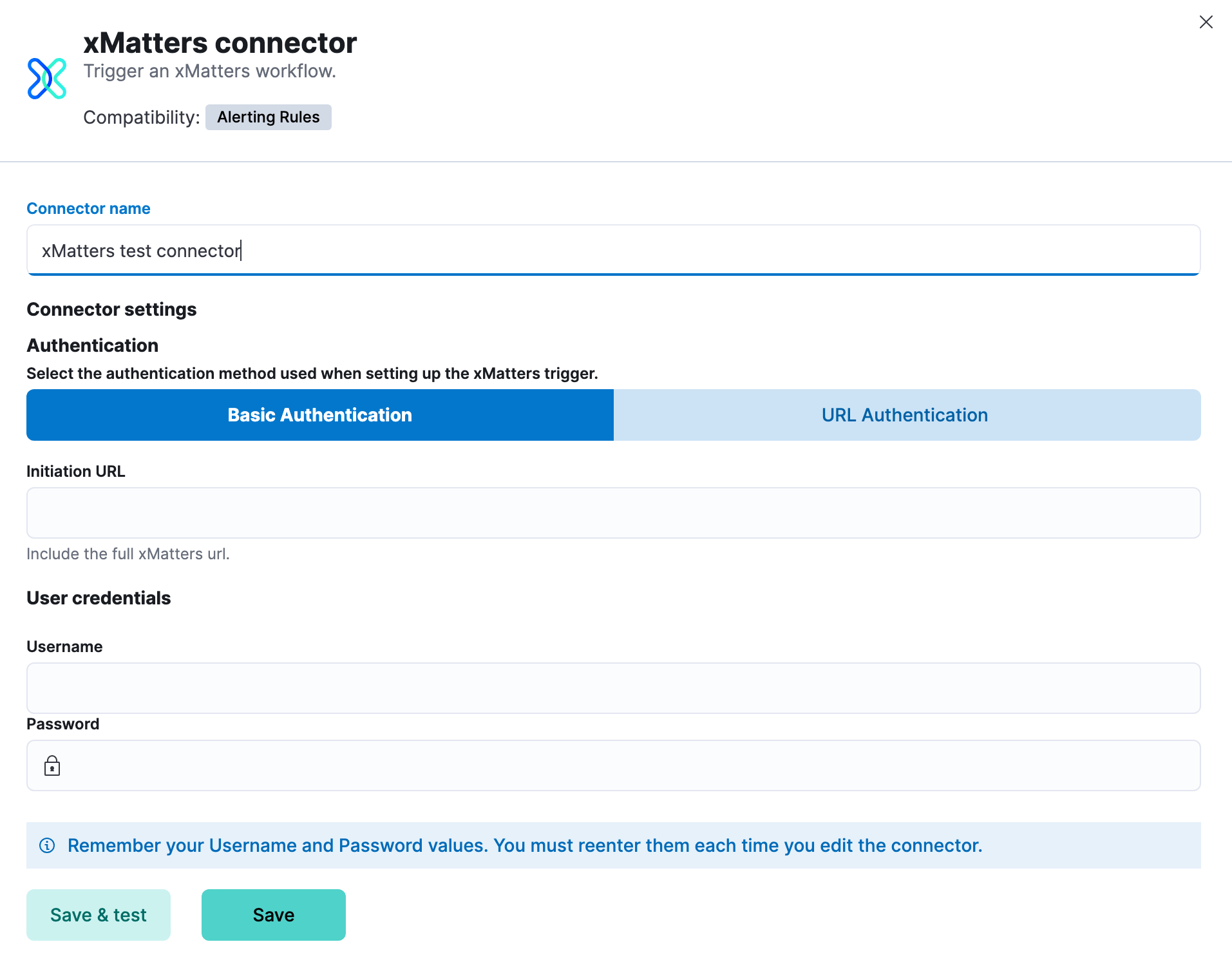
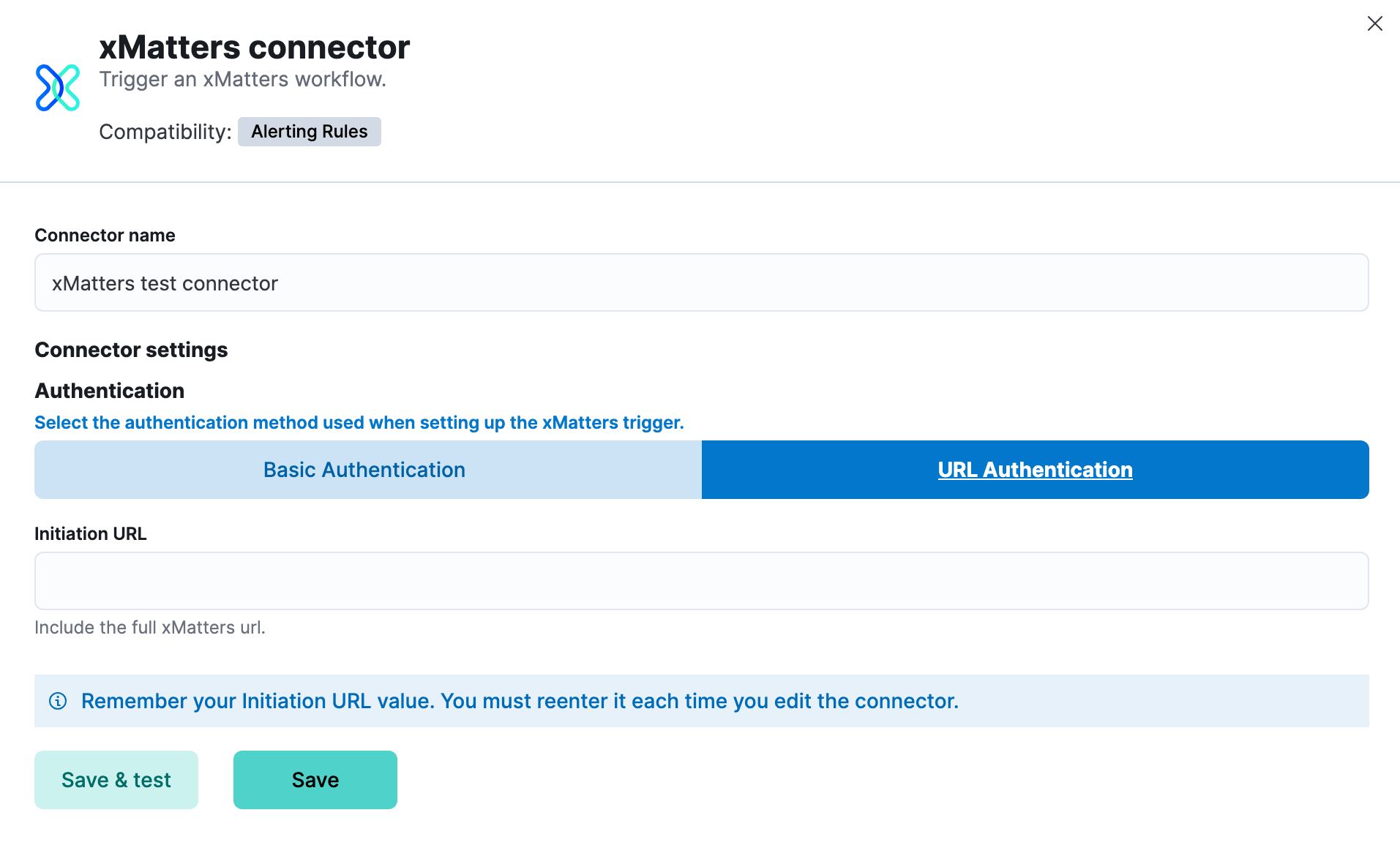
You can create connectors in **Stack Management > Connectors** or as needed when you're creating a rule. You must choose between basic and URL authentication for the requests.
### Connector configuration
xMatters connectors have the following configuration properties:
The name of the connector.
The type of authentication used in the request made to xMatters.
The request URL for the Elastic Alerts trigger in xMatters. If you are using URL authentication, include the API key in the URL. For example, `https://example.com?apiKey=1234-abcd`. If you are using the [`xpack.actions.allowedHosts`](/elastic/kibana/pull/280898/reference/configuration-reference/alerting-settings#action-settings) setting, make sure the hostname is added to the allowed hosts.
Username for HTTP basic authentication.
Password for HTTP basic authentication.
## Test connectors
You can test connectors as you're creating or editing the connector in Kibana. For example:
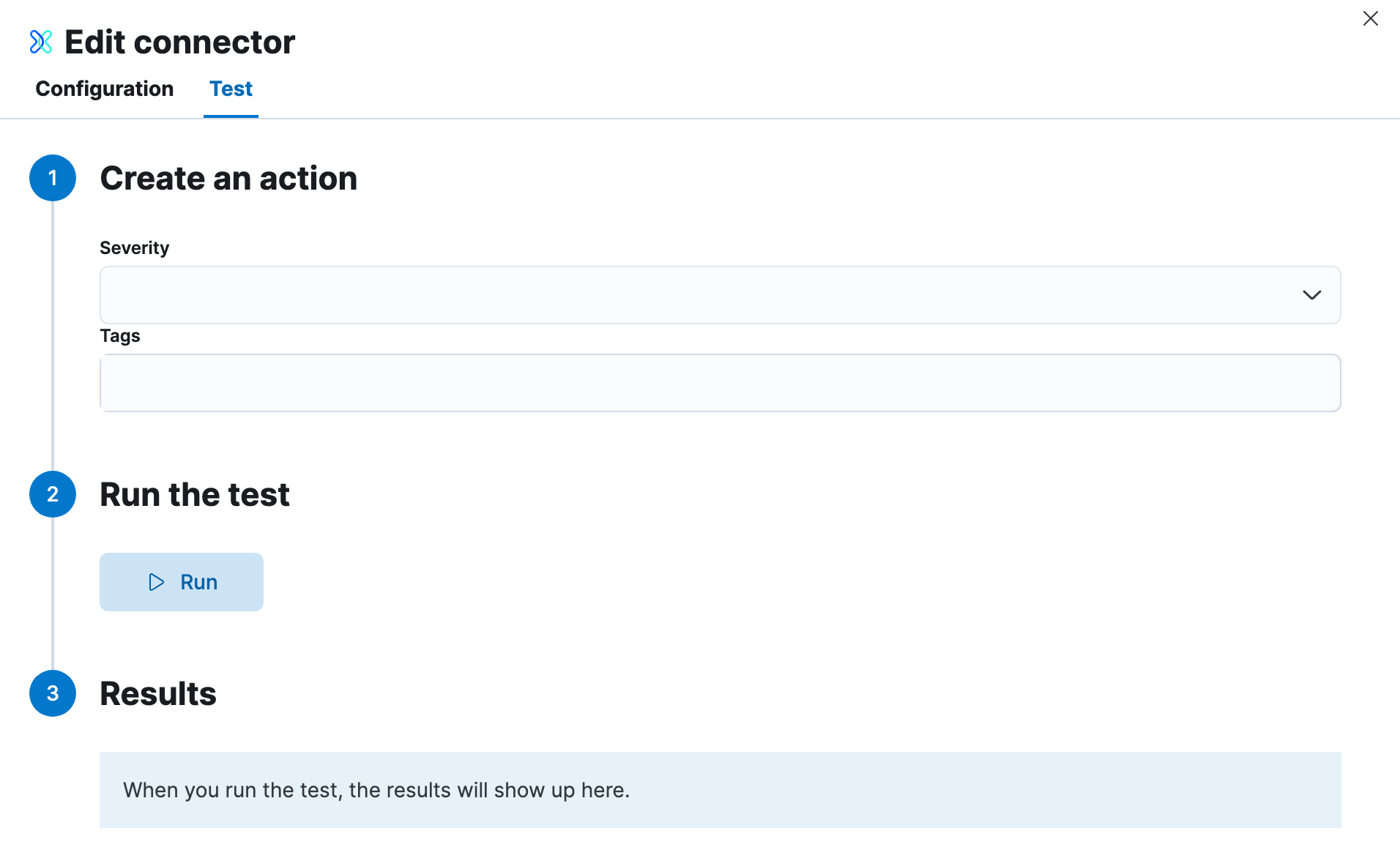
xMatters rules have the following properties:
Severity of the rule.
Comma-separated list of tags for the rule as provided by the user in Elastic.
## Connector networking configuration
Use the [Action configuration settings](/elastic/kibana/pull/280898/reference/configuration-reference/alerting-settings#action-settings) to customize connector networking configurations, such as proxies, certificates, or TLS settings. You can set configurations that apply to all your connectors or use `xpack.actions.customHostSettings` to set per-host configurations.
## Configure xMatters
By integrating with xMatters, you can:
1. Leverage schedules, rotations, escalations, and device preferences to quickly engage the right resources.
2. Allow resolvers to take immediate action with customizable notification responses, including incident creation.
3. Reduce manual tasks so teams can streamline their resources and focus.
### Prerequisites
To use the Elastic xMatters connector either install the Elastic workflow template, or add the Elastic Alerts trigger to one of your existing xMatters flows. Once the workflow or trigger is in your xMatters instance, configure Elastic to send alerts to xMatters.
1. In xMatters, double-click the Elastic trigger to open the settings menu.
2. Choose the authentication method and set your authenticating user.
3. Copy the initiation URL.
4. In Elastic, open the xMatters connector.
5. Set the authentication method, then paste the initiation URL.
Note: If you use basic authentication, specify the Web / App Login ID in the user credentials for the connector. This value can be found in the Edit Profile modal in xMatters for each user. For detailed configuration instructions, see [xMatters online help](https://help.xmatters.com/ondemand/#cshid=ElasticTrigger)