---
title: XSOAR connector and action
description: Use the XSOAR connector to create Cortex XSOAR incidents from Elastic rules and Workflows.
url: https://docs-v3-preview.elastic.dev/elastic/kibana/pull/280898/reference/connectors-kibana/xsoar-action-type
products:
- Kibana
applies_to:
- Elastic Cloud Serverless: Generally available
- Elastic Stack: Generally available since 9.1
---
# XSOAR connector and action
The XSOAR connector uses the [XSOAR REST API](https://cortex-panw.stoplight.io/docs/cortex-xsoar-8/m0qlgh9inh4vk-create-or-update-an-incident) to create Cortex XSOAR incidents from Elastic rules, cases, and Workflows. Use the `xsoar.run` workflow step when a workflow needs to open an incident in XSOAR and optionally associate it with an XSOAR playbook.
## Prepare XSOAR
Before creating the connector, prepare the following in XSOAR:
- An API key that can create or update incidents.
- For cloud instances, the API key ID, which is the unique serial number for the API key.
- Optional: an XSOAR playbook to associate with incidents created by Elastic. If you want to select playbooks in Kibana, the API key must also be able to search playbooks.
## Create connectors in Kibana
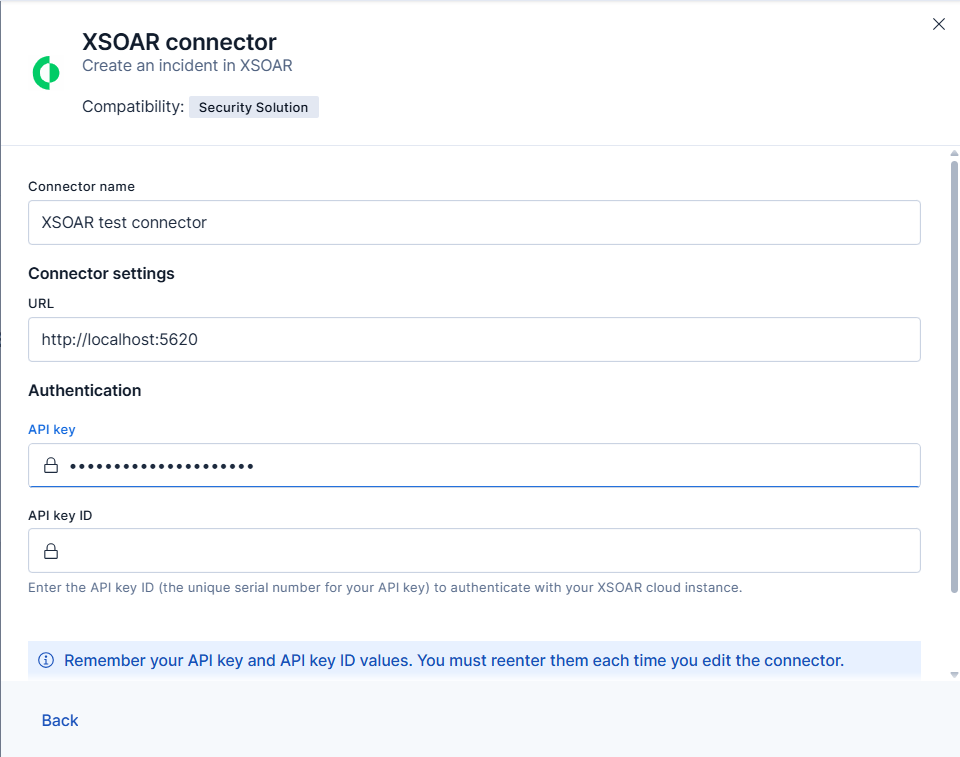
You can create connectors in **Stack Management > Connectors** or as needed when you're creating a rule. For example:
### Connector configuration
XSOAR connectors have the following configuration properties:
The name of the connector.
The XSOAR instance URL.
The XSOAR API key for authentication.
If you do not have an API key, refer to [Create a new API key](https://cortex-panw.stoplight.io/docs/cortex-xsoar-8/t09y7hrb5d14m-create-a-new-api-key) to make one for your XSOAR instance.
The XSOAR API key ID for authentication. This value is mandatory for cloud instance users.
## Test connectors
You can test connectors as you’re creating or editing the connector in Kibana. For example:
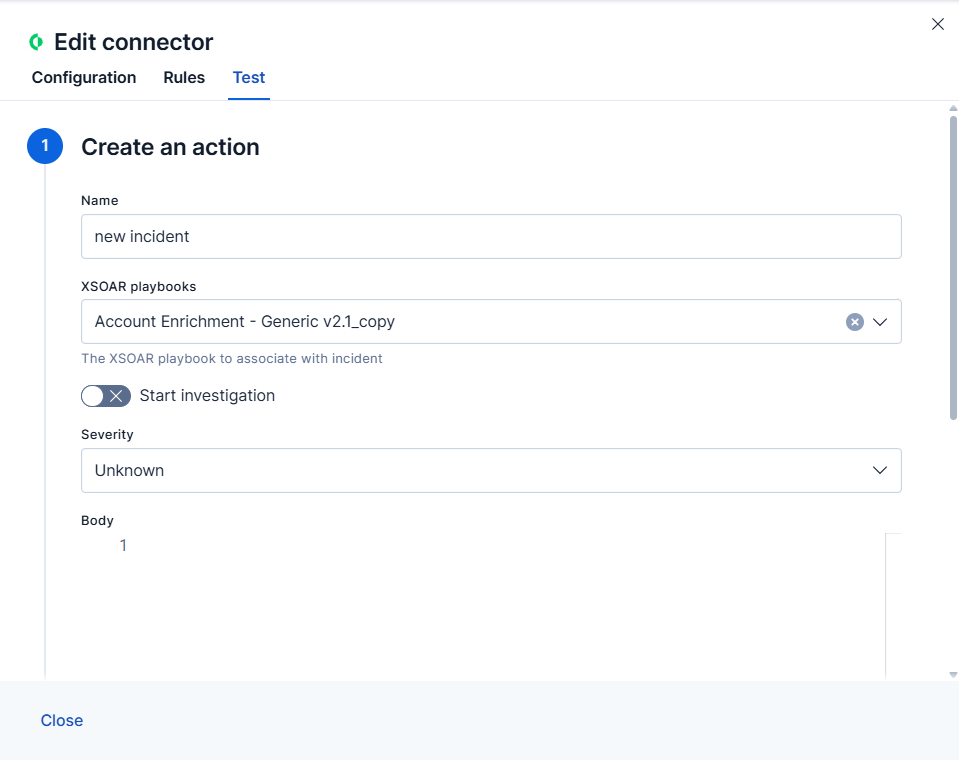
The XSOAR connector has the following actions:
Retrieve the XSOAR playbooks visible to the connector. In Workflows, use step type `xsoar.getPlaybooks`.
- This action does not take parameters.
- The response contains `playbooks`, an array of objects with `id` and `name`.
Create an incident in XSOAR. In Workflows, use step type `xsoar.run`.
- `name` (required): Incident name.
- `playbookId` (optional): ID of the XSOAR playbook to associate with the incident. In the Kibana UI, this is selected from the **XSOAR playbooks** list.
- `createInvestigation` (required): If `true`, starts the investigation process after the incident is created. The Kibana UI defaults this value to `false`.
- `severity` (required): Numeric incident severity: `0` for Unknown, `0.5` for Informational, `1` for Low, `2` for Medium, `3` for High, or `4` for Critical.
- `isRuleSeverity` (optional): If `true` and the action runs from a rule, the incident uses the rule severity. In workflows, set `severity` explicitly.
- `body` (optional): JSON string with additional XSOAR incident fields to send in the API request. In workflow YAML, use a block scalar (`|`) to pass formatted JSON. For example, use it to set fields such as `details` or `type`.
Dedicated action parameters, such as `name`, `playbookId`, `createInvestigation`, and `severity`, are added to the same XSOAR incident request as the JSON parsed from `body`. If the same field appears in both places, the dedicated action parameter takes precedence.
## Workflow example
Create an XSOAR incident and associate it with a playbook:
```yaml
steps:
- name: create_xsoar_incident
type: xsoar.run
connector-id:
with:
name: Suspicious login detected
playbookId:
createInvestigation: true
severity: 2
body: |
{
"details": "Investigate suspicious login activity.",
"type": "Unclassified"
}
```
## Connector networking configuration
Use the [Action configuration settings](/elastic/kibana/pull/280898/reference/configuration-reference/alerting-settings#action-settings) to customize connector networking configurations, such as proxies, certificates, or TLS settings. You can set configurations that apply to all your connectors or use `xpack.actions.customHostSettings` to set per-host configurations.