Add and Remove Elasticsearch nodes
Self-managed
When you start an instance of Elasticsearch, you are starting a node. An Elasticsearch cluster is a group of nodes that have the same cluster.name attribute. As nodes join or leave a cluster, the cluster automatically reorganizes itself to evenly distribute the data across the available nodes.
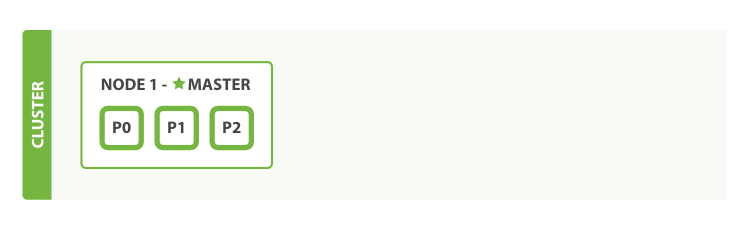
If you are running a single instance of Elasticsearch, you have a cluster of one node. All primary shards reside on the single node. No replica shards can be allocated, therefore the cluster state remains yellow. The cluster is fully functional but is at risk of data loss in the event of a failure.
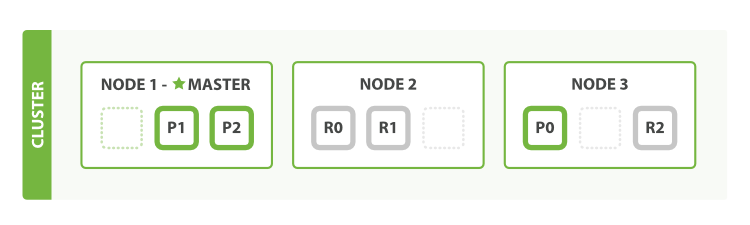
You add nodes to a cluster to increase its capacity and reliability. By default, a node is both a data node and eligible to be elected as the master node that controls the cluster. You can also configure a new node for a specific purpose, such as handling ingest requests. For more information, see Nodes.
When you add more nodes to a cluster, it automatically allocates replica shards. When all primary and replica shards are active, the cluster state changes to green.
Refer to the following pages to learn more about how to add nodes to your cluster in different environments:
You can enroll additional nodes on your local machine to experiment with how an Elasticsearch cluster with multiple nodes behaves.
To enroll new nodes in your cluster, create an enrollment token with the elasticsearch-create-enrollment-token tool on any existing node in your cluster. You can then start a new node with the --enrollment-token parameter so that it joins an existing cluster.
Before you enroll your new node, make sure that it is able to access the first node in your cluster. You can test this by running a curl command to the first node.
If you can't access the first node, then modify your network configuration before proceeding.
Using a text editor, update the
cluster.nameinelasticsearch.ymlto match the other nodes in your cluster.NoteIf this value isn't updated and you attempt to join an existing cluster, then the connection will fail with the following error:
handshake failed: remote cluster name [cluster-to-join] does not match local cluster name [current-cluster-name]In a separate terminal from where Elasticsearch is running, navigate to the directory where you installed Elasticsearch and run the
elasticsearch-create-enrollment-tokentool to generate an enrollment token for your new nodes..\bin\elasticsearch-create-enrollment-token -s nodeCopy the enrollment token, which you’ll use to enroll new nodes with your Elasticsearch cluster.
An enrollment token has a lifespan of 30 minutes. You should create a new enrollment token for each new node that you add.
From the installation directory of your new node, start Elasticsearch and pass the enrollment token with the
--enrollment-tokenparameter..\bin\elasticsearch --enrollment-token <enrollment-token>Elasticsearch automatically generates certificates and keys in the following directory:
config\certs
You can repeat these steps for each additional Elasticsearch node that you would like to add to the cluster.
For more information about discovery and shard allocation, refer to Discovery and cluster formation and Cluster-level shard allocation and routing settings.
If you installed your new Elasticsearch node using an RPM or Debian package, then you can pass your enrollment token to the elasticsearch-reconfigure-node tool to simplify the configuration process.
When you need to remove a node from an Elasticsearch cluster, you must first empty the node by relocating all its shards to other nodes in the cluster, and then stop the Elasticsearch process on that node. This ensures that no data is lost and the cluster continues to operate normally during the removal process.
If the node to remove is a master-eligible node, review the master-eligible node considerations before proceeding and do not remove multiple master-eligible nodes at the same time.
Optional: Stop indexing and perform a synced flush:
If you can afford to stop indexing for a short period, stop indexing before removing the node from the cluster and then perform a synced flush. This operation helps speed up the recovery process that occurs after a node is removed. To perform a synced flush, run the following command:
POST /_flush/syncedRetrieve the node name:
You need to know the node name to remove it from the cluster. You can retrieve the node name by running the following command:
GET /_cat/nodes?vThis command returns a list of nodes in the cluster along with their node names. Identify the node you want to remove and make a note of its name.
Remove the node from the cluster:
After you've determined the node name, you can begin removing the node from the cluster by excluding it from shard allocation. This tells Elasticsearch to stop allocating shards to the node and to relocate any existing shards to other nodes in the cluster. This step can be skipped for nodes that do not hold data, such as dedicated master or coordinating-only nodes.
To exclude the node from shard allocation, update the cluster settings using its node name. Run the following command, replacing
<node_name>with the node name you retrieved in the previous step. This command instructs Elasticsearch to move all shards from the specified node to other nodes in the cluster.PUT /_cluster/settings{ "persistent": { "cluster.routing.allocation.exclude._name": "<node_name>" } }Wait for the shard relocation process to complete before proceeding to the next step. You can monitor the progress of shard relocation by running the following command:
GET /_cat/shards?vStop the Elasticsearch process on the node:
After all shards have relocated to the other nodes, you can safely stop the Elasticsearch process on the node you want to remove. Depending on your installation method and operating system, the command to stop Elasticsearch may vary. For example, if you are using systemd on a Linux system, you can run the following command:
sudo systemctl stop elasticsearchWhen the process stops, the node disconnects from the cluster and no longer appears as part of the cluster.
Verify the cluster health:
Finally, verify the health of the cluster by running the following command:
GET /_cluster/healthEnsure that the cluster status is green, meaning that all shards are properly allocated, and verify that the number of nodes in the cluster has been reduced by one.
As nodes are added or removed Elasticsearch maintains an optimal level of fault tolerance by automatically updating the cluster’s voting configuration, which is the set of master-eligible nodes whose responses are counted when making decisions such as electing a new master or committing a new cluster state.
It is recommended to have a small and fixed number of master-eligible nodes in a cluster, and to scale the cluster up and down by adding and removing master-ineligible nodes only. However there are situations in which it may be desirable to add or remove some master-eligible nodes to or from a cluster.
If you wish to add some nodes to your cluster, simply configure the new nodes to find the existing cluster and start them up. Elasticsearch adds the new nodes to the voting configuration if it is appropriate to do so.
During master election or when joining an existing formed cluster, a node sends a join request to the master in order to be officially added to the cluster.
When removing master-eligible nodes, it is important not to remove too many all at the same time. For instance, if there are currently seven master-eligible nodes and you wish to reduce this to three, it is not possible simply to stop four of the nodes at once: to do so would leave only three nodes remaining, which is less than half of the voting configuration, which means the cluster cannot take any further actions.
More precisely, if you shut down half or more of the master-eligible nodes all at the same time then the cluster will normally become unavailable. If this happens then you can bring the cluster back online by starting the removed nodes again.
As long as there are at least three master-eligible nodes in the cluster, as a general rule it is best to remove nodes one-at-a-time, allowing enough time for the cluster to automatically adjust the voting configuration and adapt the fault tolerance level to the new set of nodes.
If there are only two master-eligible nodes remaining then neither node can be safely removed since both are required to reliably make progress. To remove one of these nodes you must first inform Elasticsearch that it should not be part of the voting configuration, and that the voting power should instead be given to the other node. You can then take the excluded node offline without preventing the other node from making progress. A node which is added to a voting configuration exclusion list still works normally, but Elasticsearch tries to remove it from the voting configuration so its vote is no longer required. Importantly, Elasticsearch will never automatically move a node on the voting exclusions list back into the voting configuration. Once an excluded node has been successfully auto-reconfigured out of the voting configuration, it is safe to shut it down without affecting the cluster’s master-level availability. A node can be added to the voting configuration exclusion list using the Voting configuration exclusions API. For example:
					# Add node to voting configuration exclusions list and wait for the system
# to auto-reconfigure the node out of the voting configuration up to the
# default timeout of 30 seconds
				POST /_cluster/voting_config_exclusions?node_names=node_name
					# Add node to voting configuration exclusions list and wait for
# auto-reconfiguration up to one minute
				POST /_cluster/voting_config_exclusions?node_names=node_name&timeout=1m
The nodes that should be added to the exclusions list are specified by name using the ?node_names query parameter, or by their persistent node IDs using the ?node_ids query parameter. If a call to the voting configuration exclusions API fails, you can safely retry it. Only a successful response guarantees that the node has actually been removed from the voting configuration and will not be reinstated. If the elected master node is excluded from the voting configuration then it will abdicate to another master-eligible node that is still in the voting configuration if such a node is available.
Although the voting configuration exclusions API is most useful for down-scaling a two-node to a one-node cluster, it is also possible to use it to remove multiple master-eligible nodes all at the same time. Adding multiple nodes to the exclusions list has the system try to auto-reconfigure all of these nodes out of the voting configuration, allowing them to be safely shut down while keeping the cluster available. In the example described above, shrinking a seven-master-node cluster down to only have three master nodes, you could add four nodes to the exclusions list, wait for confirmation, and then shut them down simultaneously.
Voting exclusions are only required when removing at least half of the master-eligible nodes from a cluster in a short time period. They are not required when removing master-ineligible nodes, nor are they required when removing fewer than half of the master-eligible nodes.
Adding an exclusion for a node creates an entry for that node in the voting configuration exclusions list, which has the system automatically try to reconfigure the voting configuration to remove that node and prevents it from returning to the voting configuration once it has removed. The current list of exclusions is stored in the cluster state and can be inspected as follows:
GET /_cluster/state?filter_path=metadata.cluster_coordination.voting_config_exclusions
This list is limited in size by the cluster.max_voting_config_exclusions setting, which defaults to 10. See Discovery and cluster formation settings. Since voting configuration exclusions are persistent and limited in number, they must be cleaned up. Normally an exclusion is added when performing some maintenance on the cluster, and the exclusions should be cleaned up when the maintenance is complete. Clusters should have no voting configuration exclusions in normal operation.
If a node is excluded from the voting configuration because it is to be shut down permanently, its exclusion can be removed after it is shut down and removed from the cluster. Exclusions can also be cleared if they were created in error or were only required temporarily by specifying ?wait_for_removal=false.
					# Wait for all the nodes with voting configuration exclusions to be removed from
# the cluster and then remove all the exclusions, allowing any node to return to
# the voting configuration in the future.
				DELETE /_cluster/voting_config_exclusions
					# Immediately remove all the voting configuration exclusions, allowing any node
# to return to the voting configuration in the future.
				DELETE /_cluster/voting_config_exclusions?wait_for_removal=false