Assess your SIEM data posture with SIEM Readiness
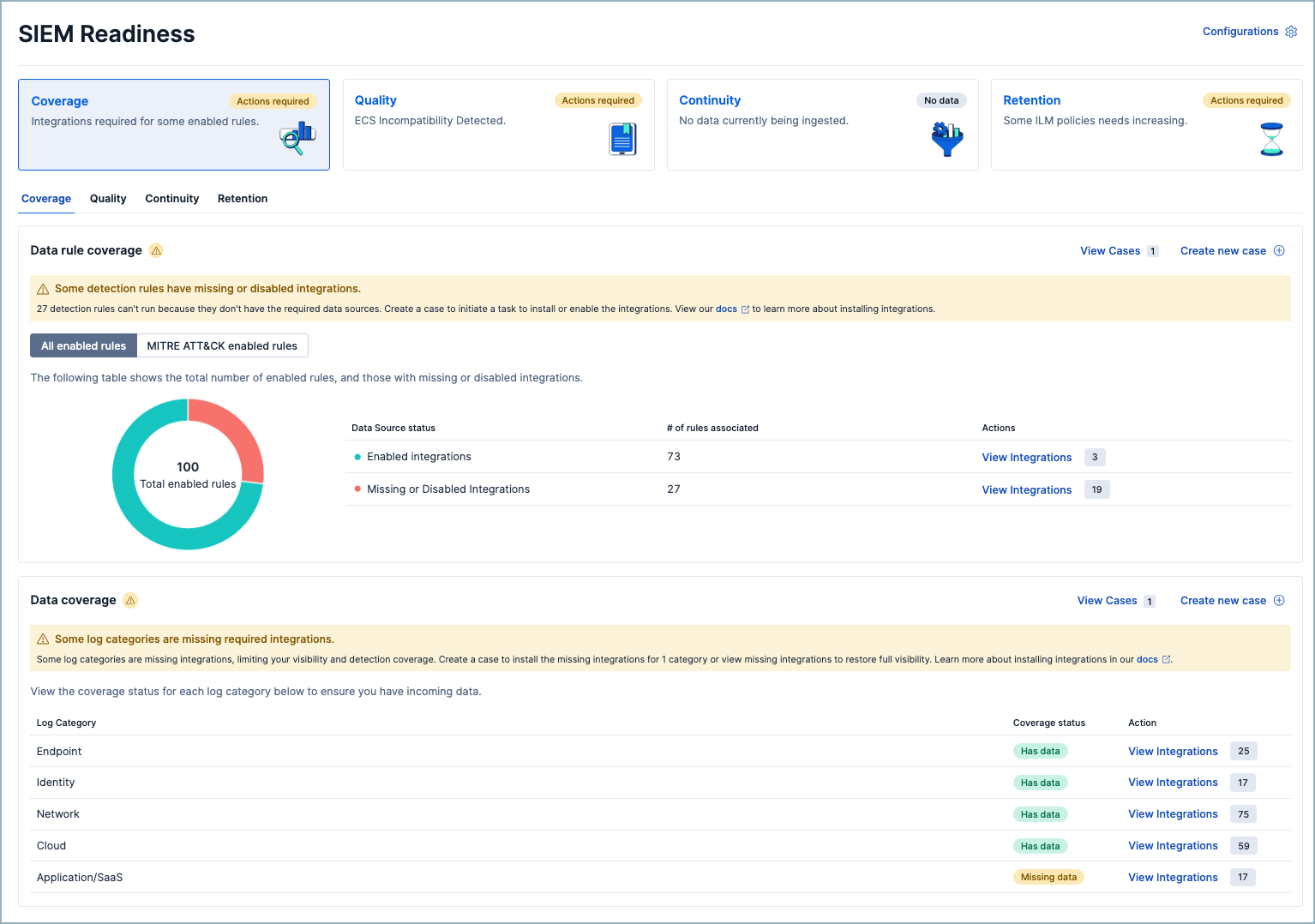
SIEM Readiness gives you a centralized view of your security data health across four pillars: coverage, quality, continuity, and retention. Rather than checking multiple dashboards individually, you can use SIEM Readiness to quickly identify gaps in your SIEM configuration and take guided actions to close them.
You can find SIEM Readiness in the Launchpad section of the Elastic Security app navigation menu, alongside Get started and Value report.
To use SIEM Readiness, you need the following privileges:
Kibana feature privileges:
- At least
readfor the Security feature (to access the page) - At least
readfor the Security > Rules and Exceptions feature (Coverage tab) - At least
readfor the Management > Fleet > Integrations feature (Coverage tab) Allfor the Security > Cases feature (to create cases from SIEM Readiness)
Elasticsearch index privileges (on relevant data indices such as logs-* and metrics-*):
read(Coverage tab: data detection and MITRE ATT&CK doc counts)view_index_metadata(all tabs: index settings, mappings, data stream metadata)monitor(Quality and Continuity tabs: index stats and ingest pipeline stats)
Elasticsearch cluster privileges:
monitor(Continuity tab: ingest pipeline statistics)- Elastic Stack users:
read_ilm(Retention tab: view ILM lifecycle policies)
Without the required Elasticsearch privileges, most tabs silently return empty or partial results.
SIEM Readiness organizes your data health assessment into four pillars. Each one appears as a summary card at the top of the page showing its current status: Healthy or Actions required. Select any pillar's tab to view its details.
The Coverage pillar answers: Are the data sources your detection rules need actually present? It has two components: data rule coverage and data coverage.
The Coverage tab's Data rule coverage table shows how many of your active detection rules have the required integrations installed. Rules that are active but missing their required data source can't run properly.
You can switch between two views:
- All enabled rules: Shows total enabled rules, how many have all necessary integrations, and how many are missing integrations. You can click View installed integrations or View missing integrations to view the specific integrations involved. Clicking an integration name takes you directly to its installation page.
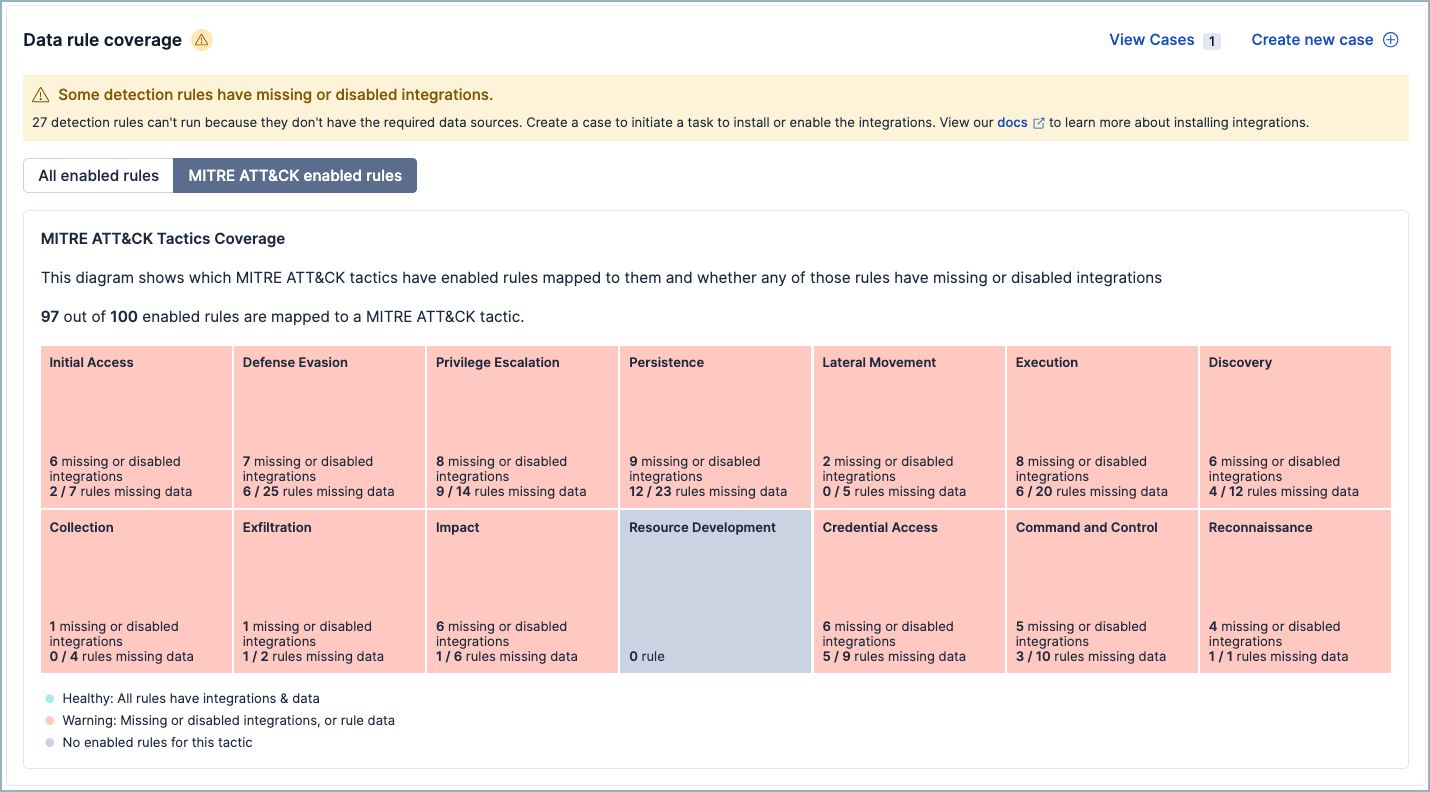
- MITRE ATT&CK enabled rules: A grid showing which MITRE ATT&CK tactics have enabled rules mapped to them and whether any of those rules are missing required integrations. Click a tactic to see the list of required integrations for that tactic's rules.
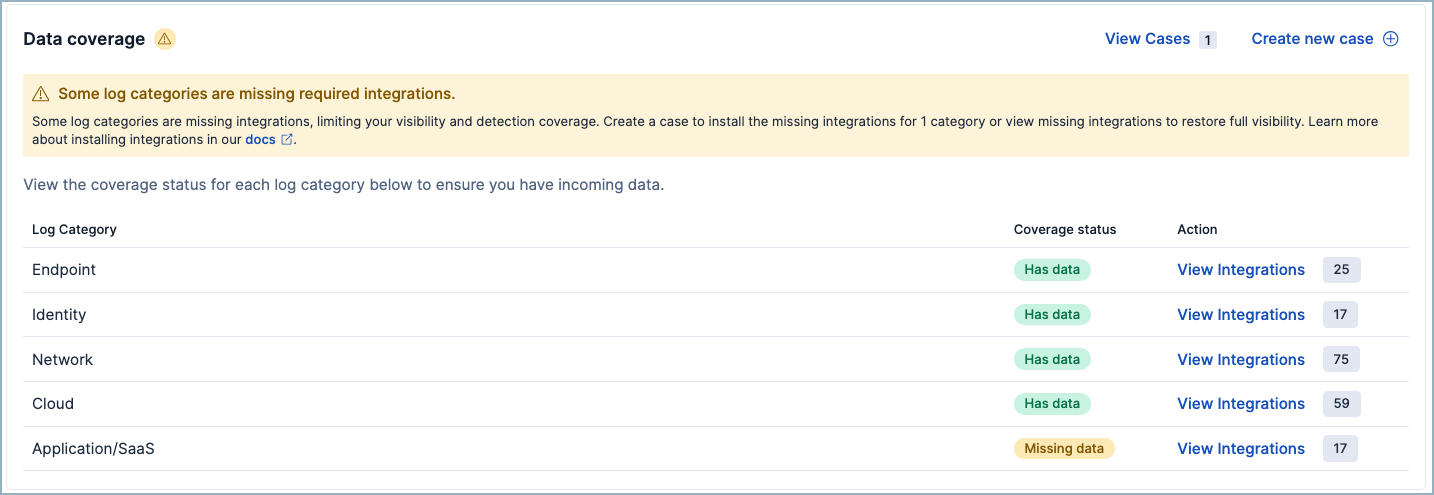
The Coverage tab's Data coverage table shows which log categories are sending data to Elastic Security and which aren't. SIEM Readiness organizes data sources into five categories:
- Endpoint: Data from hosts and devices, such as process activity, file events, and OS-level telemetry.
- Cloud: Data from cloud service providers, including audit logs, resource inventories, and configuration events.
- Network: Data from network devices and traffic, such as firewall logs, DNS queries, and flow records.
- Identity: Data from identity providers and authentication systems, such as login events, directory changes, and access management logs.
- Application/SaaS: Data from business applications and SaaS platforms, such as email, productivity suites, and collaboration tools.
Each category displays a coverage status (Has data or Missing data) and links to view related integrations. If a category has missing data, you can click View integrations to review integrations that can help close the gap.
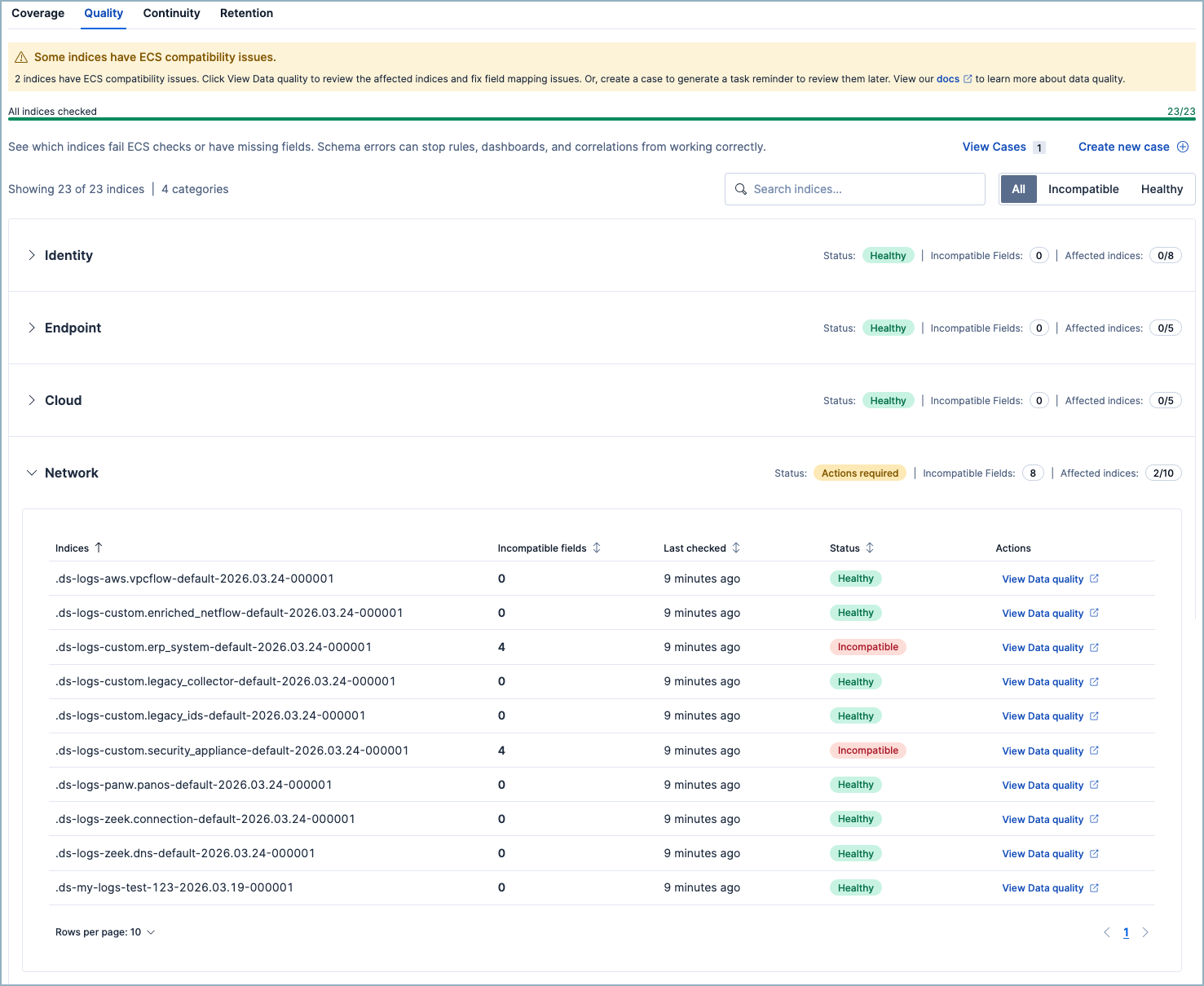
The Quality pillar answers: Is your data ECS-compatible? Schema errors can prevent rules, dashboards, and other features from working correctly.
It checks your indices for Elastic Common Schema (ECS) compatibility issues and missing fields. It groups indices by data category (Endpoint, Cloud, Network, Identity, and Application/SaaS), and each category shows:
- Status: Healthy or Actions required
- Incompatible fields: The number of fields with mapping issues
- Affected indices: How many indices in the category have issues
Expand a category to view individual indices with their incompatible field count, the time since the last check, and their status. Click View Data quality to open the Data Quality dashboard to continue your investigation and remediation process.
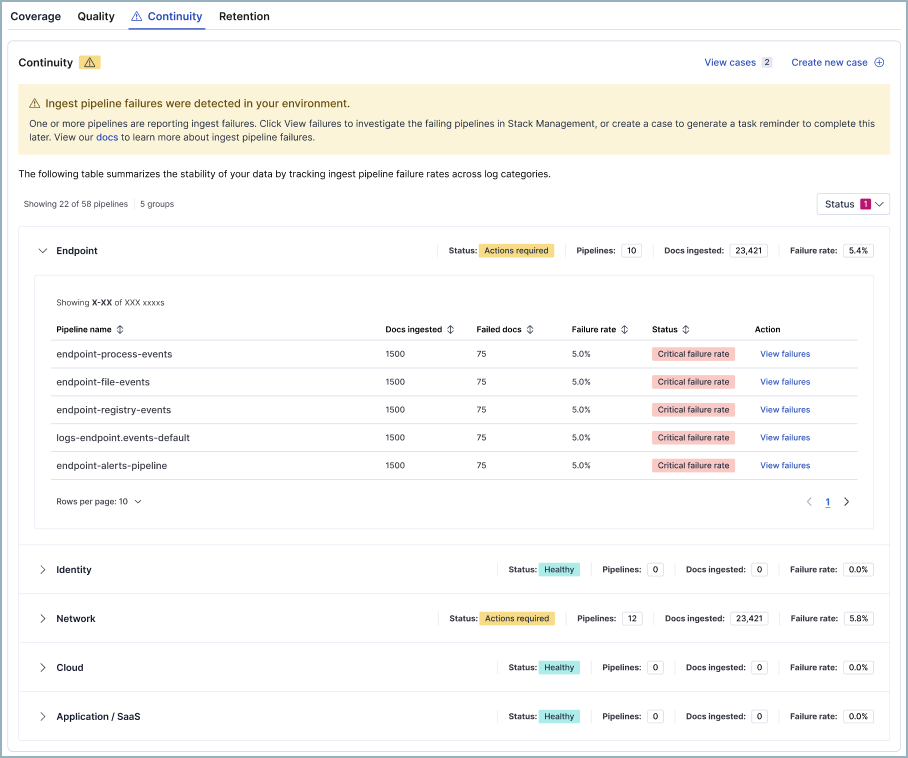
The Continuity pillar answers: Are your ingest pipelines healthy, or are failures creating blind spots?
It tracks ingest pipeline failure rates across your log categories. Each category shows:
- Status: Healthy or Actions required
- Pipelines: The number of ingest pipelines in the category
- Docs ingested: Total documents processed
- Failure rate: The percentage of failed documents
Expand a category to see individual pipelines with counts of their total ingested documents and failed documents, as well as their failure rates and status. Click View failures to investigate failing pipelines.
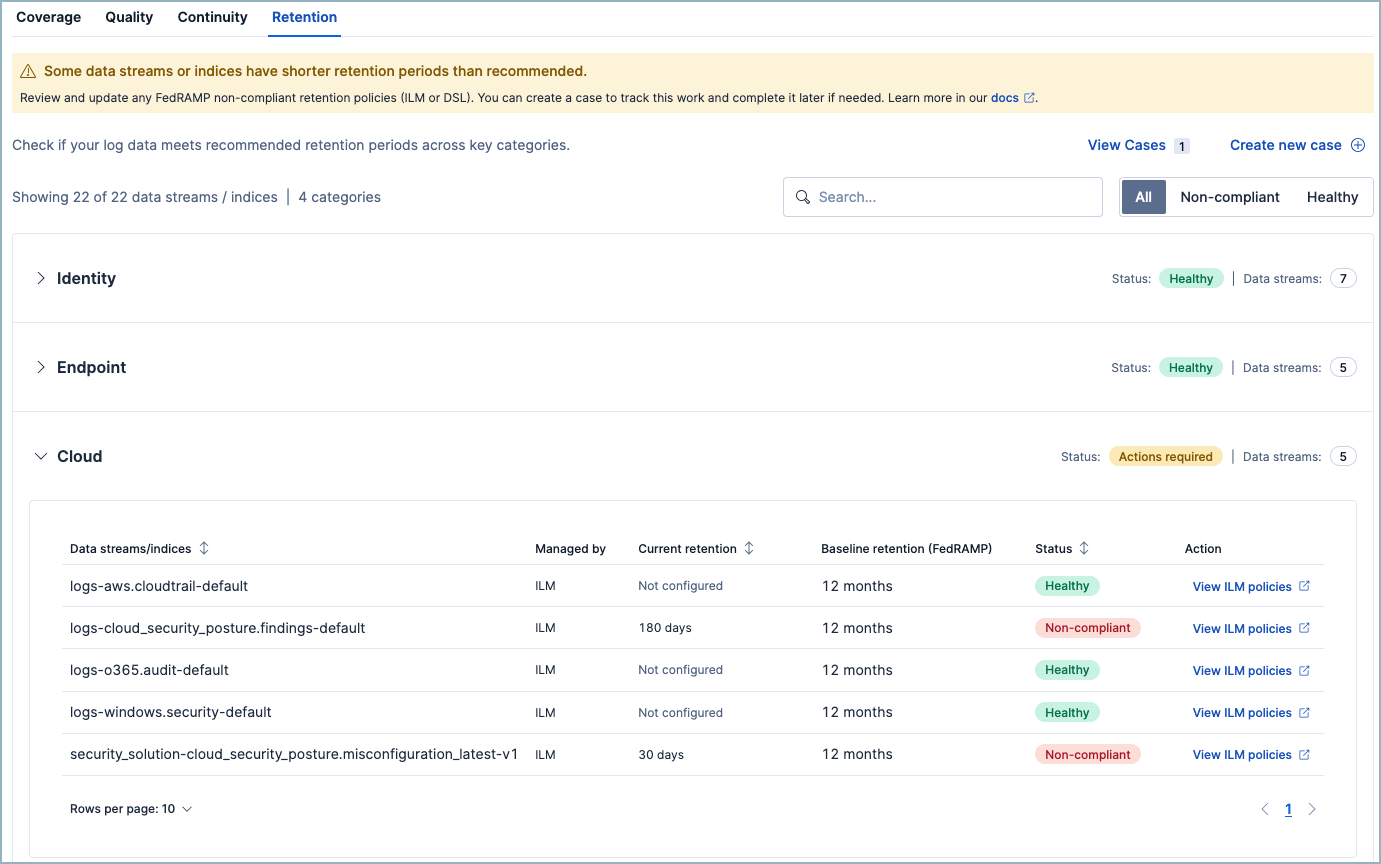
The Retention pillar answers: Do your index lifecycle policies meet recommended retention periods?
It checks whether your indices comply with retention best practices based on Federal Risk and Authorization Management Program (FedRAMP) requirements. Each log category shows:
- Status: Healthy or Actions required
- Data streams: The number of data streams and indices in the category
Expand a category to view individual indices with their current retention periods, the recommended baseline retention, and compliance status. Click View ILM policies to open the relevant index lifecycle management policy and update the retention period.
If certain log categories aren't relevant to your environment, you can exclude them from all SIEM Readiness views. Click Configuration at the top of the page to open the configuration panel, then remove any categories you don't want to monitor.
Excluded categories don't affect your pillar status calculations, so your health scores reflect only the data sources that matter to your environment.
Click Export report at the top of the page to generate a downloadable report of your current SIEM Readiness status. You can share this report with stakeholders to communicate your security data posture.
Each section of the SIEM Readiness page includes a Create new case button. Cases created using this button get pre-populated with data specific to the current finding, such as a list of missing integrations or non-compliant indices with links to relevant resources. You can use these cases to track remediation work or share findings with your team. For more information about cases, refer to Cases.
SIEM Readiness complements the existing Data Quality dashboard and Detection Rule Monitoring dashboard—it doesn't replace them. Think of SIEM Readiness as your starting point for understanding overall SIEM health, while the other tools provide the deep-dive capabilities for resolving specific issues.
The following table summarizes how these tools work together:
| Tool | Purpose | When to use it |
|---|---|---|
| SIEM Readiness | Assess overall SIEM data health across coverage, quality, continuity, and retention | Start here to identify which areas need attention |
| Data Quality dashboard | Deep ECS field-level analysis per data stream | Investigate specific data quality issues flagged by SIEM Readiness |
| Detection Rule Monitoring | Rule execution health, failures, and gaps | Review specific rules that are missing data sources |
In practice, you might open SIEM Readiness and learn that the Quality pillar flags ECS compatibility issues for a log category. You can then click through to the Data Quality dashboard to identify and fix the specific field mapping problems.