Save a Discover session for reuse
Saved Discover sessions preserve your queries, filters, column selections, and view configurations for reuse. Save sessions to return to specific data explorations, share search results with team members, add searches to dashboards, or use them as a foundation for building visualizations. This guide shows how to save, reopen, duplicate, and manage Discover sessions.
To save searches, you need Create and Edit permissions for the Saved Objects feature in Kibana. If you don't have these permissions, the Save button won't be visible. For more information, refer to Read-only access.
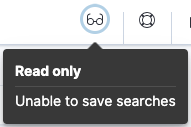
If you don’t have sufficient privileges to save Discover sessions, the following indicator is displayed and the Save button is not visible. For more information, refer to Granting access to Kibana.
By default, a Discover session stores the query text, filters, and current view of Discover, including the columns and sort order in the document table, and the data view.
- Once you’ve created a view worth saving, select Save in the application menu. A dialog with several options opens:
- Enter a Title for the session, and optionally a Description and Tags.
- If the session is time-based, turn on Store time with Discover session to save the current time filter and refresh interval with it.
-
In Add to dashboard, select Existing to add the session as a panel on a dashboard you choose, New to add it to a brand-new dashboard, or None to save the session to the library.
- Select Save.
- To reload your search results in Discover, select Open in the application menu, and select the saved Discover session.
If the saved Discover session is associated with a different data view than is currently selected, opening the saved Discover session changes the selected data view. The query language used for the saved Discover session is also automatically selected.
To duplicate an existing Discover session as a new one, the workflow depends on the version you're using.
- In Discover, open the Discover session that you want to duplicate.
- In the application menu, from the menu next to Save, select Save as. The Save Discover session dialog opens.
- Enter a Title for the new session, and optionally a Description and Tags.
-
In Add to dashboard, select Existing to add the session as a panel on a dashboard you choose, New to add it to a brand-new dashboard, or None to save the session to the library. - Select Save.
- In Discover, open the Discover session that you want to duplicate.
- In the application menu, select Save.
- Enter a new name for the session.
- Turn on Save as new Discover session.
- Select Save.
You can add different pieces of a Discover session to a dashboard, and manage how they appear:
- Add Discover visualizations to dashboards: save the chart generated by your query as a visualization panel.
- Add Discover tables to dashboards: save the table from a Discover session as a panel. Several paths exist, depending on whether you start from Discover or from the dashboard.
- Manage Discover session panels on a dashboard: edit a session panel from a dashboard, save your edits as a new session, or choose which tab to display.
When a query in Discover produces a chart, you can save that chart as a visualization panel on a new or existing dashboard, without saving the Discover session itself. The exact flow depends on the query mode you're using in Discover.
You need permission to view and create dashboards.
- In Discover, run an ES|QL query that produces a chart.
- Next to the chart, select Save visualization to dashboard (or Save visualization depending on the version you're using).
- Enter a title for the panel, and optionally a description.
- In Add to dashboard, select New to create a dashboard, or Existing to choose one from the list.
- Select Save and go to dashboard.
In that version, if your ES|QL query defines variable controls, they aren't added to the dashboard when using this method. To preserve them, follow Import a Discover query along with its controls into a dashboard instead.
In classic mode there's no direct save button next to the chart. Instead, you open the chart in Lens, edit it as needed, and save from there.
The Edit visualization button only appears when the data view you're querying is time-based and its time field can be visualized. If those conditions aren't met, the chart isn't shown and the button isn't available.
- In Discover, run a query that produces a chart.
- Next to the chart, select Edit visualization. The chart opens in Lens, prefilled with your current query and time range.
- In Lens, adjust the visualization as needed.
- Select Save in the Lens application menu.
- Enter a Title for the panel, and optionally a Description.
- In Add to dashboard, select New to create a dashboard, or Existing to choose one from the list.
- Select Save and go to dashboard.
You can add the table from a Discover session to a dashboard in several ways. They differ in where you start and in the lifecycle of the resulting panel: whether the session is saved to the library or only lives on a specific dashboard, and whether the panel displays a single table or lets you switch between the tables of each tab in your Discover session.
You need permission to view and create dashboards.
The flow you choose depends on where you start:
- From Discover:
- From a dashboard:
From Discover, save the current view of the table to a new or existing dashboard, without saving the Discover session to the library. The resulting panel stores its configuration with the dashboard, so later changes to the Discover session don't affect the panel. If the session has multiple tabs, only the current table is saved.
The button isn't available when Discover is opened from another application, such as when editing a session panel from a dashboard.
- In the documents table toolbar, select Save table to dashboard.
- Enter a title for the panel, and optionally a description.
- In Add to dashboard, select New to create a dashboard, or Existing to choose one from the list.
- Select Save and go to dashboard.
From Discover, save the entire Discover session, including all its tabs, columns, sort order, and other settings.
When you save the session, the Add to dashboard option of the dialog determines what happens to it:
- New or Existing: The session is saved as a panel on a dashboard. The panel's configuration is stored with the dashboard, and the session isn't saved to the library. If the session has multiple tabs, you can choose which tab the panel displays on the dashboard.
- None: The session is saved to the library, without being added to a dashboard. From there, you can later add it as a panel on any dashboard.
Follow the steps under Save a Discover session, and select the Add to dashboard option that matches what you want.
Saving from Discover saves the session to the library only. To put it on a dashboard, follow the steps under Save a Discover session, then add the session from the dashboard library.
From a dashboard, add a Discover session that's already saved to the library. The same session can be added to multiple dashboards, and each panel stays linked to the library, so updates to the session are reflected on all dashboards. You can break that link by unlinking a panel from the library after adding it from the panel's contextual menu.
This option requires that the session has already been saved to the library.
- Go to Dashboards.
- Open or create the dashboard, then switch to Edit mode if necessary.
- Depending on the version you're using, select Add from library, or Add > From library.
- From the Types dropdown, select Discover session.
- Select the Discover session that you want to add, then select X to close the list.
If the session has multiple tabs, you can choose which tab the panel displays on the dashboard.
Use this option to create a single-tab Discover session directly on the dashboard, without first saving it to the library. The session is stored only with the dashboard.
You need permission to access Discover, and the dashboard must be in Edit mode.
- On the dashboard, select Add panel > New panel.
- In the Visualizations group, select Discover session. Discover opens in embedded editor mode.
- Configure the session: enter a query, adjust columns, sort, and other view settings as needed.
- Select Save and return in the application menu to add the configured panel to the dashboard.
When editing a Discover session panel from a dashboard, you can save your changes as a new Discover session, instead of updating the panel in place. This works whether the panel was added from the library or created directly on the dashboard.
On the dashboard, hover over the panel and select Edit Discover session configuration. Discover opens in embedded editor mode.
Make your changes in Discover.
In the application menu, from the menu next to Save and return, select Save as.
In the Save Discover session dialog, enter a Title for the new session, and optionally a Description and Tags.
In Add to dashboard, choose where to save the new session: - Existing: Save the session as an additional panel on a dashboard that already exists.
- New: Save the session as a panel on a new dashboard.
- None: Save the session to the library.
Select Save.
A Discover session panel displays one tab at a time. When the underlying session has multiple tabs, you can change which tab the panel shows.
On the dashboard, open the panel menu and select Edit.
From the tab selector, select the tab you want to display.
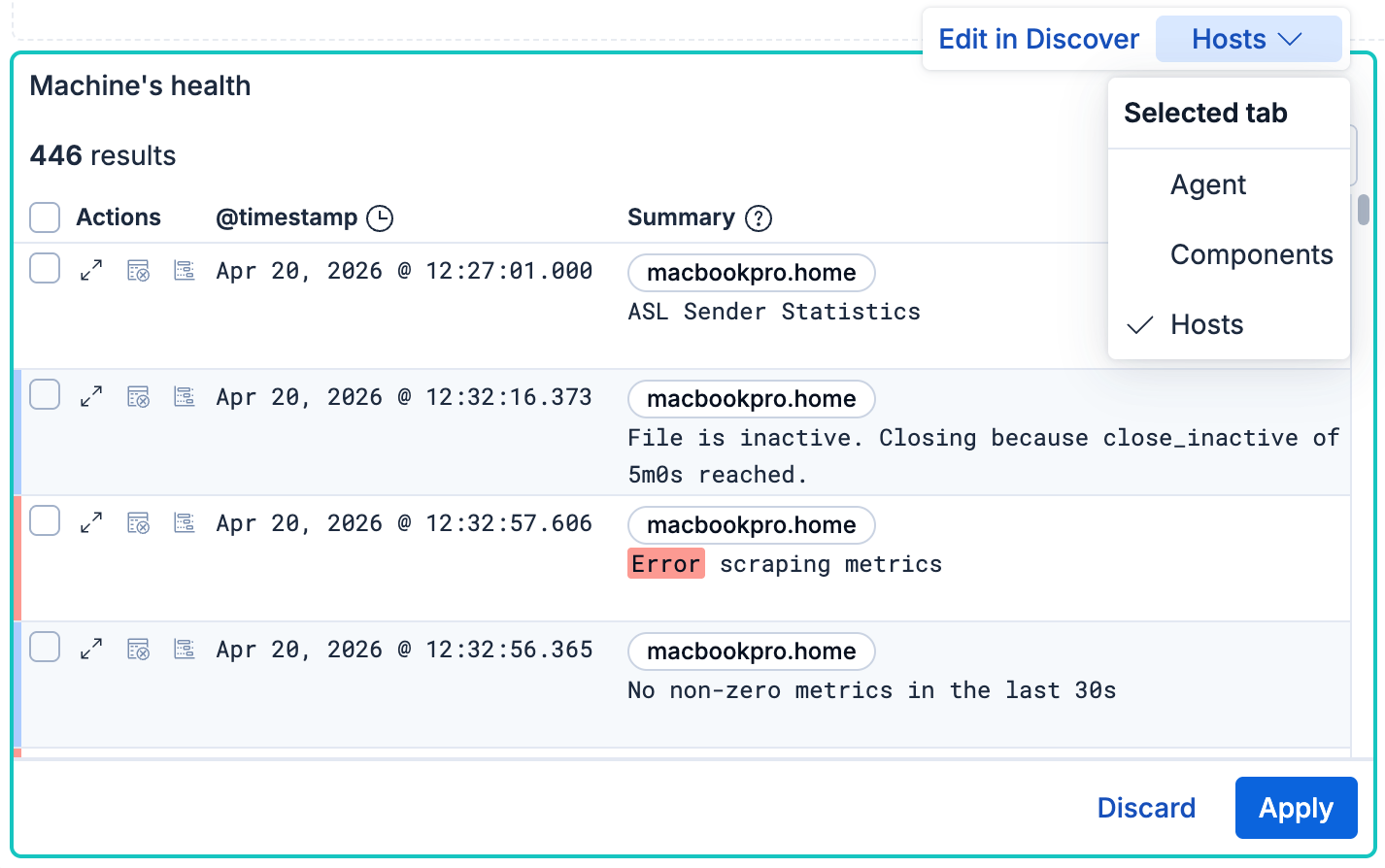
Select Apply.