Azure Native Service
The Elastic Cloud Azure Native Service allows you to deploy managed instances of the Elastic Stack directly in Azure, through the Microsoft Marketplace. The service brings the following benefits:
Easy deployment for managed Elastic Stack instances
Elastic Stack instances managed by Elastic are deployed directly from the Azure portal. This provides the complete Elastic Stack experience with all available features.
Integrated billing
You are billed directly to your Azure account; no need to configure billing details in Elastic. See Integrated billing for details.
Easy consolidation of your Azure logs in Elastic
Use a single-step setup to ingest logs from your Azure services into the Elastic Stack. For details, refer to Azure Native Service logs and metrics.
The full product name in the Microsoft Marketplace is Elasticsearch - Search & Vector Database (Free 7-Day Trial).
Before setting up an Elastic Cloud deployment or project through the Azure Native Service, review the following requirements:
- Your Azure account role for the subscription must be set to Owner or Contributor. For details and steps to assign roles, refer to Roles and permissions in the Azure documentation.
- You can't use an email address that already has an Elastic Cloud account. Use a different Azure account to set up the Elasticsearch resource, or contact Elastic Support for assistance. For a workaround, refer to Sign up using an existing email address.
- You must have a payment method registered on your Azure subscription. If you have a non-payment subscription, such as a Virtual Studio Subscription, you can't create an Elastic Cloud deployment. Refer to the Azure Purchase errors troubleshooting documentation for more information.
- To single sign-on into your Elastic Cloud deployment or project from Azure, you need to request approval from your Azure administrator.
To create a deployment or Serverless project directly from the Azure portal, go to the list of Elastic Cloud resources in the Azure portal and select Create. On the next page, select your hosting type: Serverless or Cloud Hosted.
The selected resource is created for you.
If you select Serverless, then the project is sized automatically for you and adjusts to your usage.
If you select Cloud Hosted, a deployment is created with 16GB of RAM and 560GB of storage, across two availability zones for redundancy. The size of the deployment, both RAM and storage, can be changed directly in the Elastic Cloud console. Usage charges are based on the deployment size, so size your instance efficiently. The deployment defaults to the latest available version of the Elastic Stack. Check our Version policy to learn more about when new versions are made available and old versions are removed from service.
You can create and manage Elastic Cloud deployments and projects using a variety of tools:
Azure tools
- The Azure portal
- Azure Terraform
- The Azure CLI
- The Azure REST API
- PowerShell
Official Azure SDKs
Elastic Cloud
- The Elastic Cloud console
- The Elastic Cloud REST API
- The Elastic Cloud command line tool (ECCTL)
- The Elastic Cloud Terraform provider
Refer to Tools and APIs for a complete list.
NoteWhen you use any of the Elastic Cloud methods to create a deployment or project, it will not be available in the Azure portal. To have the necessary metadata to be visible in the Azure portal, Elastic Cloud resources need to be created in Microsoft Azure.
Navigate to the Elastic Cloud overview page in the Azure portal and select a resource.
You have a few options to access your deployment or project:
- Elasticsearch endpoint -- the URL for communicating with Elasticsearch directly
- Kibana endpoint -- the UI for your deployment or project, a great way for new users to get started
- Elastic Cloud -- Open the Advanced Settings link to access the deployment or project in the Elastic Cloud console. You can use this interface to alter your deployment or project settings, or perform other administrative tasks. For more details, refer to the following sections:
If you already have an Elastic Cloud account with the same email address as your Azure account, you might need to contact support@elastic.co.
You can start a free Elastic Cloud trial and then convert your organization over to Azure. There are a few requirements:
- Make sure when creating resources in the trial account that you specify Azure as the cloud provider.
- To convert your trial to the Microsoft Marketplace you need to create a resource in the Azure portal. Delete this resource if you don't need it. After you create the new resource, your marketplace subscription is ready.
- Any resources previously created during your trial won't show up in the Azure portal, because they weren't created in Azure, but they are still accessible through the Elastic Cloud Console and you are billed for their usage.
You can start a 7-day trial by creating a deployment through the Microsoft Marketplace. The following restrictions apply:
- The email associated with the Azure account used to create the deployment must not already be linked to an existing Elastic organization.
- During the 7-day trial period, you can create up to one deployment and three serverless projects. If you want to convert to a paid subscription before the end of the trial period, contact
support@elastic.co. - After 7 days, the trial will automatically convert to a paid offering. If you don't want to convert your trial, then you can delete the resource you created in the Azure portal. You can also contact Elastic Support to unsubscribe, which might result in your resources being deleted after a grace period.
- You can sign up for only one trial per user account. After the trial expires, you can't start another trial. If you need a trial extension, reach out to Elastic Support.
Pricing is pay-as-you-go per hour for each Elastic Cloud deployment or project created. Charges are applied to your Azure bill at the end of the month.
When you create your first deployment or project, the subscription defaults to the Enterprise subscription, which grants premium support response time SLAs. For Elastic Cloud Hosted deployments, the subscription also controls the features that are available. In Elastic Cloud Hosted, this Enterprise subscription includes advanced Elastic Stack features like machine learning.
For an overview of all of the subscription levels available, refer to subscription levels. To learn how to change your subscription level, refer to Manage your subscription.
To learn about Elastic charges related to your deployments or projects, refer to the following resources:
- Cloud Hosted deployment billing dimensions
- Serverless project billing dimensions
- Elastic Cloud pricing table
To estimate your costs, you can use the following calculators:
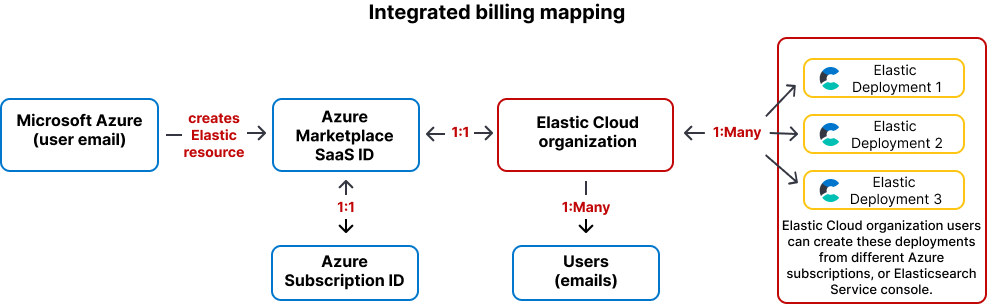
Azure Native Service includes integrated billing: Elastic resource costs are posted to your Azure subscription through the Microsoft Commercial Marketplace. You can create various Elastic Cloud resources (deployments and projects) across different Azure subscriptions, with all of the costs associated with an Elastic Cloud organization posted to a single Azure subscription.
The integrated billing process involves the following concepts:
- Microsoft Marketplace SaaS ID: This is a unique identifier that's generated one time by Microsoft Commercial Marketplace when a user creates their first Elastic resource (deployment or project) using the Microsoft Azure (Portal, API, SDK, or Terraform). This is mapped to a User ID and Azure Subscription ID.
- Elastic Cloud organization: An organization is the foundational construct under which everything in Elastic Cloud is grouped and managed. An organization is created as a step during the creation of your first Elastic resource, whether that's done through Microsoft Azure (Portal, API, SDK, or Terraform). The initial member of the Elastic Cloud organization can then invite other users.
- Elastic resource (deployment or project): An Elastic Cloud deployment or project helps you manage an Elasticsearch cluster and instances of other Elastic products in one place. You can work with Elastic resources from within the Azure ecosystem. Multiple users in the Elastic Cloud organization can create different resources from different Azure subscriptions. They can also create resources from the Elastic Cloud Console.
The following diagram shows the mapping between Microsoft Azure IDs, Elastic Cloud organization IDs, and your Elastic resources (deployments).
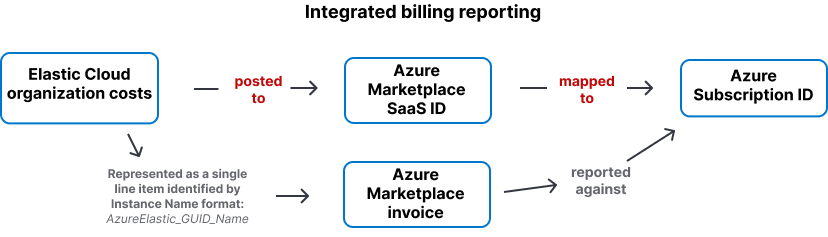
The following diagram shows how your Elastic Cloud organization costs are reported in Microsoft Azure.
If your organization is currently unsubscribed from the Microsoft Marketplace, you can resubscribe through any of your existing Azure deployments in the Azure portal:
- Open one of your deployments or projects to view its overview page.
- From the left navigation pane, select Connected Elastic Cloud Resources.
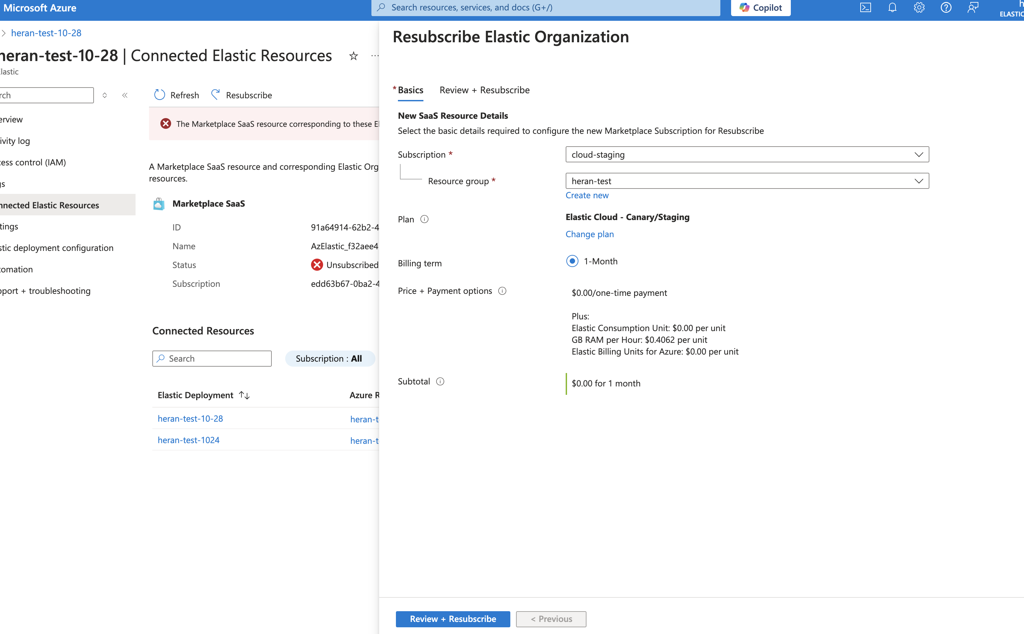
- Click Resubscribe. A new window should appear.
- Choose the subscription you want to resubscribe to and confirm.
The Microsoft Marketplace integrated billing posts all of the Elastic resource costs related to an Elastic Cloud organization to the Azure subscription you used to create your first-ever Elastic resource, even if your individual Elastic resources (deployments and projects) are spread across different Azure subscriptions.
To have different Elastic resources' costs reported to different Azure subscriptions, they need to be in separate Elastic Cloud organizations. To create a separate Elastic Cloud organization from an Azure subscription, you will need to subscribe as a user who is not already part of an existing Elastic Cloud organization.
The costs for Elastic resources are reported for an Elastic Cloud organization as a single line item, reported against the Marketplace SaaS ID. This includes the resources created using the Azure portal, API, SDK, or CLI, and also those created directly from the Elastic Cloud Console in the respective Elastic Cloud organization.
The costs associated with Elastic resources are reported under unassigned in the Azure portal. Refer to Understand your Azure external services charges in the Microsoft Documentation to understand Elastic resource costs. For granular Elastic resource costs, refer to Monitor and analyze your account usage.
Instance name/ID The Microsoft Marketplace SaaS identifier that represents an Elastic Cloud organization. For Microsoft Azure,
Microsoft.SaaS(namespace) resources are used for billing Marketplace Resources -- in this case, Elastic.For instance: Elastic Organization
Org1is associated with a Marketplace SaaS (Microsoft.SaaS) assetAzureElastic_GUID_NAME. The Elastic resources (Microsoft.Elastic)E1,E2, andE3withinOrg1are all mapped toAzureElastic_GUID_NAME.Microsoft.SaaS(Instance name) asset is shown in the Microsoft Marketplace invoice and represents costs related to an Elastic Cloud organization and not individual Elastic resources. To understand the cost breakdown for individual Elastic resources, refer to Monitor and analyze your account usage.
User access is managed within the Elastic Cloud organization, or at the deployment level.
There are several options to integrate Microsoft authentication with Elastic Cloud:
- Elastic Cloud Serverless projects and Elastic Cloud Hosted deployments: Configure SAML single sign-on. Refer to Register Elastic Cloud SAML in Microsoft Entra ID for a Microsoft Entra ID example.
- Elastic Cloud Hosted deployments: Configure Azure Active Directory single sign-on.
Elastic Cloud is not automatically integrated with Azure:
- Elastic Cloud RBAC capabilities are available only from the Elastic Cloud Console and is not integrated with Azure portal. Users who interact with Elastic resources from Azure portal will not be recognized by the Elastic Cloud RBAC policies.
Elastic is not currently integrated with Azure user management. Azure users who deploy Elasticsearch on Azure view and manage their own cluster through the Cloud console. Other Azure users in the same tenant cannot access clusters through the Cloud console other than those that they themselves created.
When trying to access resources such as Elasticsearch, Kibana, or APM in a deployment or project that was created by another Azure user, the following error is shown:
To access the resource [r:/<resource-type>/<resource-id>], the user must have the required authorization.
Multiple Azure users can deploy to the same Elastic Cloud organization. Before another user creates a native resource from the Azure portal, invite them to your Elastic Cloud organization at https://cloud.elastic.co/account/members. When they create the resource, it will get added to the existing organization instead of creating a new one, allowing you to benefit from consolidated billing, RBAC, and other benefits of an Elastic Cloud organization.
You can add Azure users as members of your organization even if they don't have an inbox. Reach out to Elastic support.
Elasticsearch resources deployed in an Azure tenant are managed by Elastic. The management capabilities associated with this tenant are the same as used to run Elastic's managed service, which also allows users to deploy on Azure. Elasticsearch is not deployed into your Azure tenant.
After you subscribe to Elastic Cloud through the Azure Native Service, Elastic has access to the following Azure tenant information:
- Data defined in the marketplace Saas fulfillment Subscription APIs.
- The following additional data:
- Marketplace subscription ID
- Marketplace plan ID
- Azure Account ID
- Azure Tenant ID
- Company
- First name
- Last name
- Country
Elastic can also access data from Elastic Cloud Azure Native Service features, including resource and activity log data. This data is available when log ingestion is configured. By default, Elastic does not have access to this information.
Delete the deployment directly from the Azure portal. The delete operation performs clean-up activities in the Elastic console to ensure any running components are removed, so that no additional charges occur.
If you delete an Azure Resource Group containing Elastic Cloud resources, the latter will be deleted automatically. However, you should not delete the Azure Resource Group containing the first deployment or project that you created. The usage associated with any other Elastic deployment created outside of the first resource group will continue to get reported and charged against this resource group. If you want to stop all charges to this Resource Group, you should delete the individual deployments.