Errors UI in Elastic APM
Use the Errors page in the Applications UI to identify the errors affecting a service and diagnose their cause. Errors with similar exceptions or messages are grouped, so you can see how often each error occurs, whether its frequency is changing, and which transactions and code are involved.
An error appears on the Errors page only when the APM agent or OpenTelemetry SDK in your service records it. For example, it records an unhandled exception, or an error that your code reports explicitly. If a request returns an HTTP 5xx status without an exception or a reported error, it doesn't appear on the Errors page. To track those failures, use the Failed transaction rate chart.
Selecting an error group ID or error message brings you to the Error group.
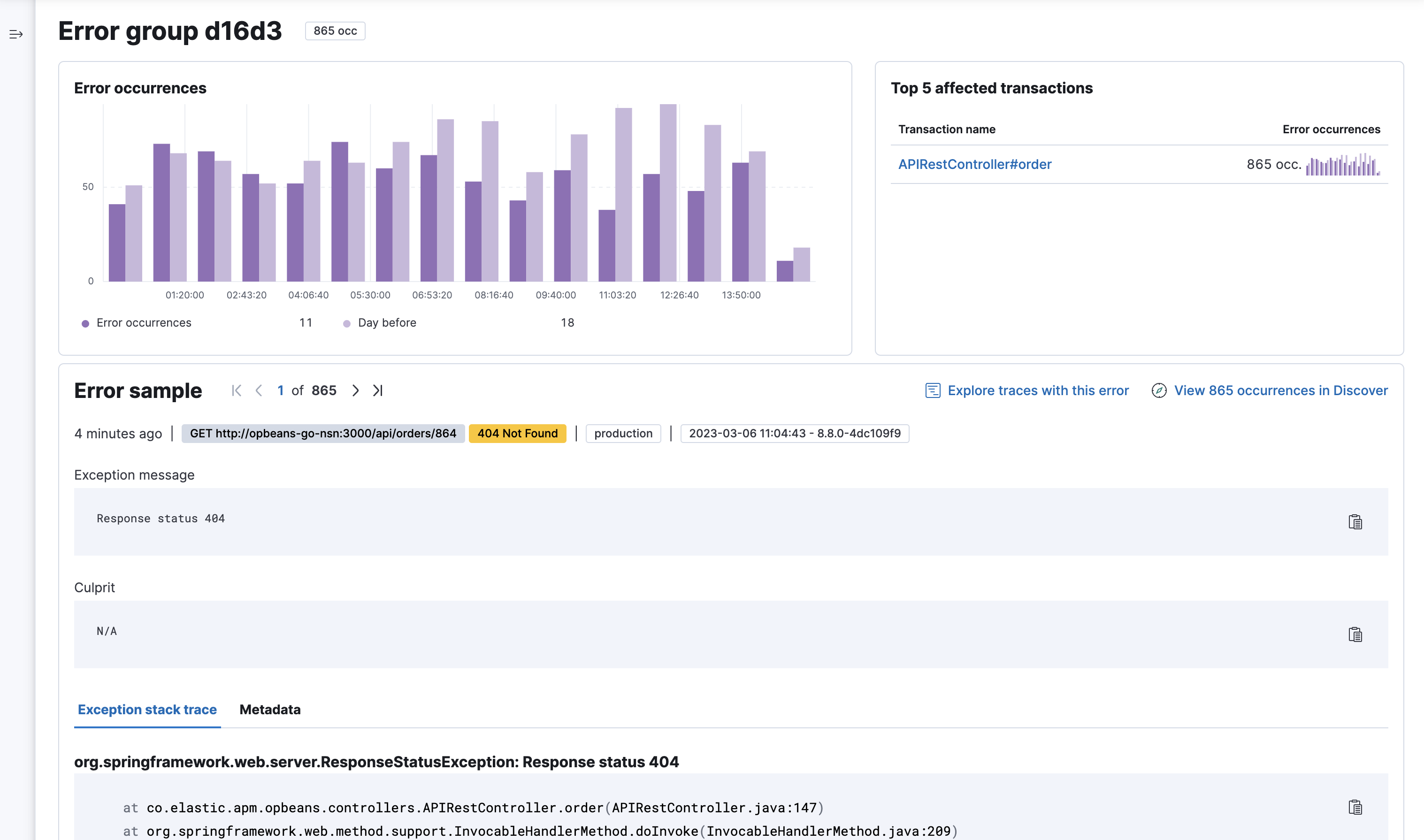
The error group details page visualizes the number of error occurrences over time and compared to a recent time range. This allows you to quickly determine if the error rate is changing or remaining constant. You’ll also see the top 5 affected transactions—enabling you to quickly narrow down which transactions are most impacted by the selected error.
Further down, you’ll see an Error sample. The error shown is always the most recent to occur. The sample includes the exception message, culprit, stack trace where the error occurred, and additional contextual information to help debug the issue—all of which can be copied with the click of a button.
In some cases, you might also see a Transaction sample ID. This feature allows you to make a connection between the errors and transactions, by linking you to the specific transaction where the error occurred. This allows you to see the whole trace, including which services the request went through.
The Errors from logs section is available in Elastic Stack 9.5.5 and later.
Depending on how your OpenTelemetry data is ingested, some exceptions are stored only as logs and aren't converted to APM errors. These exception logs have no error group, so they don't appear in the APM errors table and aren't counted in its charts. If your service produces exception logs like this, the APM errors section doesn't show every error that the service produces. Use the Errors from logs section to find the rest.
The Errors from logs section lists each exception log individually, with its exception message, type, and occurrence time. From this section, you can:
- Search the list by exception message or type. The list contains up to 500 of the most recent matching logs. To find older logs, refine the page's KQL query or narrow the time range.
- Click an exception message to inspect that log in Discover.
- Click Open in Discover to explore all matching exception logs.
The page's Kibana Query Language (KQL) search bar and time range apply to both the APM errors and Errors from logs sections. If a service has exception logs but no APM errors in the selected time range, the page shows only the Errors from logs section.
Waterfall error navigation to the Errors page is available in Elastic Stack 9.5.5 and later.
When a request fails or behaves unexpectedly, start from its trace to find the errors that occurred while it was processed. In the trace waterfall in APM, for example on a transaction details page, click View error, or View x errors if there is more than one.
This opens the service's Errors page, filtered to the errors recorded for that span or transaction in that trace. The results include both APM errors and OpenTelemetry exception logs. From there, open an error group to review its stack trace, or open an exception log in Discover. For mobile services, the link opens the Errors & crashes page instead.
To check whether the same errors affect other requests, clear the KQL query to explore errors across the service within the selected time range.