Connect to Amazon S3 with federated identity for ES|QL Data Federation
Federated identity lets Elasticsearch read an Amazon S3 data source without you storing any static AWS credentials. You configure AWS to trust the identities that Elastic Cloud issues for your project or deployment, and AWS grants Elasticsearch temporary, scoped read access to your bucket.
Setup happens in both Elastic and AWS:
- Elastic gives you a CloudFormation template or AWS CLI commands with your project or deployment's values filled in.
- You create the AWS resources and grant them read access to your bucket.
- You connect the data source in Elastic.
Refer to the AWS IAM documentation as the authoritative reference for the AWS commands shown here.
To follow this guide, you need:
- An Elastic Cloud Hosted deployment with ES|QL Data Federation enabled. Federated identity is:
- Available on Elastic Cloud Hosted on AWS, Azure, and Google Cloud.
- Not available on IBM Cloud, in special environments such as AWS GovCloud, or on self-managed, ECE, or ECK deployments.
- The cluster
manageprivilege, to use the ES|QL Data Federation UI. Refer to privileges. - An S3 bucket containing the files you want to query.
- An AWS identity that can create IAM resources. The permissions depend on your setup method.
Required AWS permissions
The AWS identity needs the following permissions:
- For either setup method, to grant the role read access to your bucket:
iam:CreatePolicyandiam:AttachRolePolicy. - For manual setup:
iam:CreateOpenIDConnectProvider,iam:GetOpenIDConnectProvider, andiam:CreateRole. If your AWS account already has an identity provider for your Elastic issuer and it doesn't list your audience, you also neediam:AddClientIDToOpenIDConnectProvider. - For CloudFormation setup:
- CloudFormation:
cloudformation:CreateStack,cloudformation:DescribeStacks,cloudformation:DescribeStackEvents, andcloudformation:GetTemplateSummary - IAM:
iam:CreateRole,iam:GetRole,iam:AttachRolePolicy,iam:PutRolePolicy,iam:GetRolePolicy, andiam:PassRole - Lambda:
lambda:CreateFunction,lambda:GetFunction, andlambda:InvokeFunction - CloudWatch Logs:
logs:CreateLogGroup,logs:PutRetentionPolicy, andlogs:DescribeLogGroups
- CloudFormation:
To delete these resources later, you also need the matching Delete* permissions.
Both setup methods start in Elastic:
- Go to Data management > ES|QL Data Federation.
- Open the Connect external data source flyout in one of these ways:
- On the Data sources tab, click Connect data source.
- On the Datasets tab, click Add dataset, then select Connect new data source in the Data source menu.
- Set Data source type to Amazon S3.
- Enter a Name for the data source.
- Under Authentication, keep Federated Identity selected as the Preferred method.
Keep the flyout open while you create the AWS resources.
Then choose a setup method:
- CloudFormation: Recommended. A template creates the AWS resources for you.
- Manual: You create the resources yourself, for example with the AWS CLI commands that Elastic shows.
In the flyout, CloudFormation is selected as the setup method by default:
CloudFormation setup in the Connect external data source flyout
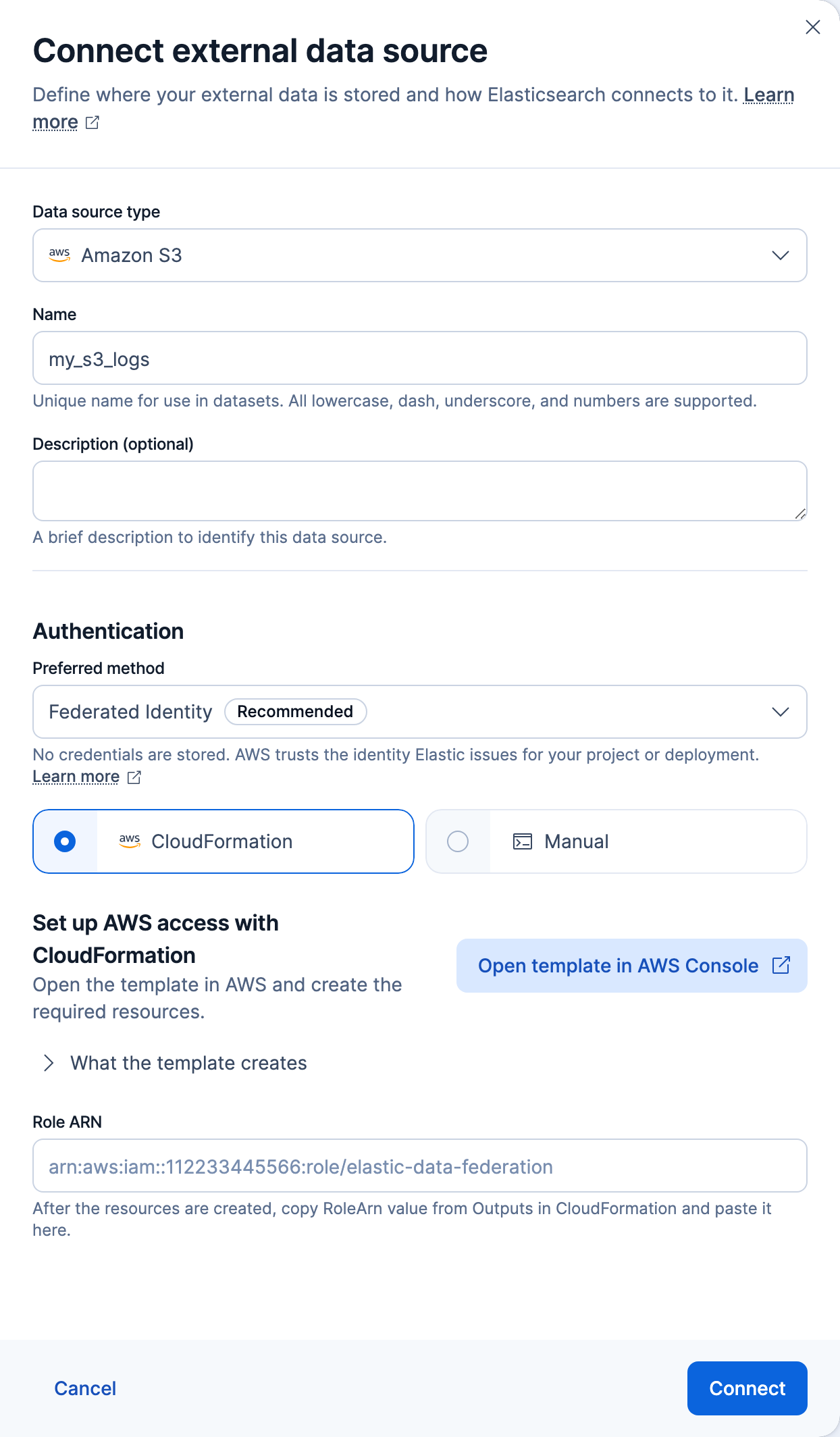
To set up federated identity with CloudFormation:
- In the Set up AWS access with CloudFormation section, click Open template in AWS Console. AWS opens a new CloudFormation stack named
elastic-datasources-federated-identity-<id>in a new tab, with your values filled in. - In AWS, create the stack:
- On the Quick create stack page, review the stack name and parameters.
- Under Capabilities, select the checkbox acknowledging that the template may create IAM resources.
- Click Create stack.
- Wait until the stack status is
CREATE_COMPLETE. - On the stack's Outputs tab, copy the RoleArn value.
- Grant the role read access to your bucket. The template creates the role without any permissions.
The template creates the following resources:
- IAM OpenID Connect identity provider: Trusts your Elastic issuer. Created only if your AWS account doesn't have one yet. Every CloudFormation stack for the same issuer shares it, so deleting a stack doesn't delete the provider.
- IAM role: Named
ElasticEsqlDataFederation-<stack-id>. Only your project or deployment can assume it. - Lambda function and log group: Create or update the shared identity provider.
In the flyout, select the Manual setup method.
Use one of the following approaches. Don't mix them, because the commands create the resources in a different order than the following steps:
- Run the commands from Elastic: Run all three in order in AWS CloudShell or any shell with the AWS CLI configured, then continue with connecting a data source and creating a dataset.
- Create the resources yourself: Follow these steps, for example in the AWS console or with infrastructure as code.
-
Create an OpenID Connect identity provider
Create an IAM identity provider that trusts the tokens Elastic issues, with the following values:
- Provider URL: Your issuer URL, the
JWT_ISSUERvalue in the Manual commands. - Client ID:
sts.amazonaws.com. The Elastic UI always uses this audience. To use a custom audience, set the same value here and in the data source'sjwt_audiencesetting, and connect the data source with the Console or curl request.
Example: create the provider with the AWS CLIFor console-based setup, refer to the AWS IAM documentation. To create the provider with the AWS CLI, run:
aws iam create-open-id-connect-provider \ --url "<elastic-jwt-issuer>" \ --client-id-list "sts.amazonaws.com"- If you use a custom audience, use the same value here, in the role's trust policy, and in the data source's
jwt_audiencesetting.
An AWS account can have only one identity provider for each issuer URL. If your account already has a provider for your Elastic issuer, for example from an earlier setup, reuse it instead of creating another:
- Find the provider's ARN under Identity providers in the IAM console, or with
aws iam list-open-id-connect-providers. - If the provider's client IDs don't include your audience, add it with
aws iam add-client-id-to-open-id-connect-provider.
Note the provider ARN, whether you created the provider or reused it. You reference it in the role's trust policy next.
- Provider URL: Your issuer URL, the
-
Create an IAM role
Create an IAM role that the identity provider can assume through
sts:AssumeRoleWithWebIdentity. The trust policy below restricts who can assume the role by matching the audience and subject from the Elastic-issued token.The following trust policy lets your identity provider assume the role, but only when the token's audience and subject match your values. Replace the placeholders with the values for your environment:
{ "Version": "2012-10-17", "Statement": [ { "Effect": "Allow", "Principal": { "Federated": "arn:aws:iam::<account-id>:oidc-provider/<issuer-host>/<path>" }, "Action": "sts:AssumeRoleWithWebIdentity", "Condition": { "StringEquals": { "<issuer-host>/<path>:aud": "sts.amazonaws.com", "<issuer-host>/<path>:sub": "deployment:<deployment-id>" } } } ] }- The ARN of the identity provider you created in the previous step.
- The condition key is the issuer URL with the
https://scheme removed, followed by:aud. The value must match the client ID you set on the provider, and the data source'sjwt_audience, which defaults tosts.amazonaws.com. - The condition key is the same issuer prefix followed by
:sub. The value is your subject:deployment:<deployment-id>on Elastic Cloud Hosted, orproject:<project-id>on serverless. It's theSUBJECTvalue in the Manual commands. This restricts the role to your project or deployment.
Example: create the role with the AWS CLITo create the role with the AWS CLI:
Save the preceding trust policy to a file named
trust-policy.json.Create the role:
aws iam create-role \ --role-name "<role-name>" \ --assume-role-policy-document file://trust-policy.json- The trust policy file from the previous step.
create-rolereturns the role ARN.
- The trust policy file from the previous step.
Note the role ARN that AWS returns. You enter it when you connect the data source.
Once the role is created, grant it read access.
The role needs permission to read your bucket. Whether you need this section depends on how you created the role:
- With CloudFormation: The template creates the role without any permissions. Attach the following policy.
- Manually: If you ran the commands that Elastic shows, they already attached this policy, so continue with Connect data source and create a dataset. If you created the resources in the AWS console or with infrastructure as code, attach the following policy.
The following policy grants the minimum access Elasticsearch needs: s3:GetObject to read your objects, and s3:ListBucket to list the bucket for prefix or glob queries:
{
  "Version": "2012-10-17",
  "Statement": [
    {
      "Effect": "Allow",
      "Action": [ "s3:GetObject" ],
      "Resource": [ "arn:aws:s3:::<bucket-name>/<path>/*" ]
    },
    {
      "Effect": "Allow",
      "Action": [ "s3:ListBucket" ],
      "Resource": [ "arn:aws:s3:::<bucket-name>" ]
    }
  ]
}
- Object-level actions apply to object ARNs. Narrow this to a prefix or a single file to grant the least access needed.
- Bucket-level actions apply to the bucket ARN, not object ARNs. Include this statement only if you query by prefix or glob rather than a single fixed file.
Example: create and attach the policy with the AWS CLI
To create the policy and attach it to the role with the AWS CLI:
Save the preceding permissions policy to a file named
permissions-policy.json.Create the policy and attach it to the role. Replace
<role-name>with the role's name, which is the last part of its ARN. For CloudFormation, it's theElasticEsqlDataFederation-<stack-id>name at the end of the stack'sRoleArnoutput.# Create the permissions policy POLICY_ARN=$(aws iam create-policy \ --policy-name "<policy-name>" \ --policy-document file://permissions-policy.json \ --query 'Policy.Arn' --output text) # Attach it to the role aws iam attach-role-policy \ --role-name "<role-name>" \ --policy-arn "${POLICY_ARN}"- The policy ARN returned by
create-policy. Attaching the policy authorizes the role to read your data.
- The policy ARN returned by
Once the policy is attached, connect the data source and create a dataset.
After the role can read your bucket, connect the data source and create a dataset that reads from it.
Connect the data source with the role ARN from either setup method:
To connect in the UI:
In the Connect external data source flyout you opened earlier, paste the role ARN into Role ARN.
If you used CloudFormation and the ARN isn't the
ElasticEsqlDataFederation-<stack-id>role that the template created, Elastic warns that it doesn't look like a CloudFormation-generated role.Click Connect.
To learn more about connecting data sources, refer to data sources.
Create the data source with this request:
				PUT /_query/data_source/prod_s3_federated
					{
  "type": "s3",
  "settings": {
    "auth": "federated_identity",
    "role_arn": "arn:aws:iam::112233445566:role/<role-name>",
    "jwt_audience": "sts.amazonaws.com"
  }
}
- The ARN of the role you created in AWS.
- If you use a custom audience, set
jwt_audienceto match theaudcondition in the role's trust policy.
Create the data source with this request:
curl -X PUT "${ELASTICSEARCH_URL}/_query/data_source/prod_s3_federated" \
  -H "Authorization: ApiKey ${API_KEY}" \
  -H "Content-Type: application/json" \
  -d '{
  "type": "s3",
  "settings": {
    "auth": "federated_identity",
    "role_arn": "arn:aws:iam::112233445566:role/<role-name>",
    "jwt_audience": "sts.amazonaws.com"
  }
}'
If federated identity isn't available for your project or deployment, connecting fails with an error. Refer to Before you begin.
If you connected the data source from the Add dataset wizard, the wizard selects it for you, so continue with the wizard.
Create a dataset that points at your files, for example s3://amzn-s3-demo-bucket/some/sample.parquet in Parquet format.
You can now query the remote data with ES|QL.
If your bucket isn't in standard commercial AWS, set region on the dataset. With federated identity, the dataset's region also selects the STS endpoint used to assume the role, unless the data source sets sts_region.
Continue with the following dataset and security tasks:
- Query your data with
FROM, including metadata columns and current limitations. - Manage datasets over this data source, and review file formats and dataset settings.
- Manage credentials and privileges to control who can access your data sources and datasets.