Set up SAML with Microsoft Entra ID
This guide provides a walk-through of how to configure Microsoft Entra ID, formerly known as Azure Active Directory, as an identity provider for SAML single sign-on (SSO) authentication, used for accessing Kibana.
For more information about SAML configuration, refer to:
Follow these steps to configure SAML with Microsoft Entra ID as an identity provider to access Kibana.
Configure the Entra Identity Provider:
Log in to the Azure Portal and navigate to Entra (formerly Azure Active Directory).
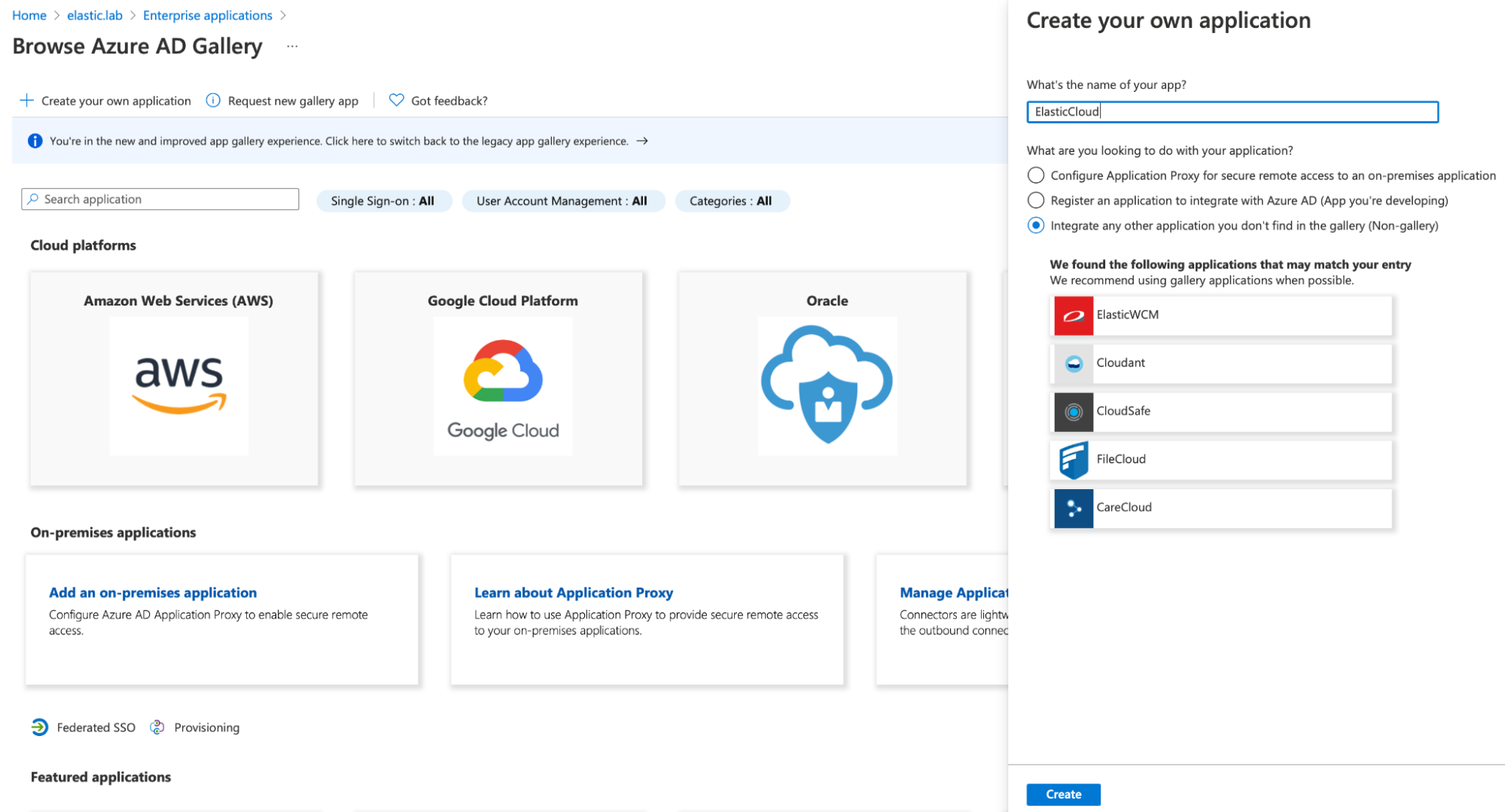
Click Enterprise applications and then New application to register a new application.
Click Create your own application, provide a name, and select the Integrate any other application you don’t find in the gallery option.
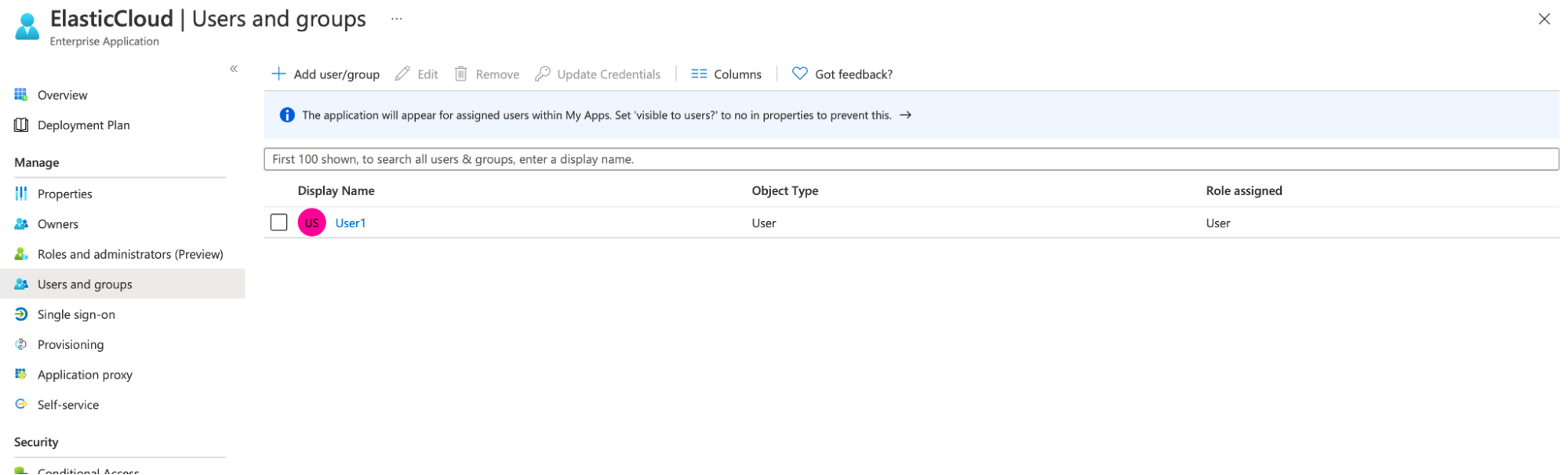
Navigate to the new application, click Users and groups, and add all necessary users and groups. Only the users and groups that you add here will have SSO access to the Elastic Stack.
Navigate to Single sign-on and edit the basic SAML configuration, adding the following information:
Identifier (Entity ID)- a string that uniquely identifies a SAML service provider. We recommend using your Kibana URL, but you can use any identifier.For example,
https://saml-azure.kb.northeurope.azure.elastic-cloud.com:443.Reply URL- This is the Kibana URL with/api/security/saml/callbackappended.For example,
https://saml-azure.kb.northeurope.azure.elastic-cloud.com:443/api/security/saml/callback.Logout URL- This is the Kibana URL with/logoutappended.For example,
https://saml-azure.kb.northeurope.azure.elastic-cloud.com:443/logout.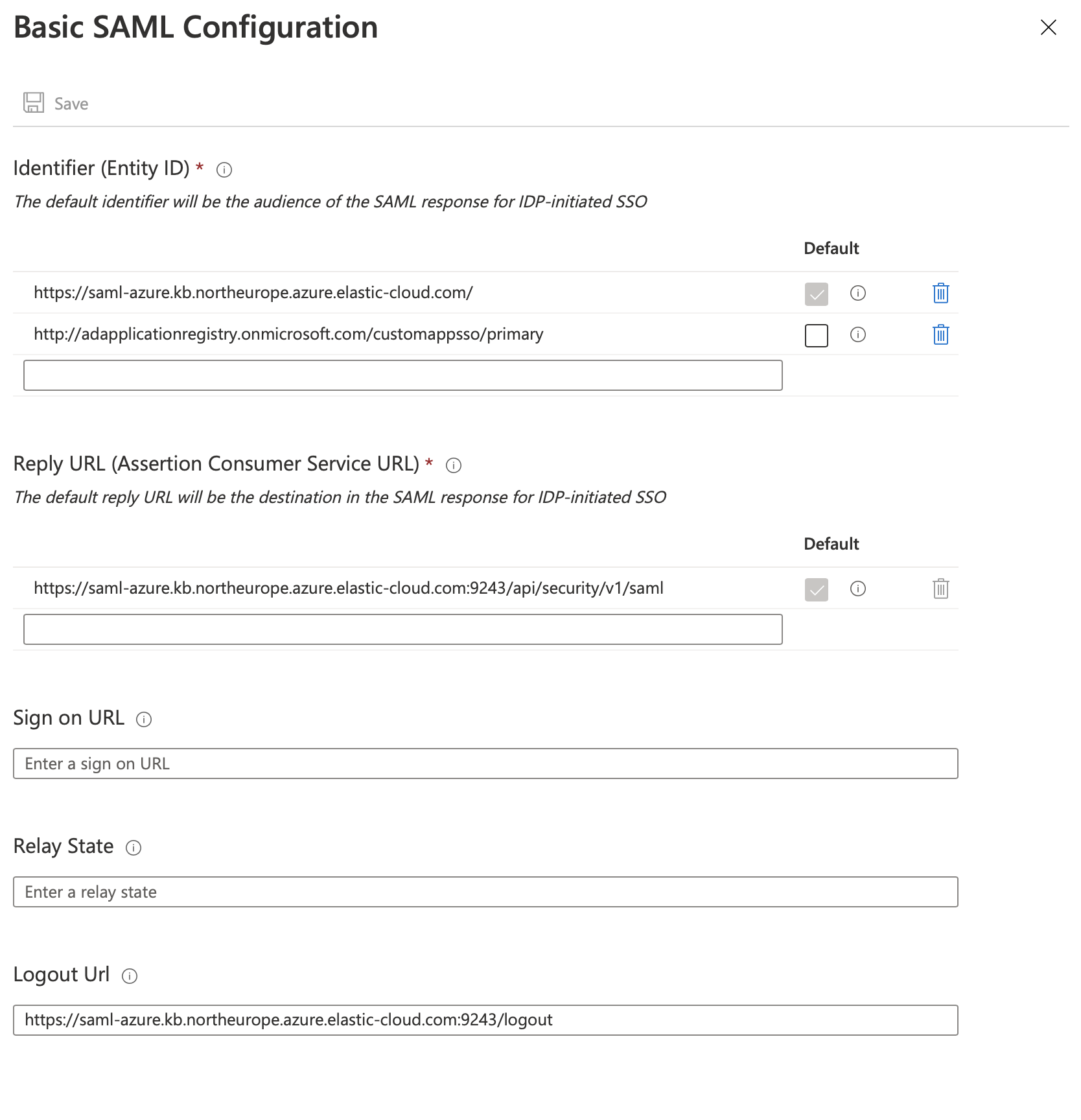
Navigate to SAML-based Single sign-on, open the User Attributes & Claims configuration, and update the fields to suit your needs. These settings control what information from Microsoft Entra ID will be made available to the Elastic Stack during SSO. This information can be used to identify a user in the Elastic Stack and/or to assign different roles to users in the Elastic Stack. We suggest that you configure a proper value for the
Unique User Identifier (Name ID)claim that identifies the user uniquely and is not prone to changes.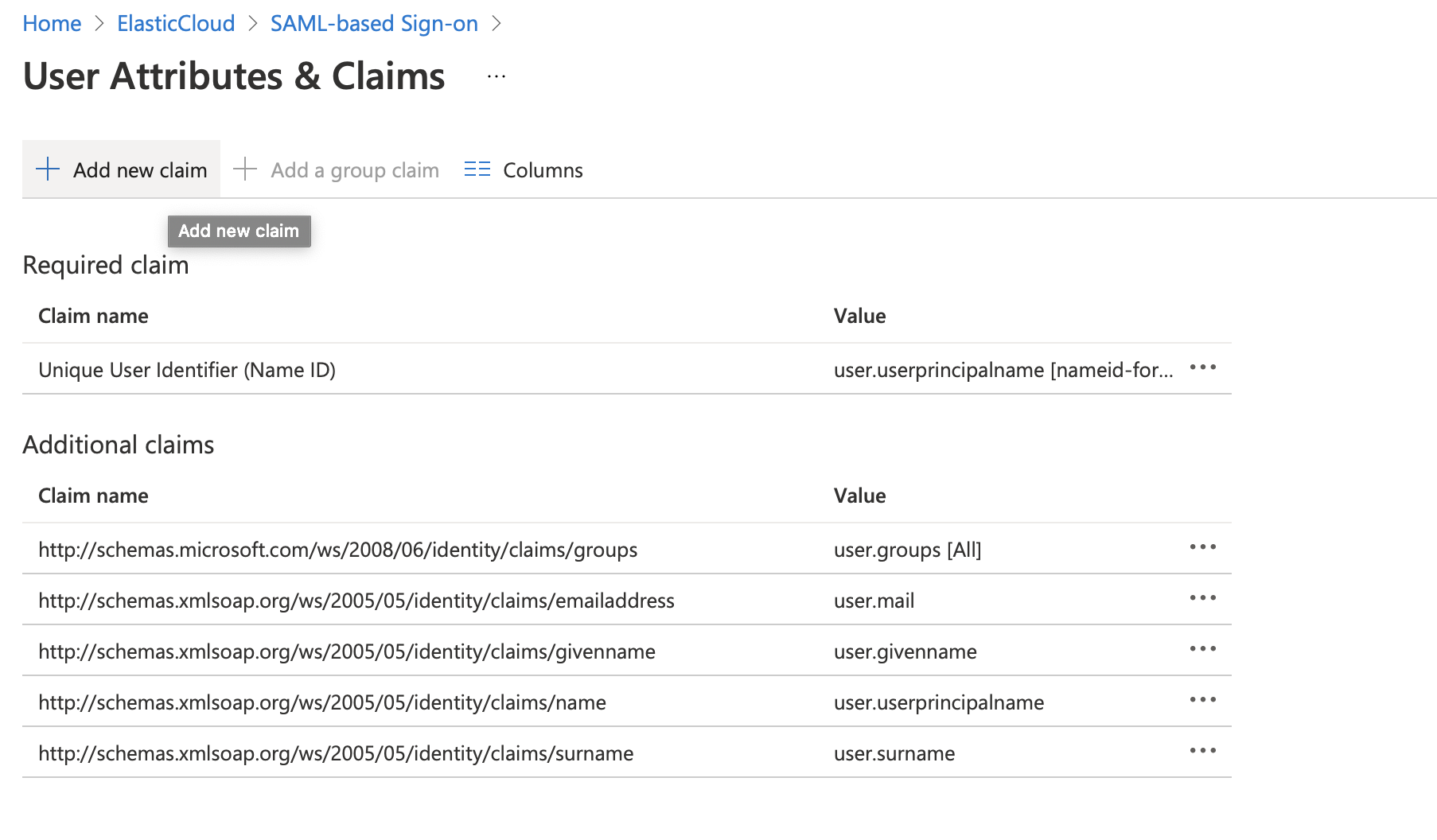
Optional: If you use group-based role mappings and your Microsoft Entra ID license supports assigning groups to applications, restrict the group claim to groups assigned to the application. This helps keep the groups sent for each user within the 150-group SAML limit.
- In User Attributes & Claims, click Add a group claim, or edit the existing group claim.
- Select Groups assigned to the application. Keep the default group claim name,
http://schemas.microsoft.com/ws/2008/06/identity/claims/groups, to matchattributes.groupsin the Elasticsearch configuration, then save the claim. - In Users and groups, assign the groups you plan to use in your Elastic role mappings. Users must be direct members of these groups: this option doesn't include nested group memberships.
If a user's group list exceeds this limit, Entra ID omits the group claim and group-based role mappings don't match. For details about this problem, refer to Resolve missing group claims.
From the SAML configuration page, make a note of the
App Federation Metadata URL.
Configure Elasticsearch and Kibana for SAML:
Update your Elasticsearch settings with the following configuration:
xpack.security.authc.realms.saml.kibana-realm: order: 2 attributes.principal: nameid attributes.groups: "http://schemas.microsoft.com/ws/2008/06/identity/claims/groups" idp.metadata.path: "https://login.microsoftonline.com/<Tenant ID>/federationmetadata/2007-06/federationmetadata.xml?appid=<Application_ID>" idp.entity_id: "https://sts.windows.net/<Tenant_ID>/" sp.entity_id: "<Kibana_Endpoint_URL>" sp.acs: "<Kibana_Endpoint_URL>/api/security/saml/callback" sp.logout: "<Kibana_Endpoint_URL>/logout"- Entra ID omits this attribute when a user's groups exceed the 150-group SAML limit. For workarounds, refer to Resolve missing group claims.
Where:
<Application_ID>is your Application ID, available in the application details in Azure.<Tenant_ID>is your Tenant ID, available in the tenant overview page in Azure.<Kibana_Endpoint_URL>is the base URL for your Kibana instance. Ensure this is the same value that you set forIdentifier (Entity ID)in the earlier Microsoft Entra ID configuration step.For
idp.metadata.path, we’ve shown the format to construct the URL. This value should be identical to theApp Federation Metadata URLsetting that you made a note of in the previous step.
Next, configure Kibana to enable SAML authentication:
Update your Kibana settings with the following configuration:
xpack.security.authc.providers:
  saml.kibana-realm:
    order: 0
    realm: kibana-realm
    description: "Log in with Microsoft Entra ID"
The configuration values used in the previous example are:
xpack.security.authc.providers- Add
samlprovider to instruct Kibana to use SAML SSO as the authentication method. xpack.security.authc.providers.saml.<provider-name>.realm-
Set this to the name of the SAML realm that you have used in your Elasticsearch realm configuration. For this example, use the realm name that you configured in the previous step:
kibana-realm.
Create a role mapping.
The following role mapping for SAML SSO restricts access to a specific user
(email)based on theattributes.principalemail address. This prevents other users on the same domain from having access to your deployment. You can remove the rule or adjust it at your convenience.POST /_security/role_mapping/SAML_kibana { "enabled": true, "roles": [ "superuser" ], "rules" : { "all" : [ { "field" : { "realm.name" : "kibana-realm" } }, { "field" : { "username" : [ "<firstname.lastname>" ] } } ] }, "metadata": { "version": 1 } }For more information, refer to Configure role mapping in the Elasticsearch SAML documentation.
You should now have successfully configured SSO access to Kibana with Microsoft Entra ID as the identity provider.
Use this procedure if users can't access Kibana or don't receive the expected roles because Entra ID omits their group memberships from the SAML assertion.
- Some users receive a
Forbiddenresponse or don't receive the expected roles after signing in with Microsoft Entra ID. - Their SAML assertion contains
http://schemas.microsoft.com/claims/groups.linkinstead of the group membership attribute used by your role mappings.
Microsoft Entra ID limits group claims in SAML assertions to 150 groups, including nested groups. When a user exceeds this limit, Entra ID omits the group list and sends a link to retrieve memberships through a Graph API instead. This is called a group overage. Role mappings that depend on the missing groups don't match.
To reduce the likelihood of encountering this issue, configure Entra ID to send only the groups needed for access to Elastic. The Groups assigned to the application option requires a Microsoft Entra ID license that supports assigning groups to applications. It includes only direct group memberships, so users who access Elastic through nested groups need direct membership in a group assigned to the application.
- In Microsoft Entra ID, open Enterprise applications and select the application you configured for Elastic SAML SSO.
- In Users and groups, assign the groups used by your Elastic role mappings. Confirm that affected users are direct members of these groups.
- In Single sign-on → Attributes & Claims, edit the group claim and select Groups assigned to the application. Keep the claim name and source attribute required by your Elastic configuration, then save your changes.
- Confirm that the groups returned for each user stay within the 150-group SAML limit. Assigning groups to the application reduces the group list but doesn't remove this limit.
- Sign in again with an affected user. Confirm that the SAML assertion includes the expected group values and that the user receives the roles assigned by your Elastic role mappings.
For details about group assignment and other ways to limit group claims, refer to Configure group claims for applications and Group overages in the Microsoft documentation.
For the configuration in this guide, the group claim name must match attributes.groups: http://schemas.microsoft.com/ws/2008/06/identity/claims/groups.
If you can't restrict the groups in the SAML assertion, you can use the Microsoft Graph Authz plugin to retrieve group memberships directly from Microsoft Entra ID. The SAML realm continues to authenticate users and delegates authorization to the plugin's realm, which evaluates role mappings to assign roles.
Install and configure the Microsoft Graph Authz plugin:
- Install the plugin following the installation instructions.
- Follow Configure Azure to obtain application credentials and admin consent for the required Microsoft Graph API permissions.
- Configure a Microsoft Graph realm with the application's
client_idandtenant_id. Store the realm'sclient_secretas a secure setting.
Add
authorization_realmsto your SAML realm to delegate group lookup and role mapping evaluation to the Microsoft Graph realm.For example, if the Microsoft Graph realm is named
microsoft_graph1, add this setting to thekibana-realmSAML configuration from this guide:xpack.security.authc.realms.saml.kibana-realm.authorization_realms: microsoft_graph1NoteThe SAML principal configured with
attributes.principalmust be the user's Microsoft Entra user principal name (UPN) or object ID. This guide usesattributes.principal: nameid, so Entra ID must send one of these values as the SAMLNameID. The default Entra IDNameIDis the UPN.After delegating authorization, create or update role mappings for the Microsoft Graph realm. Update
realm.namerules that refer tokibana-realmto usemicrosoft_graph1instead. Use Microsoft Entra group object IDs forgroups.For example, the following mapping assigns the
superuserrole to users who belong to a specific Microsoft Entra ID group:POST /_security/role_mapping/SAML_Graph_groups{ "enabled": true, "roles": [ "superuser" ], "rules": { "all": [ { "field": { "realm.name": "microsoft_graph1" } }, { "field": { "groups": "<Microsoft_Entra_group_object_ID>" } } ] }, "metadata": { "version": 1 } }ImportantWith delegation, the SAML realm no longer evaluates role mappings. The Microsoft Graph realm evaluates mappings using the username, its own realm name, and group object IDs. Rules that depend on SAML metadata, such as
metadata.saml_*, or a distinguished name (dn) no longer match.After SAML authentication, the Microsoft Graph user lookup must succeed for sign-in to complete. The plugin retrieves transitive group memberships, so role mappings match both direct and nested groups.
The plugin applies to SAML configured in Elasticsearch, including deployment-level SAML on Elastic Cloud Hosted. It doesn't apply to Elastic Cloud organization SSO.