Update the lifecycle of a data stream
Change the lifecycle configuration for a classic Elasticsearch data stream, such as its data retention or phases.
For wired data streams, go to Configure data lifecycle with Streams. For index lifecycle management (ILM), refer to Update or switch an Elasticsearch index lifecycle policy.
To follow these steps, you need:
- A classic data stream. To create one, refer to Creating a data stream with a lifecycle.
- The
manage_data_stream_lifecycleindex privilege on the data stream and its backing indices. - To view and configure a failure store, the required failure store permissions.
-
A default snapshot repository and an appropriate license for searchable snapshots if you turn on frozen phase transitions. Refer to Manage snapshot repositories.
Add or change the data stream lifecycle with the Index Management or Streams tools in Kibana or the Elasticsearch lifecycle API.
Find Index Management in the navigation menu or use the global search field.
Select the Data Streams tab.
Search for the data stream.
Select the data stream to view its details.
In the data stream details pane, click the actions icon and select Edit data lifecycle.
To customize the lifecycle for this data stream, clear Inherit lifecycle from index template on each tab you want to edit:
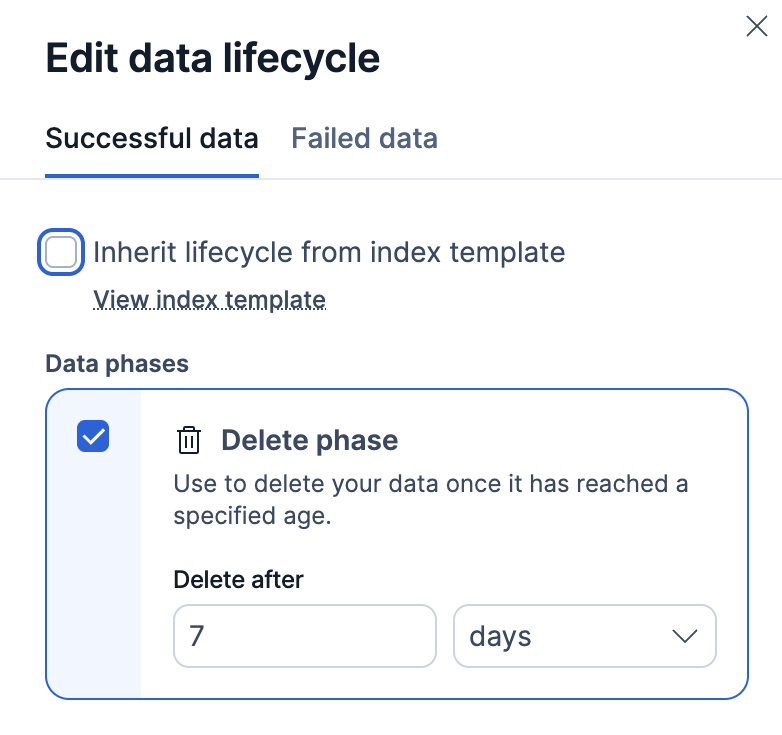
- On the Successful data tab, select the Delete phase to choose how long to retain your data, in days, hours, minutes, or seconds.
- On the Failed data tab, select Enable failure store to turn on a failure store. Select how long to retain failure store data, in days, hours, minutes, or seconds.
Click Apply to save the changes.
Lifecycle changes apply to every backing index of the data stream.
Find Index Management in the navigation menu or use the global search field.
Select the Data Streams tab.
Search for the data stream.
Select the data stream to view its details.
In the data stream details pane, click the actions icon and select Edit data lifecycle.
To customize the lifecycle for this data stream, clear Inherit lifecycle from index template on each tab you want to edit:
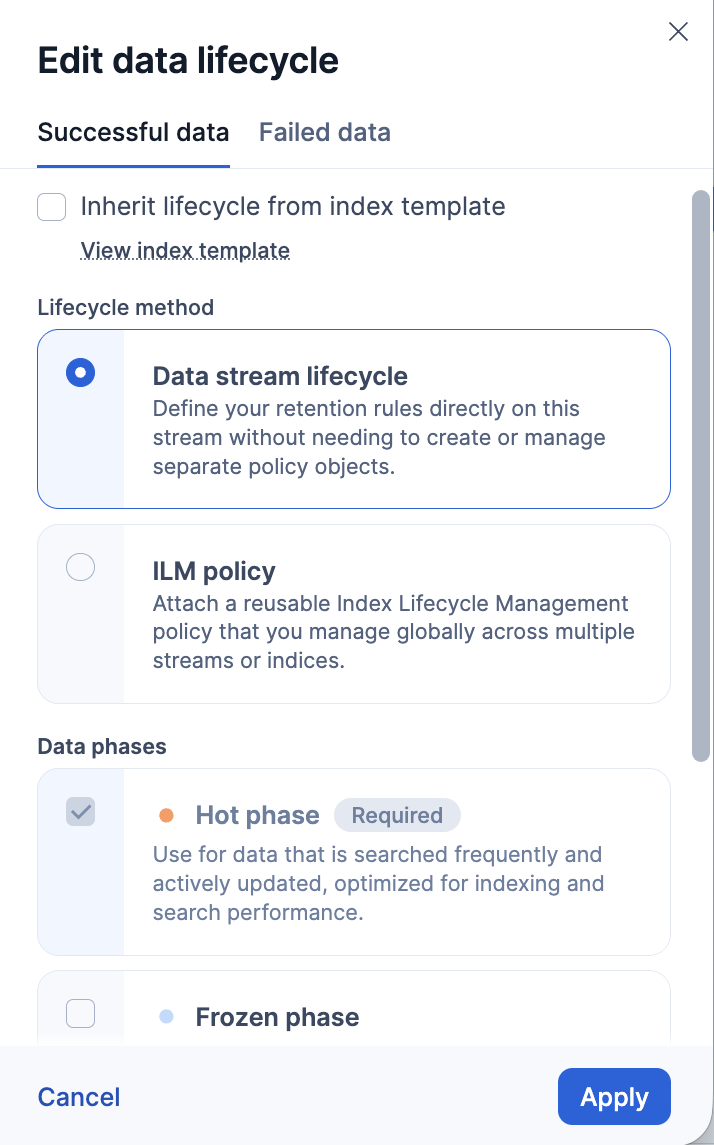
On the Successful data tab:
Select the Delete phase to choose how long to retain your data, in days, hours, minutes, or seconds. If you deselect the delete phase, Elasticsearch does not delete the data.
Select the Frozen phase to choose when to move your data to searchable snapshots, in days, hours, minutes, or seconds. This period must be shorter than the delete phase. To change the default snapshot repository, refer to Elastic Cloud Hosted or self-managed instructions.
On the Failed data tab, select Enable failure store to turn on a failure store. Select how long to retain failure store data, in days, hours, minutes, or seconds.
Click Apply to save the changes.
Reopen the data stream flyout to confirm the change. The flyout shows the successful and failure ingest lifecycle details.
Lifecycle changes apply to every backing index of the data stream.
Find Index Management in the navigation menu or use the global search field.
Select the Data Streams tab.
Search for the data stream.
Select the data stream to view its details.
In the data stream details pane, select Manage → Edit data retention.
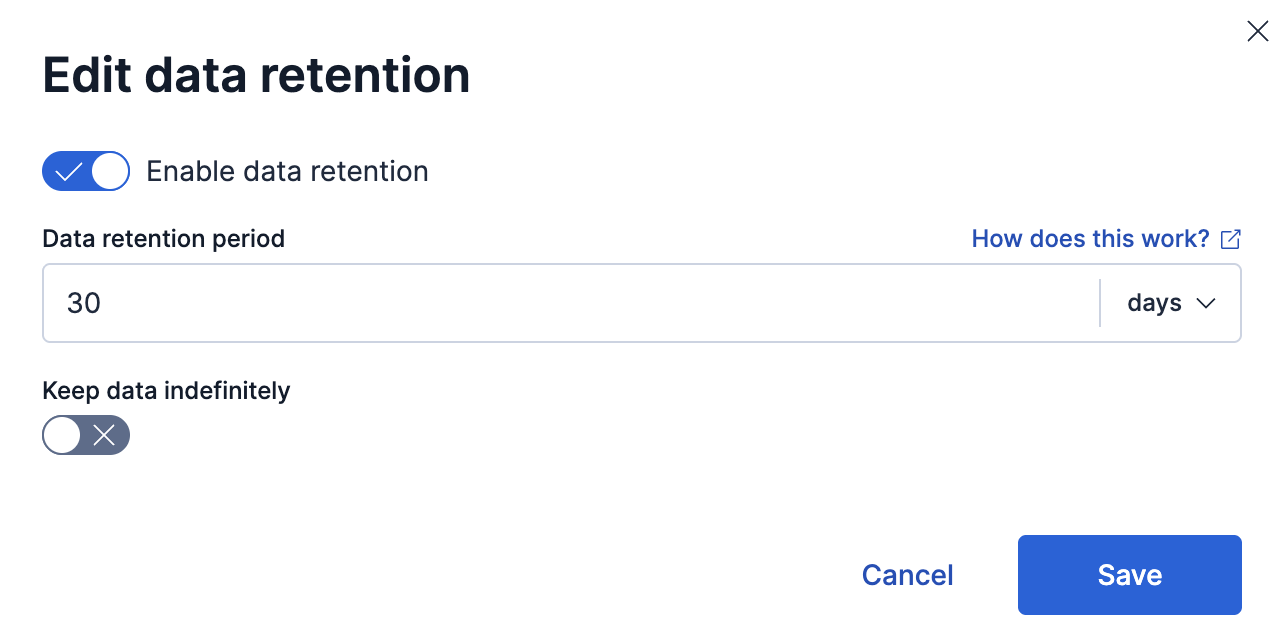
You can do any of the following:
- Select how long to retain your data, in days, hours, minutes, or seconds.
- Select Keep data indefinitely. The data stream stays managed but Elasticsearch does not delete the data. Managing a time series data stream, such as logs or metrics, helps Elasticsearch store your data even when you don't set a retention period.
- Turn off Enable data retention to stop data stream lifecycle management for this data stream.
Click Save to save the changes.
Reopen the data stream flyout to confirm the change. The flyout shows the effective data retention settings.
Lifecycle changes apply to every backing index of the data stream.
API example
To update the lifecycle of a data stream, use the Elasticsearch lifecycle API. For example:
Set a retention period:
PUT _data_stream/my-data-stream-test/_lifecycle{ "data_retention": "30d" }- The retention period of this data stream is 30 days. Elasticsearch can delete data older than 30 days.
Optionally add frozen_afterso older backing indices become partially mounted searchable snapshots on the frozen tier:PUT _data_stream/my-data-stream-test/_lifecycle{ "data_retention": "365d", "frozen_after": "30d" }- If you specify both
data_retentionandfrozen_after, the latter duration must be shorter than the former.
In this example, backing indices older than 30 days are converted to frozen searchable snapshots. Elasticsearch can still delete indices when their
generation_timeexceeds the effective retention period, even after they are frozen. For prerequisites, how conversion works, and troubleshooting, refer to Searchable snapshots for data streams.- If you specify both
Remove the lifecycle settings configured on the data stream:
PUT _data_stream/my-data-stream-test/_lifecycle{ }- An empty payload means that your data stream lifecycle uses global settings. For example, the global default and maximum retention settings apply. Refer to Setting retention for Elasticsearch data streams.
These lifecycle changes apply to every backing index of the data stream. To check the settings, use the Elasticsearch explain API:
GET my-data-stream-test/_lifecycle/explain
Example response for the 30-day retention configuration:
{
  "indices": {
    ".ds-my-data-stream-test-2026.10.17-000001": {
      "index": ".ds-my-data-stream-test-2026.10.17-000001",
      "managed_by_lifecycle": true,
      "index_creation_date_millis": 1792195511314,
      "time_since_index_creation": "2.97d",
      "rollover_date_millis": 1792440980120,
      "time_since_rollover": "3.12h",
      "generation_time": "3.12h",
      "lifecycle": {
        "enabled": true,
        "data_retention": "30d",
        "retention_determined_by": "data_stream_configuration"
      }
    },
    ".ds-my-data-stream-test-2026.10.19-000002": {
      "index": ".ds-my-data-stream-test-2026.10.19-000002",
      "managed_by_lifecycle": true,
      "index_creation_date_millis": 1792440980129,
      "time_since_index_creation": "3.12h",
      "lifecycle": {
        "enabled": true,
        "data_retention": "30d",
        "retention_determined_by": "data_stream_configuration"
      }
    }
  }
}
- The name of the backing index.
- This index is managed by a data stream lifecycle.
- The time since this index was created.
- The time since this index was rolled over.
- The time used to determine when it's safe to delete this index and its data.
- The data retention for this index is at least 30 days, because the lifecycle was updated recently.
Remove the lifecycle with the Elasticsearch delete lifecycle API. For example:
DELETE _data_stream/my-data-stream-test/_lifecycle
After this request, the maintenance operations from the lifecycle no longer apply to the data stream or its backing indices.
Use the explain API to verify that the indices are no longer managed.
GET my-data-stream-test/_lifecycle/explain
{
  "indices": {
    ".ds-my-data-stream-test-2026.10.17-000001": {
      "index": ".ds-my-data-stream-test-2026.10.17-000001",
      "managed_by_lifecycle": false,
      "unmanaged_reason": "Index [.ds-my-data-stream-test-2026.10.17-000001] belongs to data stream [my-data-stream-test] which does not have data stream lifecycle configuration."
    },
    ".ds-my-data-stream-test-2026.10.19-000002": {
      "index": ".ds-my-data-stream-test-2026.10.19-000002",
      "managed_by_lifecycle": false,
      "unmanaged_reason": "Index [.ds-my-data-stream-test-2026.10.19-000002] belongs to data stream [my-data-stream-test] which does not have data stream lifecycle configuration."
    }
  }
}
- The name of the backing index.
- The data stream lifecycle does not manage the index.
-
The reason the data stream is not managed.