View entity details
Serverless Security Stack
You can learn more about an entity (host, user, or service) from the entity details flyout, which is available throughout the Elastic Security app. To access this flyout, click on an entity name in places such as:
- The Alerts table
- The Entity Analytics overview
- The Users and user details pages
- The Hosts and host details pages
The entity details flyout includes the following sections:
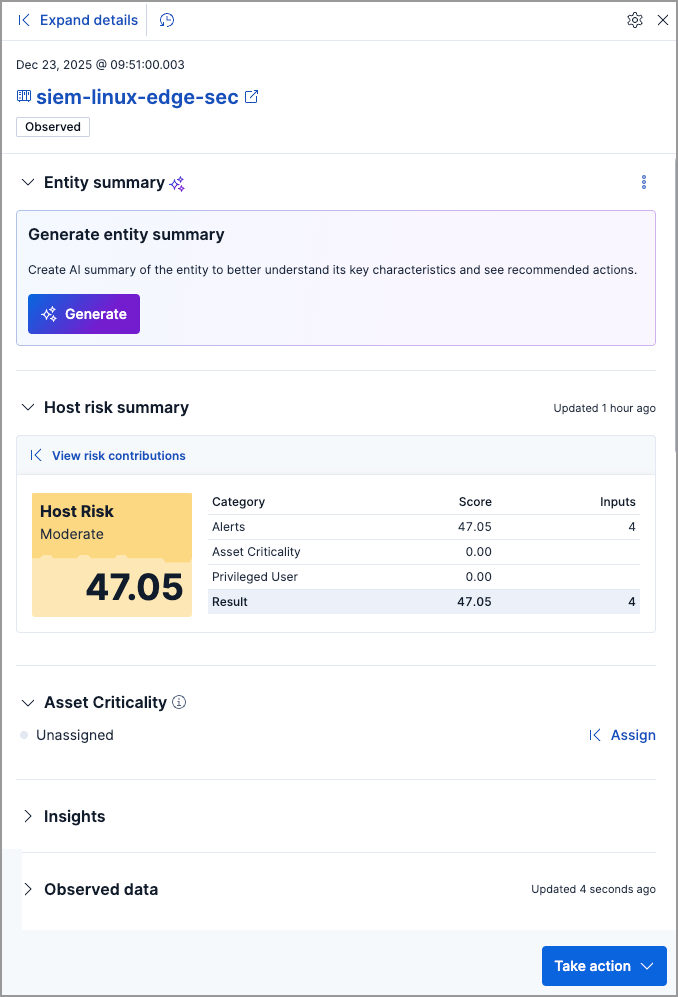
- Serverless Stack Entity summary, which allows you to generate an AI summary of the entity.
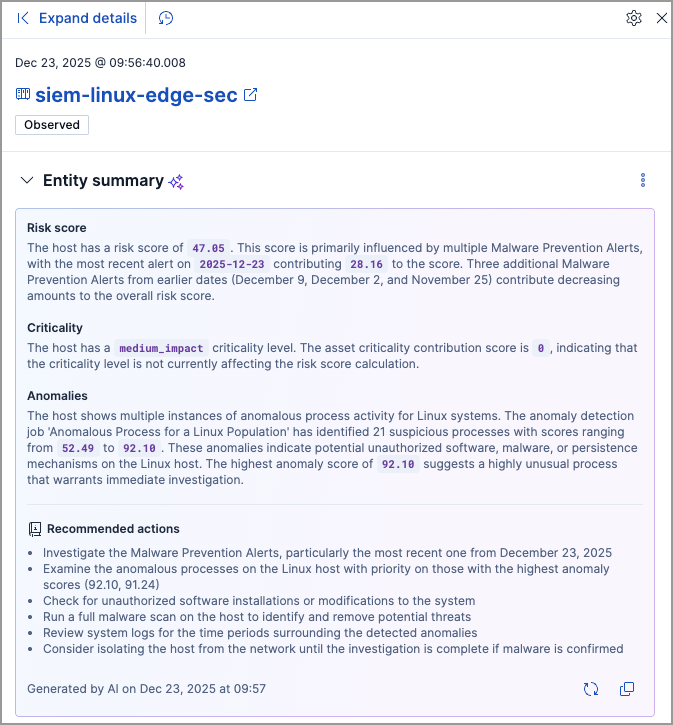
- Entity risk summary, which displays entity risk data and inputs.
- Asset Criticality, which allows you to view and assign asset criticality.
- Insights, which displays vulnerabilities or misconfiguration findings for the entity.
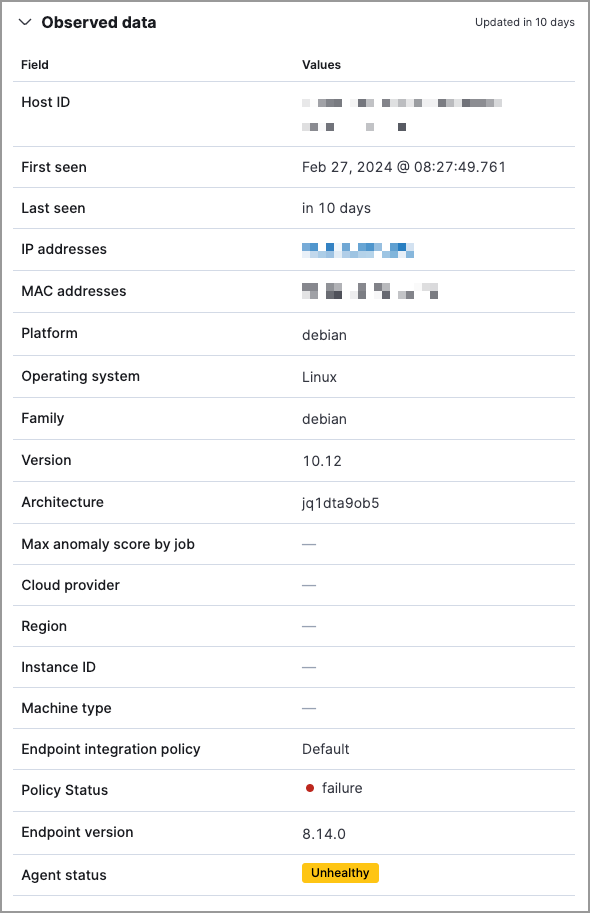
- Observed data, which displays entity details.
Serverless Stack
- To generate an AI summary, you need to configure a generative AI connector.
- This feature is only available for users and hosts.
The Entity summary section allows you to generate an AI-powered summary of the entity's security context. Click Generate to create a comprehensive overview that aggregates information from:
- Risk scores and risk inputs
- Asset criticality levels
- Vulnerabilities and misconfigurations
- Machine learning anomalies associated with the entity
The summary provides a consolidated view of the entity's security posture, helping you quickly assess its significance and prioritize investigations. It includes information such as:
- The entity's current risk score with details about which alerts or rules contribute most significantly to the score
- The entity's asset criticality level and how it contributes to the overall risk score
- Details about detected vulnerabilities, including CVE identifiers, CVSS scores, affected packages or systems, and remediation guidance
- Recommended next steps based on the entity's security posture, such as updating vulnerable packages, investigating specific alerts, or implementing additional security controls
If you have AI Assistant set up, you can select More actions ( ) → Ask AI Assistant to continue the conversation about the entity in AI Assistant.
The entity risk summary section is only available if the risk scoring engine is turned on.
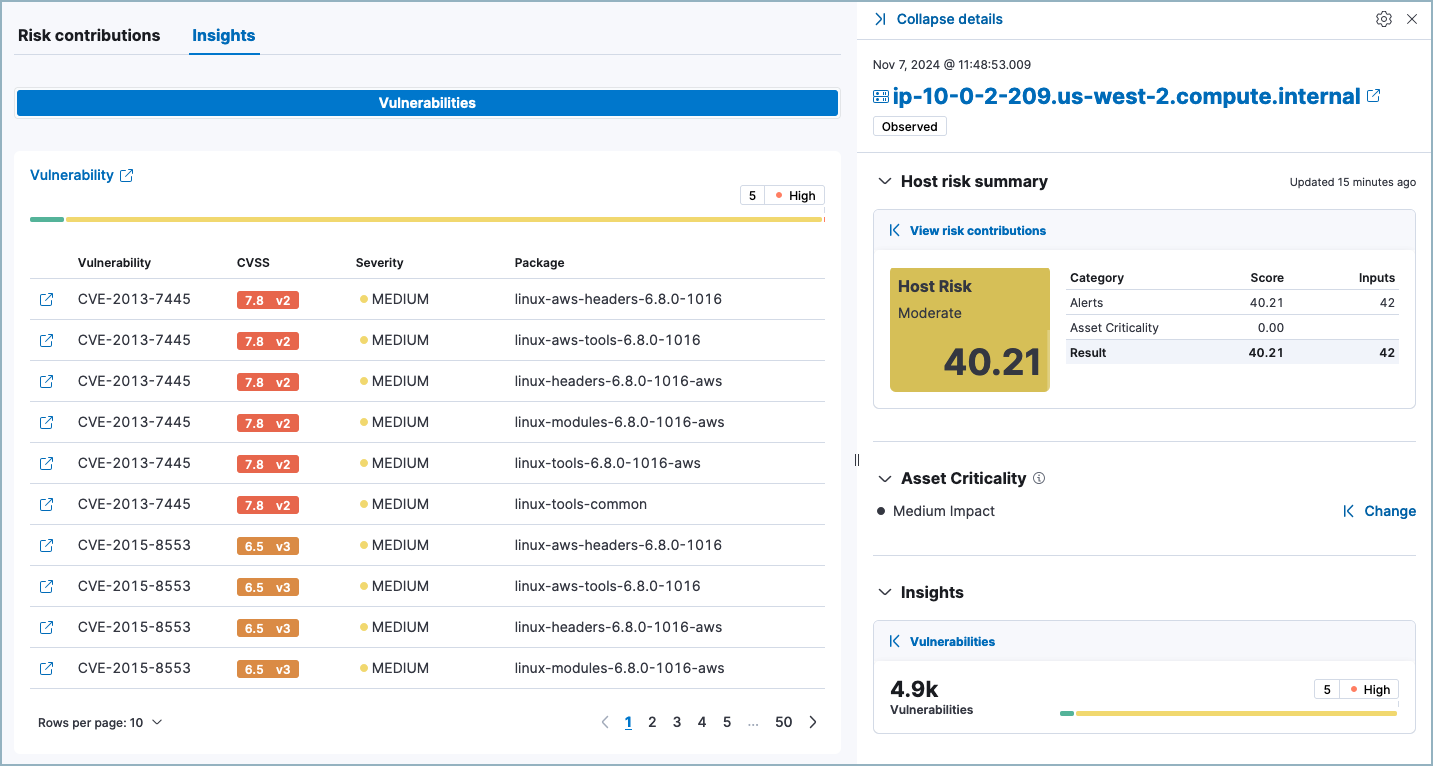
The entity risk summary section contains a risk summary visualization and table.
The risk summary visualization shows the entity risk score and risk level. Hover over the visualization to display the Options menu. Use this menu to inspect the visualization's queries, add it to a new or existing case, save it to your Visualize Library, or open it in Lens for customization.
The risk summary table shows the category, score, and number of risk inputs that determine the entity risk score. Hover over the table to display the Inspect button, which allows you to inspect the table's queries.
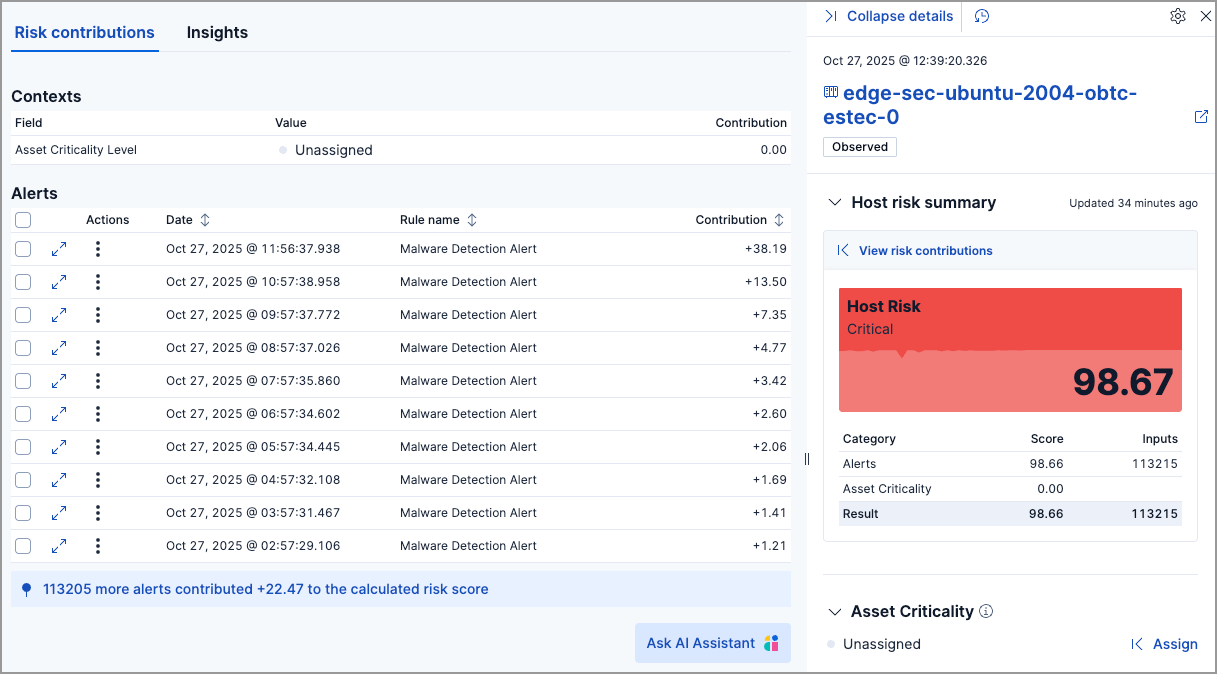
To expand the entity risk summary section, click View risk contributions. The left panel displays additional details about the entity's risk inputs:
- The asset criticality level and contribution score from the latest risk scoring calculation.
- The top 10 alerts that contributed to the latest risk scoring calculation, and each alert's contribution score.
If more than 10 alerts contributed to the risk scoring calculation, the remaining alerts' aggregate contribution score is displayed below the Alerts table.
Stack Serverless If you have AI Assistant set up, you can also ask it to explain how the risk inputs contributed to the entity's risk score and recommend next steps.
The Asset Criticality section displays the selected entity's asset criticality level. Asset criticality contributes to the overall entity risk score. The criticality level defines how impactful the entity is when calculating the risk score.

Click Assign to assign a criticality level to the selected entity, or Change to change the currently assigned criticality level.
The Insights section displays Vulnerabilities Findings for the host or Misconfiguration Findings for the user. Click Vulnerabilities or Misconfigurations to expand the flyout and view this data.
This section displays details such as the entity ID, when the entity was first and last seen, and the associated IP addresses and operating system.