Elastic Agent Builder: Agent Chat
Agent Chat is the chat interface for natural language conversations with your agents.
The chat GUI and programmatic interfaces enable real-time communication where you can ask questions, request data analysis, and receive immediate responses from your configured agents.
Refer to the getting started guide to enable the feature and ingest some data.
Once the feature is enabled, find Agents in the navigation menu to begin chatting. You can also search for Agent Builder in the global search bar.
This takes you to the chat GUI:
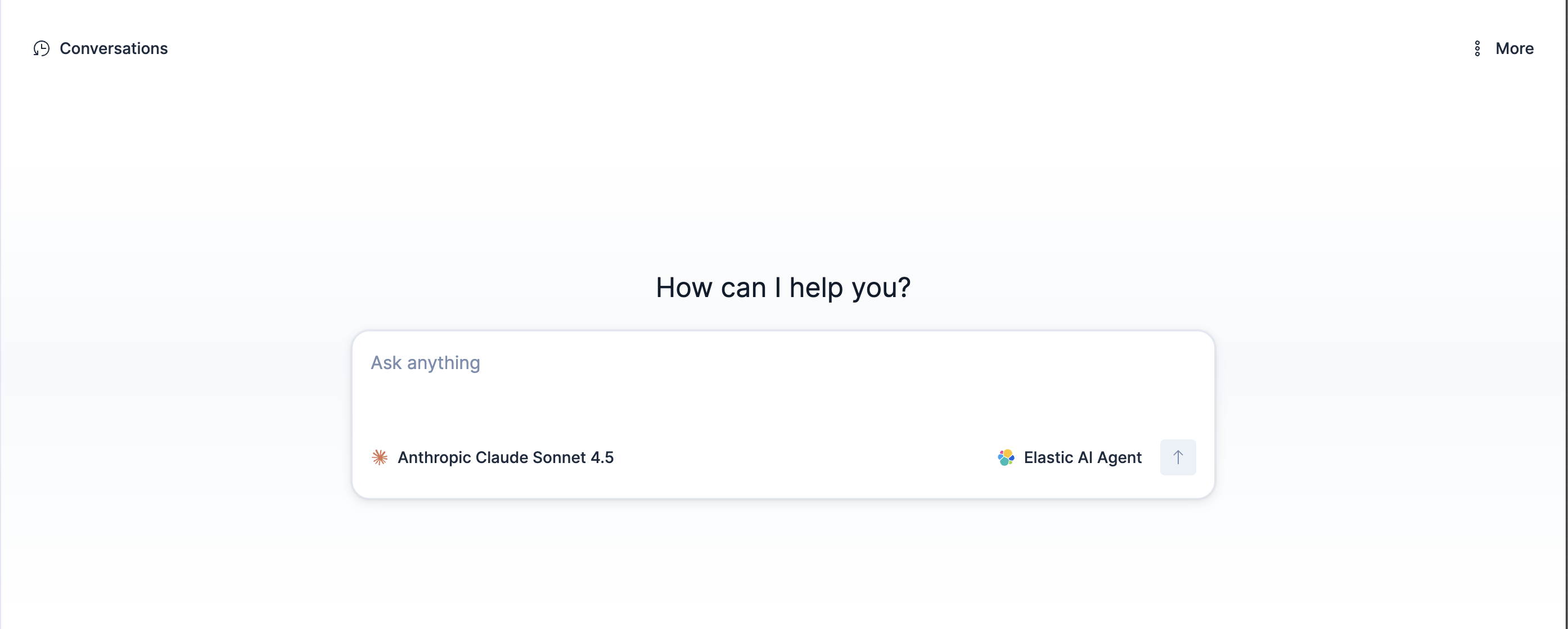
Use the text input area to chat with an agent in real time. By default, you chat with the built-in Elastic AI Agent.
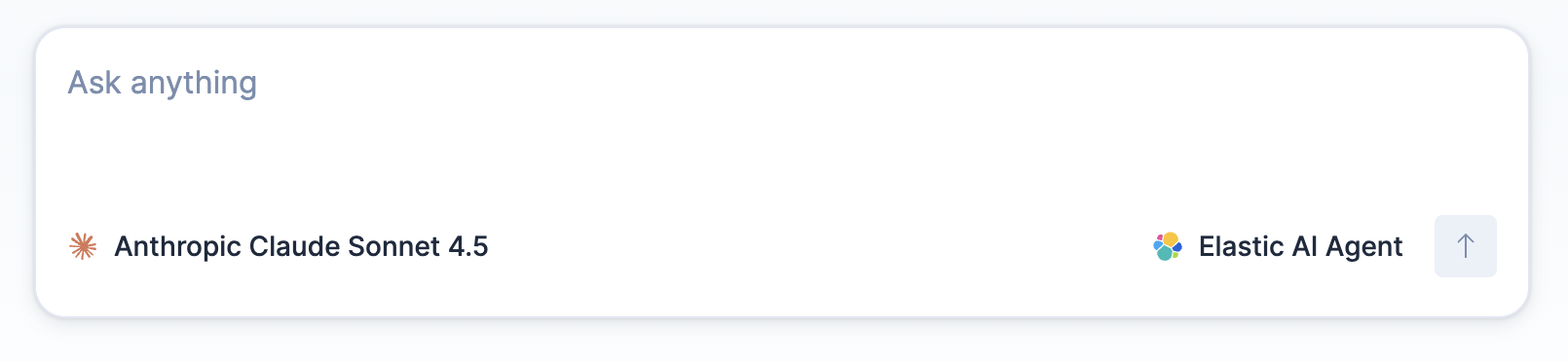
Conversations with agents consume tokens. To understand how usage is calculated, refer to Token usage in Elastic Agent Builder.
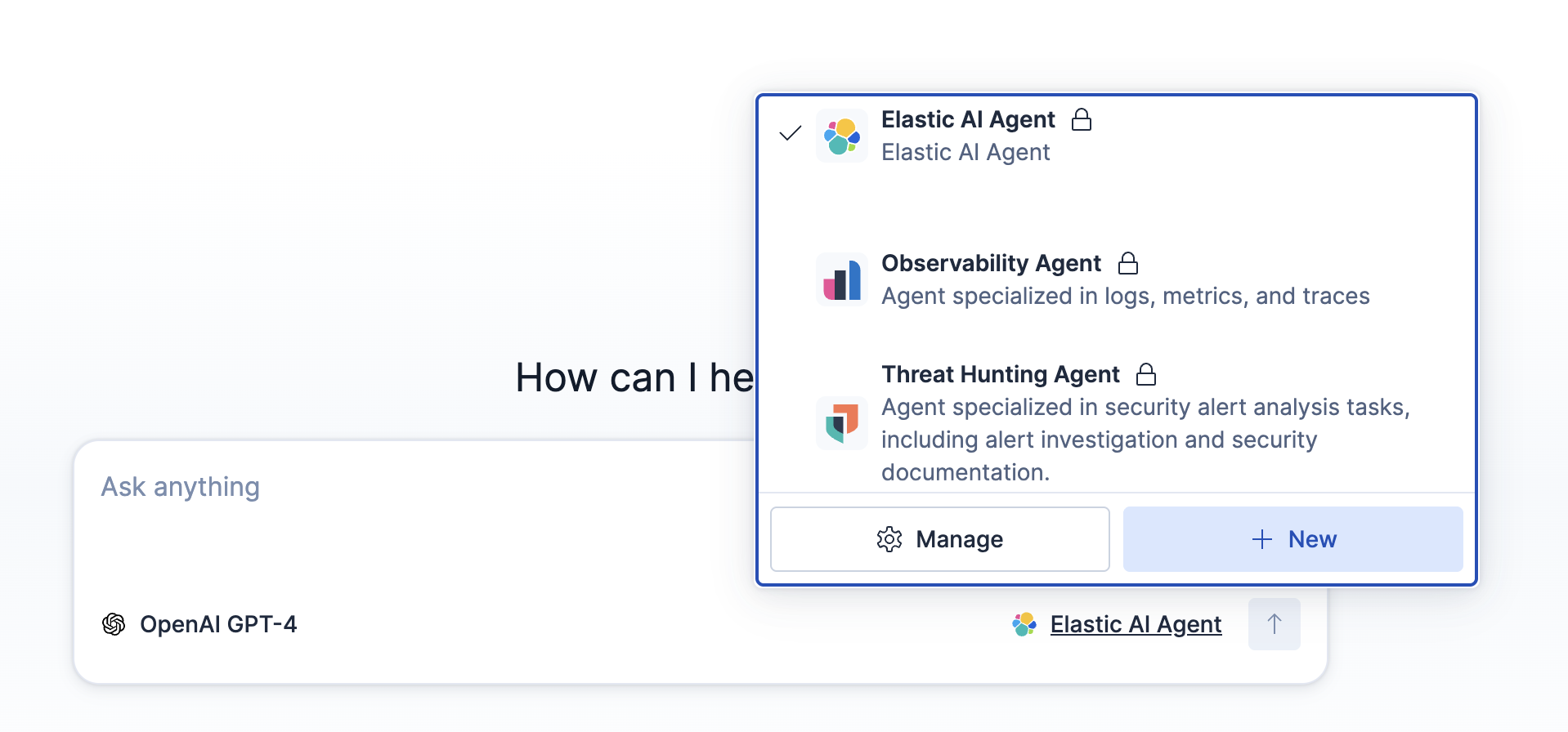
Use the agent selector to switch agents, to navigate to the agent management section, or to create a new agent. An agent's behavior is defined by its custom instructions and available tools. Switch agents when you need different capabilities for your tasks.
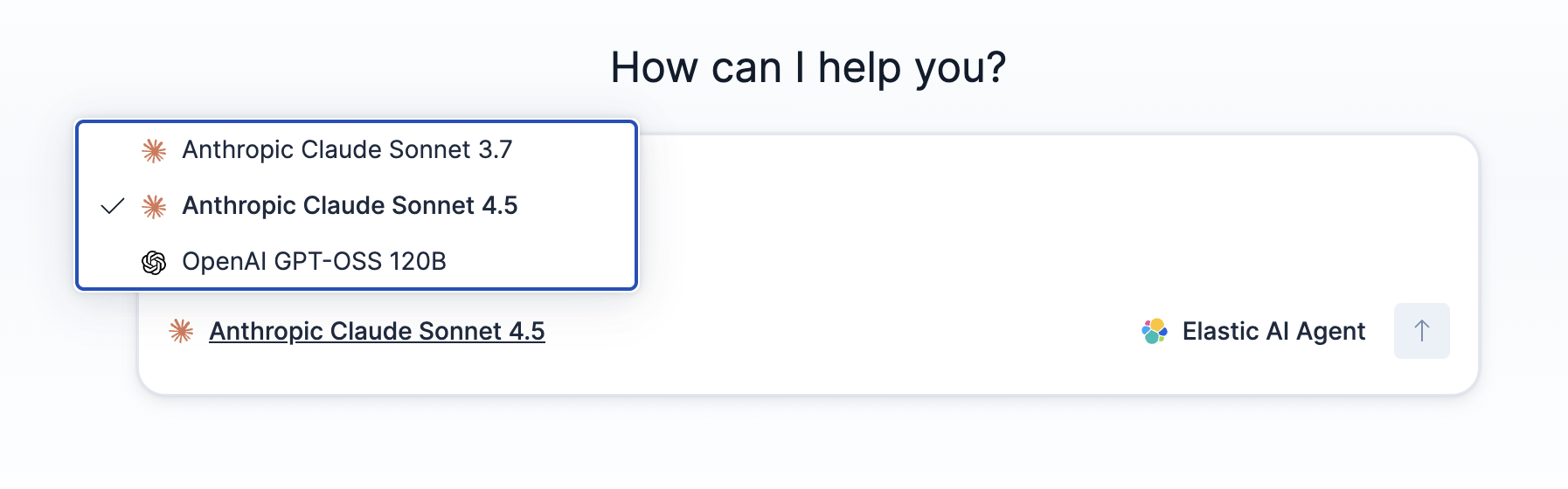
Use the model selector to switch the underlying model the agent uses to generate responses. Switch models to prioritize faster responses, lower costs, or more complex reasoning, depending on your use case.
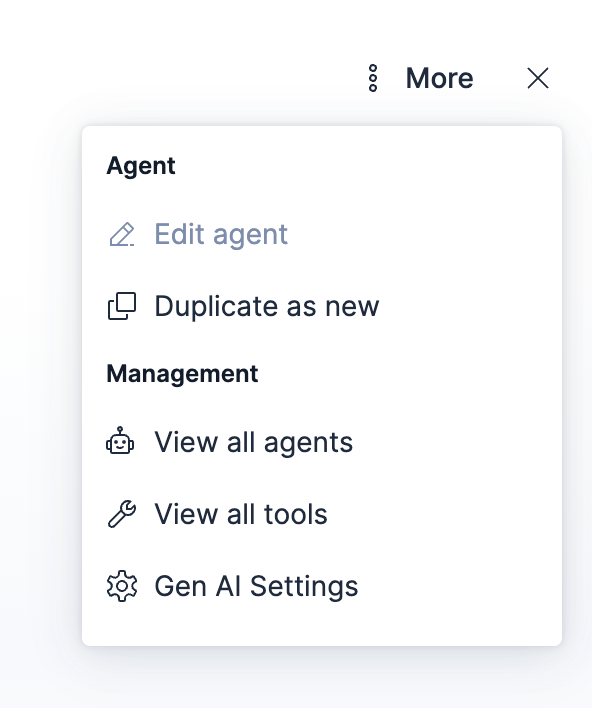
This menu is your hub for key management actions. You can quickly access important pages from here.

This opens a panel with links to key actions and management pages including agent, tool, and settings management.
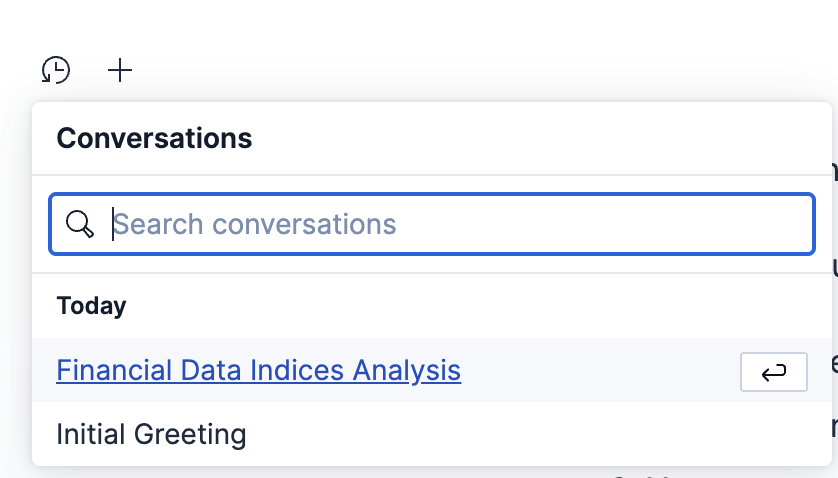
Use the chat history panel to access previous conversations.
Expand the Reasoning section to see how the agent handles your request. This provides a detailed breakdown of the agent's reasoning steps, the tool calls it makes, and the responses it receives. The agent runs tools in a loop until it achieves its goal or exceeds the maximum conversation length.
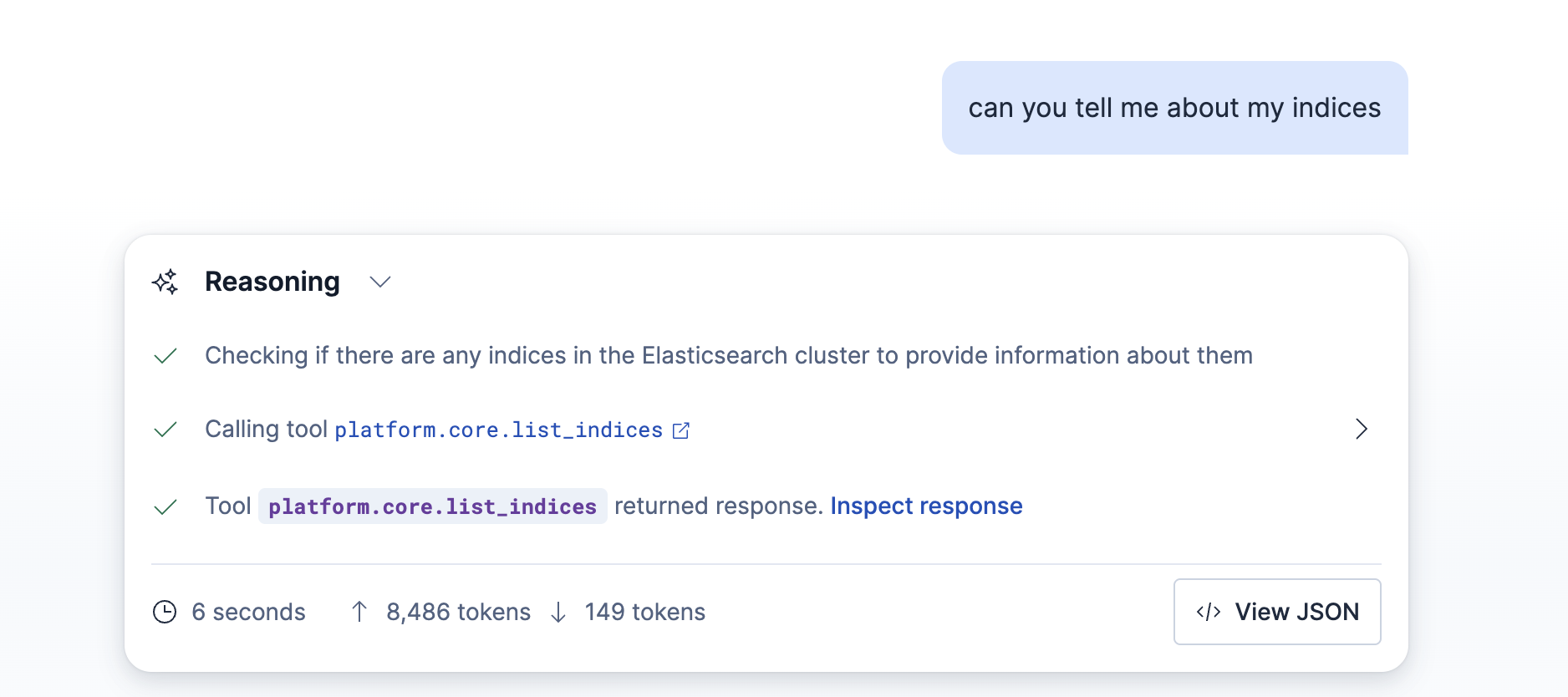
Select Inspect response to view detailed information about individual tool calls and responses.
Select View JSON to view the full raw response data. For more information, refer to Monitor token usage.
The Agent Chat API provides programmatic access to chat functionality through REST endpoints.
For a quick overview of the REST API for conversations, refer to Chat and conversations API.
For the complete API reference, refer to the Kibana API reference.