Workflow tools
Workflow tools enable agents to trigger Elastic Workflows directly from a conversation. By wrapping a workflow in a tool, you allow the agent to offload complex, multi-step, or deterministic tasks to the workflow engine while maintaining a natural language interface with the user.
Before using these features, ensure that:
- Workflows basics: Familiarize yourself with the core concepts of Elastic Workflows before you begin.
- Workflows are set up: The feature must be enabled and you need specific privileges to create and run workflows. For details, see Set up workflows
Follow these steps to configure a tool to invoke a workflow that an agent can call. This is ideal for tasks that require a strict, repeatable sequence of actions.
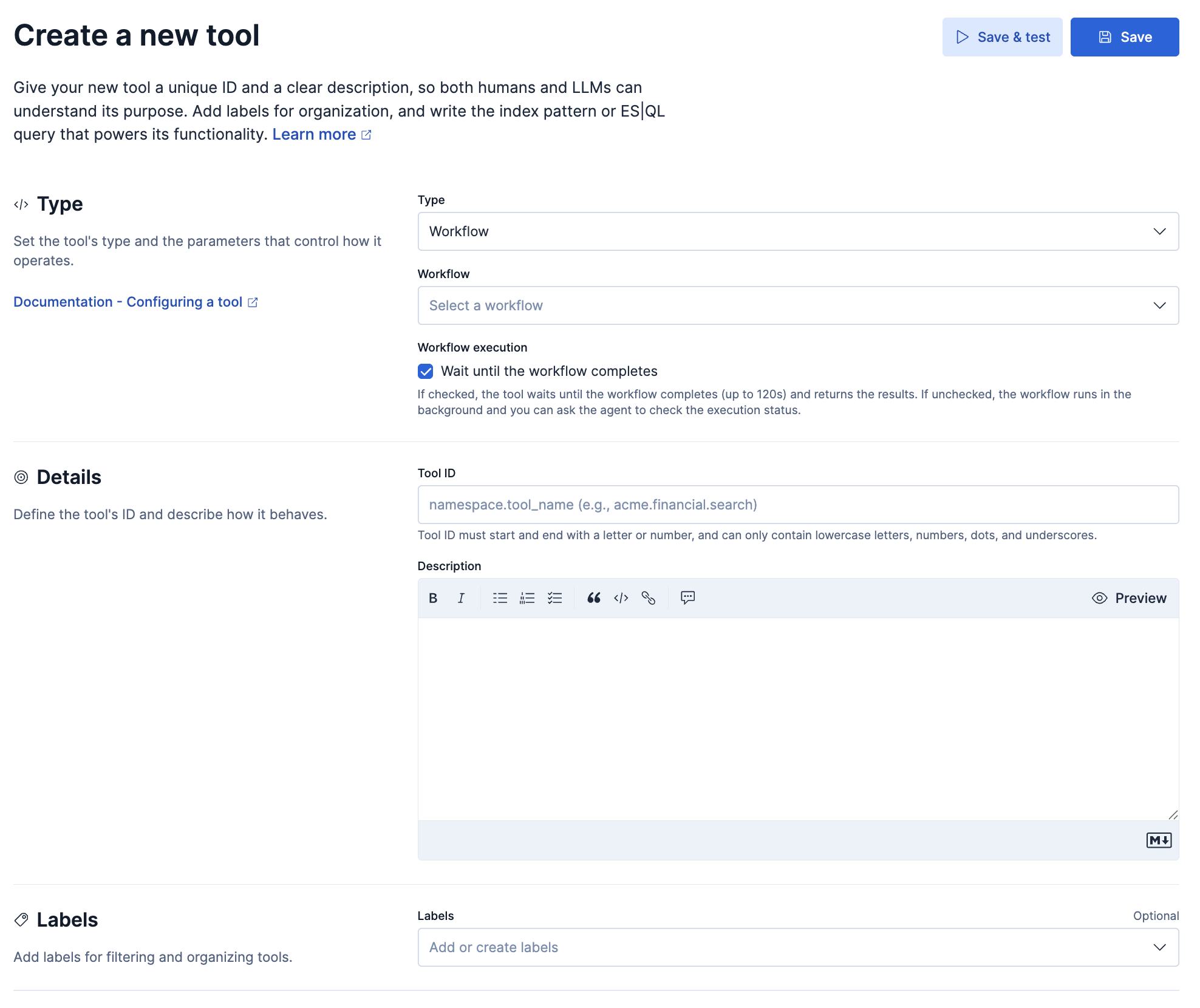
- Navigate to Agents > More > View all tools > New tool.
- Select Workflow as the tool type.
- Select the specific workflow you want to wrap from the drop down list.
- Fill in the required fields:
- Tool ID
- A unique identifier for the tool.
- Description
- A natural language explanation of what the tool does. The agent uses this description to decide when to call the tool.
- Example: "Use this tool when the user asks to investigate an alert regarding the payment service."
- Workflow
- The specific Elastic Workflow to execute. Selecting a workflow automatically pulls its definition into the tool configuration.
- Inputs
- The parameters required by the workflow. These are automatically detected from the
inputssection of the selected workflow's YAML definition. The agent will attempt to extract values for these inputs from the user's chat message. - Labels (Optional)
- Tags used to organize and filter tools within the Elastic Agent Builder UI.
- Click Save.
Once you assign a Workflow tool to an agent, the agent can trigger the workflow autonomously.
- Navigate to Agents.
- Select your agent.
- Select More > Edit Agent > Tools
- Assign the workflow tool by selecting the checkbox.
- Click Save.
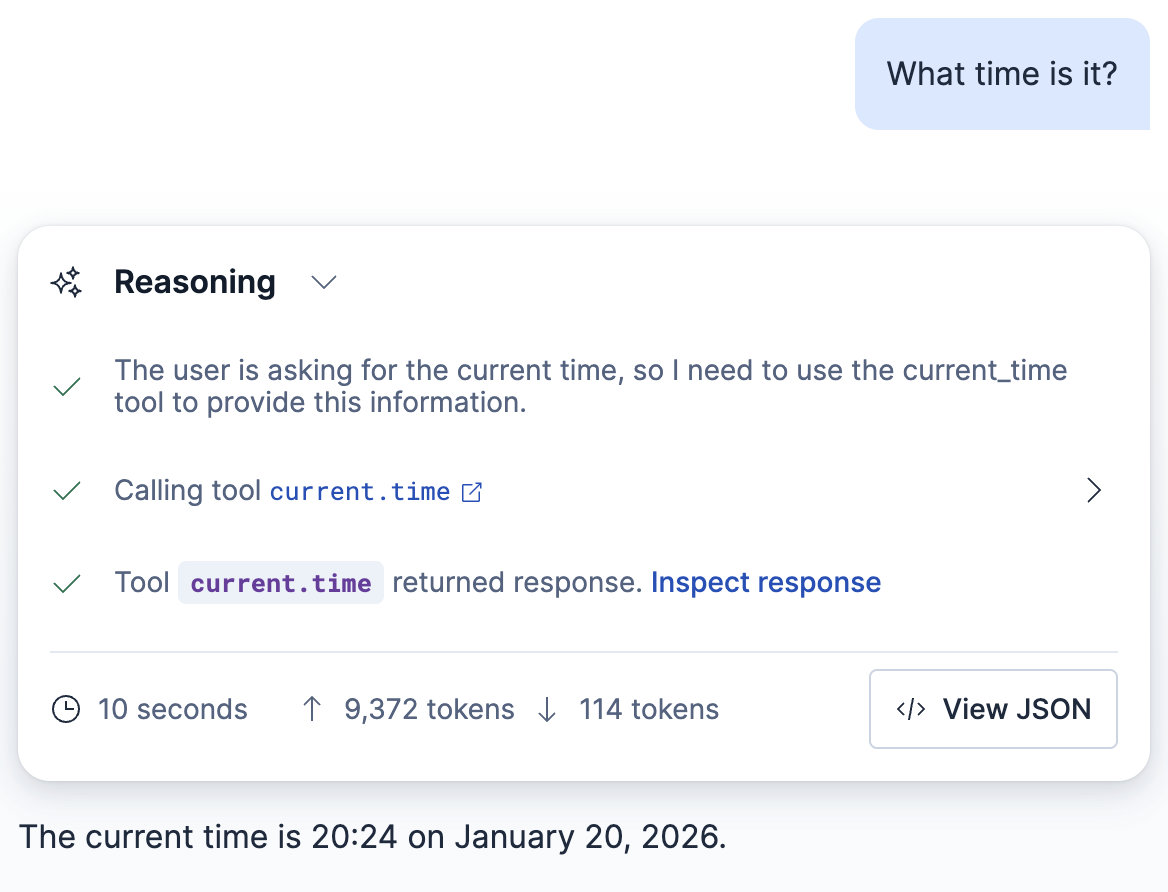
- Open the Agent chat and ask a question that triggers the workflow.
- The agent extracts the necessary parameters from the conversation, runs the workflow, and returns the workflow's final output to the chat.