Lens
Lens is Kibana's modern, drag‑and‑drop visualization editor designed to make data exploration fast and intuitive. It allows you to build charts and tables by simply dragging fields from a data view onto a workspace, while Kibana automatically suggests the most appropriate visualization types based on the data.
The Lens editor uses data views to define the available Elasticsearch indices and fields.
Data views are created automatically if you upload a file, or add sample data by using one of the Kibana ingest options. Otherwise, you must create a data view manually.
Once you select a data view, you can build many types of visualizations by choosing aggregations, splitting dimensions, and configuring chart styles, legends, and layers.
With Lens, you can create the following visualization types:
If you’re unsure about the visualization type you want to use, or how you want to display the data, drag the fields you want to visualize onto the workspace, then let Lens choose for you.
If you already know the visualization type you want to use, and how you want to display the data, use the following process.
-
Choose the visualization type
New visualizations default to Bar charts. Use the dropdown indicating Bar and select the visualization type you want. As you drag fields into the workspace or to the layer pane, Lens automatically generates alternative visualizations. To view them, click Suggestions at the bottom of the workspace. If a suggested visualization meets your needs, click Save and return to add it to the dashboard.
-
Choose the data you want to visualize
As you drag fields to the layer pane, Lens automatically selects an aggregation function, for example Date histogram, Intervals, or Top values. Click a field to learn more about its data or to edit its appearance.
-
Customize the appearance of your visualization
In the Lens editor, you can customize the appearance of your visualization by clicking the Style icon and the Legend icon
 in the layer pane.
 -
(Optional) Add layers
You can add multiple layers to a visualization, such as Visualization, Annotations, or Reference lines. Click the Add layer icon , then choose the layer type and select the data view. To duplicate or delete a layer, click
 on the layer tab.
Once you have created your visualization, you can edit it directly on the dashboard. Click the Edit visualization configuration icon  on the panel.
When you can create a visualization, you can change the fields list to display a different data view, a different time range, or add your own fields. To do that, open the data view dropdown and select Add a field to this data view.
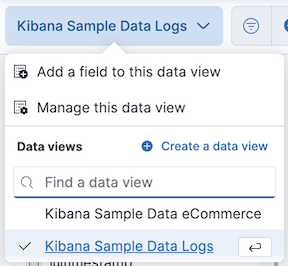
If the fields list is empty, change the time filter.
For more information about adding fields to data views and examples, refer to Explore your data with runtime fields.
You can assign specific colors to terms in your visualizations. This color mapping can be useful in several situations:
- Visual recognition and recall: Keep colors consistent for each term regardless of filters or sorting.
- Semantic meaning: Use colors to convey meaning or categorization.
- Consistency: Align with brand colors and improve overall aesthetic consistency.
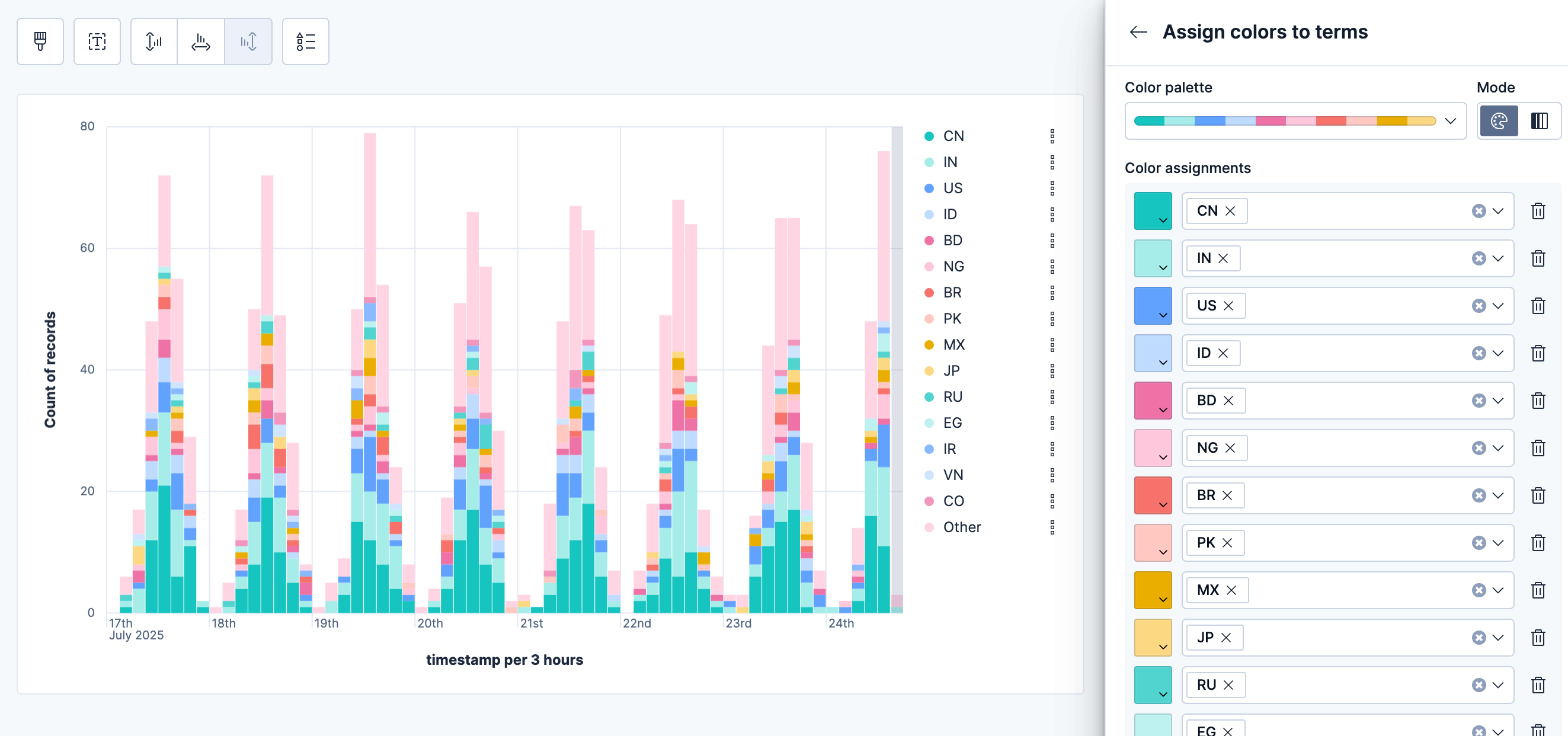
Color mapping is available for the following Lens visualization types:
- Data tables: Assign colors to terms in Rows or Metrics fields. You can apply colors to cell backgrounds or text.
- XY charts (Area, Bar, Line): Assign colors to breakdown dimensions that split your data into multiple series.
- Partition charts (Donut, Pie, Treemap, Waffle): Assign colors to the main slice or group-by dimension that defines the chart segments.
- Tag clouds: Assign colors to the tags dimension that determines the terms displayed in the cloud.
To assign colors to terms in your visualization:
- Create a visualization using one of the supported types.
- Add a categorical field that contains the terms you want to color.
- In the field configuration, look for the Color by value option:
- For data tables: Select Cell or Text
- For other chart types: This option appears when you have a categorical breakdown
- Click the Edit colors icon. In the menu that opens, keep Use legacy palettes turned off to be able to assign colors to specific terms
- Select a color palette from the available options:
- Elastic: The default and most recent palette. It is intentionally built from a color spectrum designed for flexibility and consistency, while being suited for future accessibility improvements.
- Kibana 7.0: A palette that matches the Kibana 7.0 color theme for visualizations
- Kibana 4.0: A palette that matches the Kibana 4.0 color theme for visualizations
- Elastic classic: A palette made of classic Elastic brand colors
- Select the color mode you'd like to use with this palette:
- Categorical: Assign a distinct color to each term
- Gradient: Assign gradients of the same color to each term
- Choose which terms to color. You can assign colors manually or select Add all unassigned terms for automatic assignment.
Tip
You can assign several terms to the same color.
- Choose how to handle unassigned terms: Use the selected color palette or assign a single color.
Discrete colors and gradients
Choose from discrete color sets or generate sequential or divergent gradients. Gradients work well for Likert scales and other term scales.
Theme-aware neutral colors
Use neutral gray colors that adjust automatically between light and dark themes. These help de-emphasize less important data.
Accessibility warnings
The system warns you when colors don't have enough contrast for accessibility.
Maintain consistency
Use color mapping to create consistent color schemes when the same categorical data appears across multiple visualizations in your dashboards.
Use semantic colors
Leverage color associations that users already understand (such as red for errors, green for success) to make your visualizations more intuitive.
Consider performance
Color mapping works best with fields that have a reasonable number of distinct values. Fields with hundreds or thousands of unique terms may impact visualization performance.
Plan for themes
When choosing colors, consider how they will appear in both light and dark themes. Use theme-aware neutral colors when you want to de-emphasize data.
To use a keyboard instead of a mouse, use the Lens fully accessible and continuously improved drag system.
Select the field in the fields list or layer pane. Most fields have an inner and outer select state. The inner state opens a panel with detailed information or options. The outer state allows you to drag the field. Tab through the fields until you get the outer state on the field.

Complete the following actions:
To select a field, press Space bar.
To select where you want to drop the field, use the Left and Right arrows.
To reorder the fields on the layer pane, use the Up and Down arrows.
To duplicate an action, use the Left and Right arrows, then select the Drop a field or click to add field you want to use.
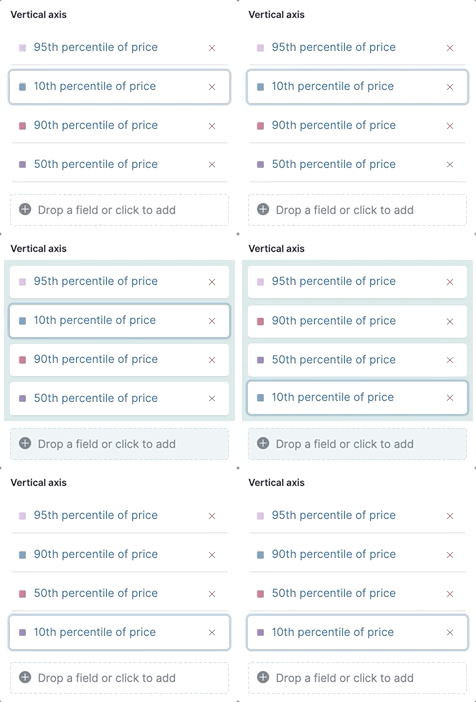
To confirm the action, press Space bar. To cancel, press Esc.
When you're defining the fields and data to show in a visualization, formulas allow you to perform math on aggregated data. For example, you can use formulas to divide two values and produce a percent value.
Add a field to your visualization and select it to open its data and appearance settings.
Select Formula, then enter the formula.
- Filter ratio example
-
To filter a document set, use
kql='', then compare to other documents within the same grouping:count(kql='response.status_code > 400') / count()
- Week over week example
-
To get the value for each grouping from the previous week, use
shift='1w'.percentile(system.network.in.bytes, percentile=99) / percentile(system.network.in.bytes, percentile=99, shift='1w')You are unable to combine different time shifts, such as
count(shift="1w") - count()andcount(shift="1w") - count(shift="1m"), with the Top values function.
- Percent of total example
-
To convert each grouping into a percent of the total, formulas calculate
overall_sumfor all groupings:sum(products.base_price) / overall_sum(sum(products.base_price))TipFor detailed information on formulas, click
 .
.
To accurately display the formula, select Percent from the Value format dropdown.
Compare your real-time data to the results that are offset by a time increment. For example, you can compare the real-time percentage of a user CPU time spent to the results offset by one hour.
- In the layer pane, click the field you want to offset.
- Click Advanced.
- In the Time shift field, enter the time offset increment.
For a time shift example, refer to Compare time ranges.
To create partition charts, such as pie charts, configure one or more Slice by dimensions to define the partitions, and a Metric dimension to define the size. To create partition charts with multiple metrics, use the layer settings. Multiple metrics are unsupported for mosaic visualizations.
- In the layer pane, click
 , then select Layer settings.
 - Select Multiple metrics.
- Click X.
This functionality is in technical preview and may be changed or removed in a future release. Elastic will work to fix any issues, but features in technical preview are not subject to the support SLA of official GA features.
Data sampling allows you to improve the visualization loading time. To decrease the loading time, use a lower sampling percentage, which also decreases the accuracy. Use low sampling percentages on large datasets.
- In the Edit visualization flyout, click , then select Layer settings.
- To select the Sampling percentage, use the slider.
- Click Apply and close.
- Click Save.
This functionality is in technical preview and may be changed or removed in a future release. Elastic will work to fix any issues, but features in technical preview are not subject to the support SLA of official GA features.
Annotations allow you to call out specific points in your visualizations that are important, such as significant changes in the data. You can add annotations for any data view, add text and icons, specify the line format and color, and more.
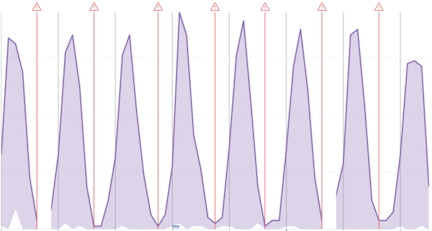
Annotations support two placement types:
- Static date — Displays annotations for specific times or time ranges.
- Custom query — Displays annotations based on custom Elasticsearch queries. For detailed information about queries, check Semi-structured search.
Any annotation layer can be saved as an annotation group to the Visualize Library in order to reuse it in other visualizations. Any changes made to the annotation group will be reflected in all visualizations to which it is added.
Create a new annotation layer.
From your visualization, select Add layer > Annotations > New annotation.
Select the data view for the annotation.
From the fields list, drag a field to the Add an annotation field.
To use global filters in the annotation, click
, then select Keep global filters from the dropdown.When you add the visualization to dashboards,
 appears, which allows you to view settings changes to the visualization.
Create static annotations.
- Select Static date.
- In the Annotation date field, click
 , then select the date.
 - To display the annotation as a time range, select Apply as range, then specify the From and To dates.
Create custom query annotations.
Select Custom query.
Enter the Annotation query for the data you want to display.
For detailed information about queries and examples, check Semi-structured search.
Select the Target date field.
Specify the annotation appearance.
- Enter the annotation Name.
- Change the Appearance options for how you want the annotation to display on the visualization.
- If you created a custom query annotation, click Add field to add a field to the annotation tooltip.
- To close, click X.
Save the annotation group to the library.
- From your visualization, on your annotation layer, click
 .
. - Enter the Title, Description, and add any applicable Tags.
- Click Save group.
Add a library annotation group to a visualization.
- From your visualization, select Add layer > Annotations > Load from library.
- Select the annotation group you want to use.
With reference lines, you can identify specific values in your visualizations with icons, colors, and other display options. You can add reference lines to any visualization type that displays axes.
For example, to track the number of bytes in the 75th percentile, add a shaded Percentile reference line to your time series visualization.
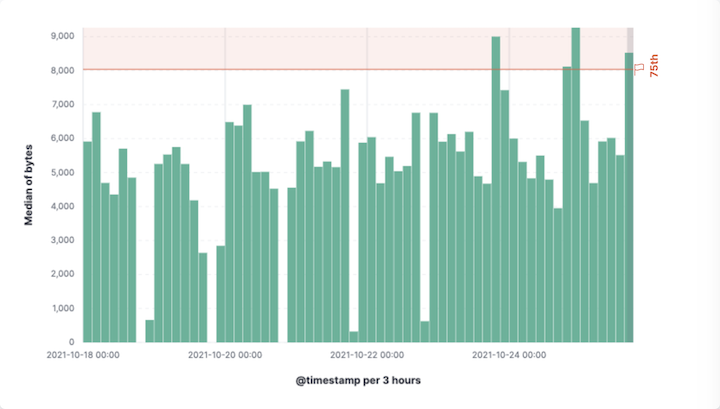
From your visualization, click Add layer > Reference lines.
Click the reference line value, then specify the reference line you want to use:
- To add a static reference line, click Static, then enter the reference line value you want to use.
- To add a dynamic reference line, click Quick functions, then click and configure the functions you want to use.
- To calculate the reference line value with math, click Formula, then enter the formula.
Specify the display options, such as Display name and Icon, then click Close.
You can use the query bar to create queries that filter all the data in a visualization, or use the layer pane and legend filters to apply filters based on field values.
With the Filters function, you can apply more than one KQL filter, and apply a KQL filter to a single layer so you can visualize filtered and unfiltered data at the same time.
In the layer pane, click a field.
Click the Filters function.
Click Add a filter, then enter the KQL filter you want to apply.
To try the Filters function on your own, refer to Compare a subset of documents to all documents.
With the Filter by advanced option, you can assign a color to each filter group in Bar and Line and area visualizations, and build complex tables. For example, to display failure rate and the overall data.
- In the layer pane, click a field.
- Click Add advanced options, then select Filter by.
- Enter the KQL filter you want to apply.
Apply filters to visualizations directly from the values in the legend. Bar, Line and area, and Proportion visualizations support legend filters.
In the legend, click the field, then choose one of the following options:
- Filter for value — Applies a filter that displays only the field data in the visualization.
- Filter out value — Applies a filter that removes the field data from the visualization.
You can interact with filter pills to edit them, temporarily alter their behavior without having to remove them, or make them available in other contexts. The following options are available when selecting a filter pill:
- Pin across all apps and Unpin
-
Adds this filter to available dashboards and to apps such as Discover, Lens, Maps, and Visualize. You remove the filter if you:
- Unpin it. In this case, the filter only remains on the currently open app, unpinned.
- Remove it from any place while it's still pinned.
- Refresh your session, for example by opening a dashboard in a new tab. Pinned filters are not saved along with the dashboard, visualization, or Discover session that you added them to.
TipWhen a pinned filter can't be applied, for example if a field specified in the filter doesn't exist in the current data view, the filter is ignored and shows in a different color.
- Edit filter
- Lets you edit and update the filter.
- Exclude results and Include results
- Reverses the filter behavior.
- Temporarily disable and Re-enable
- Lets you temporarily deactivate a filter instead of requiring you to remove it. This is particularly useful for testing different filter combinations.
- Delete
- Removes the filter.
You can perform most of these actions at once for all filters in your current view using the Filter icon . From the menu that opens, select Apply to all, then choose the action you'd like to perform.
Each visualization offers various options that you can use to customize its appearance:
- Style — Specifies how to display area, line, and bar chart options. For example, you can specify how to display the labels in bar charts.
- Labels — Specifies how to display the labels for donut charts, pie charts, and treemaps.
- Legend — Specifies how to display the legend. You can choose to display the legend inside or outside the visualization, truncate the legend values when they’re too long, and select additional statistics to show.
- Left axis, Bottom axis, and Right axis — Specify how you want to display the chart axes. For example, add axis labels and change the orientation and bounds.
You can customize the appearance of your visualizations with several options. To do that, look for the Style button.
These options can vary depending on the type of chart.
- Area fill opacity
- For Area charts. Opacity of the area fill. Defaults to
0.3. - Bar orientation
- For Bar charts. Choose between Horizontal and Vertical.
- Line interpolation
- For Line charts. Choose how to interpolate the line between data points from the available options: Straight (default), Smooth, and Step.
- Missing values
-
For Area and Line charts. Choose between Hide, Zero, Linear, Last, and Next. This option controls how gaps in data appear on the chart. By default, gaps are hidden.
Missing values include empty buckets and metrics: Buckets without documents or metrics that returned
nulldue to their operation and data content.NoteYou can only use this option when the Include empty rows option of the chart is enabled or when a metric produces a null bucket. For example, if a moving average finds empty buckets.
Hide: Don't show gaps in data.
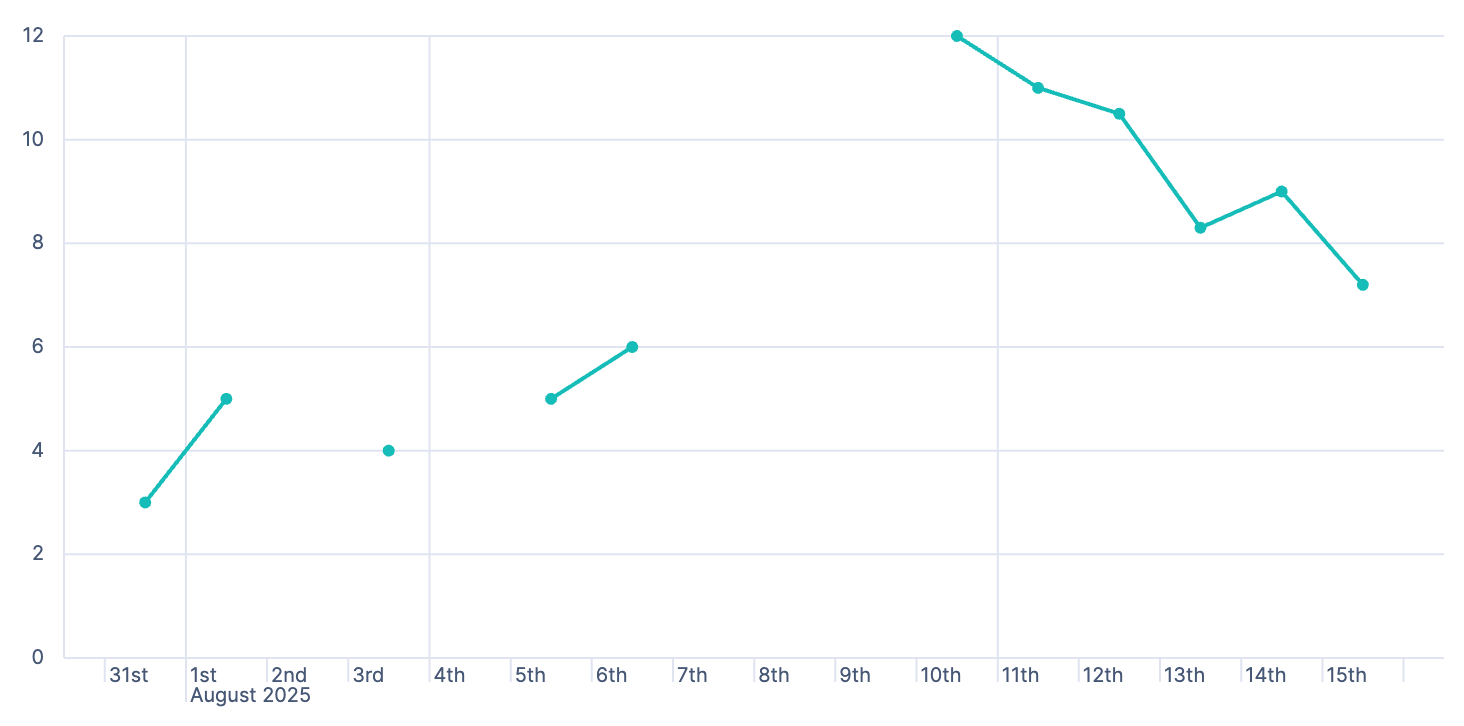
Zero: Fill gaps by connecting starting and ending data points to zero.
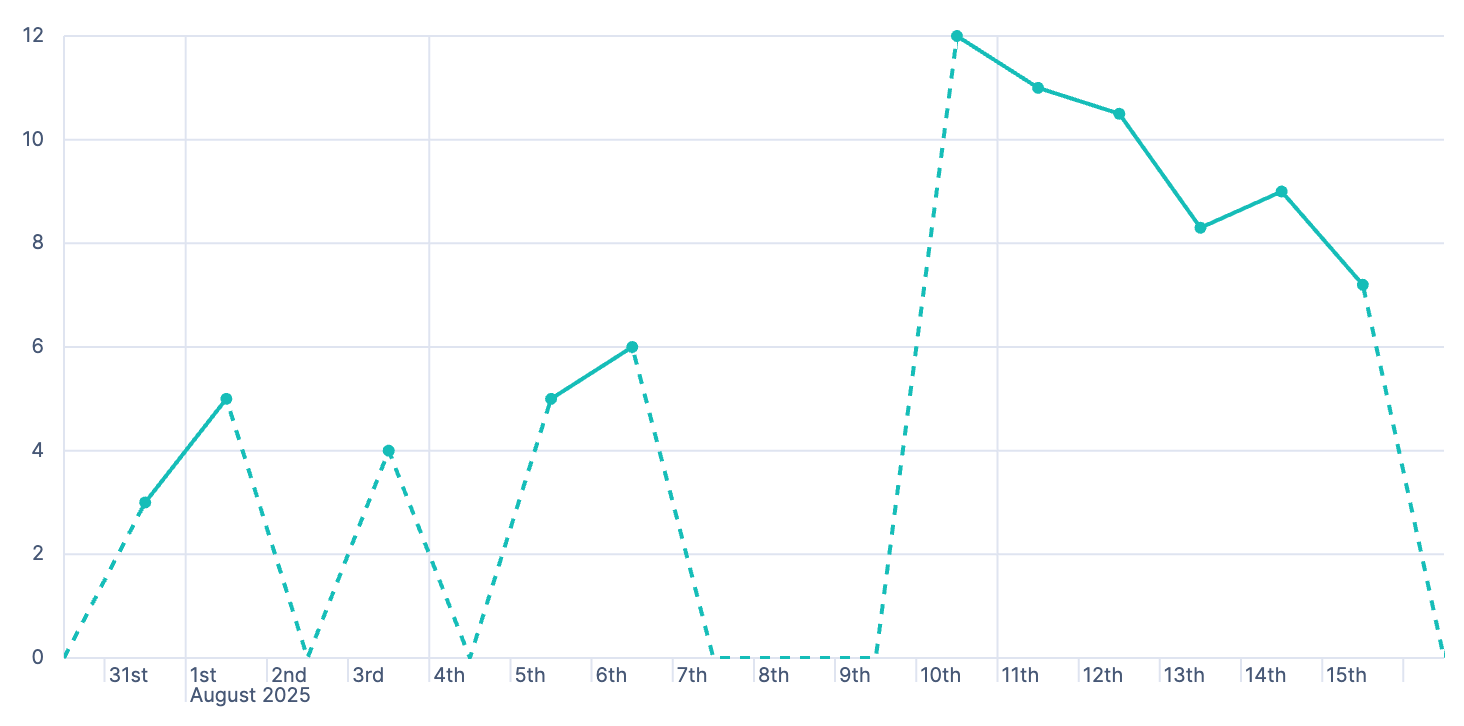
Linear: Fill gaps by connecting related starting and ending data points together with a direct line.
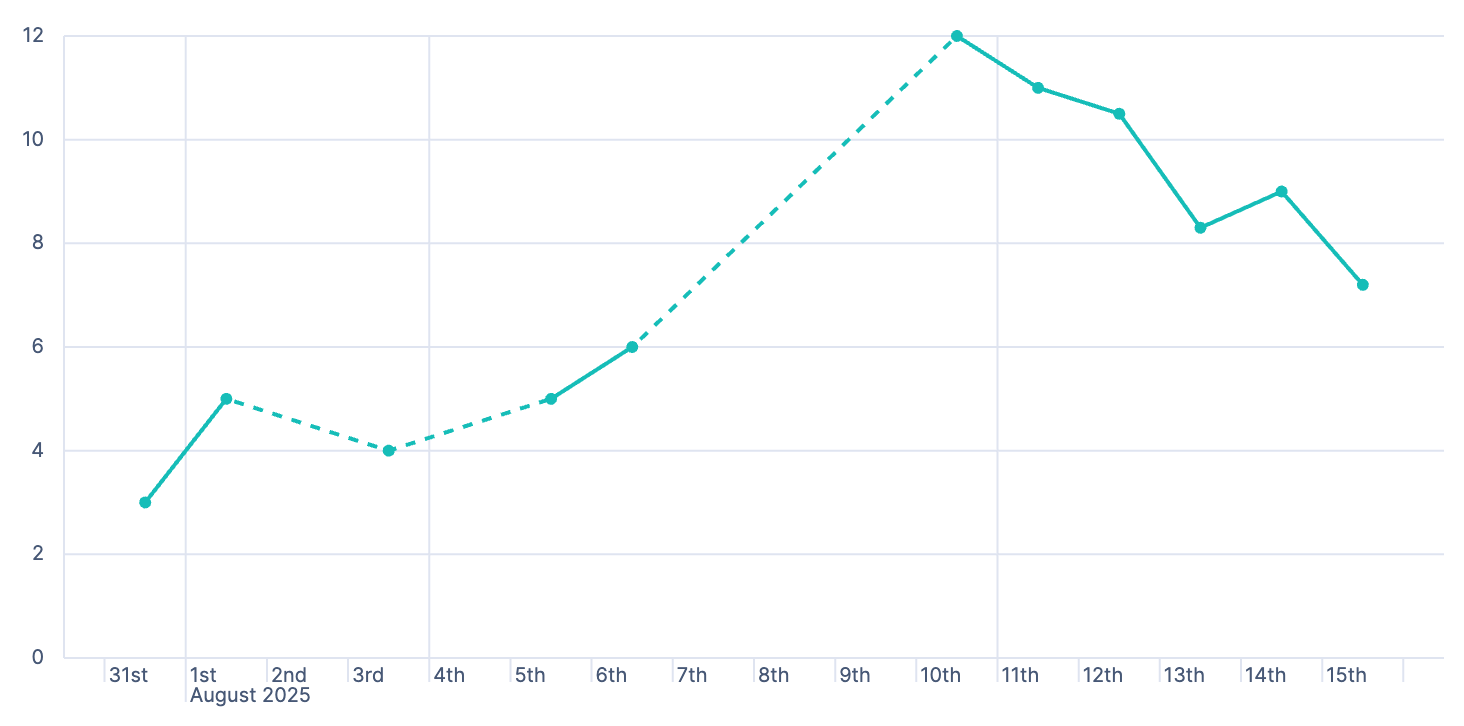
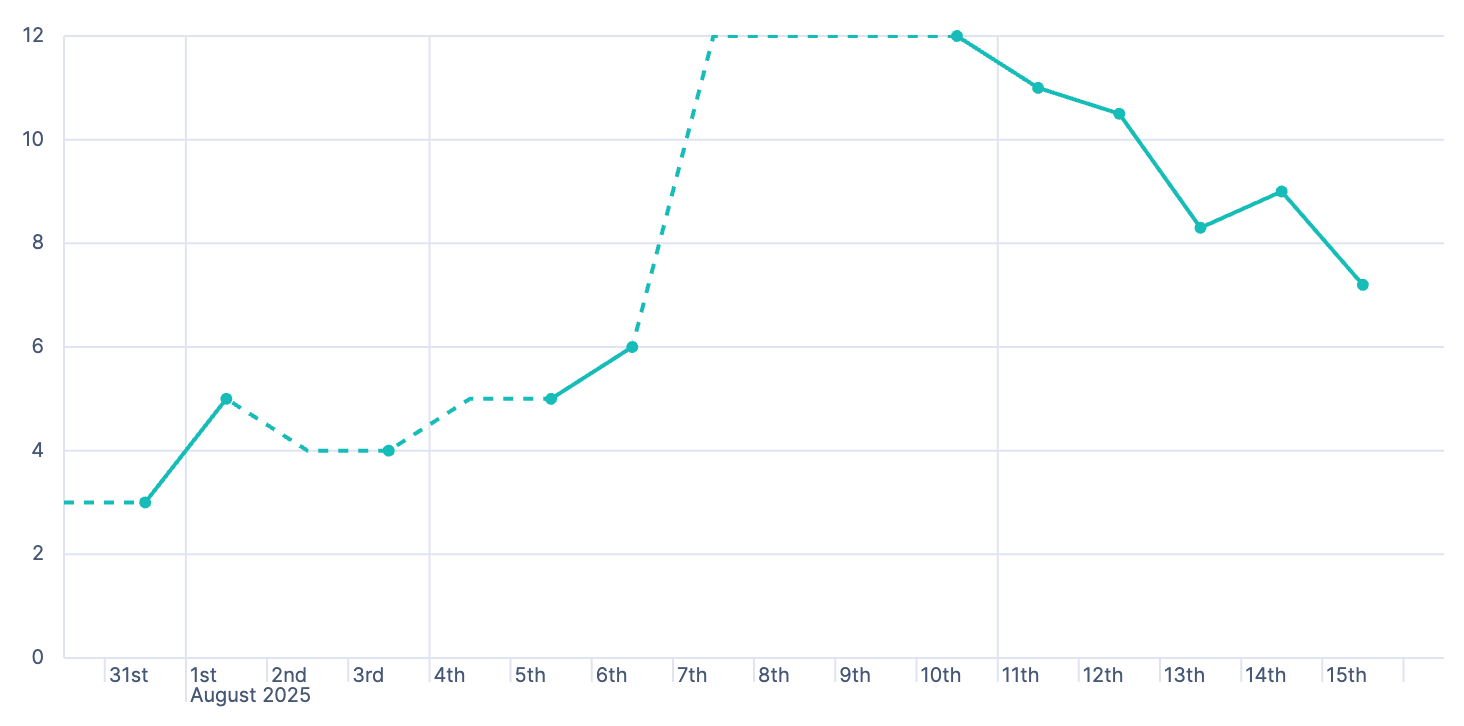
Last: Fill gaps between data points with a horizontal or vertical line that uses the last ending point value, when available, to determine its position.
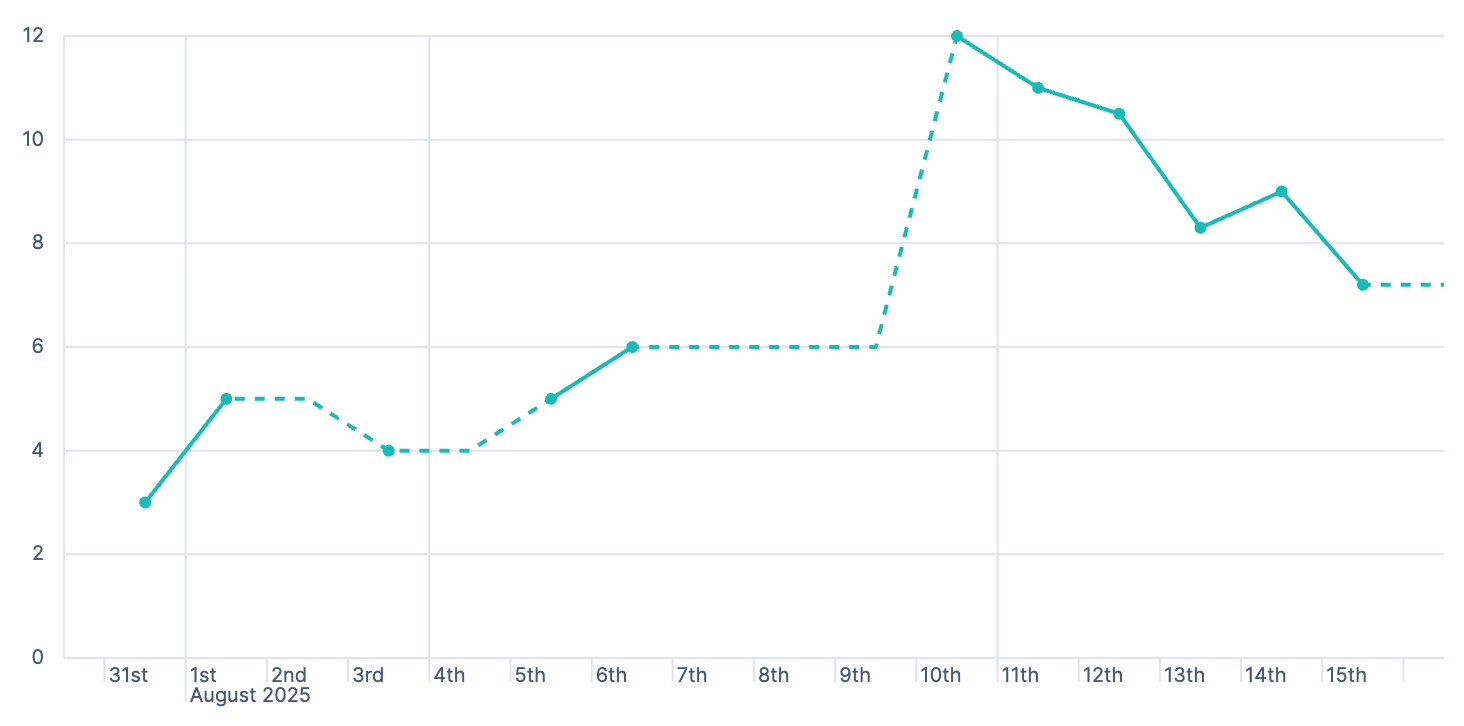
Next: Fill gaps between data points with a horizontal or vertical line that uses the next starting point value, when available, to determine its position.
- End values
-
If you've chosen to show missing values, you can also decide to extend data series to the edge of the chart. By default, end values are hidden.
- Hide: Don't extend series to the edge of the chart.
- Zero: Extend series as zero to the edge of the chart.
- Nearest: Extend series with their first or last value to the edge of the chart.
- Show as dotted line
- If you've chosen to show missing values, you can turn on this option to show gaps as a dotted line.
- Point visibility
- For Area and Line charts. Use this option to show or hide data points. Set to
Autoby default: Points are visible unless the distance between them is too short.
When creating or editing a visualization, you can customize several appearance options. To do that, look for the Style button.
- Primary metric
- Define the formatting of the primary metric in terms of Position, Alignment, and Font size.
- Title and subtitle
- Enter a subtitle and define the relevant Alignment and Font weight.
- Secondary metric
- Define the Alignment.
- Other
- Choose the Icon position.
- Density
- Make the table more or less compact. Choose between Compact, Normal (default), and Expanded.
- Max header cell lines
- The maximum number of lines that header cells can span over. If the content exceeds this limit and is truncated, an ellipsis indicates it.
- Body cell lines
- The fixed number of lines that body cells span over. If the content exceeds this limit and is truncated, an ellipsis indicates it.
- Paginate table
- Turn on this option to paginate the table. Pagination shows when the table contains at least 10 items, and lets you define how many items to display per page. When turned off, you can scroll through all items.
- Donut hole
- Display a Small, Medium, or Large hole at the center of the pie chart. Defaults to None.
- Gauge shape
- Define the shape of the gauge. Choose between Linear, Minor arc, Major arc, and Circle. When set to Linear, you can choose to display the chart horizontally or vertically.
- Font size
- Define the range of font sizes used in the tag cloud. The font size is based on the number of times a tag appears in the data.
- Orientation
- Define the orientation of the tags. Choose Single, Right angled, and Multiple.
- Show label
- Turn on this option to show a label for the tag cloud. You can define this label when defining the tags to show for the visualization, by customizing the Name field.
To customize the legend of your visualization, click the Legend icon in the layer pane.
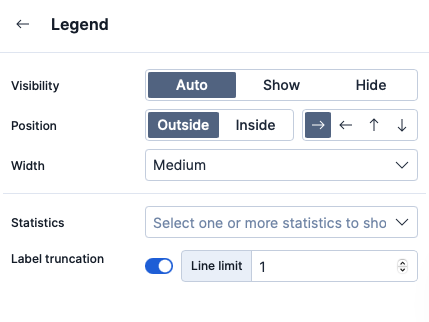
The Visibility, Position, and Width options allow you to set the way the legend appears in or next to the visualization.
You can set additional Statistics to make your legends as informative as possible. All statistics are computed based on the selected time range and the aggregated data points shown in the chart, rather than the original data coming from Elasticsearch.
The Label truncation option allows you to keep your legend minimal in case of long labels that span over multiple lines.
Options vary based on the type of chart you are creating. For example, showing additional statistics is only possible for time series charts.
When your visualization includes one data view, you can open and explore the visualization data in Discover.
To get started, click Explore data in Discover in the toolbar.
For more information about exploring your data with Discover, check out Discover.
To view the data included in the visualization and the requests that collected the data, use the Inspector.
In the toolbar, click Inspect.
Open the View dropdown, then click Data.
- From the dropdown, select the table that contains the data you want to view.
- To download the data, click Download CSV, then select the format type.
Open the View dropdown, then click Requests.
- From the dropdown, select the requests you want to view.
- To view the requests in Console, click Request, then click Open in Console.
Save the panel to the Visualize Library and add it to the dashboard, or add it to the dashboard without saving.
To save the panel to the Visualize Library:
- Click Save to library.
- Enter the Title and add any applicable Tags.
- Make sure that Add to Dashboard after saving is selected.
- Click Save and return.
To save the panel to the dashboard:
Click Save and return.
Add an optional title to the panel.
- In the panel header, click No Title.
- On the Panel settings window, select Show title.
- Enter the Title, then click Save.
For answers to common Lens questions, review the following.
When should I normalize the data by unit or use a custom interval?
- Normalize by unit — Calculates the average for the interval. When you normalize the data by unit, the data appears less granular, but Lens is able to calculate the data faster.
- Customize time interval — Creates a bucket for each interval. When you customize the time interval, you can use a large time range, but Lens calculates the data slower.
To normalize the interval:
- In the layer pane, click a field.
- Click Add advanced options > Normalize by unit.
- From the Normalize by unit dropdown, select an option, then click Close.
To create a custom interval:
- In the layer pane, click a field.
- Select Customize time interval.
- Change the Minimum interval, then click Close.
What data is categorized as Other?
The Other category contains all of the documents that do not match the specified criteria or filters. Use Other when you want to compare a value, or multiple values, to a whole.
By default, Group other values as "Other" is enabled when you use the Top values function.
To disable Group other values as "Other", click a field in the layer pane, click Advanced, then deselect Group other values as "Other".
How do I add documents without a field?
By default, Lens retrieves only the documents from the fields. For bucket aggregations, such as Top values, you can add documents that do not contain the fields, which is helpful when you want to make a comparison to the whole documentation set.
- In the layer pane, click a field.
- Click Advanced, then select Include documents without this field.
When do I use runtime fields vs. formula?
Use runtime fields to format, concatenate, and extract document-level fields. Runtime fields work across all of Kibana and are best used for smaller computations without compromising performance.
Use formulas to compare multiple Elasticsearch aggregations that can be filtered or shifted in time. Formulas apply only to Lens panels and are computationally intensive.
Can I add more than one y-axis scale?
For each y-axis, you can select Left and Right, and configure a different scale.
Why is my value the incorrect color when I use value-based coloring?
Here’s a short list of few different aspects to check:
Make sure the value falls within the desired color stop value defined in the panel. Color stop values are "inclusive".
Make sure you have the correct value precision setup. Value formatters could round the numeric values up or down.
Make sure the correct color continuity option is selected. If the number is below the first color stop value, a continuity of type
BeloworAbove and below rangeis required.The default values set by the Value type are based on the current data range displayed in the data table.
- If a custom
Numberconfiguration is used, check that the color stop values are covering the current data range. - If a
Percentconfiguration is used, and the data range changes, the colors displayed are affected.
- If a custom
How do I sort by multiple columns?
Multiple column sorting is unsupported, but is supported in Discover. For information on how to sort multiple columns in Discover, refer to Explore the fields in your data.
Why is my field missing from the fields list?
The following field types do not appear in the Available fields list:
- Full-text
- geo_point
- flattened
- object
Verify if the field appears in the Empty fields list. Lens uses heuristics to determine if the fields contain values. For sparse data sets, the heuristics are less precise.
What do I do with gaps in time series visualizations?
When you create Area and Line charts with sparse time series data, open Visual options in the editor toolbar, then select a Missing values option.
Can I statically define the y-axis scale?
You can set the scale, or bounds, for area, bar, and line charts. You can configure the bounds for all functions, except Percentile. Logarithmic scales are unsupported.
To configure the bounds, use the menus in the editor toolbar. Bar and area charts required 0 in the scale between Lower bound and Upper bound.
Is it possible to display icons in data tables?
You can display icons with field formatters in data tables.
How do I inspect Elasticsearch queries in visualizations?
You can inspect the requests sent by the visualization to Elasticsearch using the Inspector. It can be accessed within the editor or in the dashboard.
How do I isolate a single series in a chart?
For area, line, and bar charts, press Shift, then click the series in the legend. All other series are automatically deselected.
How do I visualize saved Discover sessions?
Visualizing saved Discover sessions is unsupported.
How do I change the number of suggestions?
Configuring the Suggestions is unsupported.
Is it possible to have pagination in a data table?
Pagination in a data table is unsupported. To use pagination in data tables, create an aggregation-based data table.
How do I change the color for a single data point?
Specifying the color for a single data point, such as a single bar or line, is unsupported.
How does dynamic coloring work for the metric visualization?
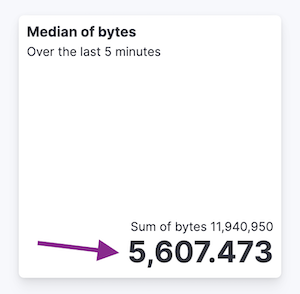
In the color palette editor, if you select Value type: Number the colors are applied based on the Primary metric value.
The Primary metric refers to the large number displayed in each tile.
If you select Value type: Percent, the primary metric values are mapped to a range between 0 and 100 percent. The bounds of the range depend on your configuration.
The logic is as follows. If there is a Breakdown dimension for multiple visualization tiles:
- When there is a Maximum dimension, the range is from zero to the value of your Maximum dimension.
- When there is no Maximum dimension, the range is from the smallest primary metric values to the greatest primary metric values.
If there is no Breakdown dimension for a single visualization tile:
- When there is a Maximum dimension, the range is from zero to the value of your Maximum dimension.
- When there is no Maximum dimension, Value type: Percent cannot be selected because there’s no way to determine a range.