Syntax quick reference
Elastic documentation uses a custom implementation of MyST Markdown with extended syntax for directives, metadata, and tagging.
This page offers quick guidance on commonly used syntax elements. Elements are in alphabetical order.
For the full syntax reference, go to elastic.github.io/docs-builder/syntax/.
Contributing to elastic.co/guide? Refer to Contribute to elastic.co/guide (Asciidoc).
Use admonitions to caution users, or to provide helpful tips or extra information.
Types
These examples show the syntax first, followed by the rendered admonition.
Warning
:::{warning}
Users could permanently lose data or leak sensitive information.
:::
Users could permanently lose data or leak sensitive information.
Important
:::{important}
Less dire than a warning. Users might encounter issues with performance or stability.
:::
Less dire than a warning. Users might encounter issues with performance or stability.
Note
:::{note}
Supplemental information that provides context or clarification.
:::
Supplemental information that provides context or clarification.
Tip
:::{tip}
Advice that helps users work more efficiently or make better choices.
:::
Advice that helps users work more efficiently or make better choices.
Custom
:::{admonition} Special note
Custom admonition with custom label.
:::
Custom admonition with custom label.
DOs
✅ Do: Use custom admonitions as needed
DON'Ts
❌ Don't: Stack admonitions
❌ Don't: Overload a page with too many admonitions
For more details, refer to Admonitions.
A default anchor is automatically created for each heading, in the form #heading-text (lowercase, with spaces converted to hyphens and special characters removed). To create a custom anchor, add it in square brackets at the end of a heading: [my-better-anchor]
Default anchor
#### Hello world!
<!-- Auto-generated default anchor: #hello-world -->
Custom anchor
#### Hello world! [get-started]
DOs
✅ Do: Create custom anchors for repeated structural headings like "Example request"
DON'Ts
❌ Don't: Include punctuation marks in custom anchors
❌ Don't: Define custom anchors in text that is not a heading
For more details, refer to Links.
Use applies_to metadata to tag content for specific contexts, for example whether a feature is available on certain products, versions, or deployment types.
This metadata enables you to write cumulative documentation, because Elastic no longer publishes separate docs sets for every minor release.
Example: Section tag
Syntax
# Stack-only content
```{applies_to}
stack:
```
Output
For full syntax and more examples, refer to the applies_to documentation.
The syntax for applies_to metadata differs depending on whether it's added at the page level (in frontmatter), section level (after a heading), or inline.
The applies_to tags are scope signals for readers, not comprehensive metadata. If a page contains general information that applies to all contexts, it doesn't need tags.
DOs
✅ Do: Define a set of page-level tags in a front matter block
✅ Do: Add section-level tags in an {applies_to} directive after a heading
✅ Do: Indicate versions (major.minor) and release phases like beta
✅ Do: Describe critical patch-level differences in prose rather than using version tags
DON'Ts
❌ Don't: Add applies_to tags to general, broadly applicable content
❌ Don't: Overload pages with repetitive tags
The applies-switch directive creates tabbed content where each tab displays an applies_to badge instead of a text title. Use this to show content that varies by deployment type or version. All applies switches on a page automatically sync together.
Syntax
::::{applies-switch}

:::{applies-item} stack: ga 9.0+
Content for Stack
:::

:::{applies-item} serverless: ga
Content for Serverless
:::

::::
Output
Content for Stack
Content for Serverless
DOs
✅ Do: Use when content varies significantly by deployment type or version
✅ Do: Combine multiple applies_to definitions using YAML object notation: { ece: ga 4.0+, ess: ga }
For more details, refer to Applies switch.
Multi-line blocks for code, commands, configuration, and similar content. Use three backticks ``` on separate lines to start and end the block. For syntax highlighting, add a language identifier after the opening backticks.
Syntax
```yaml
server.host: "0.0.0.0"
elasticsearch.hosts: ["http://localhost:9200"]
```
Output
server.host: "0.0.0.0"
elasticsearch.hosts: ["http://localhost:9200"]
DOs
✅ Do: Include code blocks within lists or other block elements as needed
✅ Do: Add language identifiers like yaml, json, bash
DON'Ts
❌ Don't: Place code blocks in admonitions
❌ Don't: Use inline code formatting (single backticks) for multi-line content
For more details, refer to Code.
Inline annotations that highlight or explain specific lines in a code block.
To explicitly create a code callout, add a number marker in angle brackets (<1>, <2>, and so on) at the end of a line. Add the corresponding callout text below the code block, in a numbered list that matches the markers.
Syntax
```json
{
  "match": {
    "message": "search text" <1>
  }
}
```
1. Searches the `message` field for the phrase "search text"
Output
{
  "match": {
    "message": "search text"
  }
}
- Searches the
messagefield for the phrase "search text"
Add comments with // or # to automatically create callouts.
Syntax
```json
{
  "match": {
    "message": "search text" // Searches the message field
  }
}
```
Output
{
  "match": {
    "message": "search text"
  }
}
- Searches the message field
DOs
✅ Do: Keep callout text short and specific
✅ Do: Use only one type of callout per code block (don't mix explicit and automatic)
✅ Do: Make sure there's a corresponding list item for each explicit callout marker in a code block
DON'Ts
❌ Don't: Overuse callouts — they can impede readability
For more details, refer to Code callouts.
Use % to add single-line comments. Use HTML-style <!-- and --> for multi-line comments.
Syntax
% This is a comment
This is regular text

<!--
so much depends
upon
a multi-line
comment
-->
Regular text after multi-line comment
Output
This is regular text
Regular text after multi-line comment
DOs
✅ Do: Add a space after the % in single-line comments
DON'Ts
❌ Don't: Use # or // for comments (reserved for magic callouts)
Collapsible blocks for hiding and showing content.
Syntax
:::{dropdown} Title or label
Collapsible content
:::
Output
Title or label
Collapsible content
DOs
✅ Do: Use dropdowns for text, lists, images, code blocks, and tables
✅ Do: Add :open: to auto-expand a dropdown by default
DON'Ts
❌ Don't: Use dropdowns for very long paragraphs or entire sections
For more details, refer to Dropdowns.
Add notes and references without cluttering the main text. Footnotes are automatically numbered and linked. References appear as superscript numbers in the text, and the footnote content renders at the bottom of the page.
Syntax
Here's a simple footnote[^fn-1] and a named one[^fn-note].

[^fn-1]: This is the first footnote.
[^fn-note]: This footnote uses a named identifier.
DOs
✅ Do: Use descriptive identifiers like [^api-note] for maintainability
✅ Do: Keep footnotes focused on a single piece of information
✅ Do: Place footnote definitions at the document level, not inside directives
DON'Ts
❌ Don't: Use footnotes for content important enough to be in the main text
❌ Don't: Write very long footnotes — consider using the main text instead
❌ Don't: Define footnotes inside tab-sets, admonitions, or other containers
For more details, refer to Footnotes.
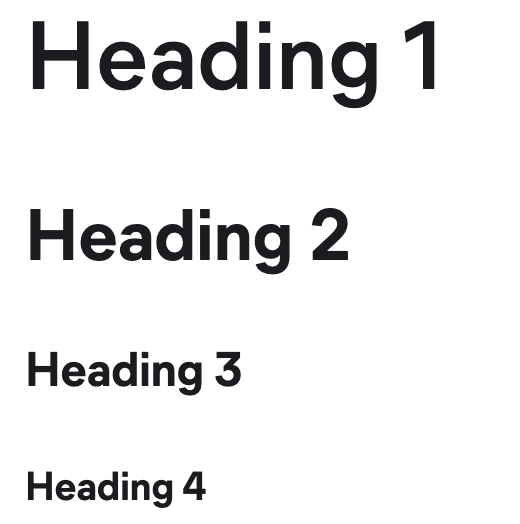
Headings mark the title of a page or section. To create a heading, add number signs # at the beginning of the line (one # for each heading level).
Syntax
# Heading 1
## Heading 2
### Heading 3
#### Heading 4
Output
DOs
✅ Do: Start every page with a Heading 1
✅ Do: Use only one Heading 1 per page
✅ Do: Define custom anchors for repeated headings
DON'Ts
❌ Don't: Use headings in tabs or dropdowns
❌ Don't: Go deeper than Heading 4
For more details, refer to Headings.
Standard Markdown image syntax: ![alt text] in square brackets, followed by the image path in parentheses.
Syntax

Output

DOs
✅ Do: Store images in a centralized directory
✅ Do: Follow v3 best practices for screenshots
✅ Do: Specify :screenshot: in an image directive to add a border
DON'Ts
❌ Don't: Use lots of UI screenshots that create a maintenance burden
❌ Don't: Include confidential info or PII in an image
❌ Don't: Add a drop shadow or torn edge effect
For more details, refer to Images.
Include icons inline using the {icon}`icon-name` syntax.
Syntax
Click the {icon}`gear` **Settings** icon.
Status: {icon}`checkCircle` Success | {icon}`warning` Warning | {icon}`error` Error
Output
Click the Settings icon.
Status: Success | Warning | Error
DOs
✅ Do: Use icons in headings, lists, tables, and paragraphs
✅ Do: Pair icons with descriptive text for accessibility
DON'Ts
❌ Don't: Use icons without context or explanation
❌ Don't: Overuse icons — they should enhance, not clutter
For more details and the full icon list, refer to Icons.
Elastic Docs v3 supports standard Markdown inline formatting.
| Markdown | Output |
|---|---|
| **strong** | strong |
| _emphasis_ | emphasis |
| `monospace` | monospace |
| ~~strikethrough~~ | |
\*escaped symbols\* |
*escaped symbols* |
DOs
✅ Do: Use _emphasis_ to introduce a term
✅ Do: Use monospace in headings and other elements as needed
DON'Ts
❌ Don't: Overuse **strong** or _emphasis_ — aim for readability
Represent keyboard keys and shortcuts using the {kbd}`key-name` syntax. Combine keys with + and show alternatives with |.
Syntax
Press {kbd}`enter` to submit.
Use {kbd}`cmd+shift+p` to open the command palette.
Use {kbd}`ctrl|cmd+c` to copy text.
Output
Press Enter to submit.
Use Cmd + Shift + p to open the command palette.
Use CtrlCmd + c to copy text.
DOs
✅ Do: Use keyword equivalents plus and pipe to render those literal keys
DON'Ts
❌ Don't: Use raw + or | characters when you mean to display them as keys
For more details and available key names, refer to Keyboard markup.
Standard Markdown links to doc pages, sections (anchors), or external content. Prefer absolute paths for links within the doc set.
Syntax
[link text](/absolute/file.md#anchor)
[link text](https://external-site.com)
[link text](other-repo://path/file.md)
(#same-page-anchor)
DOs
✅ Do: Use inline formatting in link text: [**bold link**](https://elastic.github.io/docs-builder/syntax/bold-page)
✅ Do: Autogenerate link text from the page or section title: [](https://elastic.github.io/docs-builder/syntax/use-title#section)
✅ Do: Define a custom anchor by adding [anchor-text] at the end of a heading line
DON'Ts
❌ Don't: Use unclear, inaccessible link text like "click here" or "this"
❌ Don't: Include terminal punctuation in link text
For more details, refer to Links.
Standard Markdown ordered (numbered) and unordered (bulleted) lists. Indent with four spaces to nest paragraphs and other elements under a list item. Unordered lists can start with hyphens -, asterisks *, or plus signs +.
Syntax
- Unordered item 1
····Paragraph within item 1
- Unordered item 2
1. Ordered item 1
2. Ordered item 2
DOs
✅ Do: Add code blocks, images, admonitions, and other content within a list item
✅ Do: Nest lists, mixing ordered and unordered as needed
✅ Do: Use parallel structure and phrasing in list items
✅ Do: Capitalize only the first word of list items (sentence case)
✅ Do: Use terminal punctuation consistently and only for complete sentences
DON'Ts
❌ Don't: Use lists solely for layout purposes
❌ Don't: Use lists for structured data or comparisons — use tables instead
For more details, refer to Lists.
Render mathematical expressions using LaTeX syntax with the {math} directive. Expressions are rendered client-side using KaTeX.
Syntax
:::{math}
E = mc^2
:::
Output
DOs
✅ Do: Use LaTeX display delimiters (\[ \]) or environments (\begin{align}) for complex expressions
✅ Do: Add labels with :label: for cross-referencing
For more details, refer to Math.
Create diagrams using Mermaid with standard fenced code blocks. Diagrams are rendered client-side in the browser.
Syntax
```mermaid
flowchart LR
    A[Start] --> B{Decision}
    B -->|Yes| C[Action]
    B -->|No| D[End]
```
Output
flowchart LR
    A[Start] --> B{Decision}
    B -->|Yes| C[Action]
    B -->|No| D[End]
DOs
✅ Do: Use different types of diagrams, such as flowcharts, sequence diagrams, state diagrams, and so on
DON'Ts
❌ Don't: Rely on diagrams for users with JavaScript disabled — they will see raw Mermaid code
For more details, refer to Mermaid diagrams.
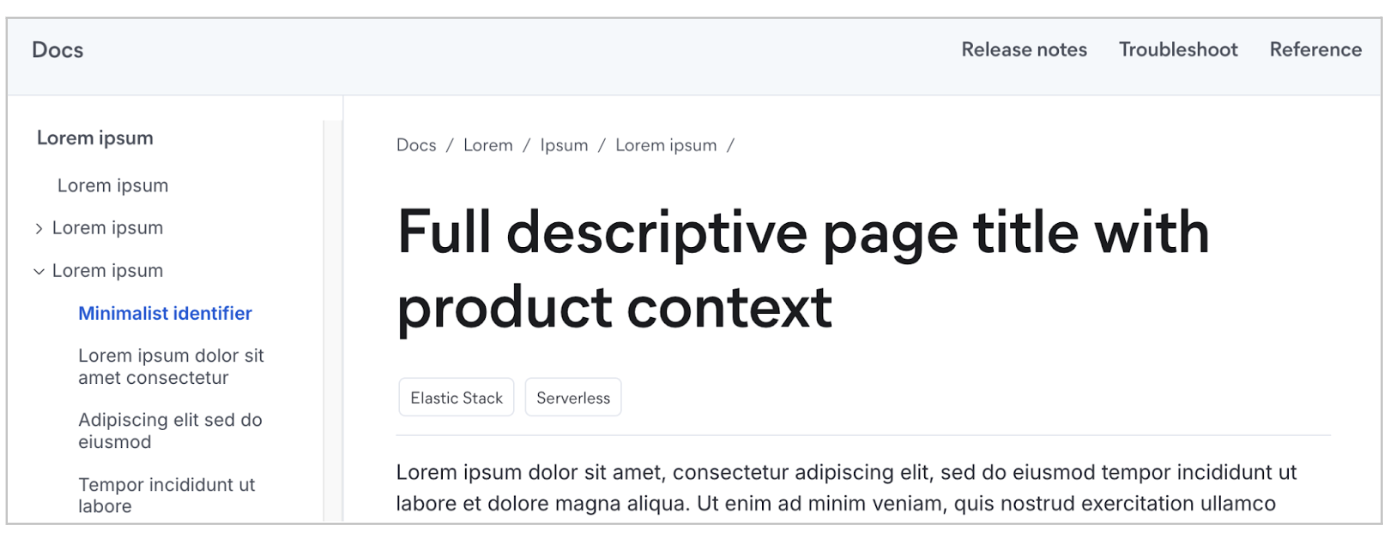
Optional front matter element that sets a custom title for navigation items. Appears in the left navigation (table of contents), breadcrumbs, and previous/next links. For information about page titles, refer to Headings.
Syntax
Page front matter (YAML):
---
navigation_title: "Minimalist identifier"
---
Page title (Markdown H1):
# Full descriptive page title with product context
Output
DOs
✅ Do: Use active phrasing and shorter forms
✅ Do: Make sure the navigation title clearly identifies the page topic
✅ Do: Omit product names that appear in the full H1 page title
DON'Ts
❌ Don't: Duplicate the H1 page title
❌ Don't: Use a long navigation title or lots of punctuation
❌ Don't: Abbreviate with periods or ellipses
For more details, refer to Title.
Key-value pairs that define reusable variables. They help ensure consistency and enable short forms. To use a substitution (or "sub"), surround the key with double curly brackets: {{variable}}
Syntax
In docset.yml:
subs:
  ccs: "cross-cluster search"
  ech: "Elastic Cloud Hosted"
  kib: "Kibana"
This example uses the sub defined in docset.yml above.
Syntax
In myfile.md:
{{ech}} supports most standard {{kib}} settings.
Output
Elastic Cloud Hosted supports most standard Kibana settings.
DOs
✅ Do: Check the global docset.yml file for existing product and feature name subs
✅ Do: Use substitutions in code blocks by setting subs=true
✅ Do: Define new page-specific substitutions as needed
DON'Ts
❌ Don't: Override a docset.yml sub by defining a page-level sub with the same key (causes build errors)
❌ Don't: Use substitutions for common words that don't need to be standardized
For more details, refer to Substitutions.
Steppers provide a visual representation of sequential steps for tutorials or guides. Use steppers instead of numbered section headings when documenting complex procedures. Step titles automatically appear in the page's table of contents.
Syntax
:::::{stepper}

::::{step} Install
First install the dependencies.
::::

::::{step} Build
Then build the project.
::::

::::{step} Done
::::

:::::
DOs
✅ Do: Use steppers for multi-step tutorials or complex procedures
✅ Do: Add :anchor: to override the default anchor for a step
DON'Ts
❌ Don't: Nest steppers inside tabs, dropdowns, or other containers if you want step titles in the ToC
For more details, refer to Stepper.
Block element that displays content in switchable tabs to help users find the right context (such as deployment type or programming language). Synced tab groups are supported.
Syntax
::::{tab-set}

:::{tab-item} Tab 1 title
Tab 1 content
:::

:::{tab-item} Tab 2 title
Tab 2 content
:::

::::
Output
Tab 1 content
Tab 2 content
DOs
✅ Do: Use clear, descriptive tab labels
✅ Do: Make sure all tabs have the same type of content and similar goals
✅ Do: Keep tab content scannable and self-contained (don't make users switch tabs to follow steps or compare content)
✅ Do: Include other block elements in tabs, like admonitions
DON'Ts
❌ Don't: Nest tabs
❌ Don't: Split step-by-step procedures across tabs
❌ Don't: Use more than 6 tabs (use as few as possible)
❌ Don't: Use tabs in dropdowns
For more details, refer to Tabs.
Standard table layout for structured data. Automatically scrolls horizontally if needed. The header row is optional.
Syntax
| Header | Header |
| ------ | ------ |
| Data   | Info   |
| Info	 | Data   |
Output
| Header | Header |
|---|---|
| Data | Info |
| Info | Data |
DOs
✅ Do: Use leading and trailing pipes for clarity
✅ Do: Add spaces for readability (they're trimmed)
✅ Do: Keep cell content scannable and parallel
✅ Do: Use standard Markdown text alignment when necessary (:-- --: :--:)
DON'Ts
❌ Don't: Insert block elements or multiple paragraphs in a table cell
❌ Don't: Use a table solely for position or spacing purposes
For more details, refer to Tables.