Private connectivity with AWS PrivateLink
You can use AWS PrivateLink to establish a secure connection for your Elastic Cloud Hosted deployments and Elastic Cloud Serverless projects to communicate with other AWS services. AWS routes the PrivateLink traffic within the AWS data center and never exposes it to the public internet.
AWS PrivateLink connects your Virtual Private Cloud (VPC) to the AWS-hosted services that you use, treating them as if they were in your VPC. You can create and use VPC endpoints to securely access AWS-hosted services.
You can also optionally filter traffic to your deployments or projects by creating virtual private connection (VPC) filters as part of your private connection policy in Elastic Cloud. This limits traffic to your deployment or project to the VPC specified in the policy, as well as any other policies applied to the deployment or project.
To learn how private connection policies impact your deployment or project, refer to Network security policies in Elastic Cloud.
Elastic Cloud Hosted and Elastic Cloud Serverless also support IP filters. You can apply both IP filters and private connections to a single Elastic Cloud resource.
Before you begin, review the following considerations:
Private connectivity with AWS PrivateLink is supported only in AWS regions.
AWS interface virtual private connection (VPC) endpoints are configured for one or more availability zones (AZ). In some regions, our VPC endpoint service is not present in all the possible AZs that a region offers. You can only choose AZs that are common on both sides. As the names of AZs (for example us-east-1a) differ between AWS accounts, the following list of AWS regions shows the ID (e.g. use1-az4) of each available AZ for the service.
Refer to interface endpoint availability zone considerations for more details.
Elastic charges for inter-node traffic regardless of whether nodes are in the same or different availability zones (AZ). As a result, placing the deployment nodes within a single AZ, instead of two or three, does not reduce inter-node costs.
On the customer VPC side, the inter-availability zone data transfer, within the same AWS region, towards AWS PrivateLink endpoints, is free of charge. As a result, you do not incur charges for cross-AZ data transfer within your VPC when the target is the AWS Privatelink Elastic Cloud service endpoint. We recommend you set up the VPC endpoints in all supported Elastic Cloud AZs for a particular region for maximum traffic throughput and resiliency.
If Elastic and your VPC overlap in two AZs or less, you can create subnets and VPC PrivateLink endpoints in your VPC within the same availability zones where the Elastic PrivateLink service is present.
Elastic Cloud Serverless does not expose availability zones (AZ) to you—you don't choose or see AZs for your project. On the AWS side, however, interface VPC endpoints are still configured for one or more AZs. Inter-availability zone data transfer within the same AWS region toward AWS PrivateLink endpoints is free of charge. We recommend you set up VPC endpoints in all AZs where the Elastic Cloud PrivateLink service is present for your region, for maximum throughput and resiliency.
Transport client is not supported over PrivateLink connections.
Some metadata might differ between Elastic Cloud Hosted and Elastic Cloud Serverless, even if the region is the same.
PrivateLink Service is set up by Elastic in all supported AWS regions under the following service names:
AWS public regions
| Region | VPC service name | Private hosted zone domain name | AZ names (AZ IDs) |
|---|---|---|---|
| af-south-1 | com.amazonaws.vpce.af-south-1.vpce-svc-0d3d7b74f60a6c32c |
vpce.af-south-1.aws.elastic-cloud.com |
af-south-1a (afs1-az1), af-south-1b (afs1-az2), af-south-1c (afs1-az3) |
| ap-east-1 | com.amazonaws.vpce.ap-east-1.vpce-svc-0f96fbfaf55558d5c |
vpce.ap-east-1.aws.elastic-cloud.com |
ap-east-1a (ape1-az1), ap-east-1b (ape1-az2), ap-east-1c (ape1-az3) |
| ap-northeast-1 | com.amazonaws.vpce.ap-northeast-1.vpce-svc-0e1046d7b48d5cf5f |
vpce.ap-northeast-1.aws.elastic-cloud.com |
ap-northeast-1b (apne1-az4), ap-northeast-1c (apne1-az1), ap-northeast-1d (apne1-az2) |
| ap-northeast-2 | com.amazonaws.vpce.ap-northeast-2.vpce-svc-0d90cf62dae682b84 |
vpce.ap-northeast-2.aws.elastic-cloud.com |
ap-northeast-2a (apne2-az1), ap-northeast-2b (apne2-az2), ap-northeast-2c (apne2-az3) |
| ap-south-1 | com.amazonaws.vpce.ap-south-1.vpce-svc-0e9c1ae5caa269d1b |
vpce.ap-south-1.aws.elastic-cloud.com |
ap-south-1a (aps1-az1), ap-south-1b (aps1-az3), ap-south-1c (aps1-az2) |
| ap-southeast-1 | com.amazonaws.vpce.ap-southeast-1.vpce-svc-0cbc6cb9bdb683a95 |
vpce.ap-southeast-1.aws.elastic-cloud.com |
ap-southeast-1a (apse1-az1), ap-southeast-1b (apse1-az2), ap-southeast-1c (apse1-az3) |
| ap-southeast-2 | com.amazonaws.vpce.ap-southeast-2.vpce-svc-0cde7432c1436ef13 |
vpce.ap-southeast-2.aws.elastic-cloud.com |
ap-southeast-2a (apse2-az1), ap-southeast-2b (apse2-az3), ap-southeast-2c (apse2-az2) |
| ca-central-1 | com.amazonaws.vpce.ca-central-1.vpce-svc-0d3e69dd6dd336c28 |
vpce.ca-central-1.aws.elastic-cloud.com |
ca-central-1a (cac1-az1), ca-central-1b (cac1-az2), ca-central-1d (cac1-az4) |
| eu-central-1 | com.amazonaws.vpce.eu-central-1.vpce-svc-081b2960e915a0861 |
vpce.eu-central-1.aws.elastic-cloud.com |
eu-central-1a (euc1-az2), eu-central-1b (euc1-az3), eu-central-1c (euc1-az1) |
| eu-central-2 | com.amazonaws.vpce.eu-central-2.vpce-svc-07deba12e07d77434 |
vpce.eu-central-2.aws.elastic-cloud.com |
eu-central-2a (euc2-az1), eu-central-2b (euc2-az2), eu-central-2c (euc2-az3) |
| eu-south-1 | com.amazonaws.vpce.eu-south-1.vpce-svc-03d8fc8a66a755237 |
vpce.eu-south-1.aws.elastic-cloud.com |
eu-south-1a (eus1-az1), eu-south-1b (eus1-az2), eu-south-1c (eus1-az3) |
| eu-north-1 | com.amazonaws.vpce.eu-north-1.vpce-svc-05915fc851f802294 |
vpce.eu-north-1.aws.elastic-cloud.com |
eu-north-1a (eun1-az1), eu-north-1b (eun1-az2), eu-north-1c (eun1-az3) |
| eu-west-1 | com.amazonaws.vpce.eu-west-1.vpce-svc-01f2afe87944eb12b |
vpce.eu-west-1.aws.elastic-cloud.com |
eu-west-1a (euw1-az2), eu-west-1b (euw1-az1), eu-west-1c (euw1-az3) |
| eu-west-2 | com.amazonaws.vpce.eu-west-2.vpce-svc-0e42a2c194c97a1d0 |
vpce.eu-west-2.aws.elastic-cloud.com |
eu-west-2a (euw2-az2), eu-west-2b (euw2-az3), eu-west-2c (euw2-az1) |
| eu-west-3 | com.amazonaws.vpce.eu-west-3.vpce-svc-0d6912d10db9693d1 |
vpce.eu-west-3.aws.elastic-cloud.com |
eu-west-3a (euw3-az1), eu-west-3b (euw3-az2), eu-west-3c (euw3-az3) |
| me-south-1 | com.amazonaws.vpce.me-south-1.vpce-svc-0381de3eb670dcb48 |
vpce.me-south-1.aws.elastic-cloud.com |
me-south-3a (mes1-az1), me-south-3b (mes1-az2), me-south-3c (mes1-az3) |
| sa-east-1 | com.amazonaws.vpce.sa-east-1.vpce-svc-0b2dbce7e04dae763 |
vpce.sa-east-1.aws.elastic-cloud.com |
sa-east-1a (sae1-az1), sa-east-1b (sae1-az2), sa-east-1c (sae1-az3) |
| us-east-1 | com.amazonaws.vpce.us-east-1.vpce-svc-0e42e1e06ed010238 |
vpce.us-east-1.aws.elastic-cloud.com |
us-east-1a (use1-az4), us-east-1b (use1-az6), us-east-1e (use1-az2) |
| us-east-2 | com.amazonaws.vpce.us-east-2.vpce-svc-02d187d2849ffb478 |
vpce.us-east-2.aws.elastic-cloud.com |
us-east-2a (use2-az1), us-east-2b (use2-az2), us-east-2c (use2-az3) |
| us-west-1 | com.amazonaws.vpce.us-west-1.vpce-svc-00def4a16a26cb1b4 |
vpce.us-west-1.aws.elastic-cloud.com |
us-west-1a (usw1-az1), us-west-1b (usw1-az2), us-west-1c (usw1-az3) |
| us-west-2 | com.amazonaws.vpce.us-west-2.vpce-svc-0e69febae1fb91870 |
vpce.us-west-2.aws.elastic-cloud.com |
us-west-2a (usw2-az2), us-west-2b (usw2-az1), us-west-2c (usw2-az3) |
GovCloud regions
| Region | VPC service name | Private hosted zone domain name |
|---|---|---|
| us-gov-east-1 (GovCloud) | com.amazonaws.vpce.us-gov-east-1.vpce-svc-0bba5ffa04f0cb26d |
vpce.us-gov-east-1.aws.elastic-cloud.com |
To view the service metadata for your selected region, start to create a new private connection policy for the region and expand the Service metadata dropdown.
The process of setting up a private connection with AWS PrivateLink is split between the AWS console and the Elastic Cloud UI. These are the high-level steps:
| AWS console | Elastic Cloud |
|---|---|
| 1. Create a VPC endpoint using Elastic Cloud service name. | |
| 2. Create a DNS record pointing to the VPC endpoint. | |
| 3. Optional: Create a private connection policy. A private connection policy is required to filter traffic using the VPC endpoint ID. |
|
| 4. Optional: Associate the private connection policy with deployments or projects. | |
| 5. Interact with your deployments or projects over PrivateLink. |
After you create your private connection policy, you can edit, disassociate, or delete it.
Private connection policies are optional for AWS PrivateLink. After the VPC endpoint and DNS record are created, private connectivity is established. You only need to create a private connection policy if you want to filter traffic to your deployment or project using VPC filters.
Before you begin, you should ensure your VPC endpoint is in all availability zones supported by Elastic Cloud for the region and resource type. Placing your VPC endpoint in all supported Elastic Cloud availability zones for the region improves throughput and resiliency when connecting over PrivateLink.
For Elastic Cloud Hosted deployments, if your VPC is not in all supported availability zones, traffic can become imbalanced, saturating some coordinating nodes while underutilizing others, which might impact performance.
You can find the zone name to zone ID mapping with AWS CLI:
$ aws ec2 describe-availability-zones --region us-east-1 | jq -c '.AvailabilityZones[] | { id: .ZoneId, name: .ZoneName } ' | sort
{"id":"use1-az1","name":"us-east-1c"}
{"id":"use1-az2","name":"us-east-1e"}
{"id":"use1-az3","name":"us-east-1d"}
{"id":"use1-az4","name":"us-east-1a"}
{"id":"use1-az5","name":"us-east-1f"}
{"id":"use1-az6","name":"us-east-1b"}
The mapping will be different for your region. Our production VPC Service for us-east-1 is located in use1-az2, use1-az4, use1-az6. We need to create the VPC Endpoint for the preceding mapping in at least one of us-east-1e, us-east-1a, us-east-1b.
This limitation does not apply to cross-region PrivateLink connections. If you're creating a cross-region connection, then you don't need to check that your VPC is present in all availability zones.
Create a VPC endpoint in your VPC using the service name for your region.
Refer to the AWS documentation for additional details on creating a VPC interface endpoint to an endpoint service.
Select PrivateLink Ready partner services as the endpoint type. Use the service name for your region as the Service name.
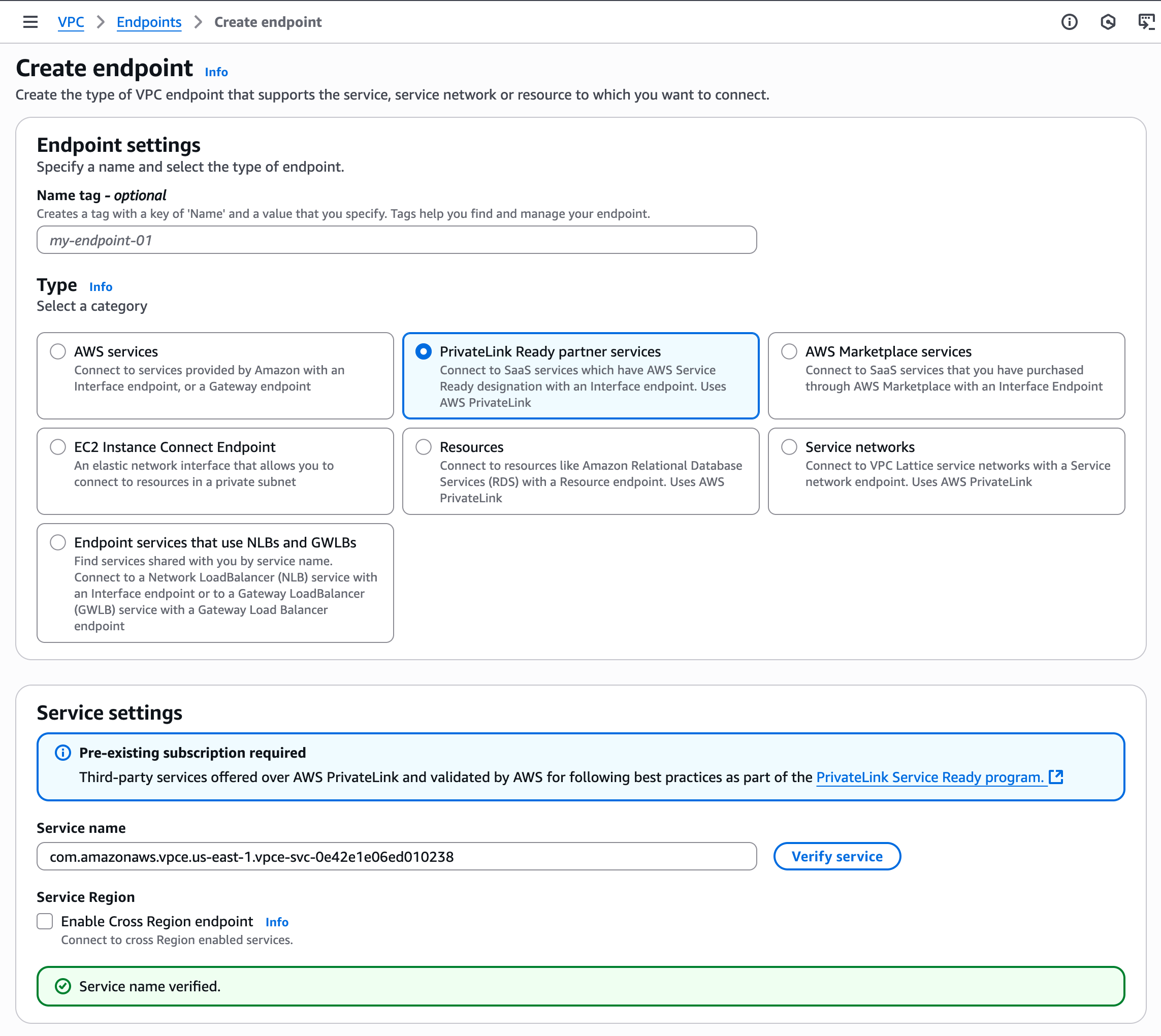
The security group for the endpoint should, at minimum, allow for inbound connectivity from your instances' CIDR range on ports 443 and 9243. Security groups for the instances should allow for outbound connectivity to the endpoint on ports 443 and 9243.
TipYou can also create a cross-region endpoint. Refer to Setting up an cross-region Private Link connection.
Create a DNS record.
Create a Private hosted zone.
For Elastic Cloud Hosted, refer to the Private hosted zone domain name column in the PrivateLink service names and aliases table for the name of the zone.
For Elastic Cloud Serverless, to view the service metadata for your selected region, start to create a new private connection policy for the region and find the Domain name in the Service metadata dropdown.
For example, for Elastic Cloud Hosted deployments in
us-east-1, usevpce.us-east-1.aws.elastic-cloud.comas the zone domain name. For Elastic Cloud Serverless deployments in the same region, useprivate.us-east-1.aws.elastic-cloud.com.Don’t forget to associate the zone with your VPC.
TipPrivate hosted zone domain names differ between Elastic Cloud Hosted and Elastic Cloud Serverless, even if the region is the same.
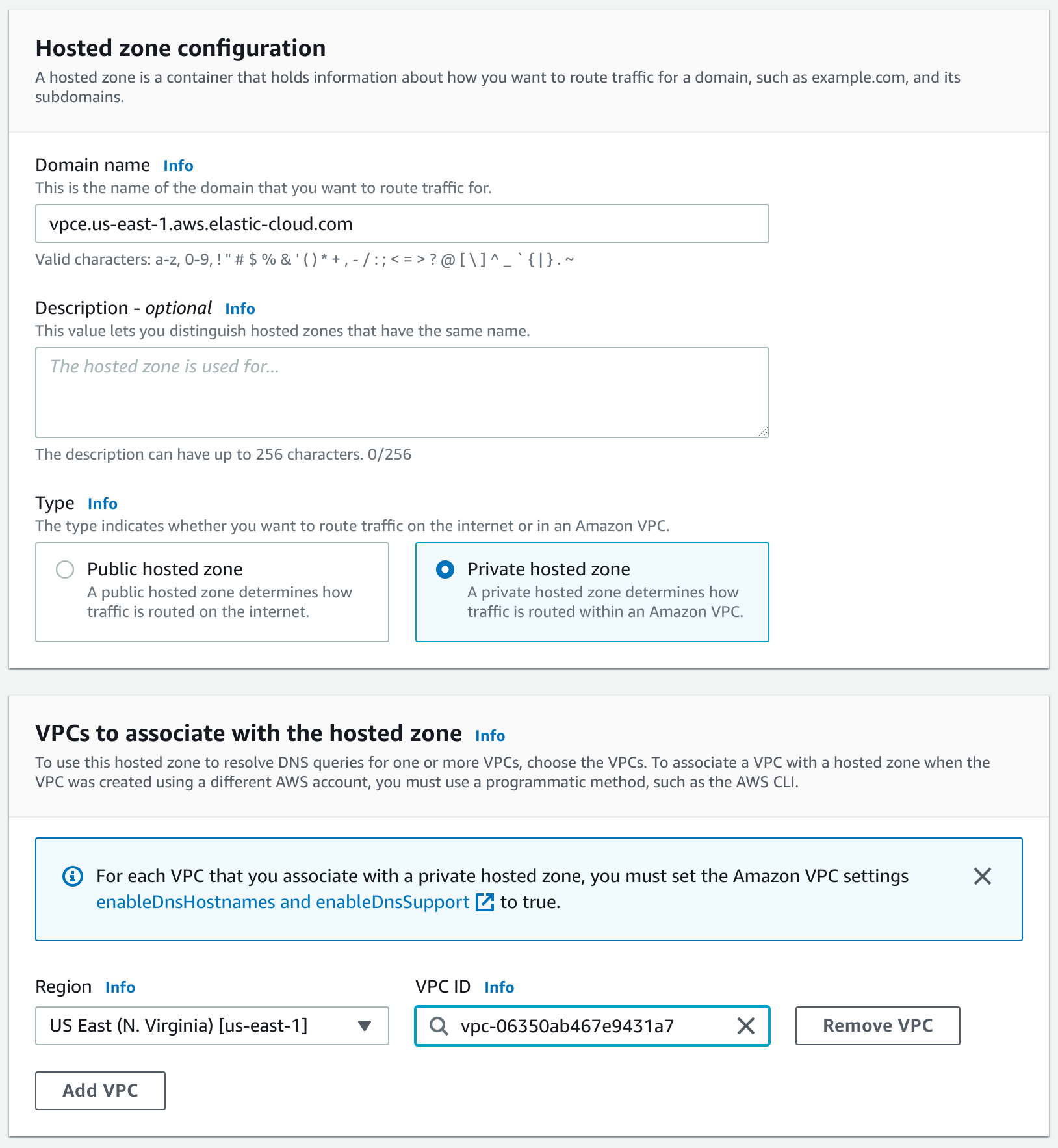
Create a DNS CNAME alias pointing to the PrivateLink endpoint. Add the record to a private DNS zone in your VPC. Use
*as the record name, and the VPC endpoint DNS name as a value.Refer to the AWS documentation for details on creating a CNAME record which points to your VPC endpoint DNS name.
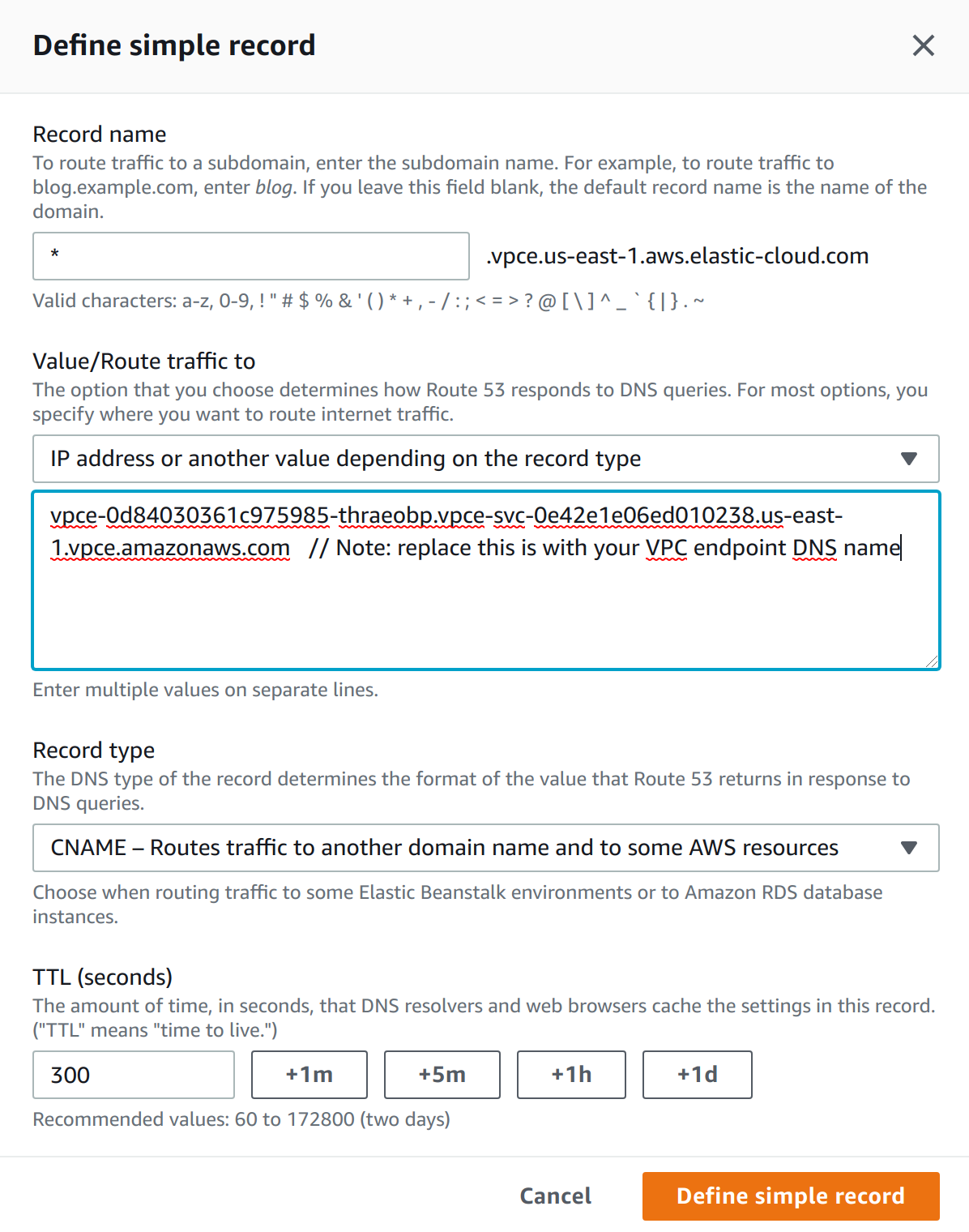
After you create your VPC endpoint and DNS entries, check that you are able to reach your deployment or project over PrivateLink.
Use the following URL structure. This URL is built from endpoint information retrieved from your Elastic deployment or project and the private hosted zone domain name that you registered.
https://{{alias}}.{{product}}.{{private_hosted_zone_domain_name}}
For example:
https://my-deployment-d53192.es.vpce.us-east-1.aws.elastic-cloud.com
You can use either 443 or 9243 as a port.
You can also connect to the cluster using the Elasticsearch cluster or project ID, for example, https://6b111580caaa4a9e84b18ec7c600155e.vpce.us-east-1.aws.elastic-cloud.com
Private hosted zone domain names differ between Elastic Cloud Hosted and Elastic Cloud Serverless, even if the region is the same.
To test the connection:
If needed, find the endpoint of an application in your deployment or project:
Log in to the Elastic Cloud Console.
Under Hosted deployments, find your deployment.
TipIf you have many deployments, you can instead go to the Hosted deployments (Elastic Cloud Hosted) page. On that page, you can narrow your deployments by name, ID, or choose from several other filters.
- Select Manage.
- In the deployment overview, under Applications, find the application that you want to test.
- Click Copy endpoint. The value looks something like the following:
https://my-deployment-d53192.es.us-east-1.aws.elastic-cloud.comIn this endpoint,
my-deployment-d53192is an alias, andesis the product you want to access within your deployment.Log in to the Elastic Cloud Console.
Under Serverless projects, find your projects.
TipIf you have many projects, you can instead go to the Serverless projects page. On that page, you can narrow your projects by name, ID, or choose from several other filters.
Select Manage.
In the project overview, under Application endpoints, cluster and component IDs, find the application that you want to test.
Under Public endpoint, you can view your endpoint URL. It looks something like the following:
https://my-project-d53192.es.us-east-1.aws.elastic-cloud.com
In this endpoint,
my-project-d53192is an alias, andesis the product you want to access within your project.Test the setup using the following cURL command. Pass the username and password for a user that has access to the cluster. Make sure to replace the URL with your deployment or project's endpoint information and the private hosted zone domain name that you registered.
Request
$ curl -v https://my-deployment-d53192.es.vpce.us-east-1.aws.elastic-cloud.com -u {username}:{password}$ curl -v https://my-project-d53192.es.private.us-east-1.aws.elastic-cloud.com -u {username}:{password}Response
* Server certificate:
*  subject: CN=*.us-east-1.aws.elastic-cloud.com
*  SSL certificate verify ok.
..
    < HTTP/1.1 200 OK
..
{
    "name" : "instance-0000000009",
    "cluster_name" : "fb7e805e5cfb4931bdccc4f3cb591f5f",
    "cluster_uuid" : "2cTHeCQYS2a0iH7YnQHrIQ",
    "version" : { ... },
    "tagline" : "You Know, for Search"
}
The connection is established, and a valid certificate is presented to the client. Elastic responds, in the case of the Elasticsearch endpoint, with basic information about the cluster.
After you test your PrivateLink connection, you can create a private connection policy in Elastic Cloud.
Private connection policies are optional for AWS PrivateLink. After the VPC endpoint and DNS record are created, private connectivity is established.
Creating a private connection policy and associating it with your deployments or projects allows you to filter traffic to your deployments or projects using VPC filters.
Follow these high-level steps to add a private connection policy that can be associated with your deployments or projects.
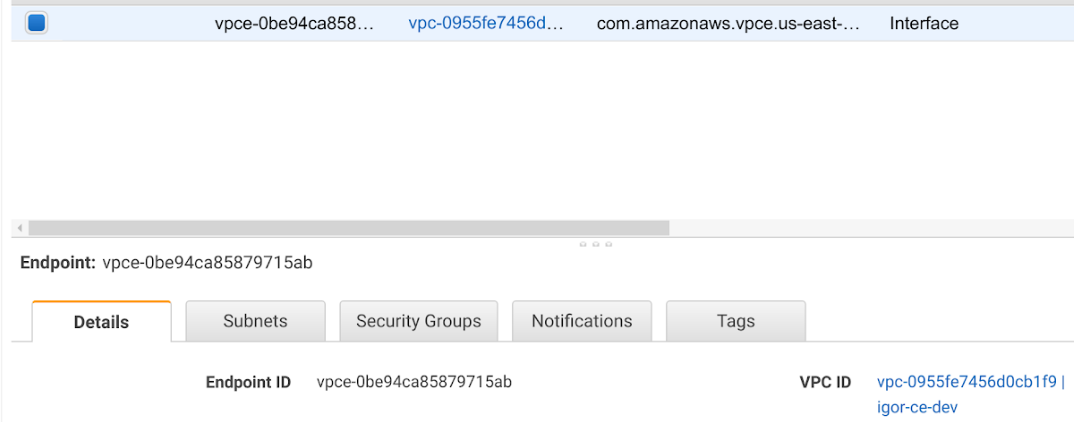
- Optional: Find your VPC endpoint ID.
- Create a private connection policy using the VPC endpoint.
- Associate the VPC endpoint with your deployment or project.
The VPC endpoint ID is only required if you want to filter traffic to your deployment or project using VPC filters.
You can find your VPC endpoint ID in the AWS console:
Create a new private connection policy.
- Log in to the Elastic Cloud Console.
- From any deployment or project on the home page, select Manage.
- From the left navigation menu, select Access and security > Network security.
Select Private connection.
Select the resource type that the private connection will be applied to.
Select the cloud provider and region for the private connection.
TipPrivate connection policies are bound to a single resource type and region, and can be assigned only to resources with the same resource type and in the same region. If you want to associate a policy with multiple resource types or resources in multiple regions, then you have to recreate the policy for all applicable resource types and regions.
Under Connectivity, select Privatelink.
Optional: Under VPC filter, enter your VPC endpoint ID. You should only specify a VPC filter if you want to filter traffic to your deployment or project.
If you don't specify a VPC filter, then the private connection policy acts only as a record that you've established private connectivity between AWS and Elastic in the applicable region.
TipYou can apply multiple policies to a single deployment or project. The policies can be of different types. In case of multiple policies, traffic can match any associated policy to be forwarded to the resource. If none of the policies match, the request is rejected with
403 Forbidden.Learn more about how network security policies affect your deployment or project.
Optional: Under Apply to resources, associate the new private connection policy with one or more deployments or projects. If you specified a VPC filter, then after you associate the filter with a resource, it starts filtering traffic.
To automatically attach this private connection policy to new resources of this type, select Apply by default.
Click Create.
(Optional) You can claim your VPC endpoint ID, so that no other organization is able to use it in a private connection policy.
The next step is to associate the policy with your deployment or project.
You can associate a private connection policy with your deployment or project from the policy's settings, or from your deployment's or project's settings.
Find your deployment on the home page or on the Hosted deployments page, then select Manage to access its settings menus.
On the Hosted deployments page, you can narrow your deployments by name, ID, or choose from several other filters. To customize your view, use a combination of filters, or change the format from a grid to a list.
On the Security page, under Network security, select Apply policies > Private connection.
Choose the policy you want to apply and select Apply.
Find your project on the home page or on the Serverless projects page, then select Manage to access its settings menus.
On the Serverless projects page, you can narrow your projects by name, ID, or choose from several other filters. To customize your view, use a combination of filters, or change the format from a grid to a list.
On the Security page, under Network security, select Apply policies > Private connection.
Choose the policy you want to apply and select Apply.
- Log in to the Elastic Cloud Console.
- From any deployment or project on the home page, select Manage.
- From the left navigation menu, select Access and security > Network security.
- Find the policy you want to edit.
- Under Apply to resources, associate the policy with one or more deployments or projects.
- Click Update to save your changes.
For traffic to connect with the deployment or project over AWS PrivateLink, the client making the request needs to be located within the VPC where you’ve created the VPC endpoint. You can also set up network traffic to flow through the originating VPC from somewhere else, such as another VPC or VPN from your corporate network. This assumes that the VPC endpoint and the DNS record are also available within that context. Check your service provider documentation for setup instructions.
Use the alias you’ve set up as CNAME DNS record to access your resource.
Use the following URL structure. This URL is built from endpoint information retrieved from your Elastic deployment or project and the private hosted zone domain name that you registered.
https://{{alias}}.{{product}}.{{private_hosted_zone_domain_name}}
For example:
https://my-deployment-d53192.es.vpce.us-east-1.aws.elastic-cloud.com
You can use either 443 or 9243 as a port.
You can also connect to the cluster using the Elasticsearch cluster or project ID, for example, https://6b111580caaa4a9e84b18ec7c600155e.vpce.us-east-1.aws.elastic-cloud.com
Private hosted zone domain names differ between Elastic Cloud Hosted and Elastic Cloud Serverless, even if the region is the same.
To access the deployment or project:
If needed, find the endpoint of an application in your deployment or project:
Log in to the Elastic Cloud Console.
Under Hosted deployments, find your deployment.
TipIf you have many deployments, you can instead go to the Hosted deployments (Elastic Cloud Hosted) page. On that page, you can narrow your deployments by name, ID, or choose from several other filters.
- Select Manage.
- In the deployment overview, under Applications, find the application that you want to test.
- Click Copy endpoint. The value looks something like the following:
https://my-deployment-d53192.es.us-east-1.aws.elastic-cloud.comIn this endpoint,
my-deployment-d53192is an alias, andesis the product you want to access within your deployment.Log in to the Elastic Cloud Console.
Under Serverless projects, find your projects.
TipIf you have many projects, you can instead go to the Serverless projects page. On that page, you can narrow your projects by name, ID, or choose from several other filters.
Select Manage.
In the project overview, under Application endpoints, cluster and component IDs, find the application that you want to test.
Under Public endpoint, you can view your endpoint URL. It looks something like the following:
https://my-project-d53192.es.us-east-1.aws.elastic-cloud.com
In this endpoint,
my-project-d53192is an alias, andesis the product you want to access within your project.Send a request:
Request
$ curl -v https://my-deployment-d53192.es.vpce.us-east-1.aws.elastic-cloud.com -u {username}:{password}$ curl -v https://my-project-d53192.es.private.us-east-1.aws.elastic-cloud.com -u {username}:{password}Response
* Server certificate:
*  subject: CN=*.us-east-1.aws.elastic-cloud.com
*  SSL certificate verify ok.
..
    < HTTP/1.1 200 OK
..
{
    "name" : "instance-0000000009",
    "cluster_name" : "fb7e805e5cfb4931bdccc4f3cb591f5f",
    "cluster_uuid" : "2cTHeCQYS2a0iH7YnQHrIQ",
    "version" : { ... },
    "tagline" : "You Know, for Search"
}
If you are using AWS PrivateLink together with Fleet, and enrolling the Elastic Agent with a private connection URL, you need to configure Fleet Server to use and propagate the AWS PrivateLink URL by updating the Fleet Server hosts field in the Fleet settings section of Kibana. Otherwise, Elastic Agent will reset to use a default address instead of the AWS PrivateLink URL.
The URL needs to follow this pattern:
https://{{fleet_component_ID_or_deployment_alias}}.fleet.{{private_hosted_zone_domain_name}}:443`
Similarly, the Elasticsearch host needs to be updated to propagate the private connection URL. The Elasticsearch URL needs to follow this pattern:
https://{{elasticsearch_cluster_ID_or_deployment_alias}}.es.{{private_hosted_zone_domain_name}}:443
The settings xpack.fleet.agents.fleet_server.hosts and xpack.fleet.outputs that are needed to enable this configuration in Kibana are not available in the Kibana settings in Elastic Cloud.
AWS supports cross-region PrivateLink as described on the AWS blog.
This means your deployment or project on Elastic Cloud can be in a different region than the PrivateLink endpoints or the clients that consume the deployment or project endpoints.
In this example, region 1 contains your VPC endpoint and region 2 is the region where your deployment or project is hosted.
Begin to create your VPC endpoint in
region 1, as described in Create your VPC endpoint and DNS entries in AWS. In the service settings, do the following:- In the Service name field, enter the VPC service name for
region 2. - Select Enable Cross Region endpoint and select
region 2from the Select a region drop-down list.
- In the Service name field, enter the VPC service name for
Create a private connection policy in the region where your deployment or project is hosted (
region 2), and associate it with your deployment or project.Test the connection from a VM or client in
region 1to your Private Link endpoint, and it should be able to connect to your Elasticsearch deployment or project hosted inregion 2.
After you create your private connection policy, you can edit it, remove it from your deployment or project, or delete it.
You can edit a policy's name, description, VPC endpoint ID, and more.
- Log in to the Elastic Cloud Console.
- From any deployment or project on the home page, select Manage.
- From the left navigation menu, select Access and security > Network security.
- Find the policy you want to edit, then click the Edit button.
- Click Update to save your changes.
You can also edit private connection policies from your deployment or project's Security page or your project's Network security page.
If you want to remove a specific policy from a deployment or project, or delete the policy, then you need to disconnect it from any associated deployments or projects first. You can do this from the policy's settings, or from your deployment or project's settings. To remove an association through the UI:
Find your deployment on the home page or on the Hosted deployments page, then select Manage to access its settings menus.
On the Hosted deployments page you can narrow your deployments by name, ID, or choose from several other filters. To customize your view, use a combination of filters, or change the format from a grid to a list.
On the Security page, under Network security, find the policy that you want to disconnect.
Under Actions, click the Delete icon.
Find your project on the home page or on the Serverless projects page, then select Manage to access its settings menus.
On the Serverless projects page, you can narrow your projects by name, ID, or choose from several other filters. To customize your view, use a combination of filters, or change the format from a grid to a list.
On the Security page, under Network security, find the policy that you want to disconnect.
Under Actions, click the Delete icon.
- Log in to the Elastic Cloud Console.
- From any deployment or project on the home page, select Manage.
- From the left navigation menu, select Access and security > Network security.
- Find the policy you want to edit, then click the Edit button.
- Under Apply to resources, click the
xbeside the resource that you want to disconnect. - Click Update to save your changes.
If you need to remove a policy, you must first remove any associations with deployments or projects.
To delete a policy:
- Log in to the Elastic Cloud Console.
- From any deployment or project on the home page, select Manage.
- From the left navigation menu, select Access and security > Network security.
- Find the policy you want to edit, then click the Delete icon. The icon is inactive if there are deployments or projects associated with the policy.