MITRE ATT&CK coverage
The MITRE ATT&CK coverage page shows which MITRE ATT&CK adversary tactics and techniques are covered by your installed and enabled detection rules, including both Elastic prebuilt rules and custom rules.
How you use this page depends on your goal:
- Identifying coverage gaps: Filter to view only enabled rules, then look for light or empty cells to find tactics and techniques where your detection coverage is thin. Use this to prioritize which prebuilt rules to install or which custom rules to build next.
- Activating coverage quickly: Find techniques you care about and enable installed rules directly from the coverage grid, without leaving the page.
Find Detection rules (SIEM) in the navigation menu or look for "Detection rules (SIEM)" using the global search field, then go to MITRE ATT&CK coverage.
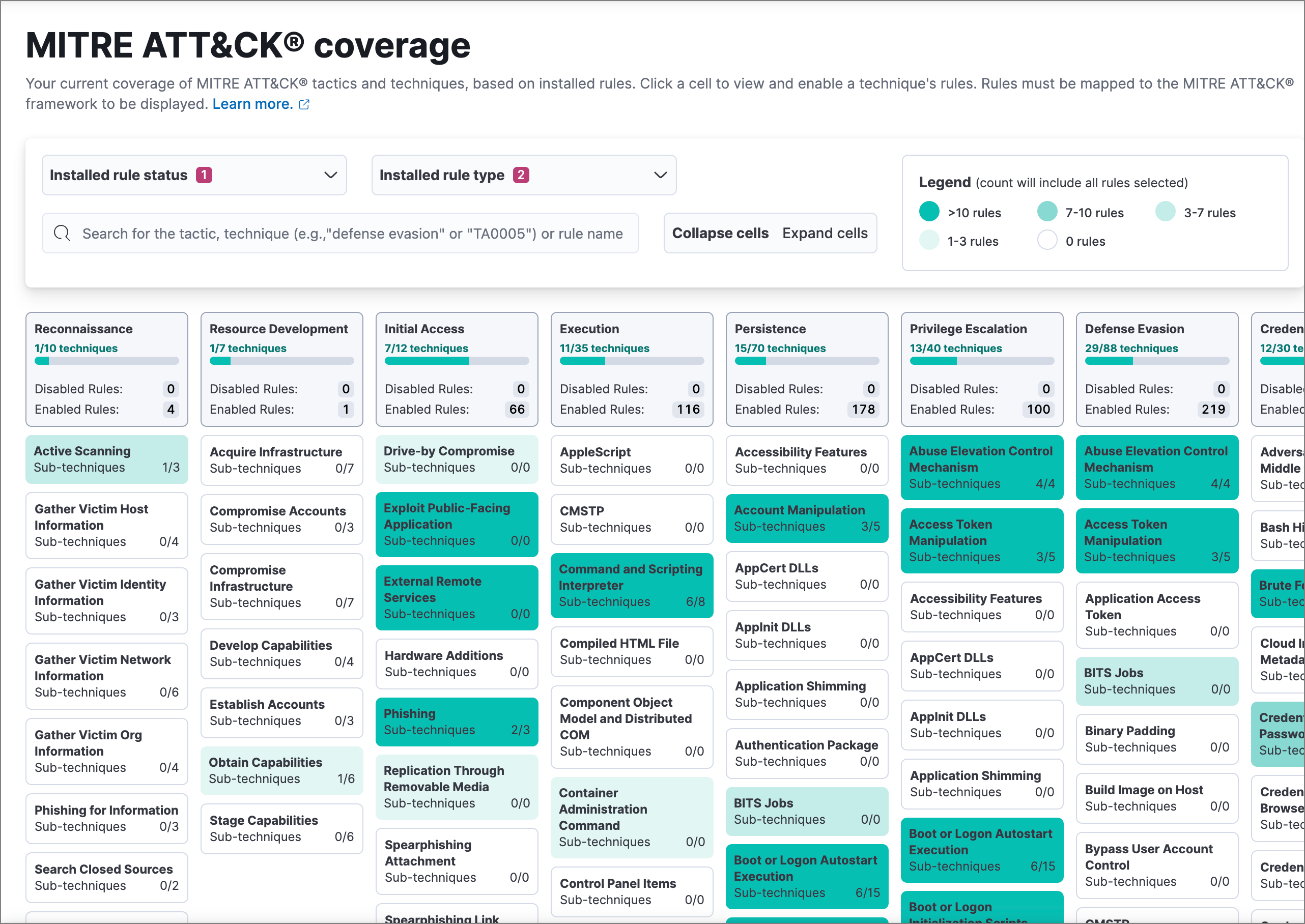
Mirroring the MITRE ATT&CK framework, columns represent major tactics, and cells within each column represent a tactic's related techniques. Cells are darker when a technique has more rules matching the current filters, as indicated in the Legend at the top.
The coverage grid only includes detection rules you currently have installed, and only rules that are mapped to MITRE ATT&CK. Prebuilt rules that are not installed, and custom rules that are unmapped or mapped to a deprecated tactic or technique, do not appear. You can map custom rules to tactics in Advanced settings when creating or editing a rule.
The coverage page maps detections to MITRE ATT&CK versions used by Elastic Security.
| MITRE ATT&CK version | Elastic Security version |
|---|---|
| v16.1 | 9.0.0-9.0.6, 9.1.0-9.1.3 |
| v17.1 | 9.0.7, 9.1.4, 9.2.0 |
| v18.1 | 9.1.10, 9.2.4,
|
Use the drop-down filters at the top of the page to control which of your installed detection rules are included in calculating coverage.
- Installed rule status: Select to include Enabled rules, Not enabled rules, or both.
- Installed rule type: Select to include Elastic rules (prebuilt rules), Custom rules (user-created rules), or both.
You can also search for a tactic or technique name, technique number, or rule name in the search bar. The search bar acts as a filter for the coverage grid: only rules matching the search term are included.
Searches for tactics and techniques must match exactly, are case sensitive, and do not support wildcards.
Select Collapse cells or Expand cells to change how much information the cells display. Cells always include the technique's name and the number of sub-techniques covered by enabled rules. Expand the cells to also display counts of not-enabled and enabled rules for each technique.
The counts inside cells are affected by how you filter the page. For example, if you filter the Installed rule status to only include Enabled rules, then all not-enabled rule counts are 0 because those rules are filtered out.
You can quickly enable all the rules for a specific technique that you've installed but not yet enabled. Select the technique's cell, then select Enable all disabled in the popup that appears.
For more information on a specific technique and its sub-techniques, select the technique's cell, then select the title in the popup that appears. This opens a new browser tab with the technique's MITRE ATT&CK documentation.