Learn data exploration and visualization with Kibana
Kibana provides powerful tools for exploring and visualizing data stored in Elasticsearch. Discover lets you search and filter documents with Elasticsearch Query Language (ES|QL), Lens transforms query results into charts, and Dashboards combine visualizations into shareable, interactive views. This tutorial teaches you how these core features work together by walking through a complete workflow, from querying data to sharing a finished dashboard.
You'll use Kibana's built-in sample web logs dataset so you can focus on learning the tools without needing to set up data ingestion. Basic familiarity with Elasticsearch concepts (indices, documents, fields) is helpful but not required.
These features are available across all Elastic solutions and project types, so what you learn here applies regardless of your use case.
By the end of this tutorial, you'll know how to:
- Search and filter data in Discover using ES|QL
- Create visualizations with Lens
- Combine panels into a Dashboard and customize the layout
- Navigate between Discover, Lens, and Dashboards to iterate on your analysis
- Share a dashboard with your team
An Elastic Stack deployment or Elastic Cloud Serverless project with Elasticsearch and Kibana. Don't have one yet? Start a free trial.
The required privileges to complete the tutorial. Specifically:
- Kibana privileges:
Allon Discover and Dashboard (to explore data and create dashboards). - Elasticsearch index privileges:
readandview_index_metadataon thekibana_sample_data_logsindex (to query the sample data in Discover).
NoteIf you created a trial account, you are the admin of your deployment and already have all the required privileges.
- Kibana privileges:
Before you can explore and visualize, you need data in Elasticsearch. In this tutorial you use Kibana's built-in sample web logs dataset, which you can load in a few clicks. No agents or integrations required.
- Open the Integrations page from the navigation menu or using the global search field.
- In the list of integrations, select Sample Data.
- On the page that opens, select Other sample data sets.
- On the Sample web logs card, select Add data.
The sample data is loaded into the kibana_sample_data_logs index. It includes web server access logs with fields like @timestamp, clientip, response, bytes, url, extension, and geo.src.
When you're ready to explore your own data, refer to Ingest data for an overview of ingestion options, including Elastic Agent, Beats, and direct API uploads. Many integrations also ship with pre-built dashboards, visualizations, anomaly detection jobs, and alerting rules, so you can start analyzing your data as soon as it's ingested.
Discover is the starting point for data exploration. You can search, filter, and visualize your data interactively.
Discover supports two exploration modes. This tutorial uses ES|QL (Elasticsearch Query Language), a piped query language that lets you chain operations like filtering, aggregating, and sorting in a single query. Unlike the default classic, KQL-based mode, ES|QL doesn't require you to set up a data view first: you query indices directly by name, so you can start exploring right away.
-
Open Discover and switch to ES|QL
- From the navigation menu, go to Discover.
- Select ES|QL or Try ES|QL from the application menu.
Result: The query bar changes to an ES|QL editor where you can write piped queries.
-
Run your first query
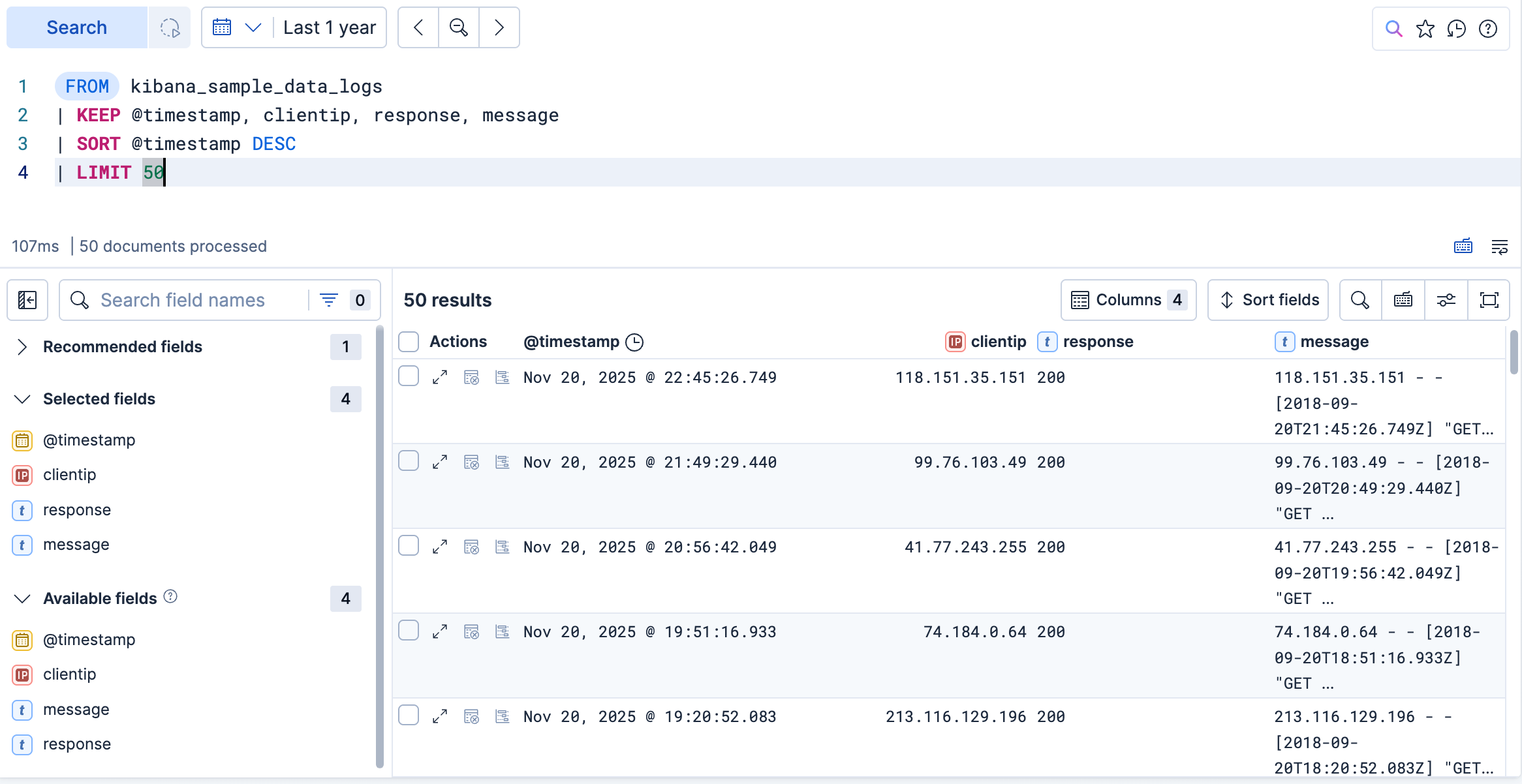
Enter the following query, then select Run or Search. If you choose to type your own query, the editor helps you with relevant autocomplete suggestions for commands, fields, and values.
FROM kibana_sample_data_logs | KEEP @timestamp, clientip, response, message | SORT @timestamp DESC | LIMIT 50- Reads from the sample web logs index.
- Retains only these four fields in the output, discarding everything else.
- Orders results by timestamp, most recent first.
- Returns only the first 50 rows. Without
LIMIT, ES|QL returns up to 1,000 rows by default. A smaller limit keeps the result set focused and the response fast while you explore.
For a complete list of commands and functions, refer to the ES|QL reference.
Result: The results table displays the most recent web log entries with only the fields you selected. To discover which fields are available, browse the field list in the sidebar.
 Tip
TipNo results? The time range filter defaults to the last 15 minutes. Sample data timestamps are relative to when you loaded the dataset, so you may need to select a wider range, such as Last 90 days, or more, to see results.
-
Inspect individual results and documents
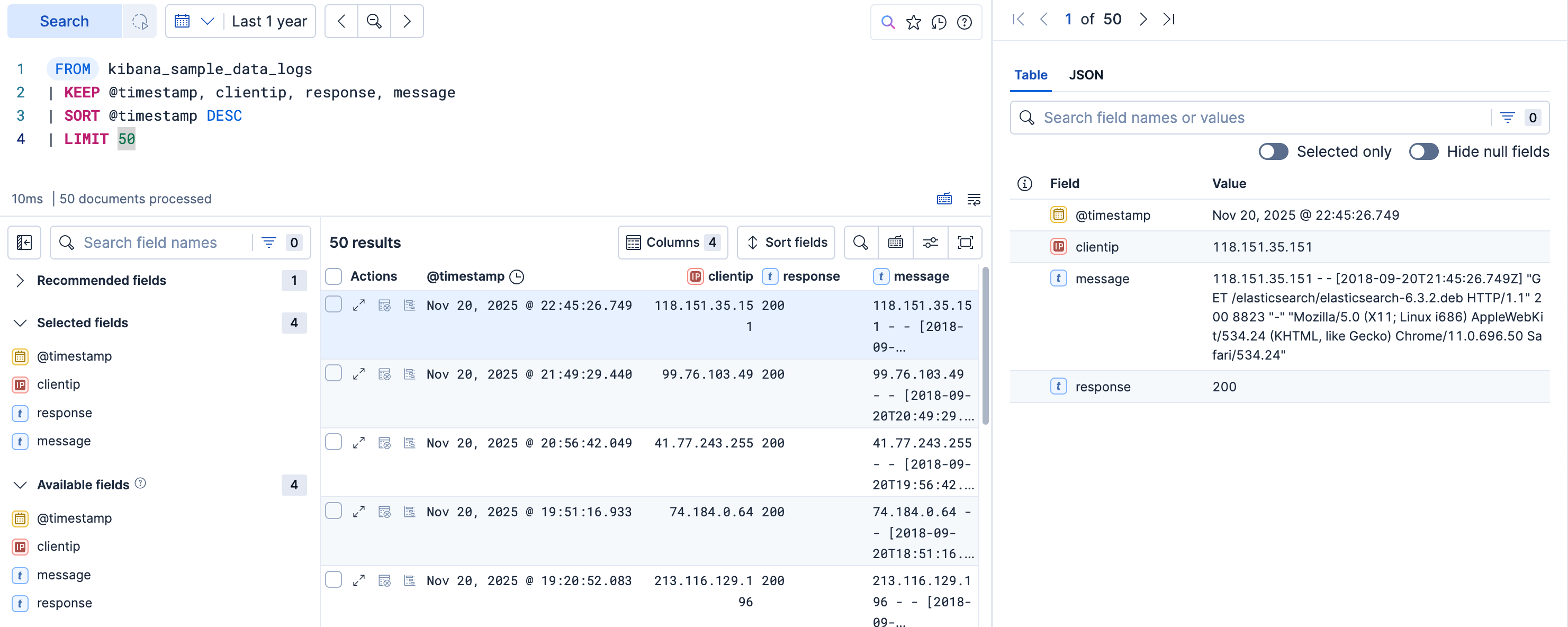
The results table gives you an overview, but sometimes you need the full details of a single event. To inspect a document:
- Select the expand icon () on any row in the results table. A flyout opens.
- The flyout shows the fields returned by your query in a detailed view. Use the Table tab to see field names and values, or the JSON tab to see the raw document.
- Use the navigation arrows at the top of the flyout to move between documents without closing it. This is useful when you need to compare consecutive events or trace a sequence.
-
Filter and aggregate
Browsing individual events is useful, but you can also summarize data directly in ES|QL. In this step, you check which HTTP response codes appear in the logs and how frequently. Use
WHEREto filter out rows with missing values andSTATSto count events per response code:FROM kibana_sample_data_logs | WHERE response IS NOT NULL | STATS event_count = COUNT(*) BY response | SORT event_count DESC | LIMIT 50- Excludes rows where the HTTP response code is missing.
- Groups rows by response code and counts events in each group.
- Puts the most frequent response codes at the top.
Result: The table shows the HTTP response codes ranked by frequency. A chart appears above the table to visualize the aggregation, so you can see at a glance how traffic breaks down by status (200, 404, 503, and so on). A four-line query turned thousands of raw log entries into a ranked breakdown with a chart. Notice that the field list in the sidebar now only shows the fields produced by the query (
event_countandresponse), reflecting the narrower result set.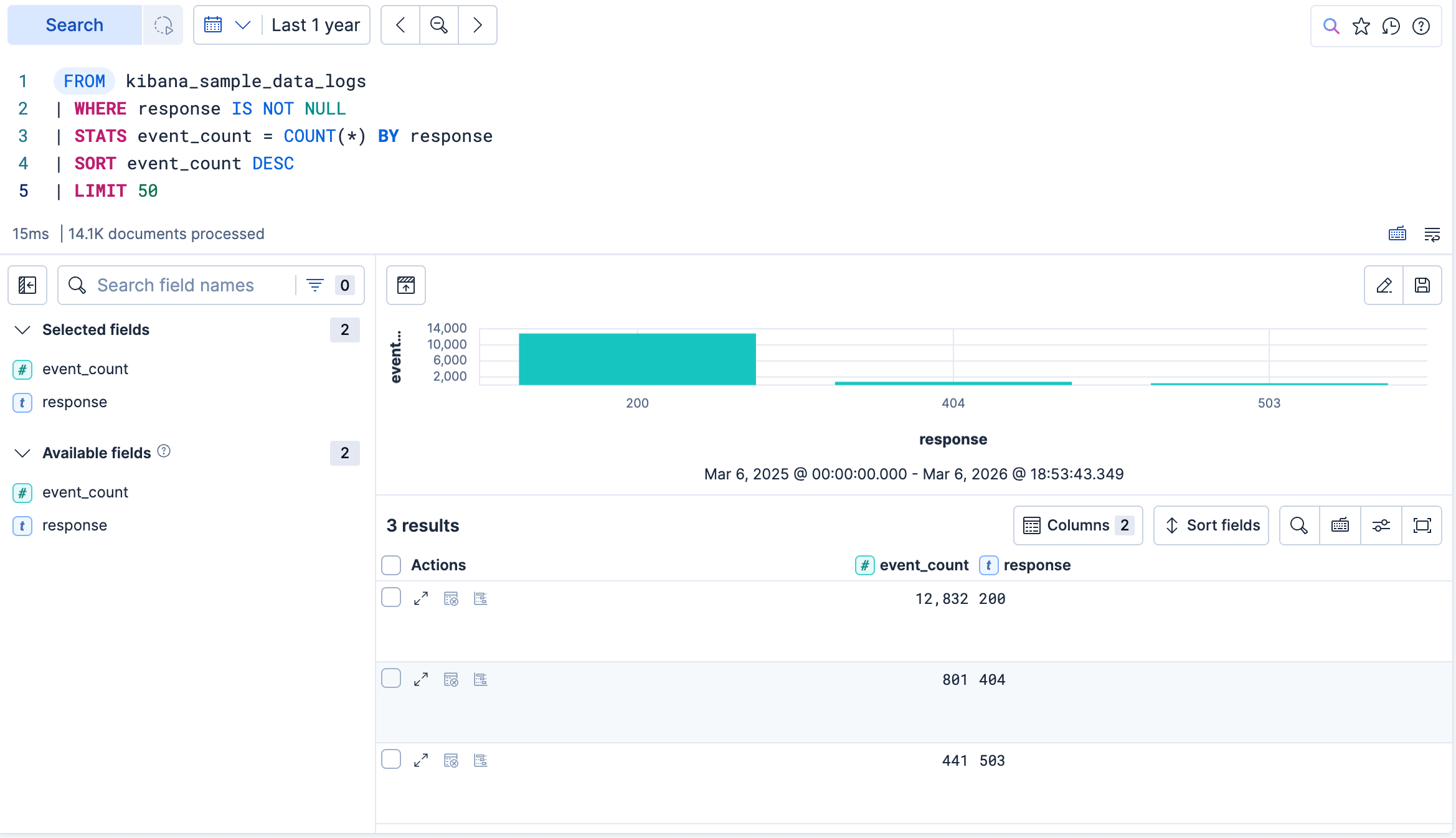
-
Save the visualization to a dashboard
The aggregation query produced a chart showing event counts by response code. You can save this chart directly to a dashboard:
- Select Save visualization above the chart. You can also select Edit visualization to open the Lens editor inline and customize the chart before saving it.
- Enter a title, for example
Events by response code. - Under Add to dashboard, select New.
- Select Save and go to dashboard.
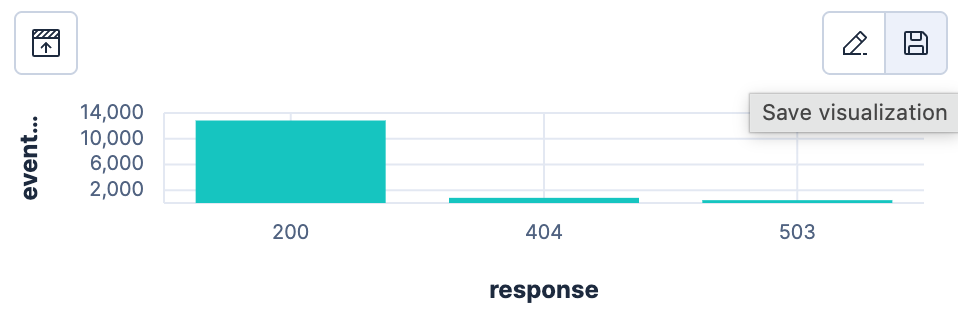
Result: Kibana opens a new, unsaved dashboard with your response code chart already on it.
TipWant to show the results table on a dashboard instead of the chart? Save your Discover session (select Save in the toolbar), then from your dashboard, import it from the library as a new panel. This embeds the table view, including the query and any filters you applied.
You've queried, filtered, aggregated, and inspected data, all within Discover using ES|QL. You also saved a visualization to a new dashboard, which is where you're headed next. When you work with specific types of data, Discover adapts its interface accordingly. For example, it provides specialized log exploration tools with built-in parsing and categorization when it detects log data. To learn more about Discover, refer to Discover. For the full ES|QL language reference, refer to ES|QL.
Now that you have a dashboard with your first panel, add more visualizations to tell a complete story about your web traffic.
-
Save the dashboard
Before adding more panels, save your dashboard so you don't lose your work:
- In the toolbar, select Save.
- Enter a title, for example
Web logs overview. - Select Save.
-
Add a metric panel for median response size
Create the visualization:
-
Select Add > Visualization in the toolbar. -
Select Create visualization.
-
Once in the Lens editor, switch the visualization type to Metric.
From the Available fields list on the left, drag bytes to the Primary metric area. Lens selects the Median aggregation automatically.
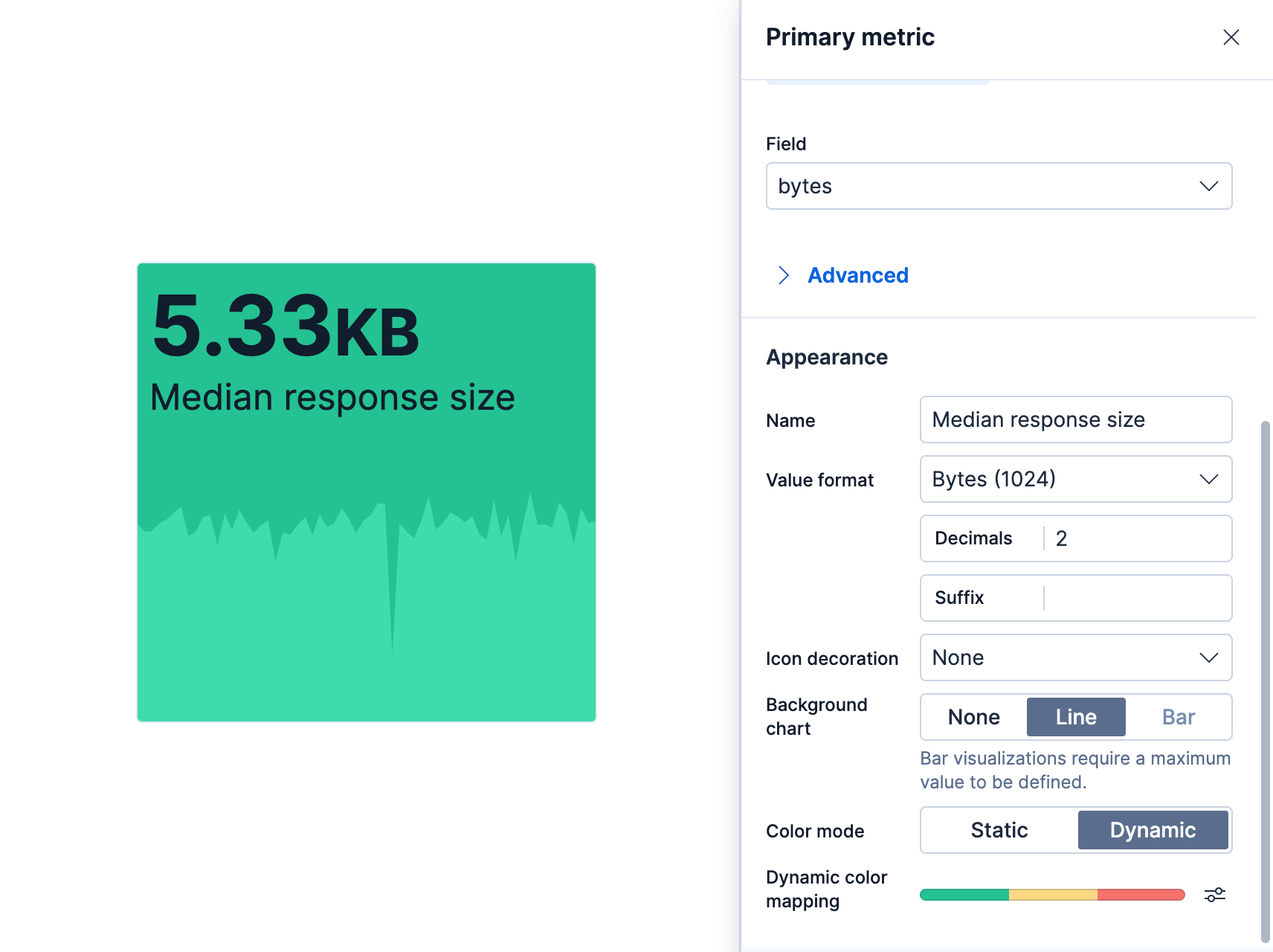
Select the "Median of bytes" Primary metric that we just added, then go to the Appearance section and configure the following:
- Name:
Median response size - Value format:
Bytes (1024) - Background chart (or Supporting visualization):
Line. A sparkline appears behind the number, showing how the median changes over the selected time range. - Color by value (or Color mode):
Dynamic. Set three color stops: green at0, yellow at6000, and red at10000. With these thresholds, the panel color reflects whether the median response size is small (under 6 KB), moderate, or large (over 10 KB).
- Name:
- Select Close, then select Save and return.
Result: A metric panel appears on the dashboard showing the median response size in a human-readable format (for example, 5.6 KB instead of 5,748), with a background sparkline for context.
-
Add a bar chart of requests by file extension
Create the visualization:
-
Select Add > Visualization in the toolbar. -
Select Create visualization.
-
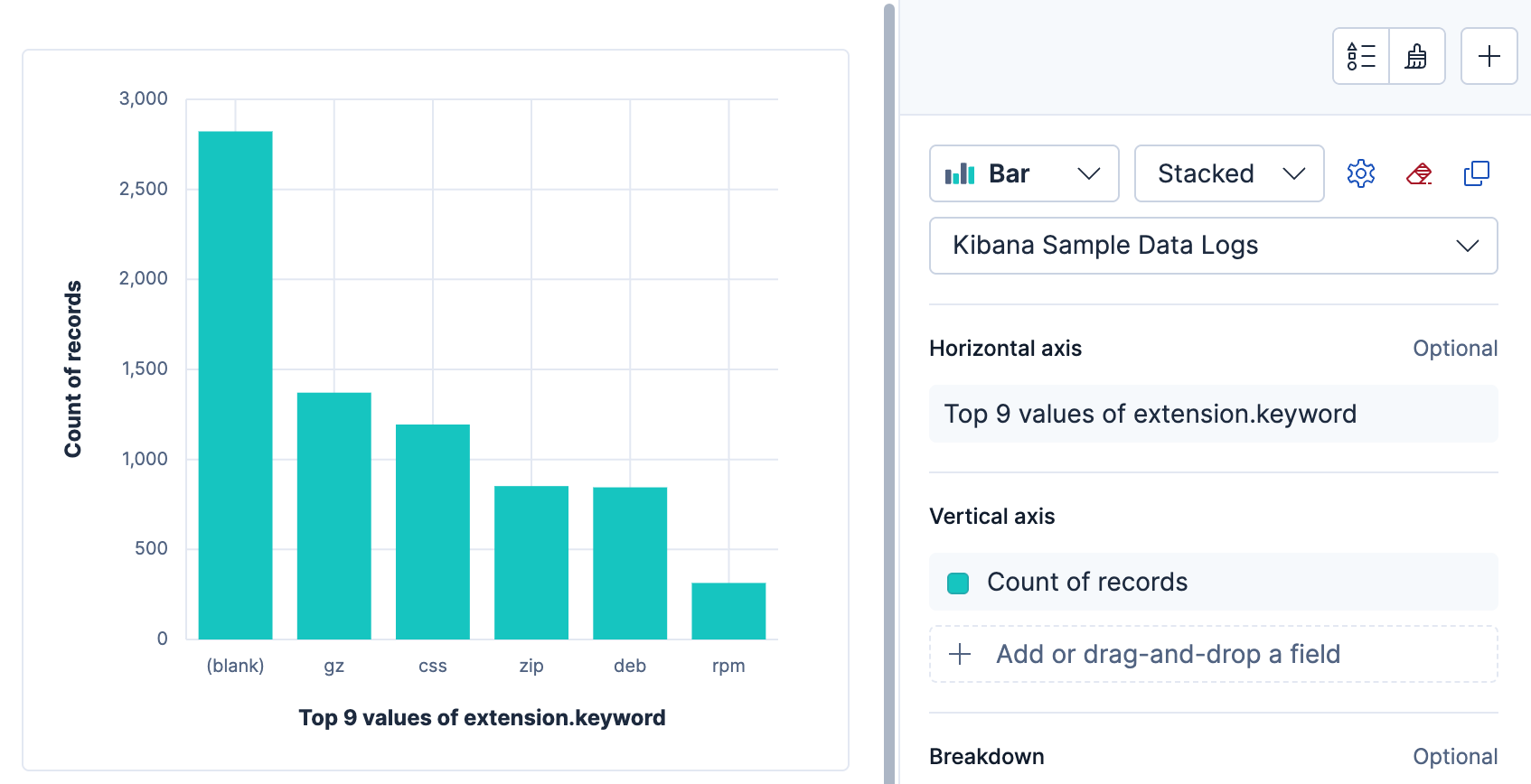
Make sure the correct data view is selected (for example,
kibana_sample_data_logs).From the Available fields list, drag extension.keyword to the workspace.
Lens detects that this is a categorical field and creates a bar chart of its top values by count. It picks the chart type and axis configuration automatically.
- Select Save and return.
Add a panel title:
- Hover over the panel and select Settings. The Settings flyout appears.
- In the Title field, enter
Requests by file extension, then select Apply.
-
Add a line chart of log volume over time
Create the visualization:
-
Select Add > Visualization in the toolbar. -
Select Create visualization.
-
Once in the Lens editor, switch the visualization type to Line.
From the Available fields list, drag Records to the workspace.
Because the data contains a time field, Lens places @timestamp on the horizontal axis and Count of Records on the vertical axis automatically.
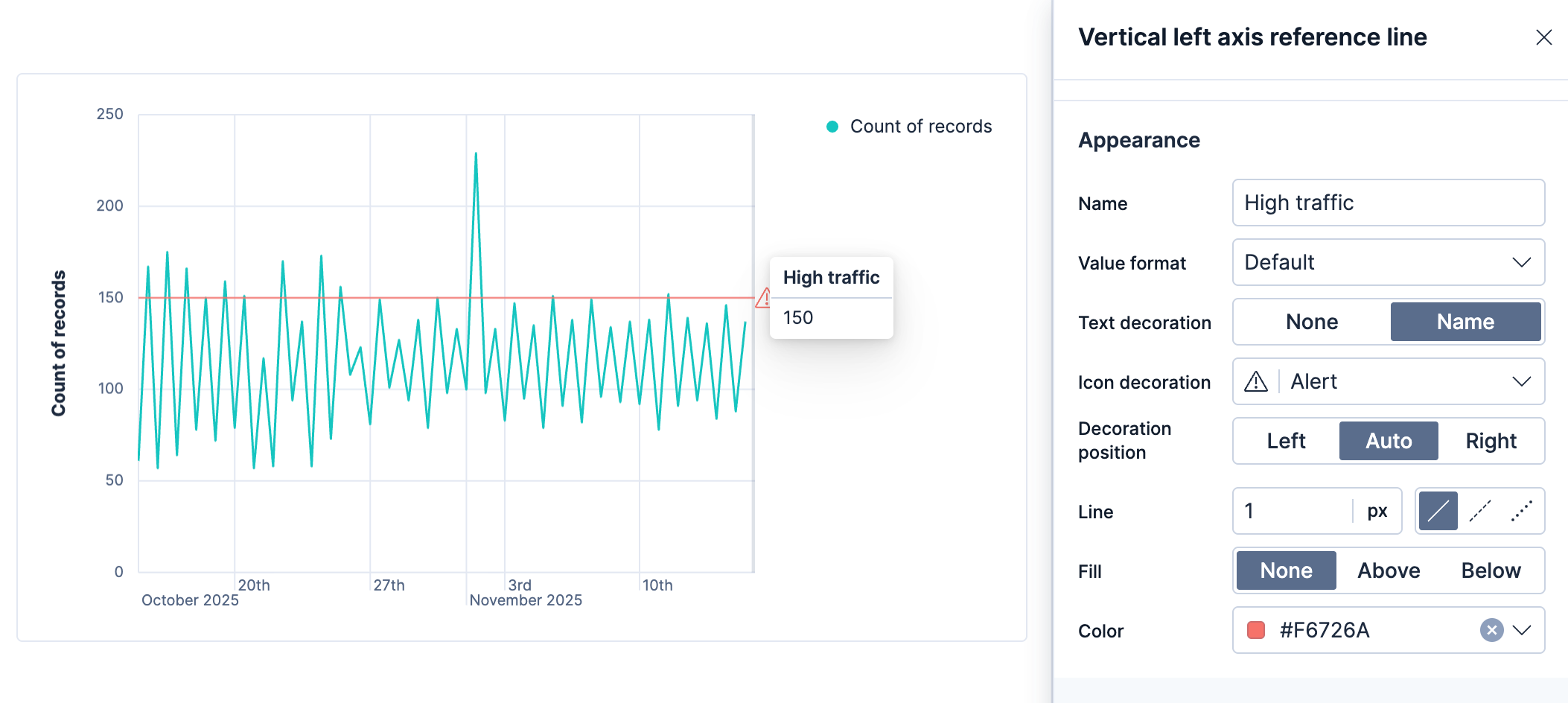
Add a reference line to give the chart visual context:
- Select the Add layer icon , then select Reference lines.
- Select the reference line value and enter
150. This marks a "high traffic" threshold on the chart. - Set the color to red, then under Text decoration, enter a label such as
High trafficand select Fill below to shade the area under the line.
- Select Save and return.
Add a panel title:
- Hover over the panel and select Settings.
- In the Title field, enter
Log volume over time, then select Apply.
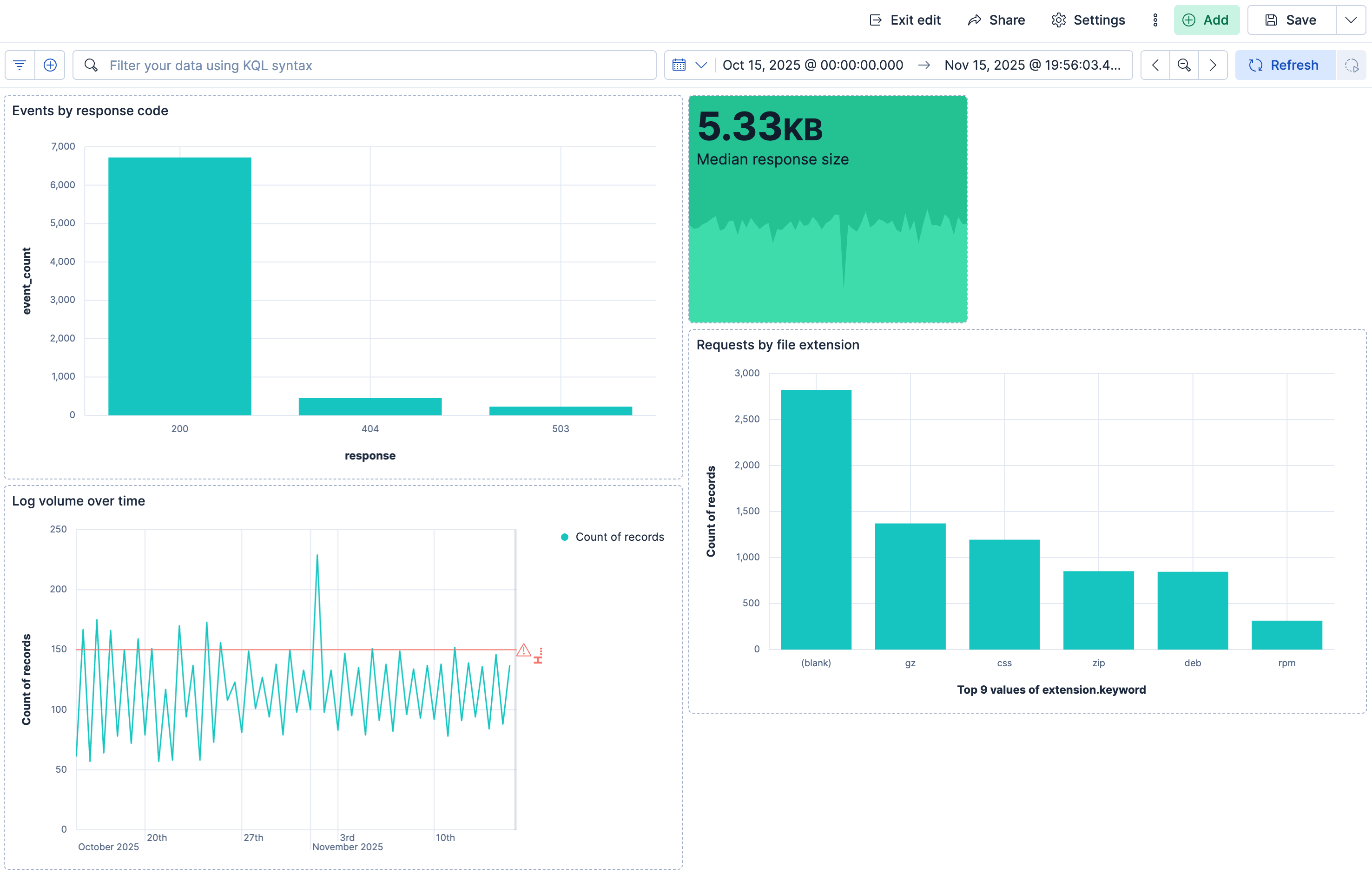
Result: Your dashboard now has four panels: the response code chart from Discover, the metric, the bar chart, and the line chart.
-
Customize a panel with inline editing
You can fine-tune any Lens panel without leaving the dashboard. Try it on the Requests by file extension panel:
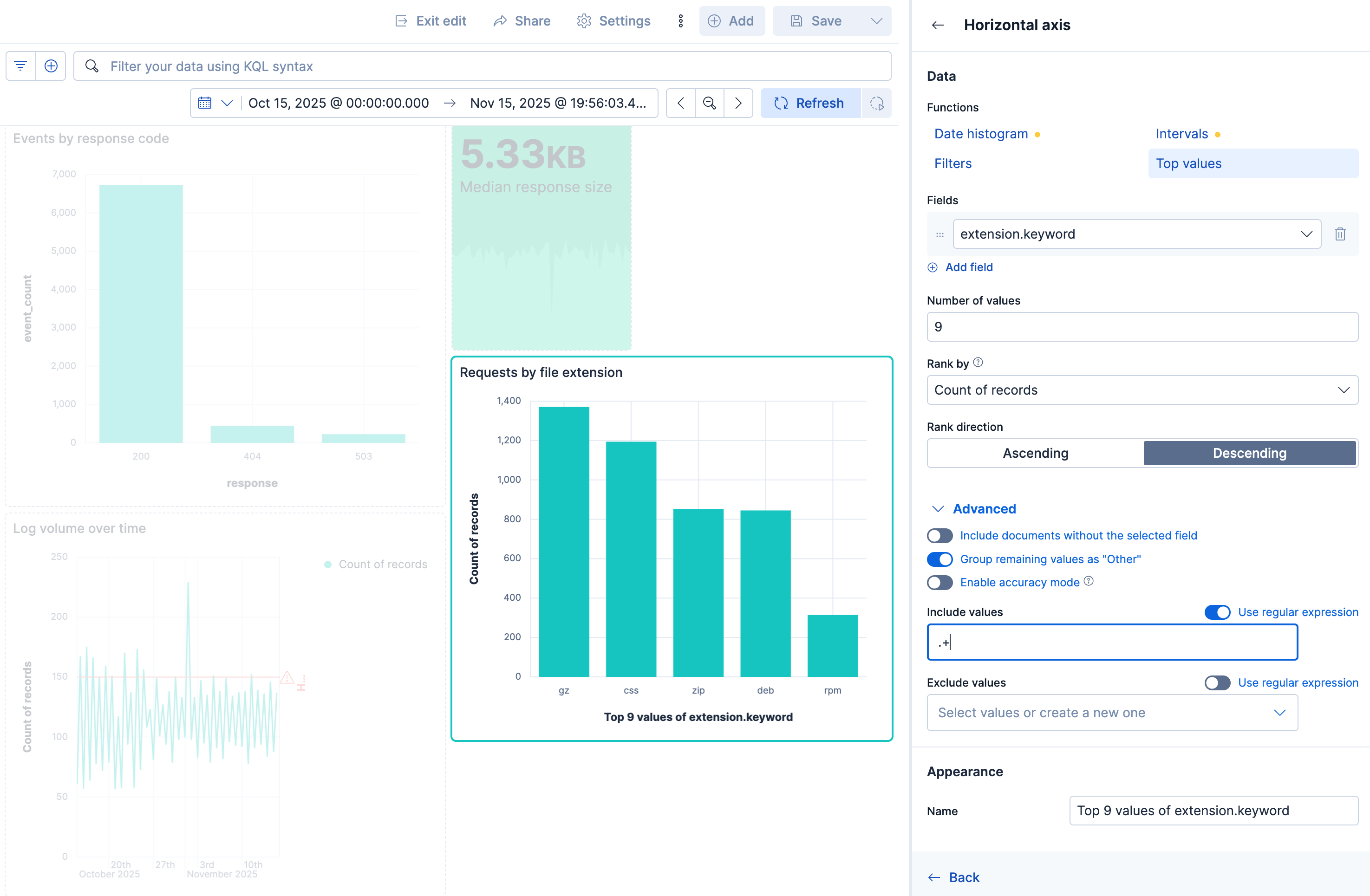
- Hover over the panel and select Edit visualization configuration. A Configuration flyout opens on the right side of the panel.
- In the flyout, select the Horizontal axis configuration.
- Expand Advanced, then in the Include values field, enter
.+and select Use regular expression. This regular expression matches any non-empty string, which filters out documents where the extension field is blank. The panel updates immediately to reflect the change. - Select Back, then Apply and close.
 Tip
TipFor more advanced editing, select Edit in Lens in the inline editing flyout to open the full Lens editor. When you are done, select Save and return to go back to the dashboard.
-
Try interactive filtering
Dashboard panels are interactive. Try selecting the
404bar in the Events by response code chart. Kibana adds a filter for that value, and the other panels update to show only the matching log events. The metric, bar chart, and line chart now reflect only the 404 traffic.To remove the filter, select the next to it in the dashboard's filter bar.
TipIf you know which dimensions your viewers will want to filter by, you can add controls (dropdown menus, range sliders) directly to the dashboard so they don't have to build those filters themselves.
-
Arrange and save
Resize and reposition the panels to create a clear layout. Place the metric panel at the top, and arrange the charts below it. For larger dashboards, you can also group panels into collapsible sections to keep things organized.
When you are happy with the layout, select Save in the toolbar.
Your dashboard now combines multiple panel types (metric, bar chart, line chart) built with Lens, and you've seen how inline editing and interactive filtering make the dashboard both customizable and interactive. To learn more, refer to Dashboards, Lens, and Panels and visualizations.
Once your dashboard is ready, share it with your team:
- In the toolbar, select Share.
- Copy the link and share it with your team.
Users who receive the link need to authenticate and have the appropriate privileges to access the underlying data.
For more details on sharing options, access control, and managing dashboard ownership, refer to Sharing dashboards.
One of Kibana's strengths is how you can move between exploring raw data and visualizing it. Here are the key navigation paths:
- From Discover to a dashboard
- When a classic search or an ES|QL aggregation produces a chart in Discover, select Save visualization above the chart, then choose Add to dashboard to send it to an existing or new dashboard. You can also save the entire Discover session (query, filters, and selected fields) and add it to a dashboard as a table panel.
- From a dashboard panel back to Discover
- Open the context menu on any Lens panel and select Explore in Discover. Kibana opens Discover with the panel's query and filters already applied, so you can drill into the underlying data.
- Inline and full Lens editing from a dashboard
- Select on any panel to open the inline Configuration flyout. For deeper changes, select Edit in Lens in the flyout to switch to the full editor, then Save and return to go back to the dashboard.
- Add a new visualization directly from a dashboard
- From a dashboard, select Add > Visualization to open the Lens editor, or Add > ES|QL to create a chart from an ES|QL query without going through Discover first.
This back-and-forth workflow is especially useful when investigating anomalies: spot something unusual on a dashboard, jump to Discover to examine the raw events, refine your query, then save an updated visualization back to the dashboard.
You've completed the core workflow, from sample data to a shareable dashboard. Here are some directions to explore next:
Bring in your own data : The same workflow applies to any data in Elasticsearch. Use Elastic Agent to ingest your own logs, metrics, or traces. Refer to Ingest data for an overview of all ingestion options.
Deepen your ES|QL knowledge
: ES|QL supports advanced operations like ENRICH, LOOKUP JOIN, DISSECT, and GROK, and more to transform your data on the fly. Refer to the ES|QL reference and Use ES|QL in Kibana.
Explore different types of data : Depending on what you monitor, you can use specialized tools:
- Logs: Explore logs in Discover with field-level filtering and log parsing.
- Metrics: Get started with system metrics and the Infrastructure app.
- Traces: Get started with APM to trace requests across distributed services.
Try more visualization techniques : Build richer dashboards with the following step-by-step tutorials:
Add geographic context
: The sample web logs data includes geo.src and geo.dest fields. Maps lets you visualize this data on interactive maps and add them to dashboards.
Set up alerts : Don't wait for problems to show up on a dashboard. Create alerting rules to get notified when your data crosses a threshold.
Try machine learning : Use machine learning to detect anomalies in time-series data, forecast trends, or categorize log messages. The sample data sets include pre-configured anomaly detection jobs you can experiment with.