Find connection details
To connect to your Elasticsearch deployment, you need your Elasticsearch endpoint URL. For secure connections, we recommend using an API key for authentication.
The following sections describe how to find your Cloud ID and create API keys in both Elastic Cloud and Serverless deployments.
Elastic recommends you connect client applications to your cluster using standard URLs.
- Go to the Elastic Cloud home page.
- In the main menu, select Manage this deployment.
- Under the Applications list, select Copy endpoint next to Elasticsearch.
The Cloud ID is a connection method specifically supported by Beats and Logstash. For all other client applications and third-party tools, use the Elasticsearch endpoint URL.
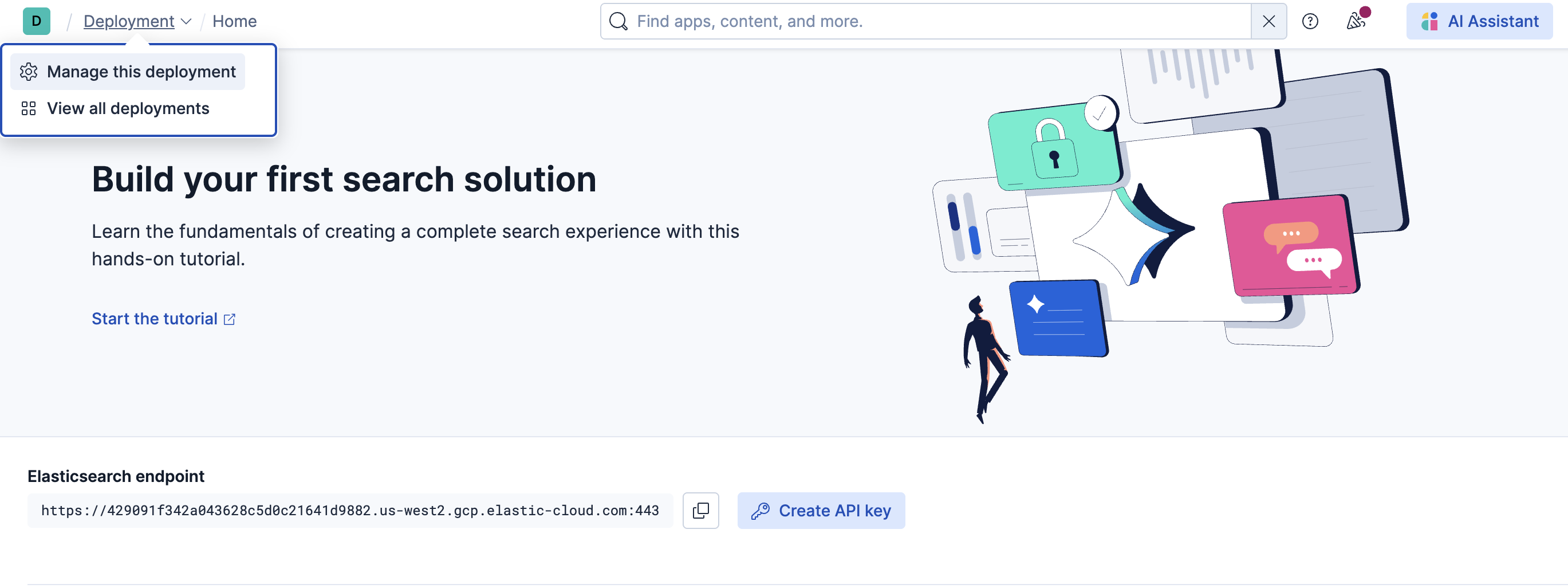
Go to the Elastic Cloud home page.
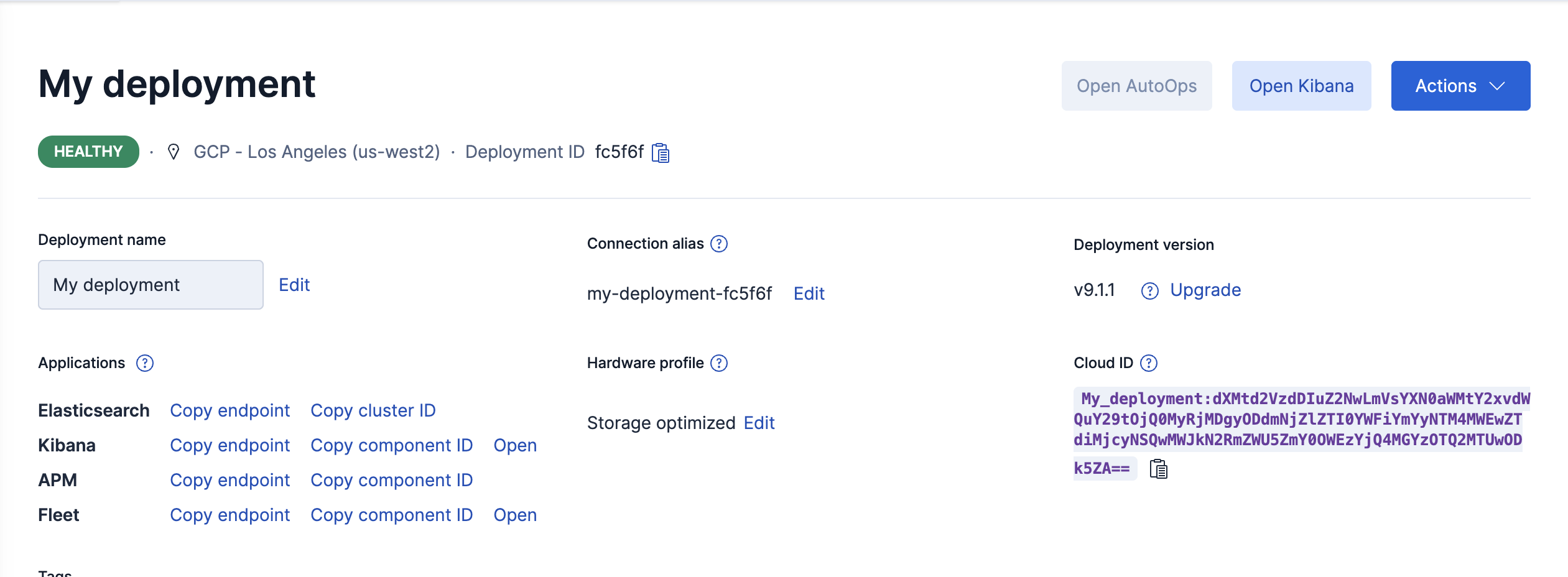
In the main menu, select Manage this deployment.
The Cloud ID is displayed on the right side of the page.
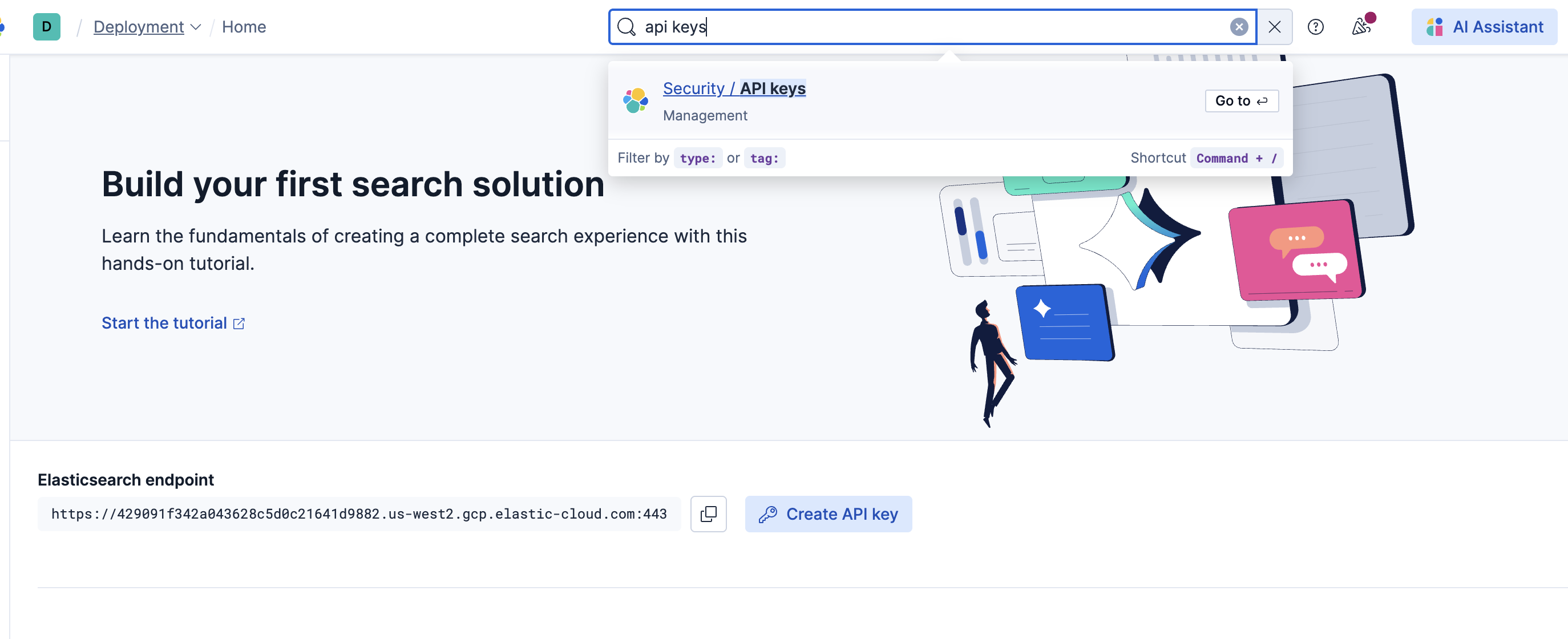
To navigate to API keys, use the global search bar.
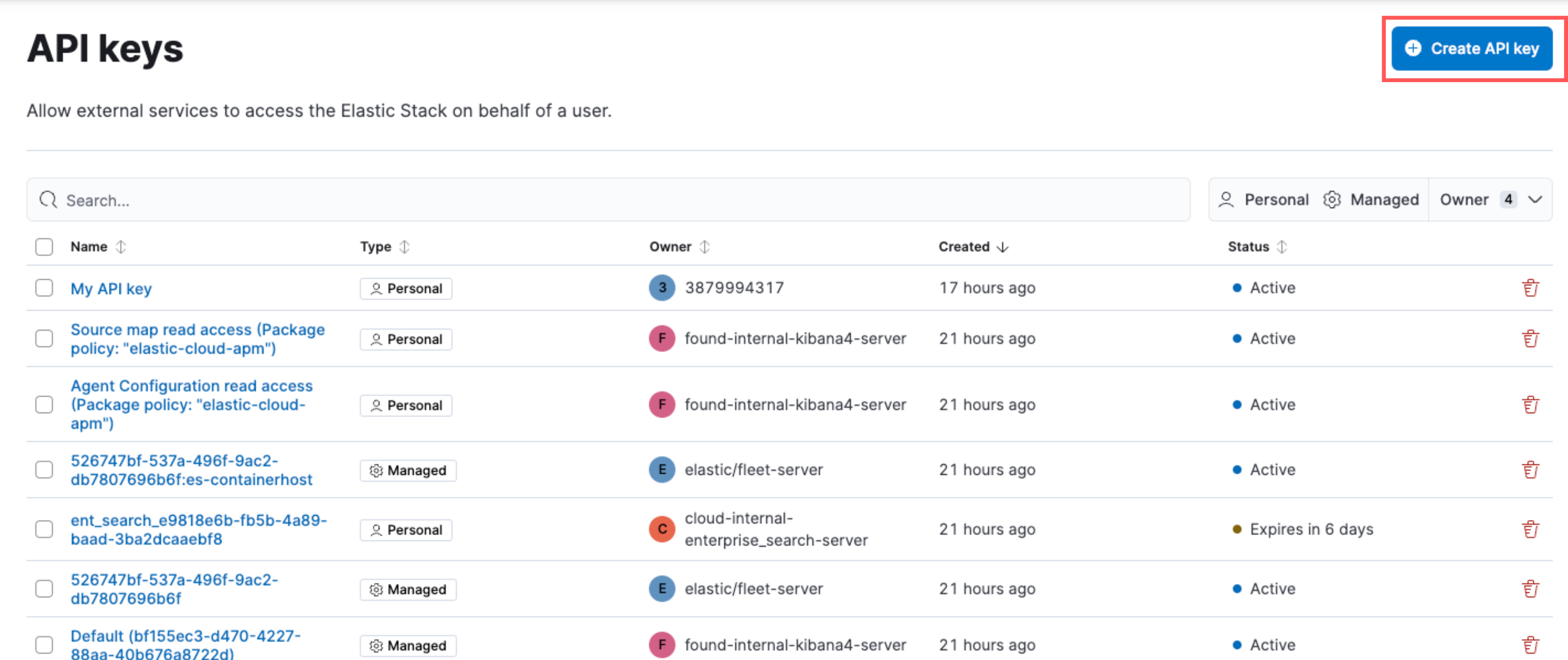
Select Create API key.
Enter the API key details, and select Create API key.
Copy and securely store the API key, because it only appears once.
Select the Help icon in the top right corner and then select Connection Details.
Copy the Elasticsearch endpoint from the Endpoints tab.
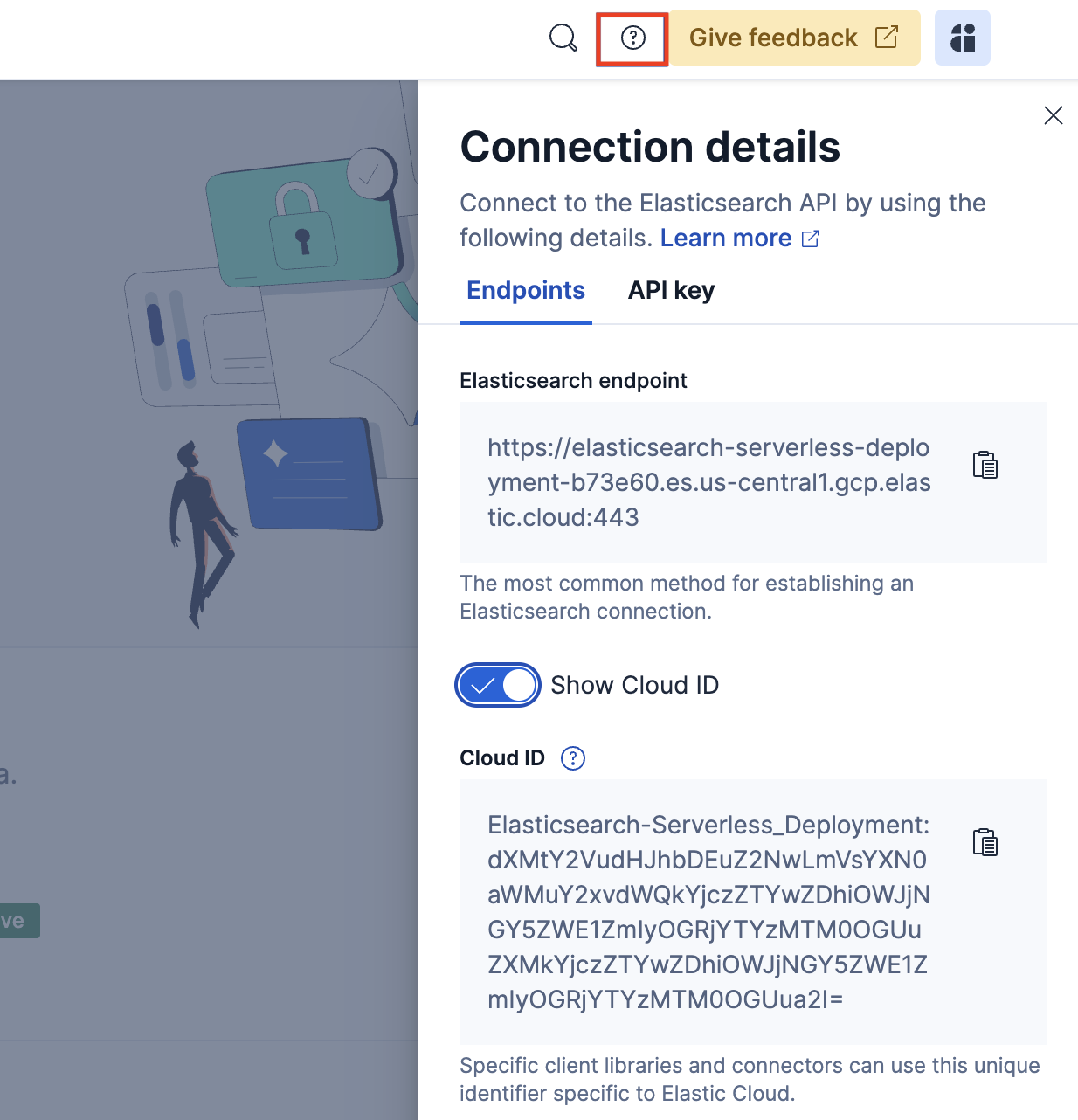
The Cloud ID is also available in the Connection Details section. Toggle the Show Cloud ID option to view it.
Go to the serverless project’s home page.
Select Create API key.
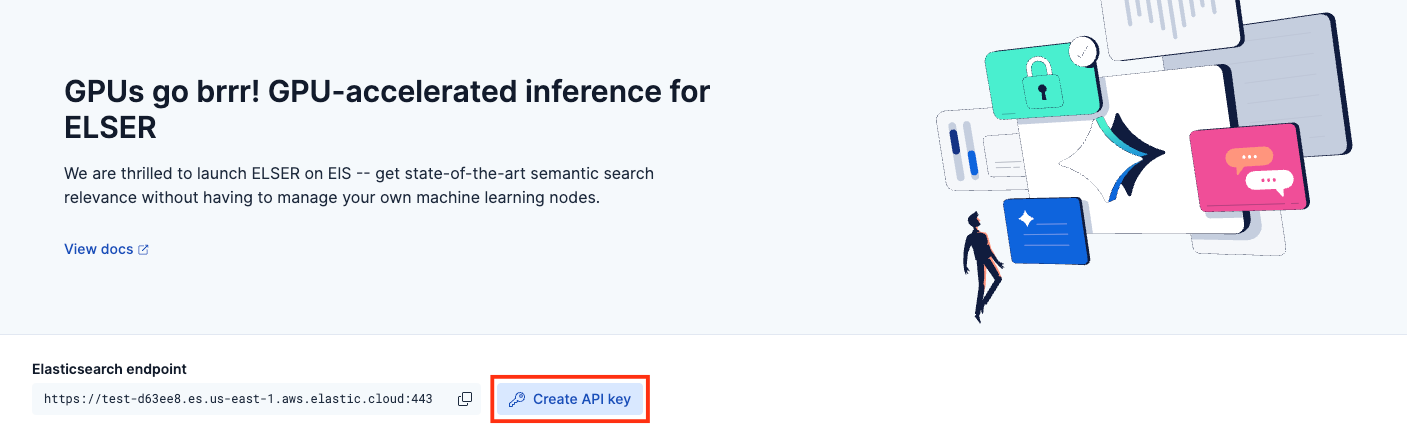
Enter the API key details, and select Create API key.
Copy and securely store the API key, because it only appears once.
Use curl to verify your connection to Elasticsearch.
In a terminal, assign the Elasticsearch endpoint and encoded API key to the ES_URL and API_KEY environment variables respectively. curl needs access to these values.
For example:
export ES_URL="https://dda7de7f1d264286a8fc9741c7741690.es.us-east-1.aws.elastic.cloud:443"
export API_KEY="ZFZRbF9Jb0JDMEoxaVhoR2pSa3Q6dExwdmJSaldRTHFXWEp4TFFlR19Hdw=="
Next, run the following command to test your connection:
curl "${ES_URL}" \
  -H "Authorization: ApiKey ${API_KEY}" \
  -H "Content-Type: application/json"
You should receive a response similar to the following:
{
  "name" : "serverless",
  "cluster_name" : "dda7de7f1d264286a8fc9741c7741690",
  "cluster_uuid" : "ws0IbTBUQfigmYAVMztkZQ",
  "version" : { ... },
  "tagline" : "You Know, for Search"
}
Now you’re ready to start adding data to your Elasticsearch Serverless project.