Author workflows
The YAML editor is the primary interface for creating and editing workflows. This page describes the editor's components and features.
To use workflows, you must turn on the feature and ensure your role has the appropriate privileges. Refer to Set up workflows for more information.
You must also have the appropriate subscription. Refer to the subscription page for Elastic Cloud and Elastic Stack/self-managed for the breakdown of available features and their associated subscription tiers.
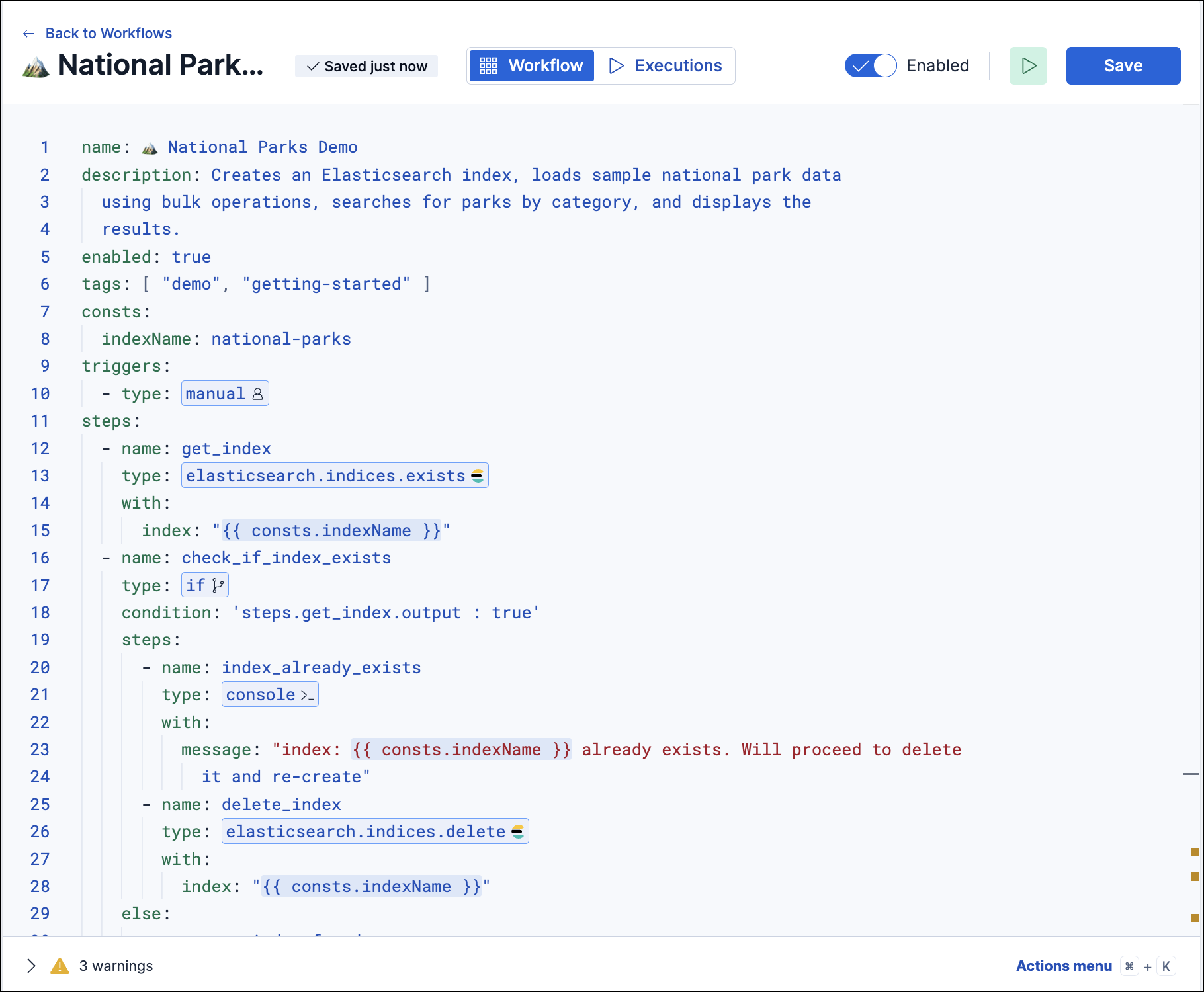
The editor layout is composed of the following elements:
| Component | Description |
|---|---|
| Editor pane | The main area for writing and editing workflows. To learn more about the expected workflow structure, refer to Workflows. |
| Actions menu | A quick-add menu for pre-formatted triggers and step types. |
| Save button | Saves the current workflow. |
| Run button | Manually runs the entire workflow or an individual step. - Entire workflow: Click the Run icon (next to Save). - Individual step: Select the step in the editor pane, then click the Run icon . |
| Executions tab | Shows execution history and real-time logs. |
| Validation logs | Shows validation successes and failures. Some common validation errors include: - Invalid YAML syntax because of incorrect indentation or formatting - Missing a required field or property (for example, name, type) - The step type is unknown or doesn't match a valid action - Invalid template syntax because of malformed template expression. |
When viewing step output in the executions panel, click the Copy icon next to a step name to copy its full output path to your clipboard. For example, clicking Copy on a step named check_if_newer copies steps.check_if_newer.output.conditionResult, which you can paste directly into your workflow YAML to reference that step's output.
Every workflow execution is either a test run or a production run. Understanding the difference helps you iterate safely during development without affecting real processes.
| Test run | Production run | |
|---|---|---|
| Purpose | Try out a workflow or individual step while authoring | Run an enabled workflow for real |
| How to start | Click Run in the workflow editor. | Click Run from the workflow list, or let a configured trigger fire. |
| Scope | Entire workflow or a single step | Entire workflow |
| Execution history | Saved with a flask (
) badge so you can filter for test runs. Step-level test runs are not saved in history. 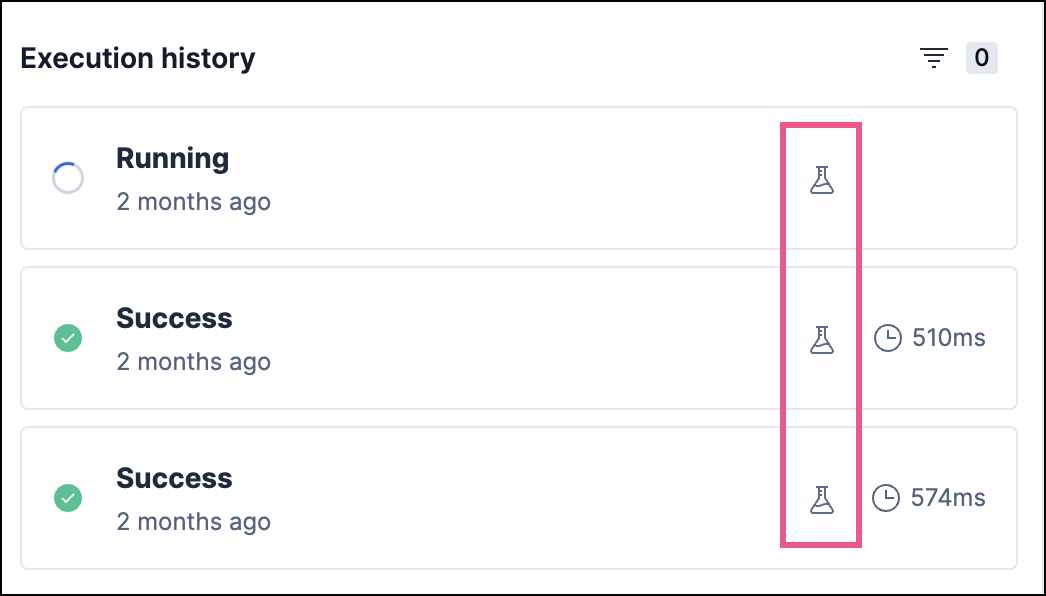 |
Saved without a badge. Filter the executions list by production to see only these runs. 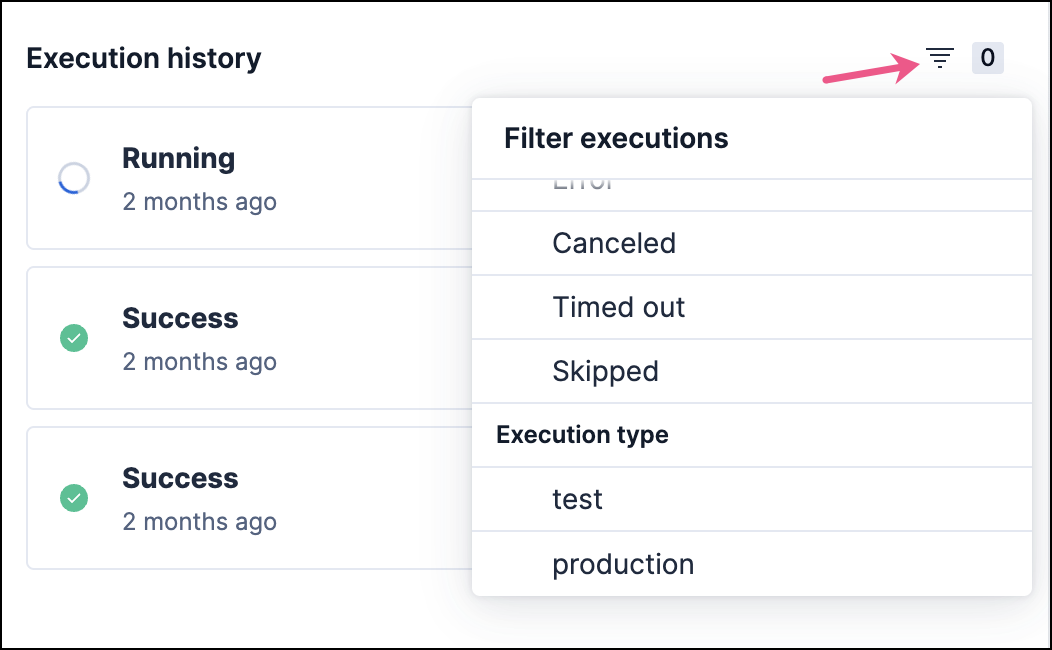 |
| Template context | execution.isTestRun resolves to true. |
execution.isTestRun resolves to false. |
You can use the execution.isTestRun context variable in your workflow YAML to change behavior during testing. For example, you can choose to skip sending a real notification during a test run.