Explore traces in Discover
This functionality is experimental and not supported. It may change or be removed at anytime.
Discover offers a dedicated experience for exploring trace data. When Discover detects data in traces-* indices, it automatically selects relevant fields and enables features that help you investigate distributed traces more effectively. The traces experience includes a pre-selected set of trace fields in the data grid, a structured overview of each document's key attributes, latency comparisons for similar spans, and a waterfall visualization of the full trace timeline.
If you're just getting started with Discover and want to learn its main principles, you should get familiar with the default experience.
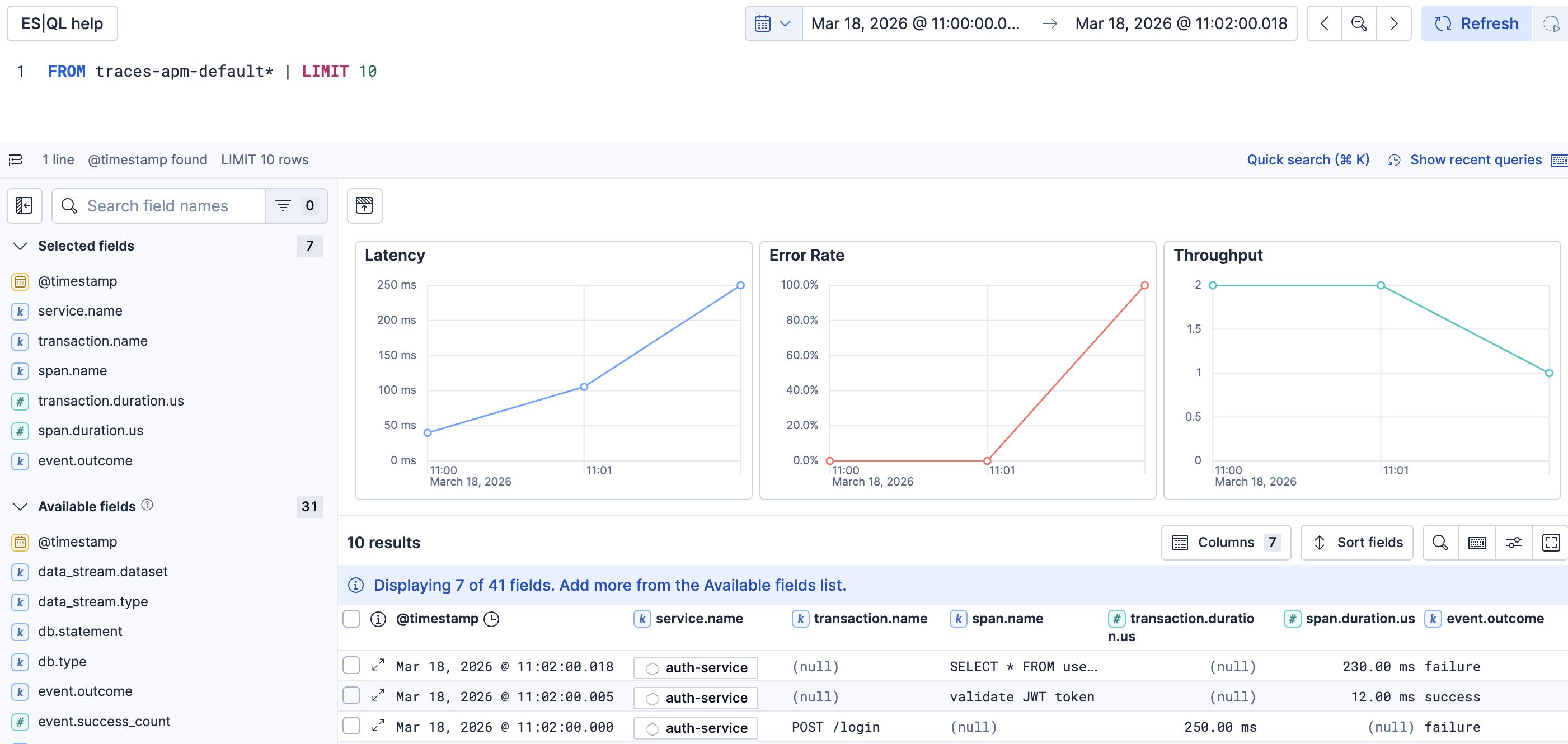
By default, data stored in traces-* indices is recognized as trace data and triggers the Discover experience described on this page.
Viewing trace data in Discover requires at least read privileges for Discover.
For more information, refer to Kibana privileges.
The traces experience is available in:
Data view mode: Select a data view that matches a
traces-*index pattern from the Discover main page.ES|QL mode: Select ES|QL and use the
FROMcommand to query your trace data:FROM traces-*You can also query a specific index:
FROM traces-apm-default
When Discover recognizes trace data, it pre-selects a set of relevant fields as columns in the data grid: service.name, transaction.name, span.name, transaction.duration.us, span.duration.us, and event.outcome.
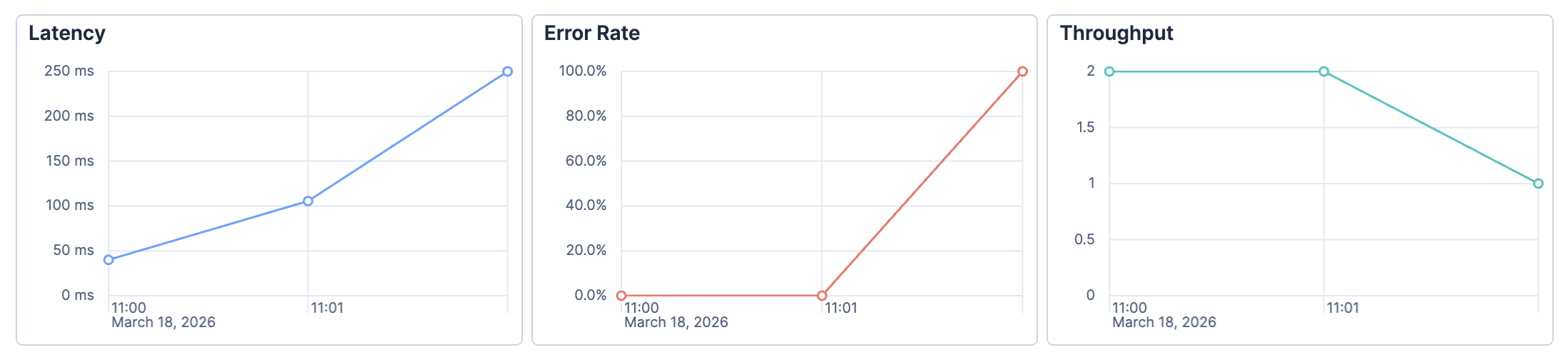
In ES|QL mode, Discover displays three summary charts above the results:
- Latency: Average response time over the selected time range.
- Error Rate: Percentage of failed trace events over time.
- Throughput: Number of trace events per unit of time.
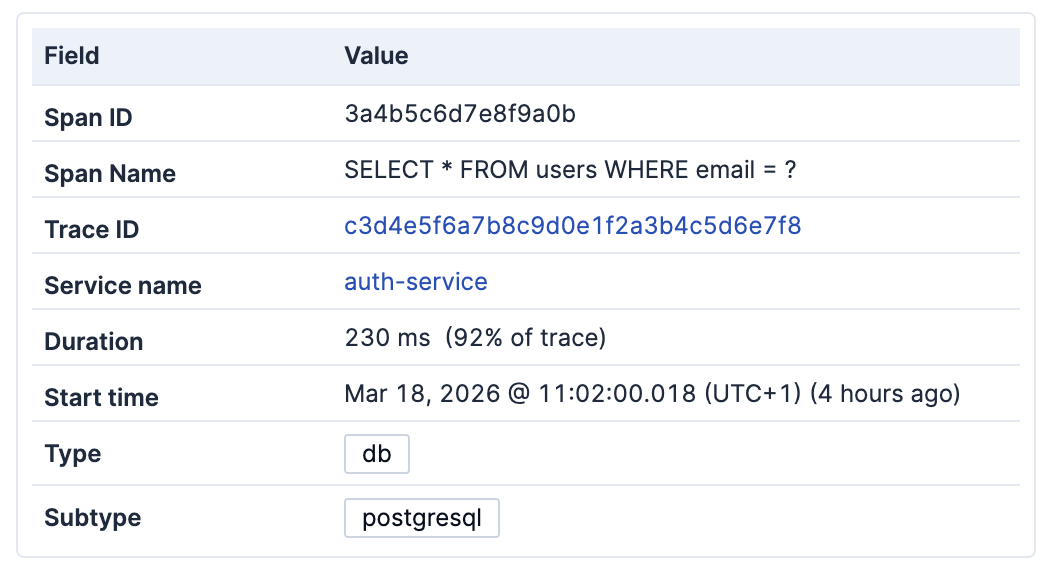
Select in any row to open the document detail panel. The Overview tab shows the key attributes of the selected trace document:
- Span ID and Span name: Identify the specific operation.
- Trace ID: Links all documents that belong to the same trace.
- Service name: The service that generated this span.
- Duration: How long the operation took, and what percentage of the total trace duration it represents.
- Start time: When the operation started.
- Type and Subtype: The category of the operation, for example
db/postgresqlorexternal/http.
The Similar spans section shows a latency chart for spans with the same type and name across your data. Use this view to compare the selected span's performance against historical samples and identify outliers.
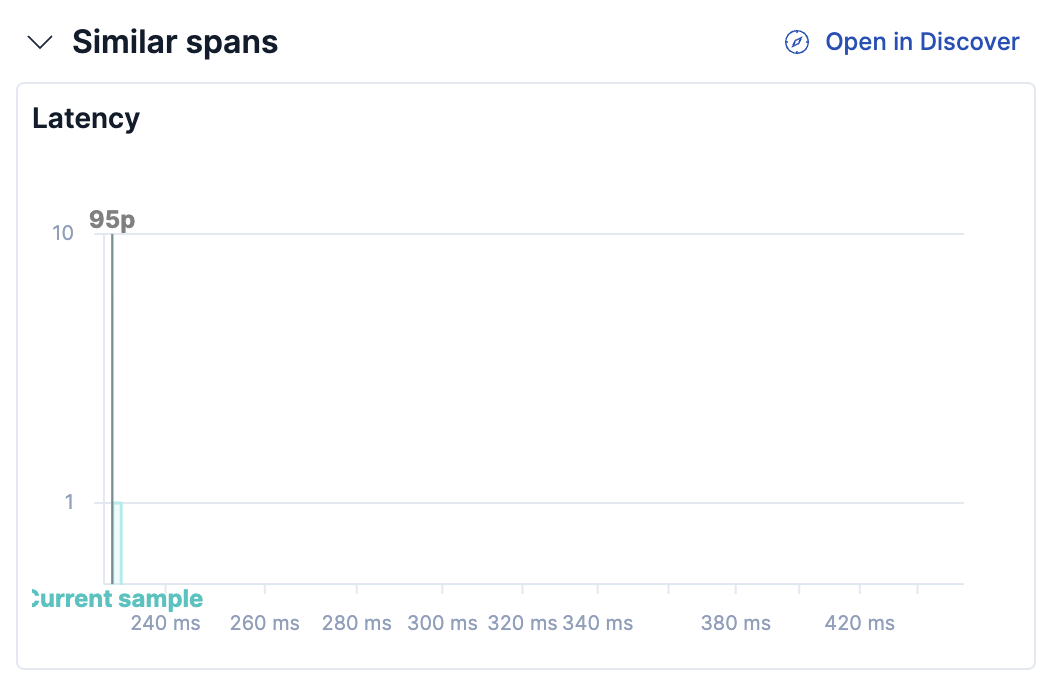
Select Open in Discover to open a filtered view of all similar spans.
The Trace section shows a condensed waterfall of the trace the selected document belongs to. Each row represents a span or transaction, positioned on a timeline to show when it started and how long it took.
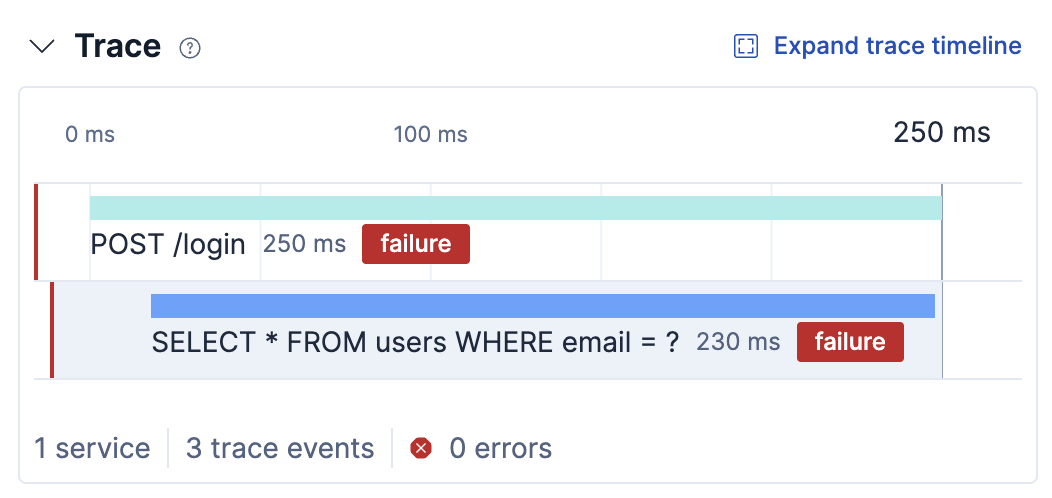
Select Expand trace timeline to open the full-screen waterfall view.
The expanded trace timeline shows all spans and transactions in a trace in a full-screen waterfall view. A color-coded legend identifies which service each span belongs to. Failed spans are highlighted to help you quickly locate errors.

The Logs section shows log entries correlated with the selected trace. Select Open in Discover to explore those logs in context.