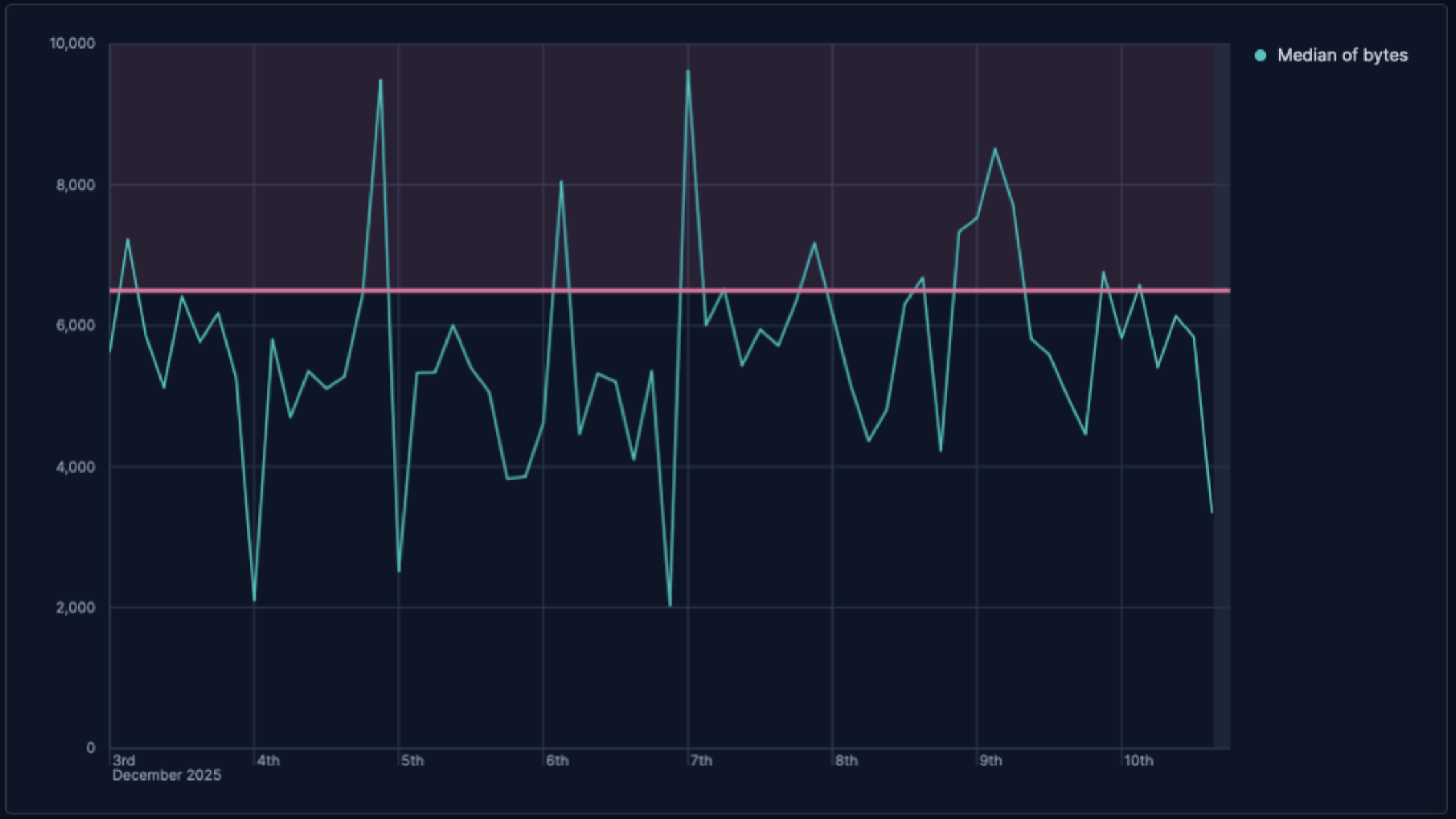
Build time series charts with Kibana
Time series charts help you track how metrics change over time so you can spot trends, seasonality, and anomalies. In Lens, time series visualizations are typically built with Line, Area, or Bar charts, depending on whether you want to emphasize precise trend lines, cumulative volume, or period-over-period comparison.
You can create time series charts in Kibana using Lens.
Before you start, make sure you have data indexed into Elasticsearch or install sample data. By default, Lens uses data views to access your Elasticsearch data. Data views are created automatically in most cases when you ingest data. You can also create one manually to select just the data that you want. Alternatively, you can use the ES|QL query mode to query your Elasticsearch data directly.
To build a time series chart:
-
Access Lens
Lens is Kibana's main visualization editor. You can access it:
- From a dashboard: On the Dashboards page, open or create the dashboard where you want to add a time series chart, then add a new visualization.
- From the Visualize library page by creating a new visualization.
-
Set the visualization type
New visualizations often start as Bar charts.
Using the Visualization type dropdown, select Line, Area, or Bar.
-
Define the data to show
- Select the data view that contains your data.
- Configure the Horizontal axis with a date field using Date histogram.
- Configure the Vertical axis with the metric you want to track over time.
Optionally:
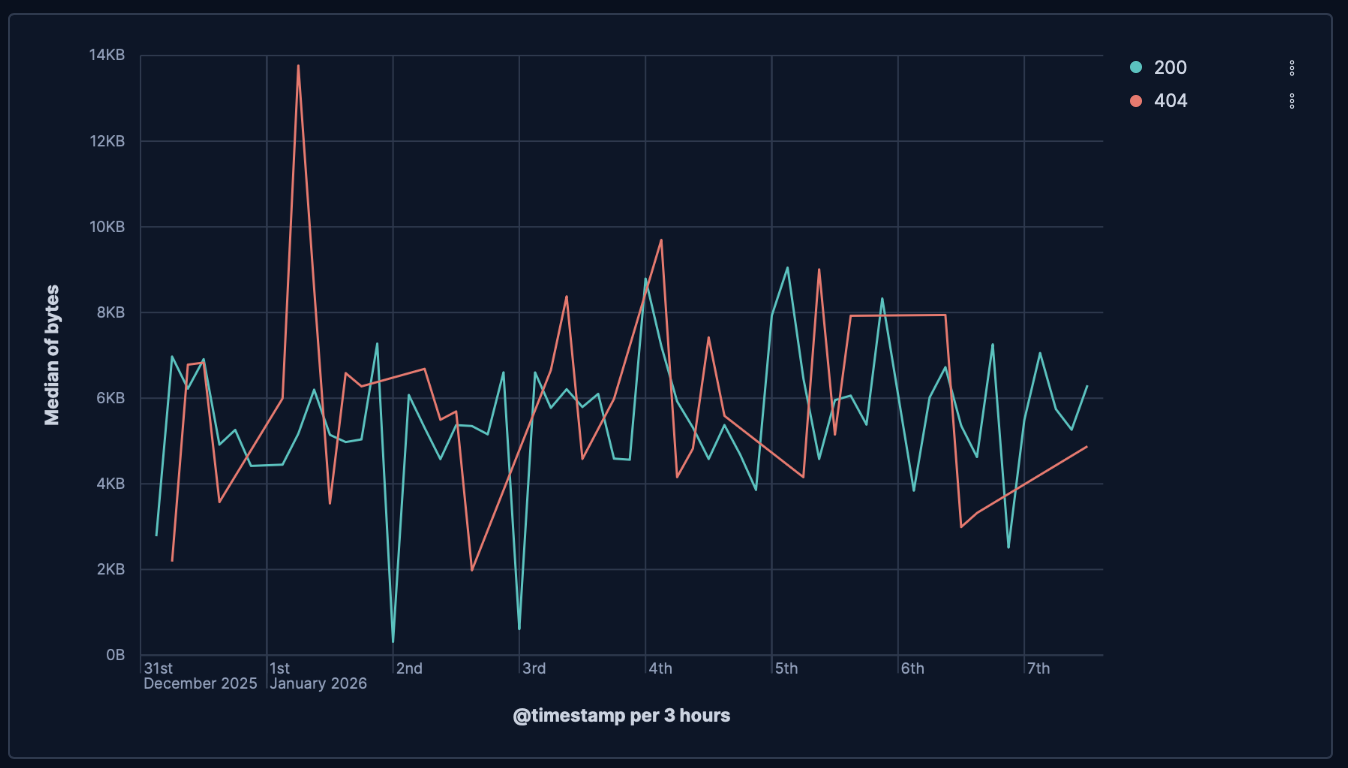
- Configure Breakdown to split the chart into series (for example, by host, service, region, or status).
- Add a second metric or duplicate a layer with a time shift to compare current versus previous periods.
The chart preview updates to show one or more time-based series.
-
Customize the chart to follow best practices
Tweak the appearance of your chart to improve interpretation. Consider the following best practices:
- Use an interval that matches the question
- Use shorter intervals for incident analysis and longer intervals for strategic trend reporting.
- Compare like with like
- Keep consistent units and aggregation logic when comparing series or periods.
- Handle sparse data explicitly
- If your data has gaps, choose an appropriate missing-values behavior so the chart doesn't imply false continuity.
- Keep legends informative but concise
- Use clear series names and only add statistics that support the decision being made.
Refer to Time series chart settings for all configuration options relevant to time series charts.
-
Save the chart
- If you accessed Lens from a dashboard, select Save and return to save the visualization and add it to that dashboard, or select Save to library to add the visualization to the Visualize library and reuse it later.
- If you accessed Lens from the Visualize library, select Save. A menu opens and lets you add the visualization to a dashboard and to the Visualize library.
Use these settings to control how data is bucketed over time and how each series is displayed.
The horizontal axis defines your timeline.
- Data
-
- Date histogram: Buckets documents into regular time intervals.
- Field: Select the date field to use as the timeline.
Include empty rows: This option is on by default. Turn it off to exclude empty rows from the data.
Bind to global time picker: Associate the selected field to the Lens or dashboard main time selector.
Minimum interval: Define the time interval for aggregating the data. For example,
30s,20m,24h,2d,1w,1MDrop partial intervals: Exclude incomplete intervals from the data. This option is off by default.
- Filters: Create fixed comparison series (for example, production vs staging) on the same timeline.
- Date histogram: Buckets documents into regular time intervals.
- Appearance
-
- Name: Set a clear axis label that describes the time context.
The vertical axis defines the value tracked over time.
- Data
-
Use aggregation functions like
Average,Sum,Count,Max,Percentile, andCounter rate, or build custom calculations with formulas.Advanced settingsDepending on the data you defined, several options allow you to apply additional filtering to the data taken into account to compute the final value to show.
Based on the type of visualization you're creating, only some of the following options can be available:
- Normalize by unit: Normalize the metric values to show per unit of time.
- Filter by: Specify a query.
- Reduced time range: Reduce the time range specified on the dashboard's time filter by the specified duration.
- Time shift: Shift the time range by the specified duration. This is useful if the value should use a different time range than the one selected on the dashboard.
- Hide zero values: Don't show values equal to zero. This option is on by default.
- Appearance
-
- Name: Use descriptive metric names in legends and tooltips.
- Value format: Match the unit to the data (for example, percent, bytes, duration, currency).
- Series color: Keep colors consistent for repeat dashboards.
Breakdown lets you split a metric into multiple series over the same timeline.
- Data
-
- Top values: Split by the most common values of a field.
- Field: Select the categorical field to split by.
- Number of values: Limit to the top categories to preserve readability.
- Rank by: Specifies the dimension the top values are ranked by. Available options:
- Count of records: Rank by the number of documents containing each value. This is the default when a metric is defined.
- Alphabetical: Rank by the term key alphabetically. This is the default when no metric is defined.
- Rarity: Find terms that appear in very few documents, using a rare terms aggregation. You can configure the Max doc count to set the maximum number of documents a term can appear in to be considered rare (default: 1, max: 100). Only available for non-numeric fields and single-field terms.
- Significance: Find statistically unusual terms compared to the overall data set, using a significant terms aggregation. Only available for
keywordfields and single-field terms. - Custom: Define a custom metric aggregation to rank by (for example, rank by the sum of a numeric field rather than by count).
- Rank direction: Ascending or descending order. Disabled when Rank by is set to Rarity or Significance.
Advanced settingsSeveral advanced options allow you to refine the behavior of the breakdown:
- Include documents without the selected field: Off by default.
- Group remaining values as "Other": On by default.
- Enable accuracy mode: This option improves results for high-cardinality data, but increases the load on the Elasticsearch cluster.
- Include values: Values from the breakdown dimension to always show a tile for.
- Exclude values: Values from the breakdown dimension to always exclude from the displayed tiles.
- Filters: Create manually defined series with KQL.
- Top values: Split by the most common values of a field.
- Appearance
-
- Name: Set readable series labels.
- Color mapping: Use stable mappings so a category keeps the same color across charts.
Use chart-level options to control readability.
- For Line and Area charts, configure interpolation, missing-values behavior, and point visibility.
- For Area charts, tune fill opacity to keep overlapping series readable.
- For Bar charts, choose orientation and spacing that match your labels and panel size.
- Visibility: Auto, show, or hide.
- Position and Width: Balance chart area with scanability.
- Label truncation: Limit wrapping for long labels.
- Statistics: For time series charts, you can add values like Average, Min, Max, Last value, and Difference.
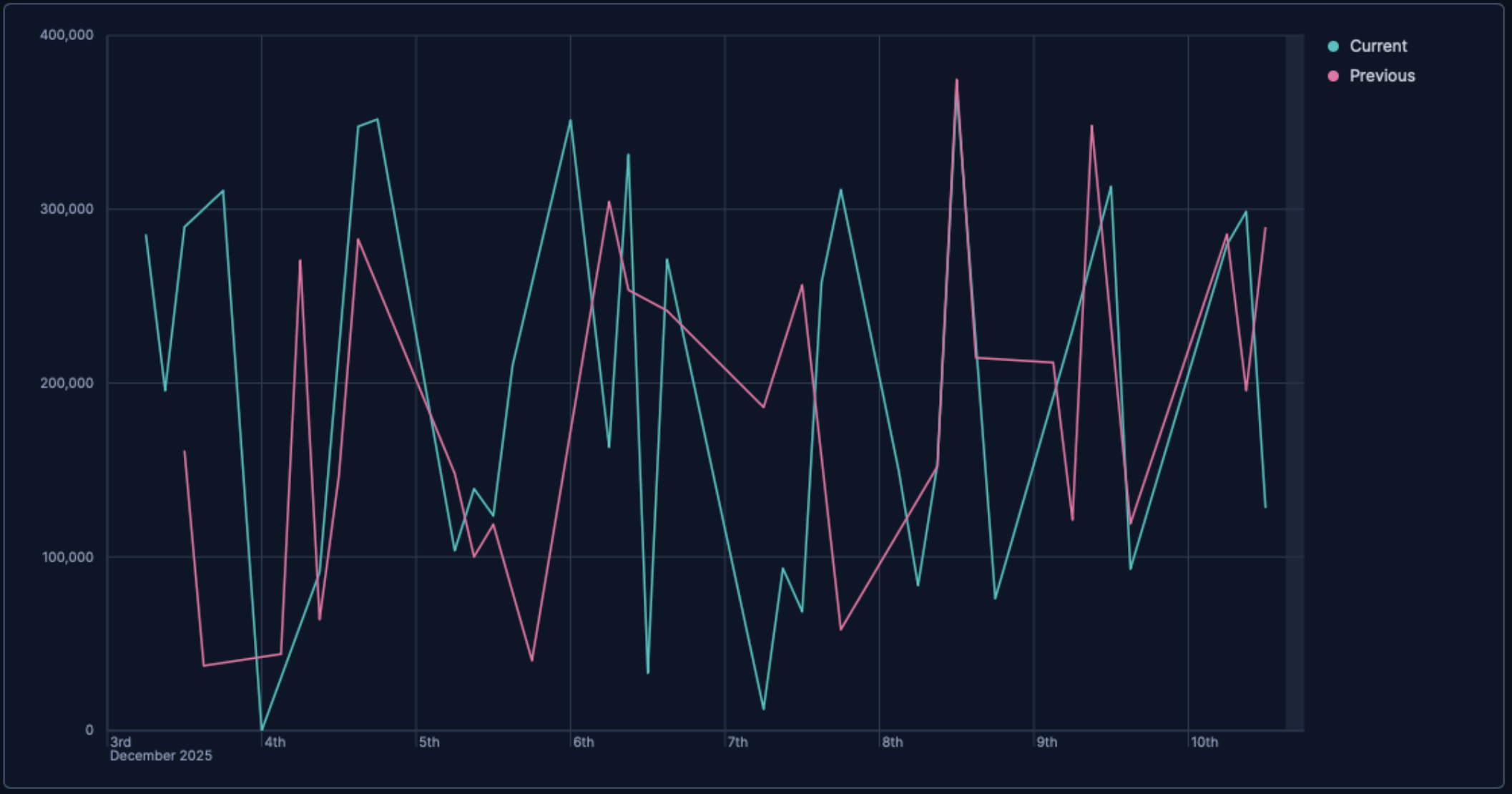
- Traffic trend with previous-week comparison
-
Compare this week to last week to detect regressions quickly:
- Example based on: Kibana Sample Data Logs
- Visualization type: Line
- Horizontal axis:
@timestampwithDate histogram - Vertical axis:
Count - Breakdown:
response.keyword(Top values: 5) - Comparison: Duplicate the layer and set Time shift to
1w
- Hourly revenue with anomaly threshold
-
Monitor revenue changes and highlight a warning threshold:
- Example based on: Kibana Sample Data eCommerce
- Visualization type: Area
- Horizontal axis:
order_datewithDate histogram(hourly) - Vertical axis:
Sum(taxful_total_price) - Reference line: Static threshold for expected minimum revenue